- Administration
- Settings
- Documents
- Merging Document Categories
Merging Document Categories
Over time you can end up with duplicate Document Categories - for example, both "Med Management Plans" and "Medication Management Plans". Merging lets you tidy these up by combining two categories into one.
When you merge, every Document assigned to the duplicate category is moved into the category you keep, and the duplicate category is then archived.
Before You Start
You need the Archive Document Categories permission to merge categories. Admins have this permission by default. Managers, Team Members and Support Workers do not have it by default.
How to Merge Document Categories
Open the Merge action
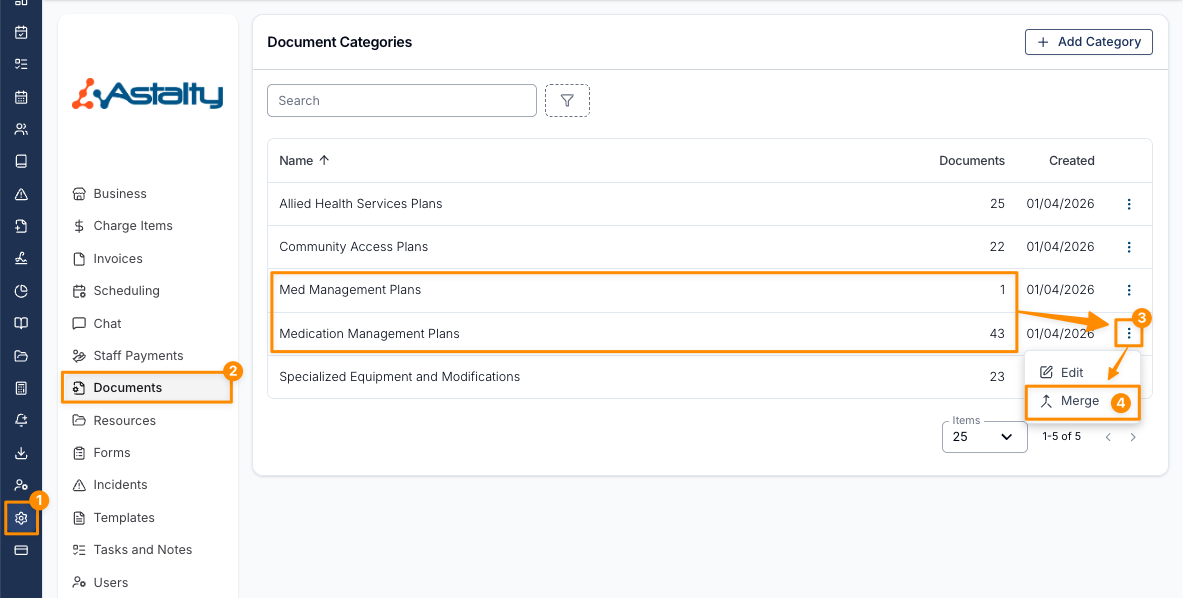
- From the left-hand menu, select Settings (1).
- Select Documents (2).
- Find the category you want to keep, and select the three-dot menu on its row (3).
- Select Merge (4).
Choose the category to merge in
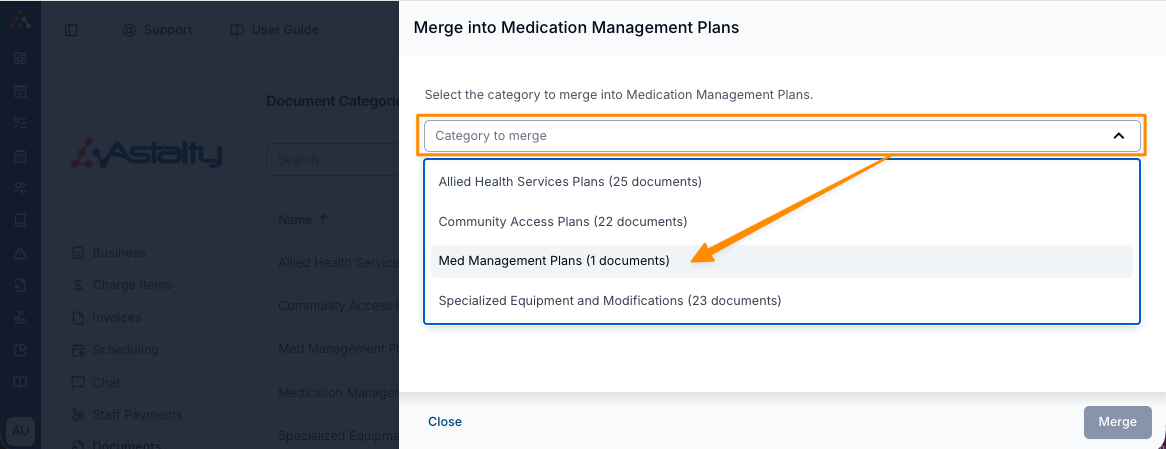
Open the Category to merge dropdown and select the duplicate category you want to merge into the one you're keeping. Each option shows how many Documents it holds, so you can confirm you've picked the right one.
Review what will happen
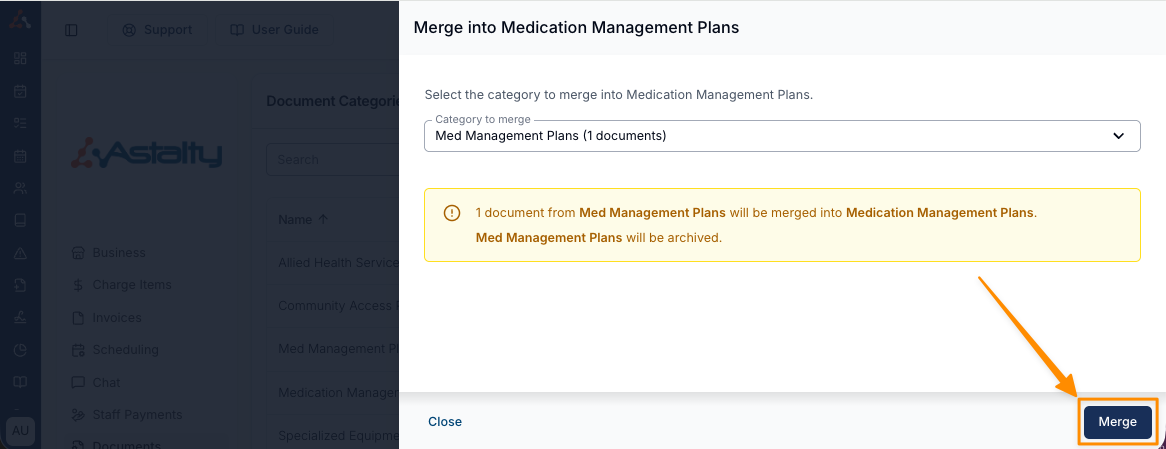
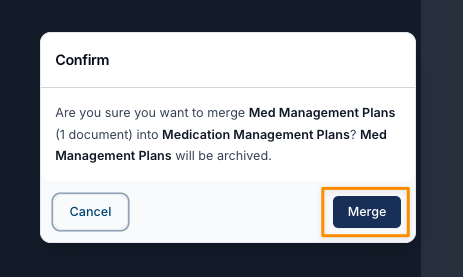
Astalty shows a summary confirming how many Documents will be moved, which category they'll be merged into, and that the duplicate category will be archived. Once you're happy, select Merge.
Confirm the merge
A final confirmation appears. Select Merge to complete the process.
After merging
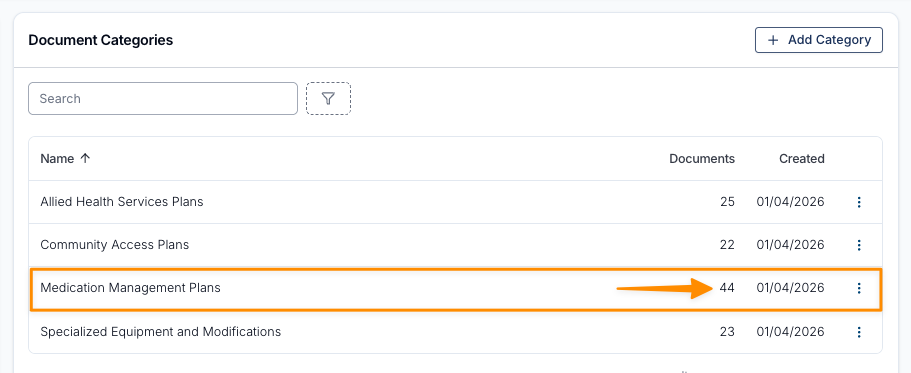
The Documents from the duplicate category are now counted under the category you kept, and the duplicate no longer appears in the list. In the example below, the Document from "Med Management Plans" has been moved into "Medication Management Plans", taking its total from 43 to 44 Documents.