Enforcing 2FA on your Astalty account
Overview
The Account Owner can require two-factor authentication (2FA) for selected user roles from Security Settings.
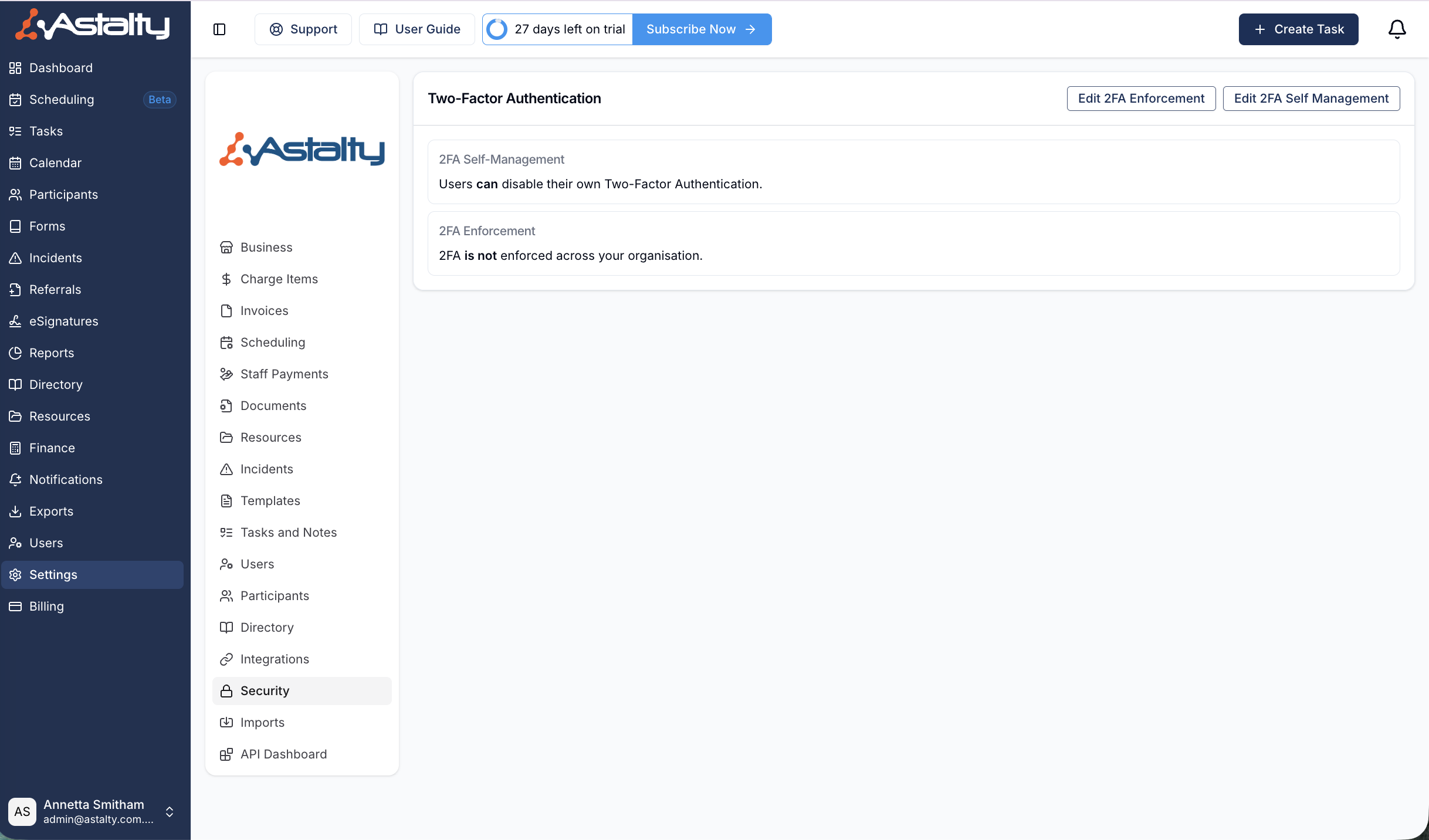
Enforcing 2FA
Astalty allows the Account Owner to enforce the use of 2FA on users with specific user roles.
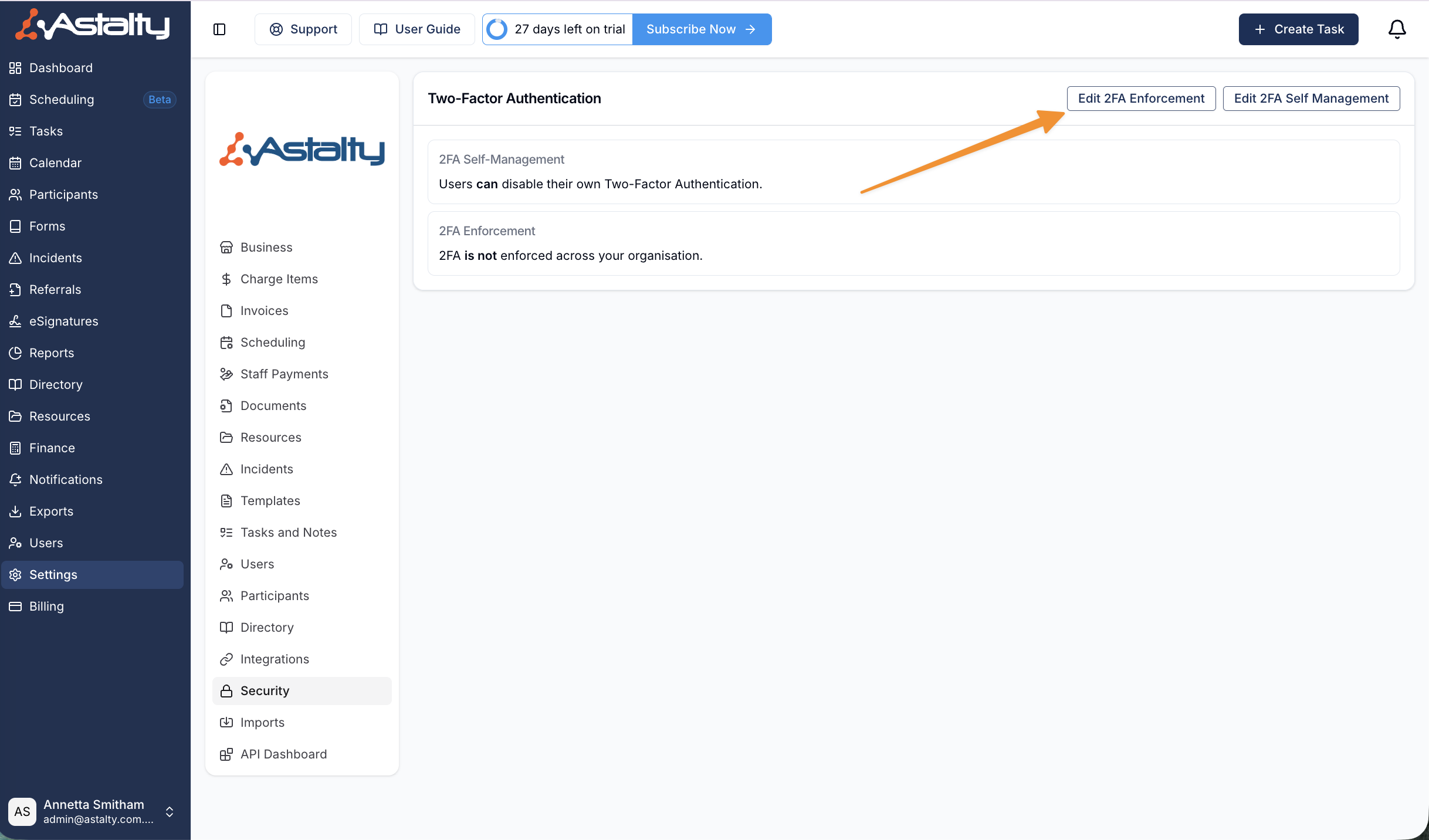
Open Actions and select Edit 2FA Enforcement.
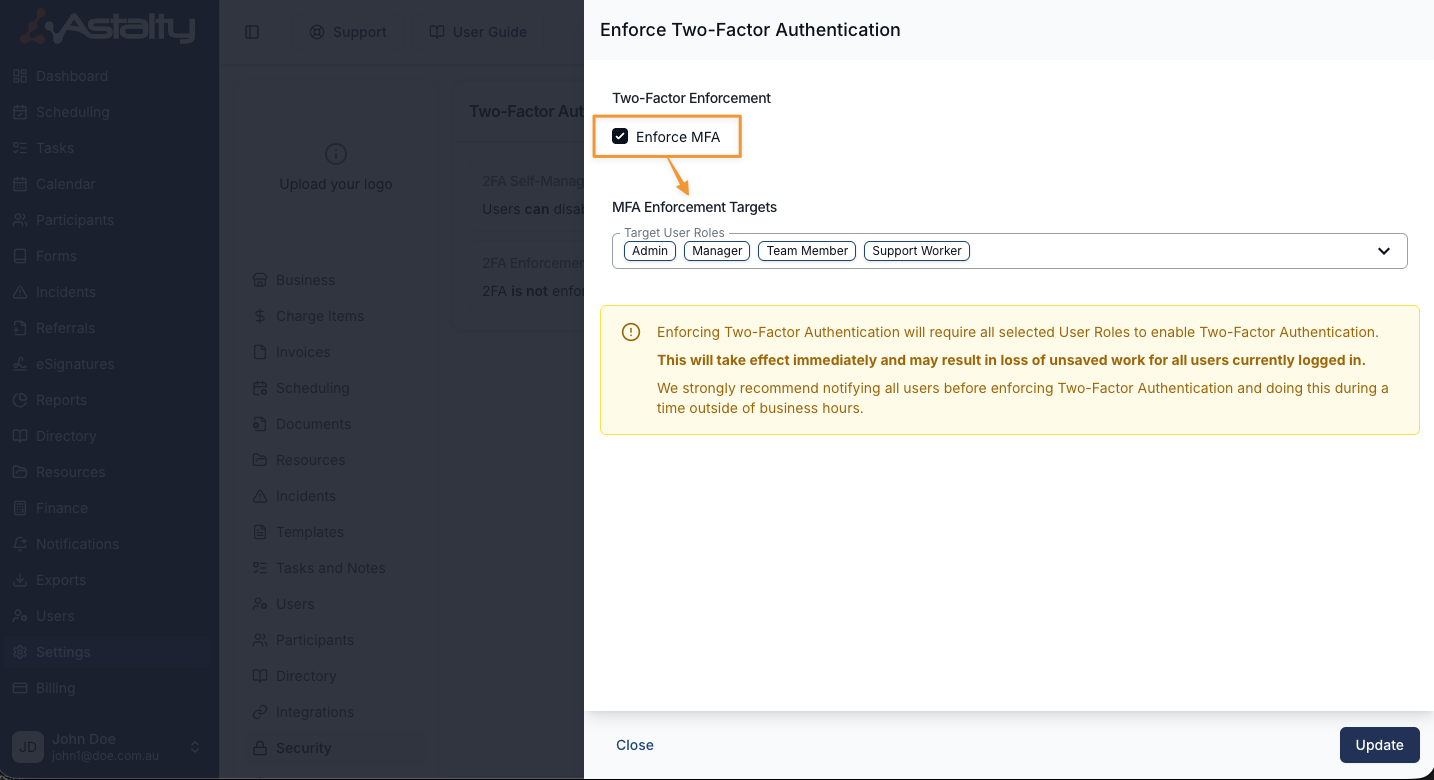
Turn on Enforce MFA. Astalty selects all four available roles when you turn enforcement on.
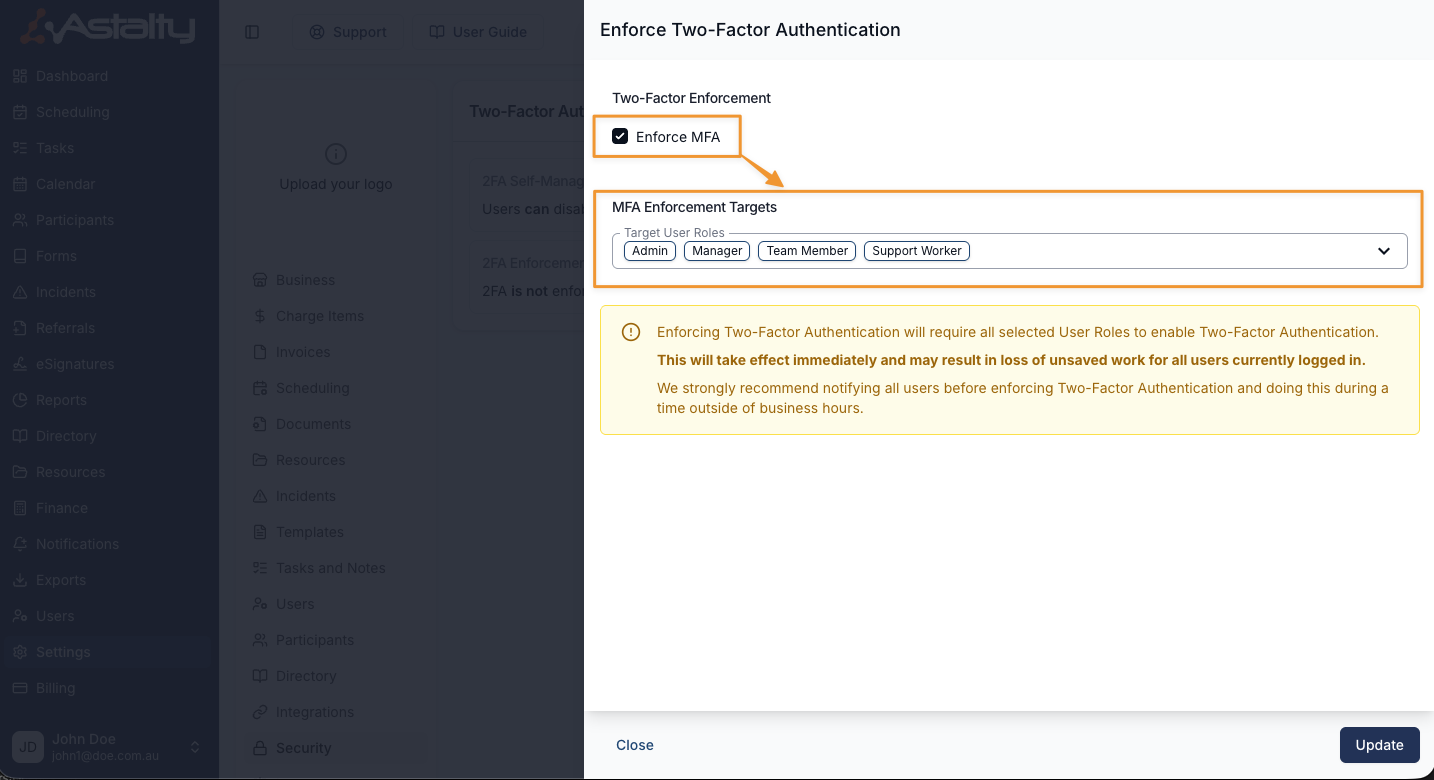
Under Target User Roles, remove any roles that you do not want to target. Admin is always selected and cannot be removed. Then select Update.
The requirement applies as soon as the update is saved.
Enforcement is set by role, not for individual users:
- Admin is always included and can't be removed from Target User Roles.
- Switching Enforce MFA on selects all four roles: Admin, Manager, Team Member and Support Worker. Remove the ones you don't want to target.
- Auditors can't be targeted, so enforcement never applies to Auditor accounts.
- To ask one user to set up 2FA without enforcing it, see Sending 2FA Setup Instructions.
User View After Enforcement
Targeted users who have not set up 2FA must complete setup before they can use any other part of Astalty. This applies immediately for users who are signed in and the next time other users sign in.
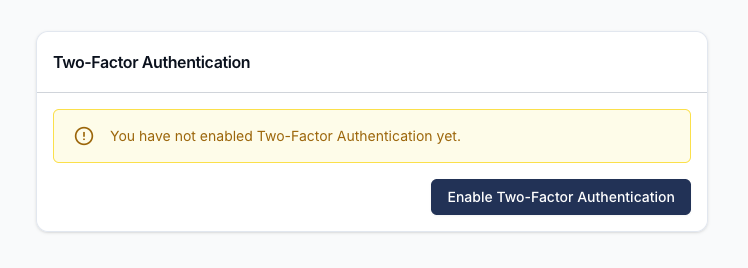
Enforcement applies to the Astalty app as well as the web. A user in a targeted role without 2FA is signed out when the app next contacts Astalty, with the message Please enable two-factor authentication by logging in again. When they sign in again, the app takes them through setup. See Setting up 2FA on the Mobile App.
Resetting Two-Factor Authentication (2FA) for a User
If a User is unable to access their account because 2FA is enabled and they no longer have access to their recovery codes, the Account Owner can disable 2FA for that User and send setup instructions.
To do this, follow the steps below:
- Navigate to the Users page from the main menu and open the relevant User's profile.
- Select Security from the User's profile menu.
- Click Disable Two-Factor Authentication.
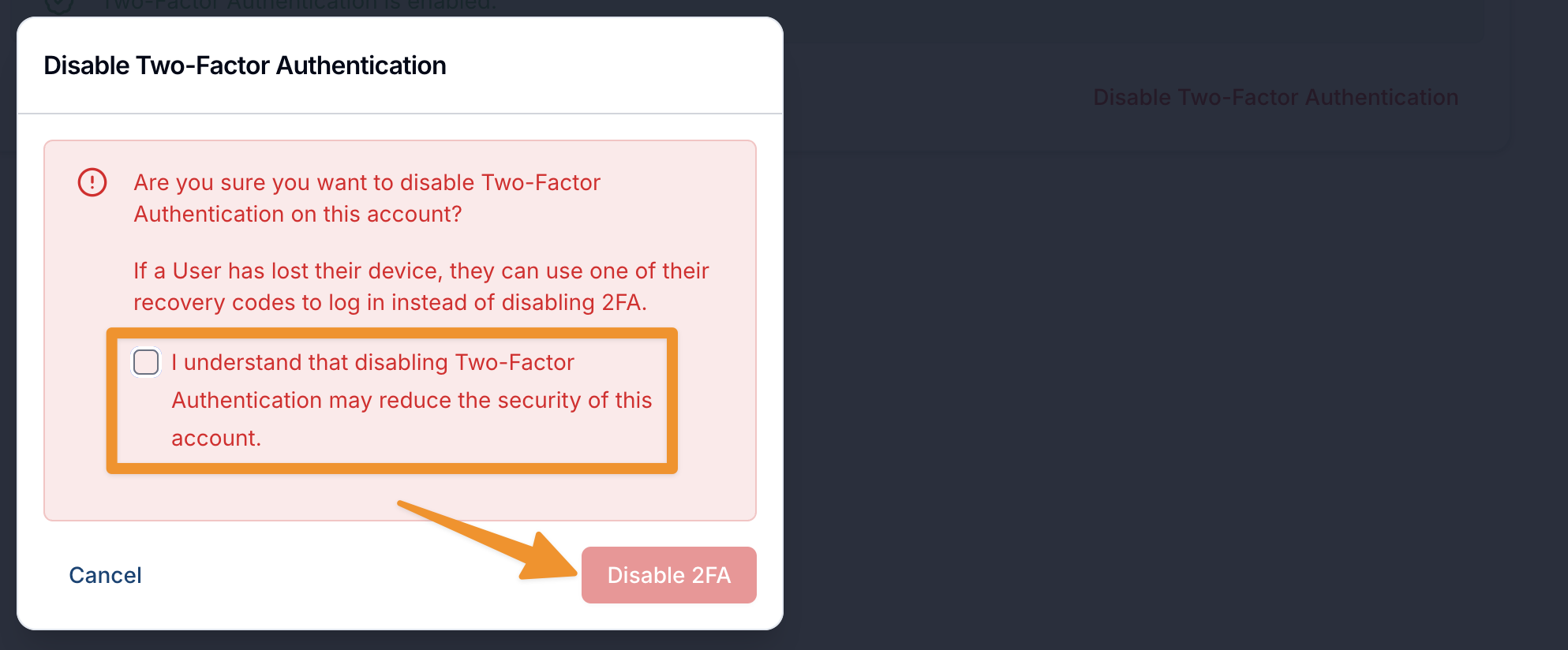
A confirmation dialog appears. Tick the confirmation box and select Disable 2FA to proceed.
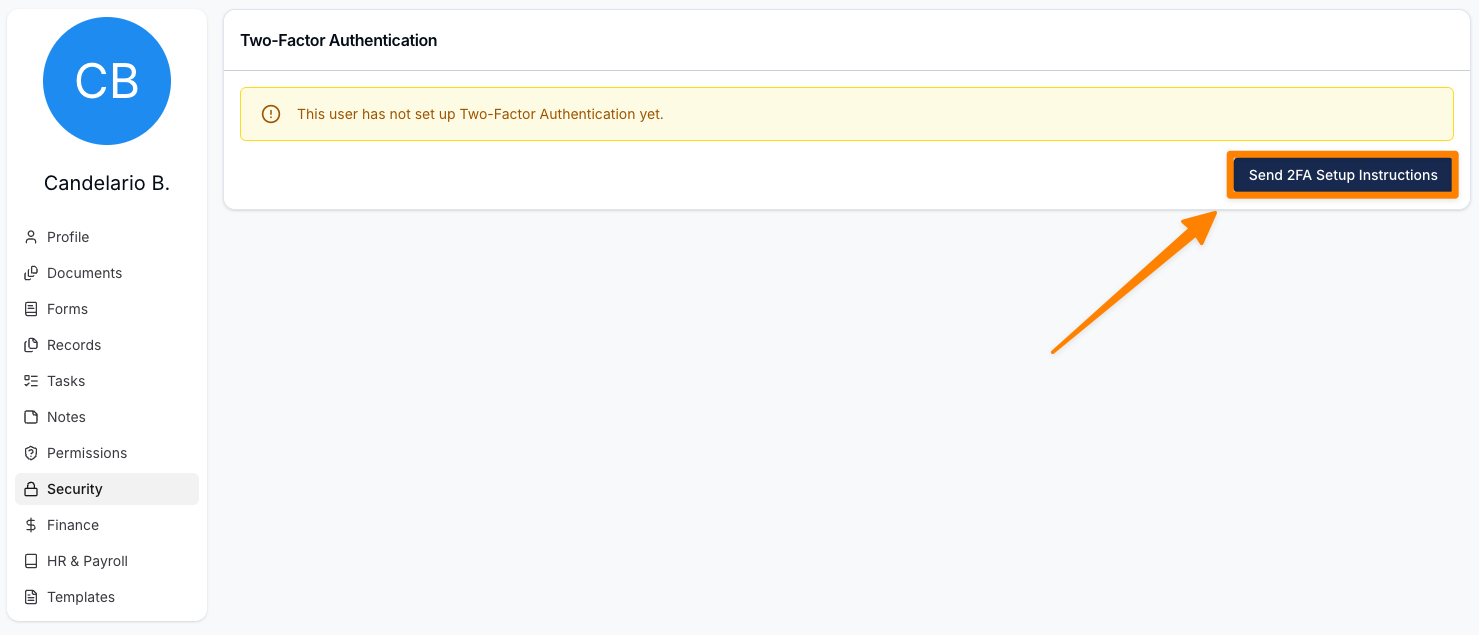
- Once 2FA has been disabled, click Send 2FA Setup Instructions.
- A confirmation message will appear advising that the setup instructions have been sent to the User.
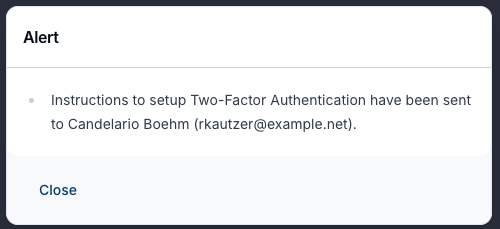
The User can then follow the emailed instructions to set up Two-Factor Authentication again and regain access to their account.
Sending 2FA Setup Instructions
While a user has not set up 2FA, their Security tab shows Send 2FA Setup Instructions to the Account Owner. It emails the user a link to Two Factor Authentication, with the subject You've been asked to set up Two-Factor Authentication.
Sending the email does not enforce 2FA. To require setup, enforce 2FA for the user's role.
Disabling the Ability to Disable 2FA
See Disabling the Ability to Disable 2FA to stop other users from turning off 2FA themselves.