- Administration
- Configuring Xero in Astalty
Configuring Xero in Astalty
Overview
Before you can send timesheet data from Astalty to Xero, connect the correct Xero organisation to your Astalty account. The connection lets Astalty read payroll setup such as pay items and calendars, and create draft timesheets in Xero.
You need permission to update Settings in Astalty. The Xero user who authorises the connection also needs access to the organisation and its payroll data. Grant every permission shown on Xero's authorisation screen. Astalty warns you if the connection does not include the payroll access needed for Scheduling.
Confirm Xero as the Payroll Platform
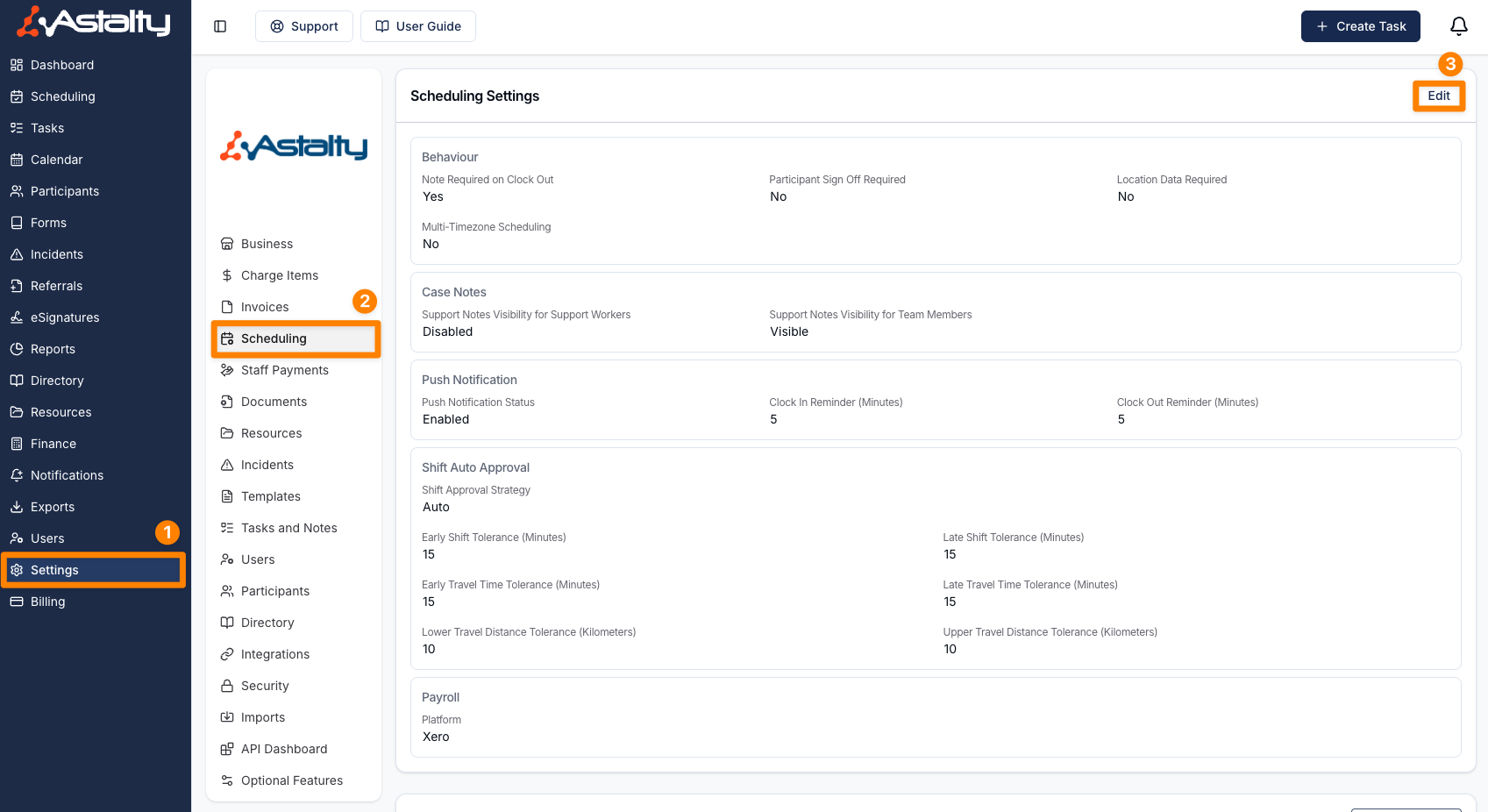
Confirm that Xero is selected as the payroll platform in Scheduling Settings. This controls which payroll export actions Astalty shows.
- Navigate to Settings and select Scheduling.
- Click Edit in the Scheduling Settings section.
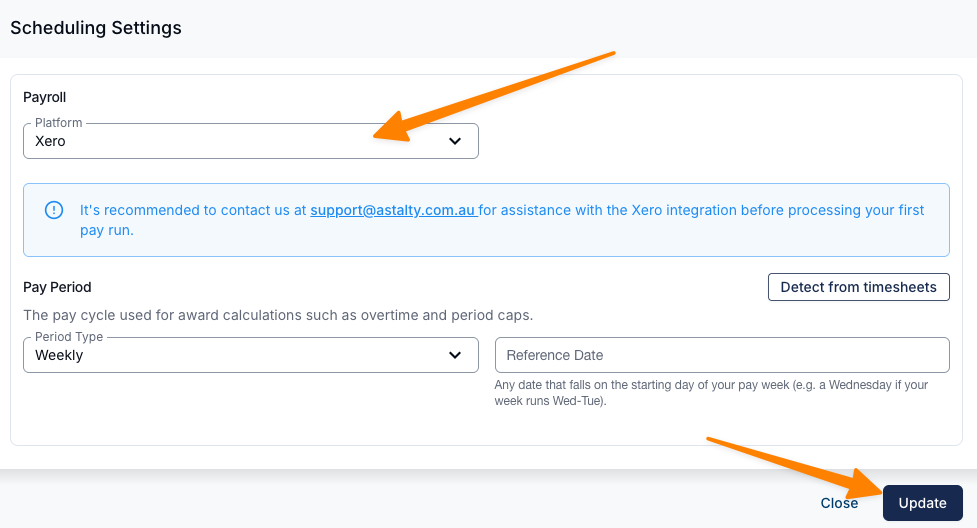
- In Platform, select Xero.
- Click Update to save your changes.
How to Connect Xero
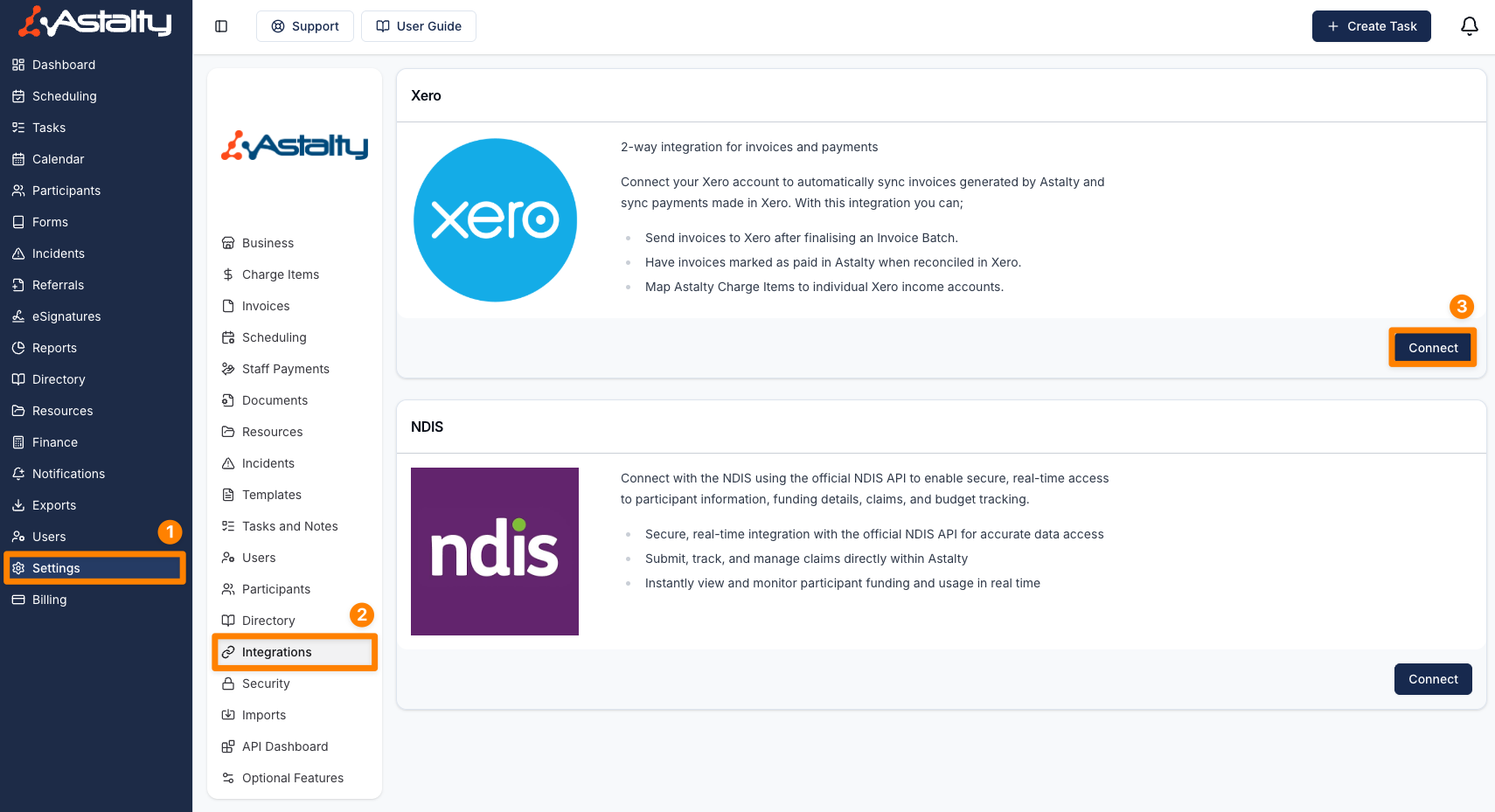
- Navigate to Settings.
- Select Integrations.
- On the Xero card, click Connect.
- Sign in to Xero when prompted.
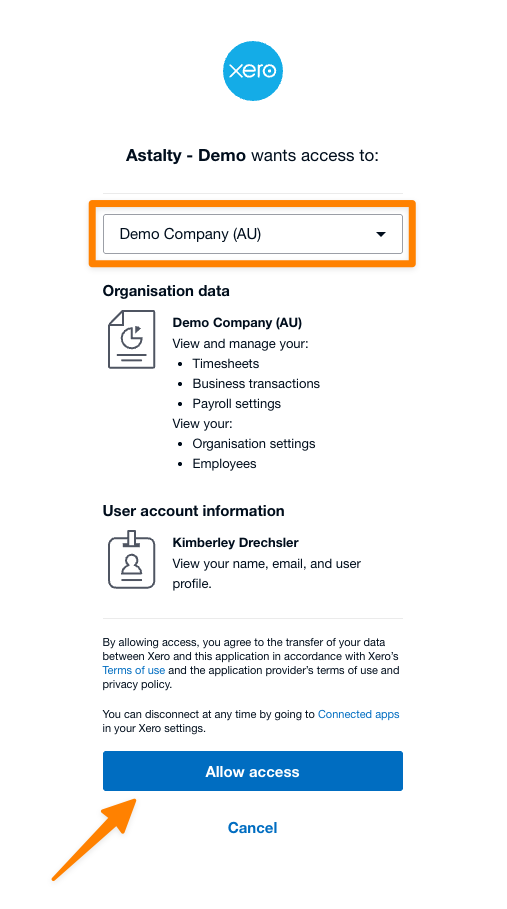
- Select the Xero organisation you want to connect.
- Grant all requested access and return to Astalty.
If Astalty asks you to select an organisation after returning, choose it before continuing. Astalty can send invoices to only one accounting platform at a time, so disconnect MYOB before connecting Xero if the Connect button says it is blocked.
Setup Integration Settings
After connecting, configure the integration:
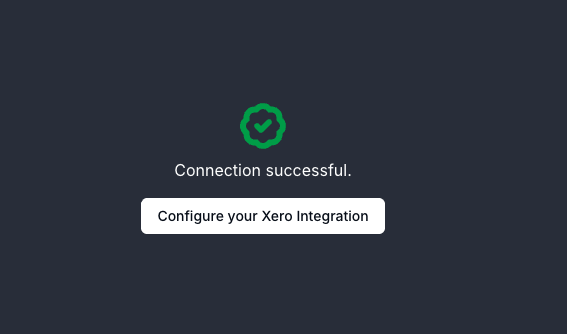
- Check that Connected Organisation shows the organisation you intended to connect.
- On the Xero Integration Settings card, click Edit.
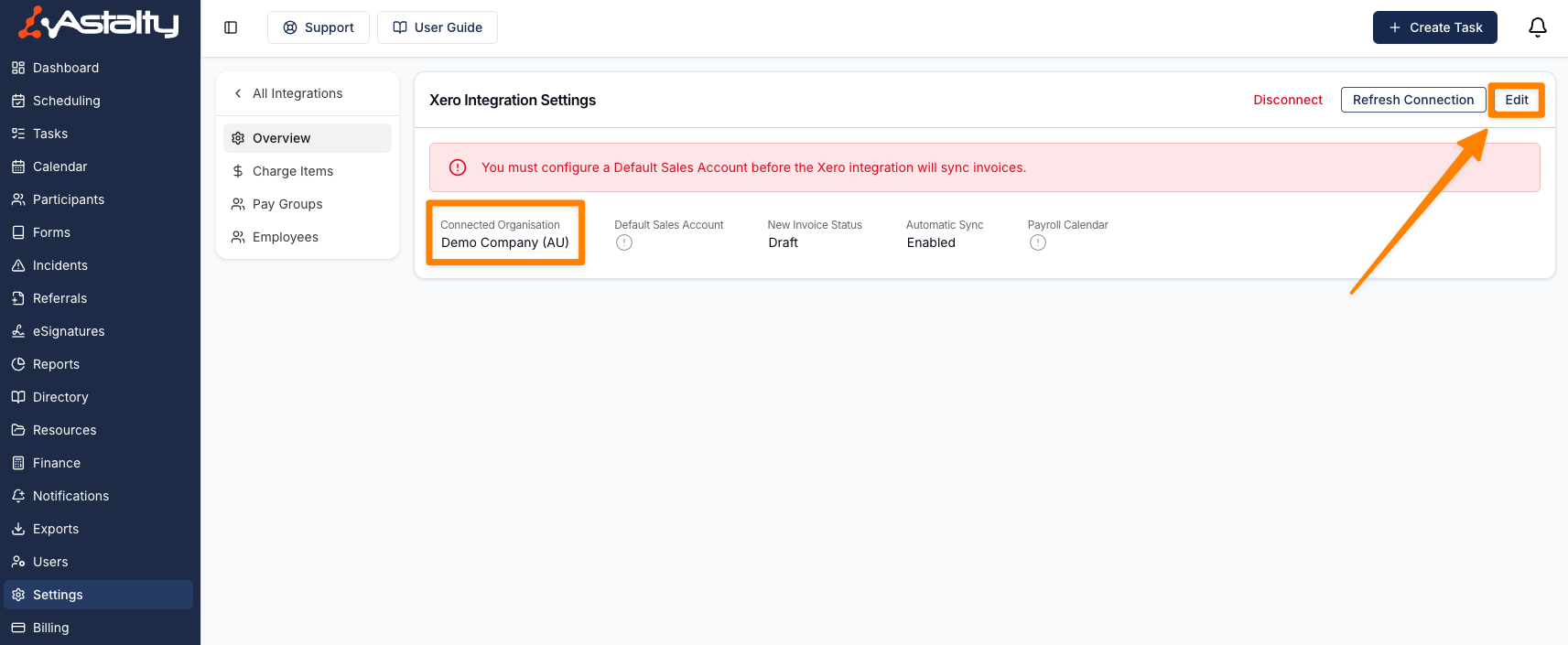
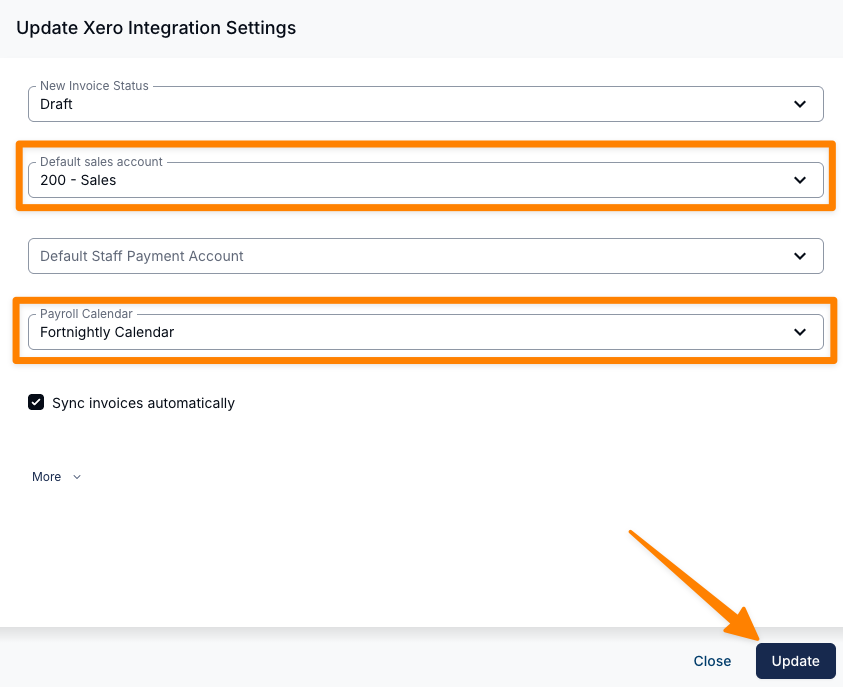
- Select a New Invoice Status. The choices are Draft, Awaiting Approval, and Approved. Draft is the default.
- Select a Default Sales Account. This is required before invoice batches can sync to Xero.
- If you use the Xero Bills CSV export for Staff Payments, select the relevant Default Staff Payment Account. The field lists Xero expense accounts and uses the selected code on each exported line.
- Choose a Payroll Calendar that already exists in Xero. This is the fallback calendar for a manually dated timesheet batch. A batch created by Xero payroll calendar uses the calendar selected for that batch.
- Review Sync invoices automatically, Sync leave automatically if Leave is enabled, and Sync invoice comments.
- Click Update.
Connecting Xero Video Walk-Through
In this video, we walk through how to connect and configure your Xero integration in Astalty to enable the Xero Payroll integration.
Next Steps
You are now ready to set up your Pay Items and Employee Pay Templates in Xero. Continue to Setup Pay Items and Employee Templates in Xero.