- Administration
- Settings
- SMS Reminders
SMS Reminders
SMS Reminders automatically text Participants ahead of time, helping reduce no-shows and last-minute cancellations. Reminders are sent from your provider's dedicated SMS number, and any replies land in your SMS inbox.
There are two reminder types, both set up on the same Reminders page and running on the same SMS engine, but configured and sent independently:
- Support Reminders - for scheduled supports in the Scheduling workspace.
- Calendar Appointment Reminders - for calendar appointments with a linked Participant.
Opening the Reminders settings
Click the settings wheel in the left-hand menu, then select Reminders.
You need permission to view settings to open this page and permission to update settings to create, edit or delete reminder configurations. Admins have both permissions by default.
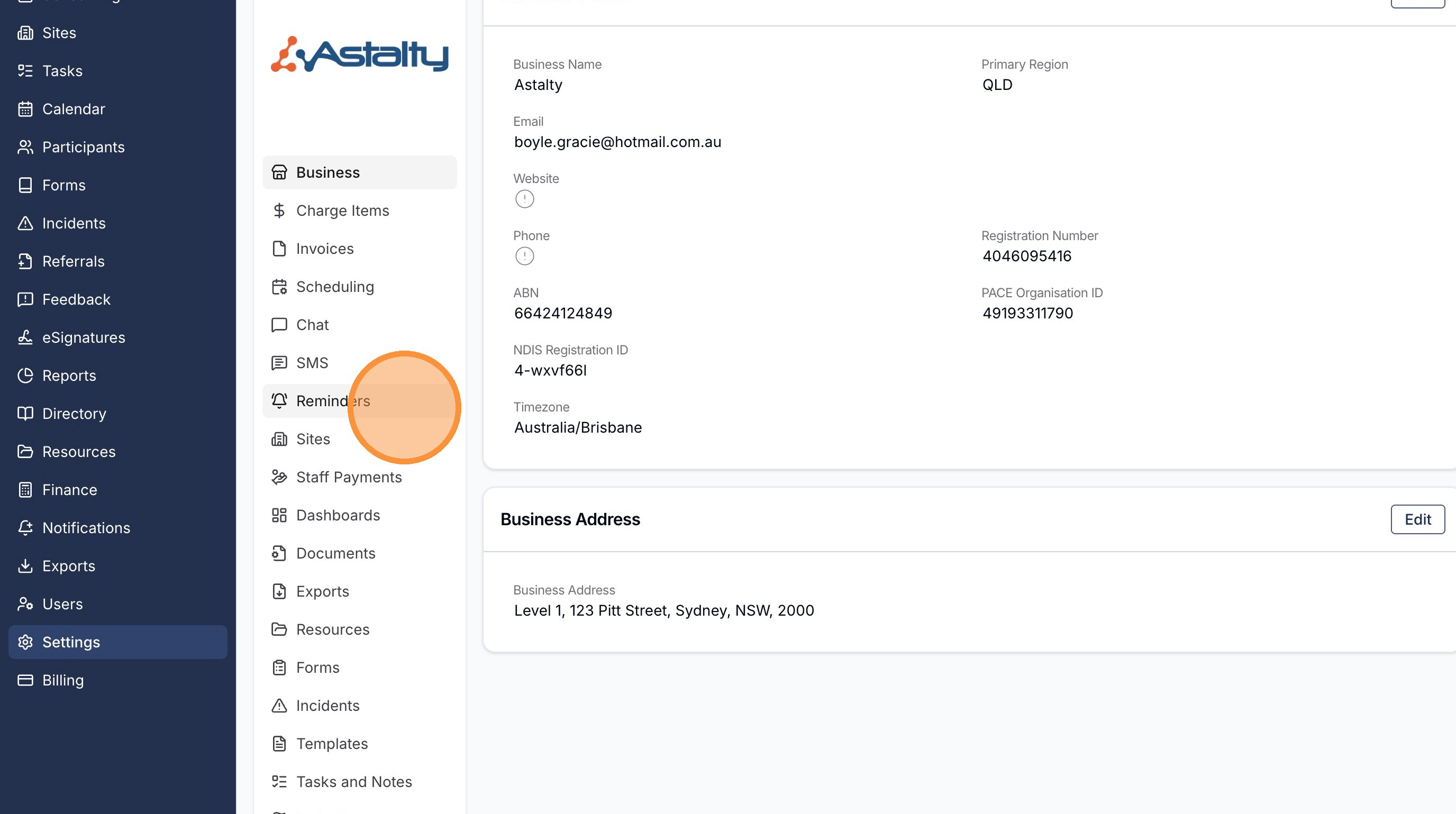
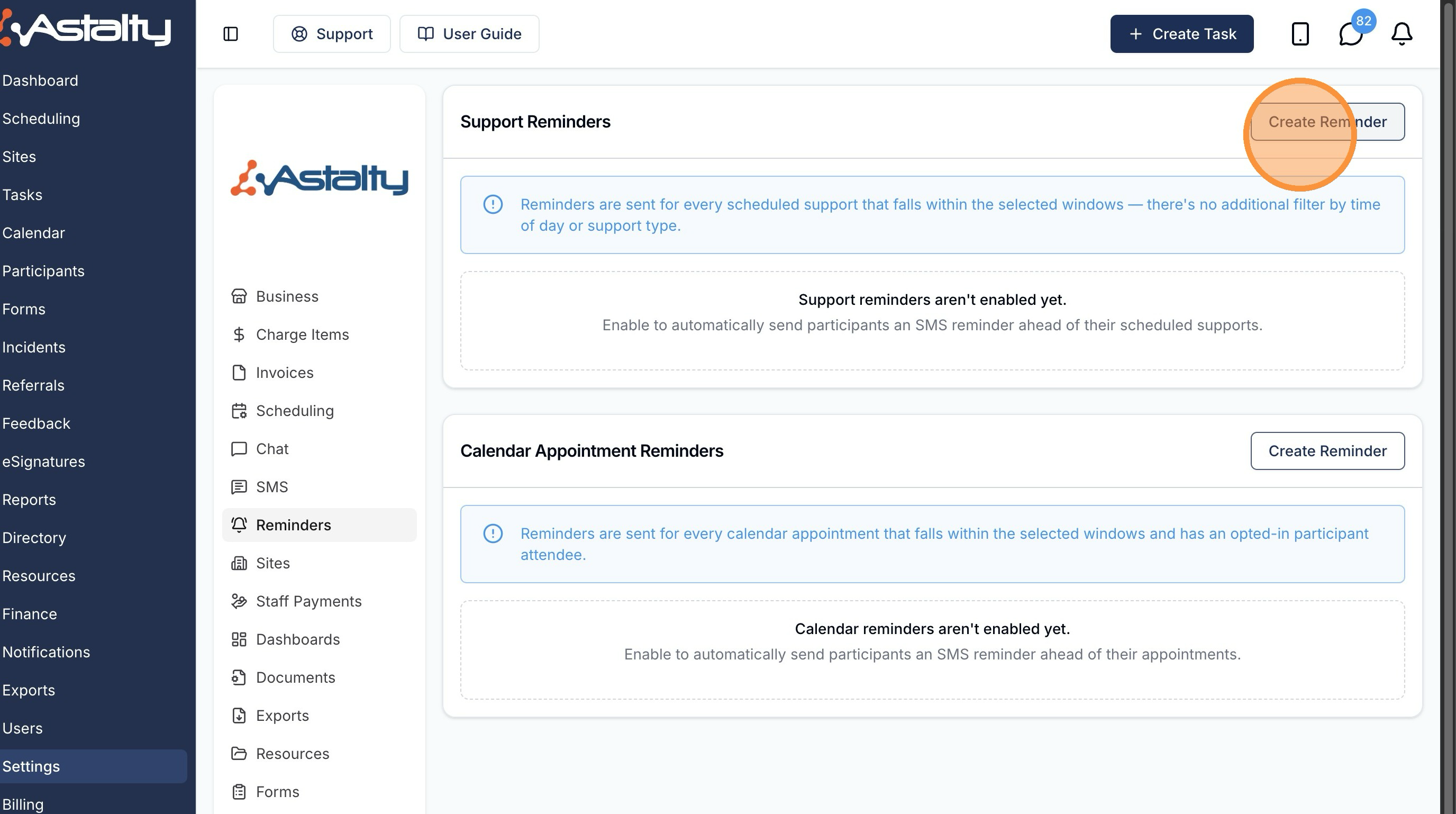
The Reminders page holds a Support Reminders card and a Calendar Appointment Reminders card. Each is configured separately.
Support Reminders
Support Reminders are sent for every scheduled support that falls within the windows you select - there's no additional filter by time of day or support type.
To set them up, click Create Reminder in the Support Reminders card.
Choose your reminder windows
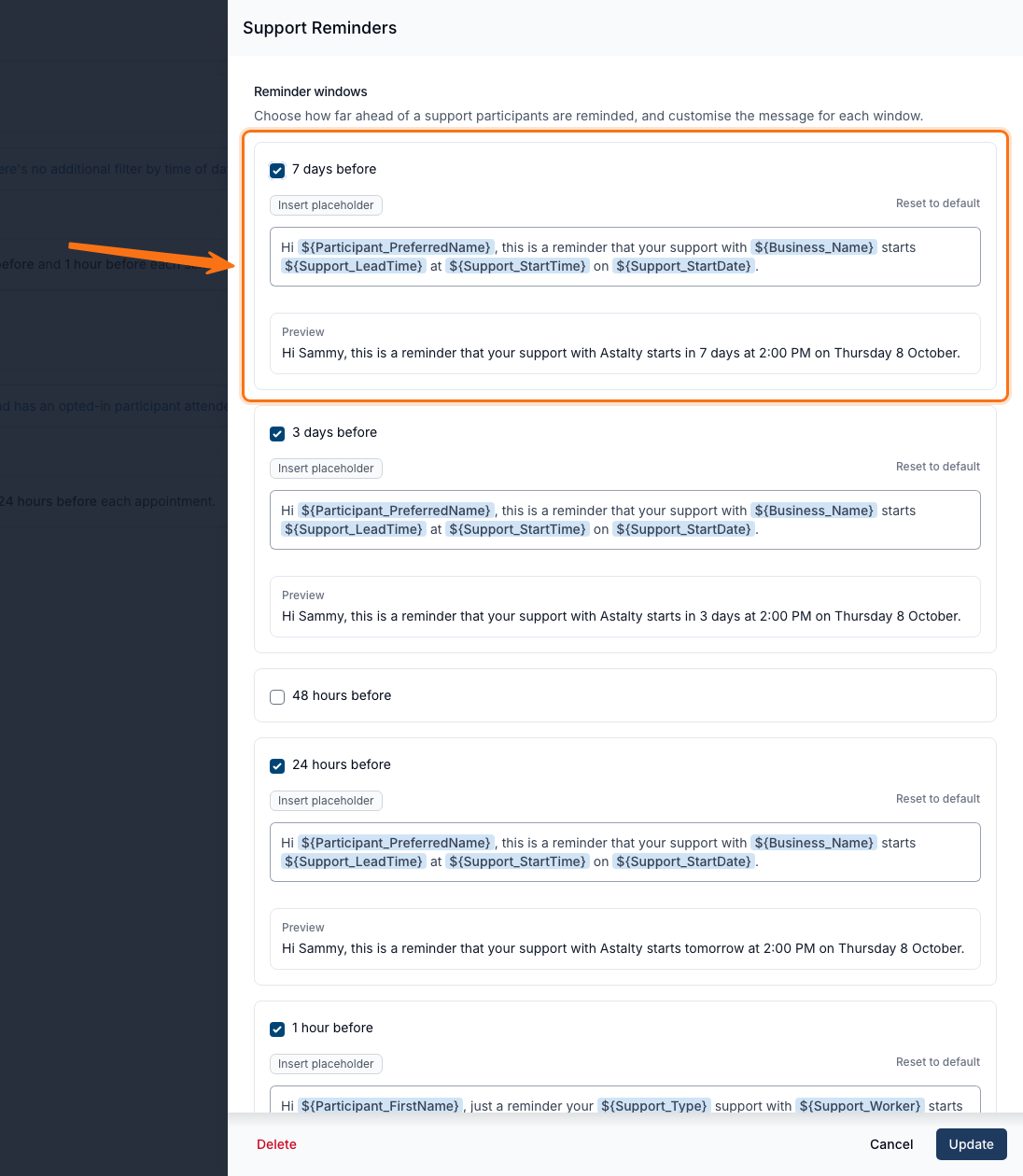
Under Reminder windows, choose how far ahead of a support Participants are reminded. You can enable any combination of:
- 7 days before
- 3 days before
- 48 hours before
- 24 hours before
- 1 hour before
A Participant who has a support inside more than one window will receive a separate reminder for each.
Customise the message
For each window you enable, you can customise the message that's sent, or leave it on the default. Messages support placeholders (merge tags) that are filled in for each Participant and support, including:
${Participant_PreferredName}/${Participant_FirstName}/${Participant_FullName}${Business_Name}${Support_StartDate}/${Support_StartTime}${Support_EndDate}/${Support_EndTime}${Support_Type}/${Support_Worker}${Support_LeadTime}- a friendly phrase: "in 7 days", "in 3 days", "in 2 days", "tomorrow", or "soon" (1 hour)
Use the Insert placeholder button to add one at the cursor rather than typing it by hand.
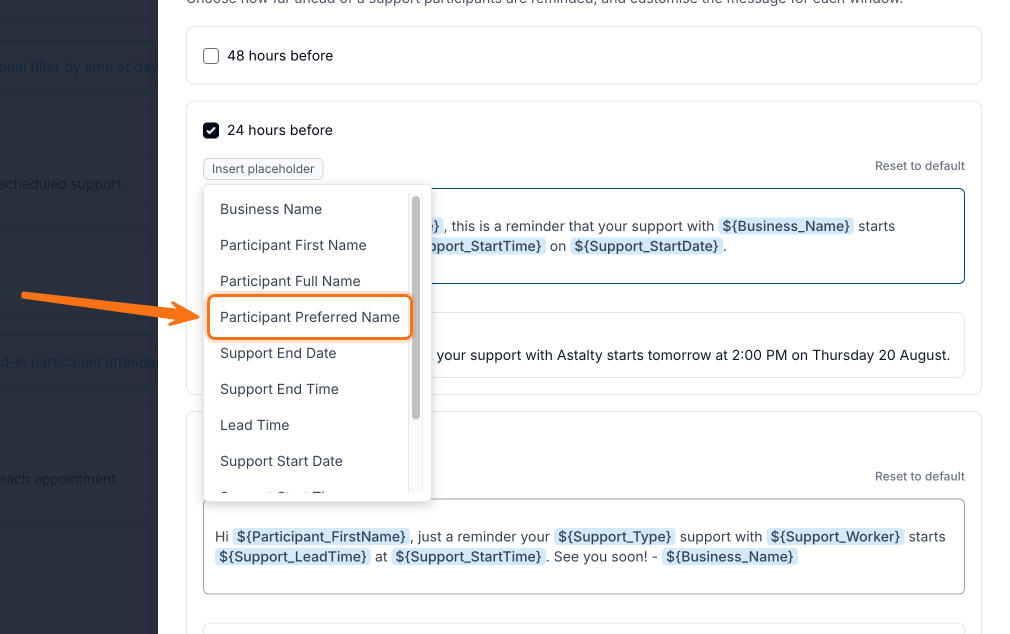
The default message reads:
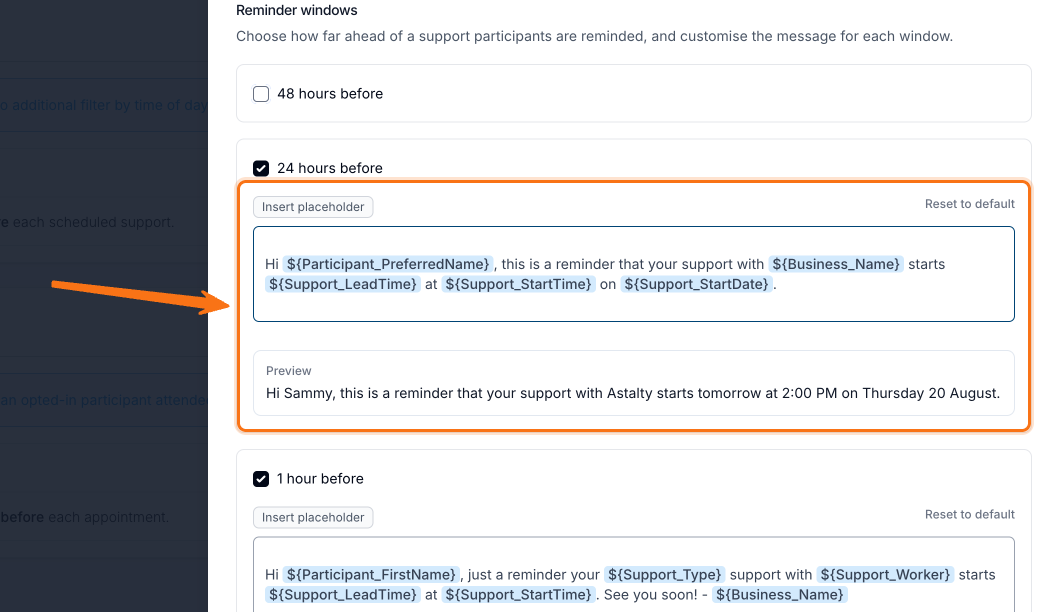
Hi ${Participant_PreferredName}, this is a reminder that your support with ${Business_Name} starts ${Support_LeadTime} at ${Support_StartTime} on ${Support_StartDate}.
A live Preview shows how each message will look. Leaving a message blank reverts that window to the default. When you're done, click Update.
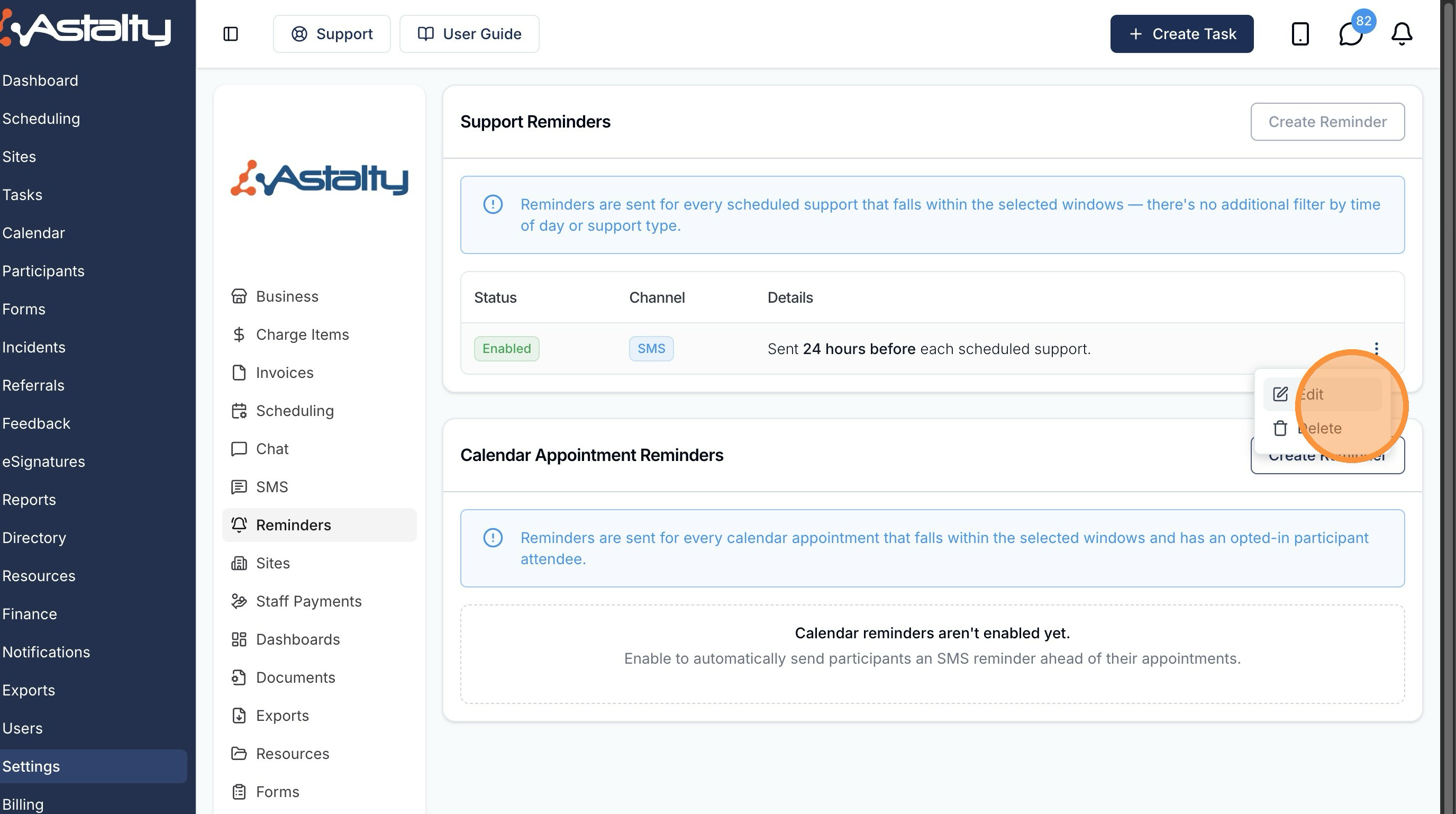
Once enabled, the reminder appears in the Support Reminders table showing its Status (Enabled), Channel (SMS), and a plain-language summary of when it's sent - for example, "Sent 7 days before, 3 days before, 24 hours before and 1 hour before each scheduled support." Use the three-dot menu on the row to Edit or Delete the reminder at any time.
Greeting Participants by their preferred name
${Participant_PreferredName} uses the Preferred Name recorded on the Participant's profile, so reminders greet people the way they'd actually like to be addressed - "Sammy" rather than "Samantha".
If a Participant has no preferred name recorded (or it's left blank), the placeholder falls back to their first name. Nobody ever receives a reminder with a blank or missing name, so there's no need to fill in a preferred name for every Participant just to use it.
This placeholder is available for both support reminders and calendar appointment reminders, and it's the one used in both default messages.
Seeing support reminders that were sent
Support reminders show up in two places:
- SMS inbox - each reminder is an outbound message from your dedicated SMS number, and the full conversation (including any reply) is visible in your SMS inbox.
- The support's audit trail - open the support, go to Actions and select Audit Trail, then the Reminders tab. It lists every reminder sent for that support: the reminder window ("24 hours before"), when it was sent, the Participant, the delivery status (for example Sent, Delivered, or Failed), and the message body. See Reminders sent for a support.
The audit trail only records what was sent to the Participant - it doesn't capture their replies. To see a Participant's response, including a YES or NO reply, open the conversation in your SMS inbox.
Calendar Appointment Reminders
Calendar Appointment Reminders text Participants ahead of their calendar appointments. They share the setup screen, reminder windows, message placeholders, and SMS delivery with Support Reminders, but they're configured and sent independently.
The key differences from support reminders:
- What triggers them - a support reminder is sent for a scheduled support (a published, staffed shift). A calendar reminder is sent for a calendar appointment that has a linked task. There's no "published & staffed shift" requirement, because a calendar appointment has no roster.
- Who receives them - the recipient is the Participant on the appointment's linked task (and any contacts nominated for calendar reminders), not a rostered Support Worker, event attendee, or the event's owner.
- Separate Reminder settings - Participants (and nominated contacts) are configured with their own Calendar appointment reminders channel, independent of the support channel (see Who receives a reminder).
- A per-appointment toggle - each appointment has its own Send SMS reminder for this event toggle.
- Different placeholders - calendar messages use
${Event_*}placeholders and are formatted in the appointment's own timezone.
Setting up calendar reminders
In the Calendar Appointment Reminders card (it appears once SMS is active), click Create Reminder. Just like support reminders, you set up a single calendar reminder configuration for your whole organisation - you choose the windows and messages once, and they apply to every eligible appointment.
Choose your Reminder windows (7 days before, 3 days before, 48 hours before, 24 hours before, and/or 1 hour before) the same way as support reminders - an appointment that falls inside more than one enabled window sends a separate reminder for each.
For each window, customise the message or leave it on the default. Calendar messages use these placeholders:
| Placeholder | Resolves to |
|---|---|
${Participant_PreferredName} | The Participant's preferred name, falling back to their first name when none is recorded |
${Participant_FirstName} / ${Participant_FullName} | The Participant's name |
${Business_Name} | Your provider's business name |
${Event_Name} | The appointment's name |
${Event_StartDate} / ${Event_StartTime} | The appointment's start, in the appointment's timezone |
${Event_EndDate} / ${Event_EndTime} | The appointment's end, in the appointment's timezone |
${Event_LeadTime} | A friendly lead-time phrase - "soon" (1 hour), "tomorrow" (24 hours), "in 2 days" (48 hours), "in 3 days", or "in 7 days" |
The default message reads:
Hi ${Participant_PreferredName}, this is a reminder that your appointment with ${Business_Name} starts ${Event_LeadTime} at ${Event_StartTime} on ${Event_StartDate}.
A live Preview shows how each message will look, and Reset to default restores a window's message. Leaving a message blank keeps that window on the default. When you're done, click Update.
The per-appointment toggle
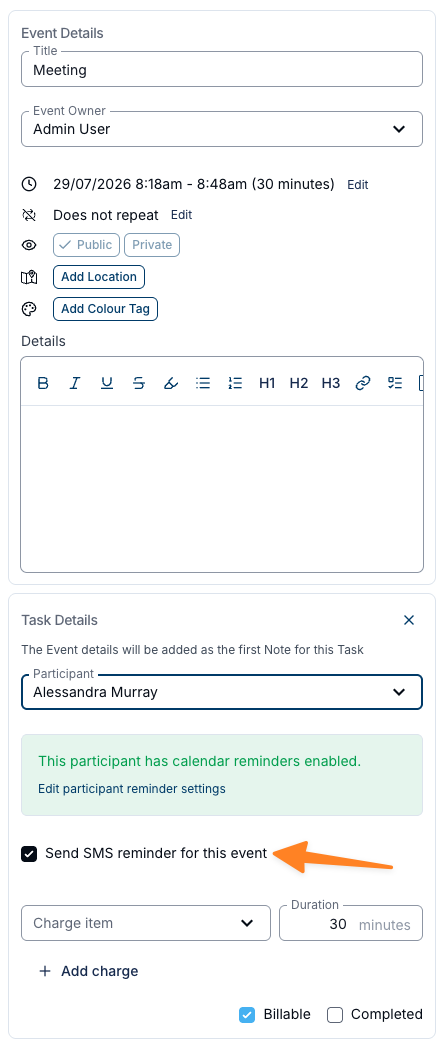
Every calendar appointment carries its own Send SMS reminder for this event toggle on the event form. It's on by default, so eligible appointments are reminded automatically. Switch it off to suppress the reminder for that one appointment without changing the Participant's opt-in or any other appointment.
- The toggle only appears when there is at least one eligible reminder recipient for the linked Participant (the Participant and/or nominated contacts).
- The event form also shows a short status message telling you whether reminders will be sent - and a link to edit Reminder settings if they won't.
- For a recurring appointment, editing the toggle honours the same this occurrence / this and following choice as other event fields, so you can suppress a single occurrence or a run of them.
Who receives a calendar reminder
A calendar reminder goes to the Participant on the appointment's linked task and/or any contacts nominated for Calendar appointment reminders. All of the following must be true for it to be sent:
- Your organisation has set up a calendar reminder for that window, with an active SMS number.
- The appointment is an event or appointment type (not a Busy or Out of Office block).
- The appointment's Send SMS reminder for this event toggle is on.
- The appointment has a linked task that isn't marked complete.
- The task's Participant is not archived, and there is at least one eligible recipient for calendar reminders (the Participant opted in with a valid mobile, and/or nominated contacts who can receive SMS).
- Eligible recipients haven't opted out of SMS (for example, by replying STOP).
When calendar reminders are sent
Astalty checks for due appointments every few minutes and sends each reminder close to its lead time - for example, roughly an hour before for the "1 hour before" window. There's a small amount of tolerance either side so a reminder is never sent late for an appointment that's already imminent: an appointment created only minutes before it starts won't trigger a late "1 hour before" reminder.
Each reminder is sent once per appointment, per window. A Participant is never texted twice for the same appointment and lead-time.
- Deleting an appointment cancels any reminder that hasn't been sent yet.
- Completing the linked task stops further reminders for that appointment.
- Moving an appointment to a new time before its reminder has been sent means the reminder simply fires against the new time. If a reminder for a window has already been sent, moving the appointment won't send that window again - turn the appointment's toggle off if you no longer want an outstanding reminder to go out.
Seeing reminders that were sent
Calendar reminders show up in two places:
- SMS inbox - each reminder is an outbound message from your dedicated SMS number, and the full conversation (including any reply) is visible in your SMS inbox.
- The appointment's audit trail - open an appointment and choose View Audit Trail, then the Reminders tab. It lists every reminder sent for that appointment: the window ("24 hours before"), when it was sent, the Participant, the delivery status (for example Sent, Delivered, or Failed), and the message body. If none have gone out yet, it shows "No reminders have been sent yet."
The audit trail only records what was sent to the Participant - it doesn't capture their replies. To see a Participant's response, open the conversation in your SMS inbox.
Who receives a reminder
Each Participant has their own Reminder settings. Support reminders and calendar appointment reminders are configured separately, and for each channel you choose whether the message goes to the Participant, to nominated contacts, or to both.
Opening Reminder settings
Open a Participant's profile, go to the More tab, and find the Reminder Settings row. Click Edit to open the drawer.
You can also open the same drawer from:
- the Edit participant reminder settings link in the reminder status alert on a 1:1 support create/update form
- the same link on a calendar event create/update form
- the bell icon on a group support Participant row
- the group support Update SMS Reminder flow
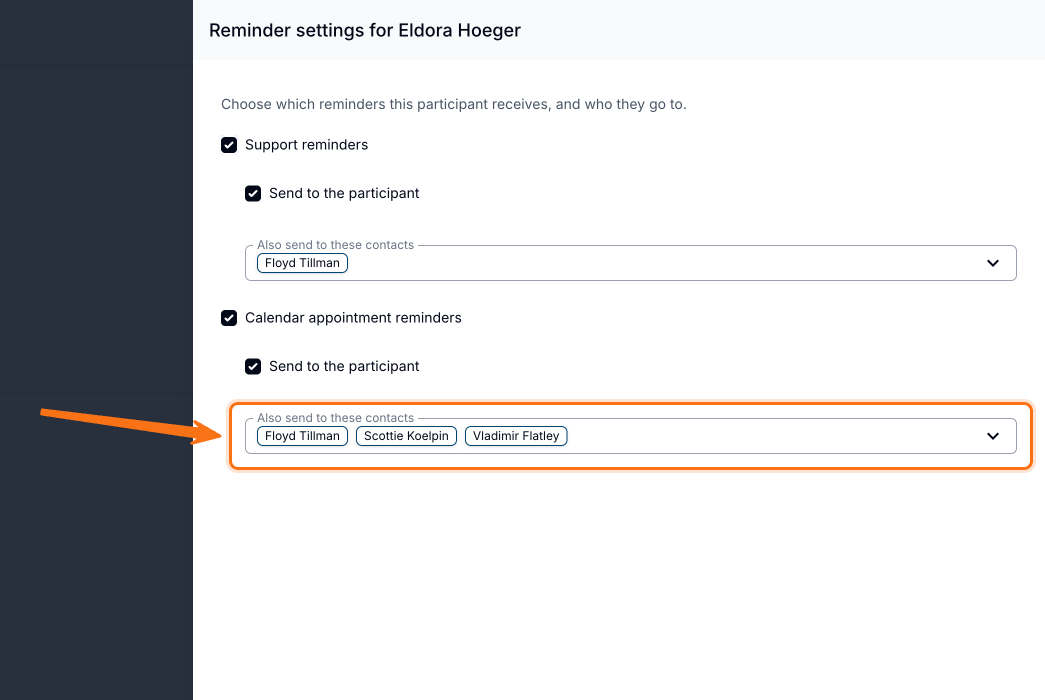
The drawer title reads Reminder settings for {Participant Name}, with the helper text "Choose which reminders this participant receives, and who they go to."
Participant opt-in
Reminders to the Participant themselves are opt-in and off by default. Under each channel checkbox (Support reminders or Calendar appointment reminders), tick Send to the participant when they should receive that channel's messages on their own mobile.
The Participant only receives a given channel when all of the following are true:
- That channel is turned on in Reminder settings,
- Send to the participant is ticked,
- They have a valid Australian mobile on file, and
- They have not opted out of SMS (for example by replying STOP).
Landlines aren't accepted. You can review who is opted in (and whose mobile is missing, invalid, or opted out) using the Participant Reminder Status Report.
Nominating contacts to receive reminders
You can also send a Participant's reminders to chosen contacts - for example a parent, carer, or support coordinator - without putting someone else's number on the Participant record.
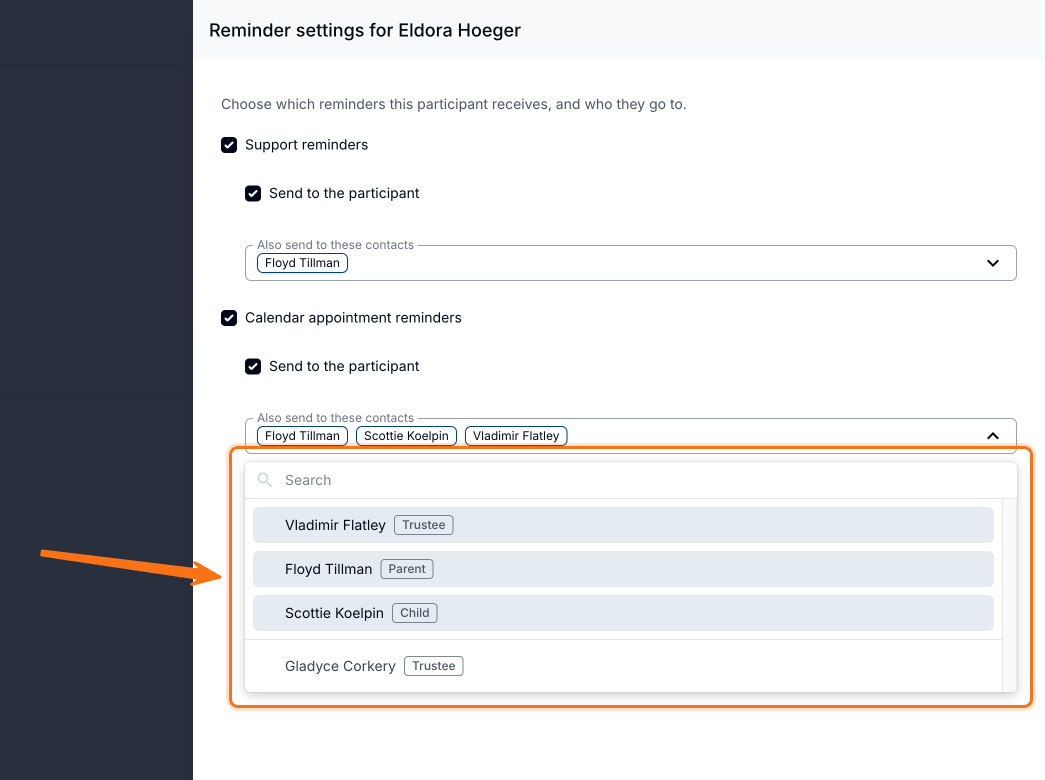
Under each enabled channel, use Also send to these contacts to pick one or more of that Participant's contacts. The two channels are independent: nominating someone for support reminders does not nominate them for calendar appointment reminders.
Who can be nominated
- The person must already be an active (non-archived) contact of that Participant - add them on the Participant's Contacts screen first.
- Nomination is always explicit. A starred or communications contact does not receive reminders automatically.
For a nominated contact to actually receive the SMS, they need a valid Australian mobile on their contact record and must not have opted out of SMS.
Three valid delivery setups
For each channel, any of these is valid:
| Setup | What happens |
|---|---|
| Participant only | Send to the participant is on; no contacts nominated |
| Contacts only | Send to the participant is off; one or more contacts nominated |
| Both | The Participant and the nominated contacts all receive the reminder |
A nomination alone is enough to send. If the Participant's own opt-in is off, contacts still receive the reminder.
If a channel is on, Send to the participant is off, and no contacts are chosen, saving shows: "Choose at least one contact, or send reminders to the participant."
What the contact reads
Contacts receive the Participant's message word-for-word - greeting the Participant by their preferred name, in second person. For example, a carer might read:
Hi Jane, this is a reminder that your support with Acme Care starts tomorrow at 9:00 AM on Tuesday 5 August.
There is no contact-specific wording and no way to customise the message per recipient.
Cost and shared handsets
Each recipient is a separate billable message, charged at the current per-segment rate shown in Settings > SMS. A Participant plus two contacts is three messages per reminder. A contact nominated by three Participants gets three separate messages, not a summary.
Recipients are de-duplicated by mobile number, so a parent and child who share the same phone receive one SMS, not two - which can look like a missing reminder if you expected two.
Clearing and automatic removal
- Turning a channel checkbox off and saving clears that channel's nominations. They are not remembered if you re-enable the channel later.
- Nominations are removed automatically when the contact is deleted or archived, or when the contact's link to that Participant is detached or archived.
Replies from nominated contacts
Replies always appear in the SMS inbox. SMS inbox access by itself does not turn a YES or NO reply into a support confirmation. Automatic reminder reply handling is a separate capability and may not be enabled for your account.
Turning reminders on or off for a single support
Once a Participant has recipients set up for support reminders, those recipients are reminded about every support that falls within your reminder windows. You can override this on an individual support when a particular session doesn't need a reminder - the Participant's Reminder settings stay as they are for all their other supports.
On a 1:1 support
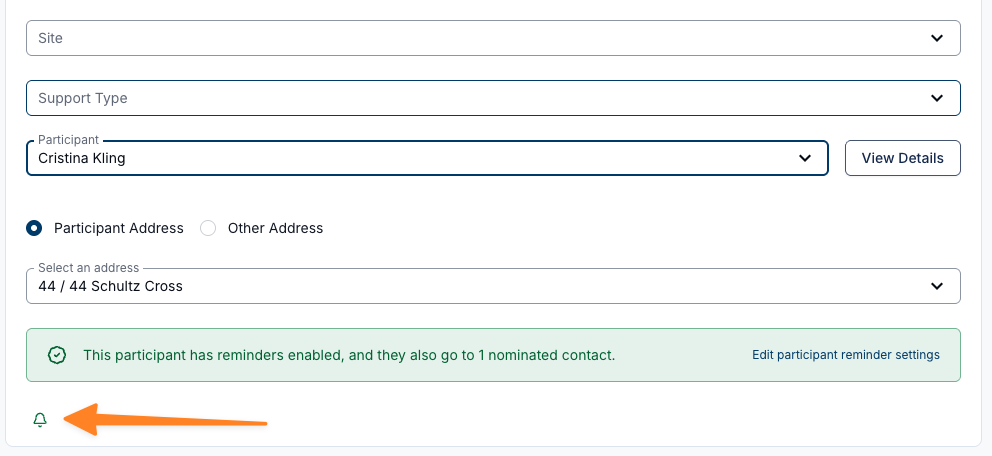
When you create a direct support, a bell icon appears once you've selected a Participant who has at least one eligible reminder recipient. The reminder starts on, so the bell is green - click it to switch the reminder off for that support, and click it again to switch it back on.
- Green bell - an SMS reminder will be sent for this support.
- Navy bell with a line through it - no SMS reminder will be sent for this support.
Hover over the bell to confirm which state you're in. The tooltip reads "An SMS reminder will be sent to this participant for this support." when it's on, and "No SMS reminder will be sent for this support." when it's off.
Astalty also shows a reminder status alert above the bell, with an Edit participant reminder settings link when you need to update who receives reminders. If the Participant has no eligible recipient, no bell appears at all and that alert is the only thing you see - it explains why nobody will be reminded.
Examples of that alert wording (calendar forms swap "reminders" for "calendar reminders"):
- "This participant has reminders enabled, and they also go to 2 nominated contacts."
- "These reminders go to 2 nominated contacts. This Participant does not have them enabled."
- "These reminders go to 2 nominated contacts. This Participant has them enabled but cannot receive SMS: opted out."
- "This Participant has reminders enabled. 1 other contact cannot receive: opted out of messages."
- "2 contacts are nominated for reminders, but none of them can receive SMS: 2 with no mobile number."
- "1 contact is nominated for reminders, but they cannot receive SMS: an invalid mobile number."
Unreachable reasons use this vocabulary: no mobile number, an invalid mobile number, opted out of messages.
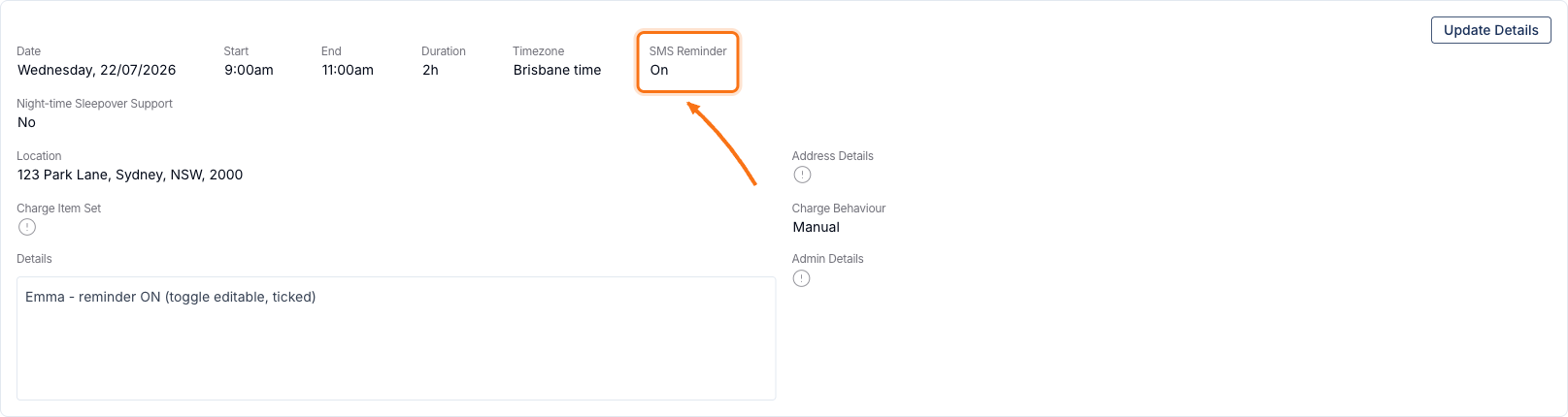
The support's Details view then shows an SMS Reminder field so you can see the state at a glance:
- On - there are eligible recipients for reminders and this support's reminder is on.
- Off - there are eligible recipients, but the reminder for this support has been switched off.
- No - nobody can receive an SMS reminder for this support (no Participant opt-in with a valid mobile, no reachable nominated contacts, or everyone has opted out of SMS).
On a group support
When you create a group support, every Participant you've added carries a bell icon next to the remove icon. The colour and shape of the bell tell you what will happen for that Participant, without opening anything.
- Participants who have at least one eligible reminder recipient get a bell you can click to switch their reminder on or off.
- Participants who have none get a read-only bell that explains why. Hover over it for the reason and a link to fix it.
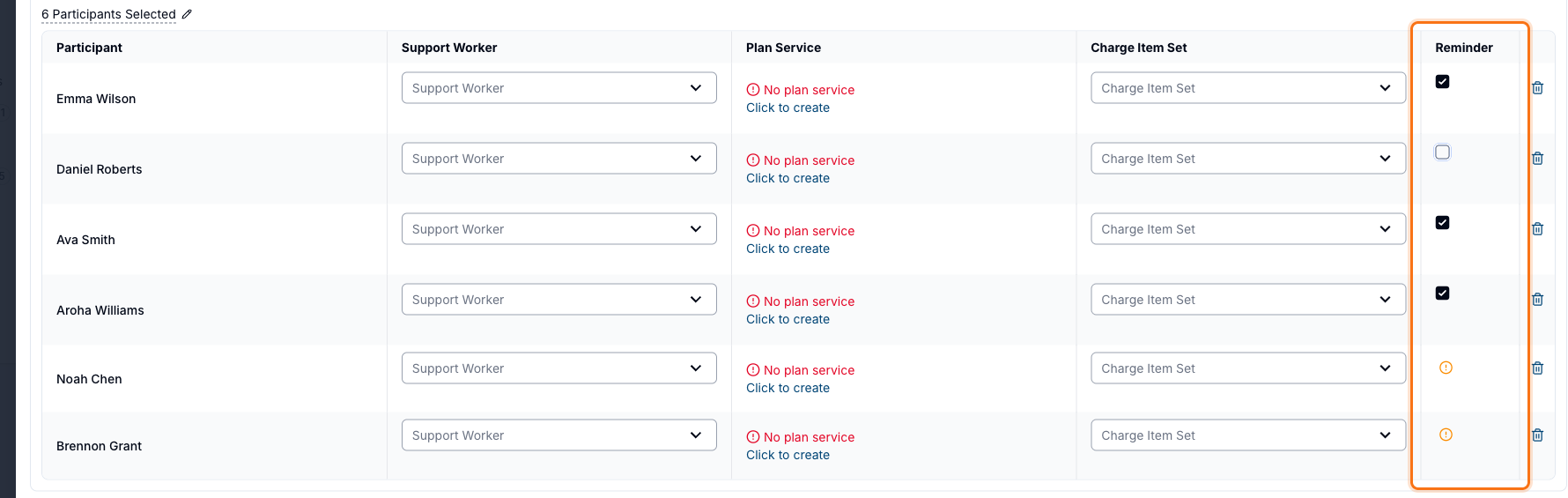
What each bell means
| Bell | What it means | Can you click it? |
|---|---|---|
| Green bell | An SMS reminder will be sent for this support. | Yes - click to switch it off |
| Navy bell with a line through it | The reminder for this support has been switched off. | Yes - click to switch it back on |
| Amber bell with a dot | Nobody will receive this reminder, and something needs attention - the Participant has support reminders turned on but no valid mobile, or one or more nominated contacts can't receive SMS. | No |
| Grey bell with a minus | Nobody will receive this reminder, and nothing is misconfigured - the Participant simply doesn't have support reminders turned on, hasn't opted out, and no nominated contact is waiting on one. | No |
| Red circle with a line through it | The Participant has opted out of SMS, and no nominated contact can receive the reminder either. Opting out takes precedence, so you'll see this even when the Participant's own support reminders are switched off. | No |
Hovering over a read-only bell shows the same status sentence as the alert on a 1:1 support, followed by one of these links:
- View participant - when the Participant has reminders turned on but can't receive SMS, so you need to check their mobile or opt-out status.
- Edit participant reminder settings - opens the Reminder settings drawer for that Participant without leaving the form.
- Set up SMS reminders - when your organisation hasn't configured a support reminder yet.
Changing it later
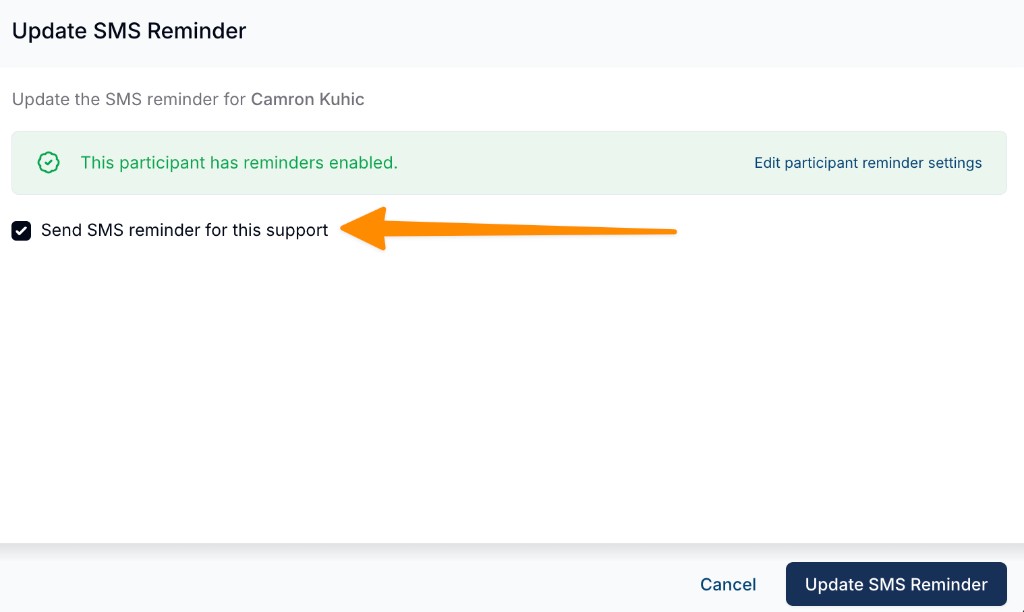
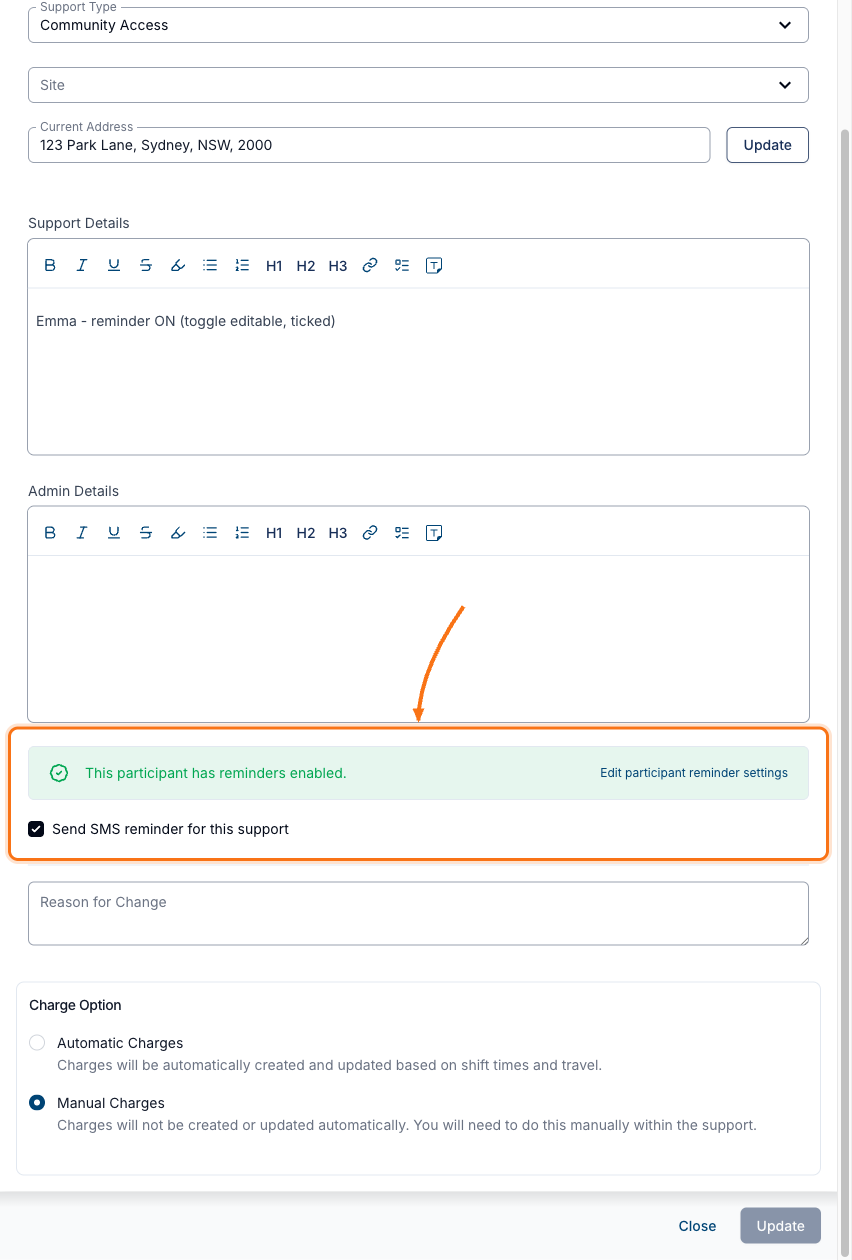
You can update the reminder after a support has been created. The bell icons appear while you're creating a support - once it exists, you change the reminder from a Send SMS reminder for this support checkbox instead.
On a 1:1 support, open the support, click Update Details, and tick or untick the Send SMS reminder for this support checkbox.
On a group support, open the support and select the Participant, click Actions for {Participant Name}, and choose Update SMS Reminder.
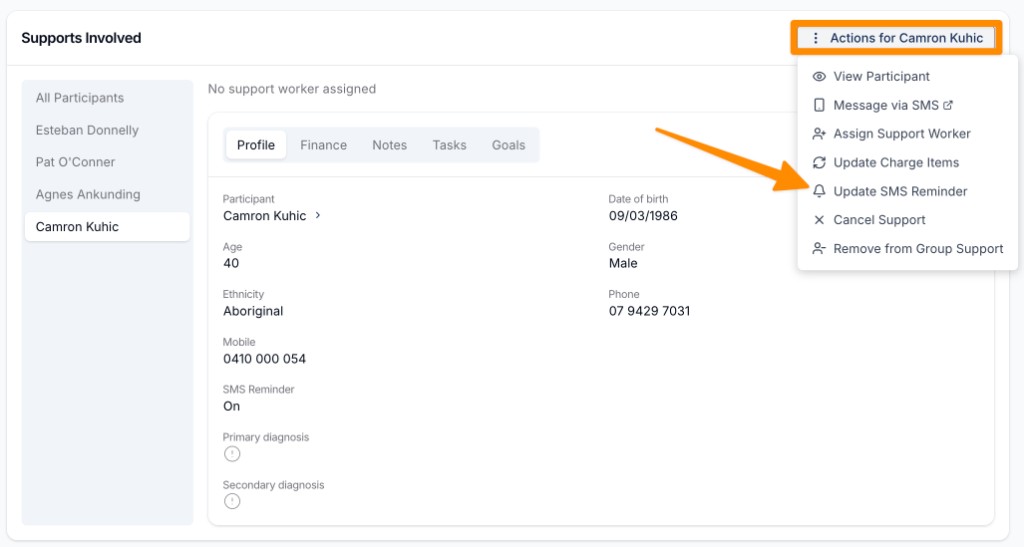
In the Update SMS Reminder panel, tick or untick Send SMS reminder for this support, then click Update SMS Reminder. If the group support is part of a repeating series, you can then apply the change to just this session or across the recurring series.