- Administration
- Settings
- Users Settings
- Exit Reasons
Exit Reasons
Exit Reasons are the list of reasons you can record against a team member when you deactivate them, so exits are captured consistently and can be reported on.
Overview
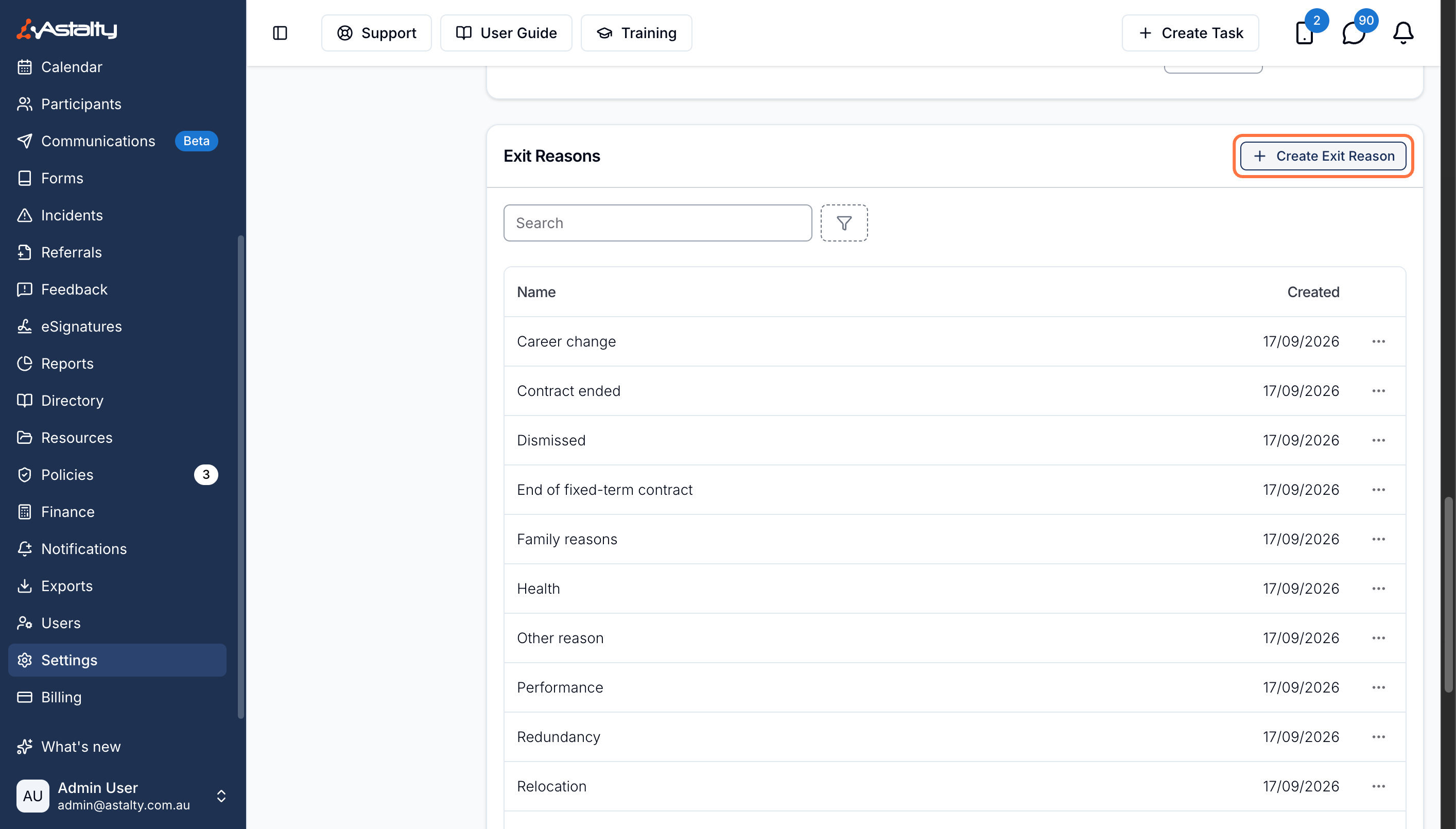
The list lives on Settings → Users, in the Exit Reasons card. Every organisation starts with five: Resignation, Dismissed, Redundancy, Retirement and Other. Rename them, archive the ones that don't fit how you work, and add your own.
You choose a reason when you deactivate someone, and can change it afterwards - see Restricting, Deactivating and Reactivating Users.
By default, only Admins can create, rename and archive exit reasons.
Creating an Exit Reason
- Go to Settings → Users.
- Find the Exit Reasons card and click Create Exit Reason.
- Enter a Name - up to 255 characters.
- Click Create.
The new reason is available immediately, and is sorted into the list by name.
Renaming an Exit Reason
The name is the only thing you can change.
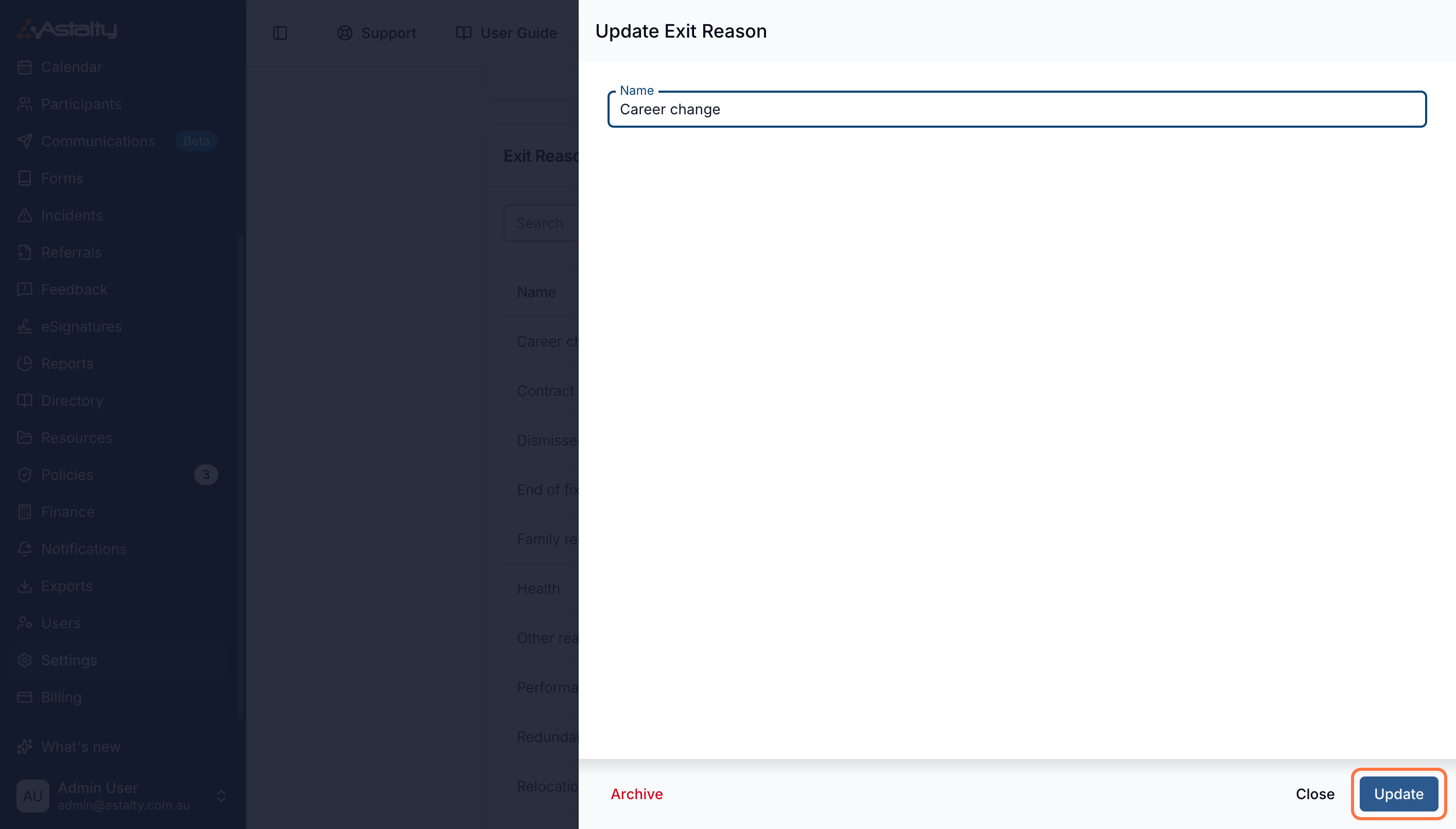
- Open the three-dot menu on the reason and click Edit.
- Change the Name.
- Click Update.
Archiving an Exit Reason
Exit reasons can't be deleted. Archive one to take it out of use. Archive and Unarchive sit inside a reason's Edit view, so only someone who can also rename reasons can reach them.
- Open the three-dot menu on the reason and click Edit.
- Click Archive at the bottom left.
- Confirm.
The confirmation reads:
Are you sure you want to archive this exit reason? It can no longer be chosen when a team member is deactivated, but stays on the exits already recorded against it.
An archived reason drops out of the Exit Reason dropdown when you deactivate someone, but keeps its name reserved and stays on the exits already recorded against it. Where a deactivated team member already has one, it remains selectable on their exit and shows as Resignation (archived).
Unarchiving an Exit Reason
- On the Exit Reasons card, set the Status filter to Archived.
- Open the three-dot menu on the reason and click Edit.
- Click Unarchive.
Unarchiving takes effect straight away - there is no confirmation step.
Finding Archived Reasons
The Status filter offers Active and Archived, and defaults to Active. The table columns are Name and Created, and archived reasons are labelled Archived beside the name.
Where Exit Reasons Appear
- Staff profiles - a deactivated team member's profile shows read-only Exit Reason and Exit Details. Both are hidden while someone is active.
- Staff Retention report - under Reports → Team. Its Exit Reasons card counts exits by reason; exits recorded without one count as Not recorded.
- Audit trail - changes to a team member's exit are recorded against them.
Exit reasons and exit details are not included in the Users export or the public API. The Employment End Date you set when deactivating someone is in the Users export.
Related Guides
- Restricting, Deactivating and Reactivating Users - recording a reason when someone leaves, and updating it afterwards.
- Users Settings - the rest of the settings on this page.