Document Layout
Every Astalty Template prints with a front page carrying your business logo and the document's title, and can optionally include a contents page, a repeating header and footer, and page numbers. These are the Document Layout options, set per template when you create or edit it in Template Settings.
Where to find the options
Open Settings → Templates, click the template you want to change, then choose Edit. Below the template's name, usage and format you'll find three sections:
- Front Page - the document title, front page alignment, logo size, and the contents page.
- Body - the text size used for the template's own content.
- Header & Footer - text that repeats on every page after the front and contents pages.
The template's detail page also summarises the current settings, and the Actions → Preview option shows you how the front page, contents page, header and footer will look before you generate anything for a Participant or User. See Preview or Download a Blank Template for more on previewing.
Front Page
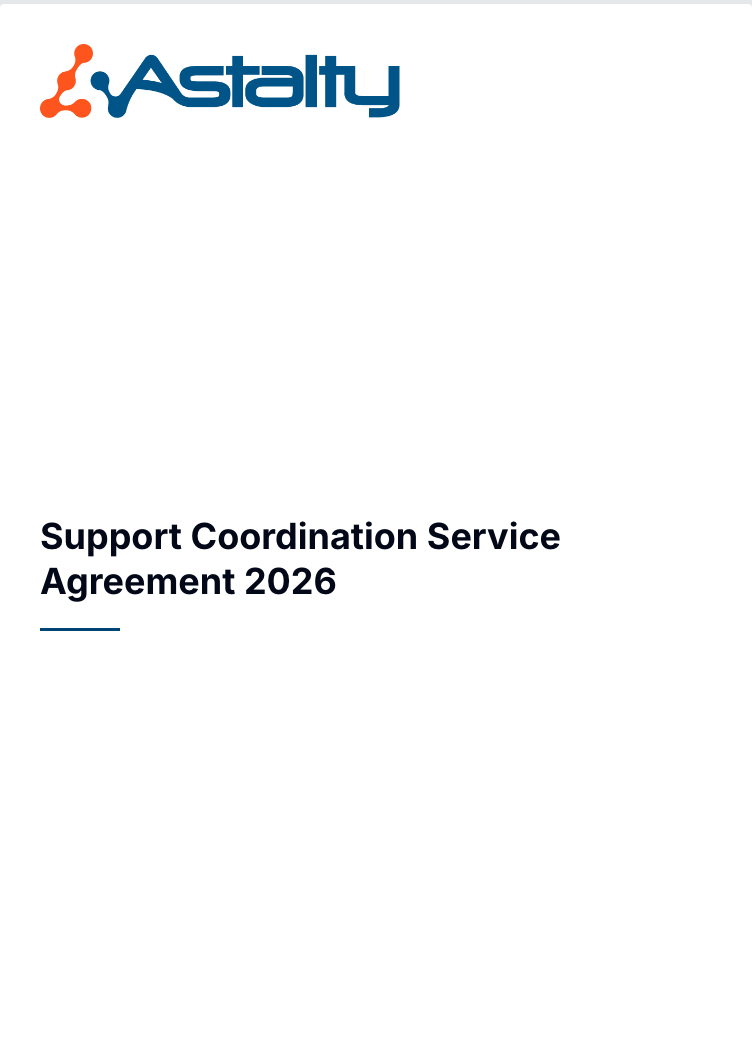
Astalty Templates always open with a front page. It contains, in order:
- Your business logo, if one is uploaded in Business Settings. Without a logo, the front page starts with the title.
- The document title.
- A short accent rule in your account's primary colour.
- The word Draft and today's date (in
dd/mm/yyyy) - only while the document is still a draft. A finalised document, and a blank template download, show no date.
Nothing else appears on the front page - no business name, and no Participant or User name.
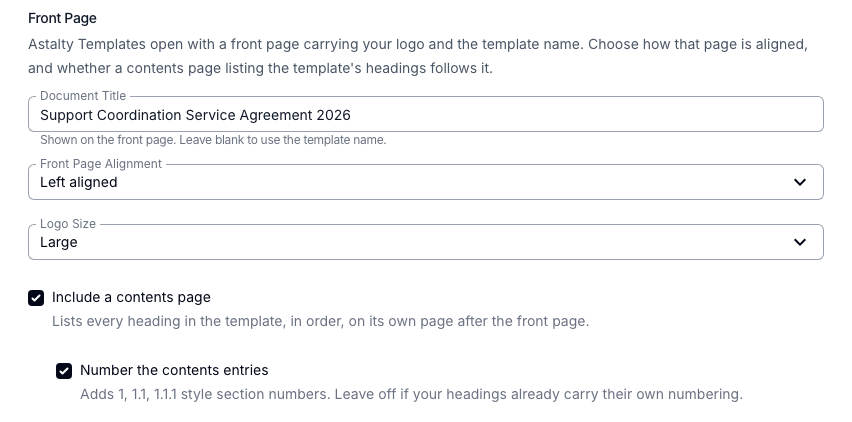
The Front Page section of the template's Edit screen sets the title, how the page is aligned, how large the logo prints, and whether a contents page follows.
Document Title
By default the front page shows the template's name. Use the Document Title field to print something different - for example, a template you've named "SA Template 2026" can print as "Service Agreement". Leave the field blank to keep using the template name.
Document Title accepts up to 255 characters.
Front Page Alignment
Choose Left aligned (the default) or Centred. This moves the logo, title and accent rule together.
Logo Size
Choose Small, Medium (the default) or Large. Your logo keeps its shape - the setting caps how big it can print:
| Logo Size | Maximum size on the page |
|---|---|
| Small | 64px tall × 160px wide |
| Medium | 100px tall × 250px wide |
| Large | 150px tall × 360px wide |
The logo comes from the Business Logo you upload in Business Settings - it isn't set per template.
Contents Page
Tick Include a contents page to add a page of contents straight after the front page.
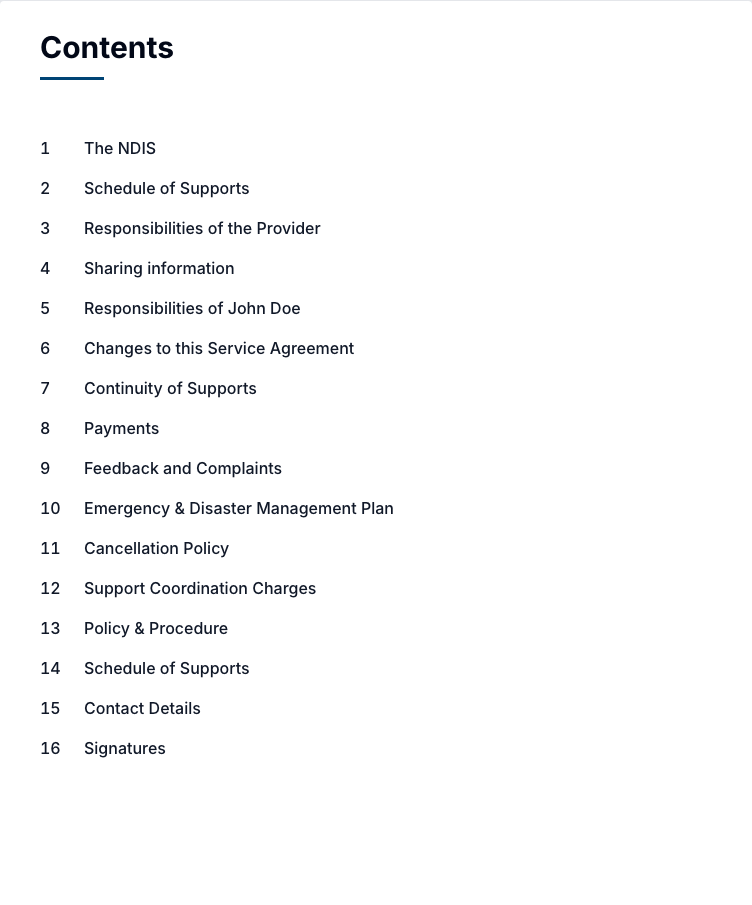
- The contents list is built from the headings in your template's content, in the order they appear. Only the top three heading levels are listed - anything deeper is left out.
- Each entry is a clickable link in the generated PDF, so opening the PDF and clicking an entry jumps to that section.
- Entries are indented to show the heading hierarchy. There are no page numbers against contents entries.
- The page is headed Contents and does not repeat the document title.
Number the contents entries
With the contents page turned on, you can also tick Number the contents entries to add 1, 1.1, 1.1.1 style section numbers to the list. Leave it off if your headings already carry their own numbering, or you'll end up with both.
Body Text Size
Body Text Size controls how big the template's own content prints. Choose Small (the default), Medium or Large. Tables in your content scale with the setting, so a table won't print smaller than the text around it.
Small reproduces how Astalty Templates have always printed, so leaving it alone changes nothing for your existing templates.

Header & Footer
The Header and Footer fields hold text that repeats on every page except the front page and the contents page. Leave a field blank to leave that row off entirely.
- Type
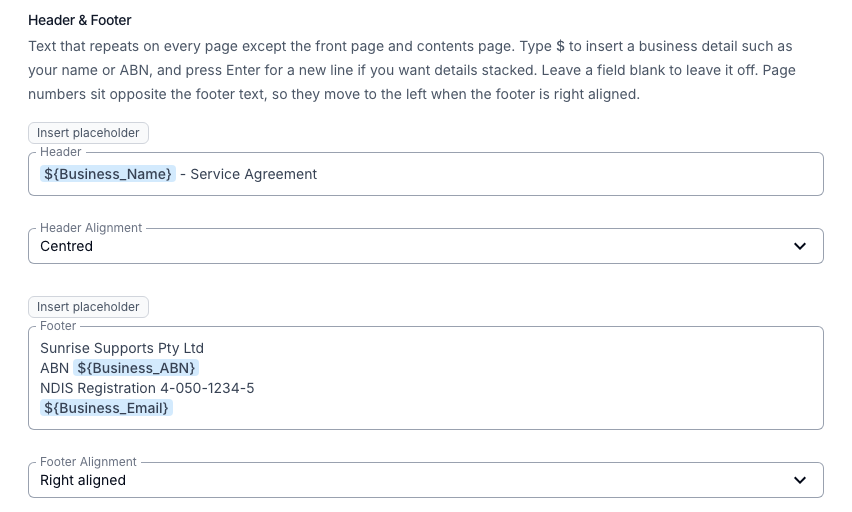
$in either field to insert a business placeholder - Business Name, Phone, Email, Accounts Email, Address, NDIS Registration Number, ABN, or Website. Only business details are available here; Participant and User placeholders can't be used in the header or footer. - Press Enter for a new line if you want details stacked over several lines.
- Each field accepts up to 1,000 characters.
Header Alignment and Footer Alignment each offer Left aligned, Centred or Right aligned.
Page numbers
Page numbers print automatically in the footer as Page N of M, on every page the footer appears on. They sit on the opposite side to your footer text, so the two never collide:
| Footer Alignment | Page number appears |
|---|---|
| Left aligned | Right |
| Centred | Right |
| Right aligned | Left |
With no footer text at all, the page number prints on the right.
Page counting starts at the front page, so the first page of your actual content is page 2 - or page 3 when a contents page is included.
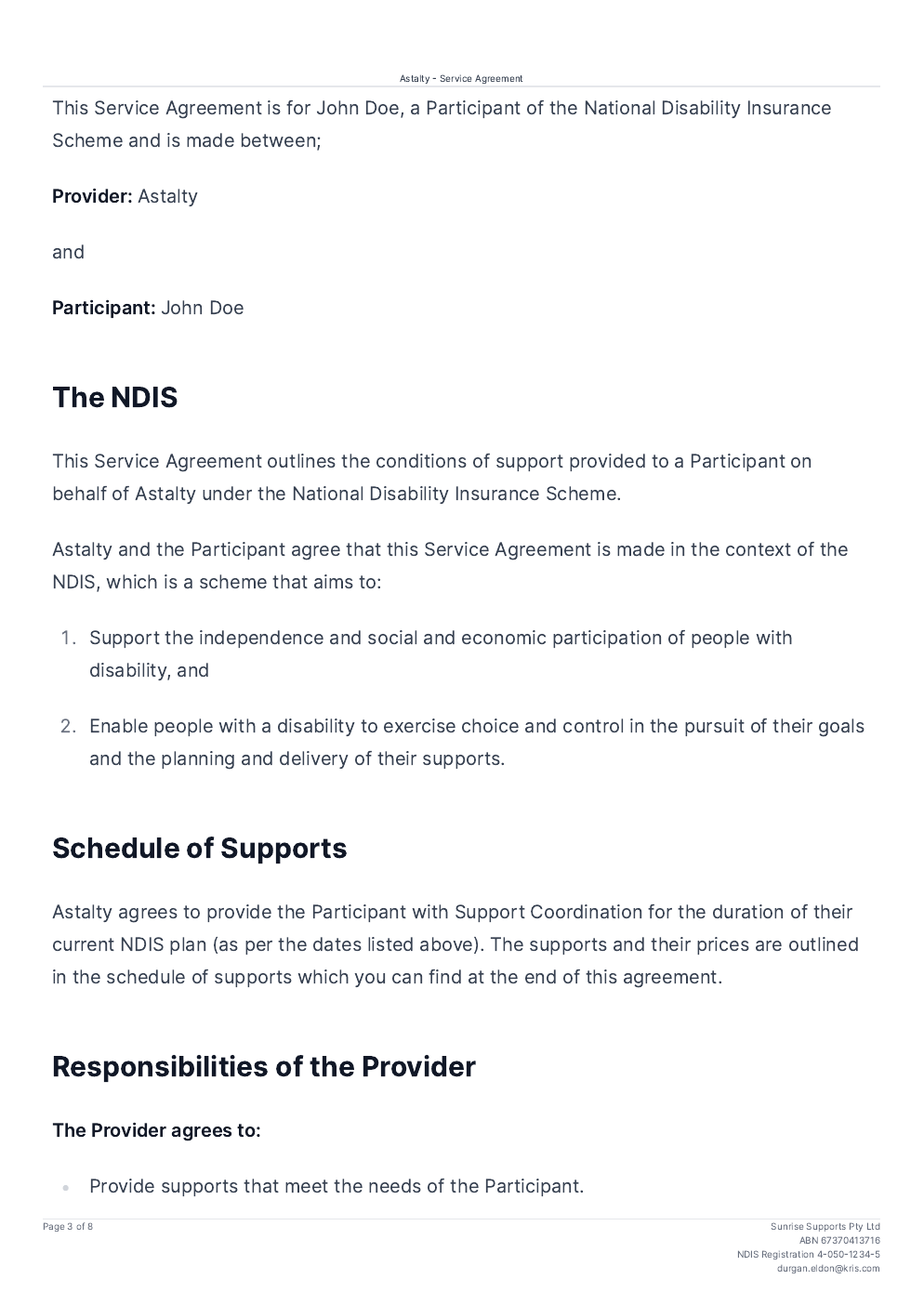
Here's a body page from the same document - the centred header sits above the content, the right aligned footer sits below it, and Page 3 of 8 prints on the left, opposite the footer text.
Settings are captured when a document is generated
When you generate a document from a template, Astalty takes a copy of the template's layout settings at that moment and stores them against the generated document.
This means:
- Changing a template's layout later does not restyle documents already generated from it - including drafts that haven't been finalised yet.
- A finalised document keeps printing the way it did when it was generated, even if the template it came from is later deleted.
- To apply new layout settings to a document, generate it again from the updated template.
Where these settings apply
| Where | Layout settings apply? |
|---|---|
| Participant Custom Templates (Astalty Template) | Yes |
| User Custom Templates (Astalty Template) | Yes |
| Service Agreements generated from an Astalty Template | Yes |
| Download blank template and Preview | Yes |
| Word Templates | No - the uploaded Word document is used as-is |
| NDIA Templates | No - these use the NDIA's own supplied forms |
Defaults for existing templates
Templates created before these options existed keep printing exactly as they did. Their defaults are:
| Setting | Default |
|---|---|
| Document Title | Blank (uses the template name) |
| Front Page Alignment | Left aligned |
| Logo Size | Medium |
| Include a contents page | Off |
| Number the contents entries | Off |
| Body Text Size | Small |
| Header / Footer | Blank |
| Header / Footer Alignment | Left aligned |