- Administration
- Bulk Communications
Bulk Communications
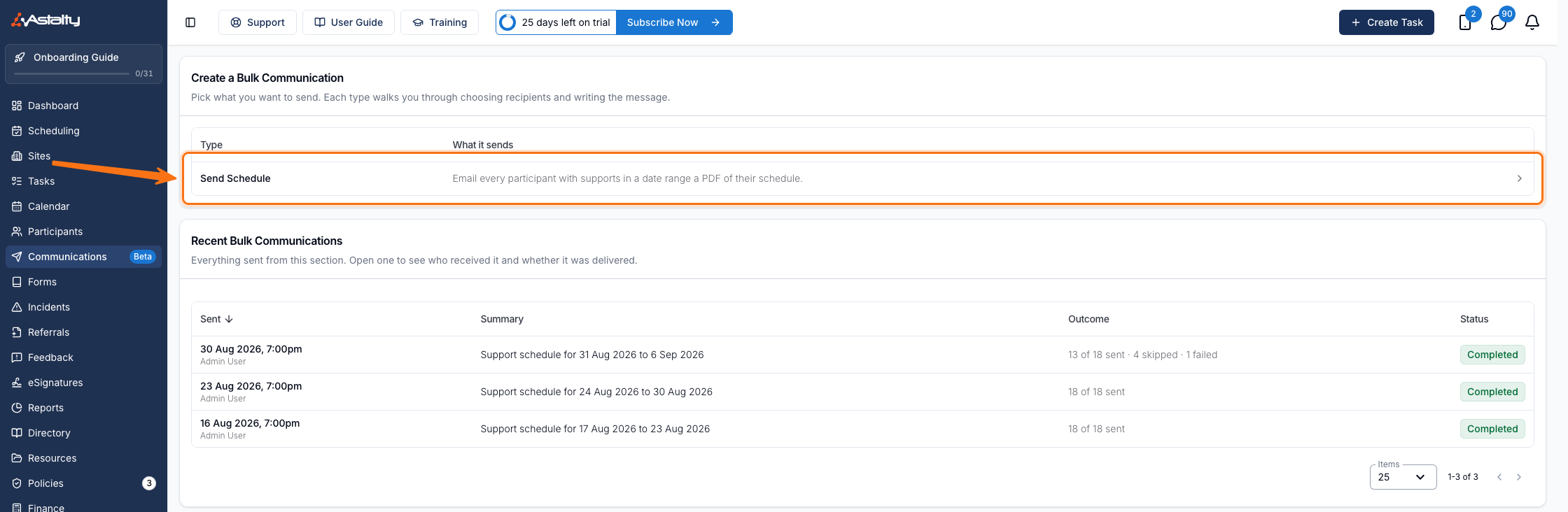
Bulk Communications emails every Participant with supports in a date range a PDF of their schedule, in a single send. Send Schedule is the only type available today.
Before You Start
- The Admin role, or the Manager role with Can access Scheduling turned on for you. It is off for Managers by default. See Updating Roles and Permissions.
- There is no approval step. Anyone who can open Send Schedule can send.
Where to Find It
Select Communications from the left-hand menu (under Manage when your menu is grouped into sections). Create a Bulk Communication lists each type you can send; select Send Schedule. Past sends sit below under Recent Bulk Communications.
Choosing the Date Range
Set Date to the period the schedules should cover. It opens on the current week. Pick dates on the calendar, or use Last, This or Next, then Week, Fortnight, Month, Quarter or Year. A range cannot span more than 365 days.
Include Unpublished Supports is No by default, so only published supports count. Set it to Yes to include unpublished ones. A Participant whose only supports in the range are unpublished does not appear until you do.
Changing either setting clears your selection and rebuilds the list.
Choosing Participants and Recipients
Every Participant with at least one support starting in the range is listed with a Supports count and their available Recipients. Astalty preselects rows that have a default recipient. Select any remaining rows and choose at least one recipient before sending. Use the search box to find someone, the header tick box to select or clear everyone, and the eye icon to Preview schedule PDF for one Participant.
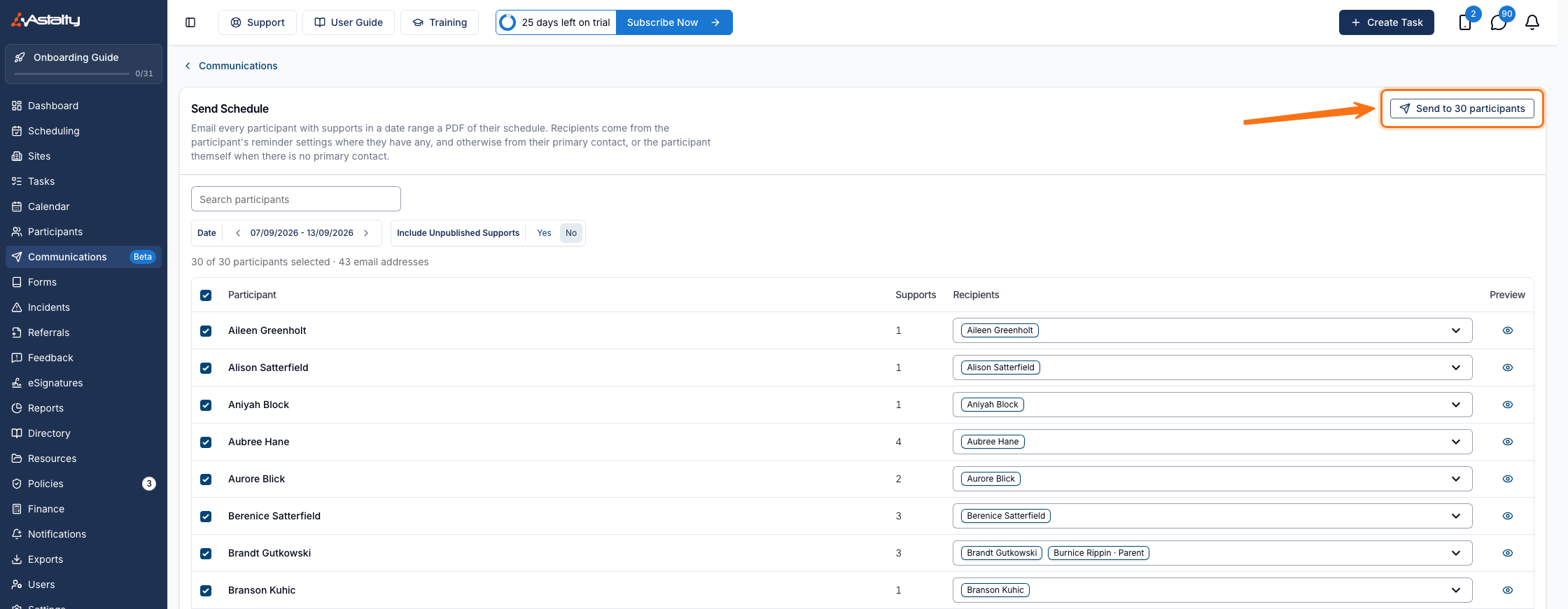
Recipients are the Participant and any of their Contacts with an email address recorded, each shown with their relationship. Archived Contacts aren't offered, and an email address shared by two people is listed once. Support Workers and other staff are never included.
Astalty preselects recipients per Participant:
- The Participant's support reminder recipients, if reminders are set up for them.
- Otherwise the Contact whose relationship is Primary Contact.
- Otherwise the Participant.
Change any of these from the Recipients dropdown on that row.
Writing the Email
Select Send to [N] participants to open the composer.
- Subject is prefilled as "Support schedule for 7 Sep 2026 to 13 Sep 2026" and can be edited. It holds 255 characters.
- Message is the body of the email. Each recipient also gets that Participant's schedule attached as a PDF.
- Recipients below recaps who is being emailed, per Participant.
Placeholders
Use Insert placeholder above the Subject, or the Participant, Business and Schedule buttons under the Message toolbar, to drop in a value Astalty fills per Participant:
| Placeholder | Fills with |
|---|---|
${Participant_FirstName} | The Participant's first name, or their preferred name when Participant Name Display shows preferred names |
${Participant_FullName} | The Participant's full name, or preferred and last name under the same setting |
${Participant_PreferredName} | The Participant's preferred name, or their first name if none is recorded |
${Business_Name} | Your business name |
${Schedule_StartDate} | The first day of the range, as 8 Sep 2026 |
${Schedule_EndDate} | The last day of the range, as 8 Sep 2026 |
Sending
Select Send. Check the Participant and email address counts in the confirmation, then select Send again. Sending starts immediately.
Each email is sent from your business name, with reply-to set to the email address of whoever pressed Send, so replies come back to that person rather than a shared inbox.
Understanding the Results
Send Schedule Results opens as soon as the send starts, and lists every Participant with their recipients, status and a PDF link to the attachment they were sent. Expand a row to see each recipient's address and their own status.
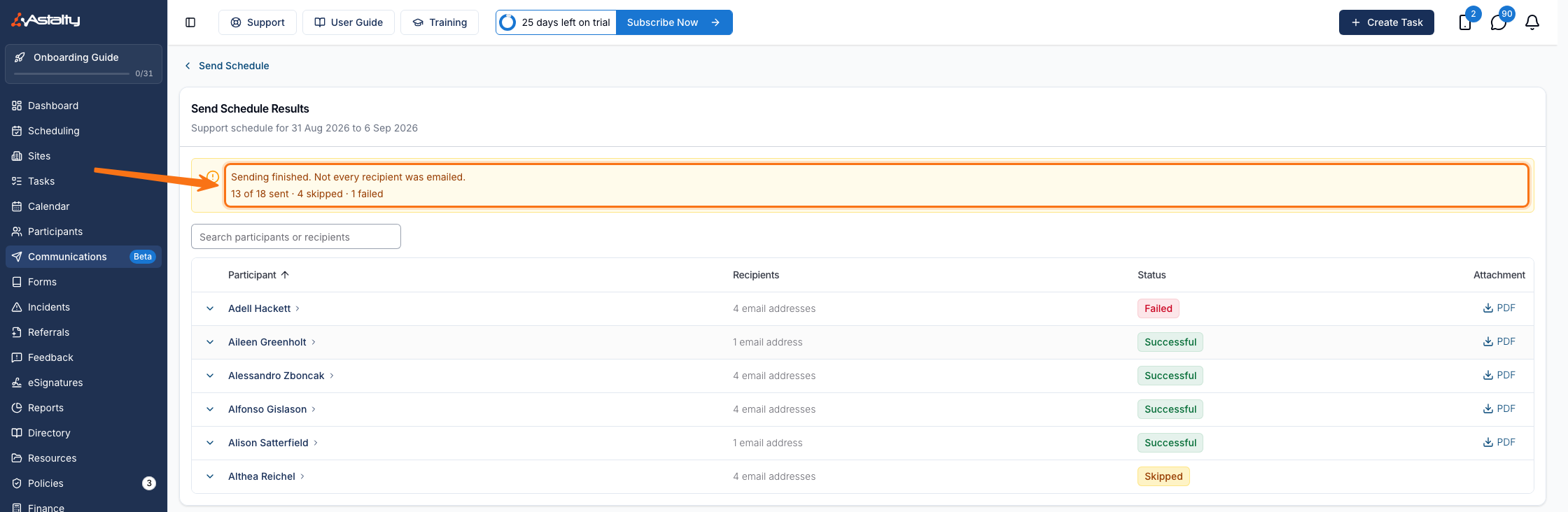
A banner at the top summarises the send and shows the sent, skipped, failed, cancelled, and delivery failed counts that apply.
| Status | What it means |
|---|---|
| Sending | Queued or in progress. |
| Sent | Handed to the mail provider. No delivery result yet. |
| Delivered | The mail provider confirmed it reached the inbox. |
| Delivery delayed | Temporarily rejected and being retried. |
| Delivery failed | Permanently rejected, usually because the address is wrong or closed. |
| Cancelled | Cancelled before it was sent. |
| Skipped | The Participant was archived or deleted between composing and sending, so no email was sent and no PDF was generated. |
| Failed | The email could not be sent. |
The chip on a Participant's row shows their worst recipient outcome, and reads Successful when every recipient is fine.
Things to Keep in Mind
- A send covers at most 500 Participants. Split a larger group across sends by narrowing the date range or clearing rows.
- Cancelled supports are never listed on the PDF, and cannot be included. This is the opposite of Email Supports as PDF for a single Participant, which includes them unless you exclude them.
- Participants with no supports in the range never appear, so a send only reaches people who actually have something scheduled.
- Archived Participants are excluded when the list is built, and one archived after you compose is recorded as Skipped rather than Failed.
- Support Worker names are abbreviated on the PDF to a first name and surname initial, to protect your staff's privacy.
- Every send is kept under Recent Bulk Communications, with who sent it, the period it covered and its outcome. Select a row to reopen its results.