- Scheduling
- Published and Unpublished Shifts
Published and Unpublished Shifts
Overview
By default, when you create a support in Astalty, it is created as an unpublished shift. Shifts must be published before they are visible to Support Workers in the app.
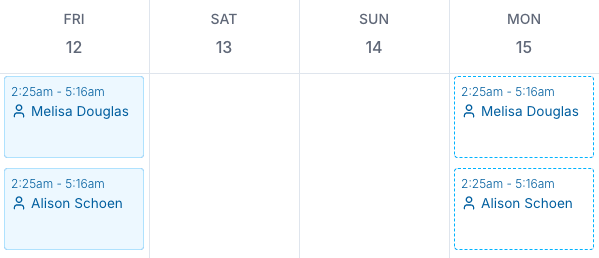
You can identify the status of a shift by its appearance:
- Unpublished Shift - The event uses a dashed border.
- Published Shift - The event uses a solid border and fill. Its colour depends on your organisation's Schedule Colours.
Publishing Shifts
There are several ways you can publish shifts:
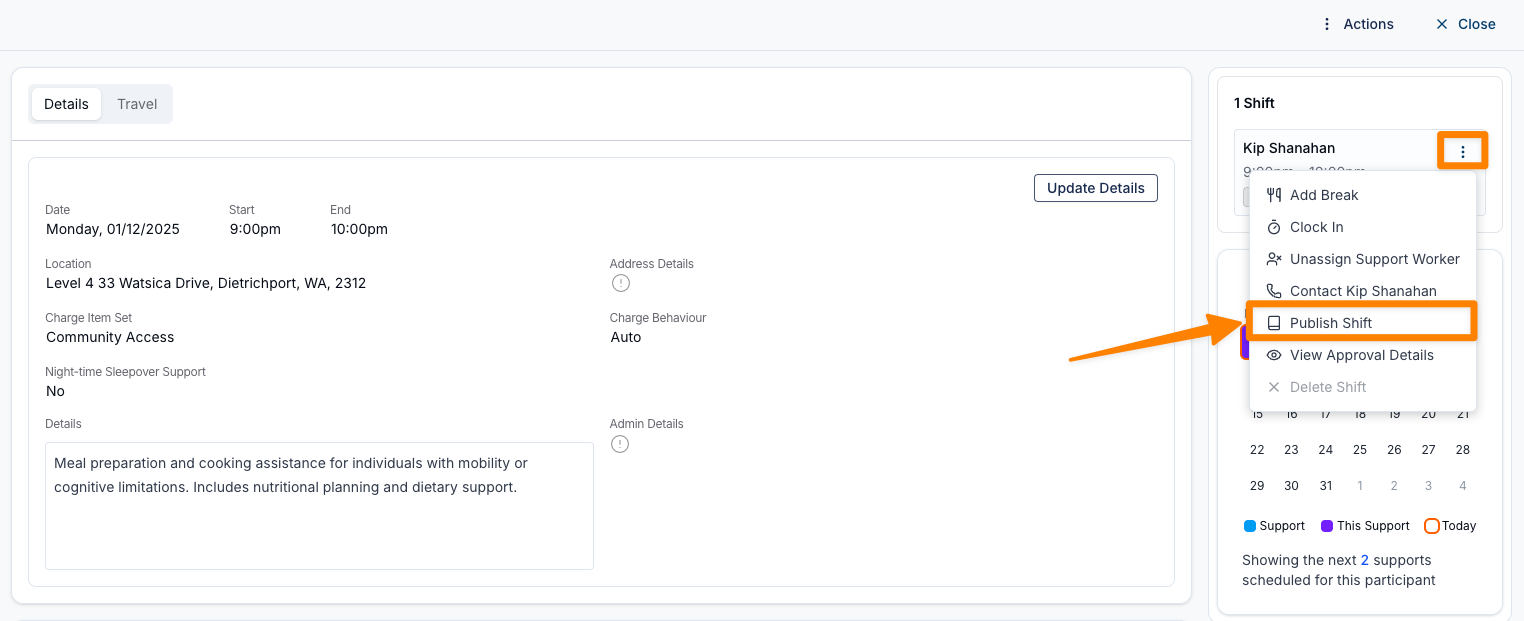
Individually:
- Open a specific Support, then click on the three dots next to the Support Workers name, and select Publish Shift.
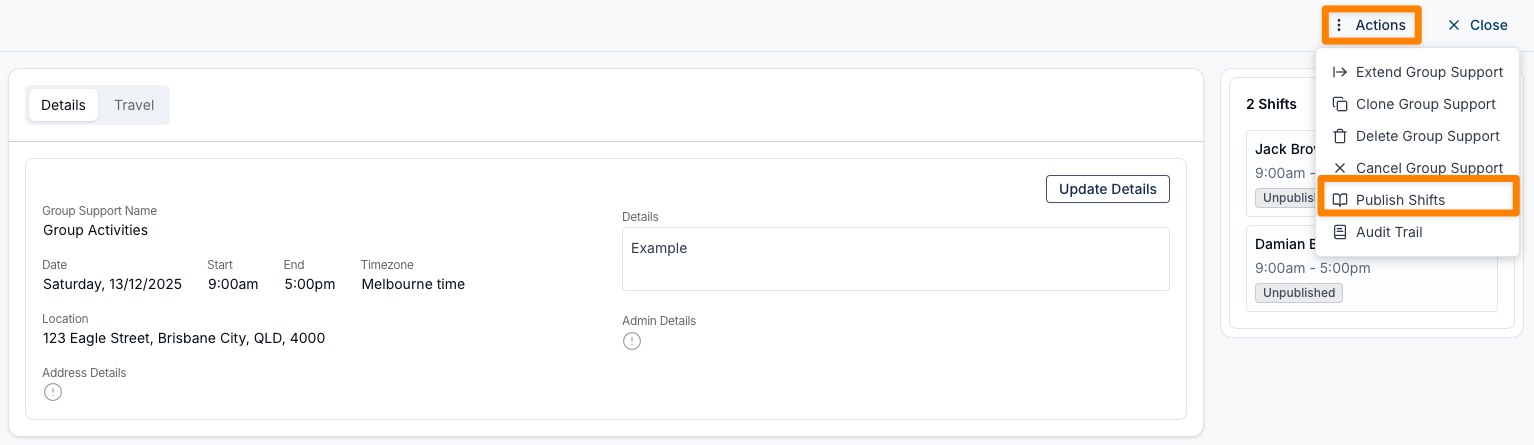
- From the Actions menu in a Direct Support or a Group Support click on Publish Shifts.
By Day: Switch to the Daily View, select the date, and publish all shifts scheduled for that day.
By Week: Switch to the Weekly View, select the week, and publish all shifts scheduled for that week.
By Fortnight: Switch to the Fortnight View, select the fortnight, and publish all shifts scheduled in that period.
By Date Range: Use the date range filter to review unpublished shifts and publish them in bulk.
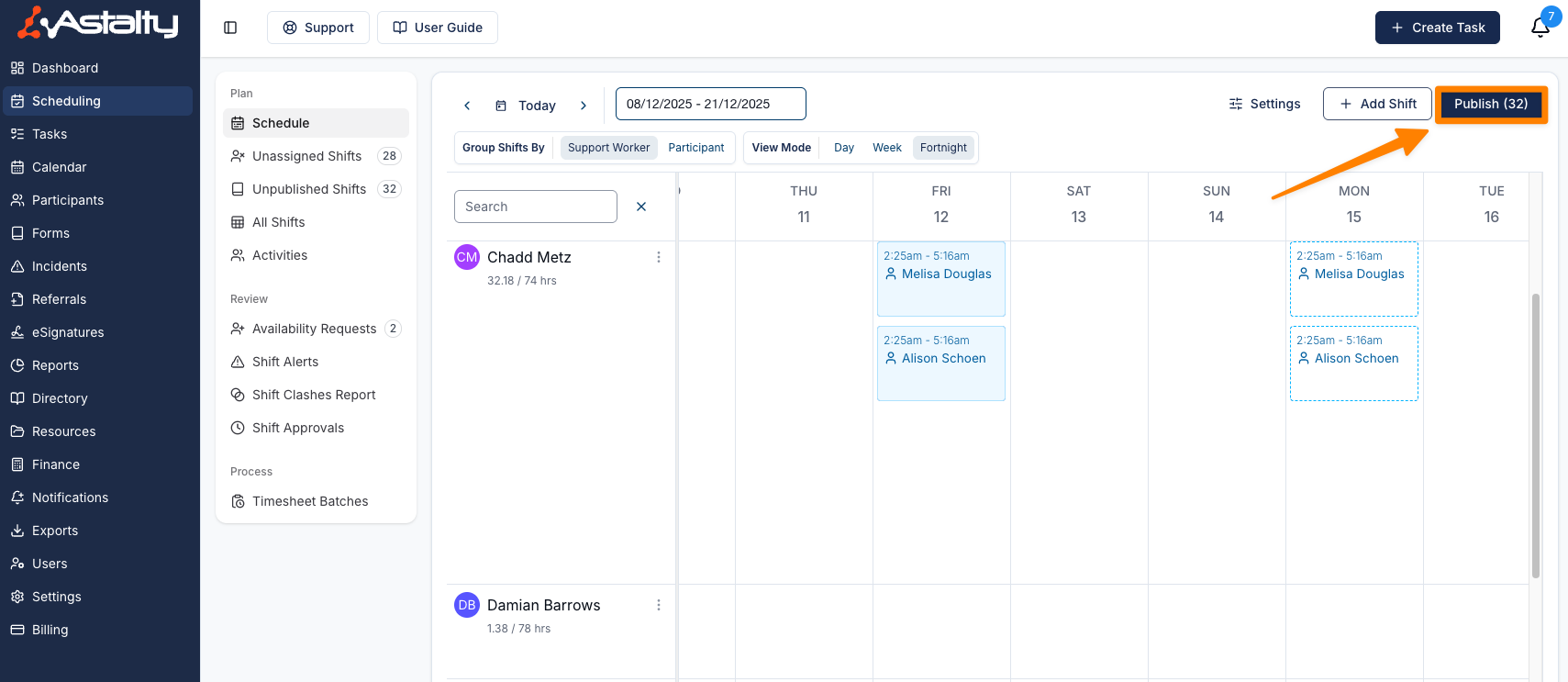
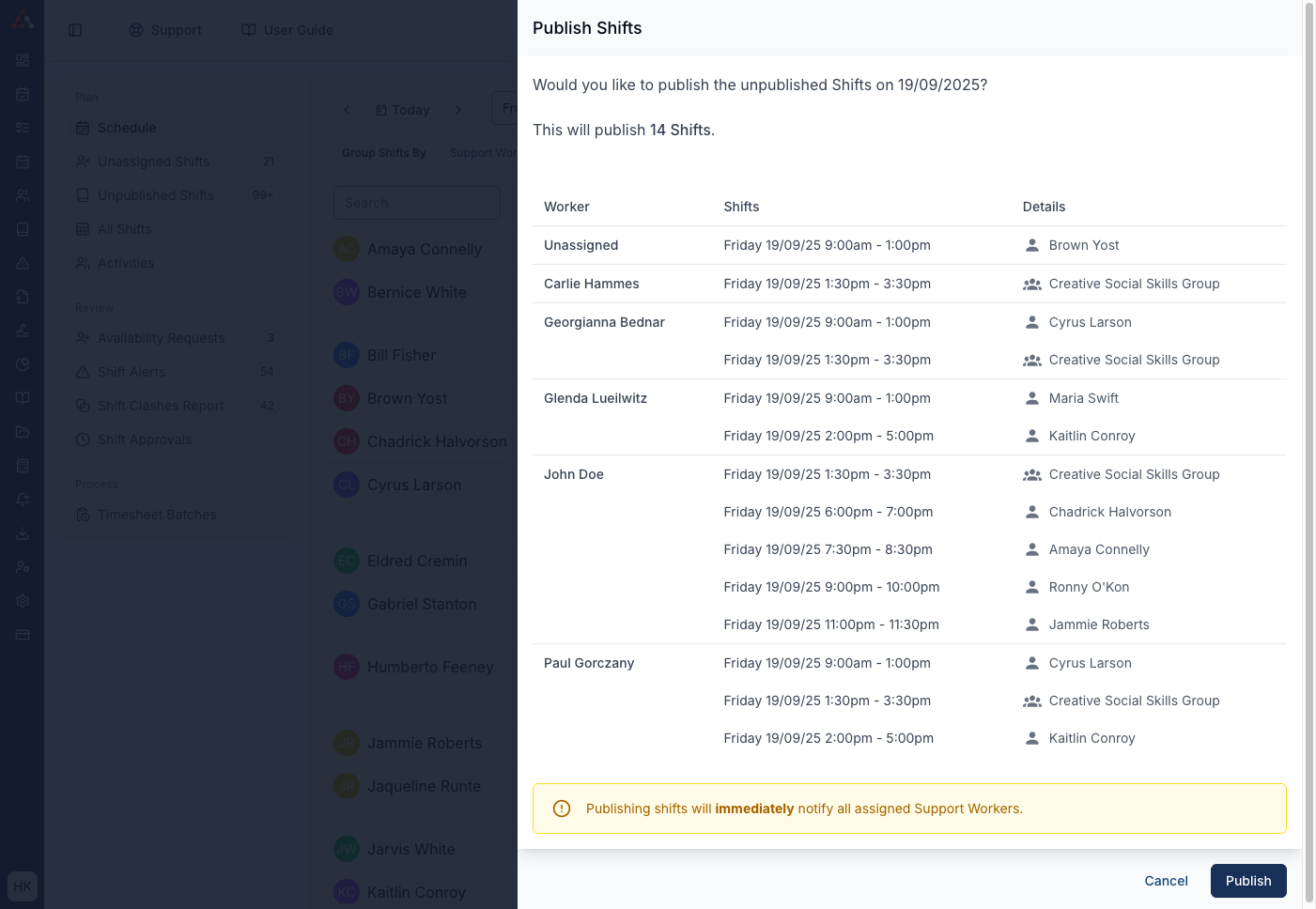
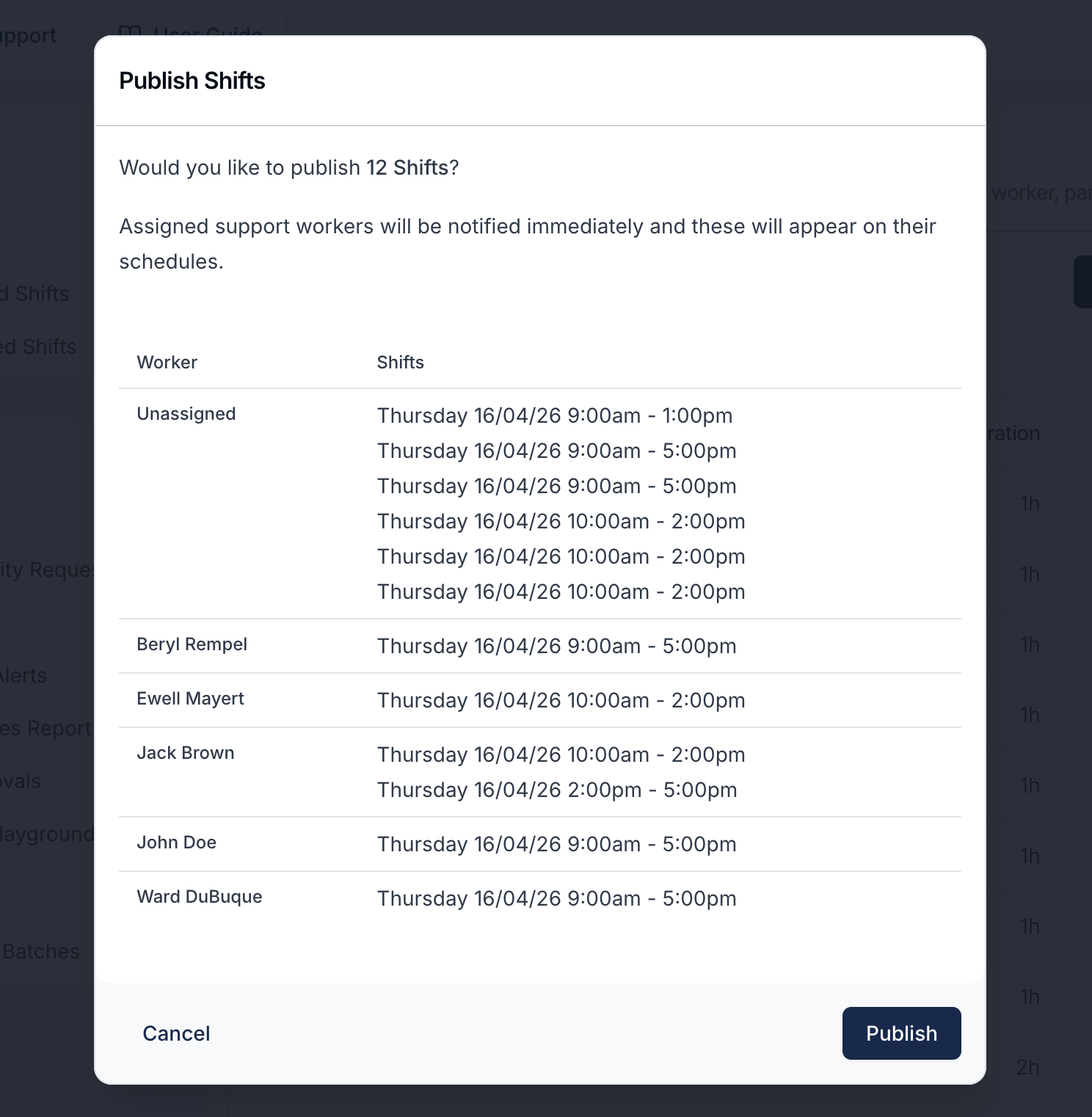
When you publish shifts from the calendar view, a pop-up will appear showing all shifts that are about to be published. Any unassigned shifts will be listed first so you can review and address them before proceeding.
Unpublishing Shifts
You can also unpublish a shift before making changes. For example:
- Adjusting travel details
- Unassigning and reassigning a Support Worker
- Editing other shift information
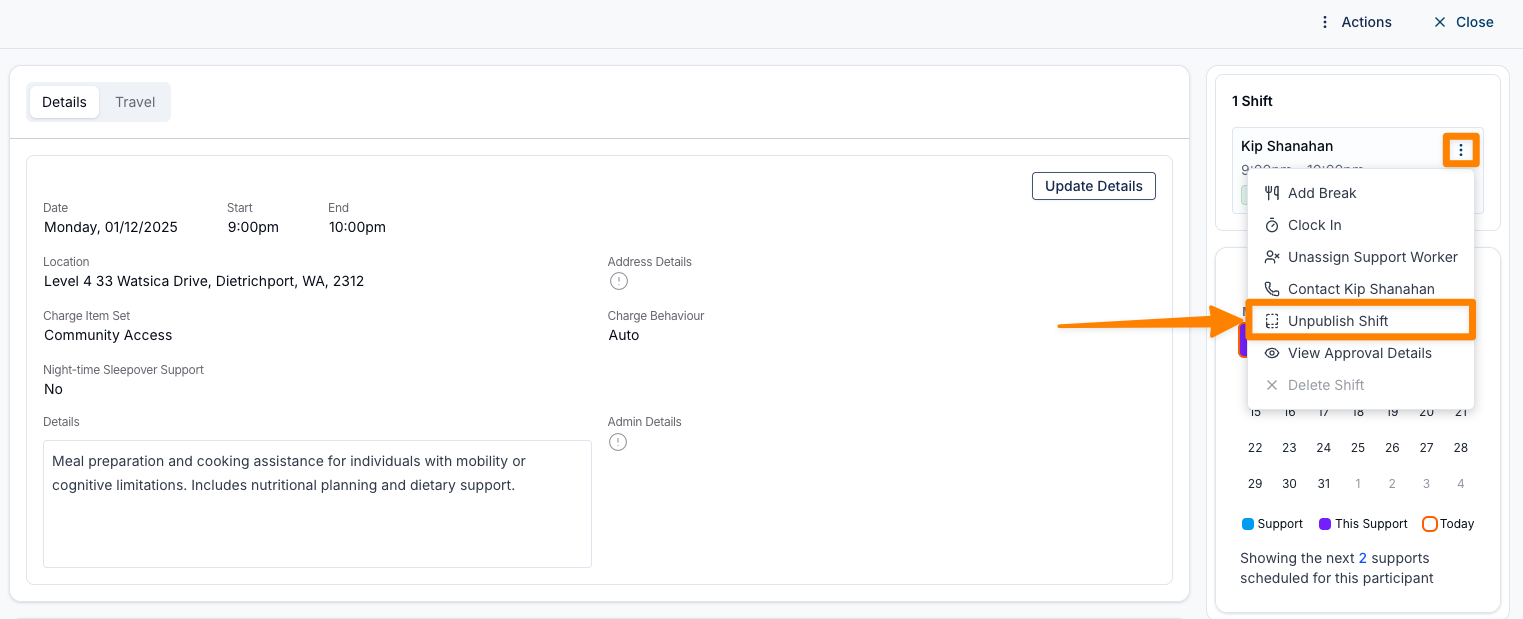
Open the specific Support, click on the three dots next to the Support Workers name, and then select Unpublish Shift.
Once changes are complete, you can republish the shift.
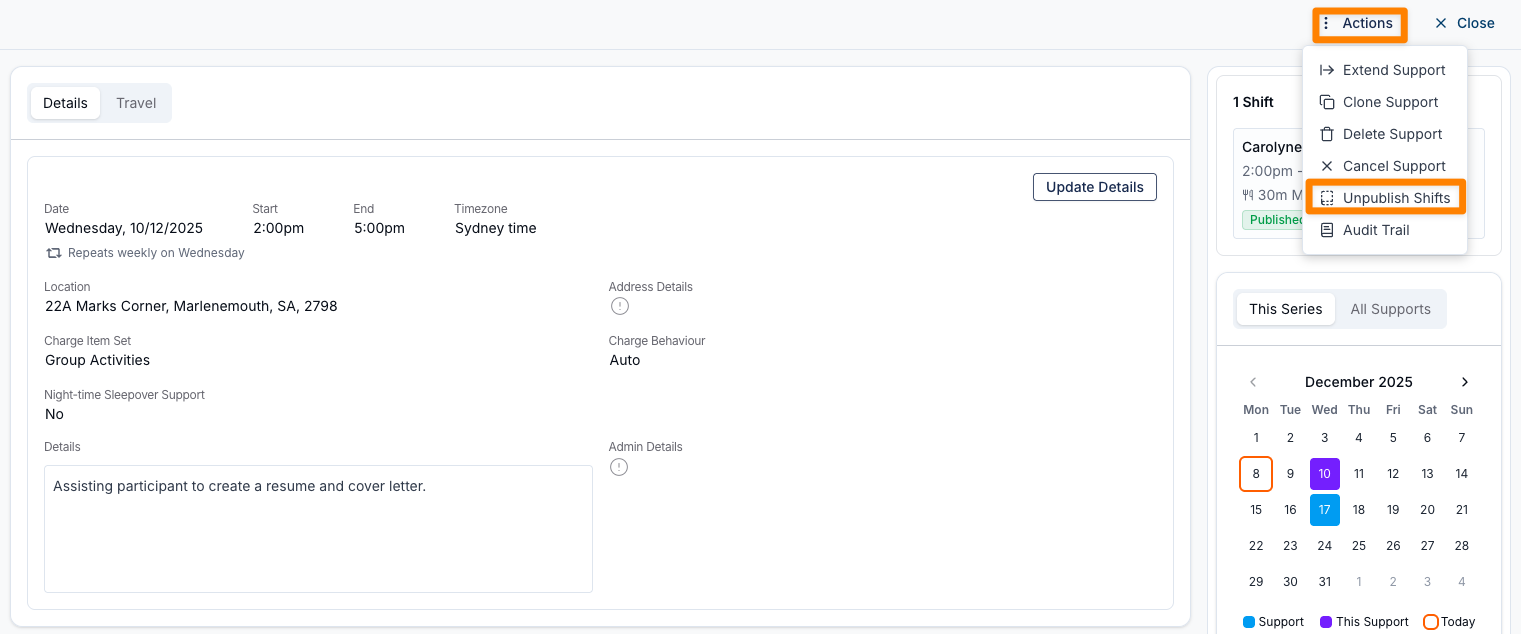
For Direct Supports, you can also unpublish the shift from the Actions menu.
Bulk Actions from the All Shifts Page
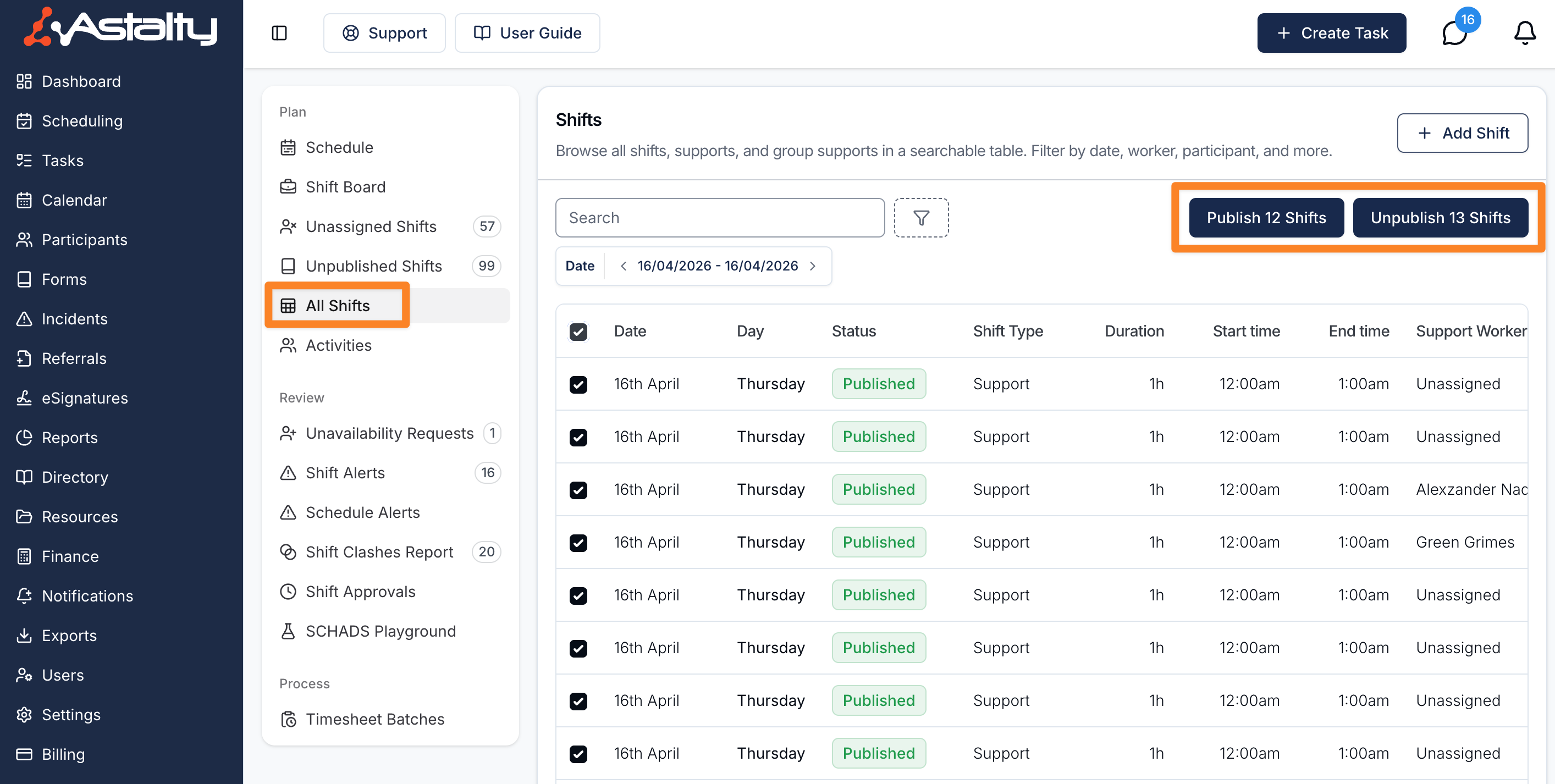
In addition to publishing and unpublishing shifts from the calendar view, you can publish, unpublish, and delete shifts directly from the All Shifts page. This is useful when you want to manage shifts across multiple days or workers in one place.
Bulk Publishing
To bulk publish shifts from the All Shifts page:
- Navigate to the All Shifts page.
- Select the shifts you want to publish using the checkboxes.
- Click the Publish Shifts bulk action button.
A confirmation pop-up will appear listing the affected Support Workers and their shifts. Review the list to ensure everything is correct, then confirm to proceed. Assigned Support Workers will be notified immediately once the shifts are published.
Bulk Unpublishing
To bulk unpublish shifts from the All Shifts page:
- Navigate to the All Shifts page.
- Select the shifts you want to unpublish using the checkboxes.
- Click the Unpublish Shifts bulk action button.
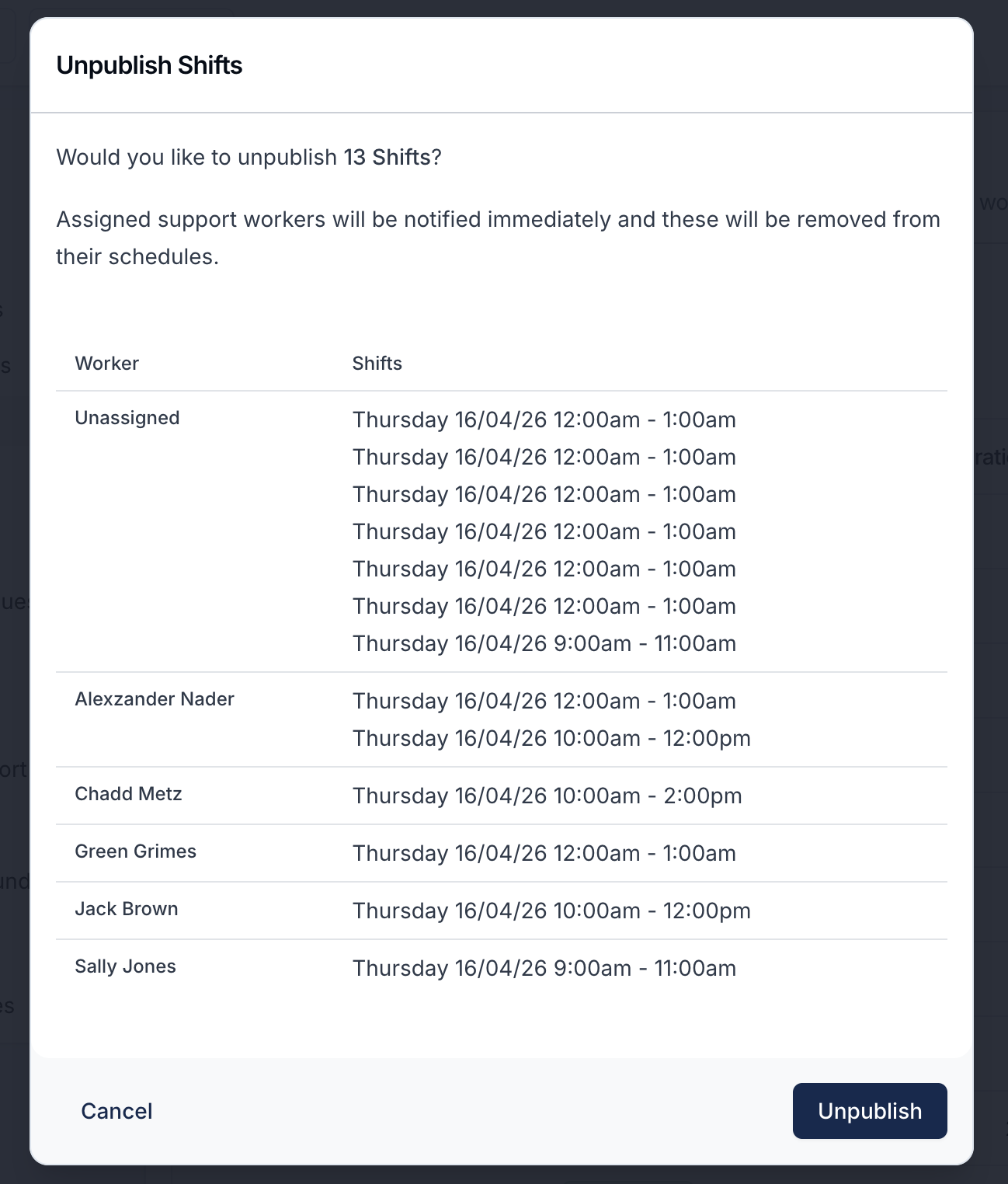
A confirmation pop-up will appear listing the affected Support Workers and their shifts. Review the list before confirming. Assigned Support Workers will be notified immediately that the shifts have been removed from their schedule.
Bulk Deleting
You can delete several shifts from the All Shifts page in one step, instead of removing a roster one shift at a time.
- Navigate to the All Shifts page.
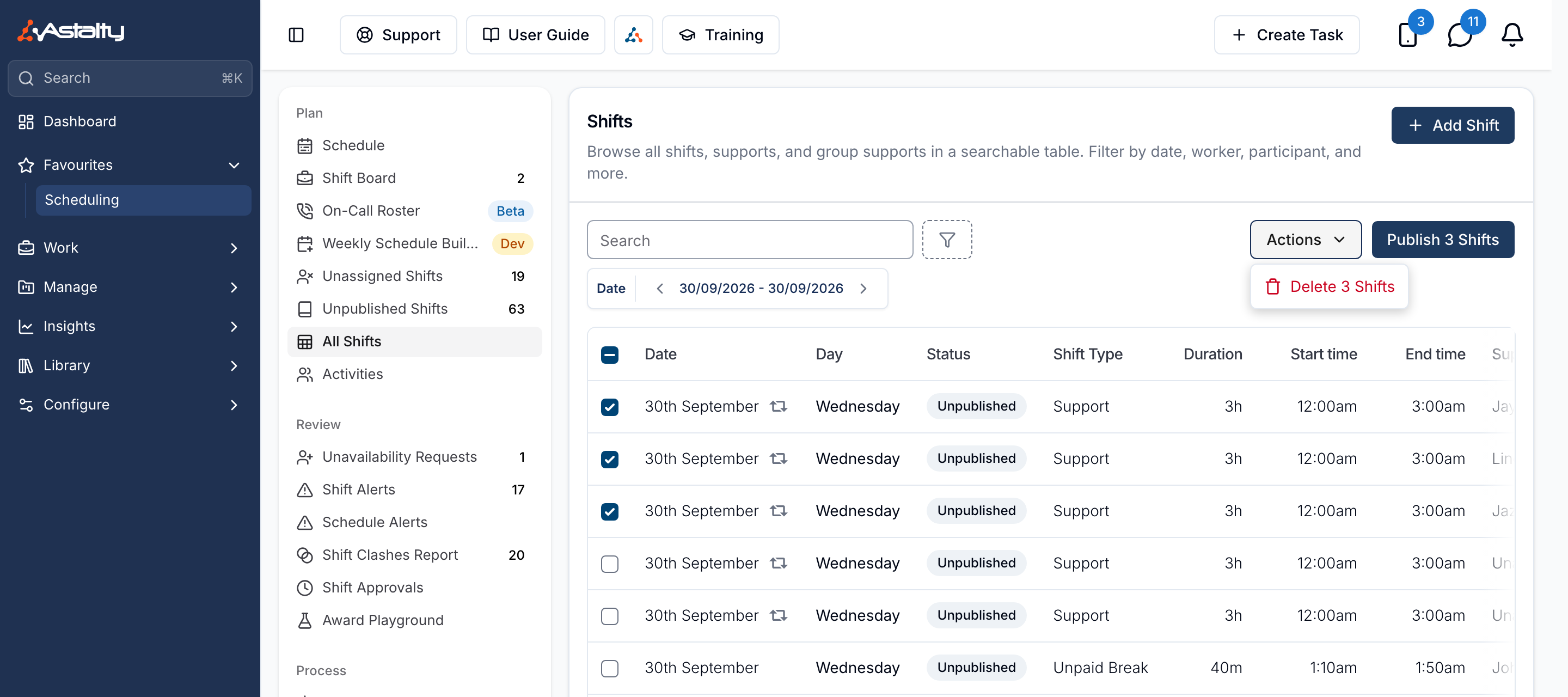
- Select the shifts you want to delete using the checkboxes. A shift already sitting in a timesheet batch can't be ticked.
- Click Actions, then Delete (the button is labelled with the number of shifts selected, for example Delete 3 Shifts).
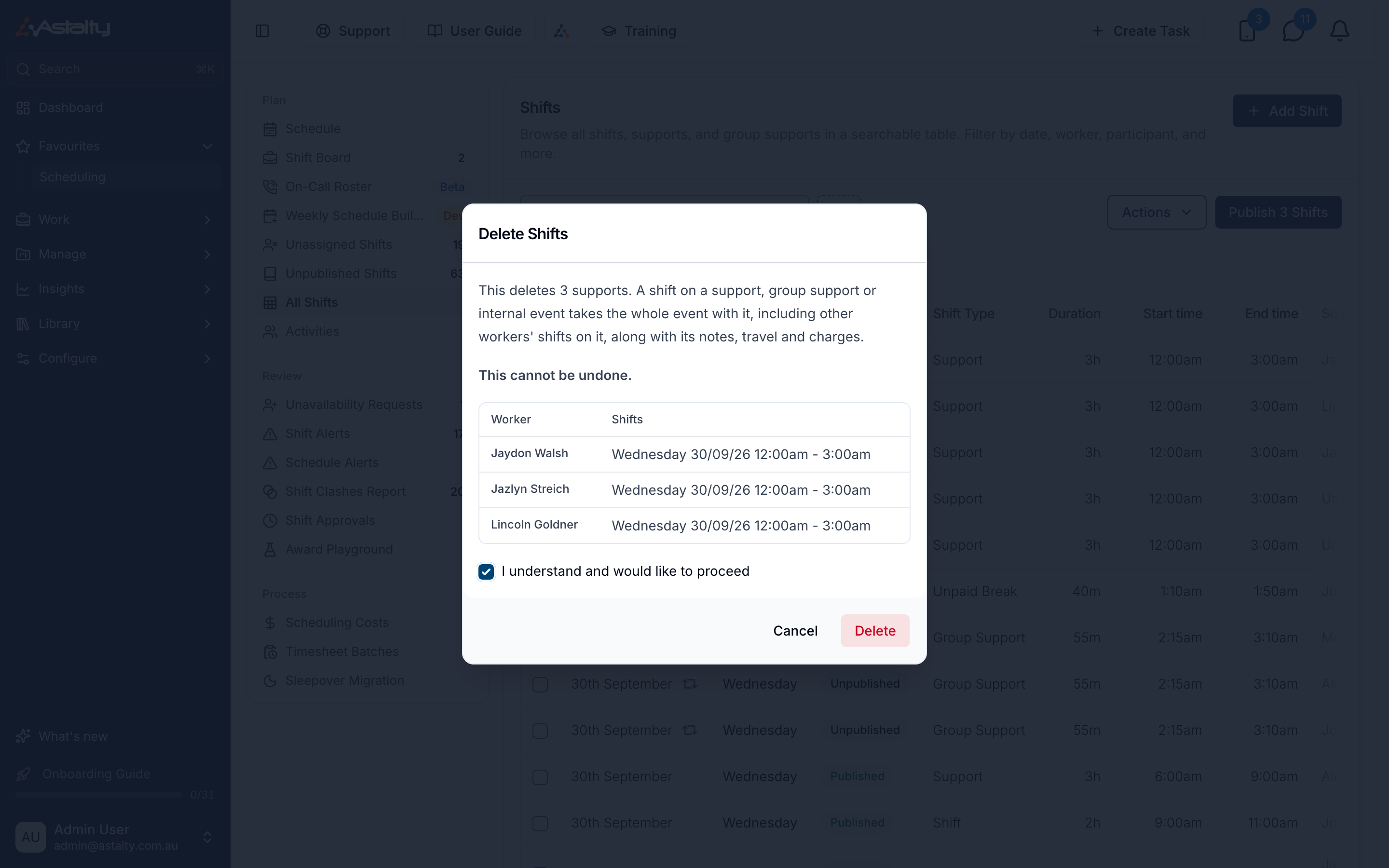
A Delete Shifts dialog opens, summarising what will be removed (for example This deletes 3 supports) and listing every affected Support Worker with their shift dates and times. Tick I understand and would like to proceed, then click Delete.
A shift can't be deleted when:
- The Support Worker has clocked in or out of it.
- It's in a timesheet batch.
- Its Support or Group Support has invoiced or voided charges.
- Its Support belongs to a Group Support and deleting it would leave a gap in another Participant's coverage.
If any selected shift fails one of these checks, nothing is deleted - Astalty lists which shifts failed and why, with a Deselect Blocked Shifts button so you can remove them from the selection and retry with the rest.
Deleting notifies the assigned Support Worker only if the shift was already published - an unpublished shift isn't visible to them, so there's nothing to notify.
Published and Unpublished Notifications
When you publish a support, the assigned Support Worker will receive a notification in the Support Worker app. The type of notification will depend on how the shift is published - whether you publish an individual shift or publish shifts in bulk from the scheduler using the daily, weekly, or date range view.
If you unpublish a support, the Support Worker will also receive a notification to let them know the support has been removed from their schedule.
Key Points
- Shifts are unpublished by default when created.
- Published shifts use a solid border and fill.
- Unpublished shifts use a dashed border.
- The colour itself can be changed in Schedule Colours.
- You can publish or unpublish shifts individually, by day, by week, or by a selected date range.
Publishing Workflow
See Publishing Workflow for a suggested review and publishing process.
Published & Unpublished Overview
The following video provides an overview of published and unpublished supports.