- Scheduling
- Schedule Alerts
Schedule Alerts
Schedule Alerts flags rostered shifts with potential award issues, including overtime, fatigue management, broken shifts and shift duration limits. Review these alerts before publishing a roster or processing payroll.
Overview
Schedule Alerts looks at the shifts you've already rostered (across both unpublished and published shifts) and checks each Support Worker's roster against the implemented rules for the award on their employment contract. Where a shift looks like it may breach a rule - or pushes a Support Worker over a daily, weekly, or fortnightly threshold - it appears in the report with a short explanation of why, the relevant clause references, and which employment types the rule applies to.
Use the report to:
- Identify shifts that will attract overtime rates before they go to payroll.
- Spot Support Workers who are tracking towards fatigue management breaches across a roster period.
- Catch broken shift configurations that don't comply with the Award.
- Review shifts that fall outside minimum or maximum shift duration rules.
Schedule Alerts is read-only. Use a row's action menu to open the shift or its place on the Schedule, make the change, then refresh the report.
How to View Schedule Alerts
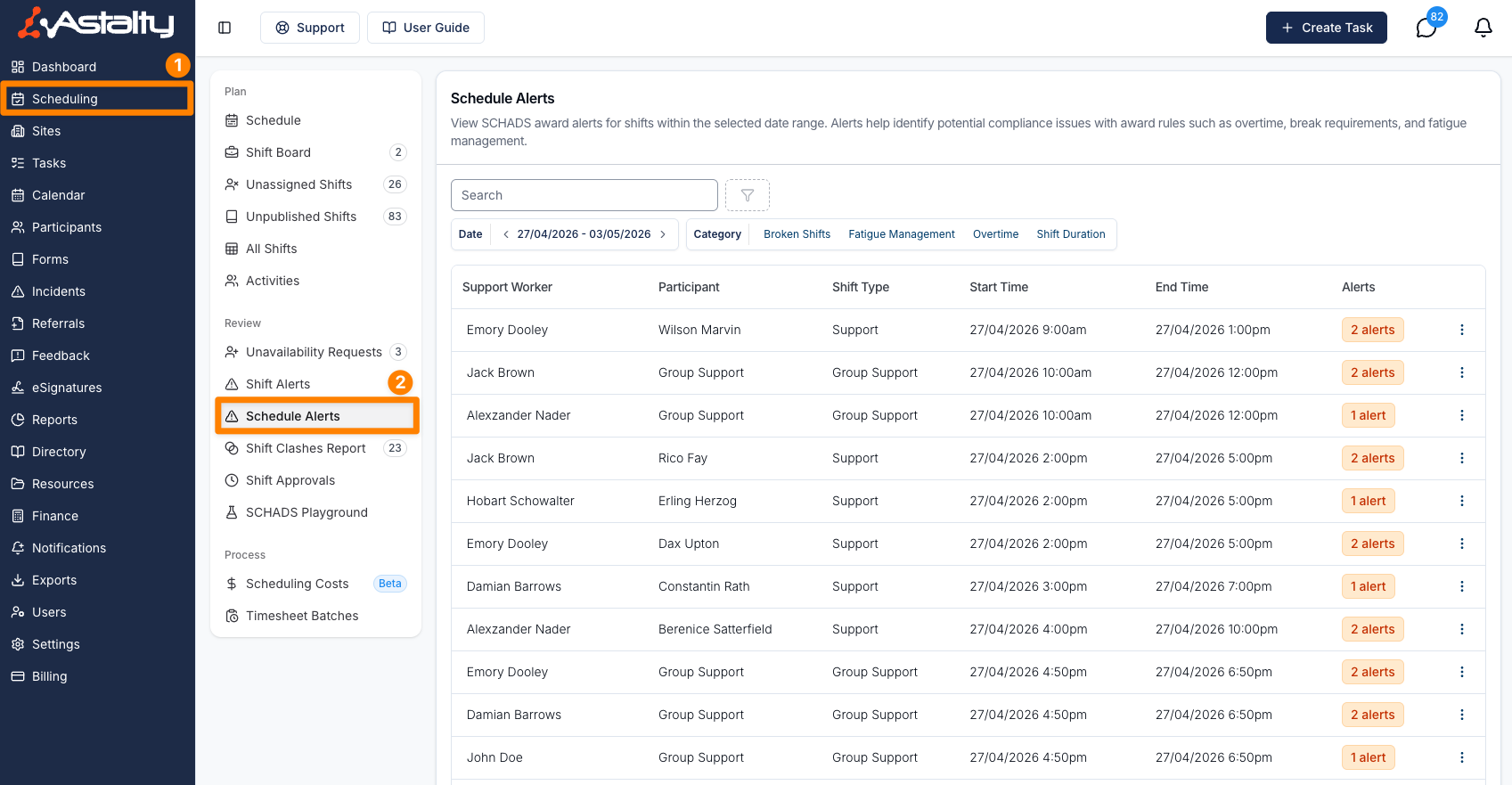
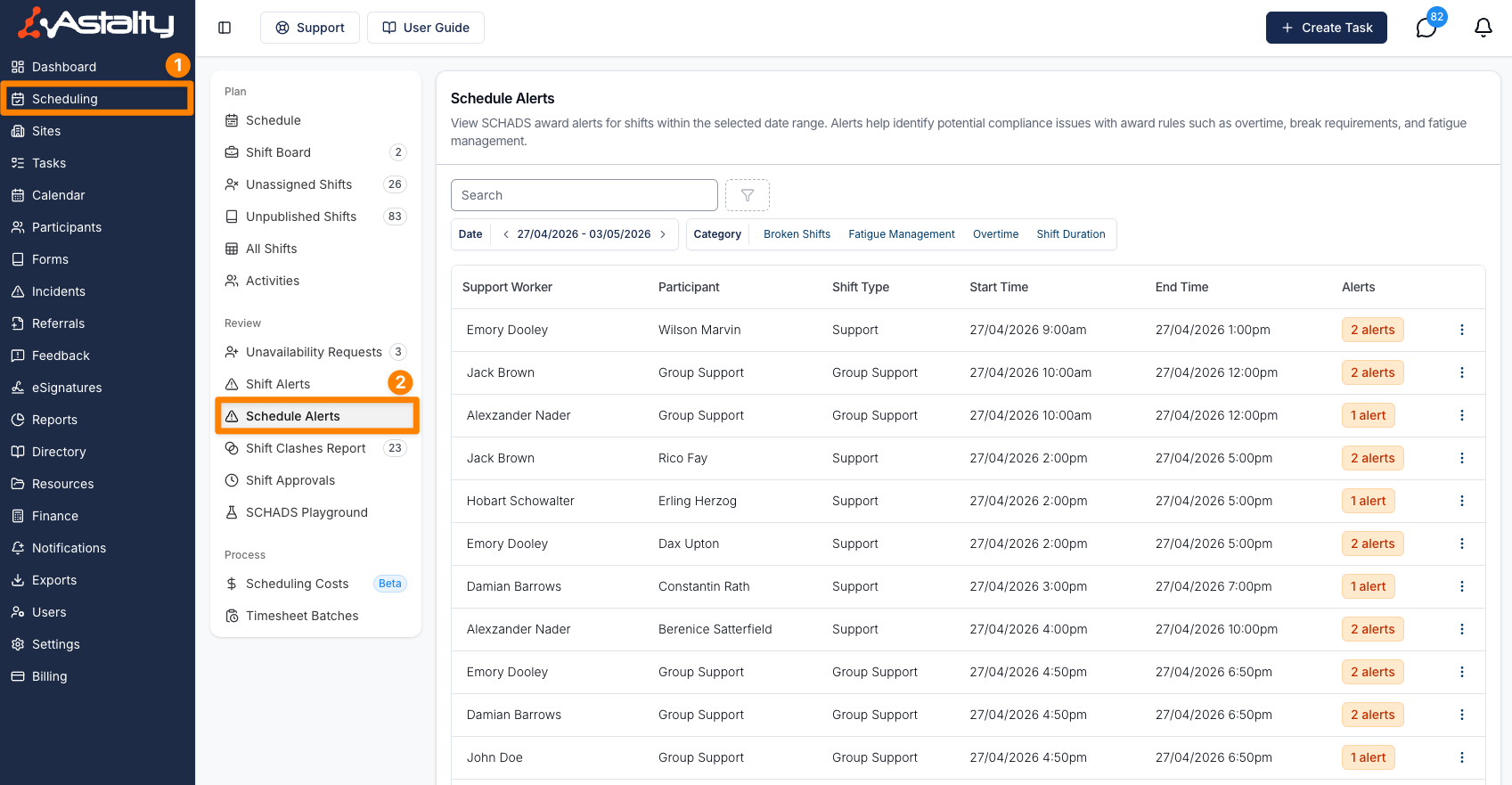
Open Schedule Alerts
- From the left-hand menu, select Scheduling.
- Under Review, select Schedule Alerts.
The report opens with the current week selected by default. Each row represents a single shift that has at least one alert against it.
Set the Date Range
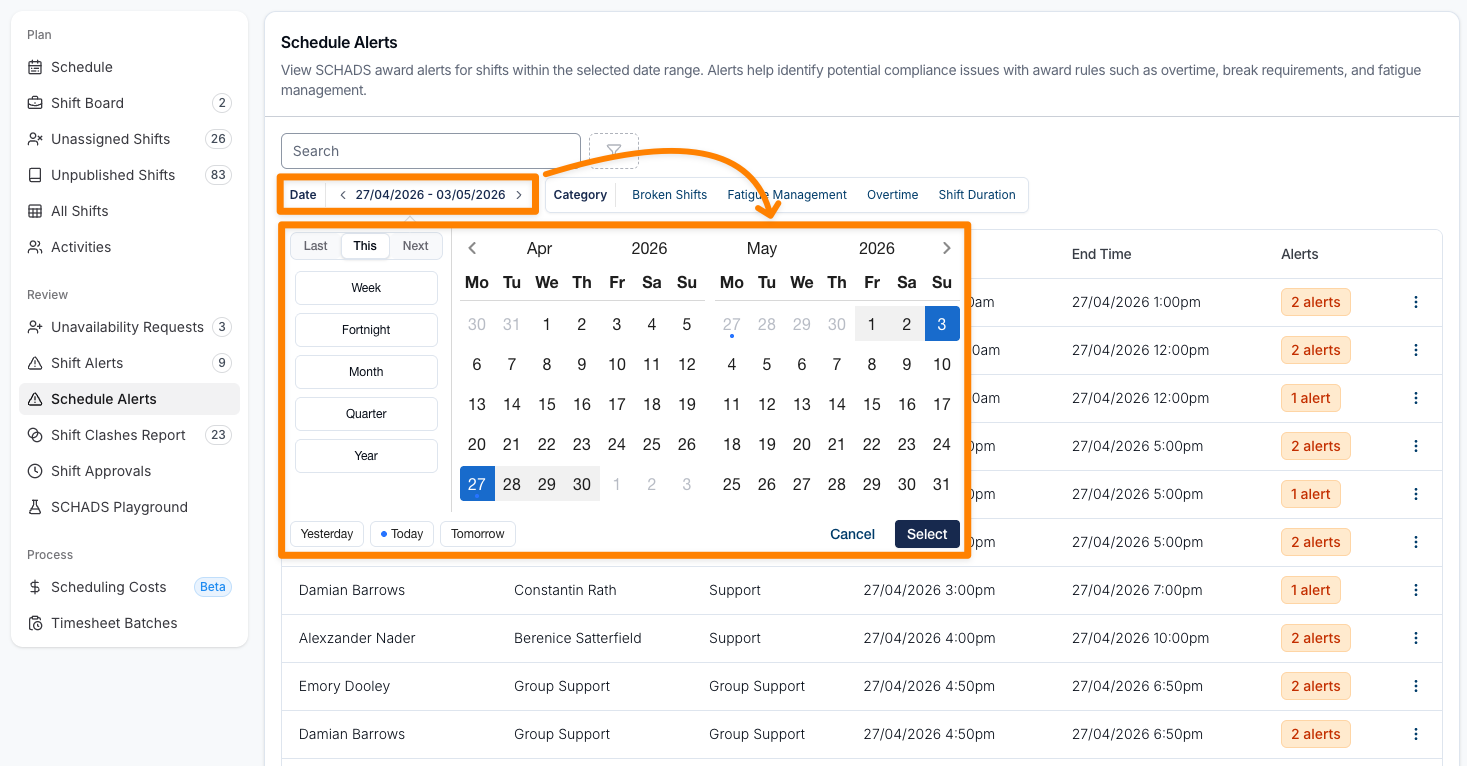
By default, the report shows shifts in the current rostered week. To look at a different period, click the Date range at the top of the report and select a new start and end date, or use the arrows on either side of the date range to jump back or forward one week at a time.
Choose the period you are reviewing. A one or two week range keeps the report focused on the roster you are preparing.
Filter by Category
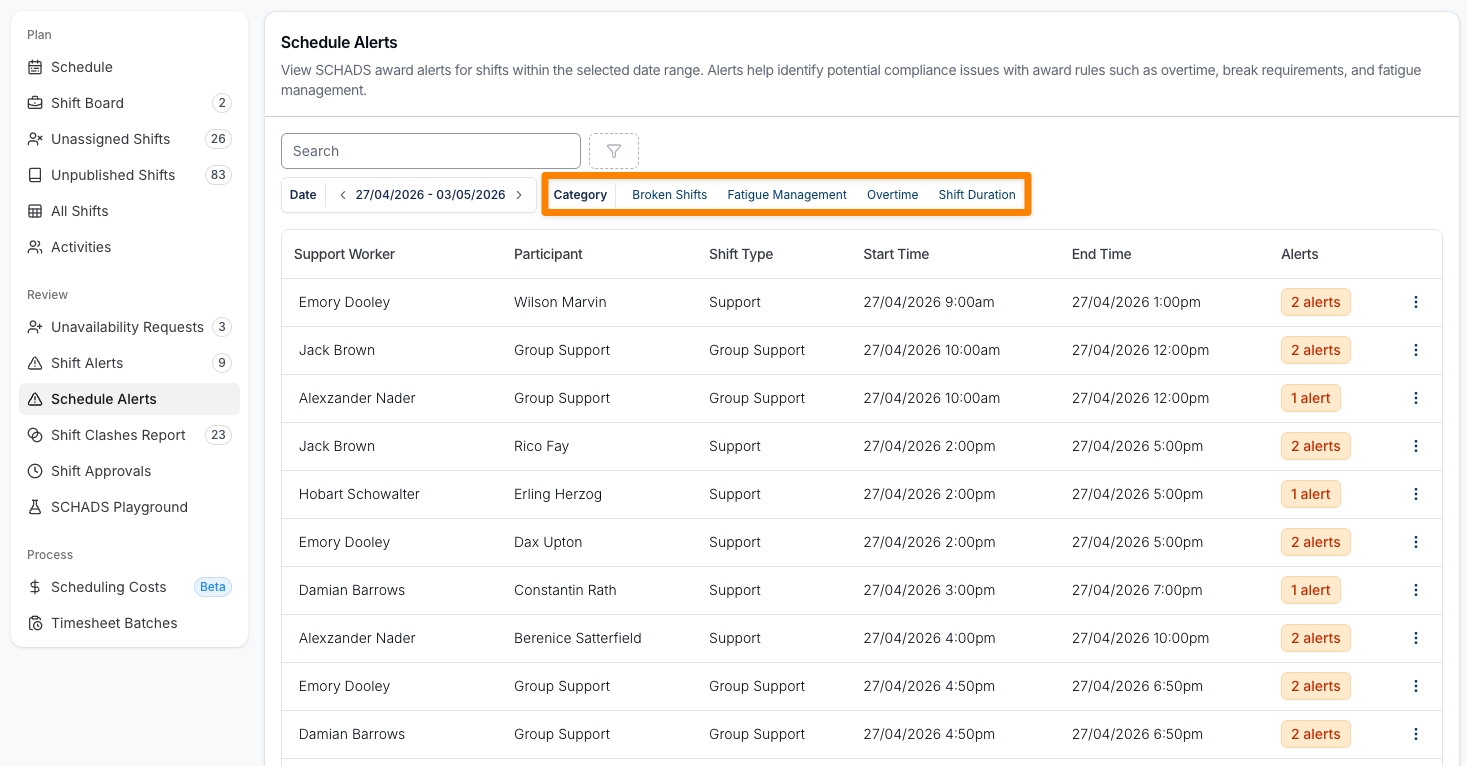
Each alert belongs to one of the following Categories:
- Broken Shifts - flags shifts that don't meet SCHADS rules for broken shift arrangements (for example, shifts split into too many parts, or with breaks that fall outside permitted lengths).
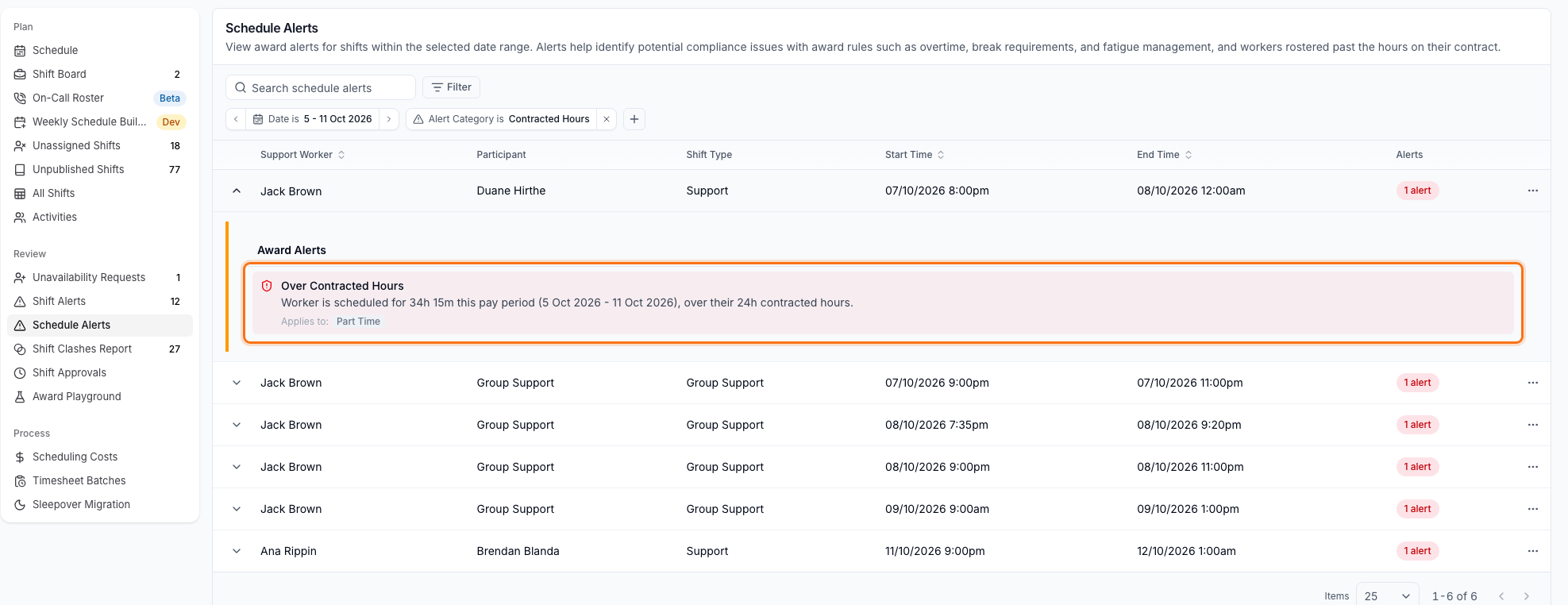
- Contracted Hours - flags a part-time Support Worker rostered past the weekly hours on their contract.
- Fatigue Management - flags rosters where a Support Worker has insufficient rest between shifts, or is tracking towards a fatigue threshold across the period.
- Maximum Hours - flags any Support Worker rostered past the maximum weekly hours set on their contract, for example a visa work restriction.
- Overtime - flags shifts that take a Support Worker over their daily, weekly, or fortnightly ordinary hours, including shifts that hit a daily cap.
- Shift Duration - flags shifts that are shorter than the minimum or longer than the maximum permitted shift length under the Award.
See Scheduling Award Alerts for how Contracted Hours and Maximum Hours are worked out.
Use Alert Category to select one or more categories. The filter lists only categories enabled in your Scheduling Settings.
You can also filter by Team, Region, or Site. These filters combine, so you can review a specific part of the roster without changing the date range.
Search and Sort
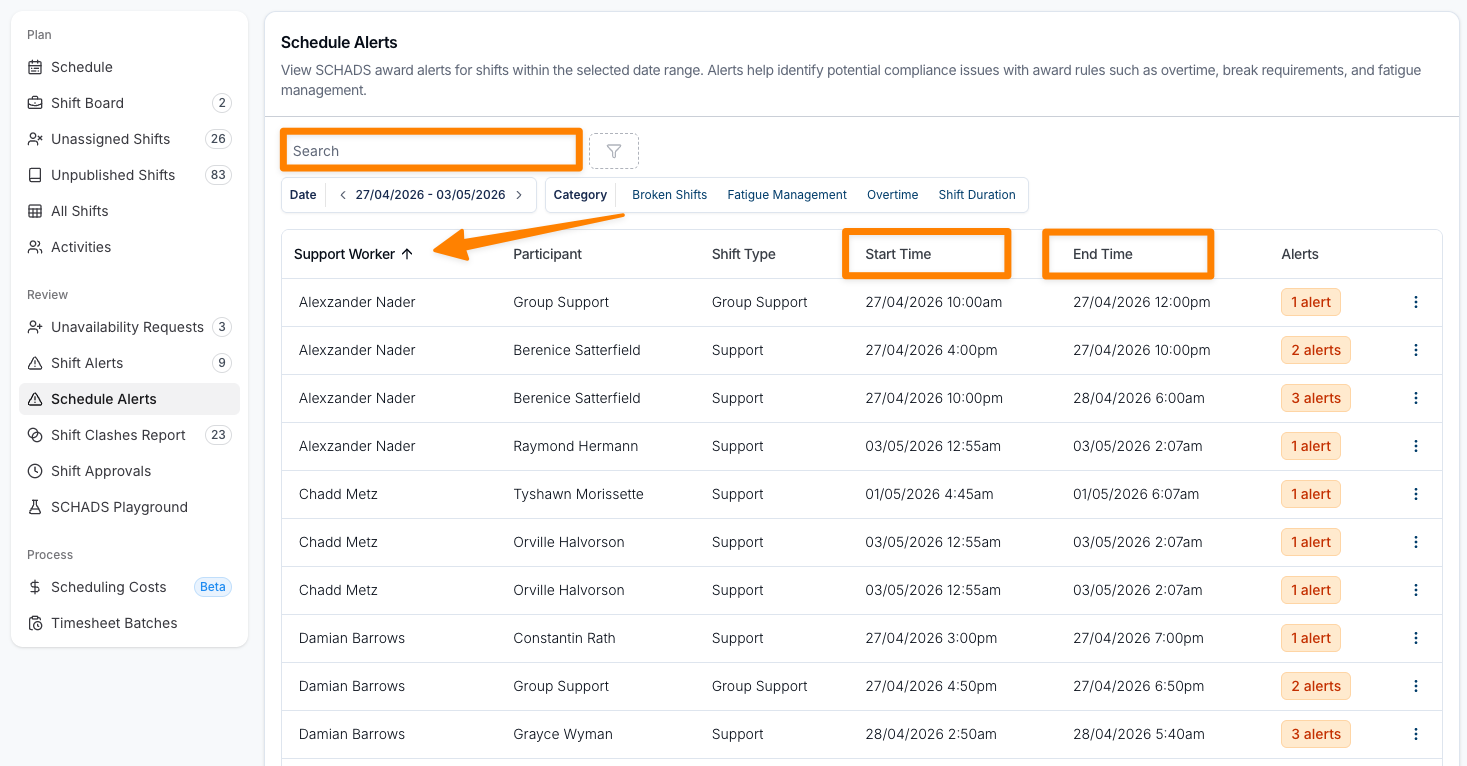
Use the Search field above the table to find a specific Support Worker or Participant by name.
Select any of these column headings to sort the report:
- Support Worker
- Start Time
- End Time
Review an Alert
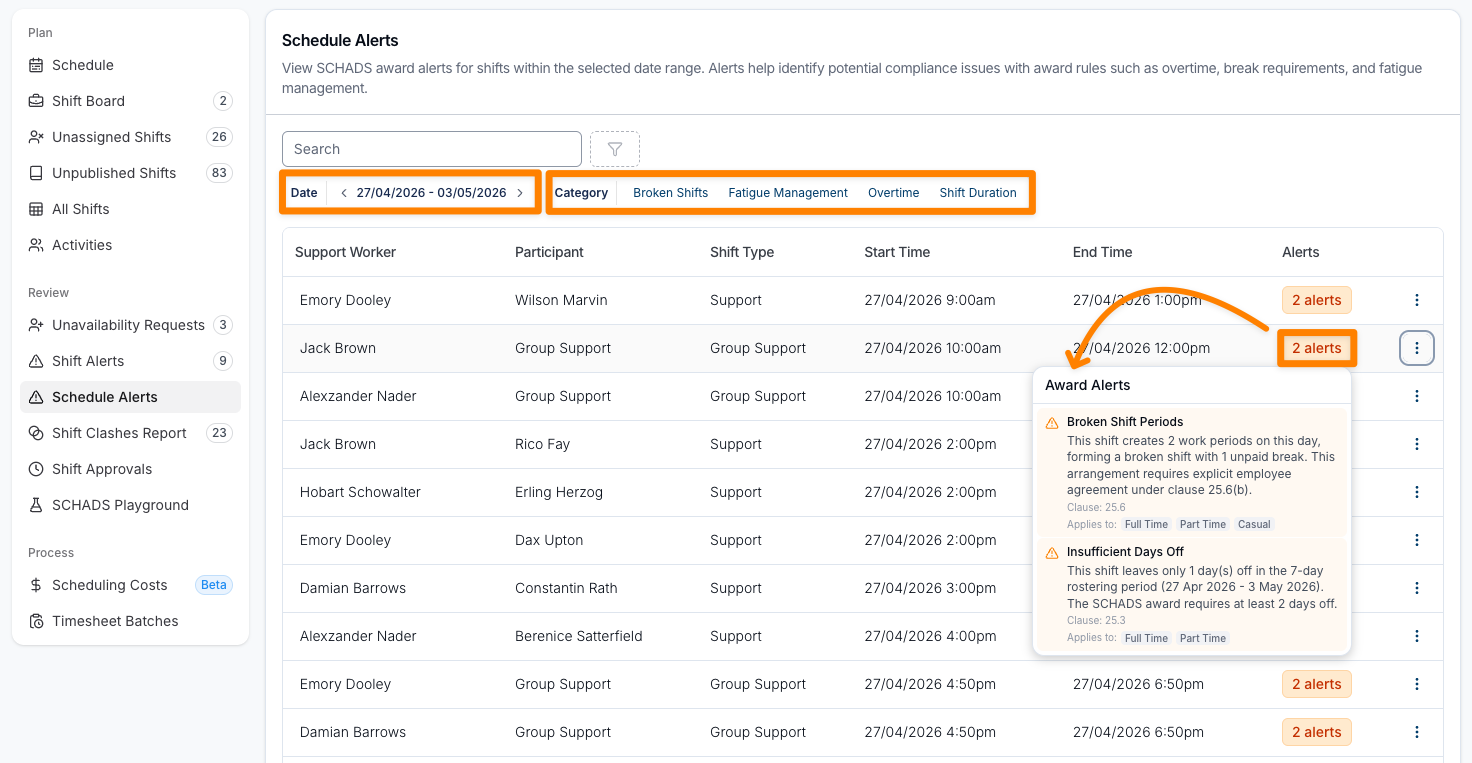
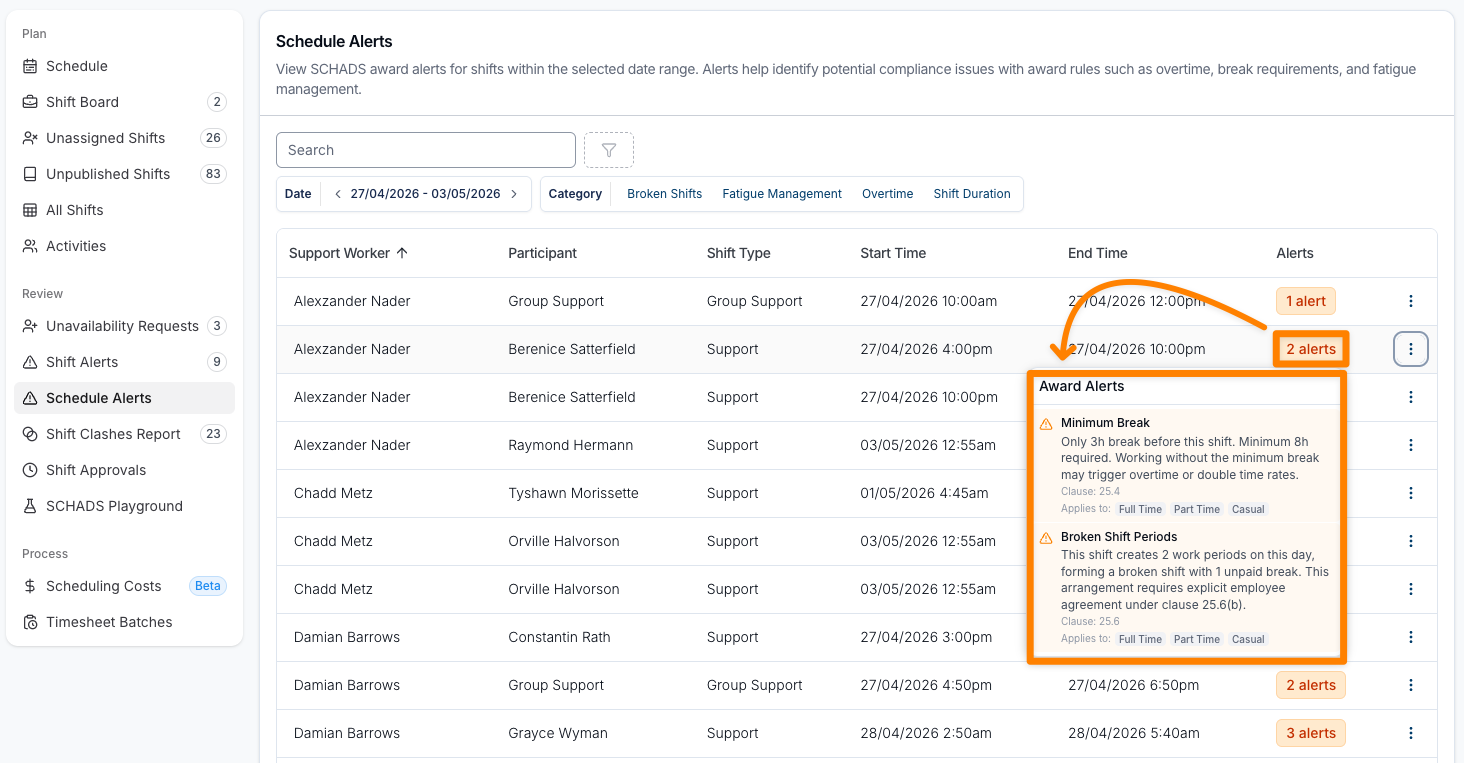
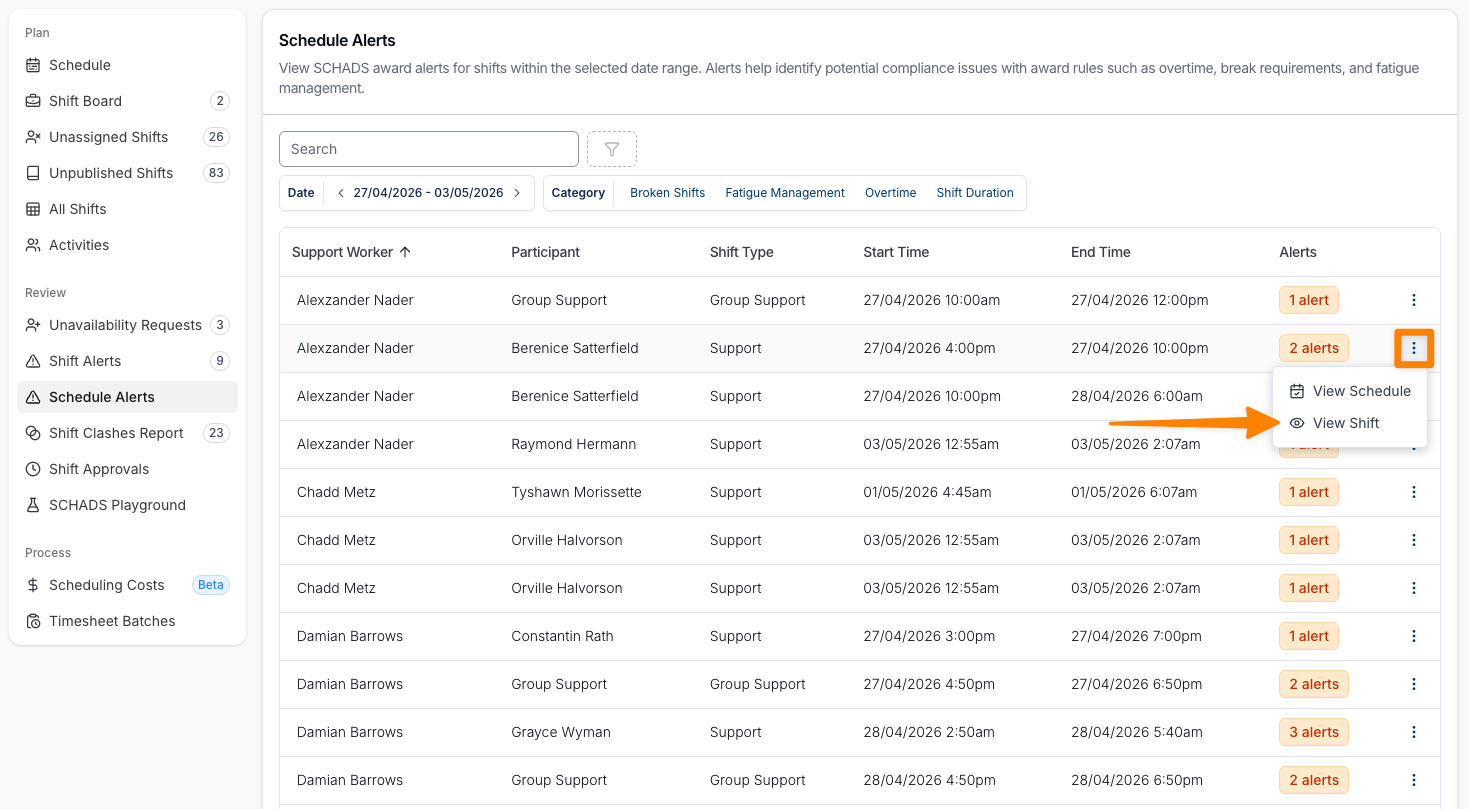
Each row shows the Support Worker, Participant, Shift Type, Start Time, End Time and number of alerts. Hover over the Alerts badge for a summary, or expand the row to keep the details open.
The Award Alerts pop-out lists each alert with:
- The alert name (for example, Minimum Break or Broken Shift Periods).
- A short description explaining why the shift has been flagged and what the impact is - for example, how many hours of the shift attract overtime rates.
- The Clause references from the worker's award that the alert is based on.
- The employment types the rule applies to (Full Time, Part Time, Casual).
If a shift has multiple alerts, you can scroll through the list to see each of them.
Resolve an Alert
Alerts are resolved by updating the underlying shift. Open the action menu at the end of the row, then select View Shift to open the shift or View Schedule to find it on the Schedule. Adjust the times or Support Worker, save, then refresh the report.
If a flagged shift is intentional, confirm that the arrangement is permitted and the required payment will be made. The alert is informational and does not prevent the shift from being published or processed in a Timesheet Batch.