Public Holidays
Overview
Astalty combines imported state holidays with local holidays you create. For support charging, the state comes from the support address, and Public Holiday Groups determine which Participants the holiday applies to. Check the support address and group assignments before relying on a holiday rate.
Accessing the Public Holidays Page
To access the Public Holidays page:
- From the left-hand side menu, go to Settings.
- Select Scheduling.
- Choose Public Holidays from the submenu on the left.
Alternatively, you can go directly to the page here: Public Holidays Settings. You can also press CMD + K (CTRL + K on Windows) and type public holidays to jump straight there - see the Quick Action Menu.
Adding Public Holidays
In the event that you would like to add public holidays to certain Participants, you may first need to consider that your organisation could be working across multiple locations. For example, you might have Participants in Sydney as well as Participants in Brisbane, each with different local holidays. To manage this effectively, you can use Public Holiday Groups.
Adding, changing or removing a holiday queues charge synchronisation for affected supports. Eligible automatic charges are recalculated; this does not promise to rewrite invoices or manual charges. Review the resulting charges after the background update.
Public Holiday Groups
Public Holiday Groups allow you to assign specific holidays only to the Participants who are affected. This ensures that each Participant's schedule reflects the correct public holidays for their region.
How to Create a Public Holiday Group
- Select Actions > Public Holiday Groups.
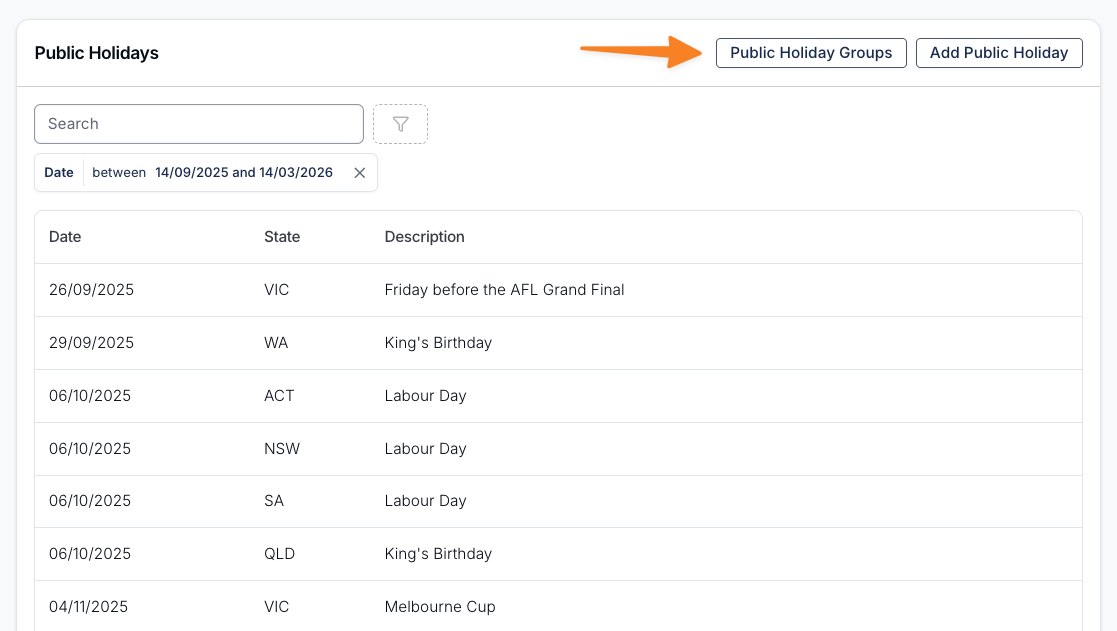
- Click Create Group.
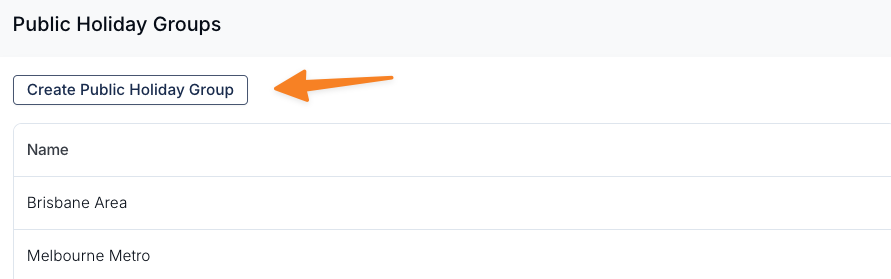
- Give the group a clear name (e.g., Sydney Participants, Brisbane Participants).
Once a group is created, you can assign holidays to it.
Renaming a Public Holiday Group
If a group was created with the wrong name, you can rename it instead of creating a replacement.
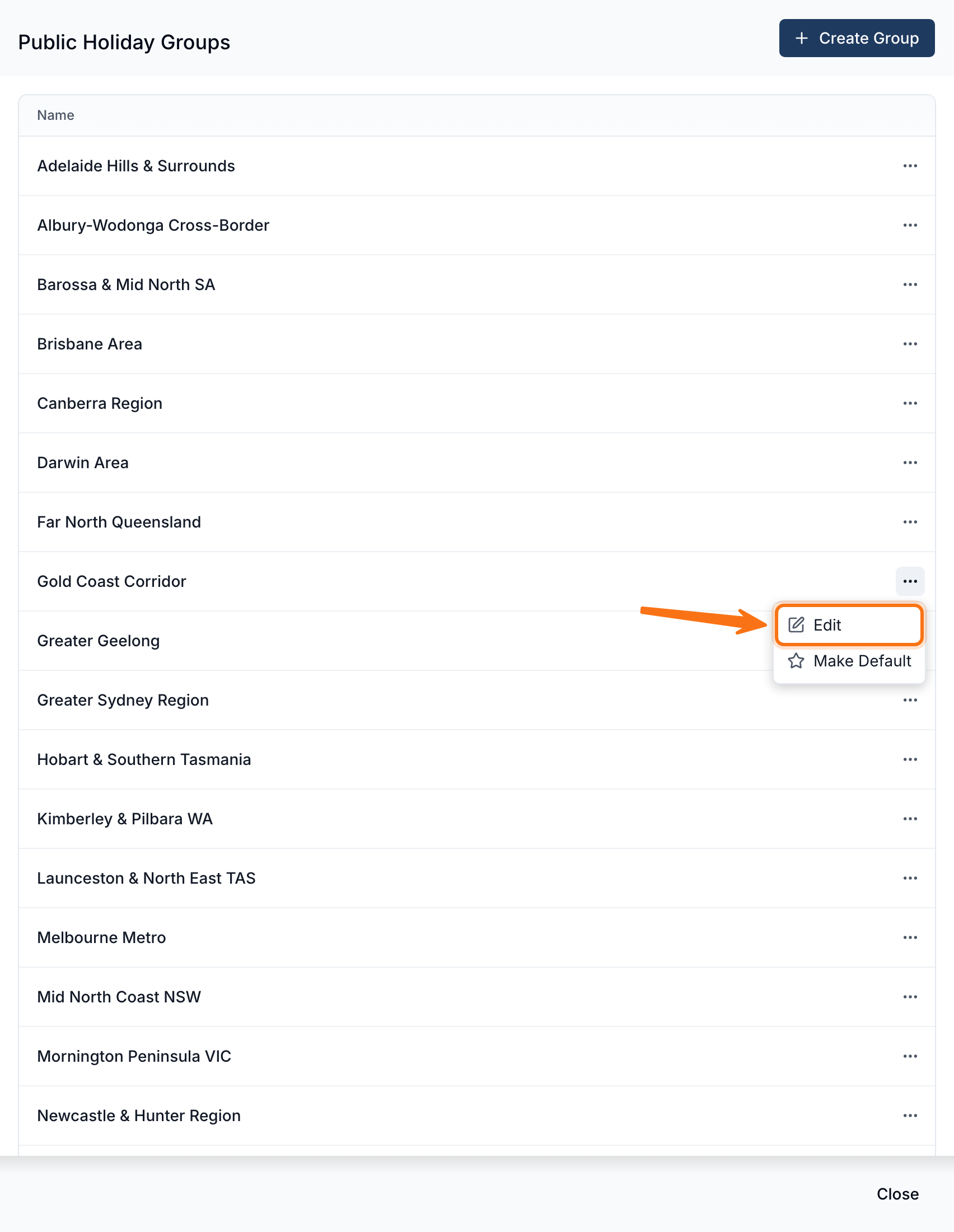
- Select Actions > Public Holiday Groups.
- Select the ellipsis next to the group you want to rename, then choose Edit.
- Enter the new Group Name.
- Select Update.
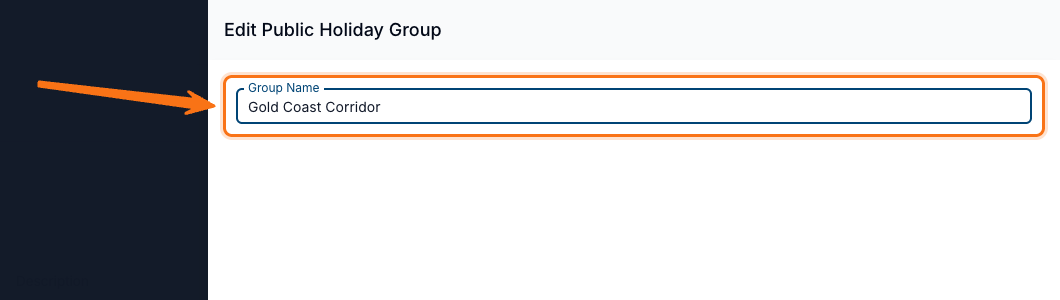
Renaming changes the name only. The Participants assigned to the group, the public holidays linked to it, and whether it is the default group all stay as they are, so charge rates and employee pay are unaffected. Any group can be renamed, including the one currently set as default.
Group names must be unique, so renaming a group to a name another group already uses shows the same message as creating a duplicate.
Adding a Public Holiday
If a public holiday is missing from the system, you can add it manually and link it to the relevant group. For example, if you need to add the Sydney Show holiday for Participants in Sydney:
- Select Add Public Holiday.
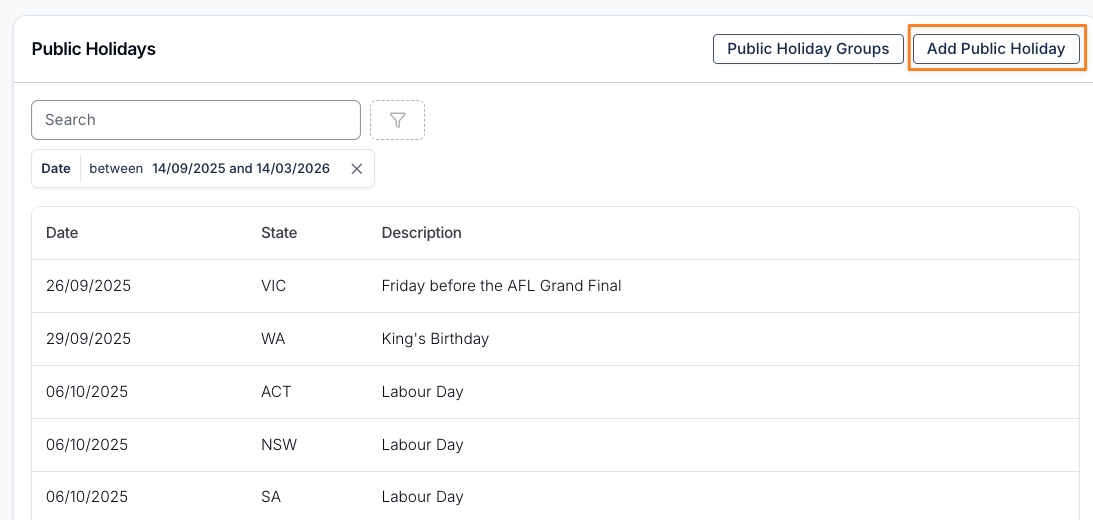
- Enter the following details:
- Holiday Name (e.g., Sydney Show)
- Date
- State
- Assign the holiday to the relevant Public Holiday Group (e.g., Sydney Region).
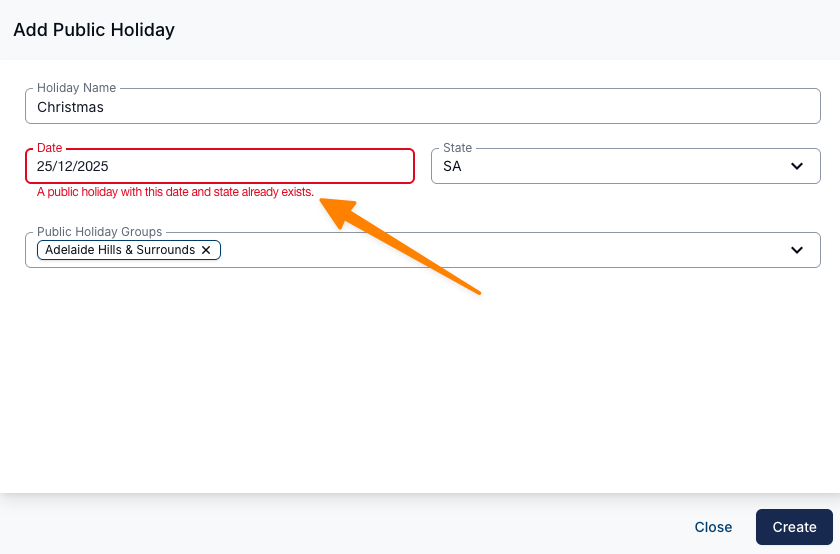
If the public holiday you're adding is already in the system, a notification will appear when you attempt to create it. This helps prevent duplicate entries.
Excluding a State Holiday for a Group
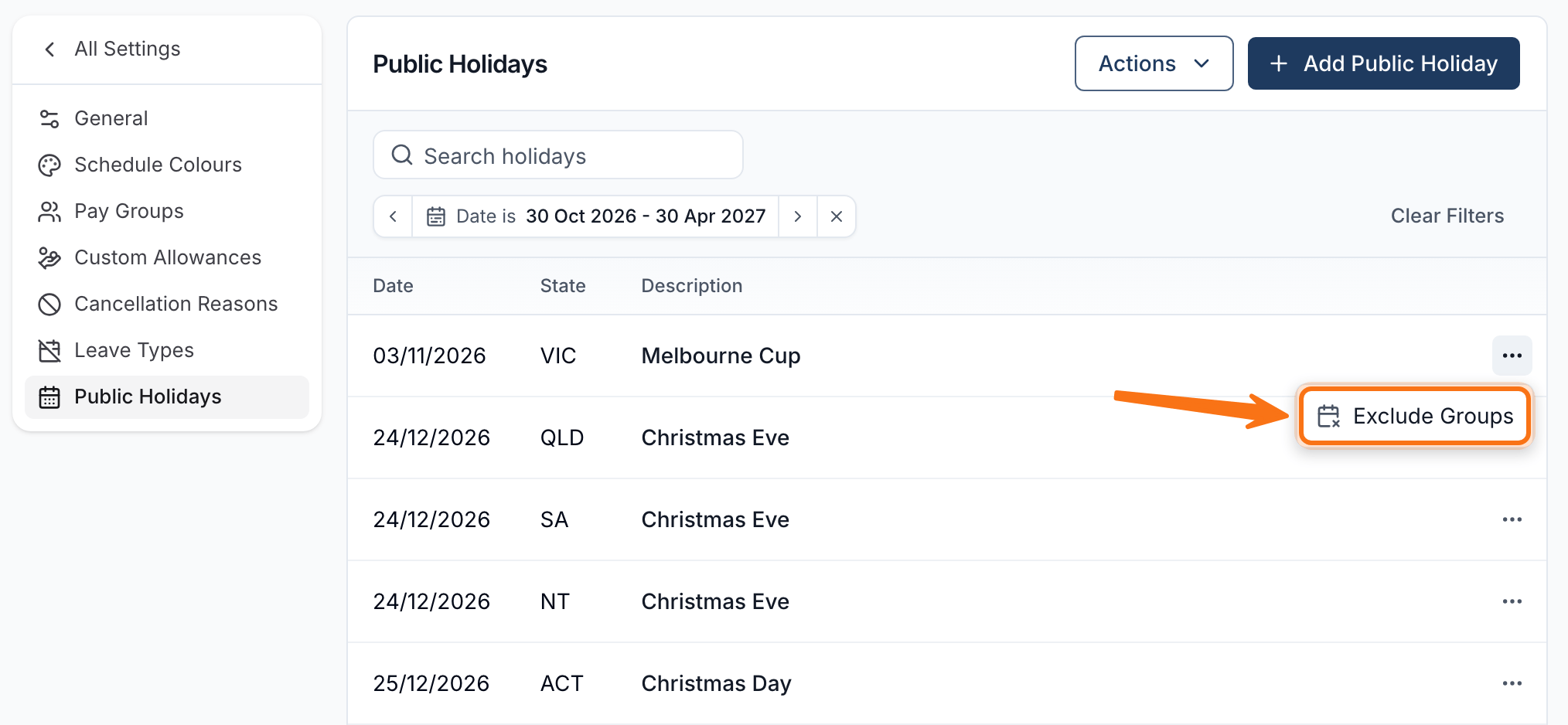
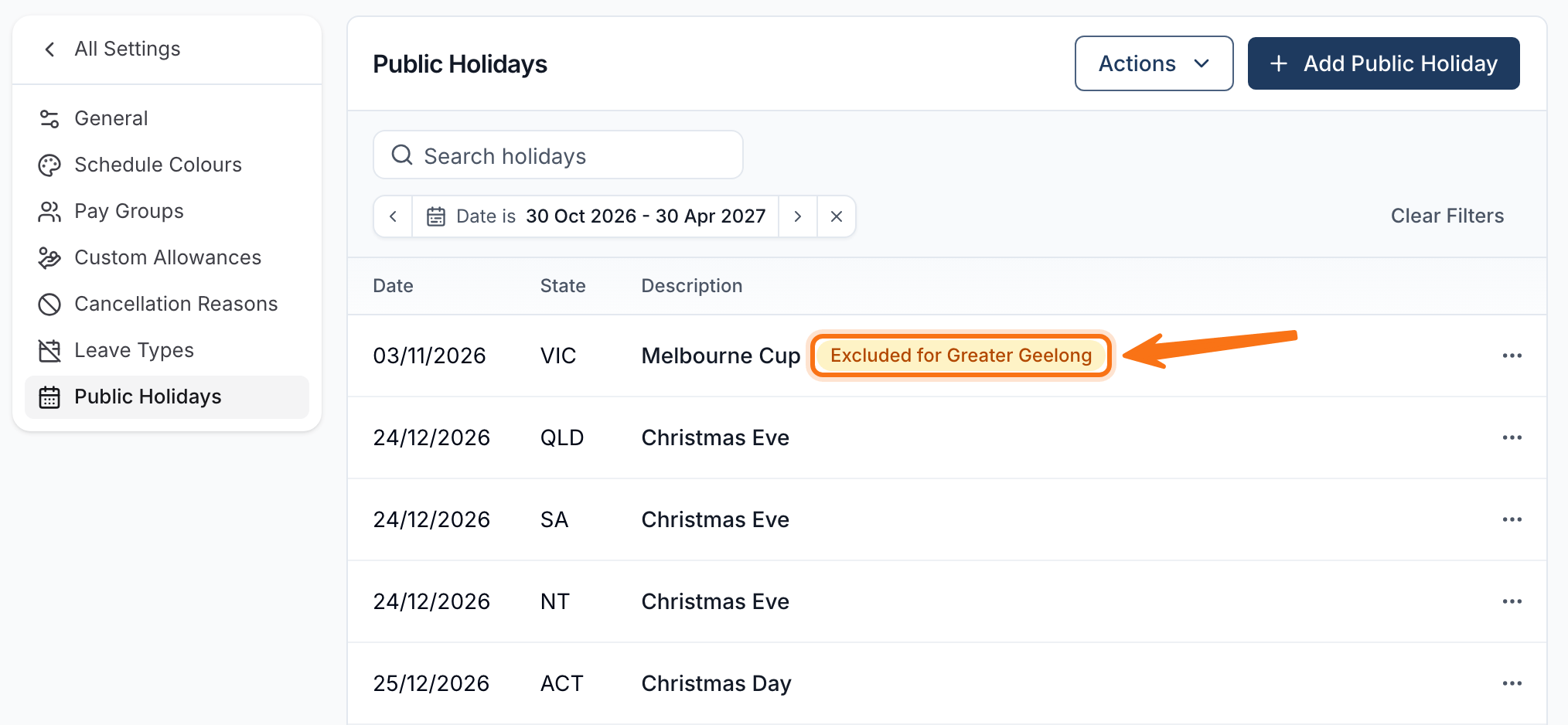
State public holidays are imported automatically and can't be edited or deleted, but you can stop one applying to specific Public Holiday Groups - for example, excluding Greater Geelong from Melbourne Cup Day while it still applies to the rest of Victoria.
- On the Public Holidays list, select the ellipsis next to the state holiday, then choose Exclude Groups.
- In Excluded Groups, add each Public Holiday Group the holiday should stop applying to.
- Select Save.
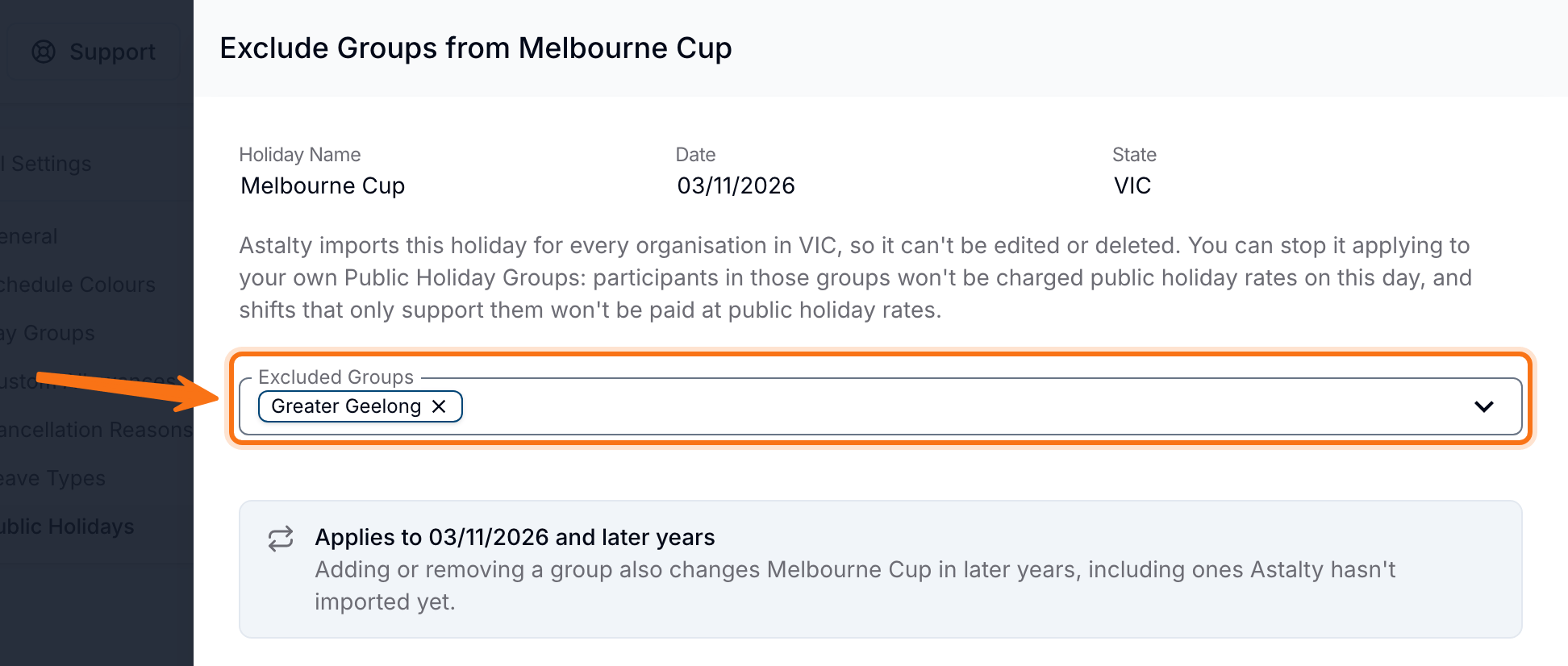
Participants in an excluded group are not charged public holiday rates that day, and a shift that only supports excluded Participants is not paid at public holiday rates. Astalty resyncs the affected Charge Item rates automatically. The Public Holidays list marks an excluded holiday with an Excluded for chip.
Assigning a Public Holiday Group to a Participant
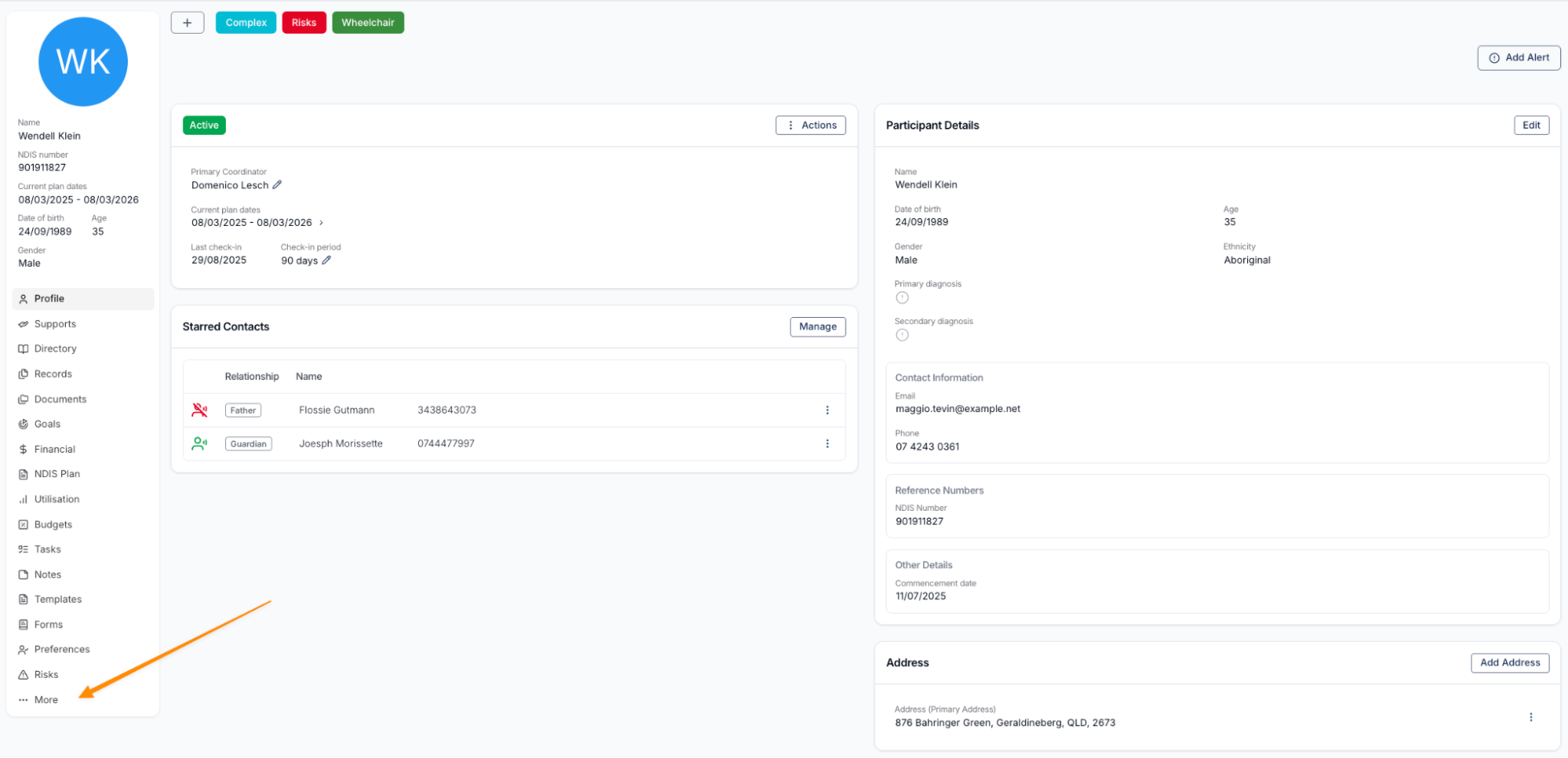
- Open the Participant's Profile.
- Scroll down and click More.
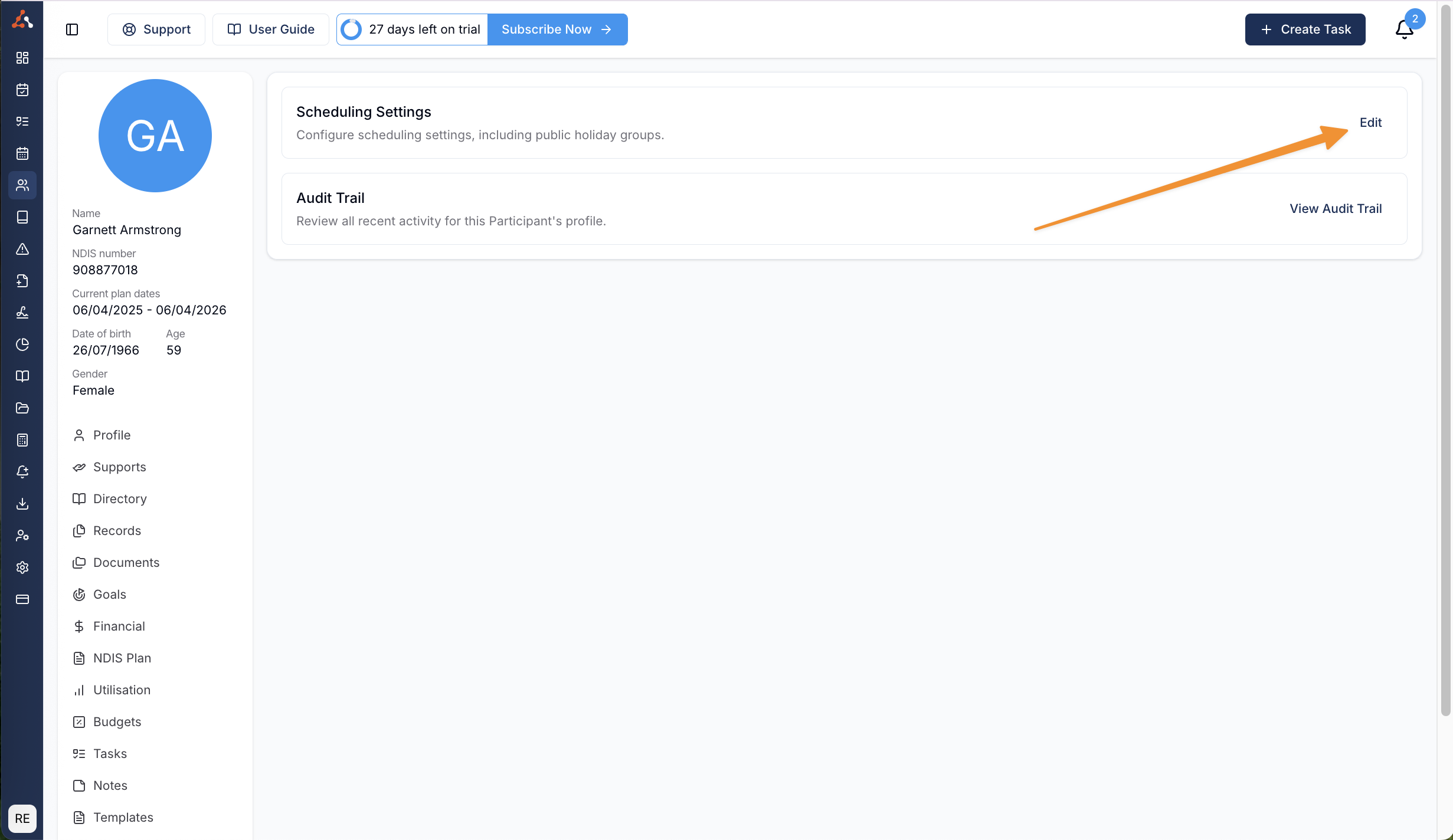
- Go to Scheduling Settings.
- Select Edit.
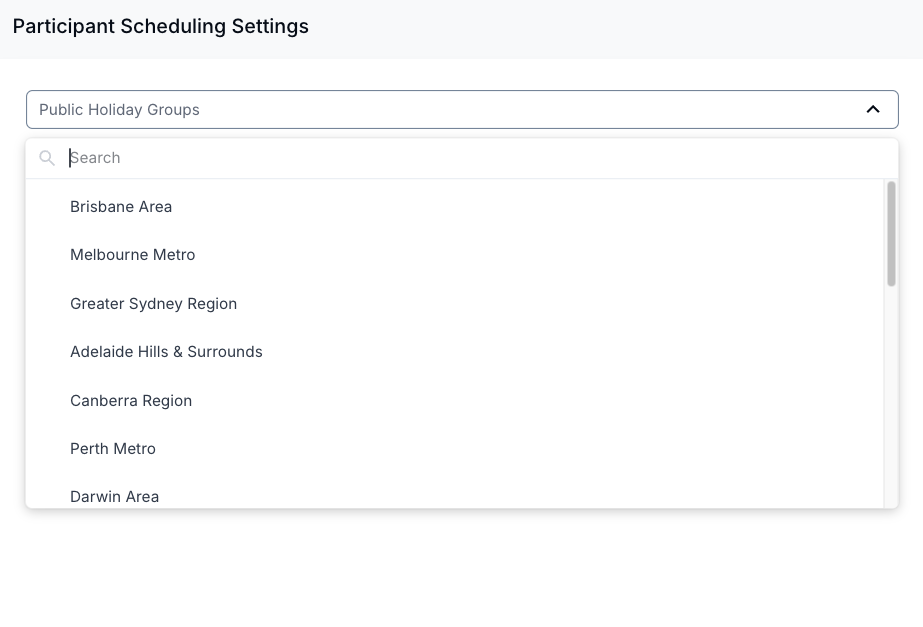
- Apply the relevant Public Holiday Group.
- Save the updated Scheduling Settings.
This ensures that each Participant's schedule correctly reflects the public holidays relevant to their location.
Setting a Default Public Holiday Group
You can assign or change a default Public Holiday Group that will automatically apply to all new Participants.
- Go to Settings.
- Select Scheduling.
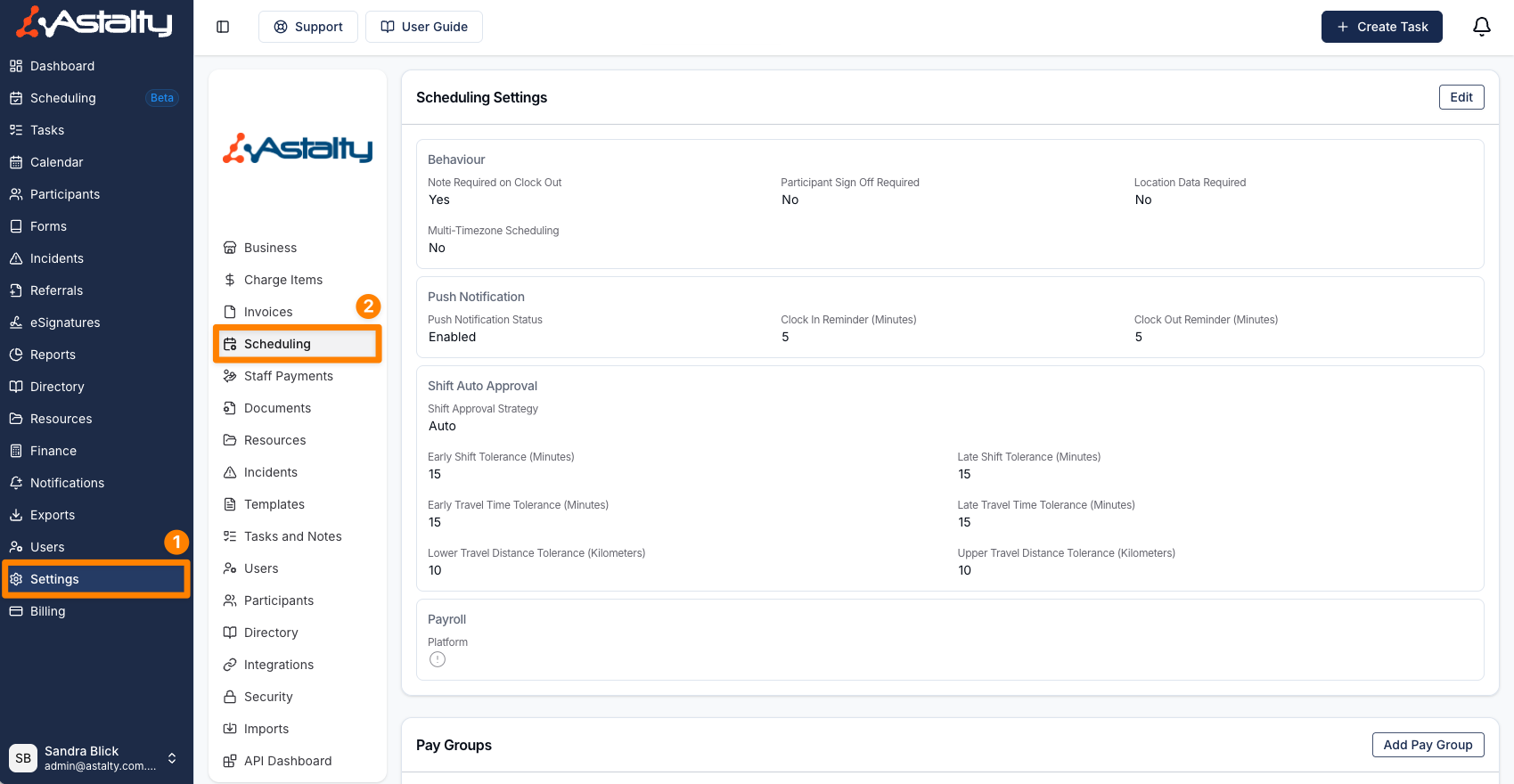
- Choose Public Holidays from the submenu.
- Select Actions > Public Holiday Groups.
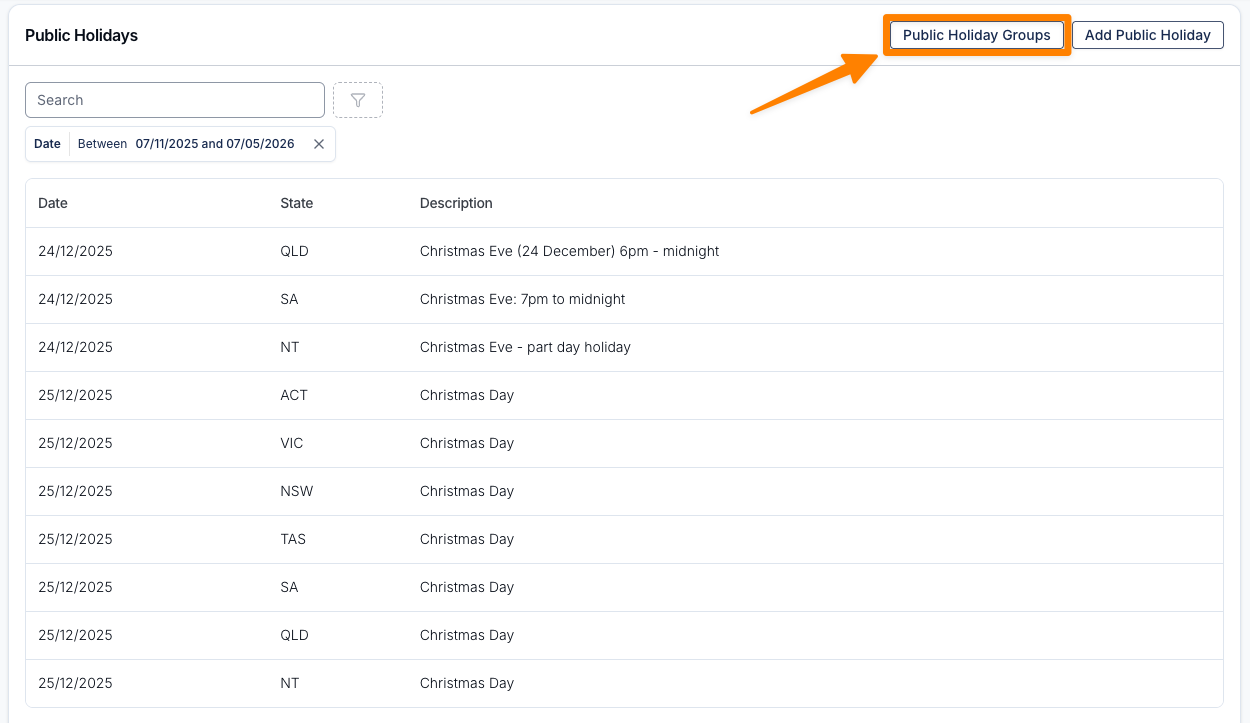
- Select the ellipsis next to the group you want to set as the default, then choose Make Default.
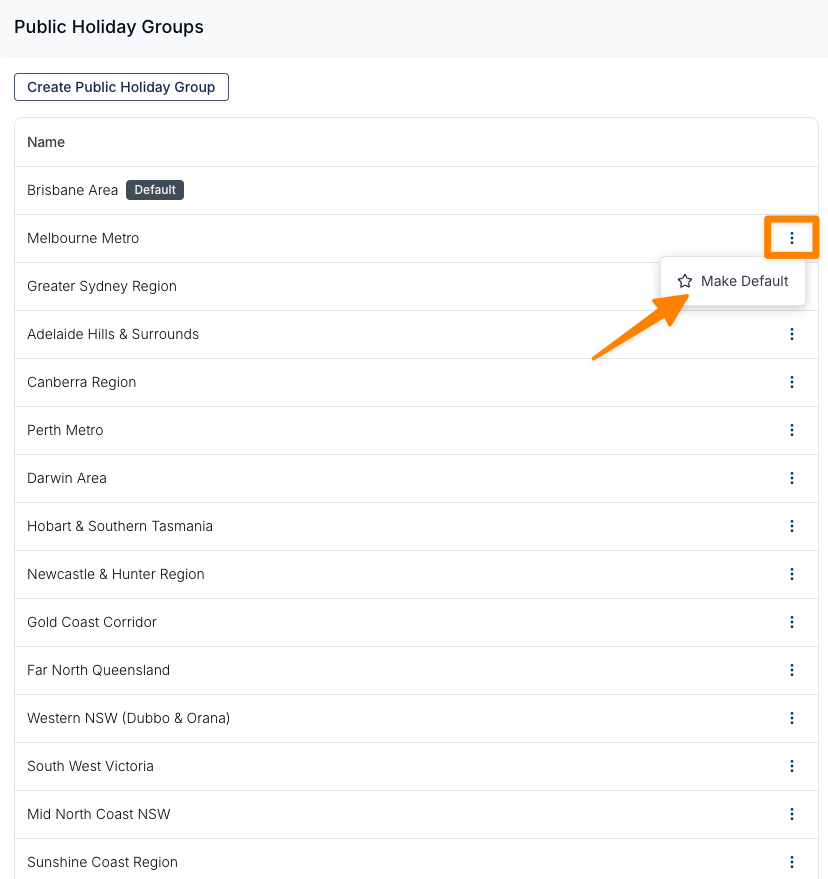
The selected group will now be the default Public Holiday Group for all new Participants. You can view this in each Participant's Scheduling Settings.
To change a worker's coverage, remove the default group from their settings and choose another group, or add more Public Holiday Groups.
How Public Holidays Affect Charging and Pay
Public holidays flow through to both sides of a support:
- Participant charging - applicable holidays affect automatic Charge Item selection. Holiday changes queue a recalculation; invoiced and manually managed charges need separate review.
- Employee pay - award interpretation (used by the Award Pay Report, interpreted exports and Xero push) uses public holiday pay categories when the shift falls on a public holiday that applies to a Participant on that shift.
Which Participants a holiday applies to follows the same rules everywhere:
- A holiday must match the state of the support or shift context being checked. Without assigned Public Holiday Groups, it applies to all Participants in that state context.
- A holiday assigned to Public Holiday Groups applies only to Participants in those groups. For a group support, the holiday applies when any Participant on the group support is in one of the holiday's groups - and the whole shift is then paid at public holiday rates.
- A state holiday with Excluded Groups never applies to Participants in those groups, regardless of the rules above.
This means a local holiday such as a regional show day, added manually and scoped to a Public Holiday Group, affects both the charge rates for the assigned Participants and the pay rates of the employees working their supports on that day - no additional employee-side setup is required.
An internal shift has no Participant or support address. For award interpretation, Astalty uses the internal shift's Site address state when one is set, then your organisation's address state, then the worker's address state. Assign a Site to an internal shift when that location's public holidays should determine the worker's pay rate.
Video Overview
The following video provides an overview of Public Holidays settings.