- Insights
- Notifications
- Public Holiday Notifications
Public Holiday Notifications
Overview
The Public Holidays notification reminds your team ahead of a public holiday, so the supports scheduled on that day - and the charges attached to them - get checked while there is still time to act.
Nothing is sent until you create a notification. Once one exists, Astalty checks once a day, at about 9:35am Brisbane time, for public holidays falling at the lead time you set and notifies the recipients you chose. Each holiday is matched on its date in the state it applies to.
Only Admins can manage these notifications. This can't be changed per user.
Each reminder links to the Public Holiday Supports Report, which lists the supports falling on public holidays and flags the manual charges that need a rate check.
Where to Find It
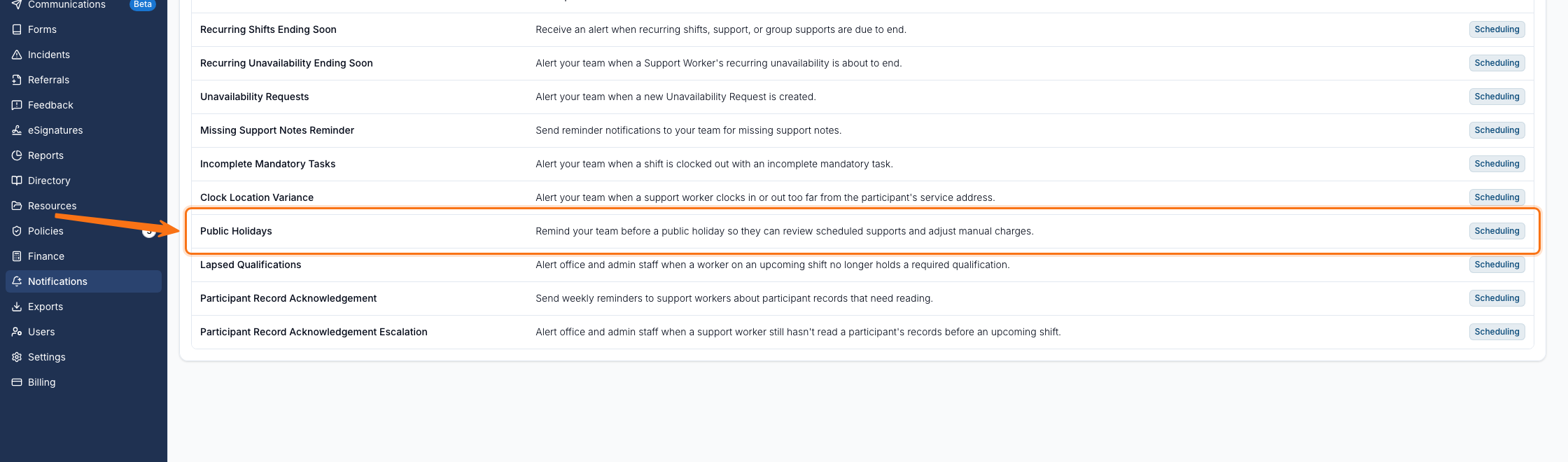
- From the left-hand menu, select Notifications.
- Scroll to the Scheduling section.
- Select Public Holidays.
Creating the Notification
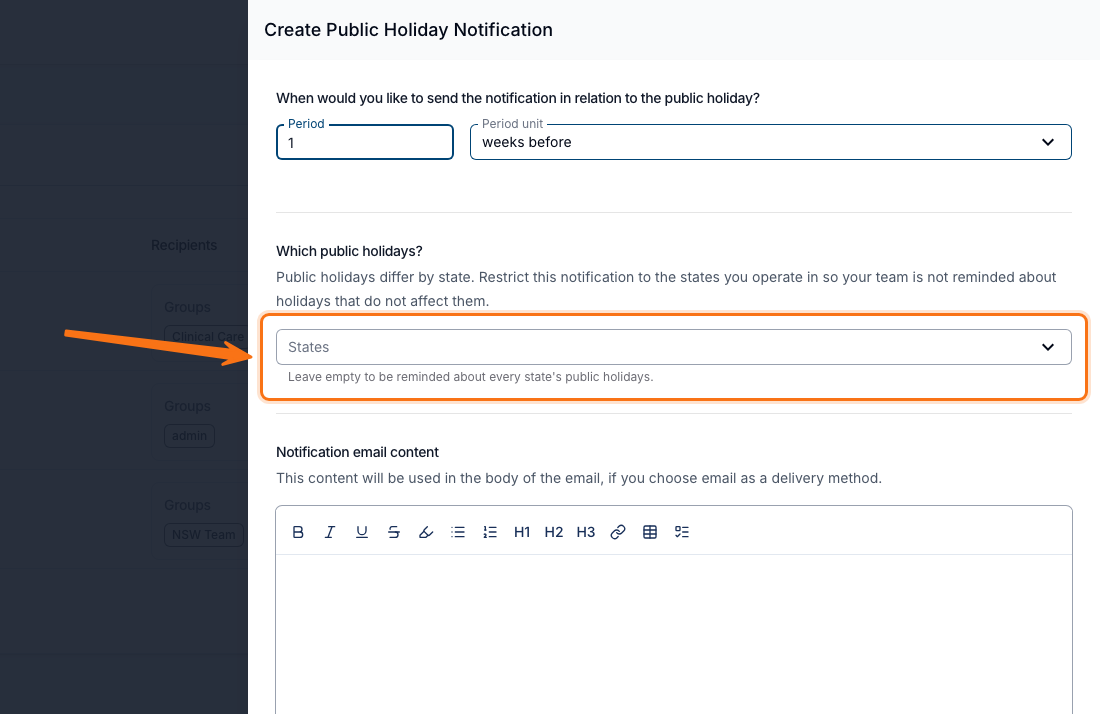
Click Create Notification and complete the form.
When to Send
- Period: how many days or weeks ahead, from 1 to 365. The field is disabled when you choose on the day.
- The drop-down beside it: on the day, days before, or weeks before the public holiday.
A new notification starts at 1 week before.
Which Public Holidays
States restricts the notification to the states you operate in, so your team isn't reminded about holidays that don't affect them. Leave it empty to be reminded about every state's public holidays.
Both the standard state holidays and any local ones you've added yourself are covered - see Public Holidays.
Notification Email Content
Optional rich text added to the email beneath Astalty's standard message - use it for your own instructions, such as who to contact about a roster change. It appears in the email only, not in the in-app notification.
Notification Recipients
Choose who receives the notification. You must select at least one recipient.
- User Groups: notify everyone in the selected User Groups. Every group is offered, including Support Worker and All Users.
- Users: notify specific users directly.
Notification Methods
Choose how recipients are notified. You must select at least one method.
- Within Astalty: recipients are notified inside Astalty. Ticked on a new notification.
- Email: recipients are notified by email. Not ticked on a new notification.
Once you're done, click Add Notification.
Managing Your Notifications
The Public Holidays page lists every notification you've created, with the lead time under When, the States it covers (All States when unrestricted), its Delivery methods, and its Recipients.
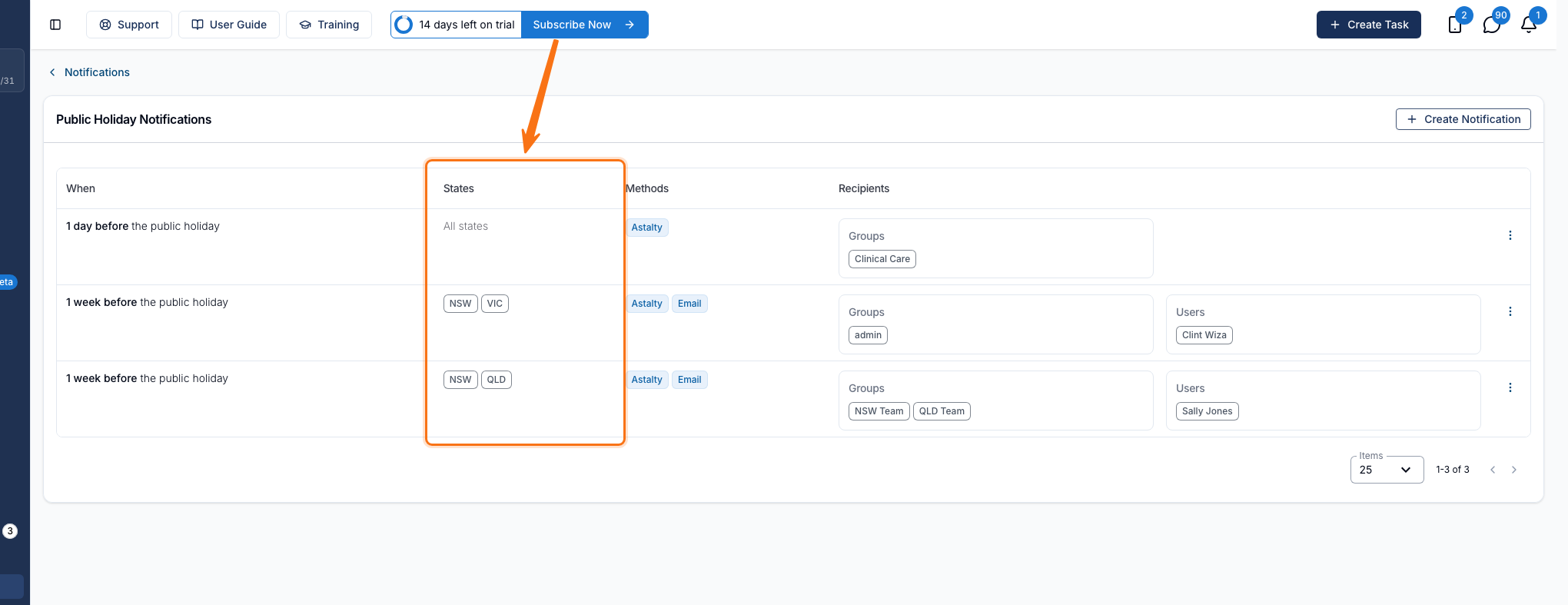
Click a row to edit it, or use its actions menu to Edit a notification, Clone it into a new one, or Delete it. Delete is also inside the notification when you open it to edit.
What Recipients Receive
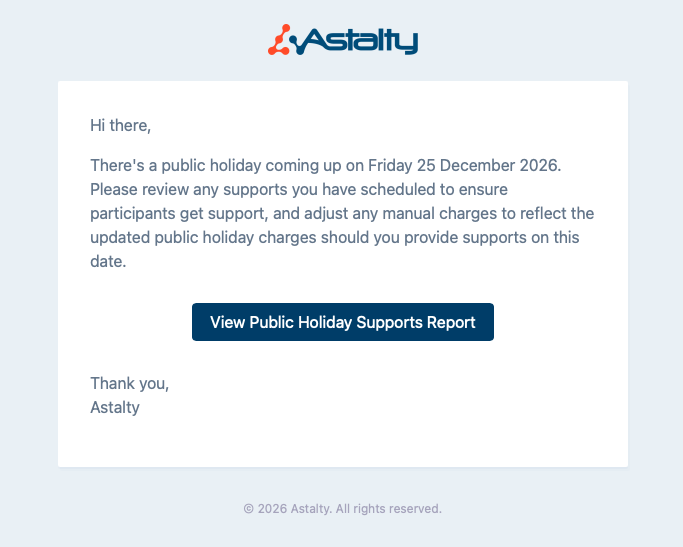
The notification is titled Public holiday coming up - Christmas Day. Where the holiday applies to some states only, those states follow the name - King's Birthday (NSW, VIC).
The message asks recipients to review the supports scheduled on the date and adjust any manual charges, and carries a View Public Holiday Supports Report button.
Things to Keep in Mind
- A holiday that falls in every state - Christmas Day, for example - sends one reminder, not one per state.
- Two different public holidays on the same date send a reminder each.
- A notification restricted to particular states never fires for a holiday observed only elsewhere, even when the two fall on the same date.
- Public Holiday Groups aren't taken into account. A local holiday scoped to one group still triggers a reminder for anyone monitoring that state, whether or not the holiday reaches any of your Participants.
- Manual charges don't pick up public holiday pricing automatically. That's what the reminder is for - see Manual charges on public holidays.