- Insights
- Support Tasks Report
Support Tasks Report
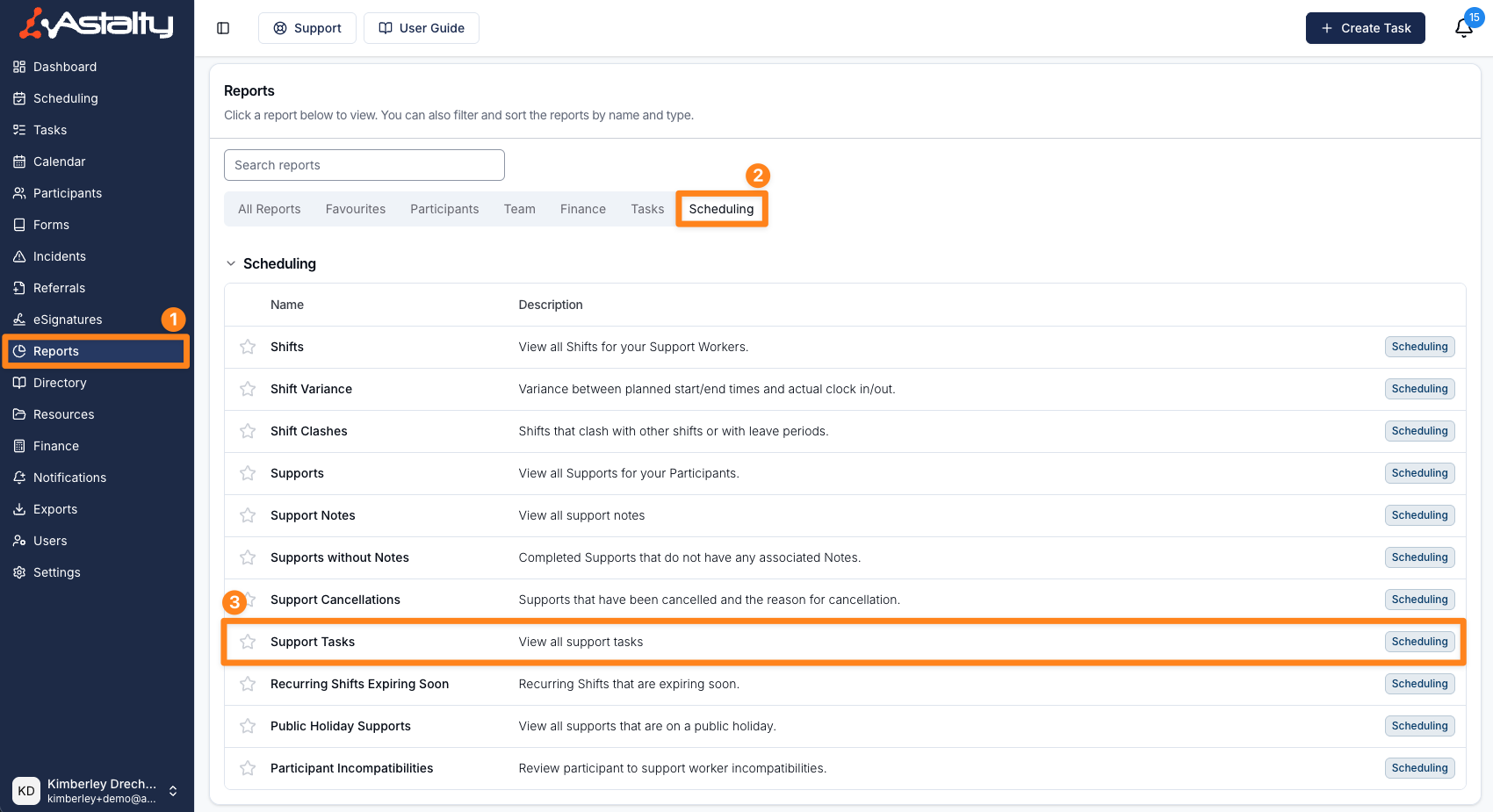
Open Reports > Scheduling > Support Tasks.
Overview
The Support Tasks Report lists every support task on the supports and group supports in the selected date range, so you can monitor task completion across the organisation.
The report is available to Admins, and to Managers who have Can access Scheduling turned on. Your organisation needs Support Tasks, which is part of Astalty Premium.
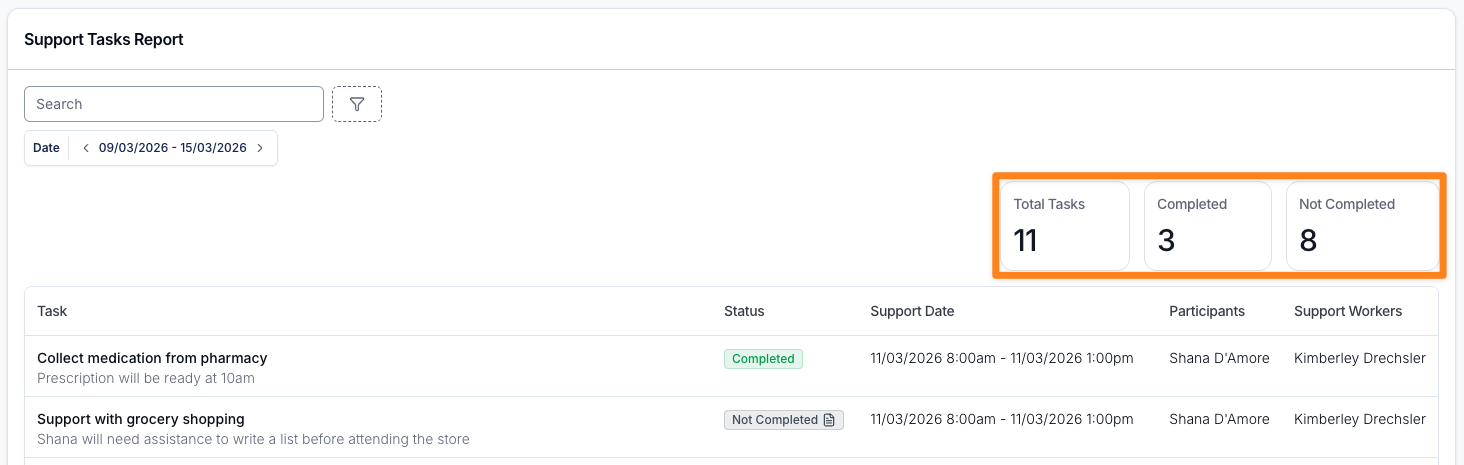
Summary cards at the top count the tasks that match your filters:
- Total Tasks - the total number of tasks.
- Completed - the tasks marked as completed.
- Not Completed - the tasks that were skipped, plus the tasks nobody has completed yet.
Not Completed includes tasks on supports that haven't happened yet. The report opens on the current week, so tasks on supports later in the week count as Not Completed until they are done. Cancelled supports are not excluded.
The cards update when you change the search or filters.
Task Table
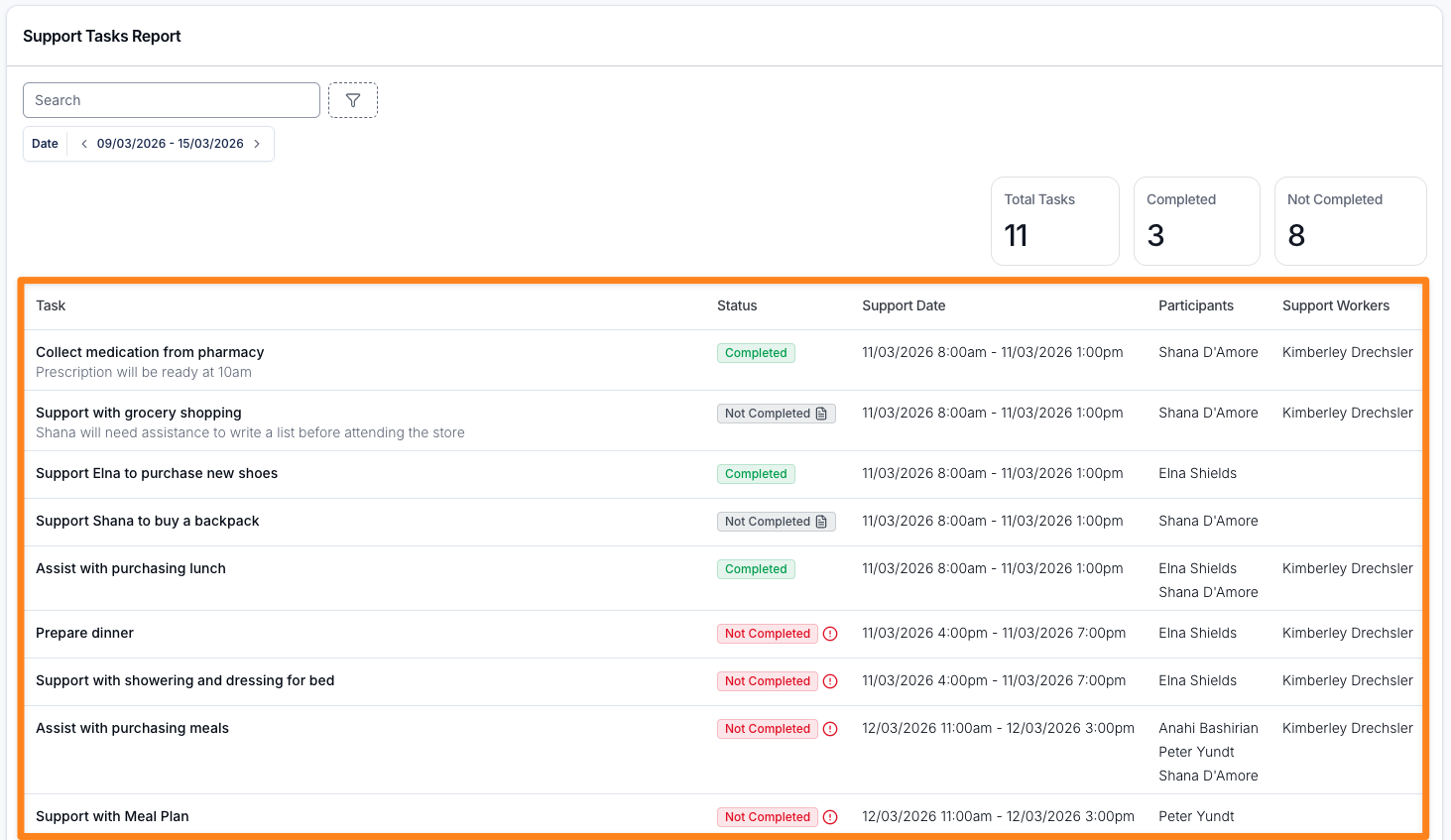
Each row is one task:
| Column | What it shows |
|---|---|
| Task | The task's name, with its description beneath. |
| Status | Completed or Not Completed. |
| Support Date | The support's start and end date and time. |
| Participants | The Participant on the support. For a group support, every Participant in the group. |
| Support Workers | The workers rostered on the support. |
In the Status column, hover the badge to see when the task was completed and by whom, and any reason given for not completing it. A note icon on the badge means a reason was recorded, and a warning icon beside it marks a Mandatory task that is not completed.
The report opens sorted by Support Date, earliest first. Click the Task, Status or Support Date heading to sort by that column.
Clicking on a row in the table opens the associated Support or group support, allowing you to view additional details.
Search
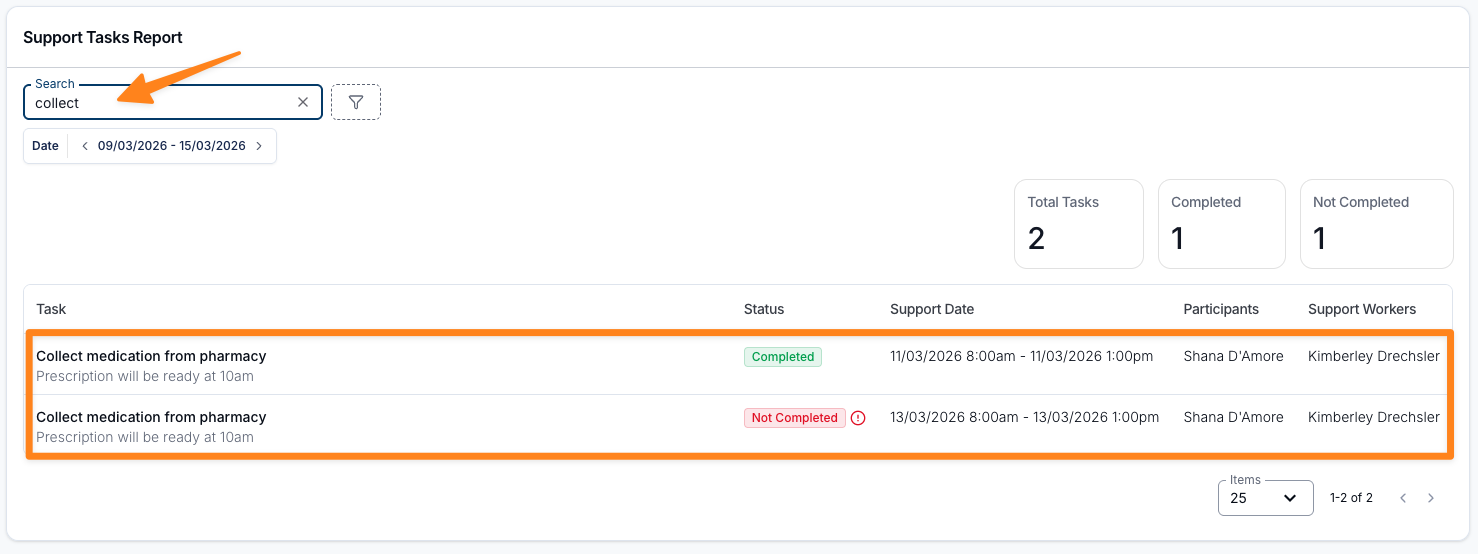
The search field matches the task name, the Participant's name and the names of the Support Workers rostered on the support.
Search results update automatically as you type.
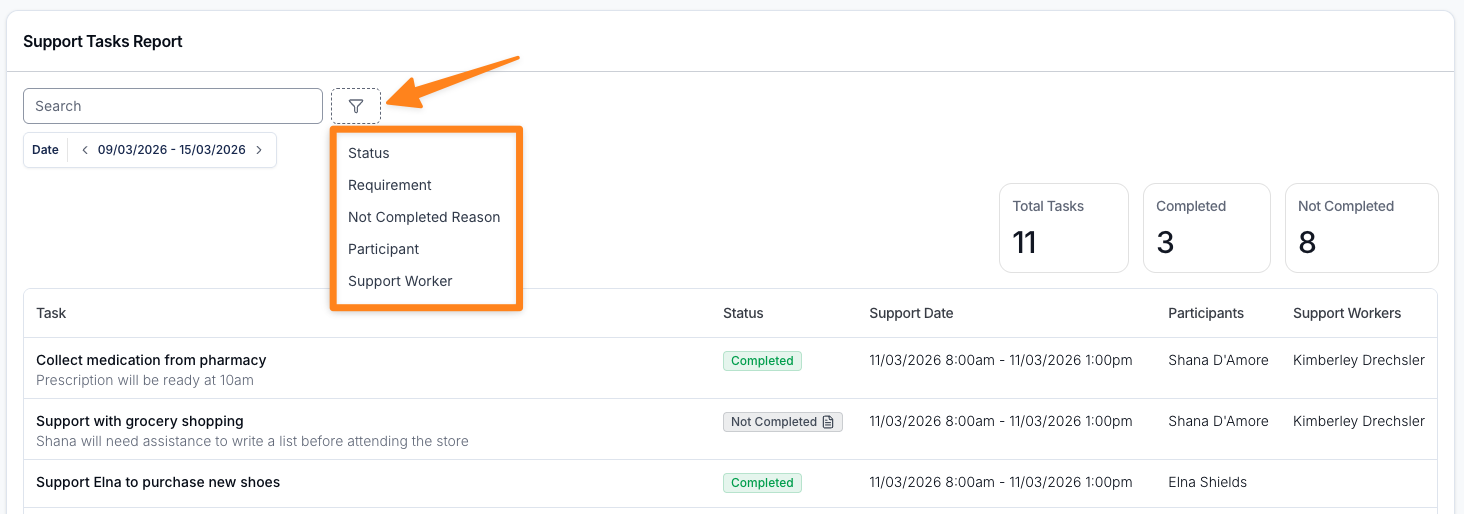
Filters
Filters allow you to refine the report and focus on specific tasks or supports.
Date Range
The Date filter matches the start date of the support the task belongs to. It is always applied and opens on the current week, Monday to Sunday. Both the start and end dates are included in full. Quick presets cover the last and this week, fortnight, month, quarter and year, or you can pick your own dates.
Status
Use Status to show tasks by completion status.
Options include:
- Completed
- Not Completed - tasks that were skipped as well as tasks that haven't been completed yet.
Requirement
Use Requirement to show required or optional tasks.
Options include:
- Mandatory
- Optional
Not Completed Reason
The Not Completed Reason filter helps identify tasks that were not completed and whether a reason was recorded.
Options include:
- Has Reason
- No Reason
Participant
Use the Participant filter to view tasks associated with one or more Participants. A group support matches when any Participant you select is part of the group.
Support Worker
The Support Worker filter shows tasks on supports that the selected workers are rostered on, including the group support a support belongs to. You can select more than one worker, and deactivated workers can be selected too.