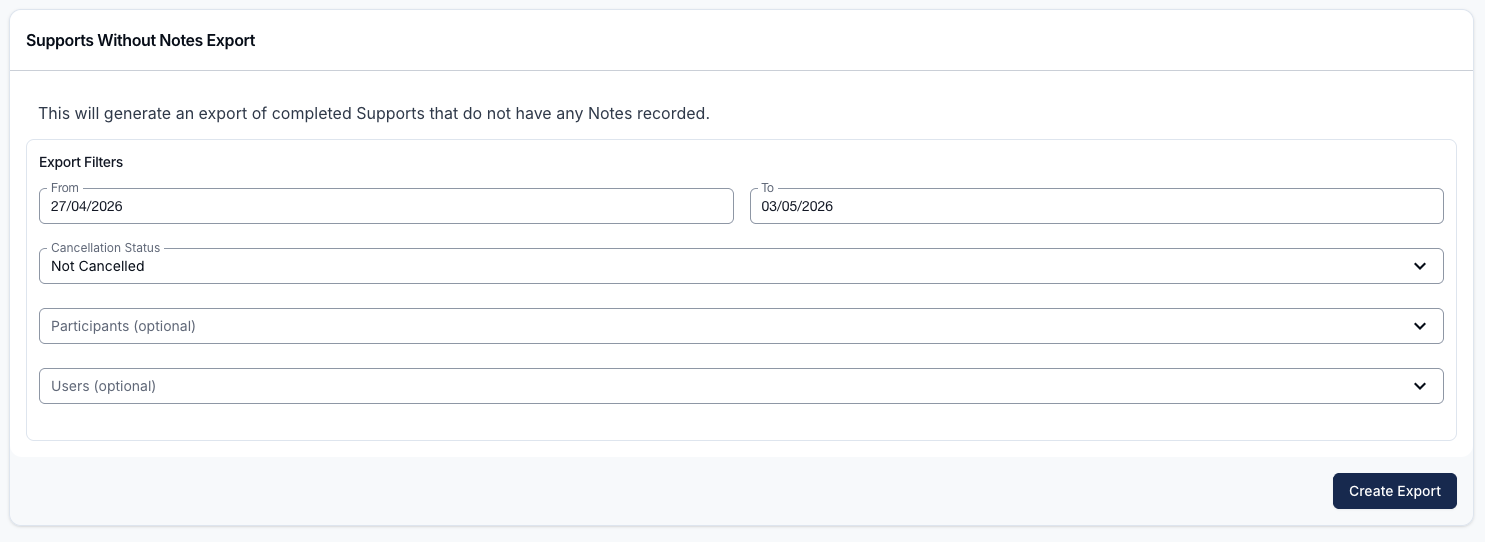
Supports Without Notes Export
Overview
The Supports Without Notes Export finds completed shifts whose support has no note. Use it to follow up on support notes that are still missing.
For an individual support, the support itself must have no notes. For a group support, both the group support and every contained Participant support must have no notes.
You need the Access Exports Module permission and permission to view shifts for all users.
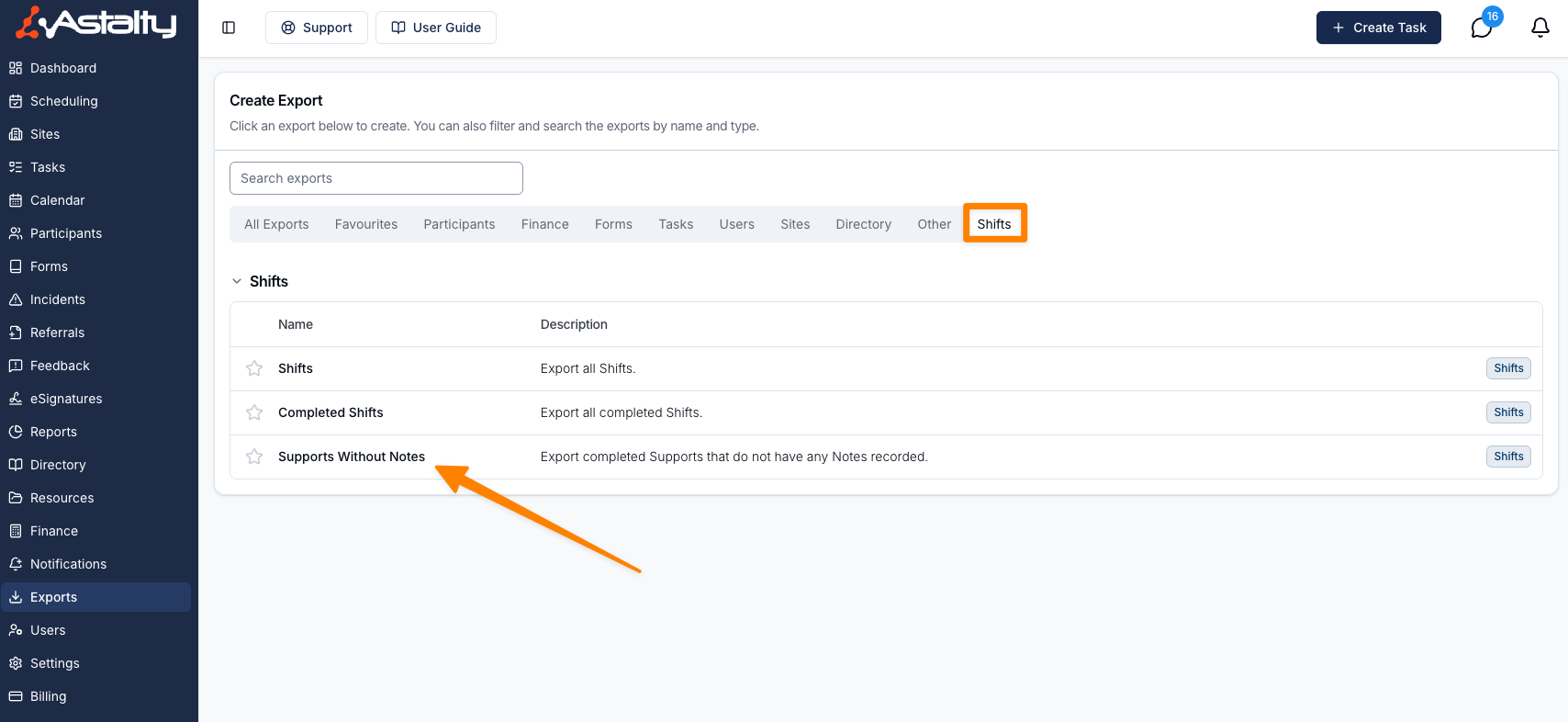
Accessing the Supports Without Notes Export
- Open Exports and select Create Export.
- Under Shifts, select Supports Without Notes.
Configure the Export
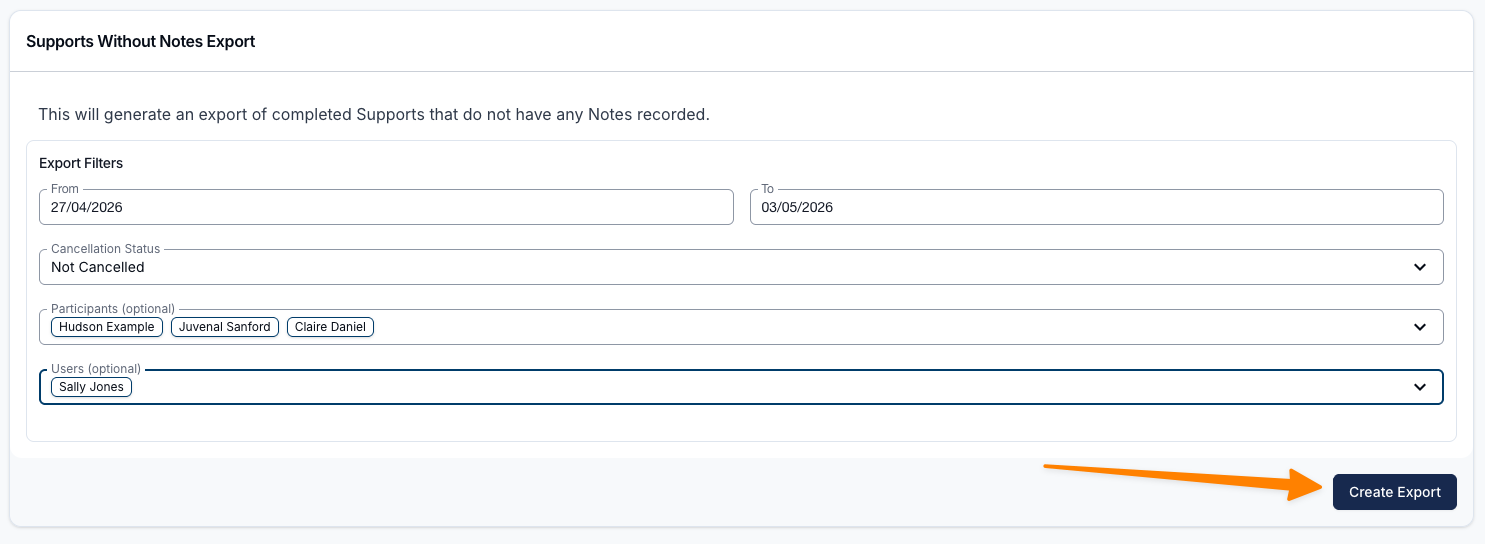
Choose the date range, cancellation status and optional Participant or User filters below. The default range is the current Monday-to-Sunday week.
Set the Date Range
Set the From and To dates. The export includes shifts whose scheduled start falls within the range and that have a clock-out time. The whole To day is included.
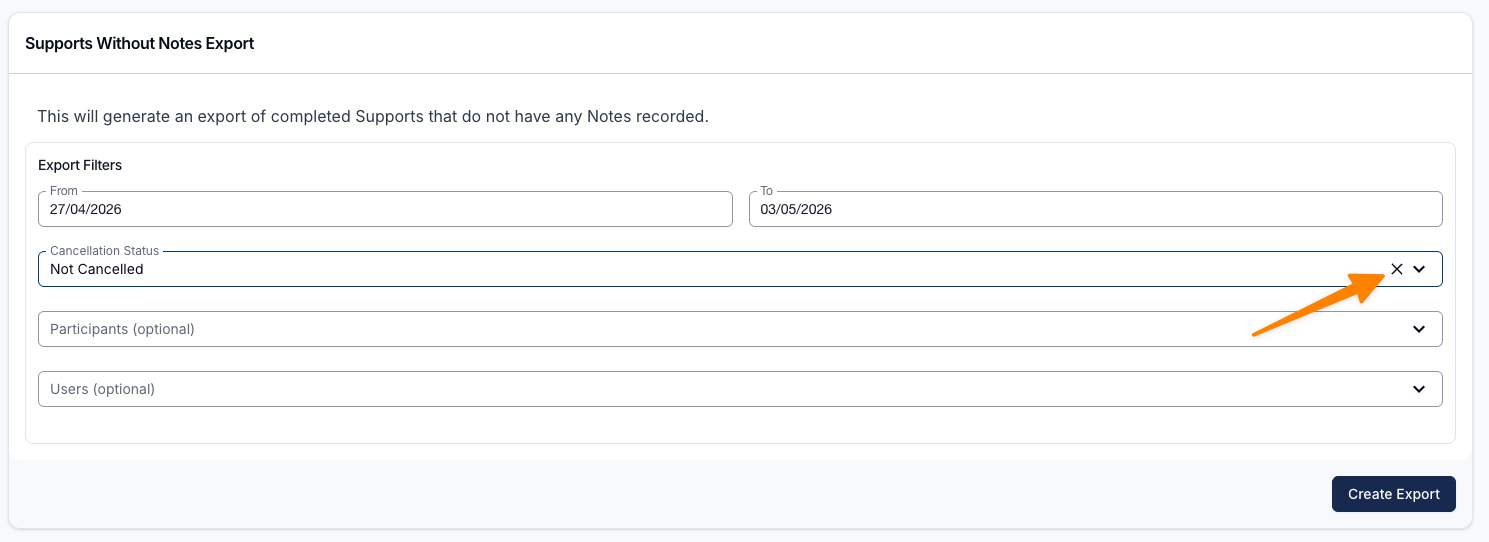
Cancellation Status
Cancellation Status defaults to Not Cancelled.
- Not Cancelled includes supports that went ahead.
- Cancelled includes cancelled supports.
- Clear the selection to include both statuses.
Participants
Select one or more Participants, or leave the field blank to include all Participants subject to the other filters.
Participant Tags
Select one or more Participant Tags to include Participants who have any selected tag. Participants and tags are combined, so a match in either field is included without duplicates.
Users
Select one or more Users to include only their shifts, or leave the field blank to include every User subject to the other filters.
Generating the Export
Select Create Export.
Downloading the Export
When the export is ready it appears on the Exports page. Select Download to save it.
Exported Fields
The CSV contains one row per worker shift associated with a support. A support with several worker shifts can therefore appear on several rows.
- Support Worker
- Participants
- Start Time
- End Time
- Clock In At
- Clock Out At
- Days Since Clock Out - the number of days from the clock-out time to when the export was requested
- Cancellation Status

Need to view all the Support Notes in a report?
Use the Support Notes Report to review notes that have been recorded.