- Insights
- Qualifications Compliance Report
Qualifications Compliance Report
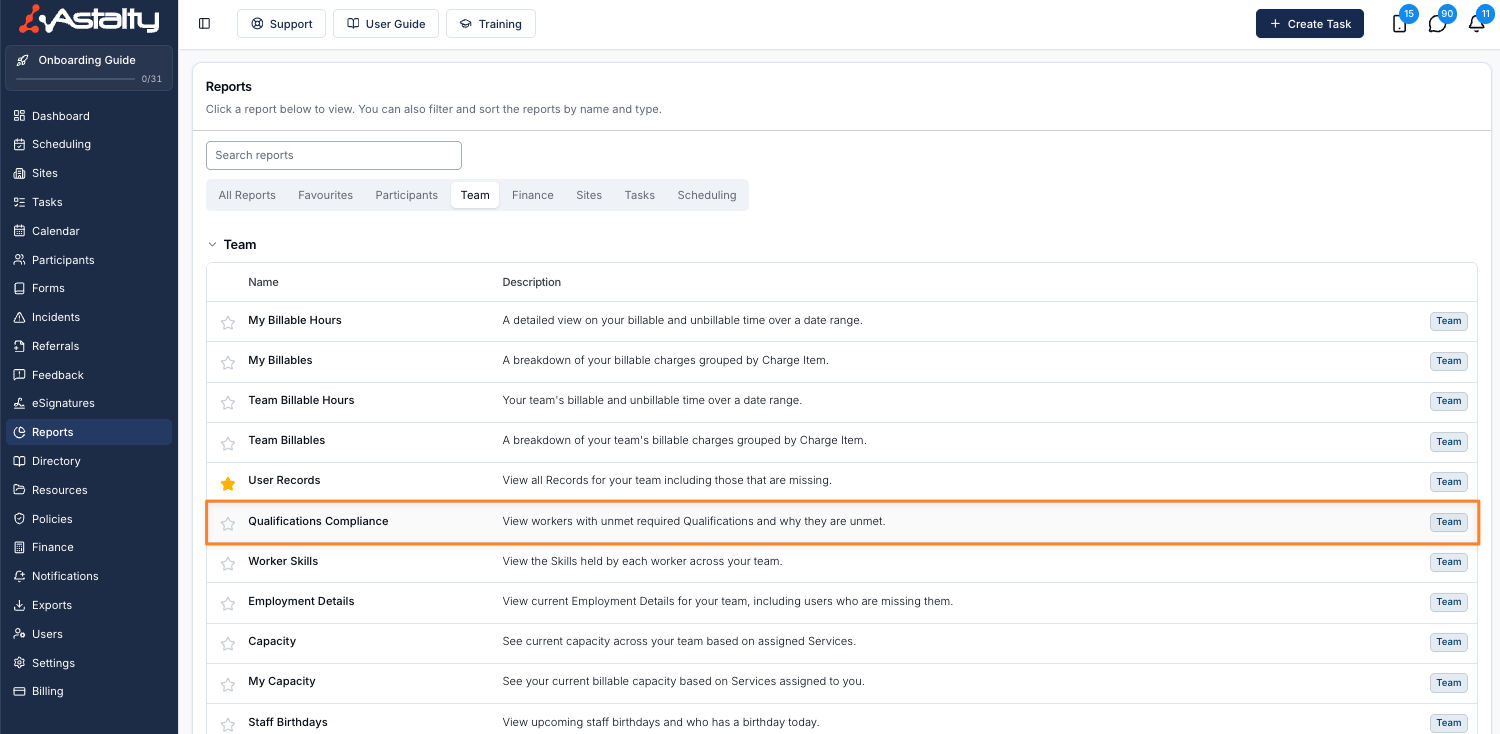
Open Reports > Team > Qualifications Compliance.
Report Overview
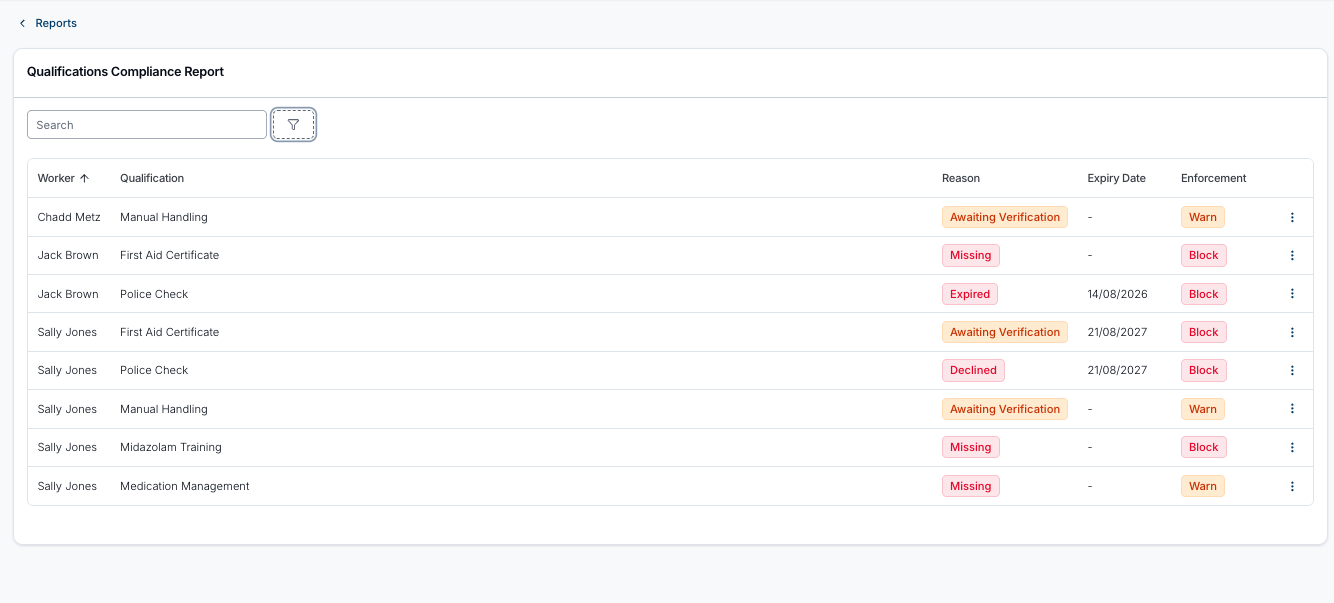
The Qualifications Compliance report lists workers who don't currently hold a qualification their role requires, and tells you why - so you can chase the missing records before they cause a rostering problem.
One row appears for each combination of worker and unmet qualification, so a worker missing two qualifications appears twice. If several of a worker's User Groups require the same qualification, it appears once, with the strictest enforcement: Block wins over Warn.
A requirement only counts while its enforcement is Block or Warn. Requirements turned off, and requirements on an archived User Record Type, are ignored.
Report Columns
Worker
The worker's name.
Qualification
The qualification they don't currently hold. This is the name of the underlying User Record Type.
Reason
A worker meets a requirement when they hold at least one current record of that type: not archived, not declined, not expired, and verified where the User Record Type requires verification. Otherwise the row shows why:
| Reason | Meaning |
|---|---|
| Missing | There's no record of this type on their profile, or only archived ones. |
| Expired | The User Record Type has expiry turned on, and the record's expiry date has passed. Where expiry is off for the type, the expiry date is ignored. |
| Awaiting Verification | They've uploaded a record, but nobody has verified it yet. |
| Declined | The record was reviewed and declined. |
Where a worker has several records of the type and none is current, one record decides the reason and the Expiry Date, picked in this order: Awaiting Verification, then Expired, then Declined.
The report has no expiring-soon reason. A record that is still current today isn't listed, however close its expiry date is. To find records about to expire, use the Expiry filter on the User Records Report.
Expiry Date
The expiry date of the record that best explains the issue, or - where there's no record or no expiry date.
Enforcement
Whether this requirement is set to Block or Warn. See Enforcement levels.
Remember that Warn rows are informational - they don't stop anyone being rostered.
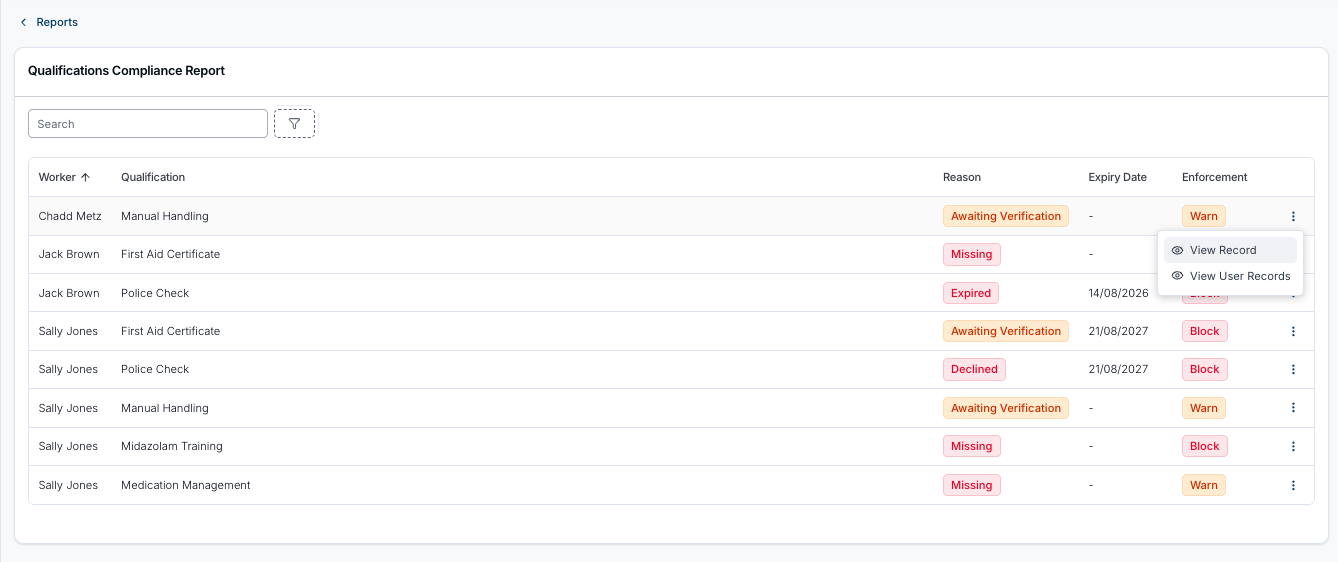
Actions
The menu at the end of each row offers View Record (where a record exists) and View User Records, taking you to that worker's records so you can fix the problem.
Available Filters
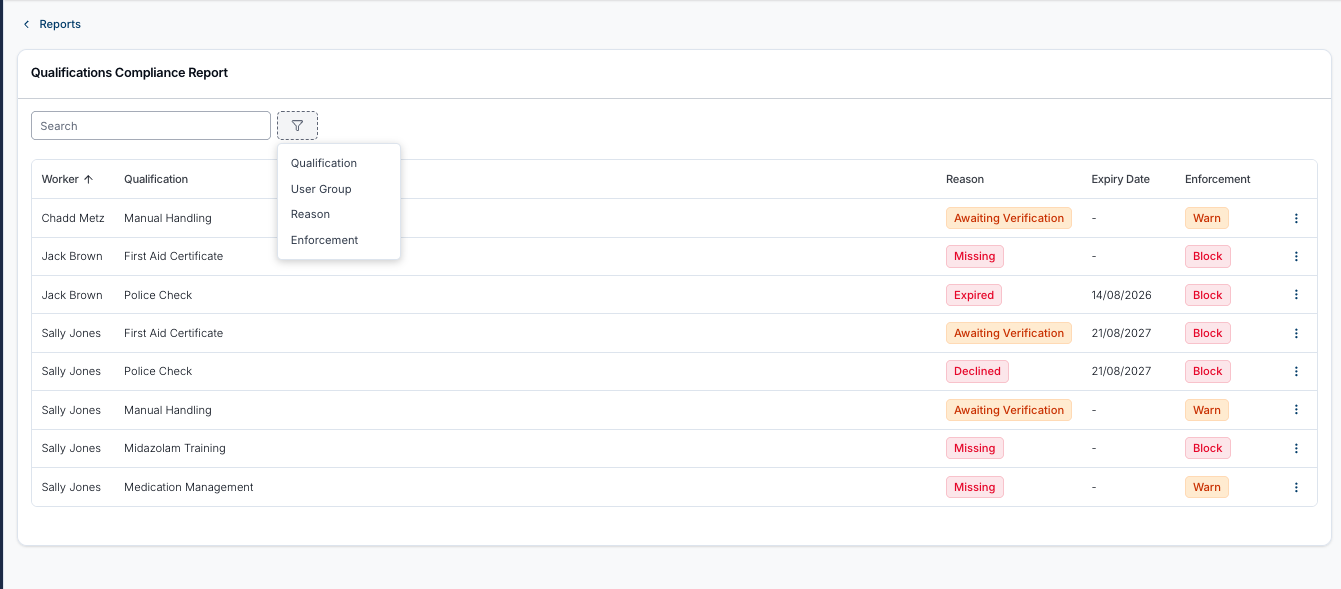
Click the filter icon to apply filters.
Search
Search for a worker by name.
Qualification
Narrow the report to particular qualifications.
User Group
Narrow the report to workers in particular User Groups.
Reason
Filter by Awaiting Verification, Declined, Missing or Expired.
Enforcement
Filter by Block or Warn.
Sorting Records
Click any column header - Worker, Qualification, Reason, Expiry Date or Enforcement - to reorder the results. The report is sorted by Worker by default.
The report isn't paginated, so everything in scope is on the one page.
Who's Included
The report covers workers with Can be Scheduled for Supports turned on whose status isn't Restricted or Deactivated. Invited users are included.
The Date This Report Uses
Exporting the Report
There's no download button on the report itself. The CSV is generated from a separate screen - see the Qualifications Compliance Export.
The export ignores the report's current filters and always produces the full list.
Related Guides
- Qualifications Compliance Export - the CSV version.
- User Records Report - the wider view of all staff records, not just those required for rostering.
- Required Qualifications in Settings - set up which records are required.