- Participants
- Required Qualifications
Required Qualifications
Overview
Some Participants need workers with particular training - Manual Handling, PEG feeding, Epilepsy Management. Required Qualifications on a Participant's profile let you enforce that: anyone rostered to support this Participant must hold the qualification you nominate.
This works alongside the role-based requirements set up in Settings → Users. A worker rostered to this Participant has to satisfy both.
Like role-based requirements, Participant requirements are built on your existing User Record Types - there's nothing extra for the worker to upload.
Setting required qualifications for a Participant
By default, only Admins who can manage other users' records can edit a Participant's Required Qualifications.
- Open the Participant's profile.
- Go to the Preferences tab.
- Find the Required Qualifications card and click Edit.
- Choose a Qualification, choose an Enforcement level, then click Add. Repeat for each qualification.
- Click Save.
The drawer explains it this way:
Choose which qualifications a worker must hold to be rostered to this participant, and how strictly each is enforced. Blocking prevents assignment; warning allows it but flags the worker in the picker and schedule.
Each qualification you add appears as a row with its own Enforcement dropdown you can change in place, and a Remove link.
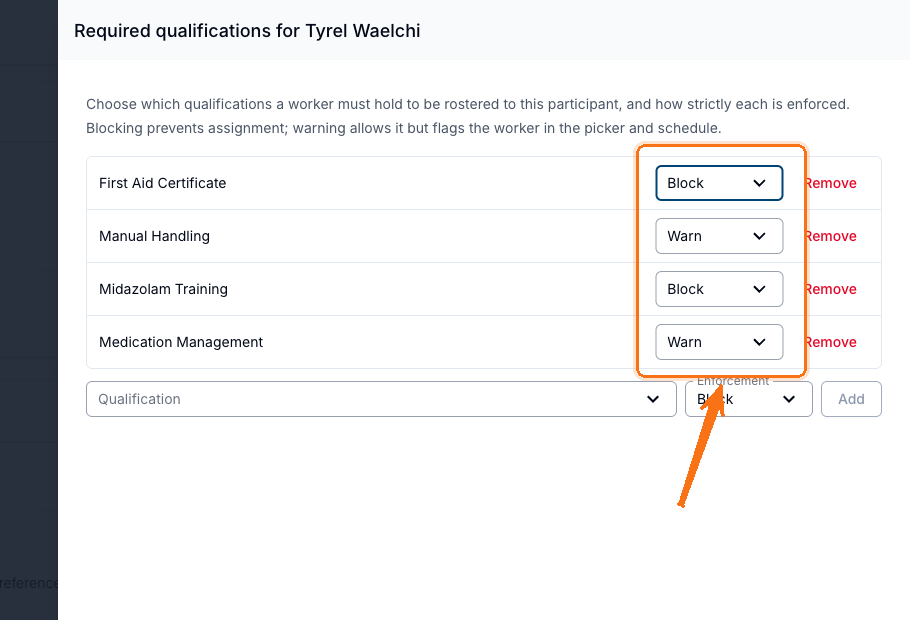
Once every available record type has been added, the add row is replaced with "Every qualification is configured."
Enforcement levels
| Level | What happens |
|---|---|
| Warn | Workers are flagged when rostered to this Participant without the qualification, but can still be assigned. |
| Block | Workers can't be rostered to this Participant unless they hold the qualification. |
Block is selected by default when you add a qualification.
How requirements appear on the card
Once saved, the Required Qualifications card shows one chip per requirement:
- Red chips are set to Block.
- Amber chips are set to Warn.
Hovering a chip explains the enforcement in plain language. If nothing has been set up yet, the card reads "No required qualifications set."
Overlapping requirements
A worker may be covered by a role-based requirement and a Participant requirement for the same qualification. When that happens, the strictest one applies - if either is set to Block, the worker is blocked.
Related guides
- Required Qualifications in Settings - role-based requirements that apply across a whole user group.
- Qualification Checks When Rostering - what schedulers see when they roster someone who doesn't qualify.
- Participant Preferences - the other preference settings on this tab.