Participant Preferences
Overview
Participant Preferences in Astalty allow you to set specific criteria for matching Participants with supports. Preferences can include factors such as minimum age, maximum age, ethnicity, and/or gender. Each preference can be marked as either Nice to Have or Must Have, and you can also add additional background information to the Participant's profile. There is also the ability to define a Participant's preferences using the Support Worker Compatibilities, allowing you to define whether a specific individual is preferred or incompatible with the Participant.
Preferences inform matching. A Must Have preference records importance; it is not itself a universal block on assigning a worker. Incompatibilities, qualifications, conflicting shifts and award alerts have separate checks.
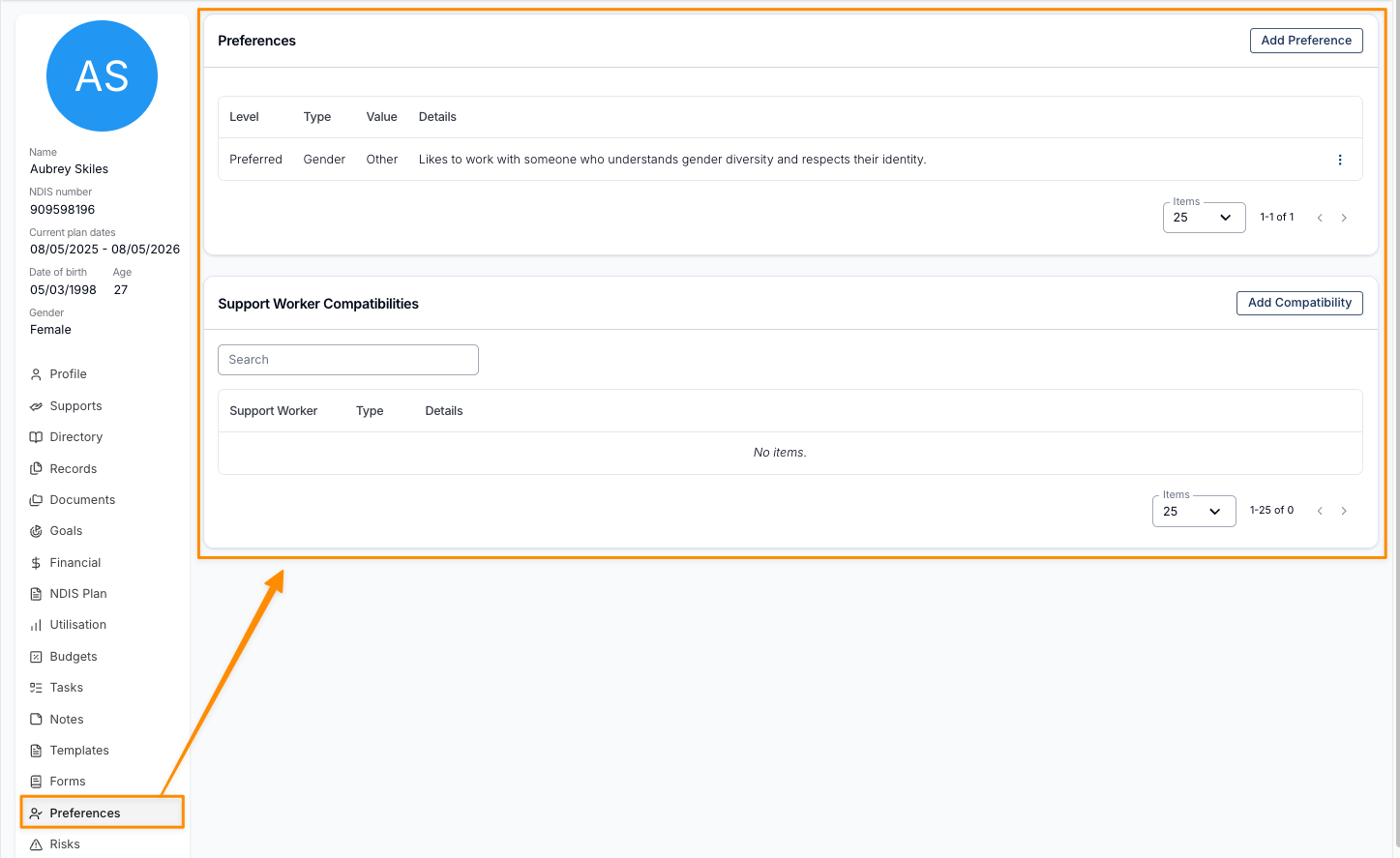
Finding Participant Preferences
To locate a Participant's Preferences, open the Participant menu in Astalty and select the Participant's profile. Once in the Participant's profile, navigate down towards the bottom Participant Profile menu, and select Preferences.
Setting Up Participant Preferences
After navigating to the Participant's Preferences within their profile:
- Select 'Add Preference' within the Preferences menu.

- Select and Configure the Preference
- Preference Type - Choose the relevant preference type (e.g., age range, gender, ethnicity).
- Value - Enter the value for the preference (e.g., Female, 18-25 years old).
- Importance - Mark the preference as Nice to Have or Must Have.
- Additional Details - Add any extra background information if required.
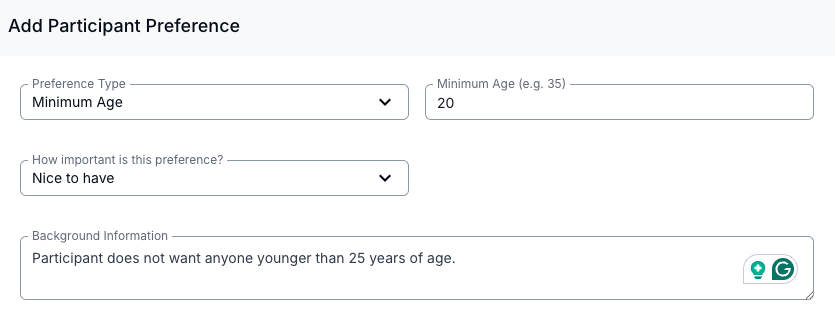
- Save the Preference - Once all details are entered, click Create Preference.
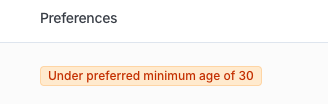
When rostering a Participant, Astalty shows their preferences to help you choose a suitable Support Worker.
Setting Up Support Worker Compatibility
Record whether a Support Worker is preferred or incompatible with the Participant. Support Worker compatibilities can be defined by who is Preferred or Incompatible.
- Follow the steps above to access Preferences.
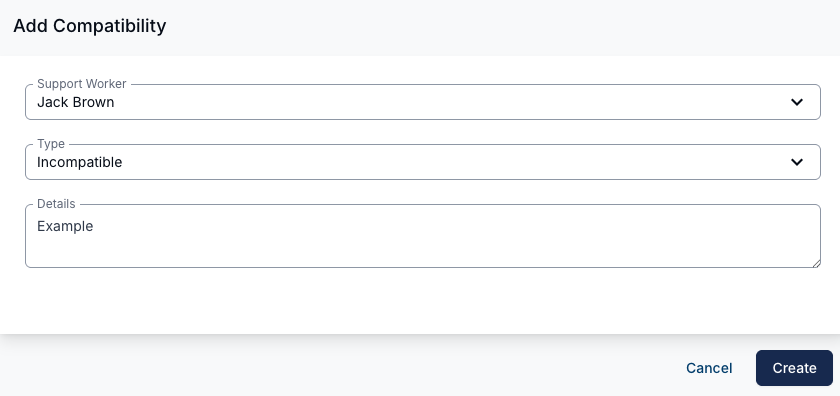
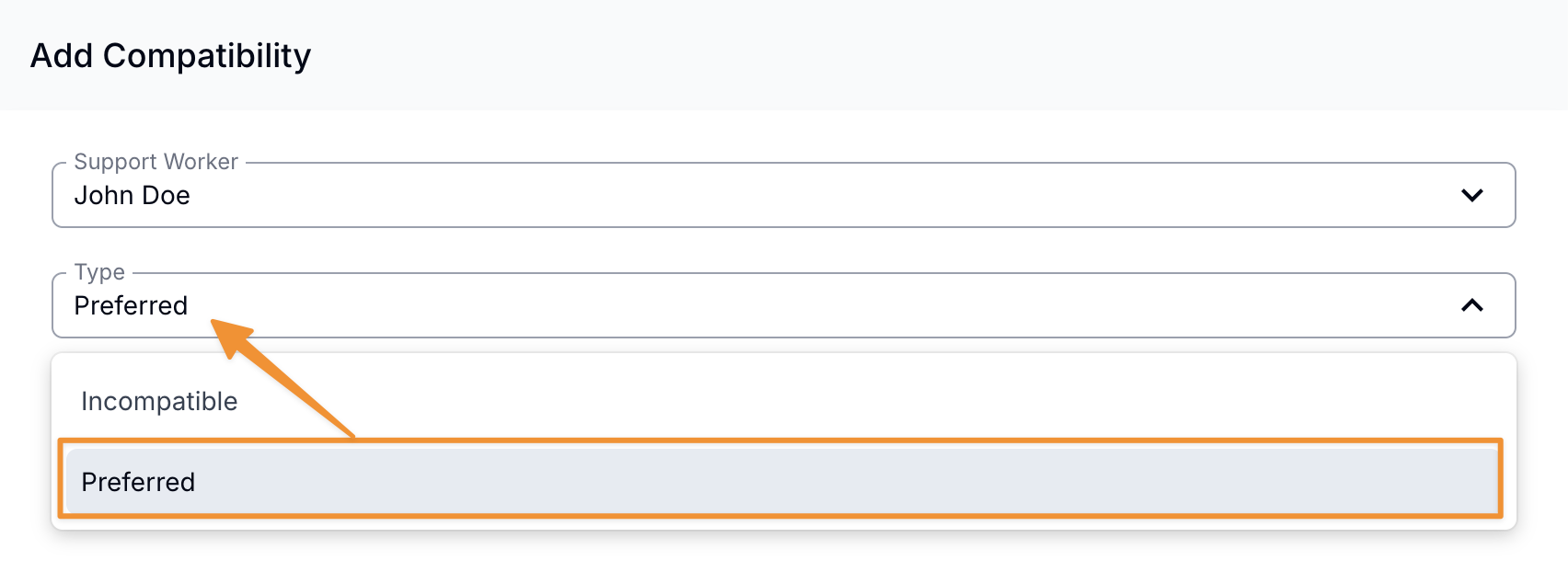
- In the Support Worker Compatibilities section, select Add Compatibility.
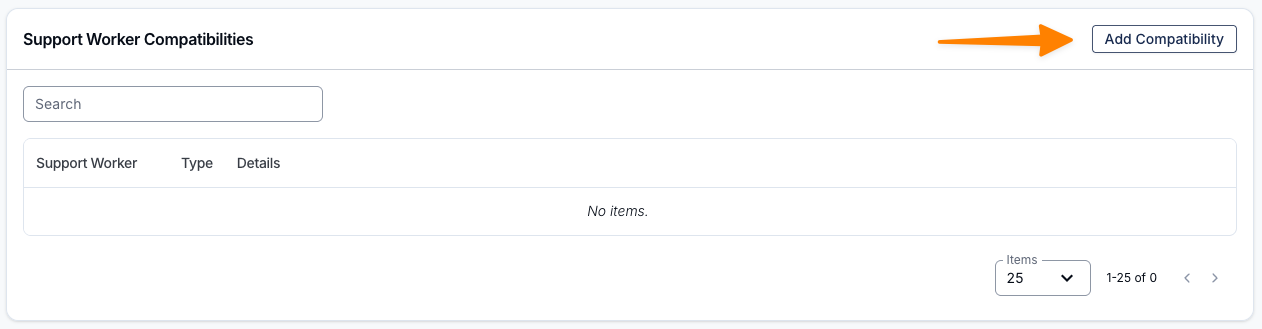
- Configure the compatibility details
- Support Worker
- Type - Incompatible or Preferred
- Details - Enter any relevant notes for the scheduler (e.g. Client request, Key worker)
- Click Create.
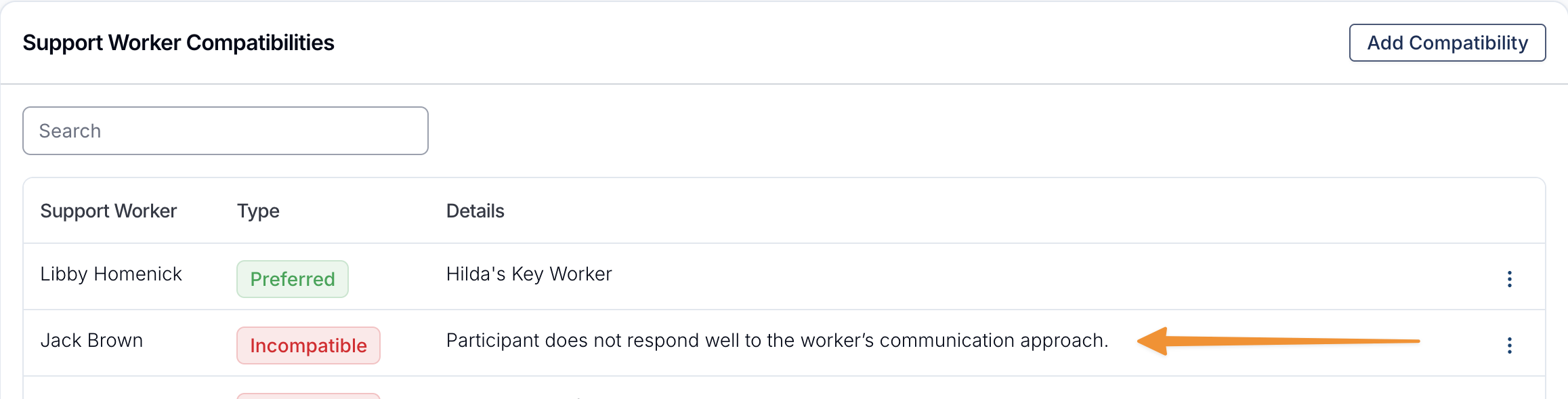
The Support Worker will now appear in the Support Worker Compatibilities list alongside any other Support Workers who are designated as either Preferred (green) or Incompatible (red).
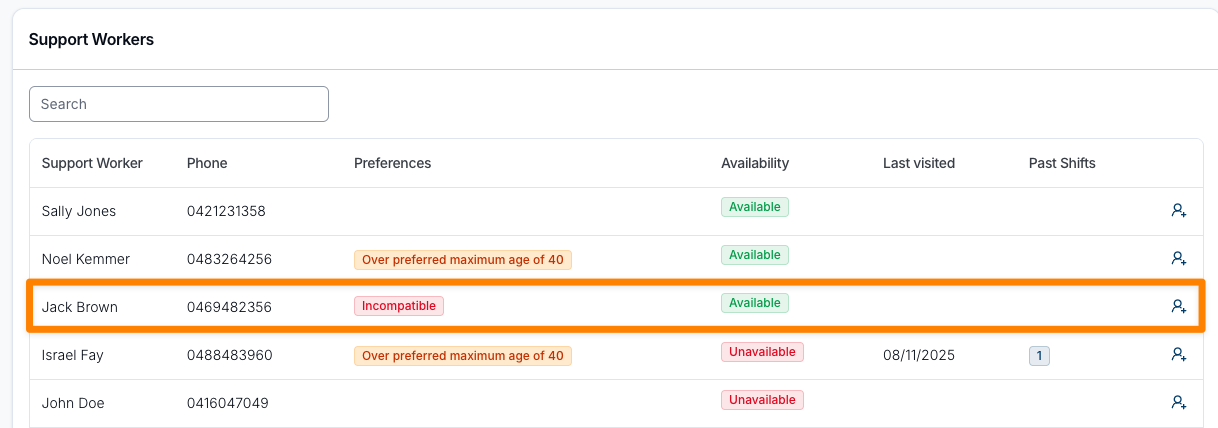
When scheduling a shift for this Participant, any relevant Preferences - including incompatibilities - will be highlighted. If a Support Worker is marked as Preferred or Incompatible, the scheduler can hover over this marker to view the extra detail or reason provided.
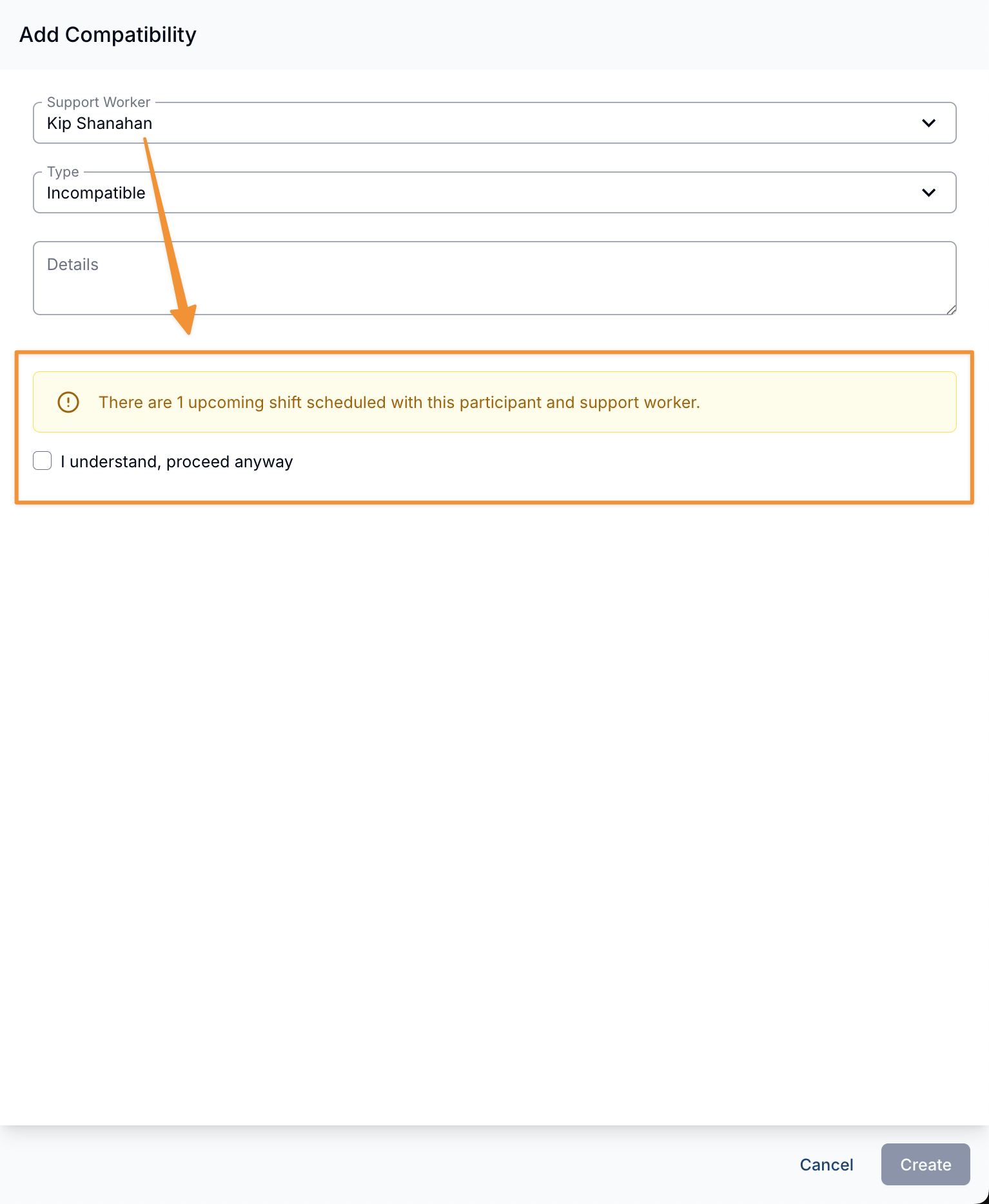
If the Support Worker selected has been identified as having future shifts where they're assigned to support this Participant, Astalty will provide a warning and required confirmation prior to being able to create the incompatibility.
If the user confirms this and creates the incompatibility, Astalty will also flag the amount of future shifts this Support Worker is still assigned to where they're supporting the Participant.
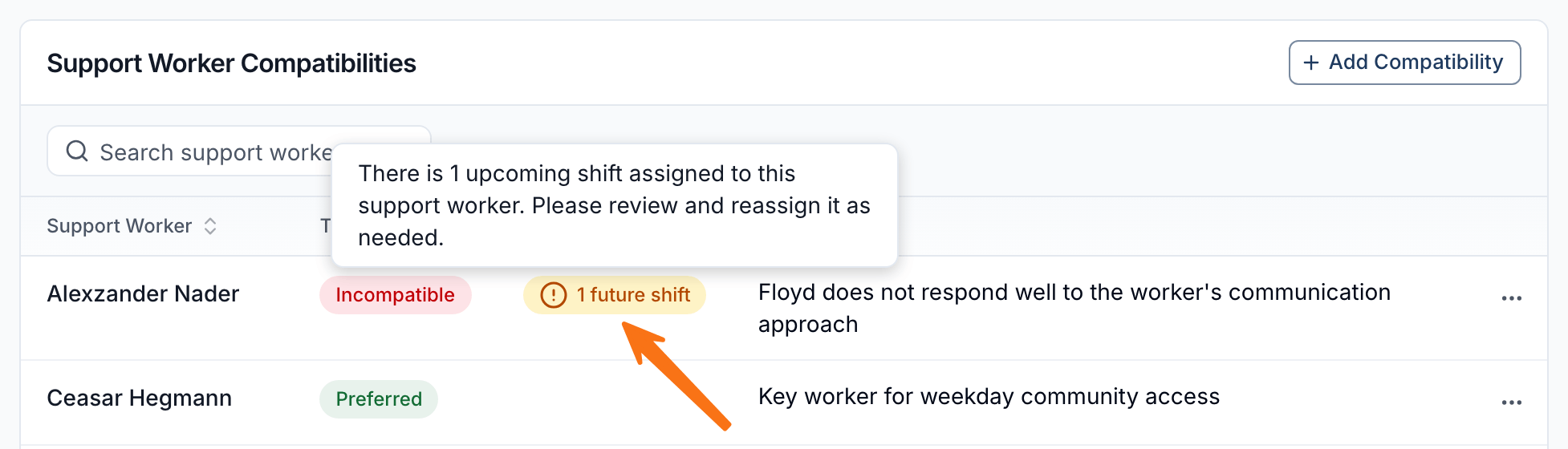
Creating an incompatibility does not remove the worker from existing shifts. Review the listed future assignments and reassign them where needed.
Preferred Teams
Mark workers as Preferred when they are a good match for the Participant, such as workers with relevant training or qualifications. The preference remains visible when staff choose who to assign.
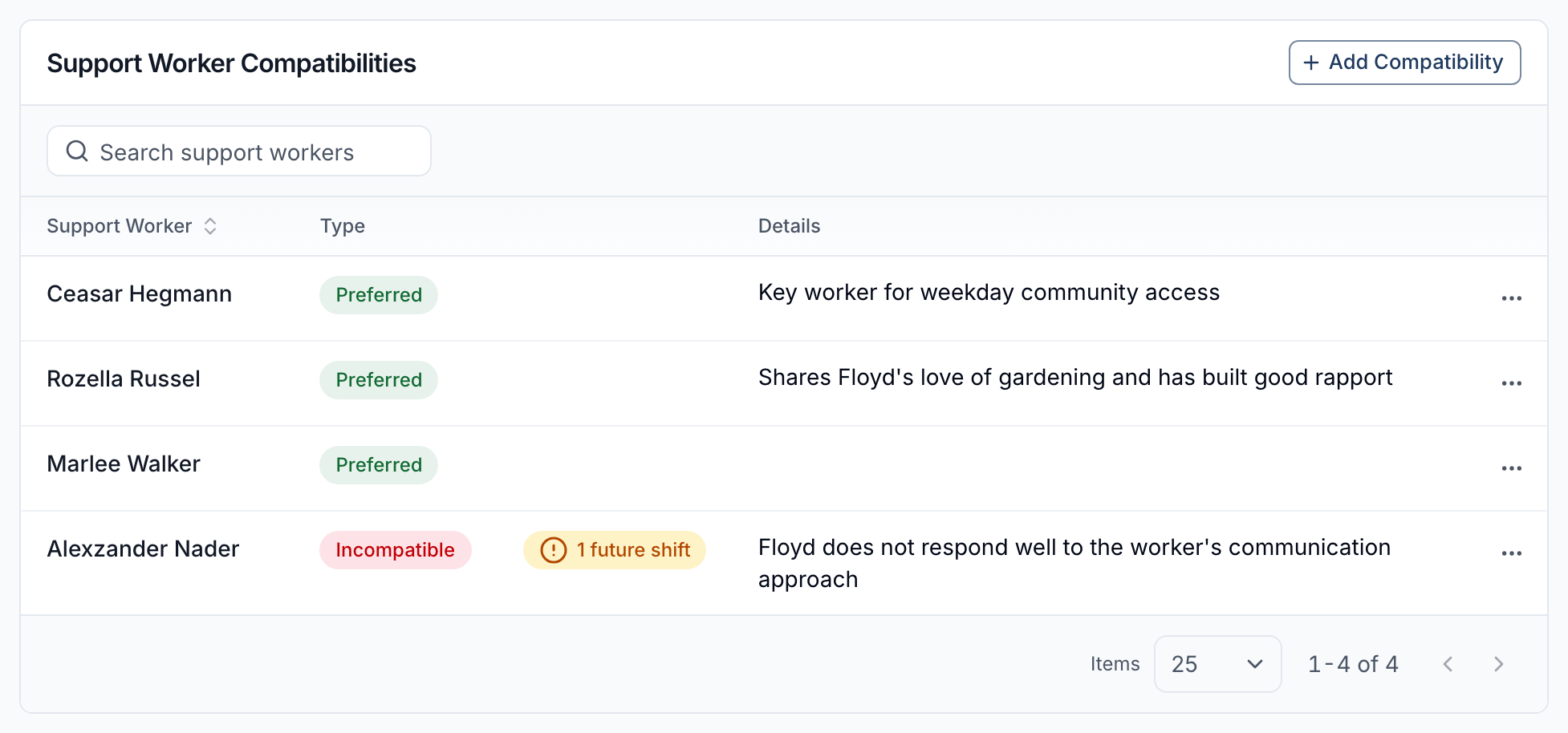
To add Support Workers to a Participant's preferred team, select Add Compatibility and select the Type for preferred.
Desired Skills
If your account has the Skills feature enabled, the Preferences page also has a Desired Skills card, sitting just below Required Qualifications. This is where you record the capabilities you want a worker to have for this Participant - for example Auslan or Meal Preparation.
- Follow the steps above to access Preferences.
- Scroll to the Desired Skills card and click Edit.
- Tick the skills you want in the Select Desired Skills list, then click Update Desired Skills.
When you roster, each suggested Support Worker shows how many of these skills they hold. A missing desired skill is a fit indicator and does not by itself block selection. See Skills for how matching works and how to build the skill catalogue.