- Scheduling
- Unassigned Shifts
Unassigned Shifts
Overview
Use Unassigned Shifts to find roster gaps and assign a worker after checking availability, clashes, preferences, skills, and qualifications.
Accessing Unassigned Shifts
- Open Scheduling from the left-hand menu.
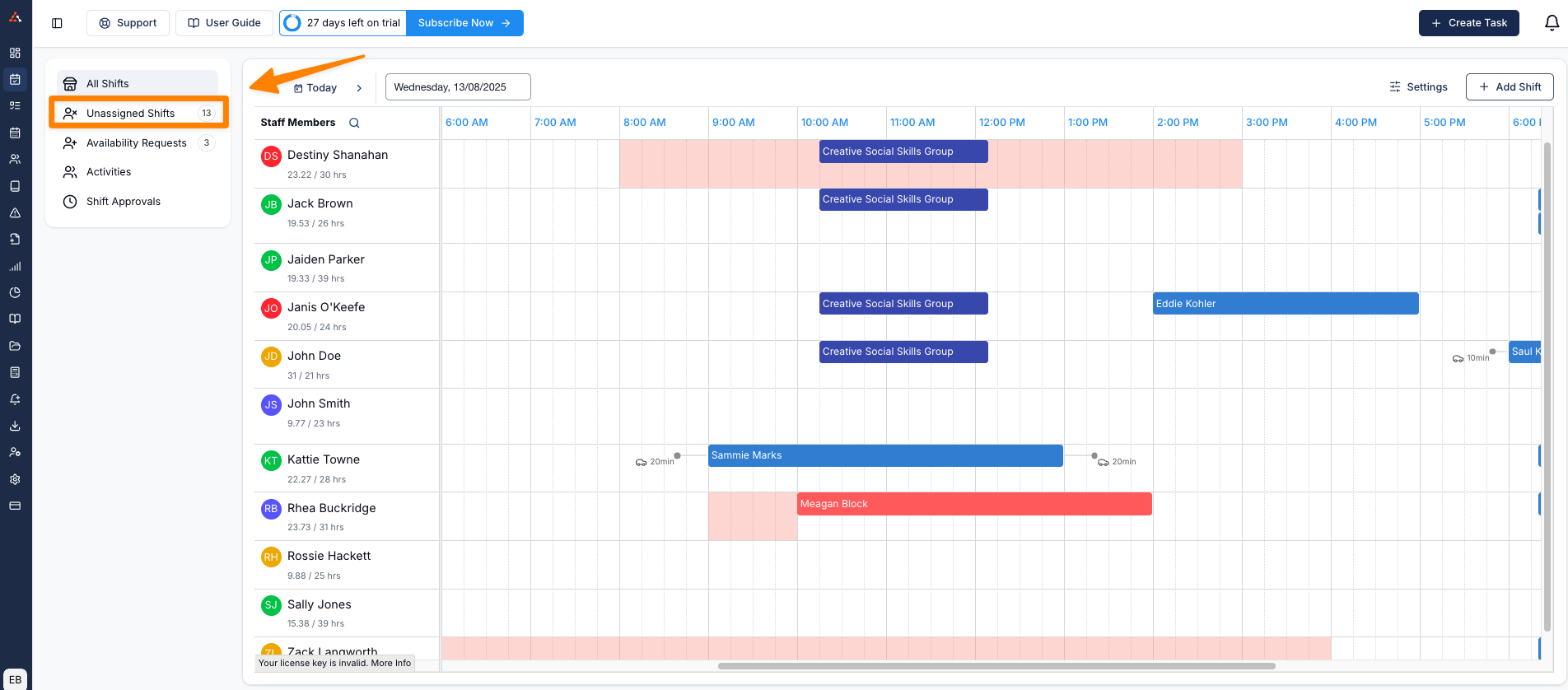
- Select Unassigned Shifts.
- Choose a date range. The number beside the menu option starts with the current Monday-to-Sunday week, then follows the page's date range and filters while the page is open.
Viewing Unassigned Shifts
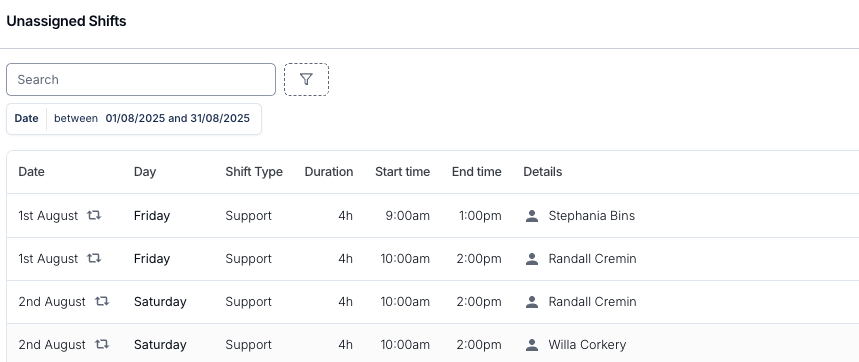
- The list displays unassigned shifts for the selected date range.
- Use the date picker to filter and select presets for quick date range changes.
- Shifts are shown with headings for Date, Day, Shift Type, Duration, Start Time, End Time, and Details.
- Search the list, or filter by Shift Type, State, Region, or Site. If your organisation uses the Shift Board, Broadcast Status lets you separate Broadcasted shifts from those Not Broadcasted.
Shift Details
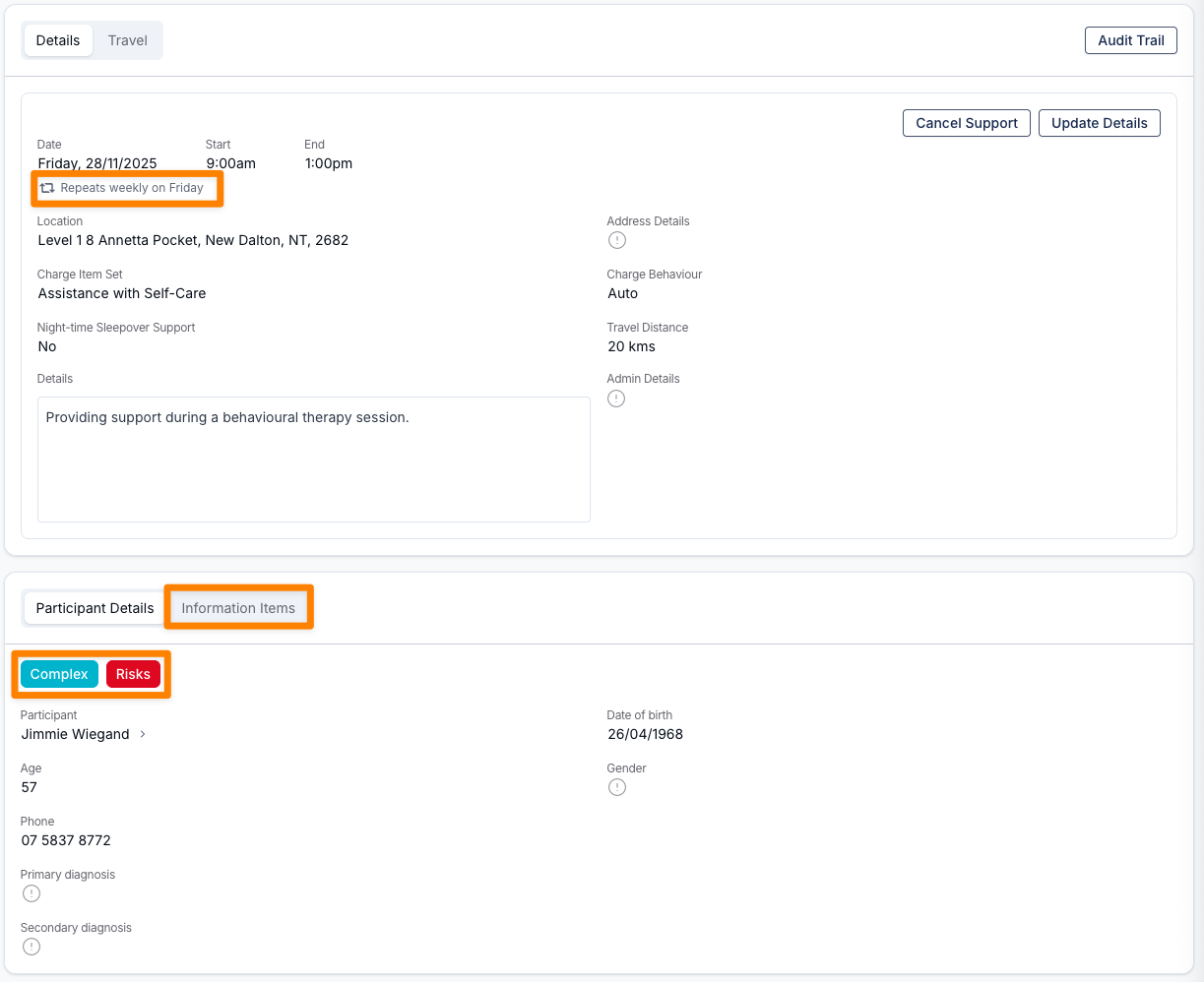
Click on a shift to view more information, including Participant Details, Tags, and Information Items. You'll also be able to see if the support is recurring by the frequency indicator under the shift date.
Scroll down to view a list of available Support Workers.
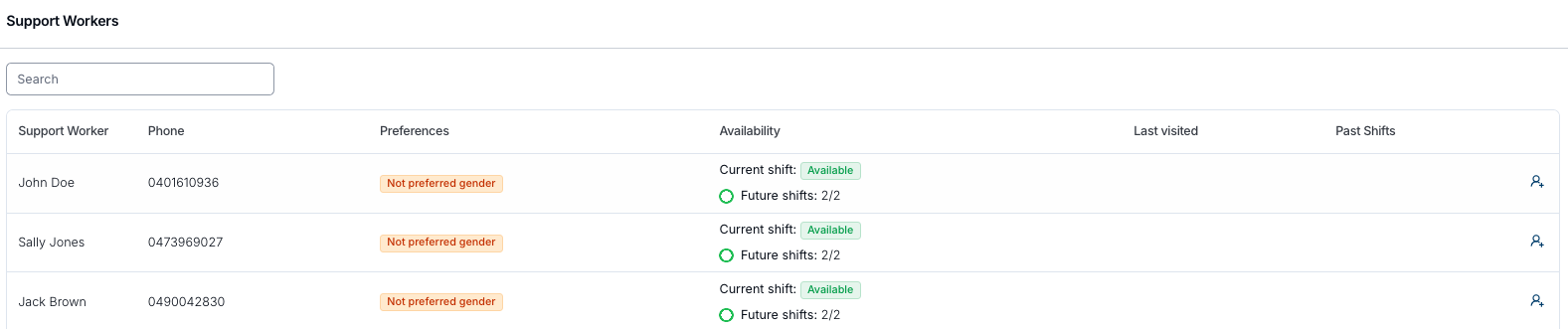
Astalty displays potential Support Workers with the following details:
Name
Name of the Support Worker.
When the shift is at a Site, a chip under the name shows First site visit, 1 site visit, or the worker's number of earlier visits to that Site. The count covers their earlier Supports and internal shifts at the Site, even when they worked with a different Participant. Cancelled shifts and unpaid breaks do not count. No site-visit chip appears when the shift has no Site.
Phone
This is the stored number in Mobile (Astalty will use the number from the Phone if there is nothing in Mobile)
Preferences
Any preferences that may impact on shift.
Skills
How many of the Participant's desired skills this worker holds, shown as a chip such as 2/3 skills (or 2 of 3 Participants on a group support). Hover over it to see which skills matched and which are missing. This column only appears if your account has the Skills feature enabled, and the chip is left blank where the Participant has no desired skills recorded. A skill match never prevents a worker being assigned.
Last visited
The date when staff last visited that Participant
Past Shifts
Details of any past shifts
Availability
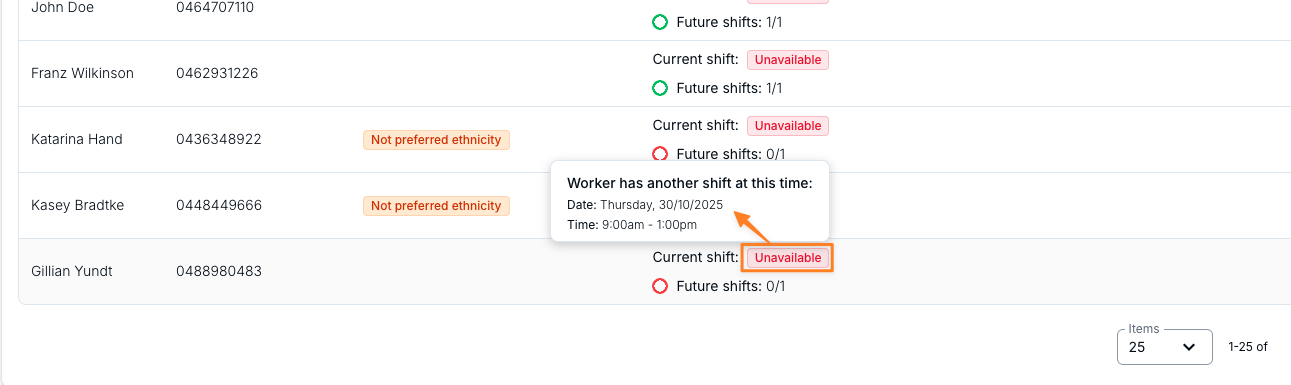
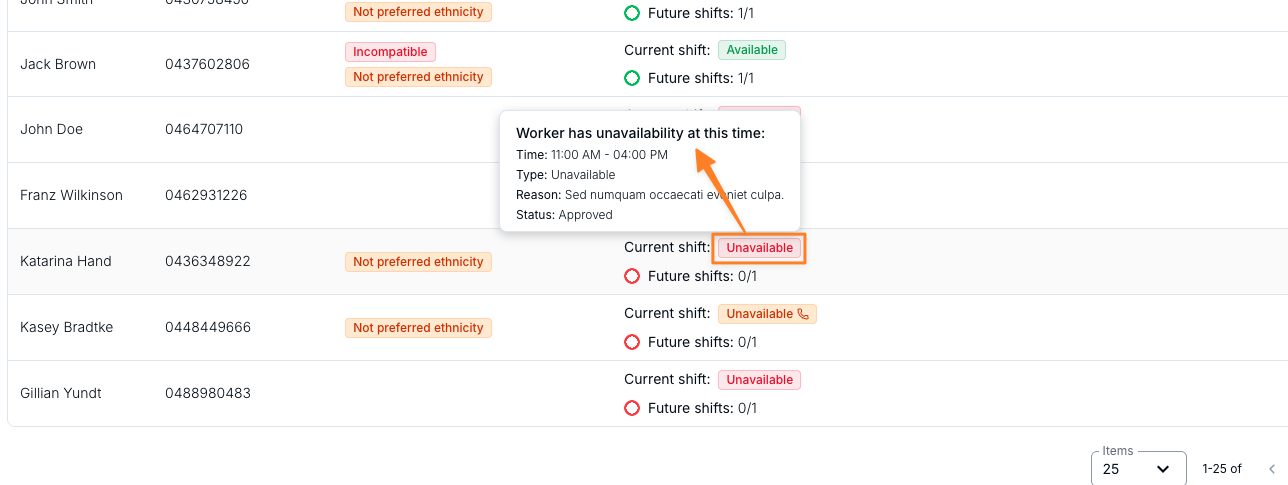
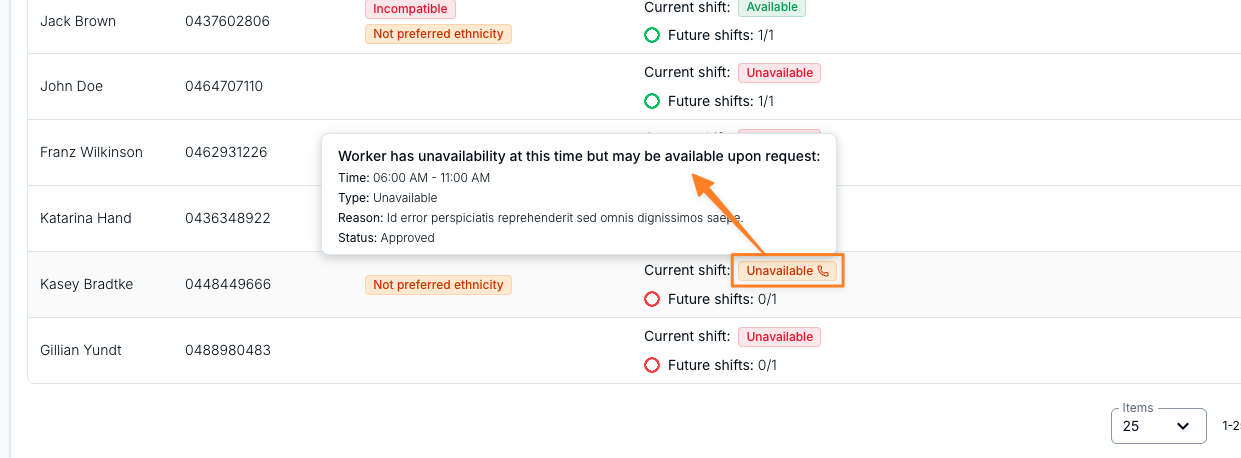
Availability for the selected shift and its future occurrences. Hover over Unavailable for the conflict details:
- Shift Clashes
- Unavailability
- Unavailability, but may have availability on request.
Filtering the Support Worker List
When the list is long, you can narrow the suggested Support Workers using the filters above the list. These filters combine with each other and with the search box:
- Availability - show only workers who are Available or Unavailable for the current shift.
- State - filter by the worker's state (ACT, NSW, NT, QLD, SA, TAS, VIC, or WA). You can select more than one.
- Team - filter by the team a worker belongs to, including Unassigned for workers not in a team. This filter is only available if you use Teams.
Assigning a Shift
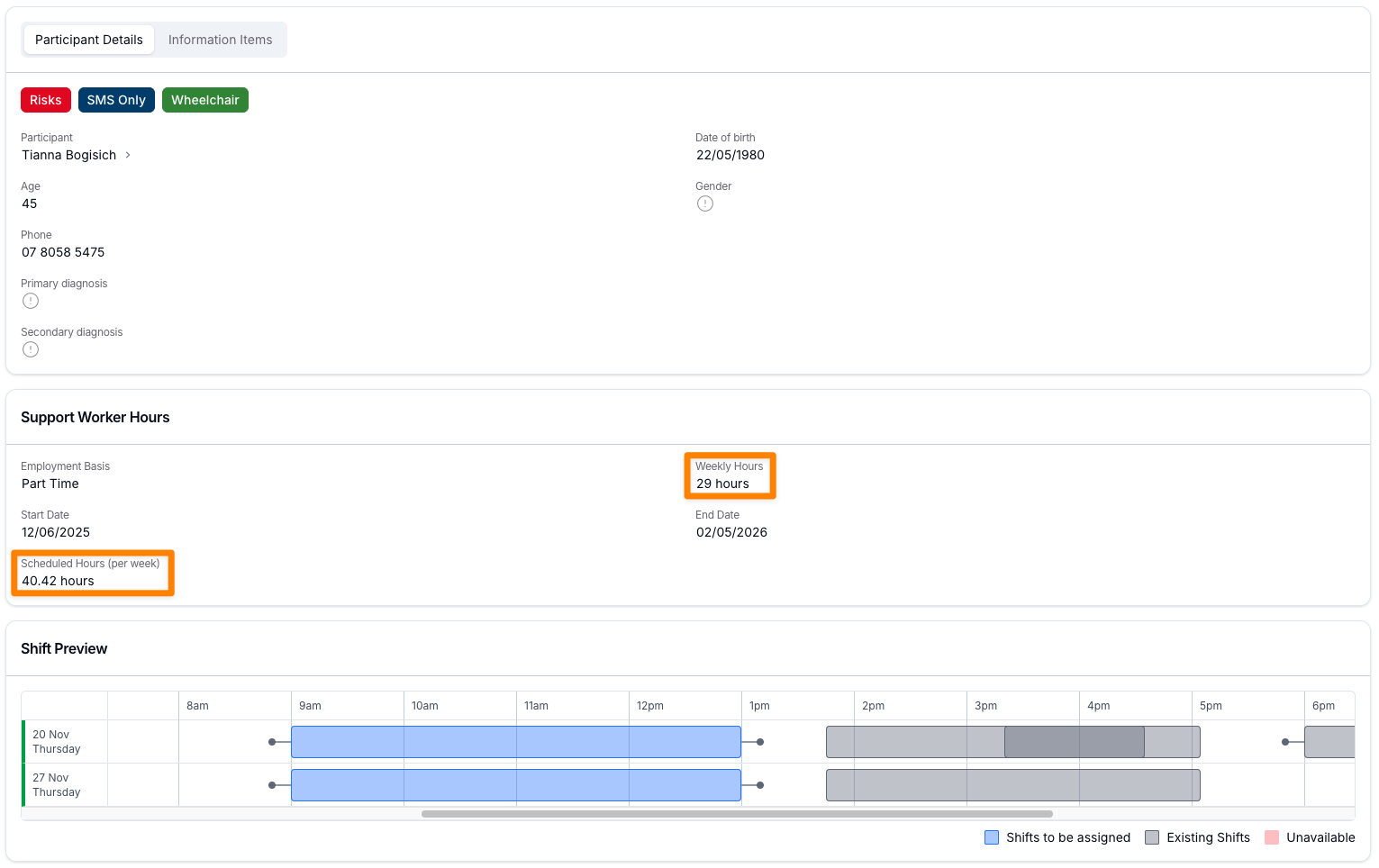
To assign a Support Worker, open the Support and scroll to Support Workers. Select a worker's name to compare their schedule with the shift.
- Blue - the shift being assigned.
- Light grey - existing shifts.
- Pink - times the worker is not available.
This view also shows a Support Worker Hours panel comparing the worker's contracted and scheduled hours for your organisation's pay period (Weekly or Fortnightly) rather than always a calendar week - see Support Worker Hours for what each field means.
If you are satisfied that the Support Worker is able to provide the necessary support, click on the Assign button This view helps you assess potential impacts such as travel, meal breaks, and broken shifts (particularly relevant for Community Access supports).
Confirming the Assignment
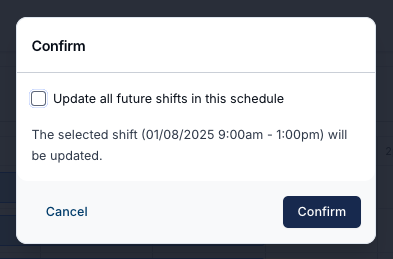
After you have selected Assign you can choose whether to:
- Update only the selected shift.
- Update all shifts in the sequence.
- Update all future repeating shifts.
Selecting Update All Future Shifts rosters the worker on for all future occurrences of that shift.
Notifications
Once assigned, the Support Worker receives a notification in the Support Worker app informing them of the new shift.
Unassigned Shifts Functionality Overview
This video introduces unassigned shifts.
Reassigning a Support Worker
When a worker can no longer do a shift and you already know who is covering it, you don't need to unassign them first. Reassign Support Worker swaps the worker in a single step, so the shift never passes through the Unassigned Shifts list.
- Go to the Scheduling page and click on the support you want to change.
- On the right-hand side, find the name of the assigned Support Worker, click the three dots next to their name, and select Reassign Support Worker.
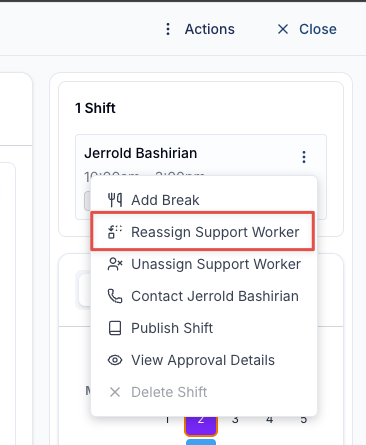
Reassign Support Worker only appears once a shift already has a Support Worker on it. On an empty shift you'll see Assign Support Worker instead.
Choosing the Replacement
Reassigning opens the same Support Worker list you get when assigning an unassigned shift, so you have the full picture before committing - Availability for this and future shifts, Preferences, Phone, Last visited and Past Shifts, plus Qualifications, Skills and Award Alerts where your account uses those features. The filters and search described in Filtering the Support Worker List work here too.
Some workers can't be selected at all. Their row is greyed out with a chip explaining why - for example Shift Clash - Selection Blocked, Award Alert - Selection Blocked, Qualification - Selection Blocked or Incompatible - Selection Blocked.
Click the worker you want and Astalty opens a Reassign Shifts preview - the same schedule comparison as a normal assignment, showing the shifts to be reassigned against their existing shifts, unavailability, and any time or travel conflicts, alongside their agreed hours for the week.
Confirming the Reassignment
Click Reassign and you'll get a confirmation step summarising exactly what's about to change, along with an optional Reason for reassigning box. The reason isn't required, but anything you enter is recorded against the shift in the Support Audit Log alongside the change of worker, so it's worth noting why the swap happened.
Reassigning Across a Recurring Series
If the shift is part of a recurring series, the preview lists every later occurrence with a checkbox beside it, and Astalty works out the scope from what you tick:
- Tick nothing else - only the shift you opened is reassigned.
- Tick every occurrence - that shift and all future shifts are reassigned.
- Tick some occurrences - that shift and just the ones you selected are reassigned.
The confirmation message spells out which of the three you're about to do before you commit. The occurrences offered are the ones still held by the worker you're replacing, and only those starting at or after the shift you opened. Use the Select dropdown for shortcuts such as All without clashes or Every [Weekday] - see Recurring Shifts.
If some occurrences in your selection can't be changed, Astalty highlights those rows rather than failing silently, so you can open each one and deal with it separately.
Notifications
For a published shift, both workers are notified in the Support Worker app automatically - the incoming worker gets a new shift notification, and the outgoing worker is told the shift has been unassigned from them. The outgoing worker's notification doesn't name their replacement or include the reason you entered, so let them know yourself if the context matters.
On an unpublished shift nobody is notified, because the shift isn't visible to workers yet.
When Reassign Isn't Available
The option is greyed out, without explanation, when the shift can no longer change hands:
- The Support Worker has clocked in or out of the shift.
- The shift is in a timesheet batch.
- The support has been cancelled.
- The shift is an unpaid break.
Past shifts can still be reassigned, as long as none of the above apply.
Unassigning a shift
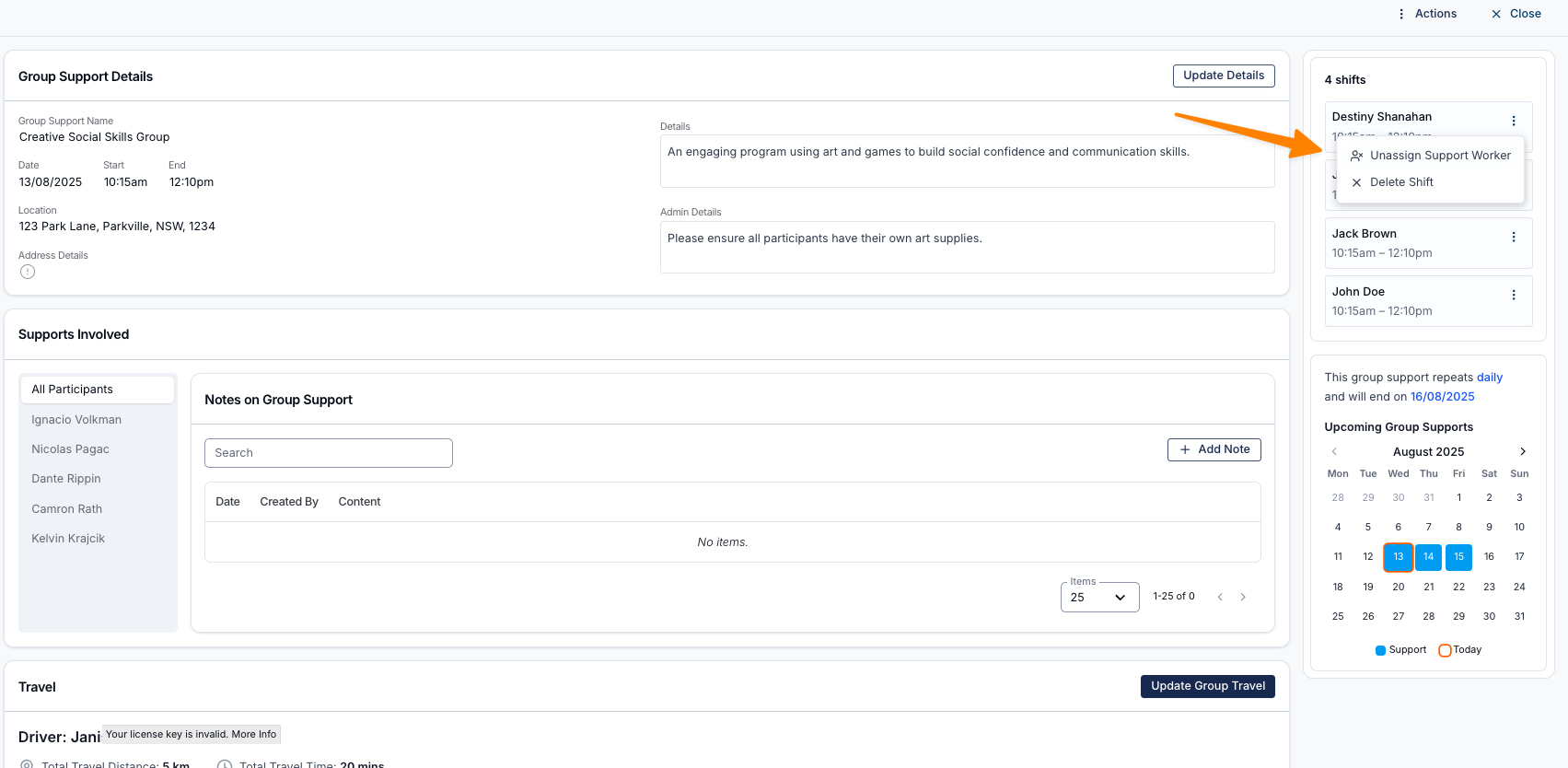
- Go to the Scheduling page and click on the support you want to unassign a Support Worker from.
- On the right-hand side, find the name of the assigned Support Worker. Click the three dots next to their name and select Unassign Support Worker.
- The user will be prompted:
- if it's a recurring support, would they like to Update all future shifts in this schedule,
- provide a Reason for unassign - why you removed the Support Worker.
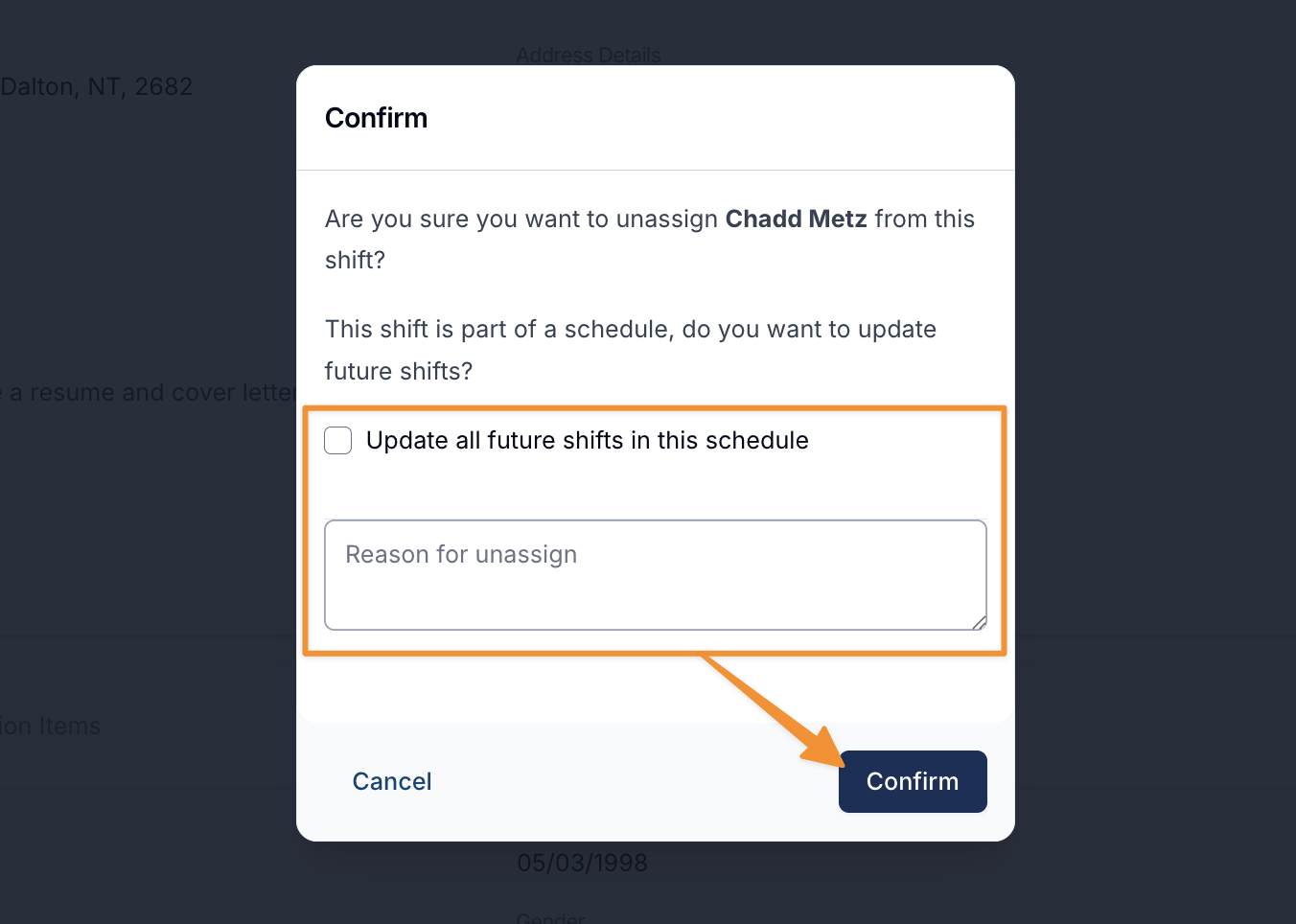
- The support will now be unassigned and will appear in the Unassigned Supports list.
How to Unassign a Shift
This video demonstrates how to unassign a shift.