- Scheduling
- Support Audit Log
Support Audit Log
Overview
Use a support's Audit Trail to find who changed it, when it changed, what changed and the reason entered for the change.
For each change, the Audit Trail records:
- Time and Date the change was made
- User who made the change
- Details of what was changed
- Reason for the change (when there are changes made to supports)
Viewing an Audit Trail on a Shift
- Open Schedule.
- Select the support you want to review.
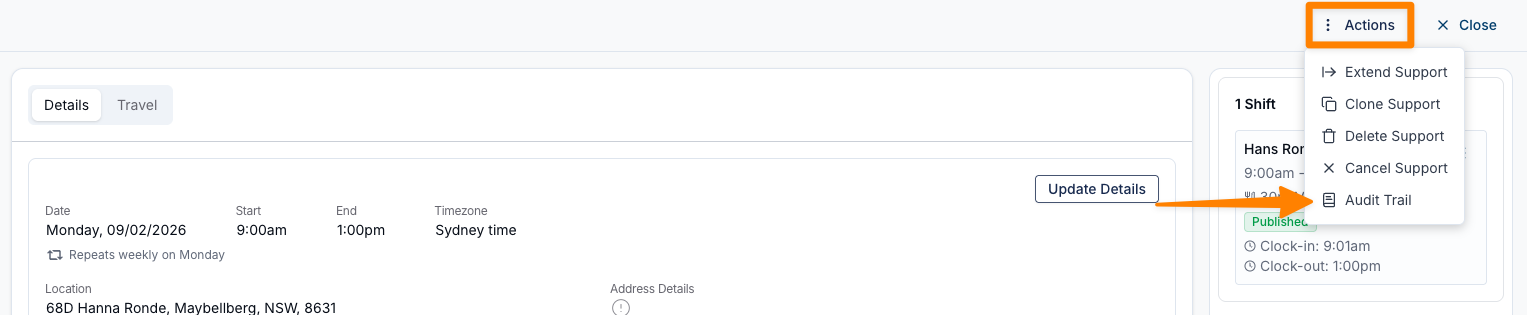
- Open Actions in the support toolbar.
- Select Audit Trail.
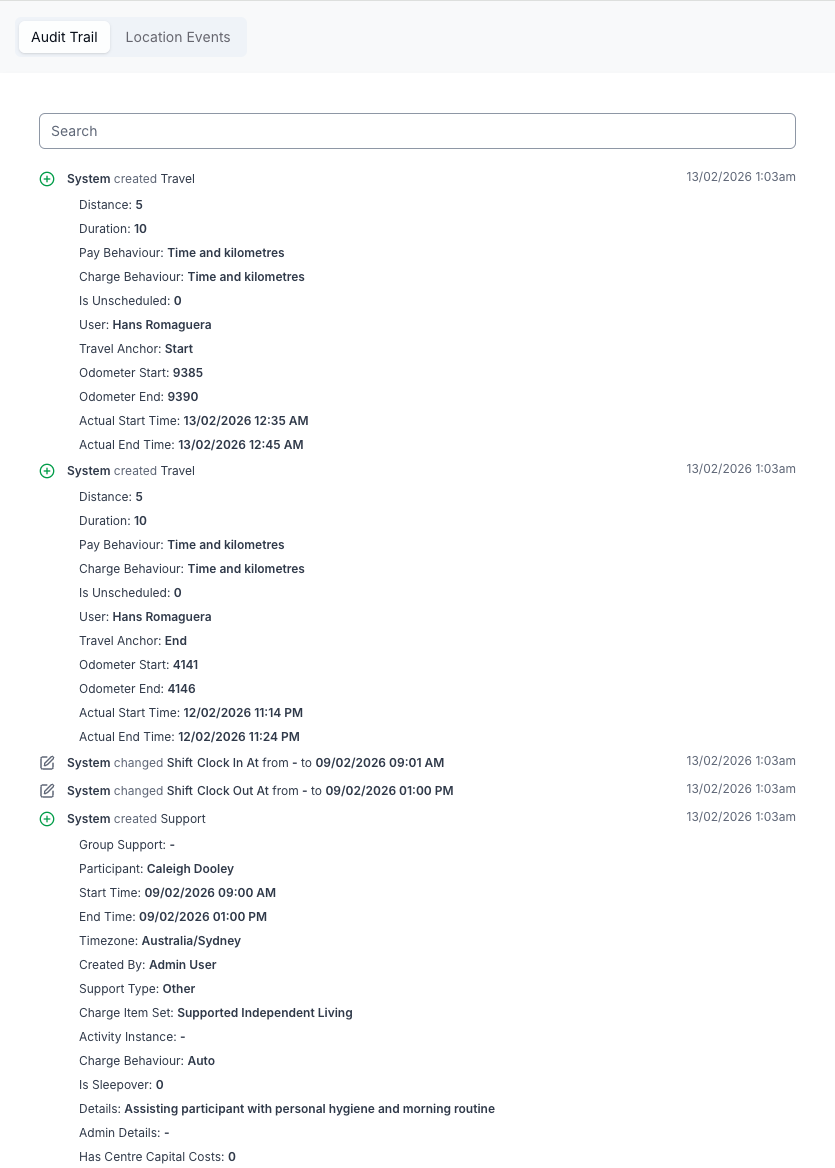
- The Audit Trail lists each change, when it occurred, who made it, and any reason they entered.
- A support in a different timezone can show start and end time changes in that support's timezone rather than yours.
- Adding or removing custom allowances on a shift is recorded, naming the allowances added and removed. Only users who can see custom allowances see these entries.
- Automated SMS Reminders sent for the support are recorded too. They appear on the Reminders tab of the Audit Trail rather than alongside the other changes - see Reminders sent for a support.
Recording a Reason for a Change on a Shift
If you need to record a reason for a change:
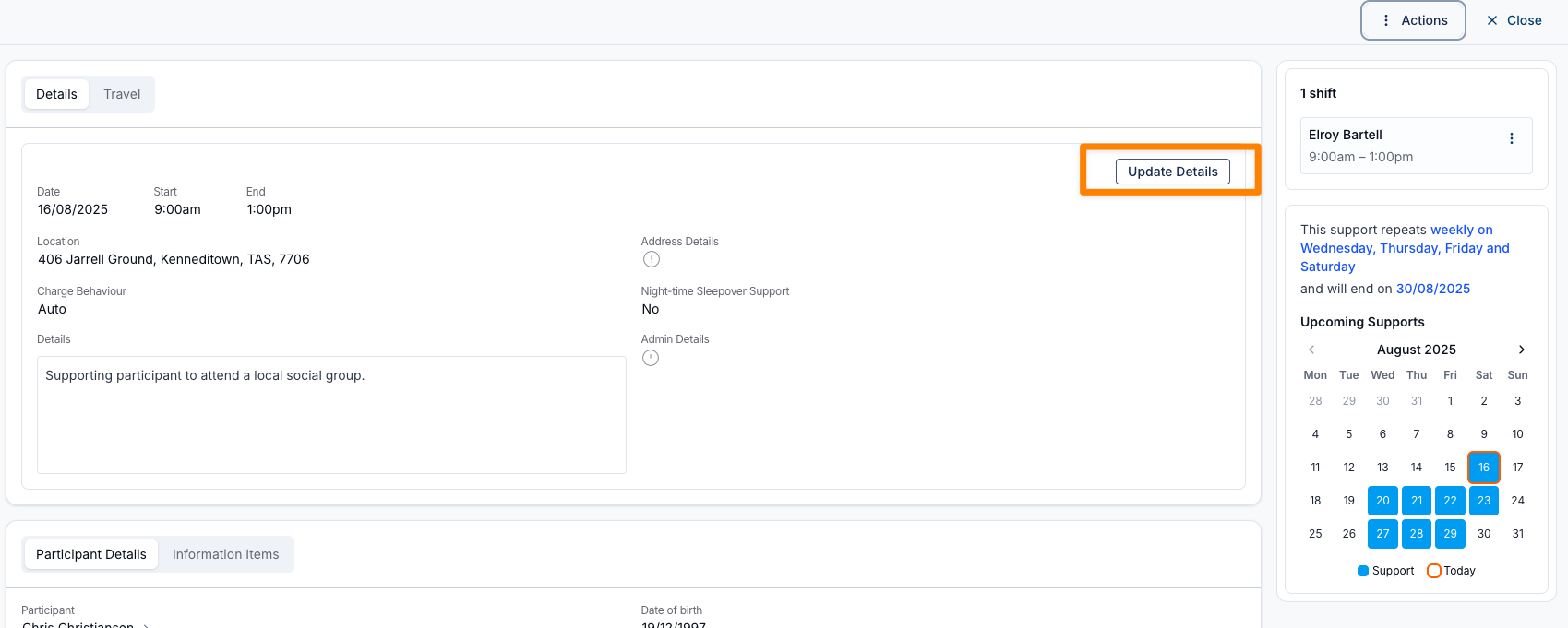
- Click into the shift you want to update.
- Select Update Details.
- Make the necessary changes to the relevant fields.
- Scroll to the bottom of the form and enter the Reason for Change in the provided field.
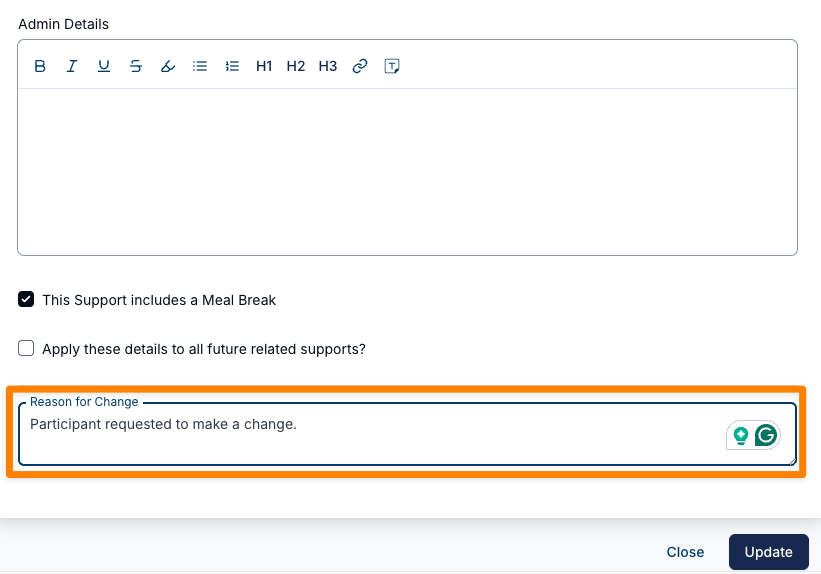
- Click Update.
The shift will be updated with the new details, and the reason you entered will be saved. This reason will then appear in the Audit Trail for that shift, along with the date, time, and user who made the change.
Reason for Unassigning Staff
Any changes made to the attached Support Workers in a published shift will require a Reason for Unassign.
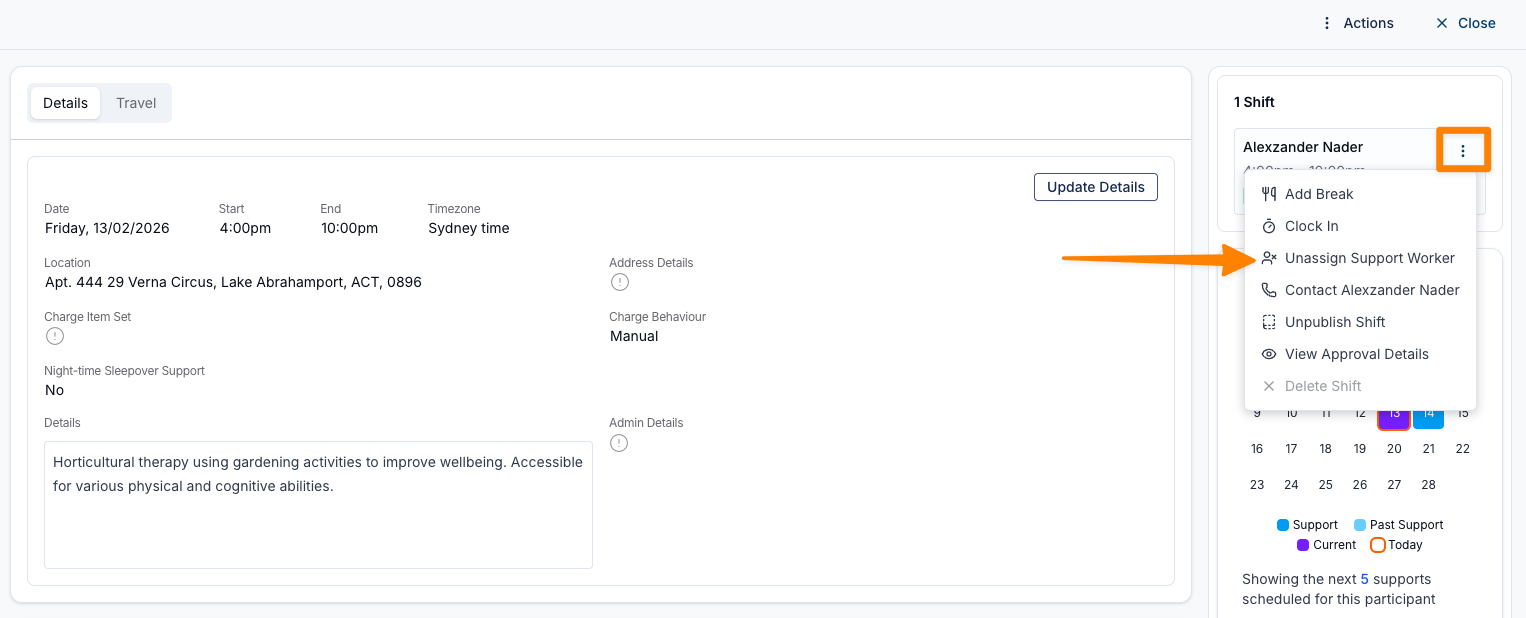
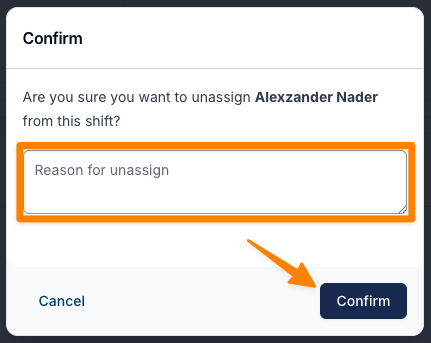
When a worker is unassigned, the Audit Trail records the worker, the user who made the change, the time, and any reason entered.
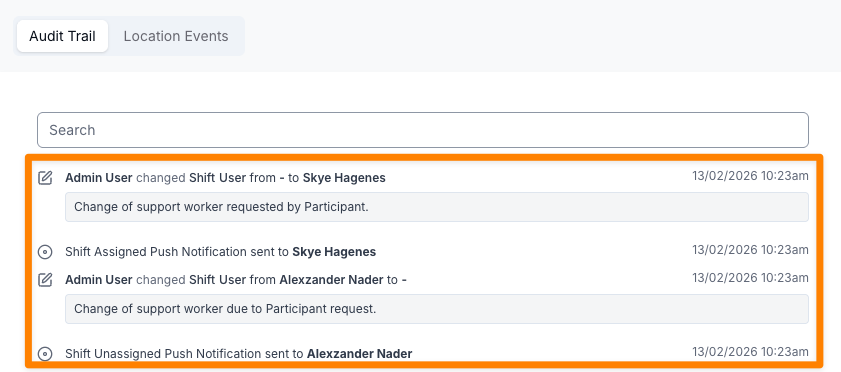
Travel Removed From a Support
Every time travel is removed from a support or group support, the Audit Trail records it. The entry names the travel type and the driver, lists what the Support Worker had recorded against it, and says who actioned the removal:
Travel From Support for Amy Worker was removed. It had recorded odometer readings 500 to 530 and odometer photos attached. Removal actioned by Jane Admin
The "It had..." sentence only appears when there was something to report, and covers odometer readings, whether odometer photos were attached, and the approved distance. Travel removed with none of these recorded produces the shorter entry: Travel To Support for Amy Worker was removed. Removal actioned by Jane Admin.
Because the entry is written for every removal, the Audit Trail is also where to look for the removals that don't ask you to confirm first - including travel removed across a series of shifts, and travel dropped when a Participant is de-selected from a group travel row. See Confirming Removal of Recorded Travel.
Location Tracking
You can view location tracking details recorded during a shift in the Audit Trail. To access this information, open the Audit Trail and select the Location Events tab.
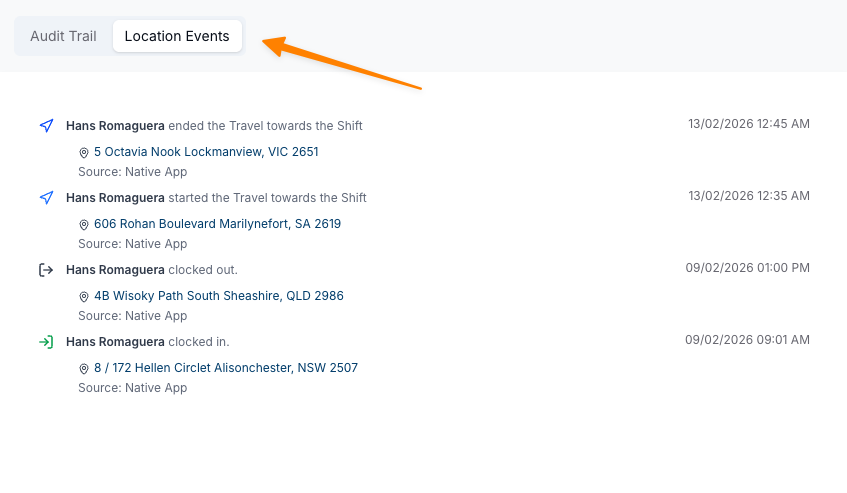
Reminders sent for a support
If your organisation uses SMS Reminders, the Audit Trail has a Reminders tab listing every reminder sent for that support. For each one you'll see the reminder window (for example 24 hours before), when it was sent, the Participant it went to, the delivery status (for example Sent, Delivered, or Failed), and the message body. If none have gone out yet, it shows "No reminders have been sent yet."