- Scheduling
- Meal & Unpaid Breaks
Meal & Unpaid Breaks
Overview
Astalty represents breaks in two ways:
- Add a Meal Break or Tea Break to a Support Worker on an existing support. This records a duration on that shift.
- Create a separate Unpaid Break shift between supports. This is a roster event with its own start and end time.
Recording a break does not check every condition in an award or confirm that a roster complies with it.
How to Add a Break
Go to Scheduling and select Add Shift.
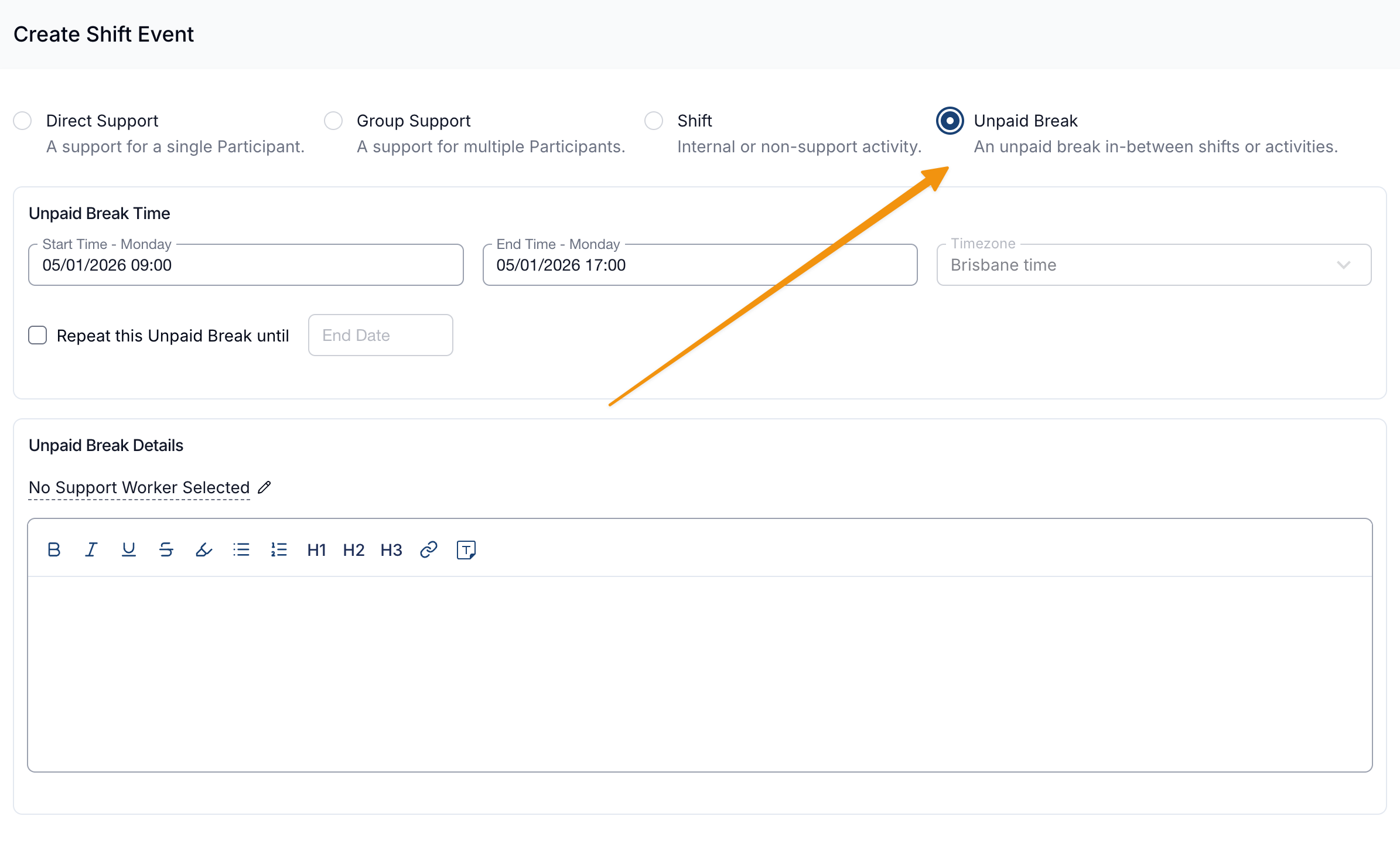
Choose Unpaid Break.
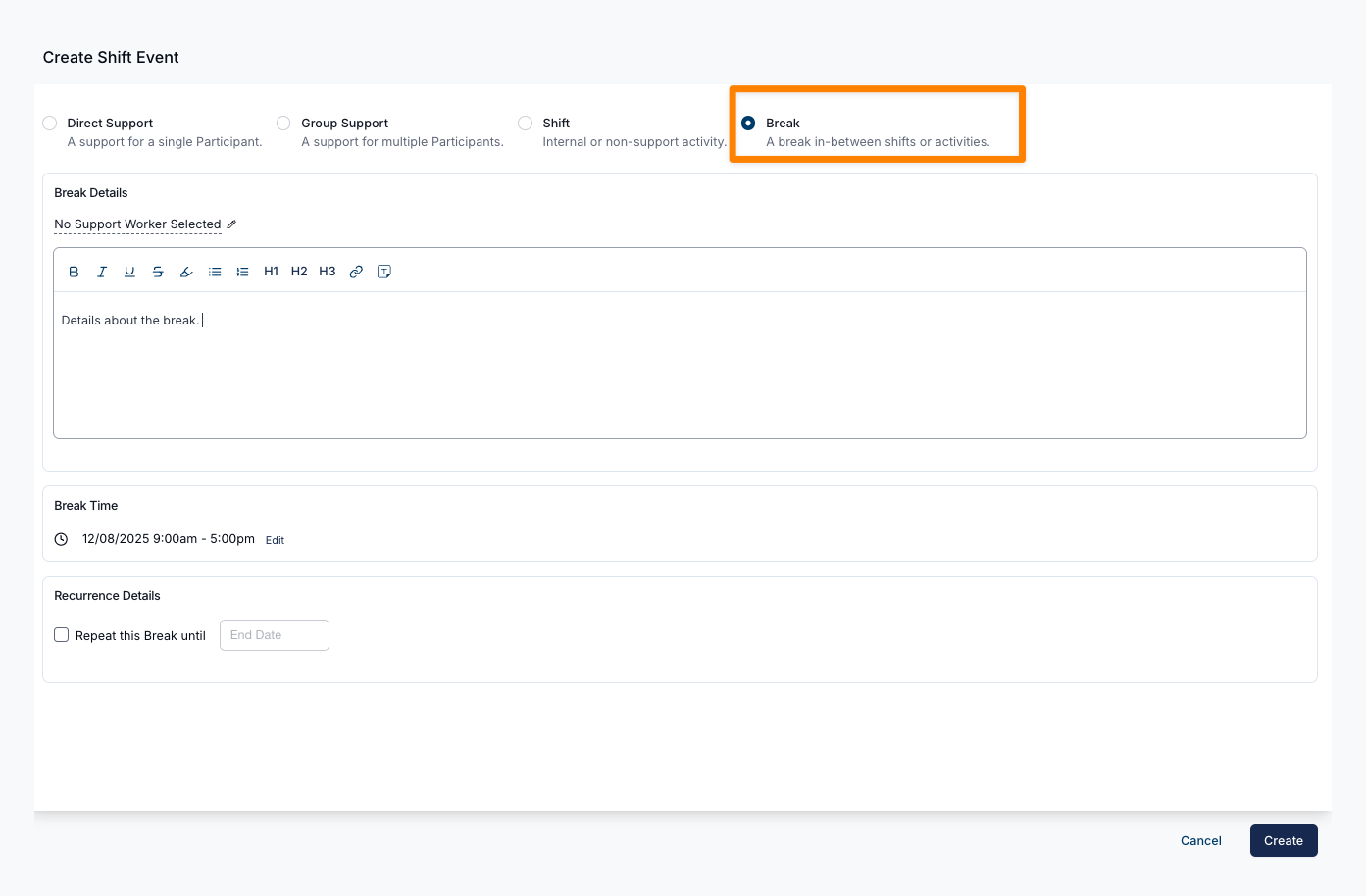
Select one Support Worker. An Unpaid Break cannot be left unassigned and cannot contain its own meal break.
Enter any notes or instructions in Break details.
Set the start and end date and time.
Set recurrence if required:
- Choose to repeat daily, weekly, fortnightly, or monthly
- Pick the specific days the break repeats on
- Set an end date
- You can roster breaks up to 12 months in advance
Review the details and select Create.
Break Example
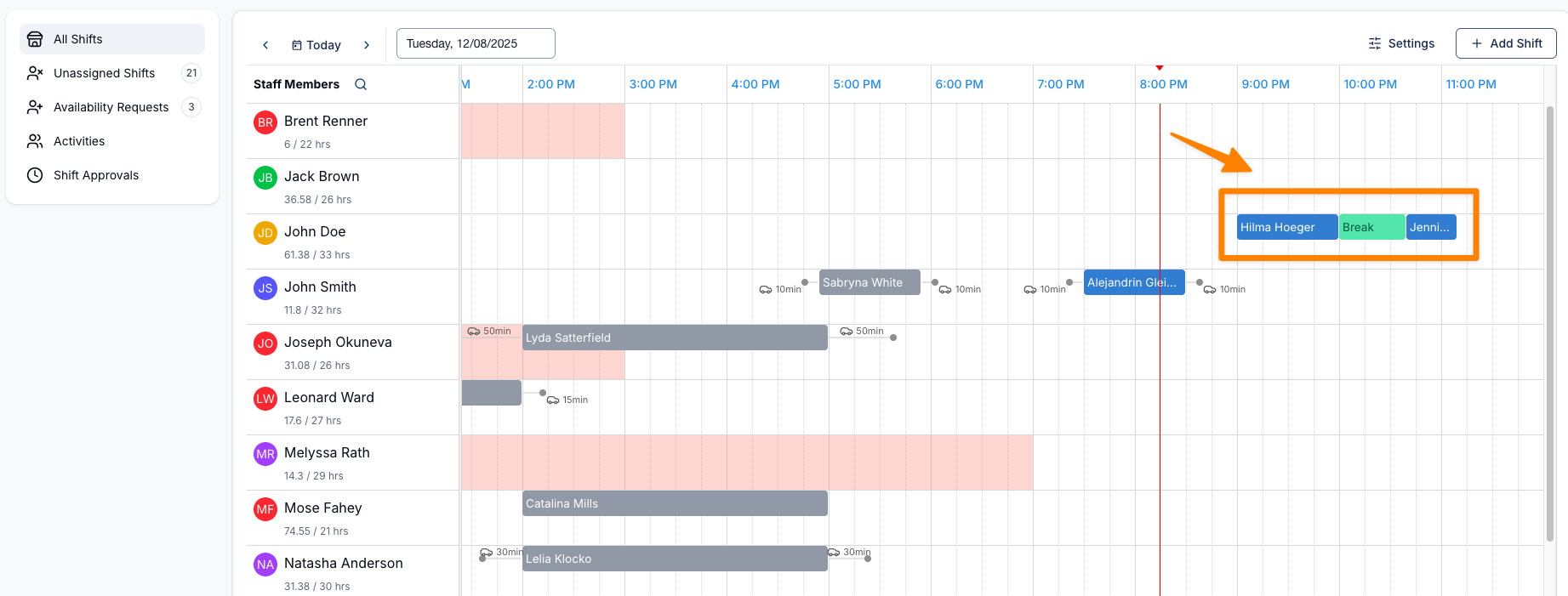
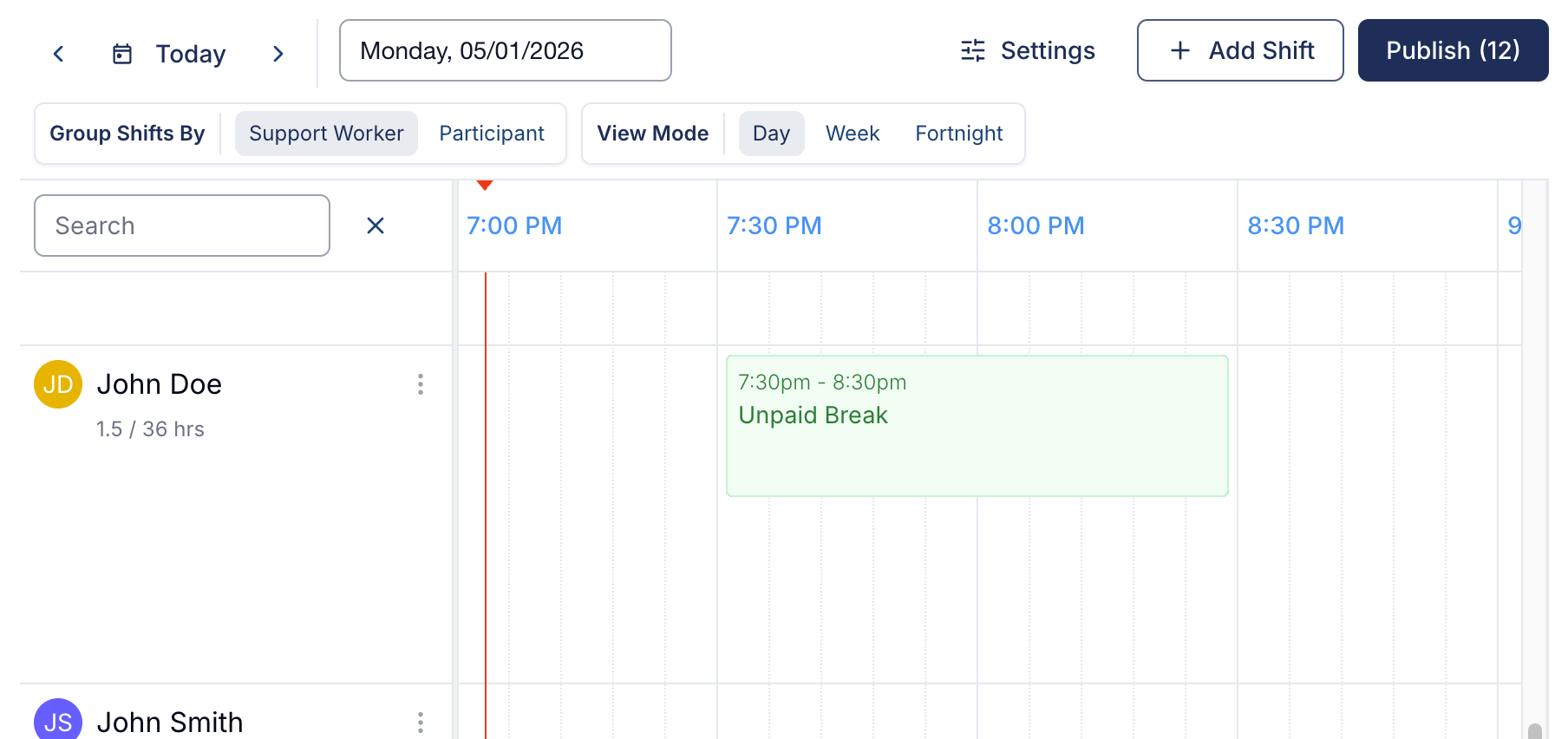
Breaks appear in green on the schedule. Place the break between the supports it separates.
Adding a Break from Within a Support
You can add a meal break directly while viewing a support. To do this:
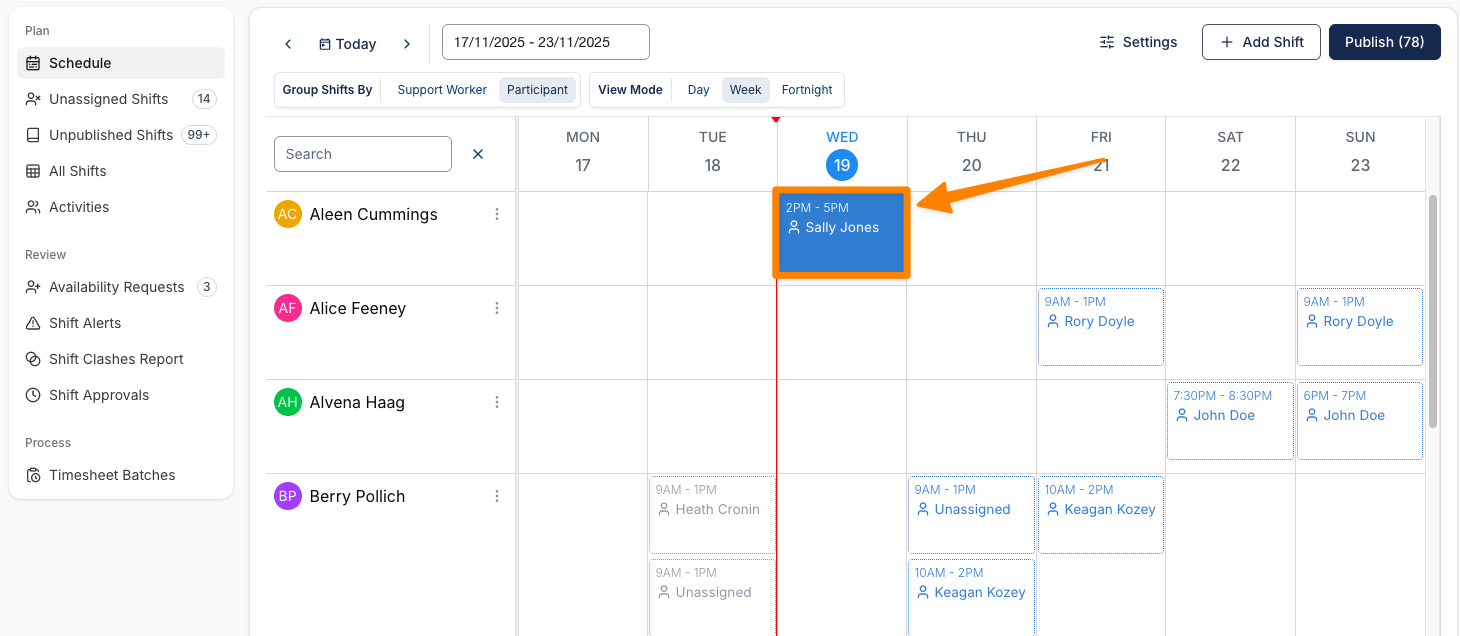
- Open the support
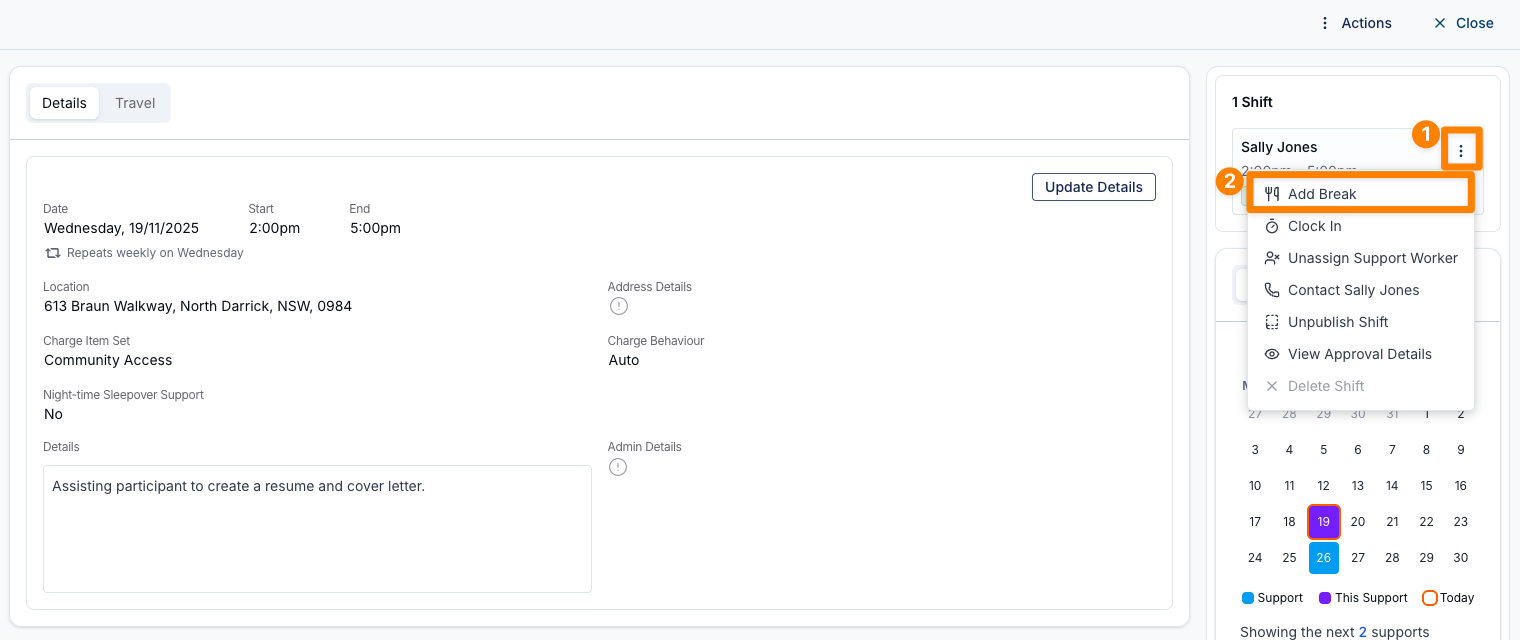
- Select the three dots next to the Support Worker's name, and click Add Break
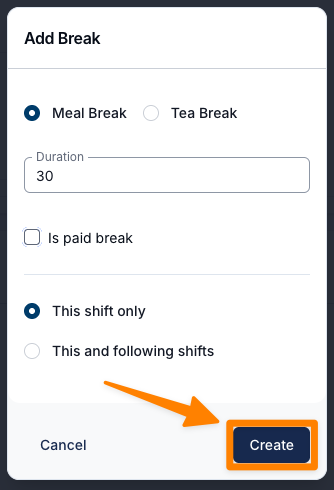
- Choose the break type, duration, and whether it is paid. On a recurring support, Add break to future shifts in this schedule opens the occurrence selector so you can choose the following shifts. Select Create.
- The break appears on the support.
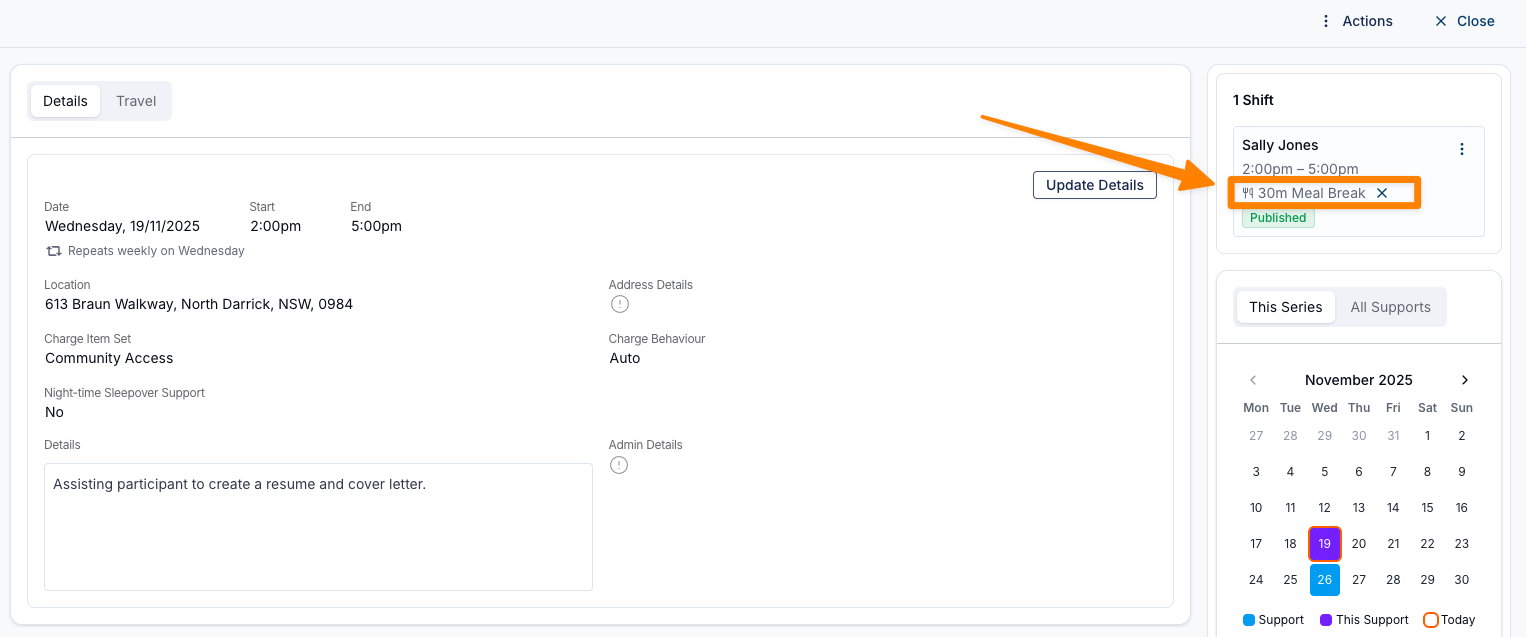
Meal breaks are based on duration rather than a set time, giving flexibility for the break to be taken at the most suitable point during the shift. This same process applies to both 1:1 Shifts and Group Shifts.
Default Duration and Pay
Selecting a break type resets the duration and Is paid break to that type's defaults. Choose the type first, then change either value if needed.
| Break type | Duration | Is paid break |
|---|---|---|
| Meal Break | 30 minutes | Off |
| Tea Break | 10 minutes | On |
These are Astalty's form defaults. They are starting values and can be changed before saving. A break already on a shift keeps the duration and pay status it was saved with. To change it, remove the break and add it again.
Removing a Meal Break
To remove a meal break, click on the "X" next to the break. This will delete it from the support.
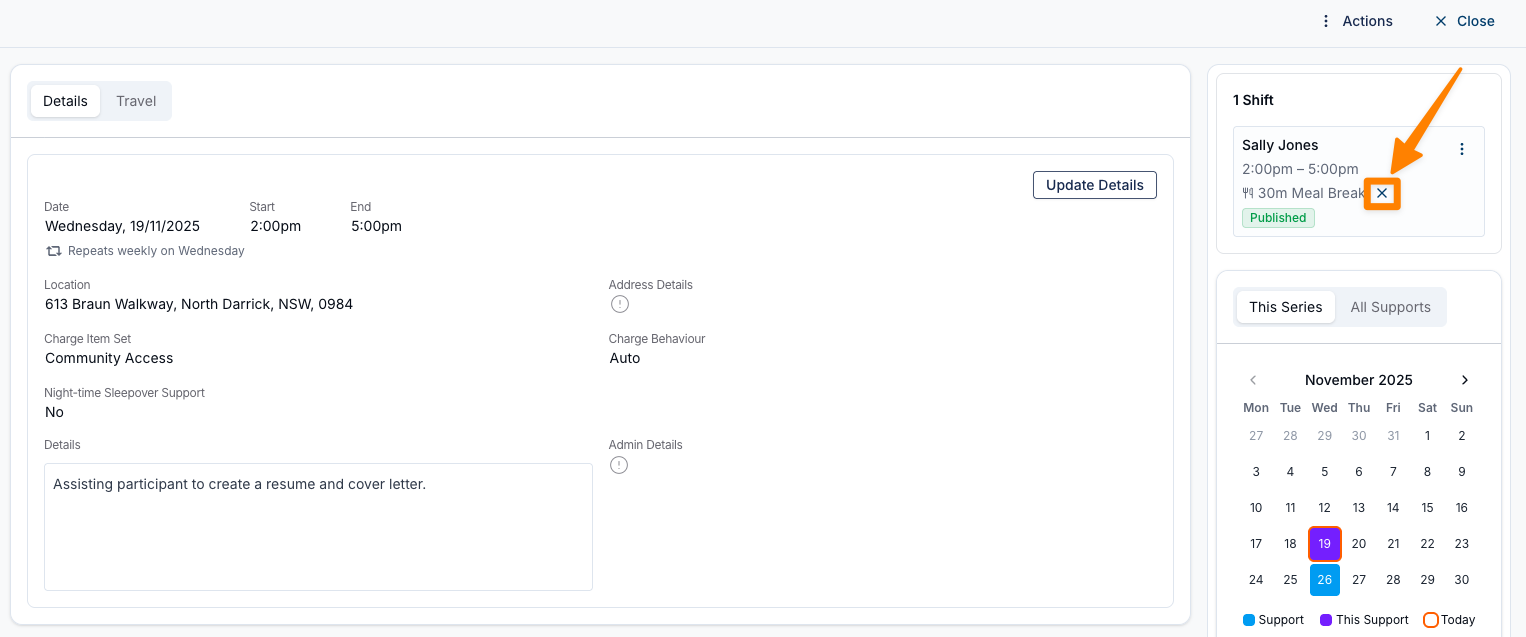
Removing a Support Worker from a shift also removes the break attached to that worker's shift.
Checking Whether a Break is Paid or Unpaid
Hover over a break on a Schedule shift card to see whether it is a Paid break or Unpaid break.
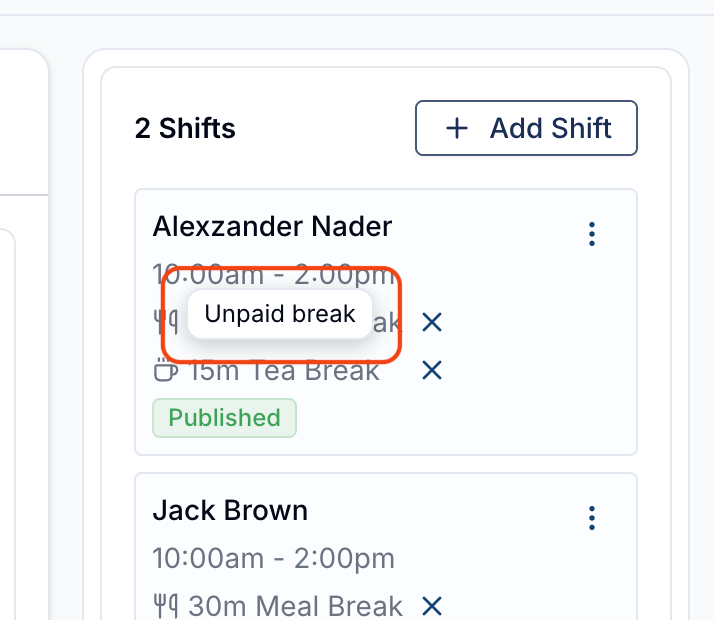
This works for both meal and tea breaks. It's available automatically for everyone, with no setup required.
Unpaid Breaks
An Unpaid Break is its own roster event between supports. It is excluded from paid work records. It is different from an unpaid duration attached to one support.
Creating an Unpaid Break
To create an unpaid meal break, open Schedule, select Add Shift, then choose Unpaid Break.
The unpaid break then appears on the Schedule.
Important Considerations
- Automatic and manual clocking for Unpaid Break shifts requires Astalty Premium.
- When this feature is available, clocking out of the support before the break can clock the adjacent Unpaid Break in. Clocking in to the following support can clock the break out.
- Unpaid Break shifts still pass through approval. Auto-approval settings can approve them when their thresholds are met.
- An Unpaid Break cannot be added through the Weekly Schedule builder.
Breaks and Award Pay
Astalty uses the Is paid break setting to calculate paid time. Paid breaks remain paid time. Unpaid breaks are excluded from paid hours. A recorded unpaid break within a continuous engagement is different from an unrecorded gap between separate attendances; see Engagements.
Astalty defaults a Meal Break to 30 minutes unpaid and a Tea Break to 10 minutes paid. It does not use those defaults to validate when a break must occur, how many breaks a worker is entitled to, an agreement to combine breaks, or the payroll consequence of working through a break. Check the applicable award, employment arrangement, and payroll result separately.
Under SCHADS, recording a break here - paid or unpaid - replaces the automatic unpaid meal-break deduction that Employment Hero, PayCat and QuickBooks Payroll otherwise apply on a long shift with no break recorded. See Meal breaks on Employment Hero, PayCat and QuickBooks Payroll.
An overtime meal allowance is a separate entitlement and setting; it does not replace a meal break.