- Scheduling
- Sleepover Window
Sleepover Window
Overview
A Sleepover Window lets one cross-day sleepover support cover the whole overnight rostered period, while identifying the inactive sleepover portion within it.
Previously, an evening-through-morning sleepover commonly needed three separate supports:
| Support time | Support provided |
|---|---|
| 6:00 PM - 10:00 PM | Evening support |
| 10:00 PM - 6:00 AM | Sleepover support |
| 6:00 AM - 10:00 AM | Morning support |
With a sleepover window, this can be rostered as one support from 6:00 PM - 10:00 AM, with the sleepover window set to 10:00 PM - 6:00 AM.
Use this when a Support Worker should see one overnight shift, but the support still includes:
- active hours before a sleepover
- active hours after a sleepover
- active hours both before and after a sleepover
Creating a Support with a Sleepover Window
- Go to Schedule.
- Select Add Shift.
- Choose a support event type, such as Direct Support or Group Support.
- Set the Start Time and End Time to cover the full overnight support.
- Tick This includes a night-time Sleepover Support segment.
- Enter the Sleepover starts and Sleepover ends times.
- Complete the remaining support details, including the Participant, Support Worker, Site, Support Type, and charge settings.
- Select Create.
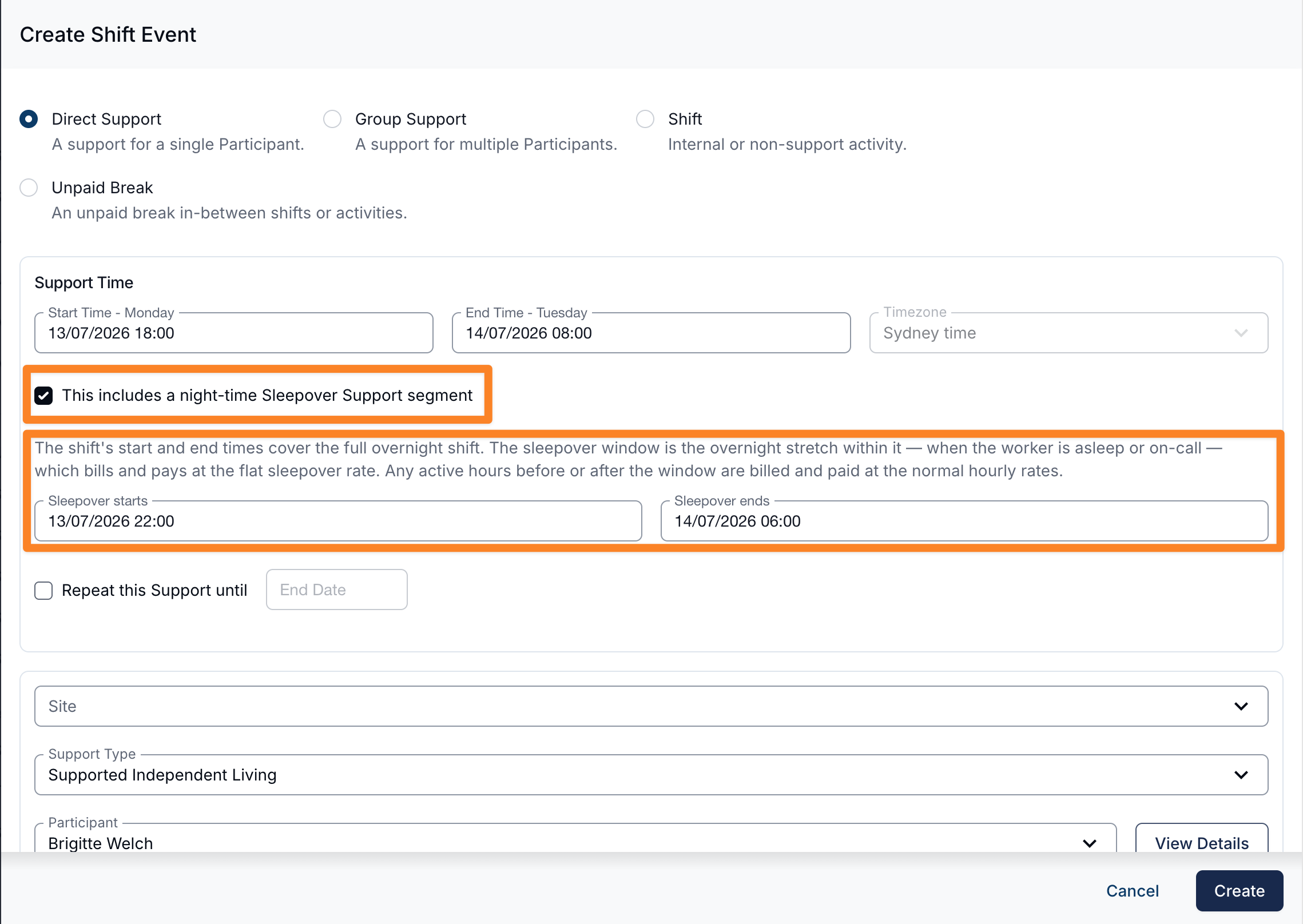
The support start and end times should cover the whole shift. The sleepover window is only the inactive overnight stretch within that shift, when the worker is not performing active support. A sleepover is separate from the On-Call Roster, which pays a worker to be available away from a shift.
When you tick the sleepover option, Astalty suggests a default window of 10:00 PM - 6:00 AM where that fits within the support times. The picker also includes common preset buttons for evening starts and morning ends.
Sleepover Window Rules
A sleepover window must:
- be set on a sleepover support
- include both a start and end time
- end after it starts
- sit within the support start and end times
- not cover any Support Time Segment already on the support
If the window covers the entire shift, Astalty warns that there are no active hours outside the sleepover window. That setup behaves like a standard whole-span sleepover. For more general overnight support guidance, see Adding a Sleepover or Active Overnight Support.
Billing and Pay
When the support uses automatic charges, Astalty splits the support into up to three billing segments. (Adding Support Time Segments can split the active hours either side further.)
| Segment | How it bills |
|---|---|
| Before the sleepover window | Hourly support at the applicable rate |
| Sleepover window | One flat Night Time Sleepover charge |
| After the sleepover window | Hourly support at the applicable rate |
For example, a support with a sleepover window creates hourly evening and morning charges either side of a single flat Night-Time Sleepover charge:
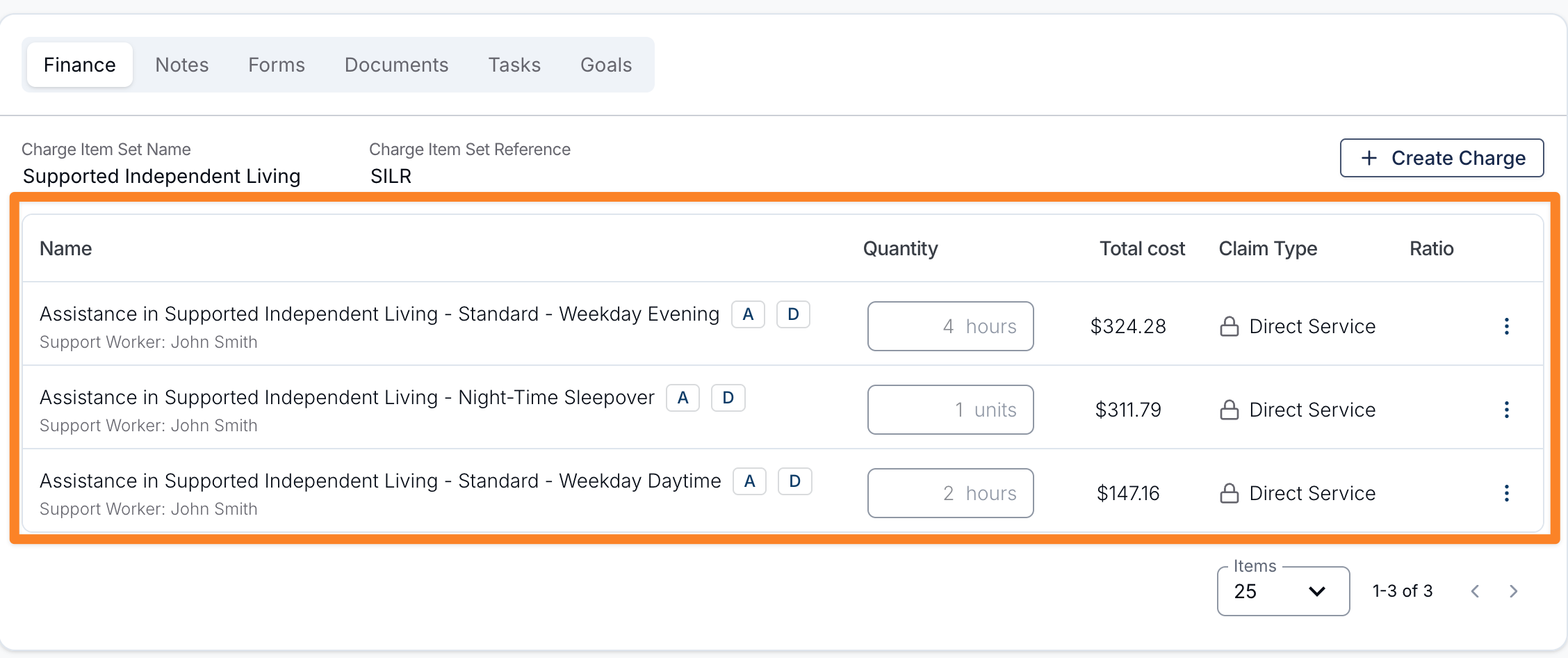
If the support uses Manual Charges, Astalty does not automatically create the segmented charges. Add or adjust the charges manually for the support.
For employee pay, Astalty separates active work before the window, the passive sleepover, and active work after it. SCHADS and Aged Care have different rules for these records and for disturbances. The SCHADS four-hour adjacent payment is not added by the minimum-engagement top-up setting.
Nurses and Health Professionals interpretations do not pay a passive sleepover or sleepover allowance. A correctly saved window does not establish an employee's entitlement or the correct payroll amount.
Support Time Segments on a Sleepover
Once a sleepover window is set, the support can also carry Support Time Segments in the active hours either side of the window. Use this where part of the waking evening or morning should bill through a different Charge Item Set to the rest of the active hours, or should not be billed at all.
Each segment must sit entirely outside the sleepover window - wholly in the active hours before it, or wholly in the active hours after it. A segment that overlaps the window is refused with "A support time segment must sit outside the sleepover window." A segment that meets the window exactly, ending as the sleepover starts or starting as it ends, is fine.
This means a support with segments can produce more than the three billing segments in the table above: the sleepover window still bills as one flat charge, but the active hours either side split further at each segment boundary.
A sleepover support with no sleepover window still cannot carry segments - its whole span bills flat, so there is nowhere for a segment to sit. Astalty asks you to set the window first.
See Support Time Segments for the full setup, rules and billing detail.
Support Worker Experience
The Support Worker sees one shift covering the full overnight period instead of separate evening, sleepover, and morning shifts. This reduces duplicate clocking and note requirements for one continuous overnight support.
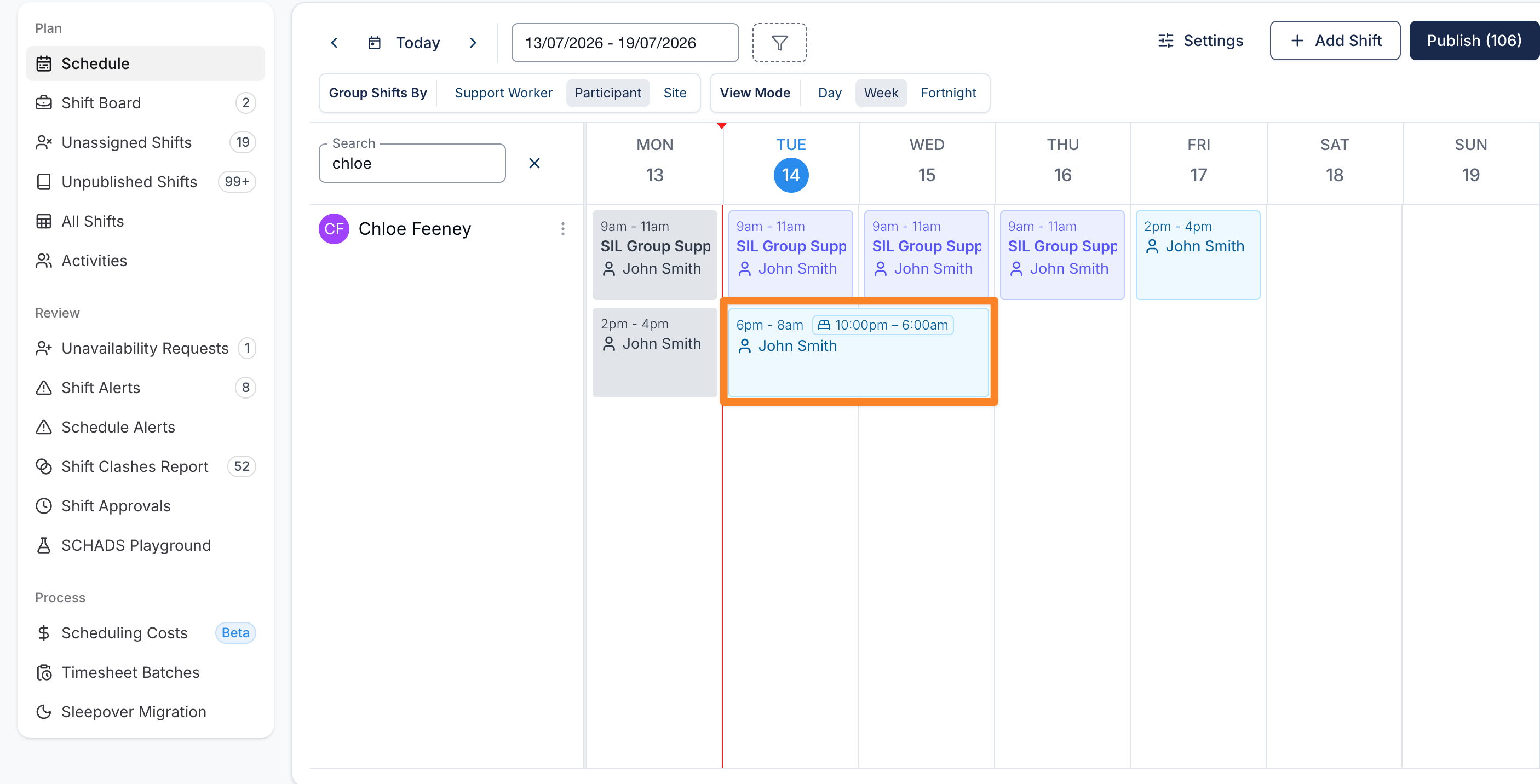
If the worker is awake and providing support during the sleepover window, record an Active Overnight Period. Active overnight periods must sit inside the sleepover window.
Migrating Existing Sleepover Setups
Use Sleepover Migration to convert eligible legacy sleepover setups into one support with a sleepover window.
The migration page is in Scheduling > Process > Sleepover Migration. It lists sleepovers that can be merged, including the date, Participant, support type, evening segment, sleepover segment, morning segment, and worker assignment.
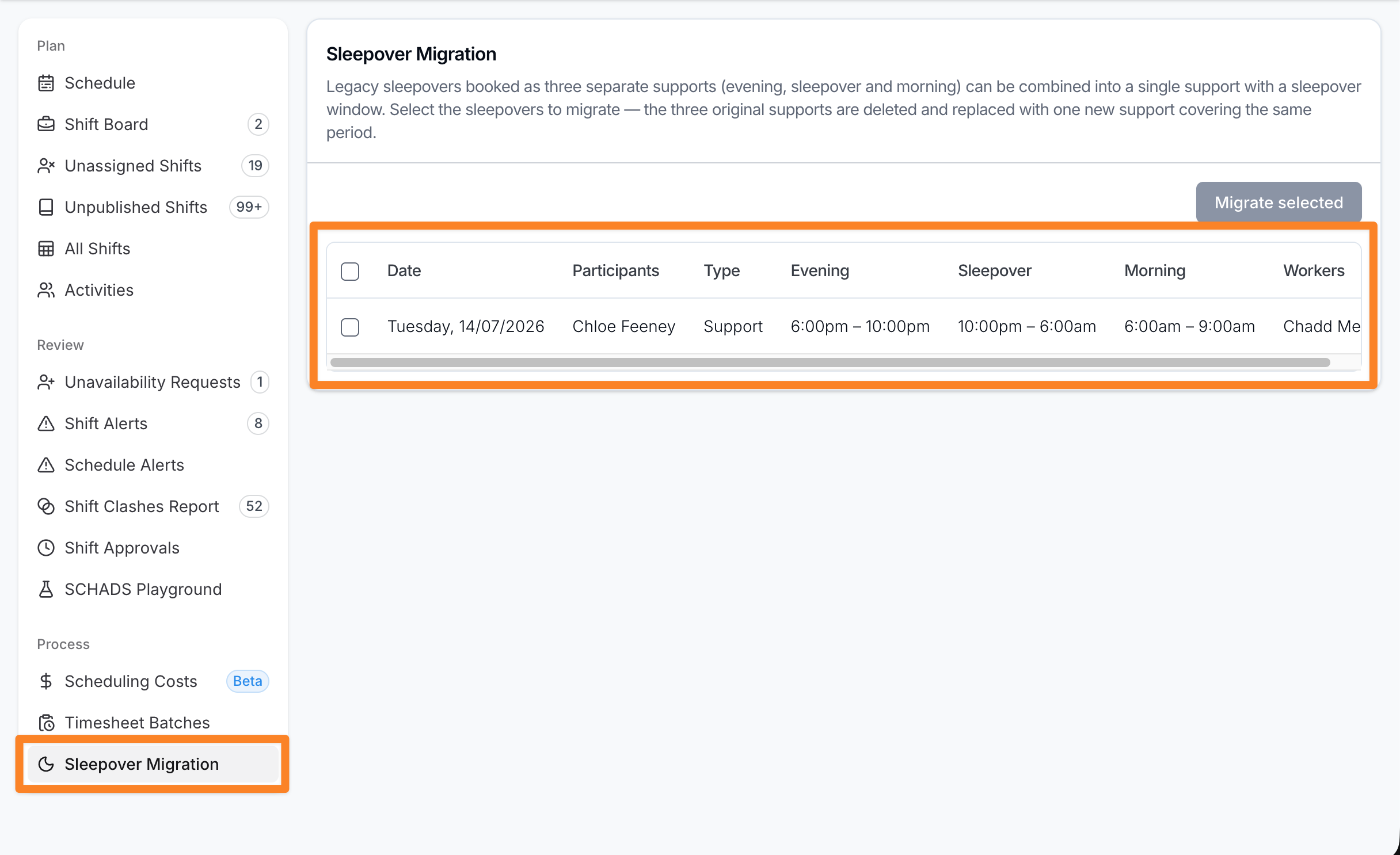
To migrate sleepovers:
- Go to Sleepover Migration.
- Tick the rows you want to migrate.
- Select Migrate selected.
- Review the confirmation message.
- Select Migrate.
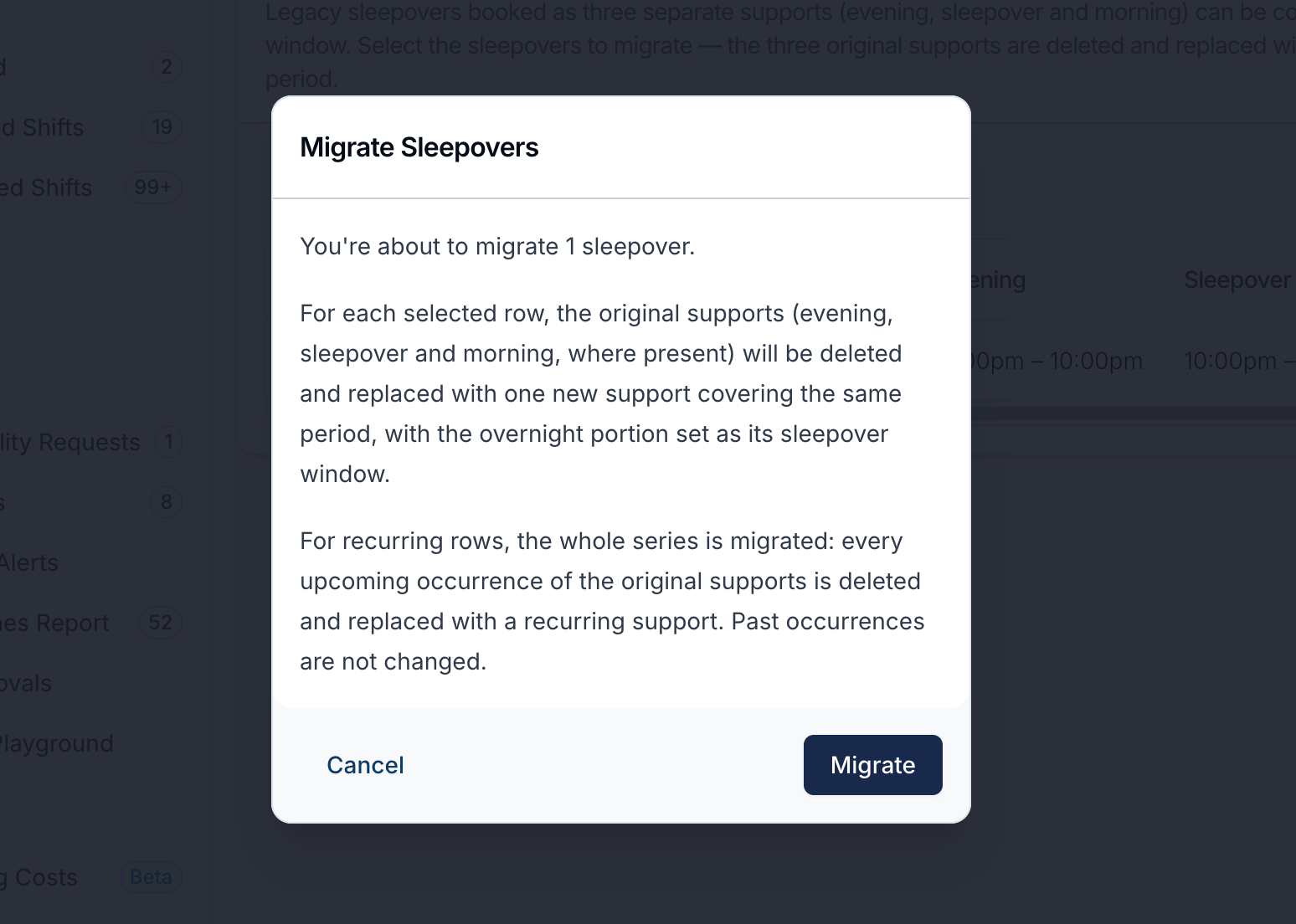
Astalty deletes the original supports and creates one replacement support covering the same period, with the sleepover portion saved as the sleepover window. After migration, the success message links to the replacement support.
What Migration Preserves
The replacement support keeps the key roster details from the original sleepover setup, including:
- Participant or group Participant set
- charge behaviour and Charge Item set
- Support Worker assignment, or the unassigned state
- published status
- support type, site, cost code, address, and details where available
- schedule tasks, deduplicated by task name
Support Workers are not notified by the migration itself because the rostered support period and assignment are unchanged in substance.
Migration Eligibility
Sleepover Migration only lists supports that are safe to merge automatically.
To be eligible, the setup must:
- include a sleepover support with at least one adjacent non-sleepover support before or after it
- have supports that are exactly adjacent, where one support ends when the next begins
- have the sleepover as the middle support when both adjacent supports exist
- be for the same Participant, or the same Participant set for group supports
- use the same Charge Item set
- use the same charge behaviour
- have matching worker assignments on each support, or all be unassigned
- be in the future
- have matching recurrence rules when recurring
The setup is not eligible if any of the supports or shifts have:
- a cancellation
- a clock-in or clock-out
- a timesheet batch
- invoiced or voided charges
- travel records
- active overnight periods
- a pending shift broadcast
- custom allowances
If a recurring setup has a future occurrence that is no longer eligible, or an adjacent series has extra future occurrences without a matching sleepover, Astalty will not migrate the series automatically.
After Migration
After migrating, open the replacement support and check:
- the support start and end cover the full overnight period
- the Sleepover Window shows the expected inactive overnight times
- automatic charges show the expected evening, sleepover, and morning segments
- the Support Worker assignment and published status are correct
If a setup does not appear on the migration page, review the eligibility rules above. You can still recreate the support manually as a sleepover window if the original supports cannot be migrated automatically.