- Scheduling
- Support Tasks
Support Tasks
Overview
Support (or Shift) Tasks are checklist items that can be attached to supports (both individual and group supports). They represent specific tasks or actions that Support Workers need to complete during a shift - for example, medication checks, care plan reviews, incident reports, or any other activity that needs to be tracked.
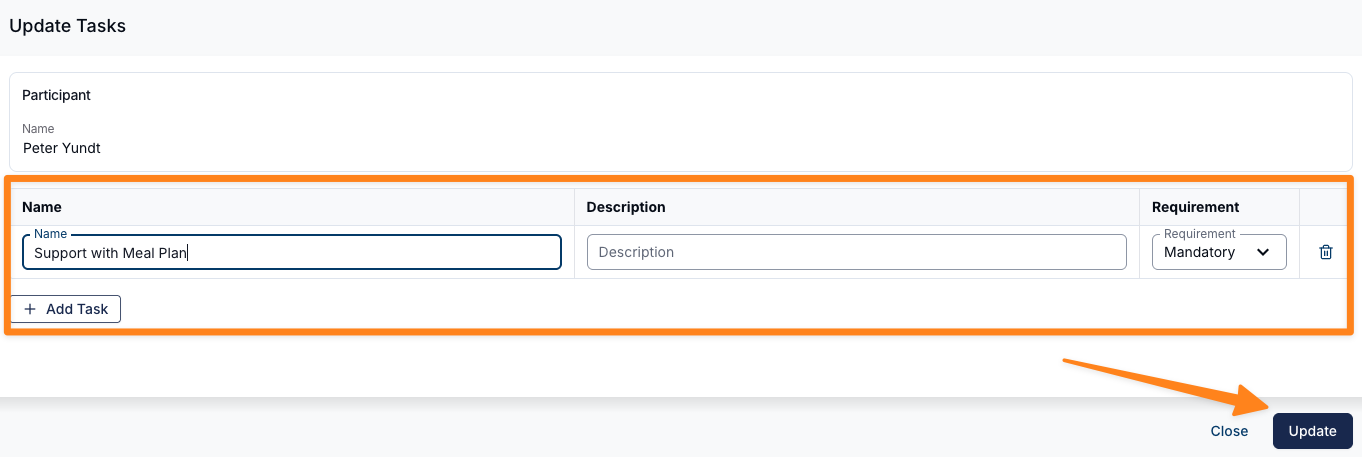
Each task has a name, an optional description, and a requirement level that is either Mandatory or Optional.
How do they Work?
Creating Tasks
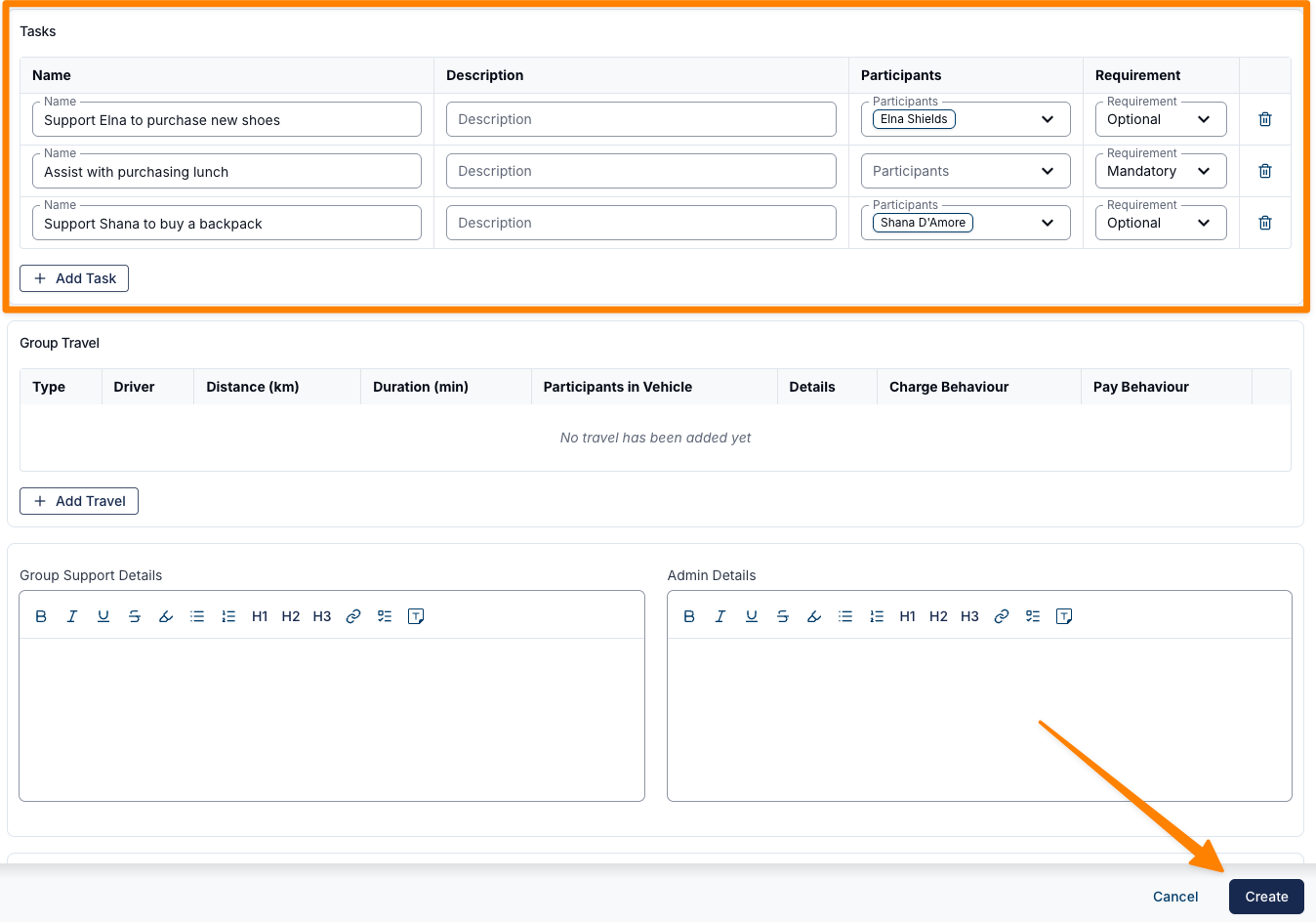
Tasks are added when creating or editing a support:
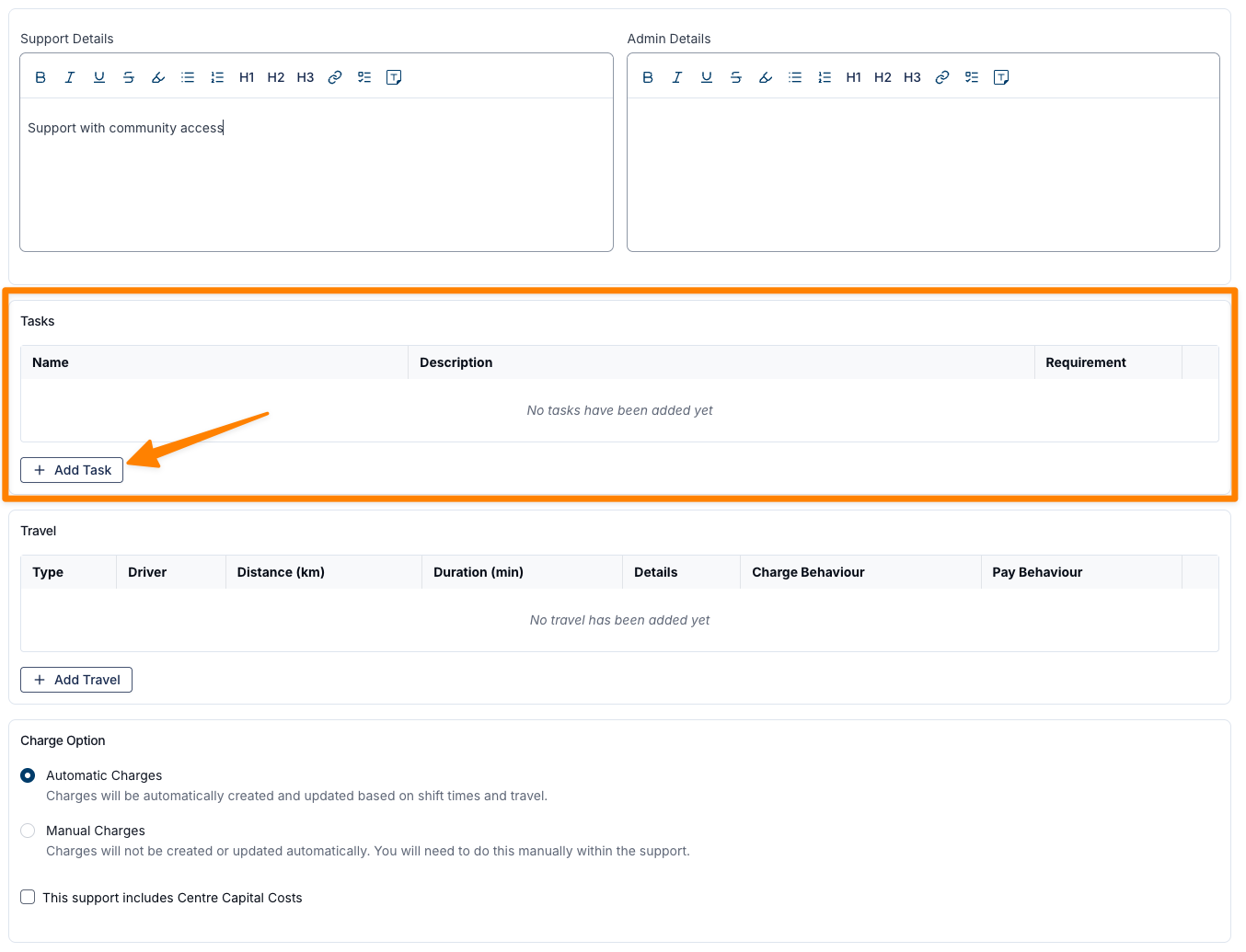
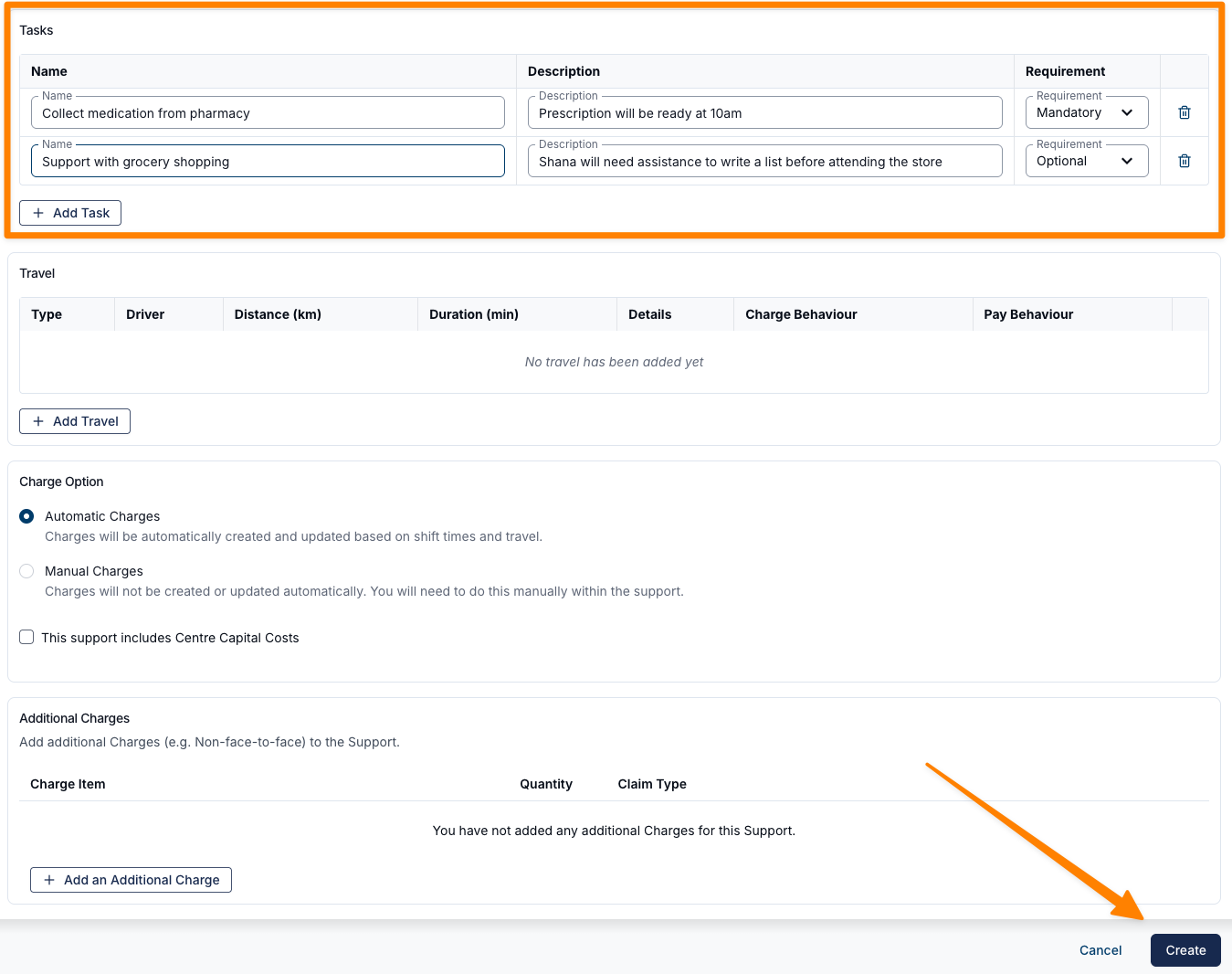
- Individual Supports - When creating or editing a support, there is a "Tasks" section where you can add one or more tasks. Each task needs a name and a requirement level (Mandatory or Optional). A description is optional.
- To add a task, click "Add Task" in the tasks section, fill in the details, and save the support.

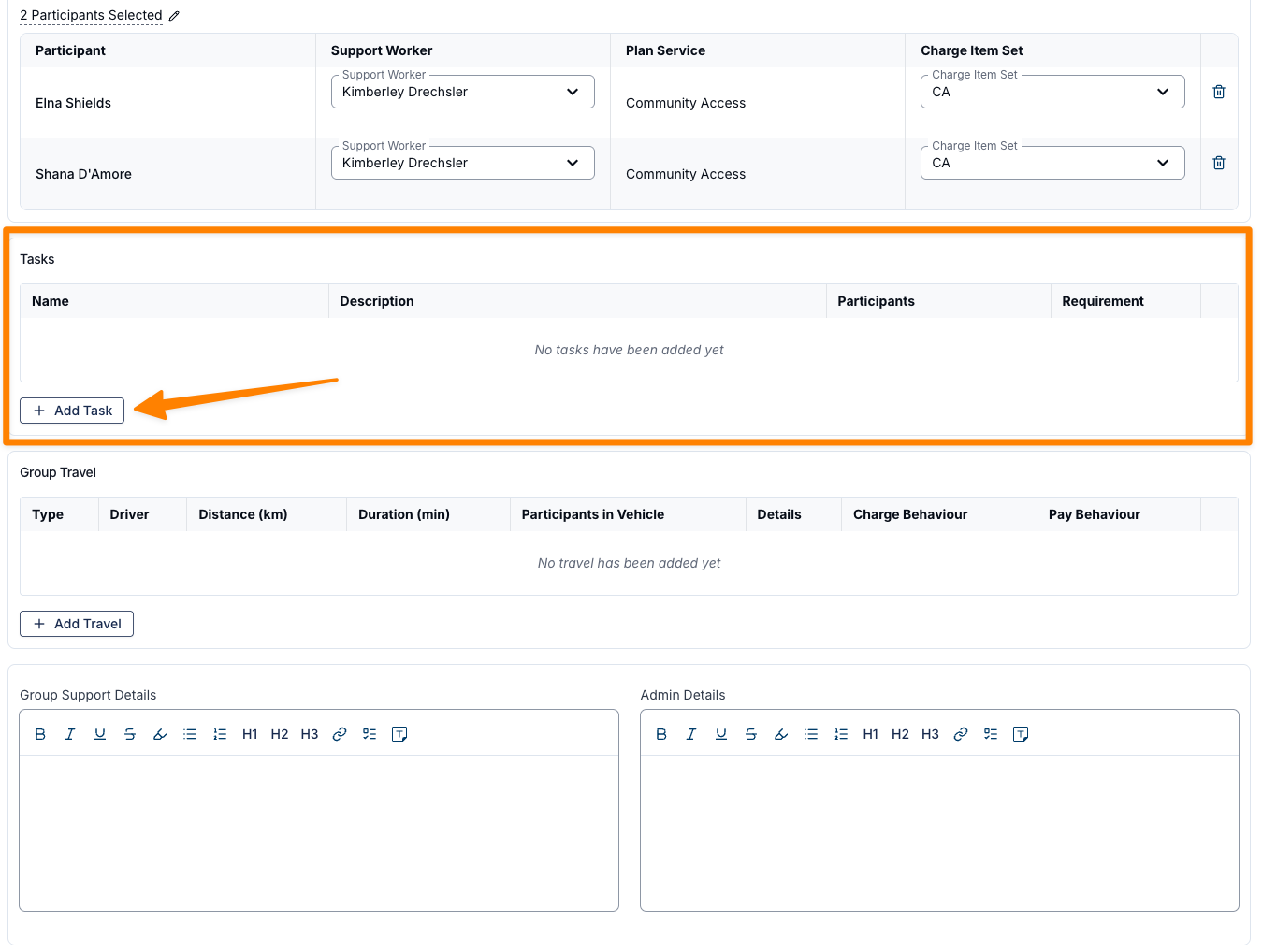
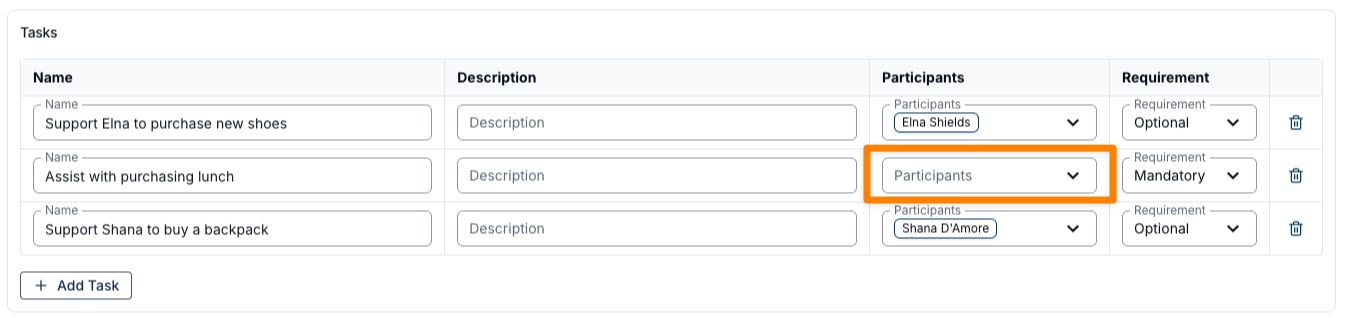
- Group Supports - Works the same way, but you can also assign tasks to specific Participants within the group. Tasks can be set at the group level (visible to all) or at the individual Participant level.
- To add a task, click "Add Task" in the tasks section, fill in the details, (leave the Participant field blank if the task relates to all Participants) and save the support.

Recurring Supports
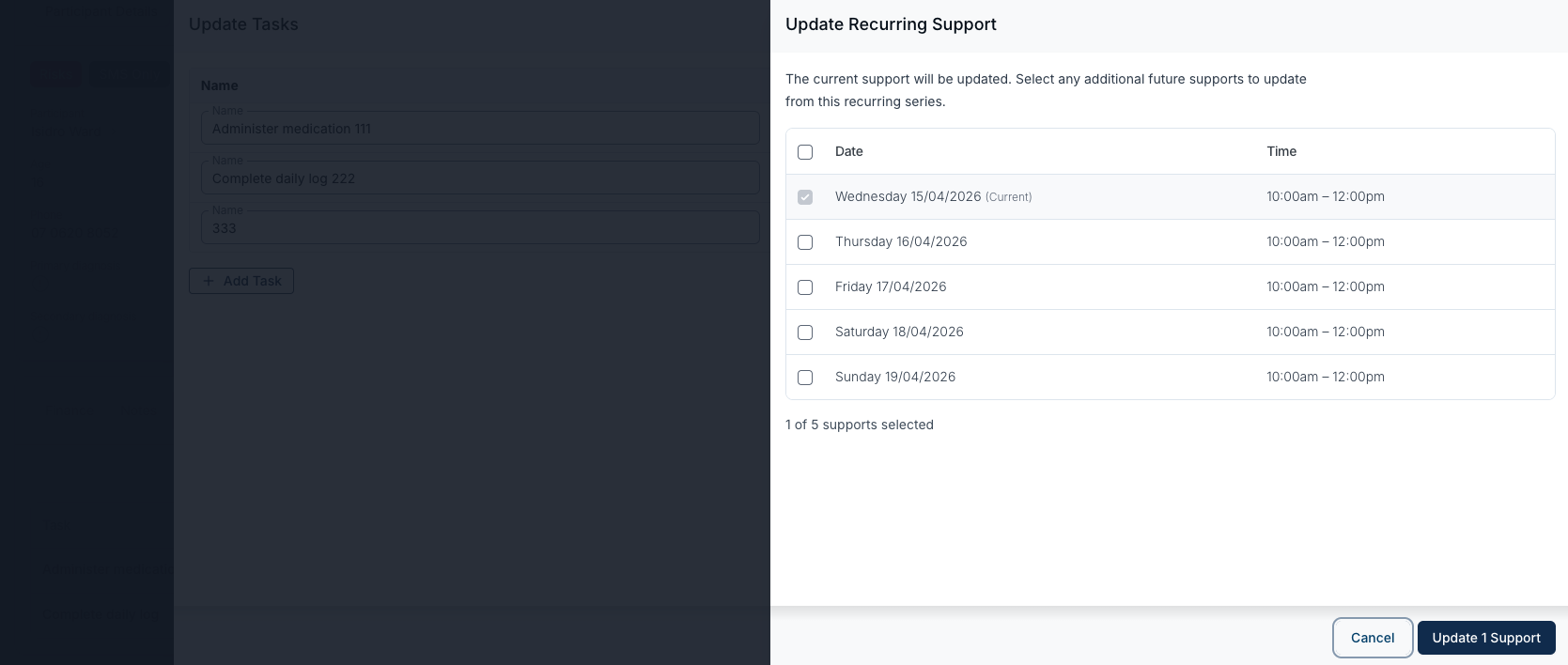
When you update tasks on a recurring support, Astalty opens an Update Recurring Support step before saving so you can choose exactly which supports in the series the change applies to.
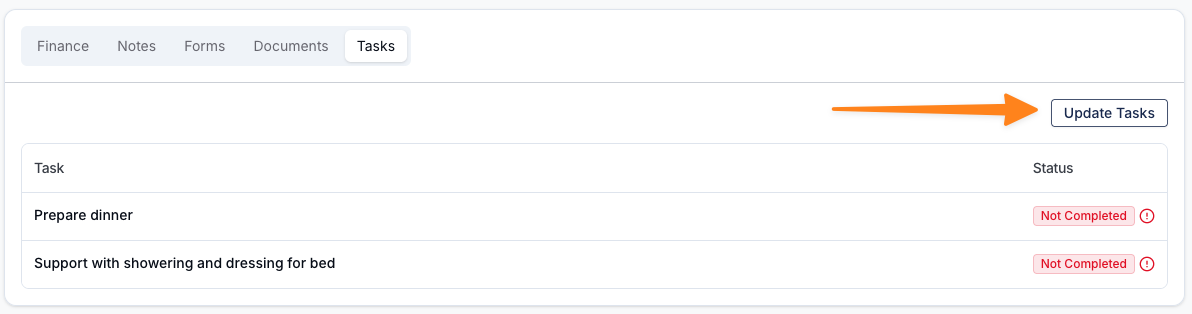
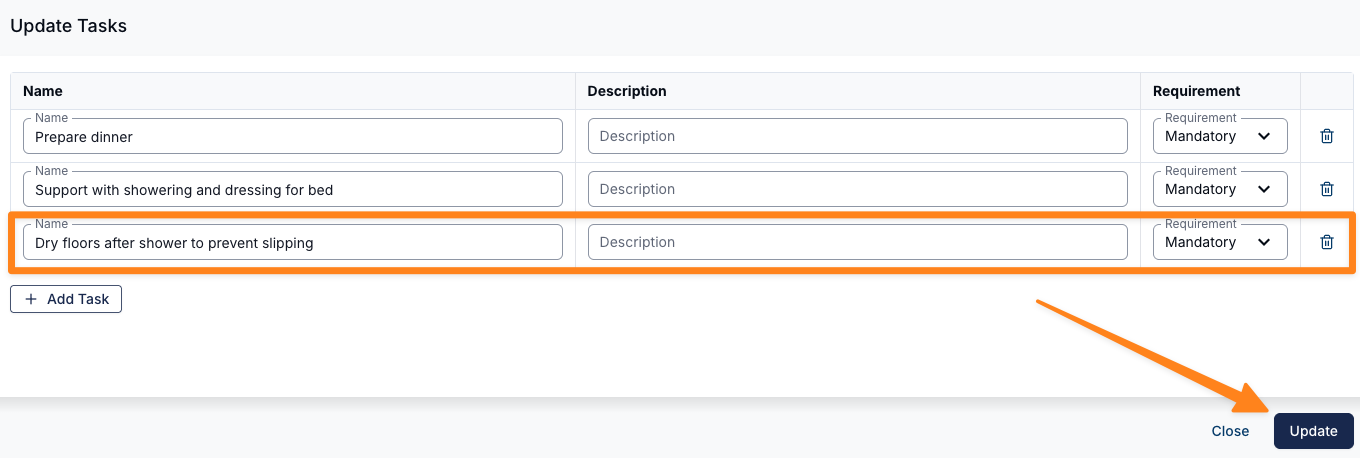
The current support is always updated. The remaining supports in the series are listed with their date and time, and you tick the future supports that should receive the same tasks:
- The current support is ticked by default and cannot be unticked. It is labelled (Current), or (Current - Past) if that support has already finished.
- Only the current support and future supports are listed - dates earlier in the series are never changed.
- Use the checkbox in the table header to select every listed future support at once.
- A counter (for example, 3 of 9 supports selected) confirms your selection, and the button reflects it - Update 3 Supports.
Where several of the listed dates fall on the same weekday, a Select dropdown appears above the table with Every [Weekday] shortcuts - handy for applying tasks to every Monday in a long series without ticking each date one by one.
Future supports you leave unticked keep their existing tasks, so you can change the checklist for just the next few visits rather than rewriting the whole series.
Support Goals and Documents use the same recurring picker. See Support Goals and Documents.
Group Supports
Recurring group supports use the same picker, and you can update tasks at either level:
- For everyone in the group - open the group support, click Update Tasks on the Tasks tab for All Participants, and pick the future group supports to include.
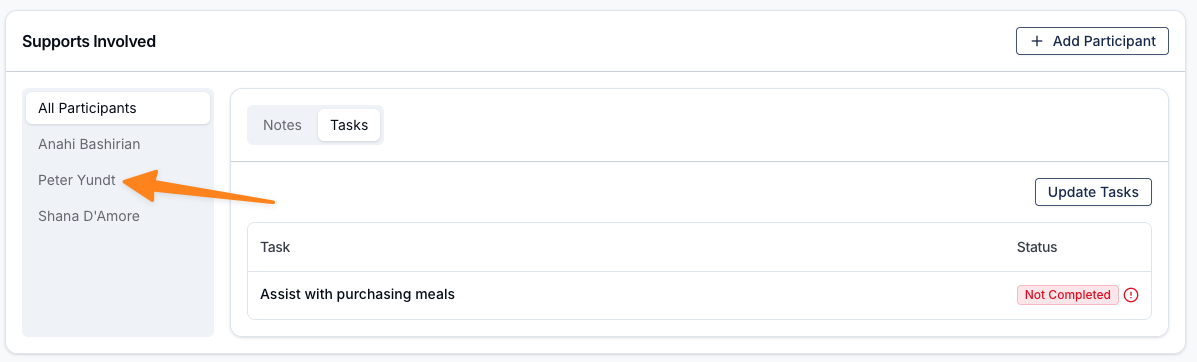
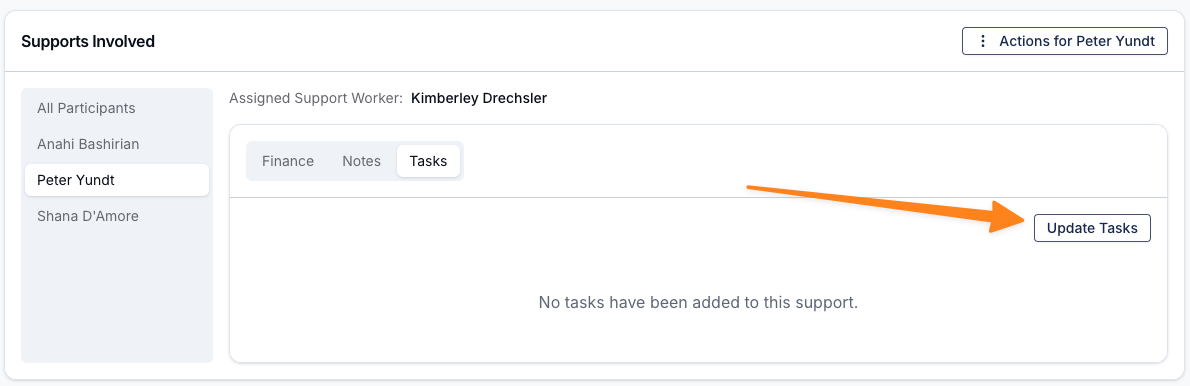
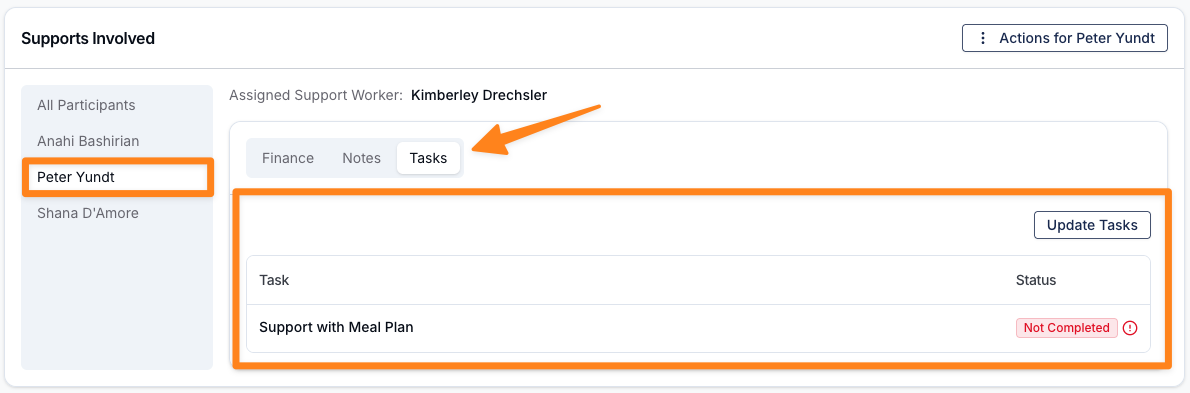
- For one Participant - within the Supports Involved section, select the relevant Participant, click Update Tasks, enter the details, and click Update. The picker lists the future group supports in the series, and the change applies to that Participant's support only - other Participants in the group are unaffected.
How Support Workers Complete Tasks
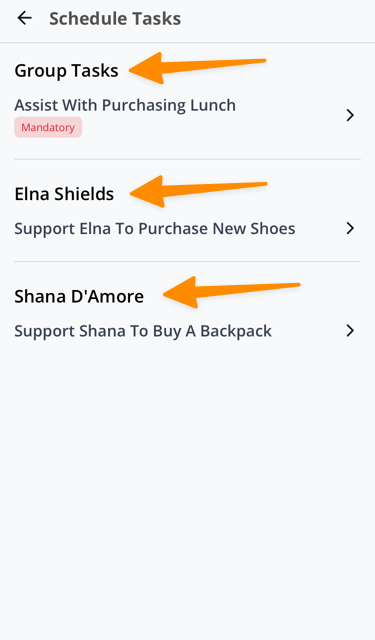
Support Workers see their tasks in the mobile app when viewing a shift:
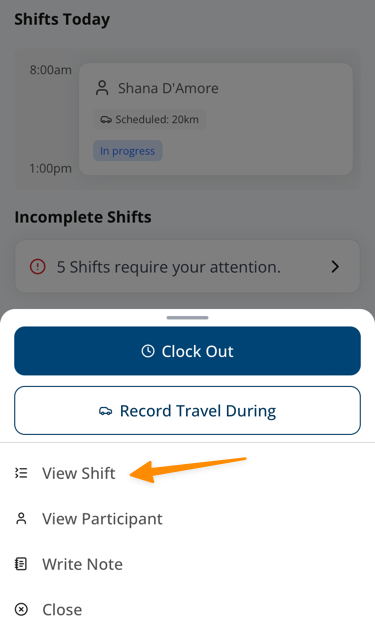
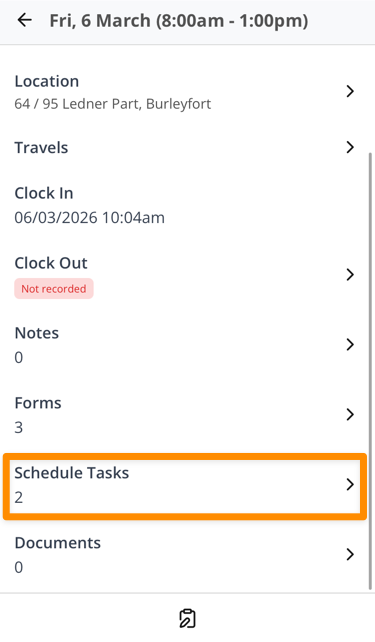
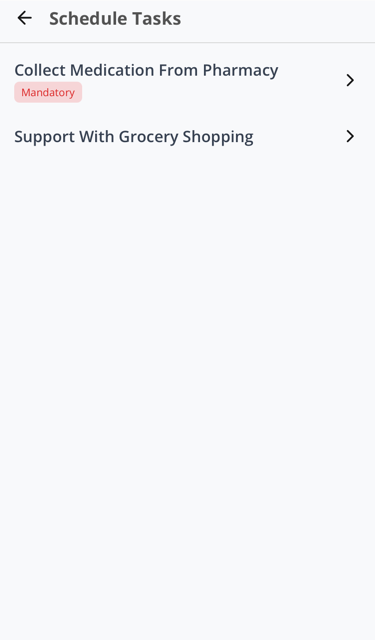
- They can complete a task by tapping on it - this records who completed it and when.
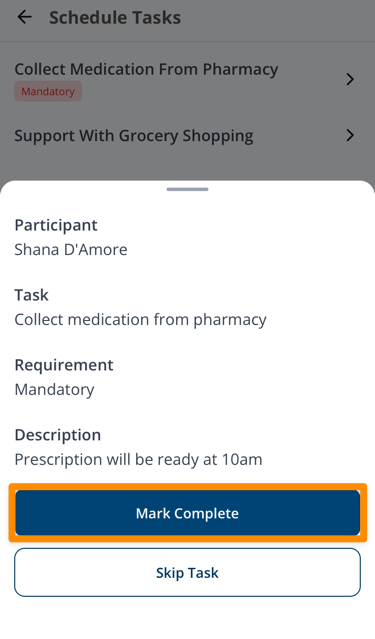
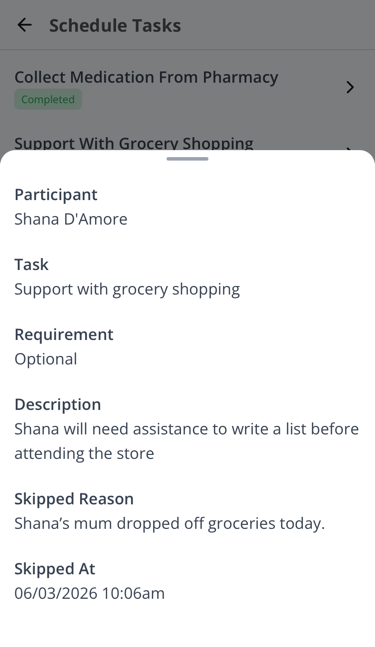
- They can skip a task, but they must provide a reason (at least 10 characters). This is important for accountability, especially for mandatory tasks.
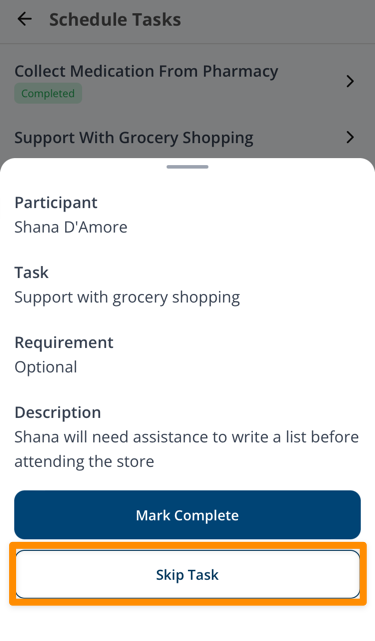
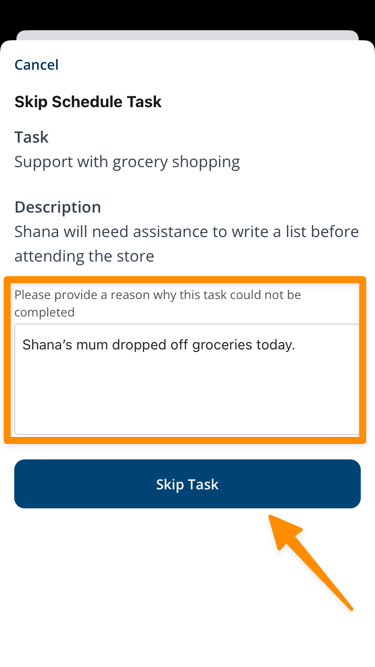
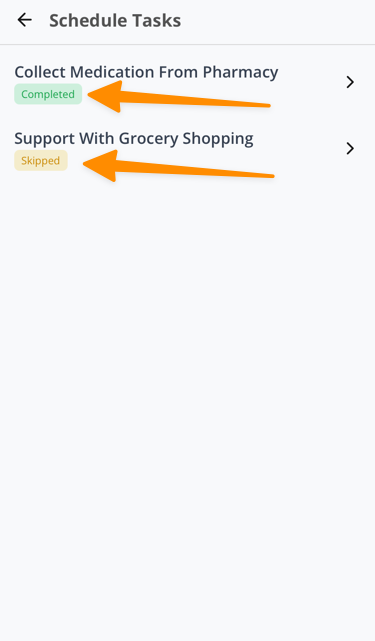
- After a task has been completed or skipped, a later attempt keeps the saved status. A different worker is told who already completed or skipped it.
- If the same worker taps complete or skip again, the existing status stays in place.
Important Points
- Mandatory tasks block clock-out - The Support Worker must complete each mandatory task or skip it with a reason before clocking out. Optional tasks do not block clock-out.
- Mandatory task notifications - Support Workers see their tasks when they open a shift in the mobile app. In addition, you can set up an Incomplete Mandatory Task Notification to alert your team when a shift is clocked out while a mandatory task is still incomplete.
- Skip reasons are required - When a Support Worker skips a task, they must write a reason (minimum 10 characters). This cannot be bypassed.
- Already completed or skipped tasks - A later complete or skip attempt keeps the saved result. The app refreshes the task list to show the current status.
- Tasks cannot be completed from the web app - Task completion and skipping happens exclusively through the mobile app. The web app shows task statuses as read-only.
- Deleting tasks - When editing a support's tasks, removing a task from the list and saving will permanently delete that task. On a recurring support, removed tasks are also deleted from each future support you tick in the Update Recurring Support step.
- Group support tasks - For group supports, tasks can exist at two levels: on the group support itself (visible to all Participants) and on individual Participant supports. Support Workers see both when viewing their shift.
Viewing Task Status
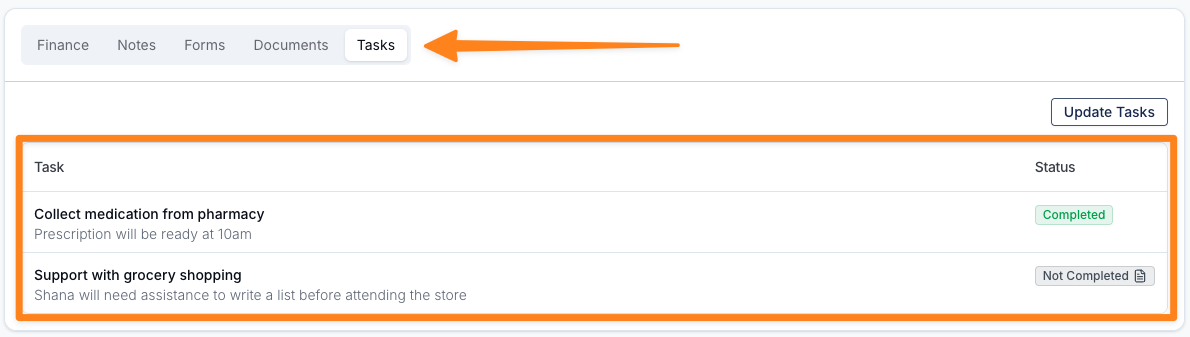
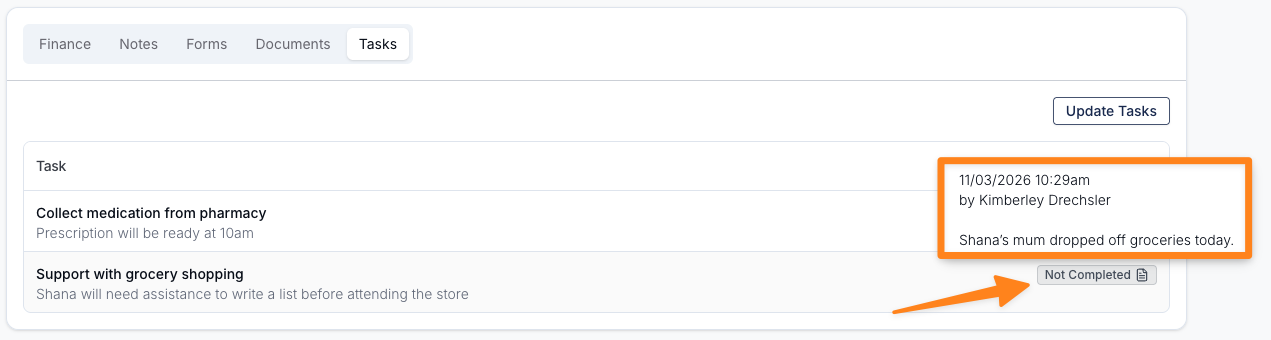
On a support: Open any support and go to the Tasks tab to see the list of tasks and their completion status. You can view notes from Support Workers on skipped tasks by hovering over the Not Completed icon.
A task is either:
- Completed - Shown with a green indicator. Displays who completed it and when.
- Not Completed - Shown with a red indicator if the task is mandatory, or a grey indicator if optional. If the worker skipped it, the reason they provided is shown. Mandatory tasks that are not completed are highlighted more prominently to draw attention.
- Support Tasks Report: Select Reports > Scheduling > Support Tasks, or open the Support Tasks report, to review tasks across all supports. See Support Tasks Report.
- Support Tasks Export: Use the Support Tasks Export to download the same tasks as a CSV, so completion can be reported to stakeholders without pulling it together by hand.