Incomplete Mandatory Task Notifications
Overview
The Incomplete Mandatory Tasks notification alerts your team when a shift is clocked out while it still has an incomplete mandatory task.
Support Tasks can be marked as Mandatory or Optional. In the Support Worker app, workers are prompted to complete (or skip with a reason) their mandatory tasks before they can clock out, so an incomplete mandatory task usually won't slip through when a shift is clocked out from the app.
A shift can also be clocked out in ways that don't go through that check - for example:
- an admin or coordinator clocking a worker out from the web app,
- automated or system clock-outs.
This notification is the safety net for those cases: whenever a shift is clocked out with a mandatory task still incomplete, your chosen recipients are alerted so they can follow up.
You can send the alert immediately on clock-out or after a delay, choose exactly who is notified, and decide whether they hear about it inside Astalty, by email, or both.
Before you start
- Only Admins can manage these notifications. This can't be changed per user.
Where to find it
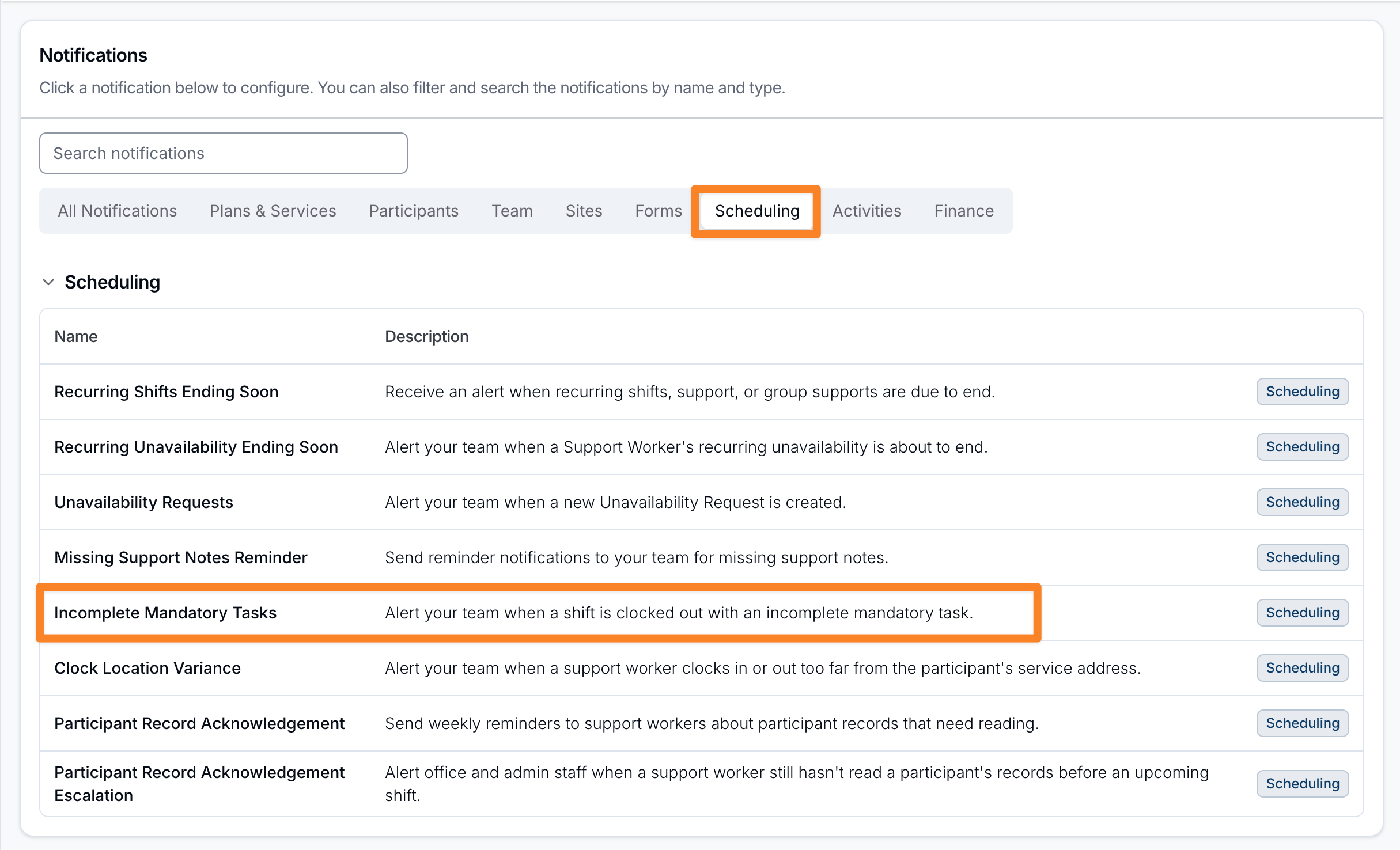
- From the left-hand menu, select Notifications.
- Under the Scheduling group, select Incomplete Mandatory Tasks.
Creating the notification
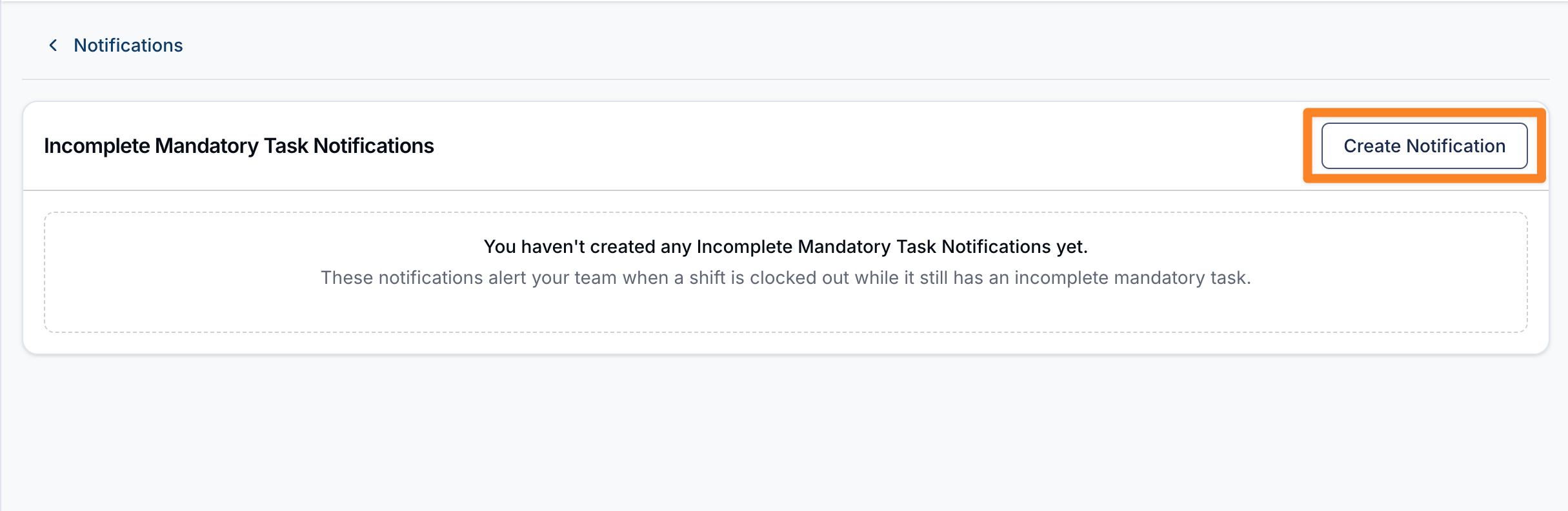
On the Incomplete Mandatory Tasks page, click Create Notification and complete the form.
When would you like to send the notification?
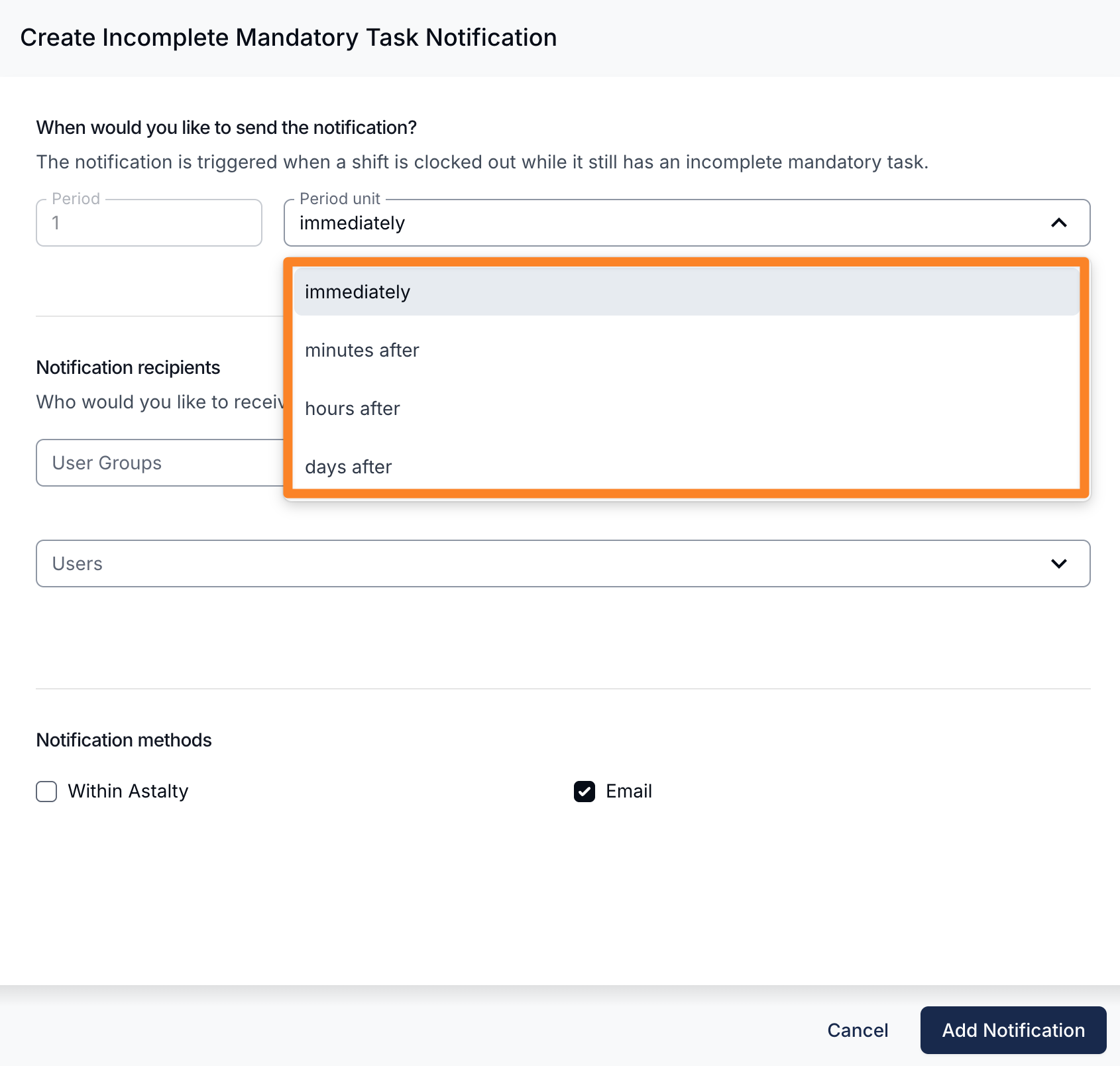
Choose how soon after clock-out the alert is sent:
- immediately - the notification is sent as soon as the shift is clocked out with an incomplete mandatory task. This is the default.
- A set delay after clock-out - enter a Period number and choose minutes after, hours after, or days after. For example,
2 hours afterwaits two hours before sending, giving the worker a window to go back and complete the task.
When the delay runs out, Astalty checks the shift again. If every mandatory task has been completed or skipped by then, no notification is sent.
Notification recipients
Choose who should receive the notification. You must select at least one recipient.
- User Groups - notify everyone in the selected User Groups. The All Users and Support Worker groups aren't offered.
- Users - notify specific users directly.
Notification methods
Choose how recipients are notified. You must select at least one method.
- Within Astalty - recipients are notified inside Astalty. Not ticked by default.
- Email - recipients are notified by email. Ticked by default.
Once you're done, click Add Notification.
Managing the notification
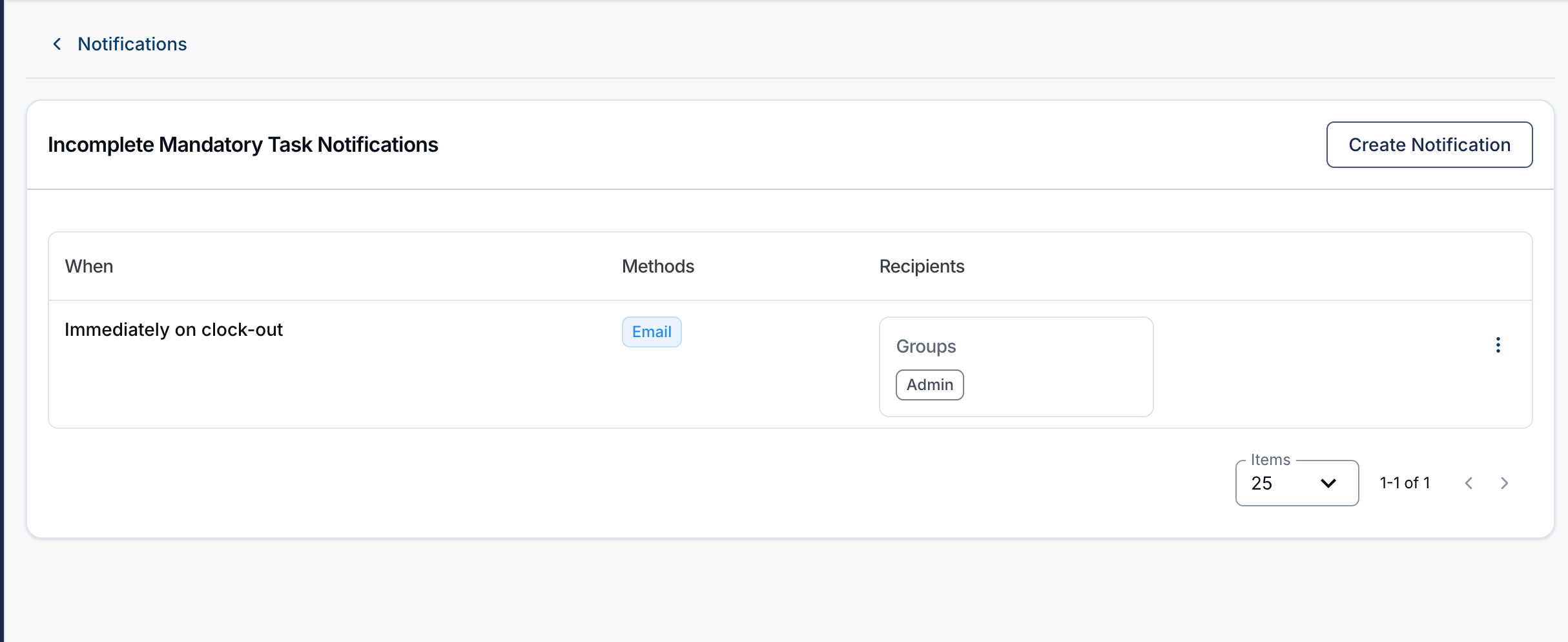
Use the actions menu on a notification to:
- Edit - change its timing, recipients, or delivery methods, then click Update Notification.
- Clone - use an existing notification as the starting point for a new one. This is handy when you want the same timing for a different set of recipients.
- Delete - remove a notification you no longer need. Delete is also in the Edit view.
You can create multiple notifications with different timings and recipients. For example, an immediate in-app alert to the on-shift coordinator, and an email 1 day after clock-out to a compliance manager for anything still incomplete. Each notification covers one shift, so a compliance manager receives one email per affected shift.
Things to keep in mind
- The notification is triggered by the clock-out event, so it only applies to shifts your team clocks in and out of. Editing clock times afterwards, for example in shift approvals, doesn't trigger it.
- Deactivated users are skipped, even if they are in a selected group.
- Because the Support Worker app already prompts workers to deal with mandatory tasks before clocking out, this notification most often reflects clock-outs made from the web app or by an automated process - the paths that don't go through the app's check.
- When a queued notification is sent, it includes the shift's mandatory tasks that are incomplete at that time. Tasks completed or skipped during the delay are left out.
- For a full picture of task completion across your team, use the Support Tasks Report.