- Insights
- Participants by Diagnosis Report
Participants by Diagnosis Report
Open Reports > Participants > Participants by Diagnosis.
Report Overview
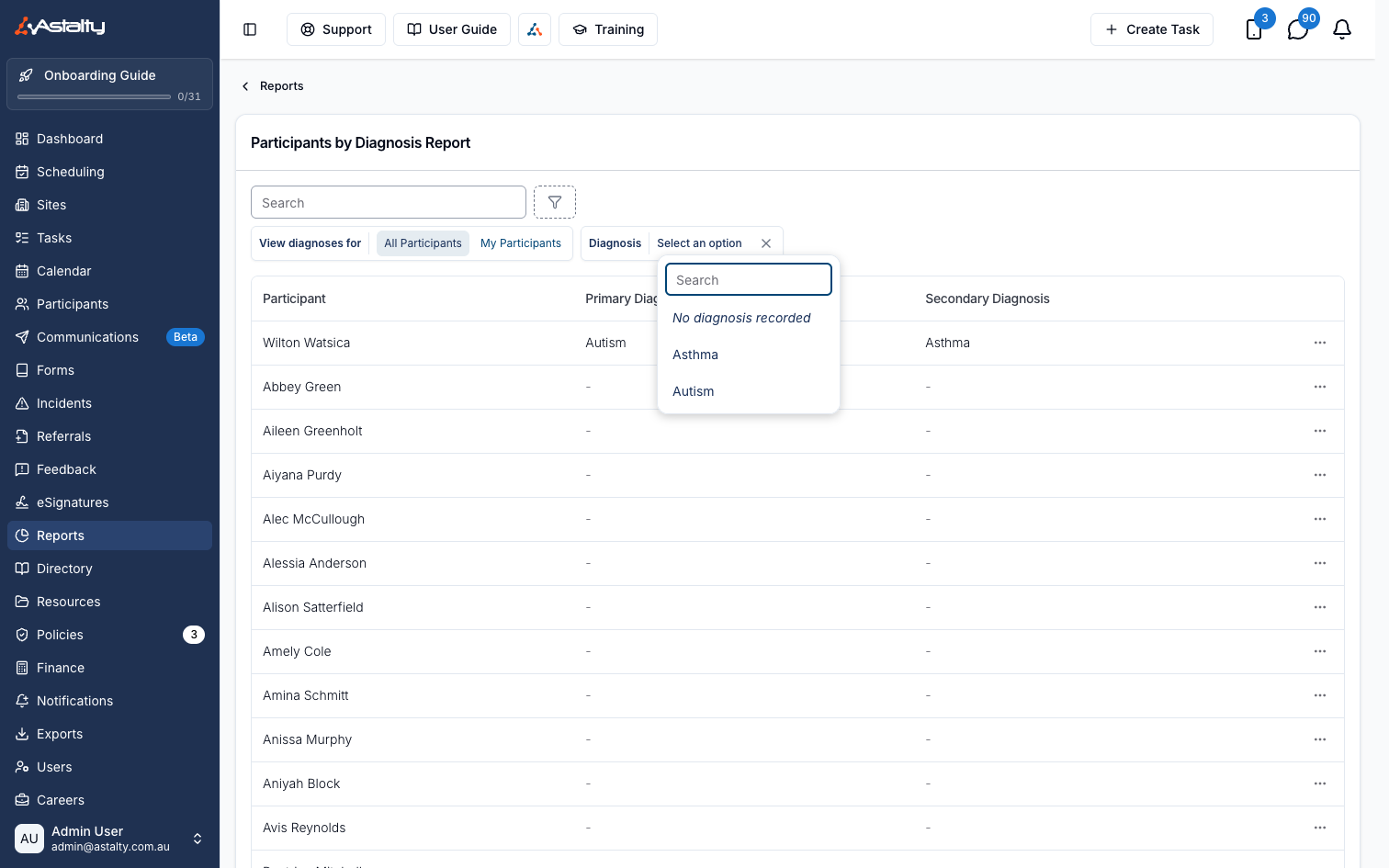
The report lists every active Participant with their Primary Diagnosis and Secondary Diagnosis, so you can see diagnoses across your caseload in one place. Archived Participants are not included. Diagnoses are set on the Participant's profile. A Participant with none recorded shows a dash in both columns.
Rows sort by Primary Diagnosis by default, so Participants group by diagnosis, and those with none recorded sort last. Participants with the same diagnosis are listed by name. You can also sort by Participant or Secondary Diagnosis.
"Your own Participants" (My Participants) are the Participants you are the Primary Coordinator for, plus those where you are the Service Coordinator on a service that is running today.
Report Columns
- Participant: the Participant's name.
- Primary Diagnosis: their primary diagnosis, or a dash if none is recorded.
- Secondary Diagnosis: their secondary diagnosis, or a dash if none is recorded.
Select the three dots at the end of a row and choose View Profile to open that Participant's profile in a new tab.
Filtering
Use the Search box to find a Participant by name, preferred name, NDIS number, email, mobile or phone number, and the filter icon next to it for:
- Diagnosis: match a single diagnosis against either Primary or Secondary Diagnosis, or choose No diagnosis recorded for Participants with neither. The list offers the diagnoses recorded on the Participants in your current view.
- Region: if Regions are enabled.
- Primary Coordinator and Service Coordinator: if Participant filters are enabled. Service Coordinator matches services on the Participant's current Plan.
- Team: if Teams are enabled. It matches Participants whose Primary Coordinator, or a Service Coordinator on their current Plan, belongs to the selected teams.
Use the Participants switch to choose All Participants or My Participants. It opens on All Participants.