Participants Without Tasks Report
The Participants Without Tasks Report finds active Participants with no task dated in the selected period. It is available on the Professional plan.
Where to Find It
- From the left-hand menu, select Reports.
- Under Participants, select Participants Without Tasks.
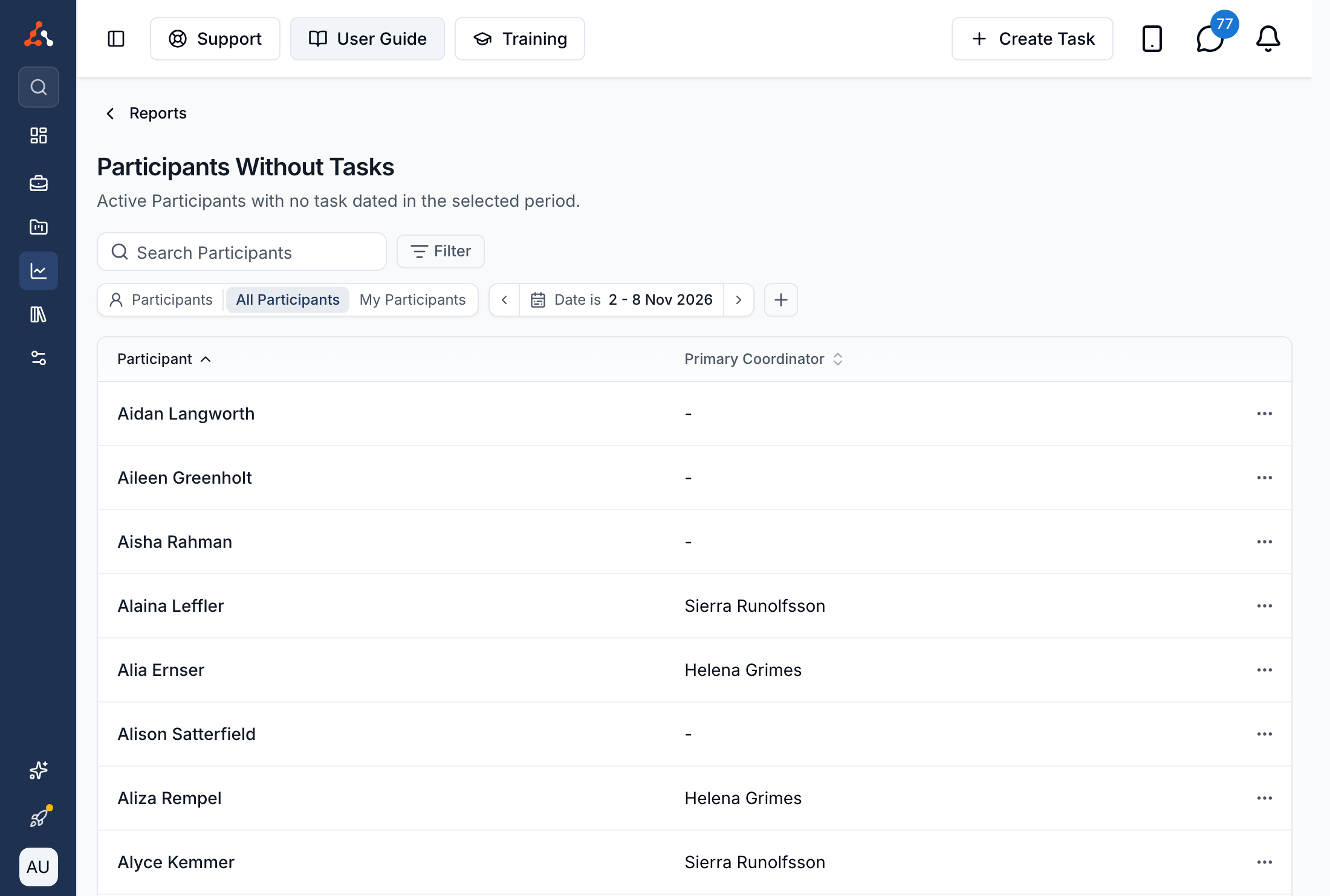
Choose the Period
The Date filter opens on the current week, Monday to Sunday. Choose another date range or use a preset for the last or current week, fortnight, month, quarter, year or financial year.
A Participant is listed when all of these are true:
- The Participant is active.
- The Participant was created on or before the end of the selected period.
- The Participant has no task dated within the period, among the tasks you're allowed to see.
All Participants and My Participants
Use Participants to switch between All Participants and My Participants, which uses the Participants assigned to you. If you can't view all tasks, the report shows only My Participants.
Search and Filters
Search matches a Participant's full name. You can also narrow the report by:
| Filter | What it shows |
|---|---|
| Primary Coordinator | Participants with the selected Primary Coordinator, or Unassigned. Applies in either Participants view. |
| Service Coordinator | Participants with the selected Service Coordinator on a Service, or Unassigned. Applies in either Participants view. |
| Region | Participants in the selected Regions, including an Unassigned option. Available when Regions are enabled, and applies in either Participants view. |
| Team | Participants coordinated by members of the selected Teams. Applies in either Participants view. |
Understanding the Results
The report lists the Participant and, in All Participants, their Primary Coordinator. It opens sorted by Participant name. Select either column heading to change the sort.
Open the action menu at the end of a row and select View Tasks to review or add tasks for that Participant.