- Insights
- Notifications
- Incident Notifications
Incident Notifications
Introduction to Incident Notifications
Incident Notifications enable timely alerts when an Incident has been submitted ensuring relevant users and user groups are notified immediately.
To manage Incident Notifications, open Notifications from the main menu and select Incidents under the Forms group. The Forms group appears when Forms are part of your plan.
Only Admins can open Notifications and create, edit or delete these notifications. This can't be changed per user.
Astalty sends the notification as soon as an incident is created from a submitted incident form. Every notification whose form usage matches the form is sent.
Creating an Incident Notification
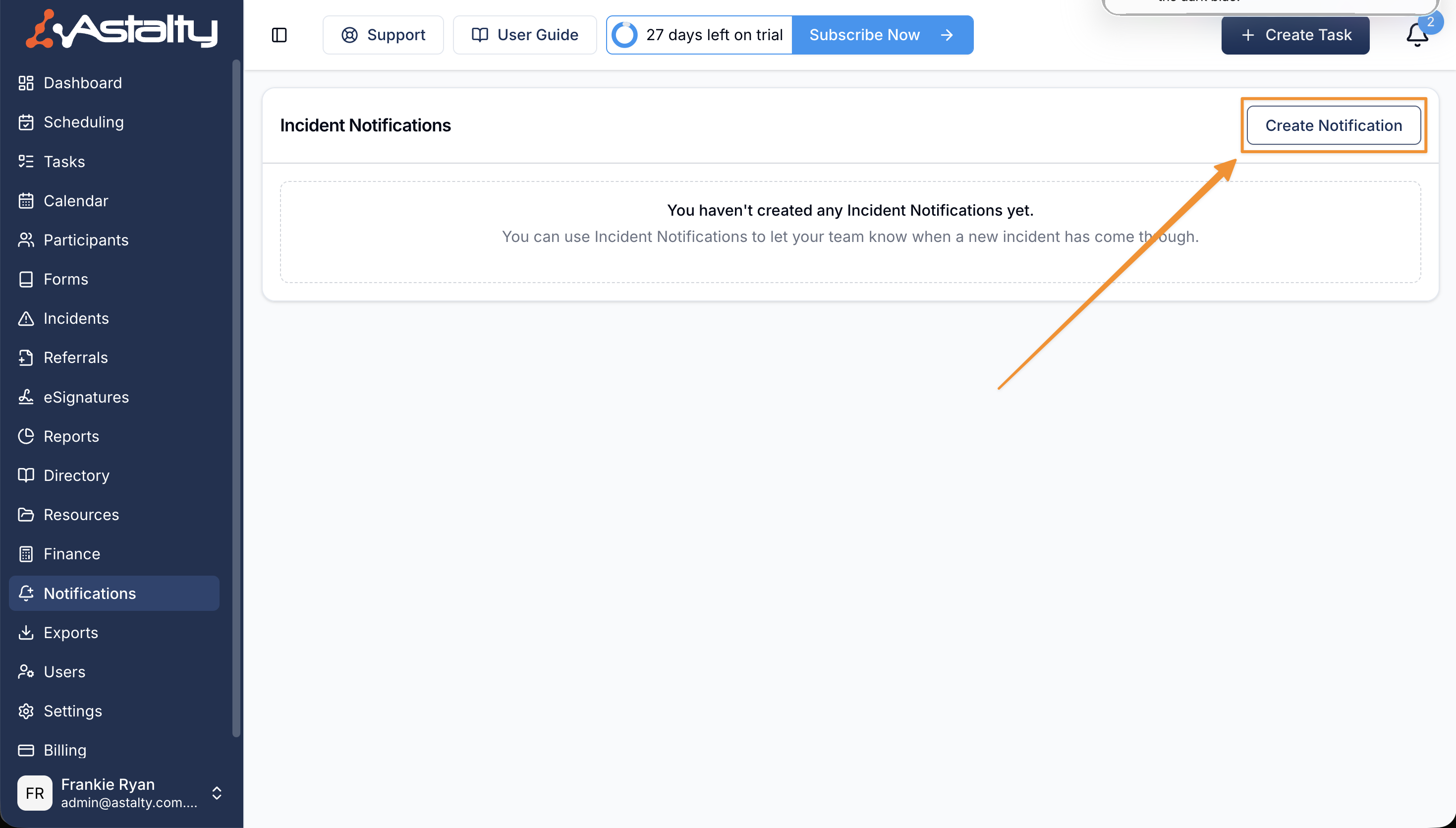
Click Create Notification to start.
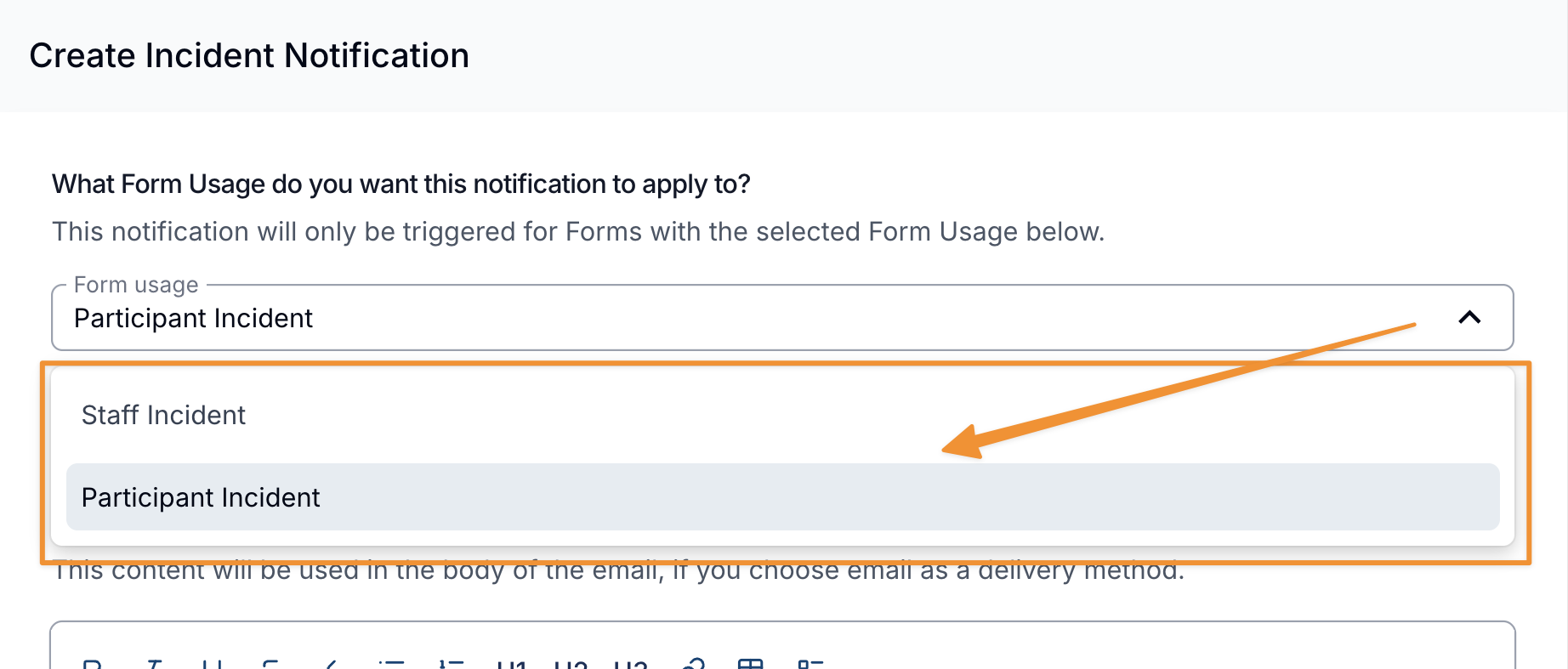
Select the Form Usage
Choose whether the Incident Notification is for Participant Incident or Staff Incident forms. Participant Incident is the default. You may want different groups notified depending on the form usage type.
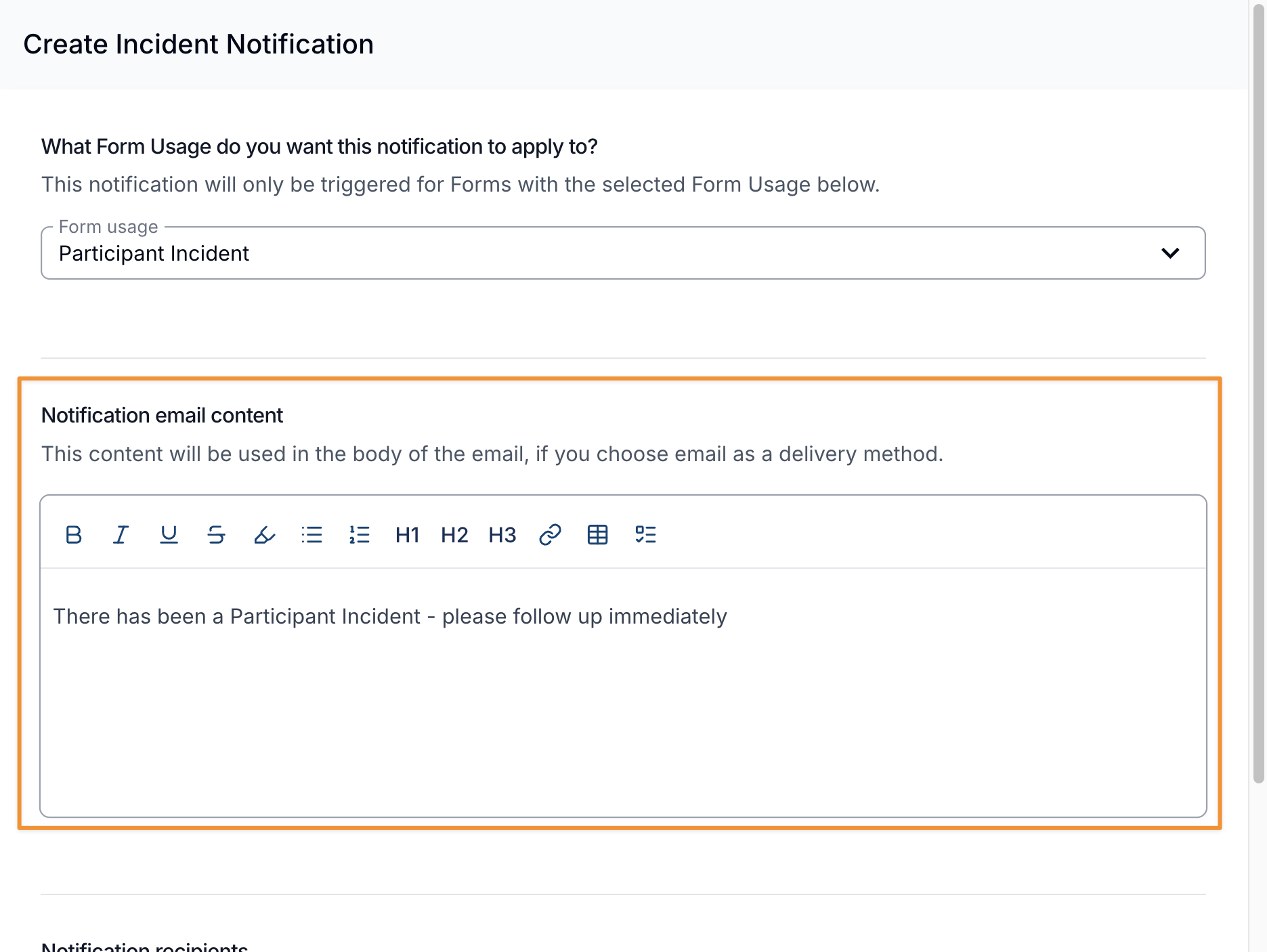
Notification Email Content
This is where you can add additional information based on the notification. For example, you could add the details of what your organisation normally does when an incident occurs and what the expectations are.
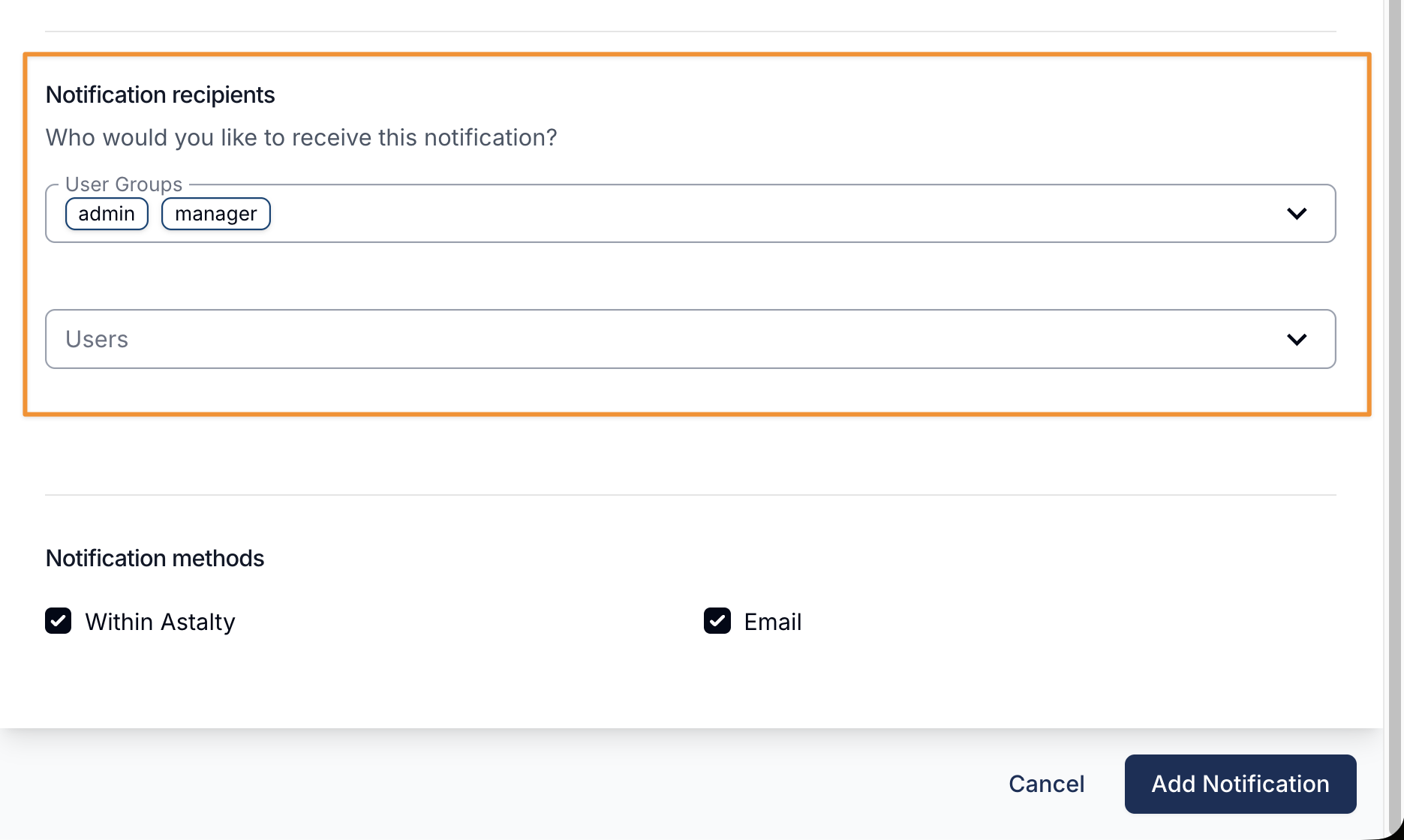
Notification Recipients
User Groups
This enables you to select which User Groups you wish to be notified. The All Users and Support Worker groups aren't offered.
Users
This enables you to notify a user directly.
Site Managers
On a Participant Incident notification, providers using Sites also see a Notify site managers option. When it's turned on, the assigned Site Manager of the site a Participant lives at is notified whenever an incident is logged for that Participant, so the person responsible for the house hears about it straight away. Archived sites are skipped, and so are sites with no Site Manager assigned.
Choose how the sites are matched:
- All SIL houses - every site with the SIL House type is covered automatically. Each house's manager only receives incidents for the Participants who live at their own house. Sites with the Other type aren't covered by this option.
- Specific sites - only the sites you select are covered, and only those site managers are notified.
Site manager notifications work alongside the User Groups and Users recipients above — you can use any combination. A Participant's incident is matched to a site from where they live, so a Participant who isn't linked to a site won't trigger a site manager notification (your User Groups and Users recipients still receive it as normal).
Notification Methods
Within Astalty
If this option is selected, the user will be notified within Astalty. The in-app notification is titled New Incident Notification and links to the incident. Ticked by default.
If this option is selected, the user will be notified via email. Ticked by default.
Deactivated users are skipped, and a user who qualifies more than once gets one notification.
Finalising Your Notification
After entering all the relevant information, click Add Notification to save it.
What the notification email includes
When an incident is reported and the email notification method is enabled, recipients receive an email that leads with the incident reference and a summary of key details so staff can act without logging in.
Email subject
The email subject line includes the incident reference number, for example:
New incident reported — INC-2026-00042
This makes it easy to identify and refer to the incident directly from your inbox.
Incident details panel
The body of the email includes a details panel summarising the incident at a glance:
| Field | Description |
|---|---|
| Reference | The unique incident reference (e.g. INC-2026-00042) |
| Type | Whether it is a Participant incident or Staff incident |
| Occurred | The date and time the incident took place |
| Reported | When the incident was reported and by whom |
| Category | The incident category, if set |
| Severity | Low, Medium, High or Extreme, or a dash where no severity has been set |
| Status | Reported, Under Review, or Resolved |
| Reportable to the NDIS | Whether the incident is reportable, and the reportable type if applicable |
A View Incident button links directly to the incident in Astalty for further action.
Custom content
Any content added when configuring the notification appears above the details panel, so your organisation's procedures or expectations are shown alongside the incident summary.
Submission confirmation email
The person who submits an incident form can also receive their own confirmation email, containing the incident reference number and the date and time of the incident. This provides immediate written confirmation that the submission was received.
This is controlled by the Submission Confirmation setting on the incident form itself, which is Disabled by default. The setting is only offered on internal forms. To turn it on, open the form, go to Settings > Form Details, and set Submission Confirmation to Email.