- Insights
- Shift Clashes Report
Shift Clashes Report
Overview
The Shift Clashes Report lists scheduling conflicts that may need correction, such as:
- Two shifts for the same Support Worker that overlap, once the travel time scheduled on each is included
- Two back-to-back shifts for the same Support Worker at different addresses, with no travel time scheduled between them
- A shift scheduled during the Support Worker's approved leave or unavailability
By reviewing clashes before they occur, you can adjust rosters to avoid gaps in service delivery.
Accessing the Report
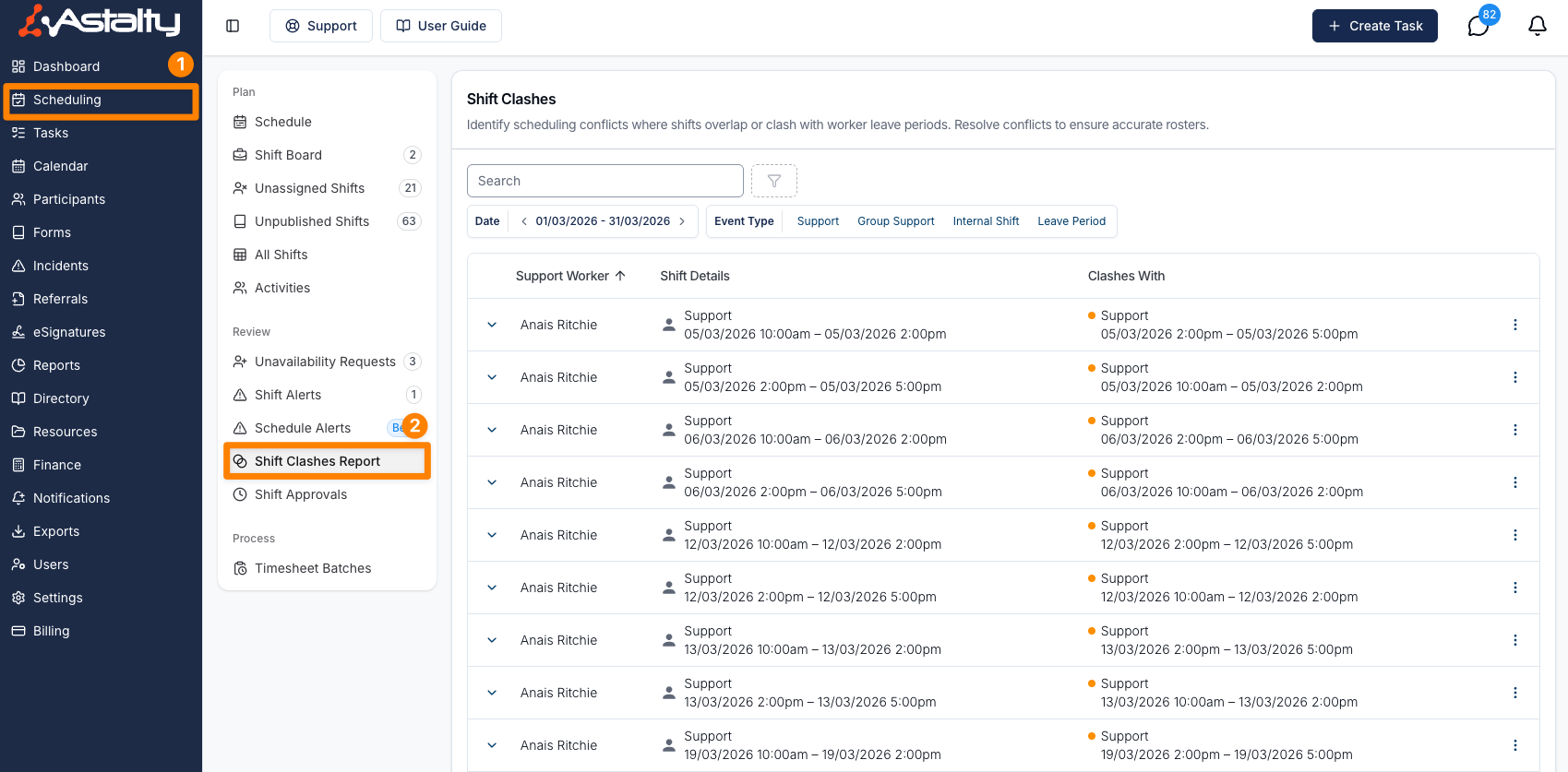
- From the left-hand side menu, go to Scheduling.
- Under the Review heading, select Shift Clashes Report.
The same report is also under Reports, in the Scheduling group, as Shift Clashes.
By default, only Admins can open this report. A Manager can open it once Can access Scheduling is turned on for them. See Roles & Permissions.
The number next to Shift Clashes Report in the menu counts the clashes in the current week (Monday to Sunday), leaving out cleared clashes. Once you open the report, it shows the count for the filters you last used.
Using the Report
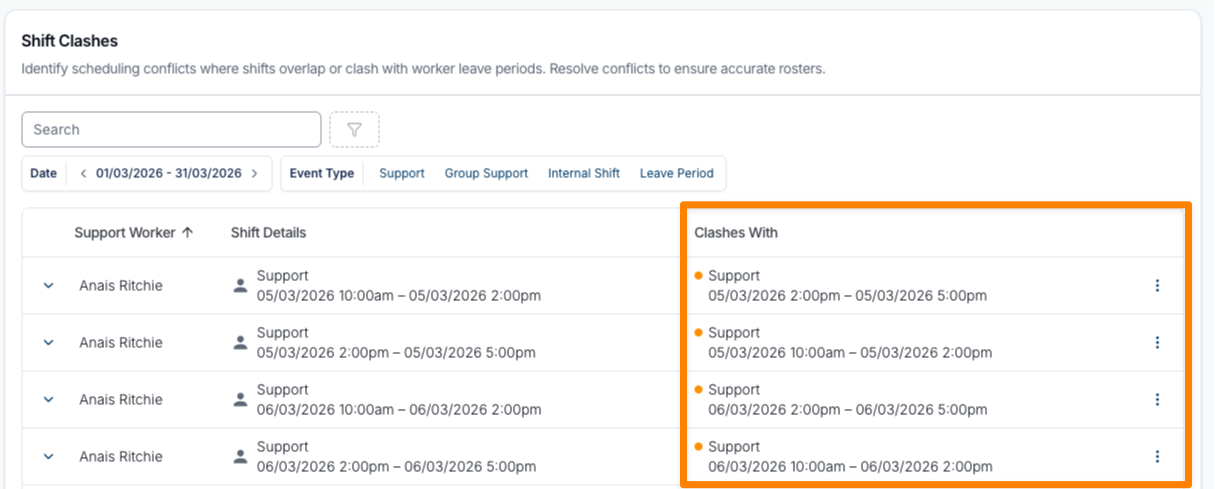
Each row is one clash: the shift in Shift Details, and what it clashes with in Clashes With. A shift that clashes with two things appears twice.
| Filter | What it does |
|---|---|
| Date | The period to check. Defaults to the current week (Monday to Sunday), includes the whole of the end date, and can't be longer than 90 days. A shift appears when it overlaps the range. |
| Event Type | Support, Group Support, Internal Shift or Leave/Unavailability. A clash is kept when either side of it matches a type you choose. |
| Region | Shown when Regions are turned on. Narrows to shifts in the selected regions. |
| Team | Shown when Teams are turned on. Narrows to clashes for Support Workers in the selected teams. |
| Search | Matches the Support Worker's name. |
Rows are sorted by Support Worker, then by shift start time. You can also sort by Shift Details or Clashes With.
The coloured dot in the Clashes With column shows the kind of clash:
| Colour | Meaning |
|---|---|
| Red | The two overlap. For two shifts, the travel time scheduled to and from each support counts as part of it. A shift that falls during approved leave or unavailability is always red. |
| Orange | The two are back-to-back at different addresses, with no travel time scheduled between them, so the worker has no time to get from one to the other. |
What the Report Checks
- Only shifts with a Support Worker assigned. Unassigned shifts are never clashes.
- Leave and unavailability only once approved. Pending leave requests and cancelled leave are not captured.
- A cancelled support still counts when the Support Worker is being paid for it. A support cancelled with no pay is left out.
- Shifts already included in a timesheet batch are left out.
- Cleared clashes are left out until they are restored.
Viewing and Resolving Clashes
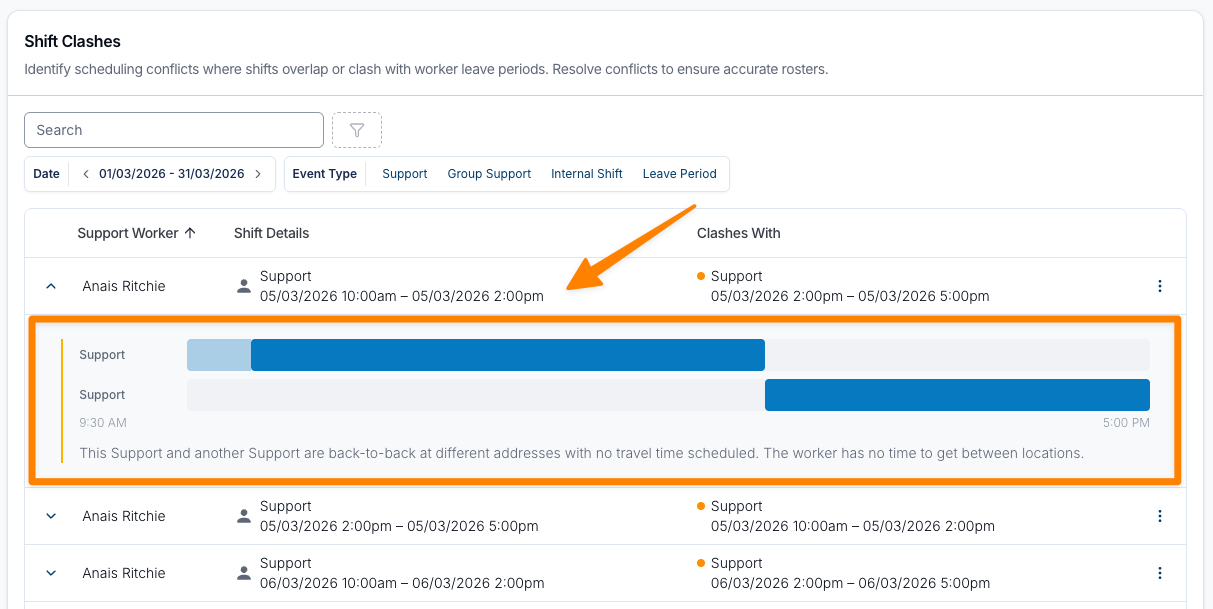
Select the arrow on a row to see the two events on a timeline, including any travel time, with an explanation of the clash. Select a bar on the timeline to open that shift.
Once you've identified the issue:
- Adjust the schedule by reassigning, unassigning, or rescheduling the support.
- Ensure that staff availability, approved leave, and other commitments are respected.
This process ensures clashes are resolved before they create problems for staff or Participants.
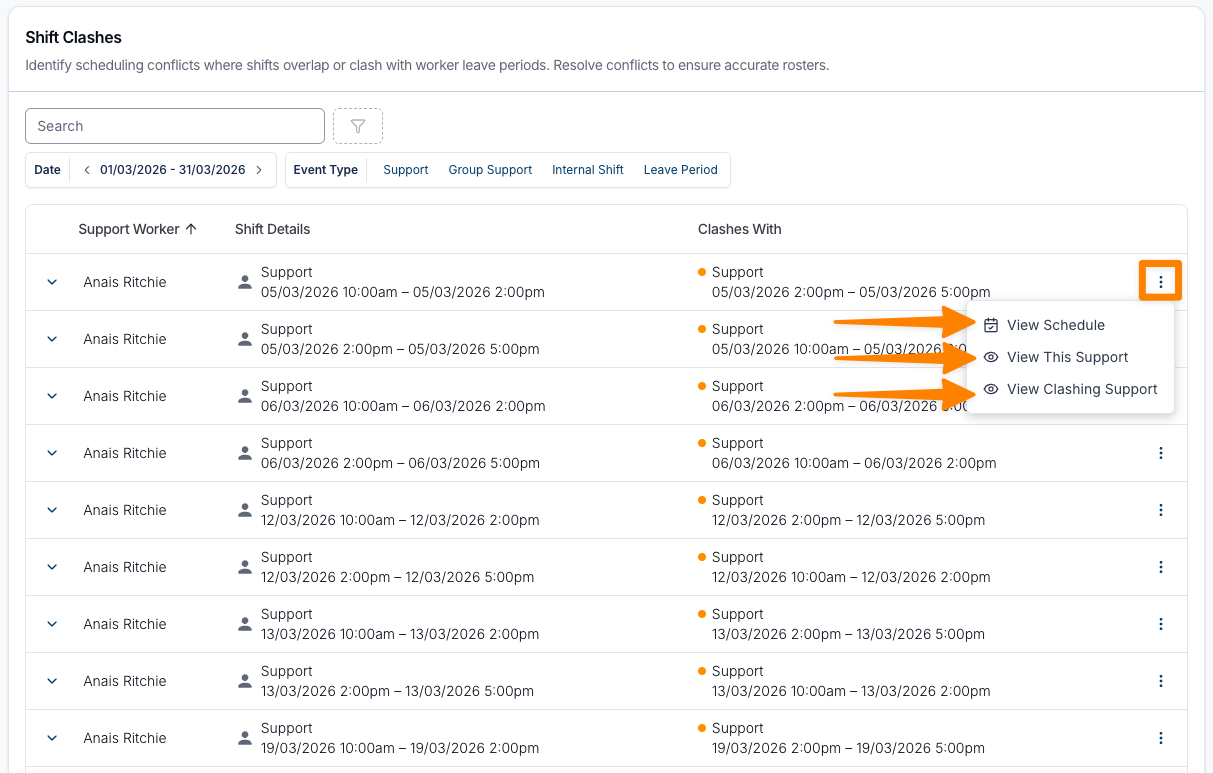
- On the right-hand side of the report, click the three dots next to a clash.
- Select one of the options below to view more details:
- View Schedule - Opens the Support Worker's schedule at the time of the clash
- View This Support - Opens the support, group support or internal shift shown under Shift Details. The label names its type, for example View This Group Support
- View Clashing Support - Opens the shift, leave or unavailability it clashes with. The label names its type, for example View Clashing Leave Period
- Make any necessary changes to the Supports impacted by the clash.
Clearing a Clash
Some clashes are intentional and safe, for example back-to-back shifts where travel time to the Participant is already built into the support time. You can clear these so they drop off the report, leaving only the genuine clashes that need attention.
- On the right-hand side of the report, click the three dots next to the clash you want to clear.
- Select Clear clash.
- If you want a record of why the clash is fine, enter it in Reason (optional).
- Click Clear clash to confirm.
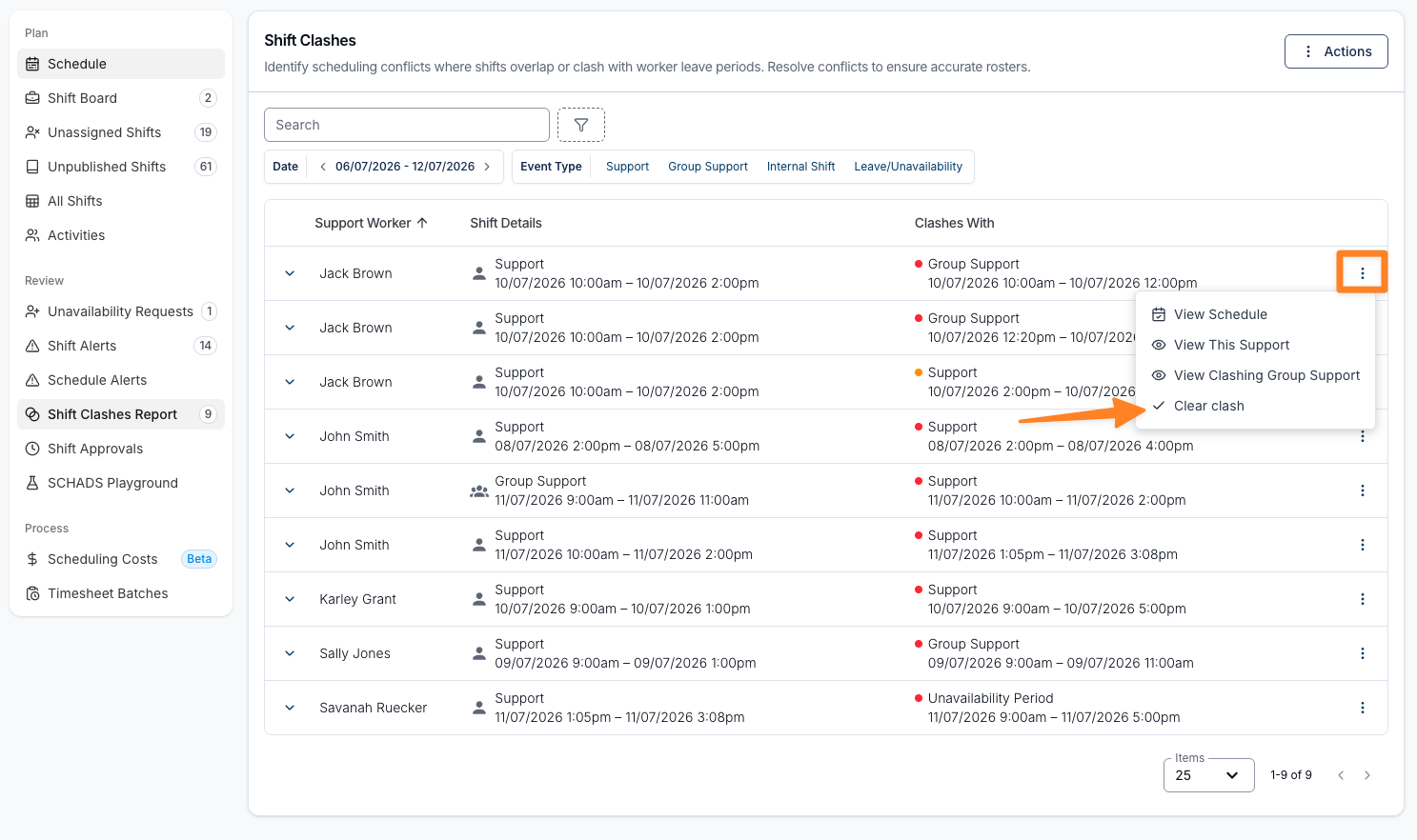
Clearing a clash only hides it from the report. It does not change the shifts themselves. A cleared clash is hidden for everyone in your organisation, and is no longer included in the Shift Clashes Report count shown in the sidebar, so genuine scheduling problems stand out.
A cleared clash is tied to the exact start and end times of both events. If either one is moved or its times change, the clash is treated as a new one and comes back onto the report. Clearing one occurrence of a recurring support does not clear the others.
Viewing and Restoring Cleared Clashes
- In the top-right of the report, click View Cleared Clashes.
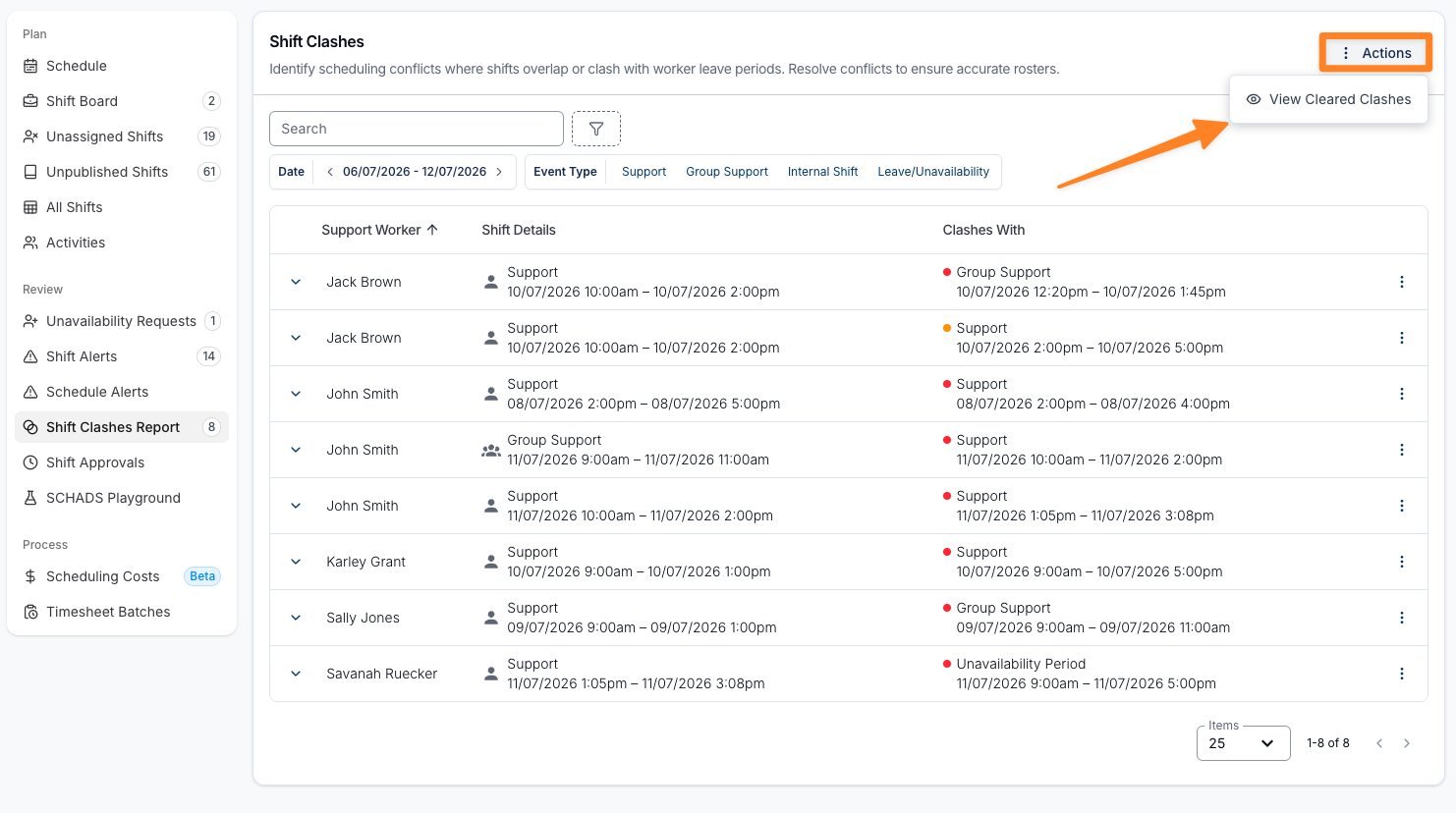
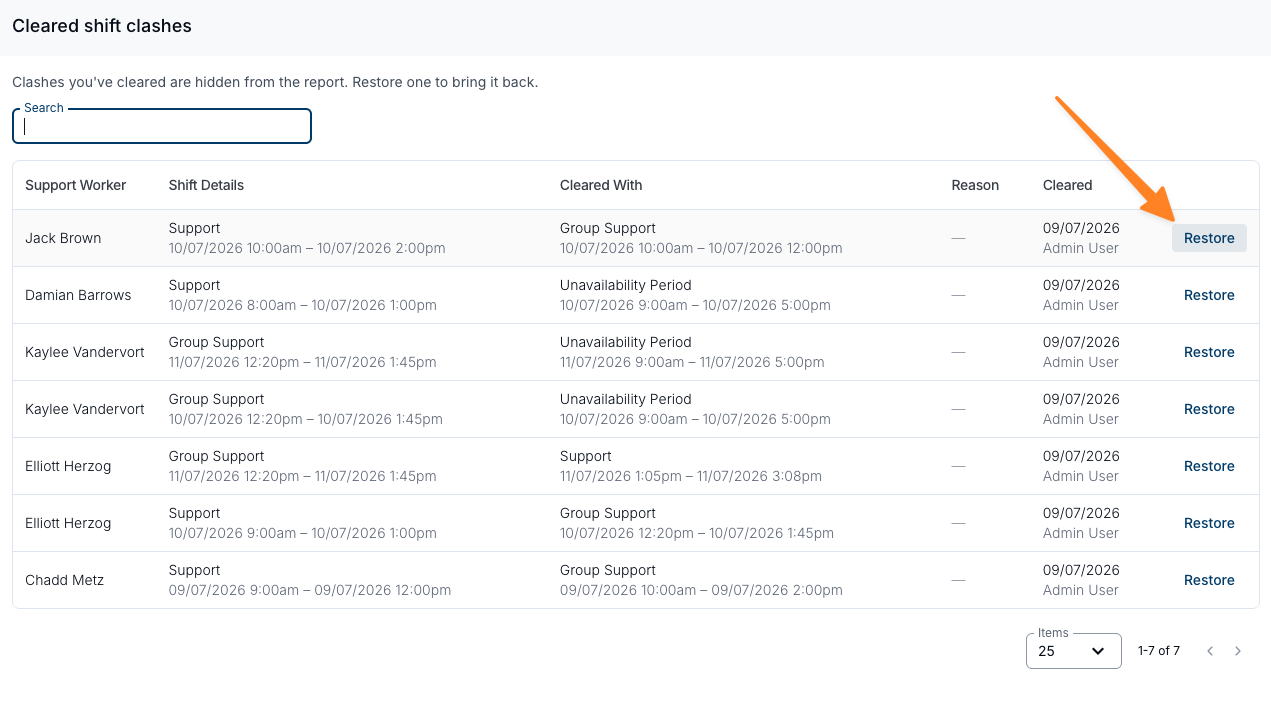
The Cleared shift clashes panel lists every clash that has been cleared, across all dates, including:
- The Support Worker and the clashing events (Shift Details and Cleared With)
- The Reason entered when it was cleared (if one was added)
- When it was cleared and who cleared it
To bring a clash back onto the report, click Restore next to it. It will reappear on the Shift Clashes Report and be included in the sidebar count again.