My Billable Charges Report
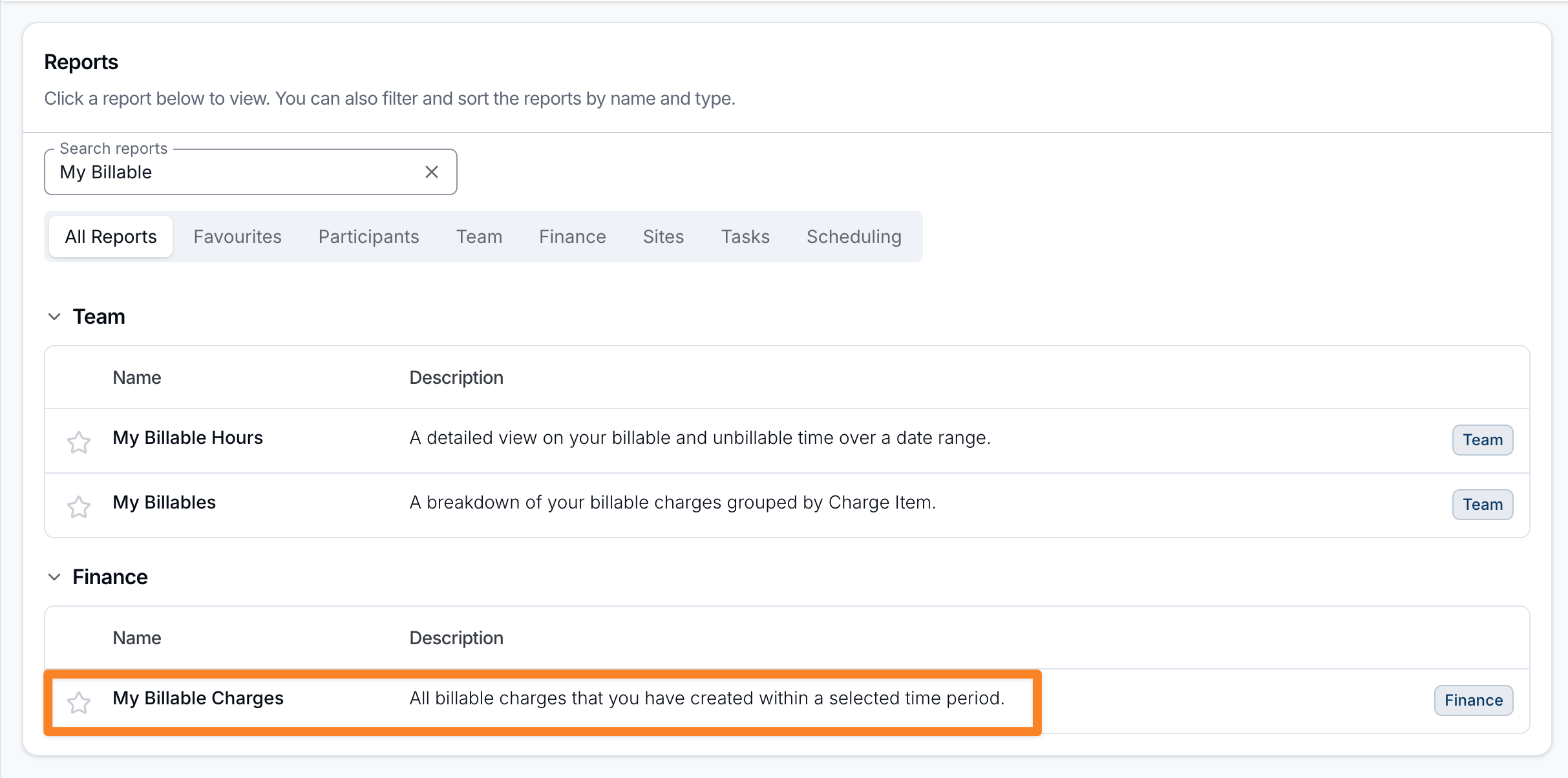
Open Reports > Finance > My Billable Charges.
Report Overview
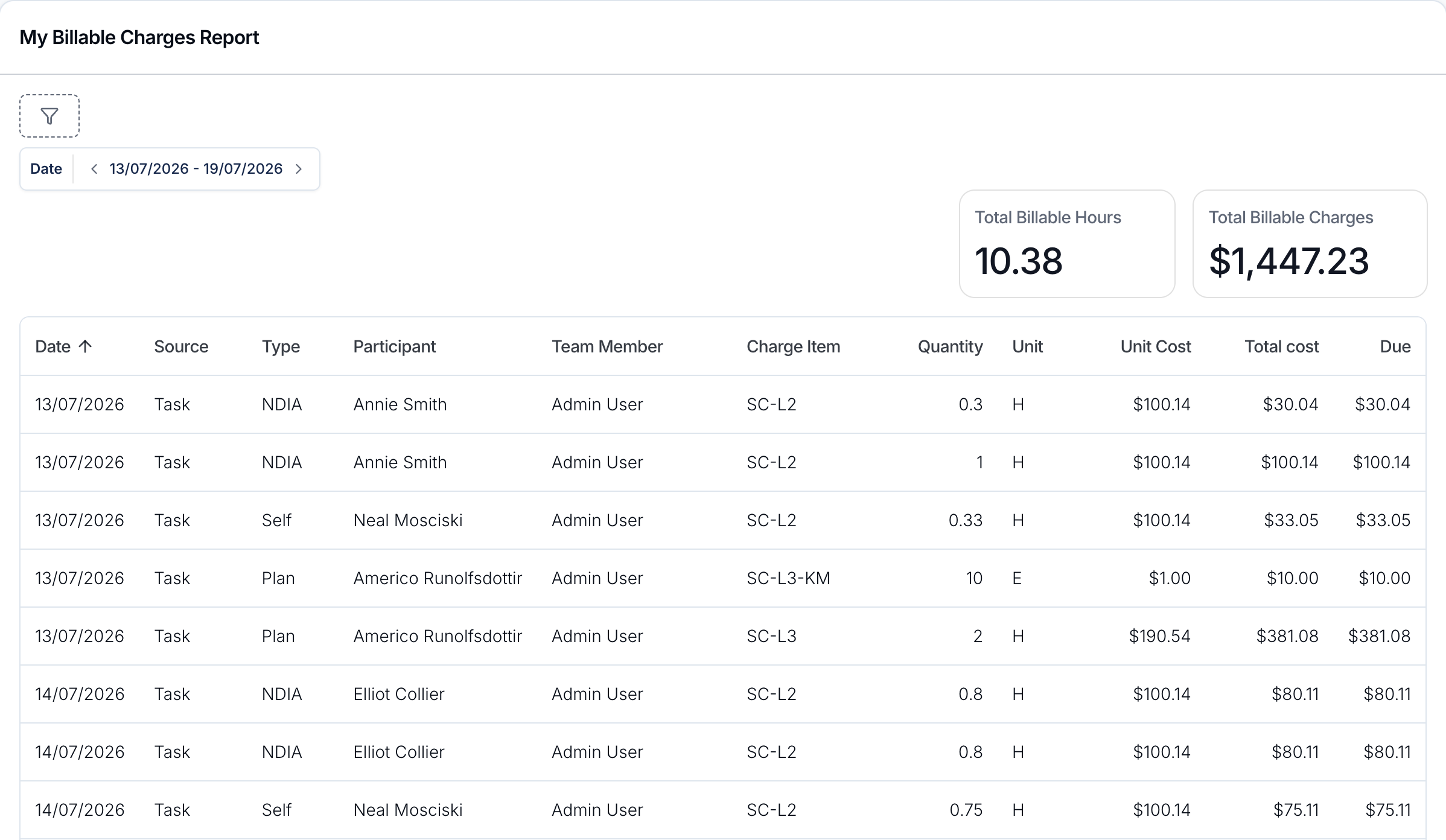
My Billable Charges lists the billable charges on Tasks assigned to you whose date falls in the selected period. Use it to review your own billing, check what's still outstanding, and reconcile the work you've delivered.
The report follows the same rules as the Billable Charges Report, limited to your Tasks:
- Charges on supports (shifts) and direct charges aren't listed, even ones you worked or entered, because they aren't on a Task.
- Only charges marked billable and linked to a Participant are included.
- Until you set the Invoiced Status filter, the report shows charges that are ready to invoice or already invoiced.
For a breakdown of your billable and unbillable time rather than individual charges, see the My Billable Hours Report.
Summary totals
Above the table you'll see two totals for the selected period:
- Total Billable Hours: the total quantity of your charges whose Charge Item is charged by the hour.
- Total Billable Charges: the total of the Total cost column, including GST on any Charge Item that attracts GST.
Choosing a date range
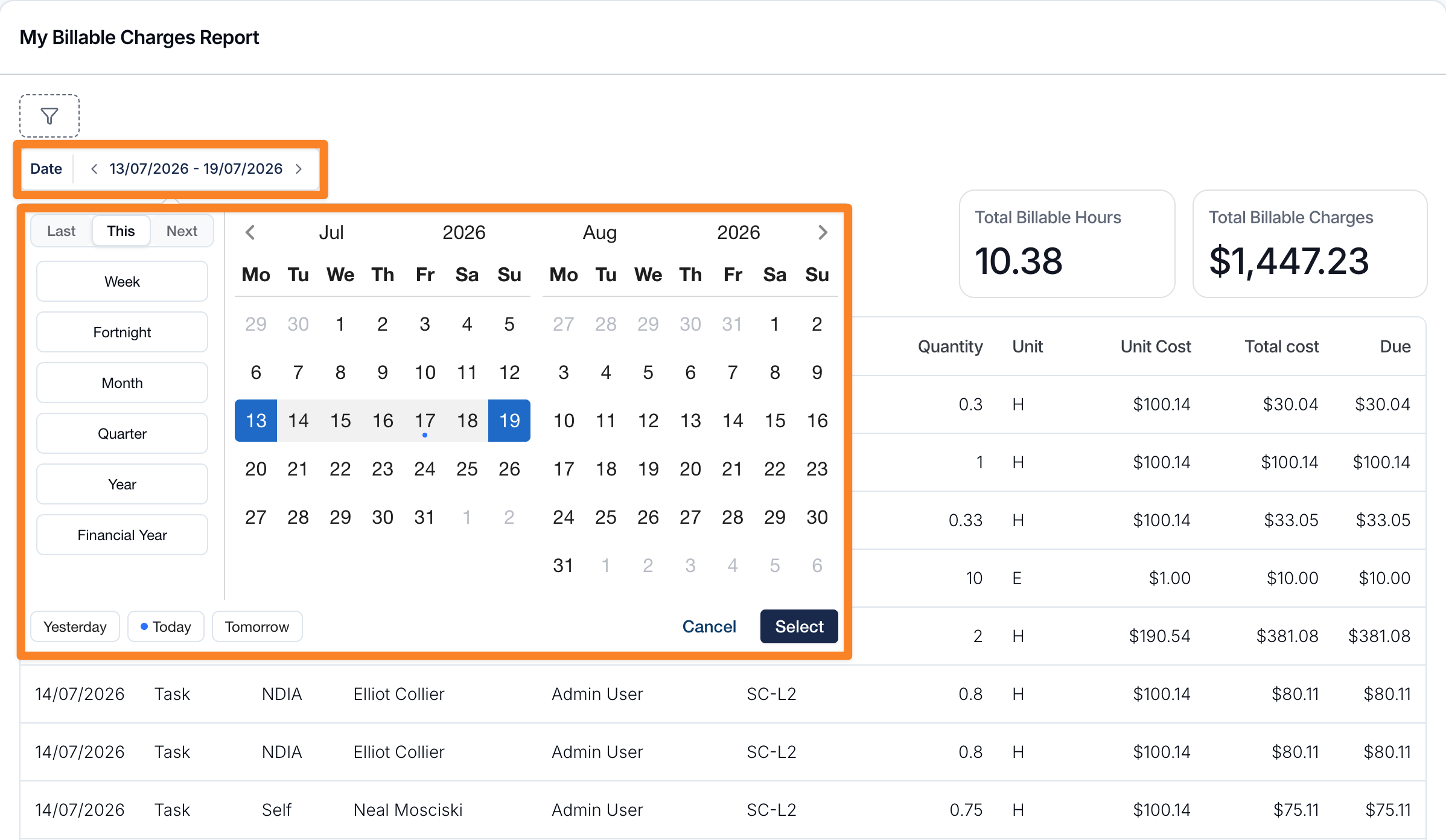
Use the Date selector at the top to set the period the report covers. It defaults to the current week, Monday to Sunday, compares against each charge's date, and includes both end dates. You can step through periods with the ‹ and › arrows, or open the picker to choose a preset (Last, This or Next combined with Week, Fortnight, Month, Quarter, Year or Financial Year) or select a custom range on the calendar.
Report columns
- Date: the date of the charge.
- Source: where the charge came from. This column appears only if you have Scheduling, and always reads Task here.
- Type: the funding management type: NDIA, Plan, Self or Unknown.
- Participant: the Participant the charge relates to.
- Team Member: the user the Task is assigned to, which is you.
- Charge Item: the Charge Item reference used.
- Quantity: the number of units charged.
- Unit: the unit of measure for the charge (for example H for hours or E for each).
- Unit Cost: the cost per unit.
- Total cost: the total value of the charge, including GST on any Charge Item that attracts GST.
- Due: how much of the charge is still outstanding.
Rows are sorted by Date, oldest first. Click a column heading to sort by it instead.
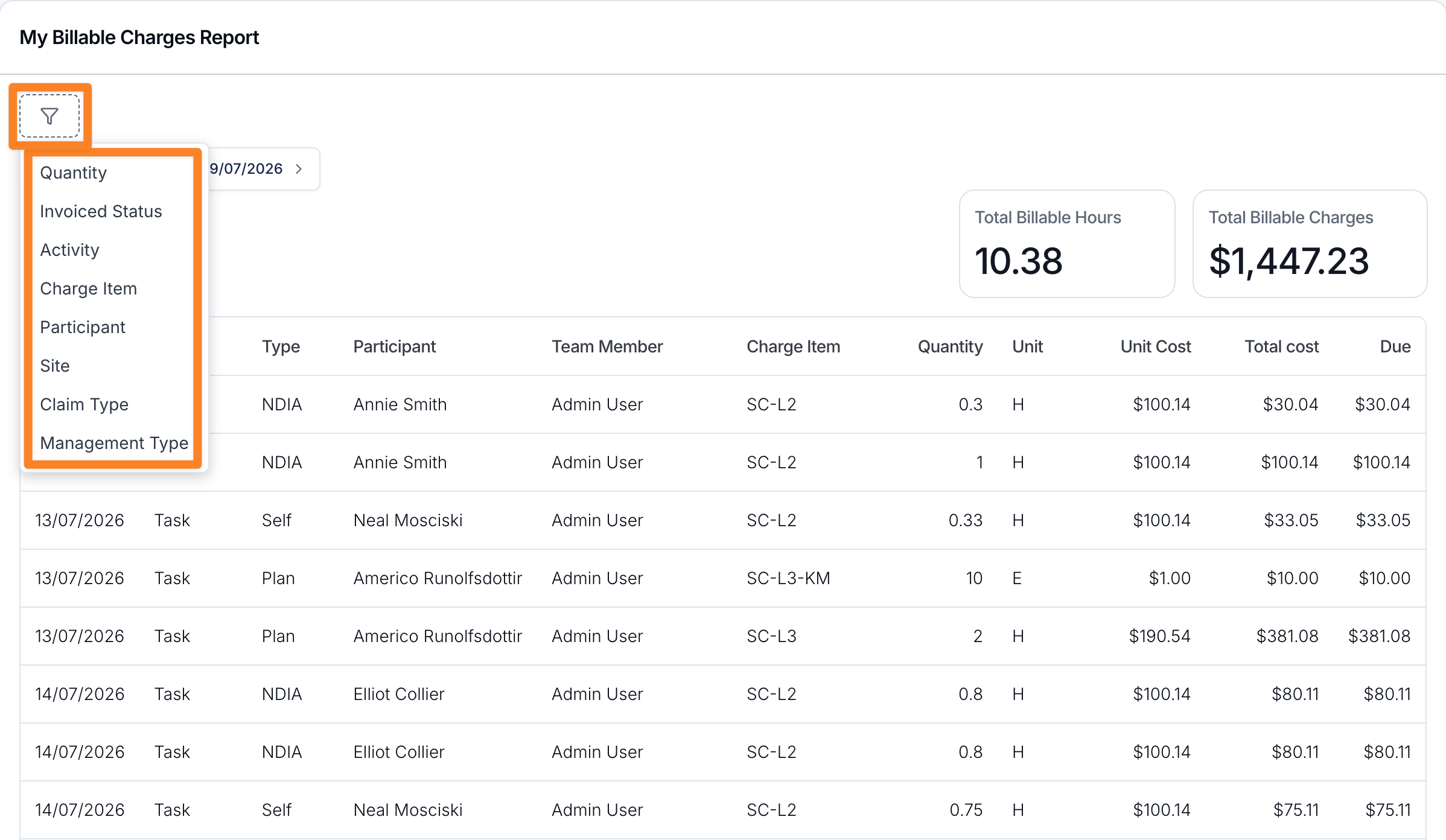
Filters
Use the filter (funnel) icon to narrow the charges shown by:
- Quantity
- Invoiced Status: Invoiced or Not invoiced
- Activity (with Scheduling)
- Charge Item
- Participant
- Site (with Scheduling)
- Claim Type
- Management Type
Each works as described on the Billable Charges Report. This report has no export.