- Insights
- Completed Supports Without Notes Report
Completed Supports Without Notes Report
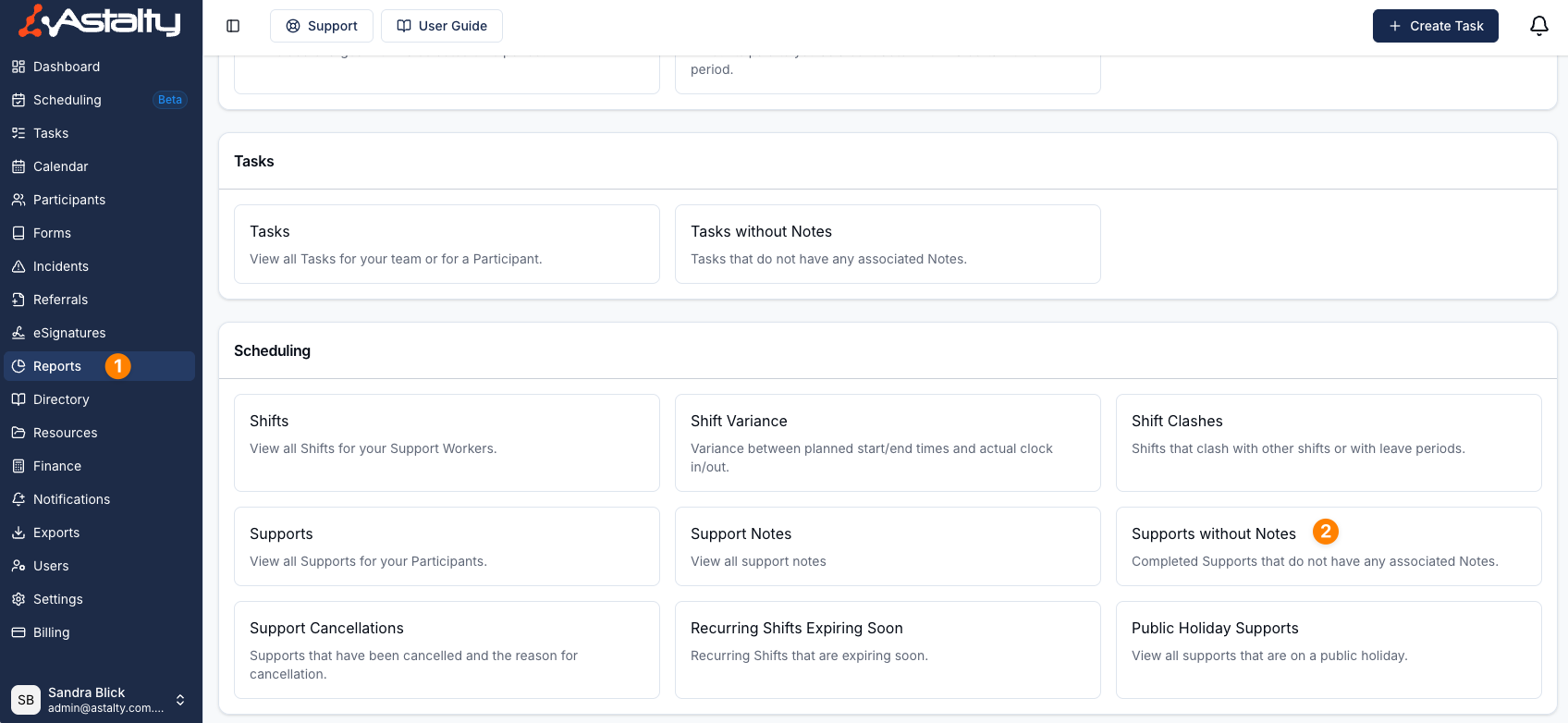
Open Reports > Scheduling > Supports without Notes.
The report is available to Admins, and to Managers who have Can access Scheduling turned on.
Overview
The Completed Supports Without Notes Report lists completed shifts whose support has no note, with filtering by date, Support Worker, Participant and cancellation status. Use it to spot trends, identify gaps, and follow up on overdue case notes.
A shift is listed when both of these are true:
- It has been clocked out. Shifts that haven't been clocked out yet never appear, however long ago they were scheduled.
- Its support has no note. A group shift is listed when the group support has no note and at least one attending Participant's support also has no note. A group note clears the shift for everyone; without a group note, each attending Participant needs their own note.
Each row is one Support Worker's shift, so a support with two workers appears twice. The report shows:
- Support Worker - the worker on the shift, or Unassigned.
- Participant - the Participant the support was for. For a Group Support, only the attending Participants who are still missing their own note are listed, separated by commas. Participants cancelled out of the group are left out.
- Start Time
- End Time
- Clock In At
- Clock Out At
- Days Since Clock Out - the number of whole days since the shift was clocked out, to help you track overdue case notes.
Click a column heading other than Participant to sort by it. Click a row to open the support.
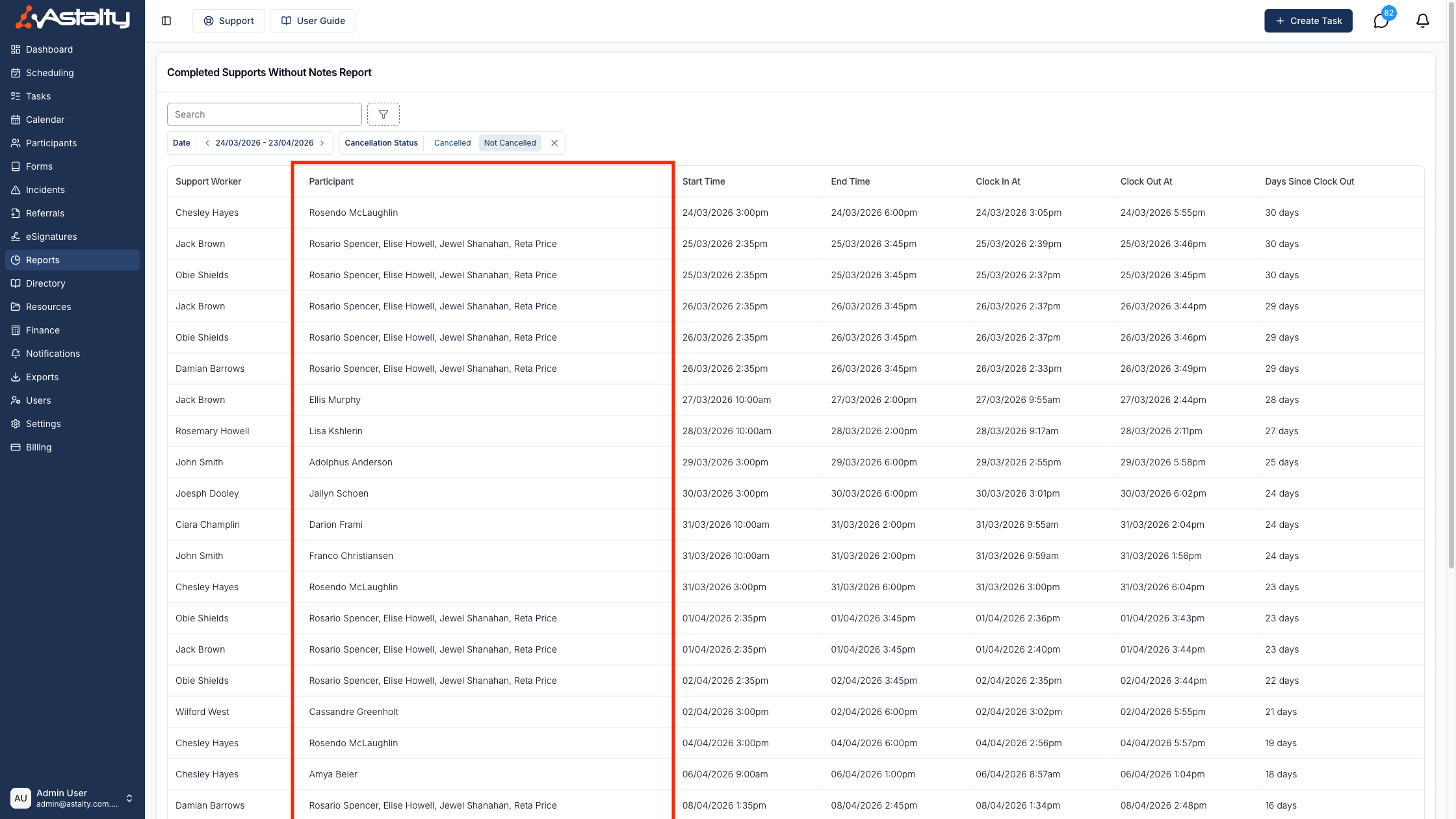
The Participant column makes it easy to see who each outstanding note relates to without opening every shift, so you can prioritise follow-up by Participant as well as by Support Worker.
Search
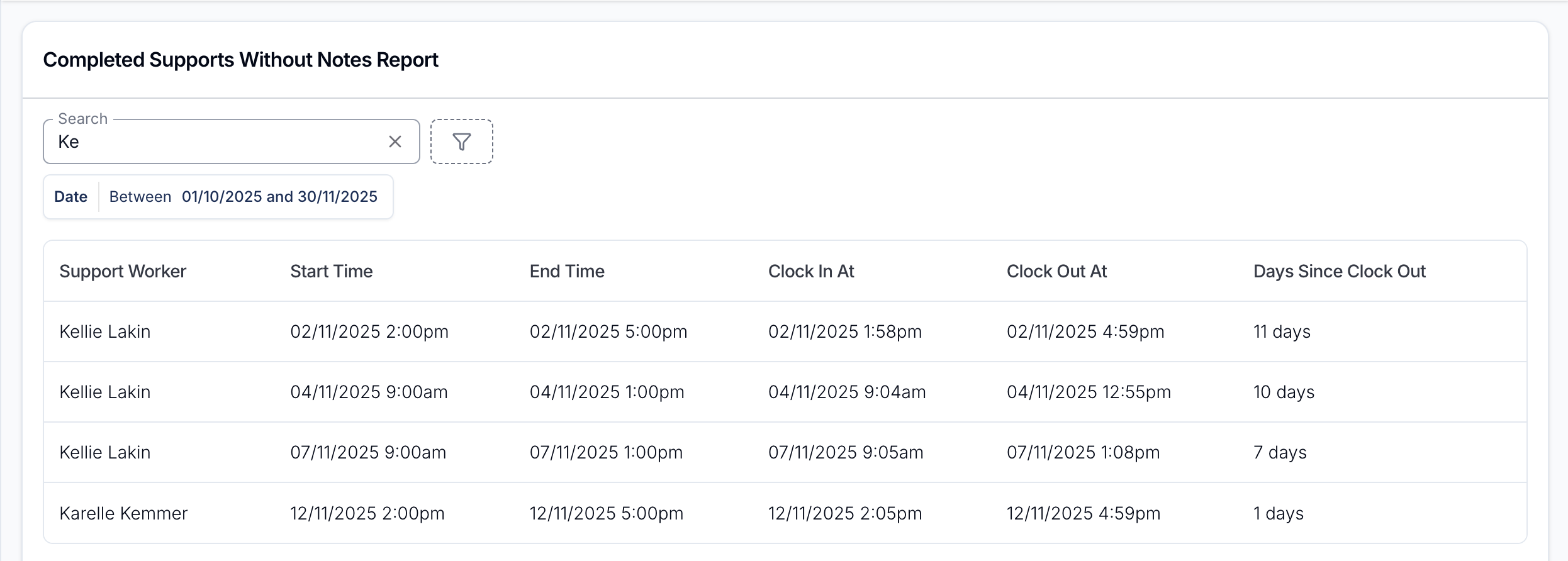
Search the results by Support Worker name or Participant name.
Filters
Filter the results by date, Support Worker, Participant and cancellation status to focus on a specific period and identify cases that need follow-up.
Date
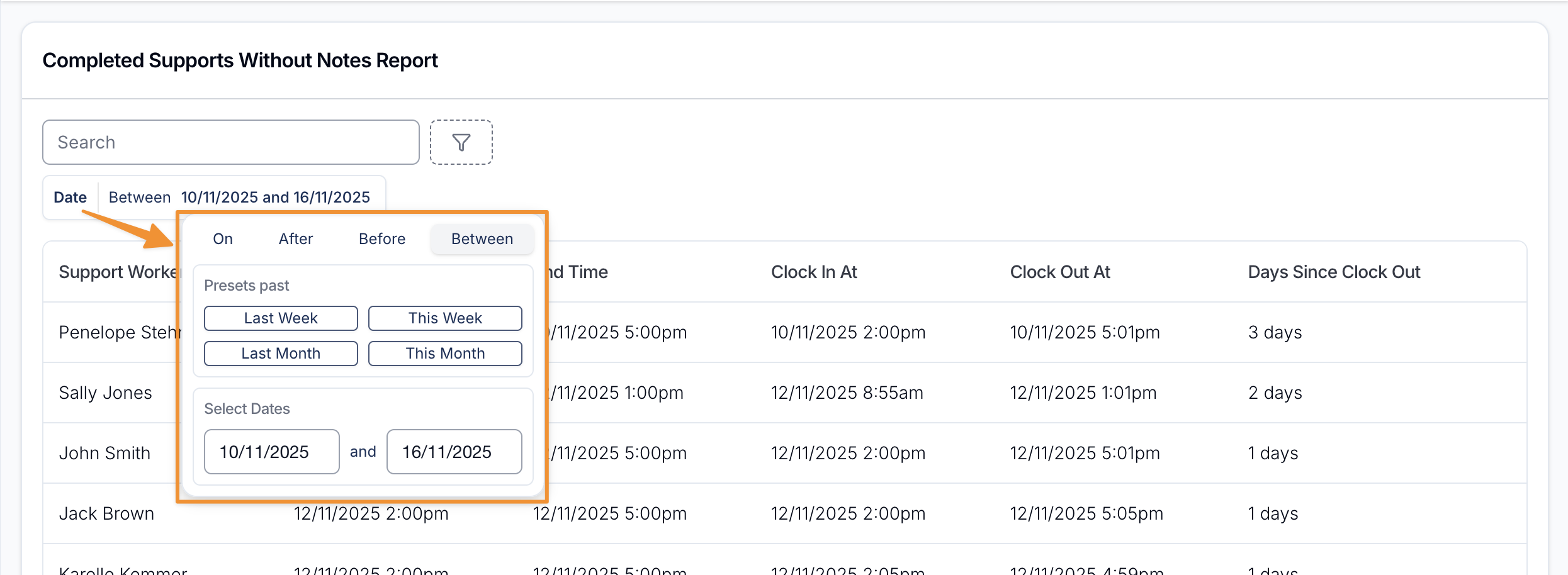
The Date filter matches the shift's scheduled start date. It is always applied, and both the start and end dates are included in full. Quick presets cover the last and this week, fortnight, month, quarter and year, or you can pick your own dates.
The Date filter opens on the previous month through today. Choose a different range to review another period.
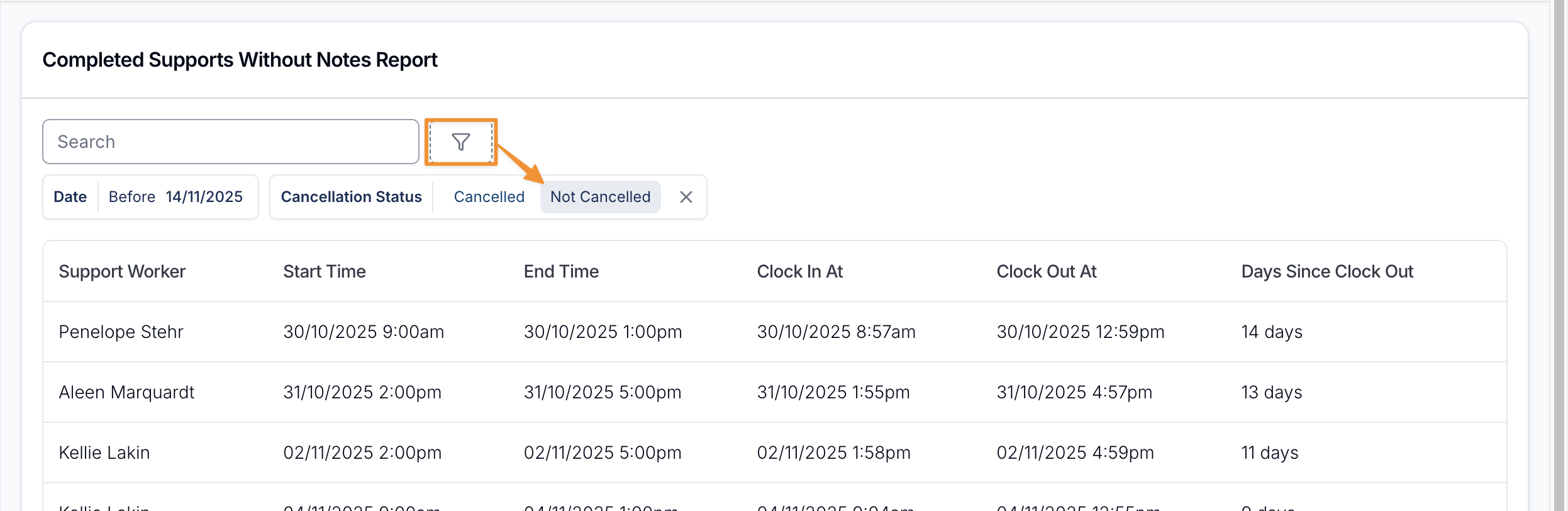
Cancellation Status
Filter the supports with missing notes by whether the support was Cancelled or Not Cancelled. The report opens filtered to Not Cancelled. Remove the filter to see both.
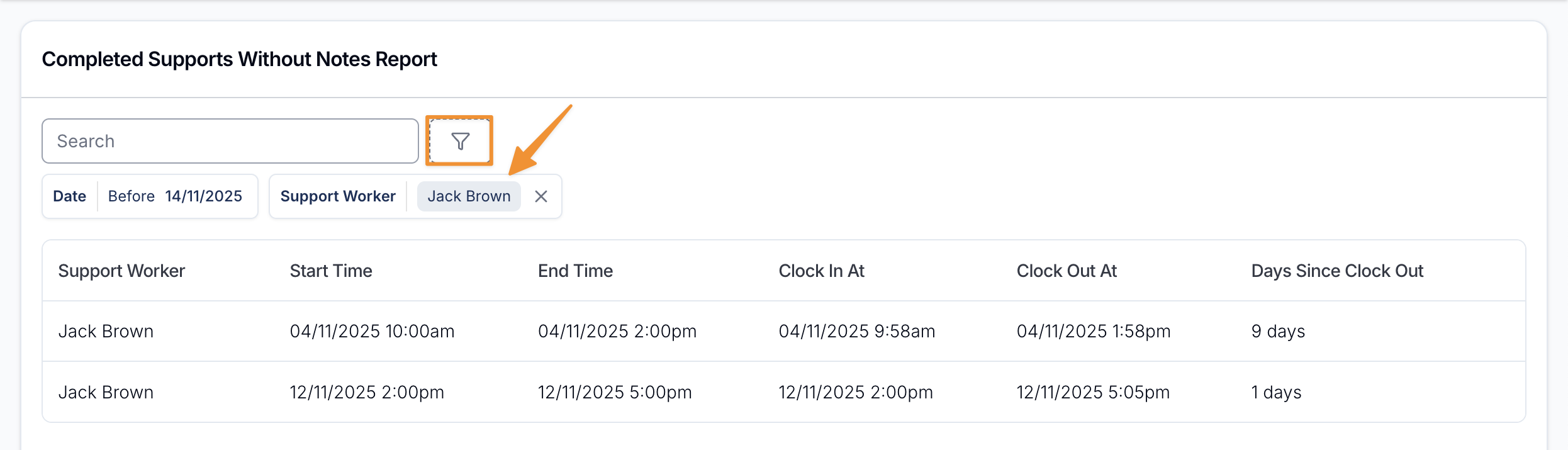
Support Worker
Filter the supports with missing notes by the Support Worker on the shift. You can choose one worker at a time, and deactivated workers can be selected. This is a helpful filter to help you manage staff compliance.
The filter appears for users who can view all users, on the Professional plan and above.
Participant
Filter the supports by one or more Participants. A group support matches when a selected Participant attended the group and is still missing their own note.
Other Helpful Information
To review the notes that have been written, see the Support Notes Report.