- Insights
- Participant Documents Report
Participant Documents Report
Open Reports > Participants > Participant Documents.
This report is only accessible by users with the Admin role. Managers, Team Members and Support Workers cannot open it, and it cannot be switched on for an individual user.
Report Overview
This report lists the documents held against your Participants, across all Participants, so you can find a document without opening each profile.
It includes documents uploaded to a Participant's profile and documents attached to items that belong to the Participant: their tasks, notes, Plans, information items, records, signature requests and supports. Documents of archived Participants are included.
A document linked to more than one Participant is listed once, under one of those Participants.
See Documents for uploading and managing documents on a profile.
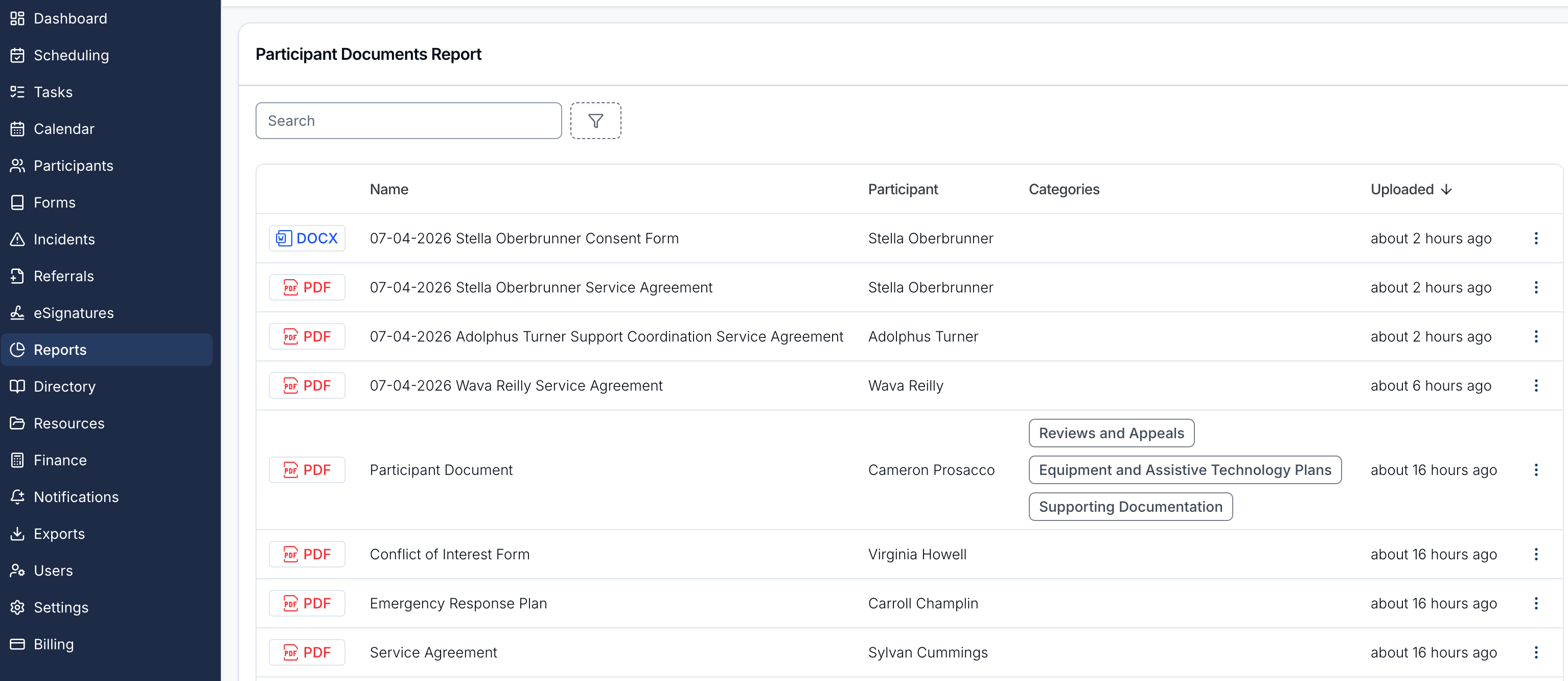
Report Columns
The report includes these columns:
- File type: an icon for the document's file type.
- Name: the name of the document. An archived document is marked as archived.
- Participant: the Participant the document is associated with.
- Categories: the categories assigned to the document.
- Uploaded: when the document was uploaded. Recent uploads show how long ago, for example 3 hours ago, and older ones show the date.
Search
Search by document name or Participant name.
The report will update automatically to display matching results.
Available Filters
To apply filters, click on the filter icon and select the filter you would like to use.
Participant
Show documents for one or more Participants.
Status
The report lists documents that are not archived. Choose Archived to list only archived documents instead.
Categories
Show documents in the selected categories. Choose Match any to list documents in at least one of them, or Match all to list documents in every one.
File Types
Show documents with the selected file extensions, such as PDF or DOCX.
Using the Report
Use the Participant Documents Report to:
- Locate documents across Participants
- Filter documents by category or file type
- Review uploaded documents and their details
- Find archived documents
Sorting Results
The report opens with the most recently uploaded documents first. Click the Name, Participant or Uploaded column header to sort by that column instead.
Document Actions
Click a row to open the document in the document viewer. The menu (3 dots) at the end of the row also offers:
- View: open the document in the document viewer.
- View Participant Documents: open the Documents page of that Participant's profile.