- Insights
- Support History Report
Support History Report
The Support History report lists every Support Worker who has supported a Participant, with their visit count and their first and last visit dates. Use it to check whether a worker has been to a Participant before, and how well they know them, without building a shift to read the roster's worker suggestions.
Where to Find It
- From the left-hand menu, select Reports.
- Under Participants, select Support History.
- Choose a Participant. The table only appears once one is selected.
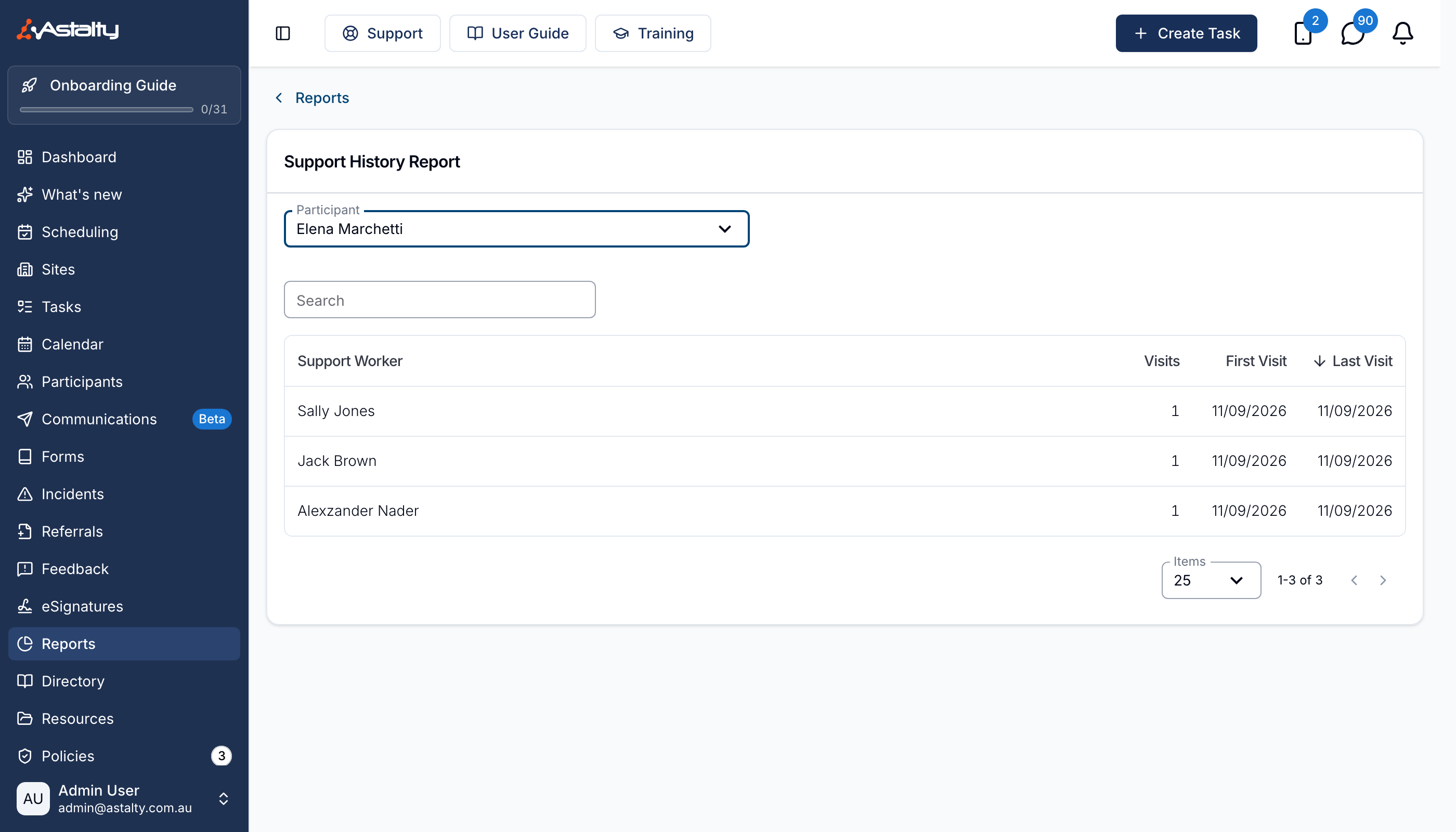
The Participant dropdown lists active and archived Participants. If you can't view all Participants, it lists only the ones assigned to you. Names follow your account's Participant Name Display setting, and the dropdown shows an External ID beneath the name for a duplicate profile - see Telling Duplicate Profiles Apart in Participant Pickers.
The Columns
| Column | What it shows |
|---|---|
| Support Worker | The worker rostered on the shift |
| Visits | How many visits they have done with this Participant |
| First Visit | Start date of their earliest visit |
| Last Visit | Start date of their most recent visit |
The report opens sorted by Last Visit, most recent first. All four columns sort, and the Search box matches a Support Worker's name or email address. Changing Participant clears the search and returns you to the first page.
Workers who have since been deactivated still appear, tagged deactivated beside their name.
What Counts As A Visit
One visit is one published shift that has already started, where the Participant's support isn't cancelled. Each shift counts once no matter how long it ran.
Counted:
- Shifts that have already started, including one running right now.
- Group sessions the Participant attended.
Not counted:
- Shifts that start in the future.
- Unpublished shifts - a draft roster that was never released to workers.
- Cancelled supports.
- Group sessions the Participant was cancelled out of, and group sessions cancelled outright.
Things To Keep In Mind
- The report has no export. The nearest shift-level CSV is the Completed Shifts Export, but expect fewer shifts than the visit counts here: it runs over a date range rather than all time, covers only shifts that have already ended, and by default drops shifts with no clock-in or clock-out time.
- Dates show the date only, not the time. A dash means no visit date is recorded.
- The report covers one Participant at a time - there's no all-Participants view.