- Insights
- Shifts Report
Shifts Report
Overview
The Shifts Report provides a complete view of all Support Worker shifts, filtered by date range. This report offers a clear overview of scheduled work, helps identify scheduling patterns, and confirms coverage within a specific timeframe. It also displays the total number of shifts and hours of support for the chosen period.
Every shift whose scheduled start falls in the range is listed: supports, group supports, internal shifts and unpaid breaks, whether or not they have been worked, approved, assigned or cancelled.
By default, only Admins can open this report. A Manager can open it once Can access Scheduling is turned on for them. See Roles & Permissions.
Accessing the Shifts Report
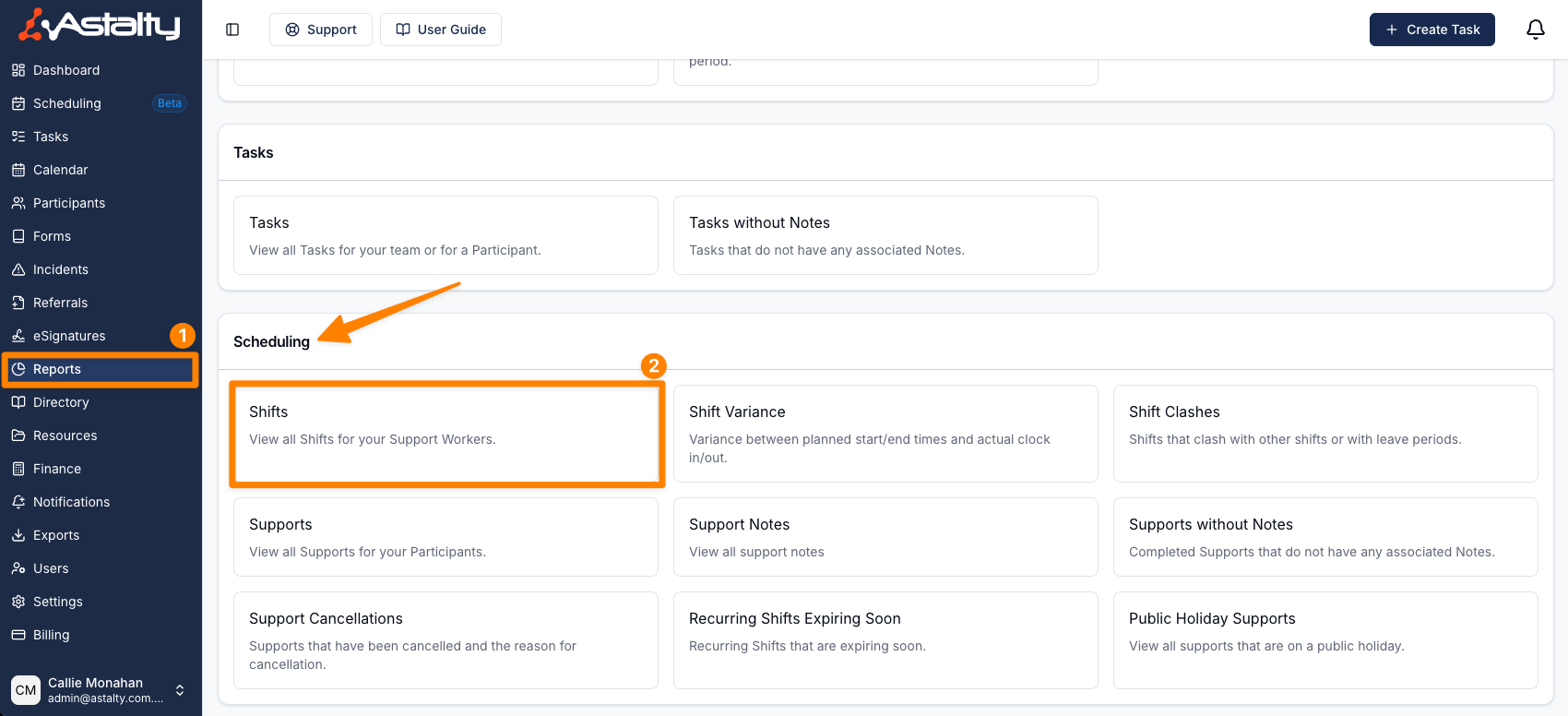
- From the left-hand side menu, click Reports.
- Scroll down to the Scheduling section.
- Select Shifts Report.
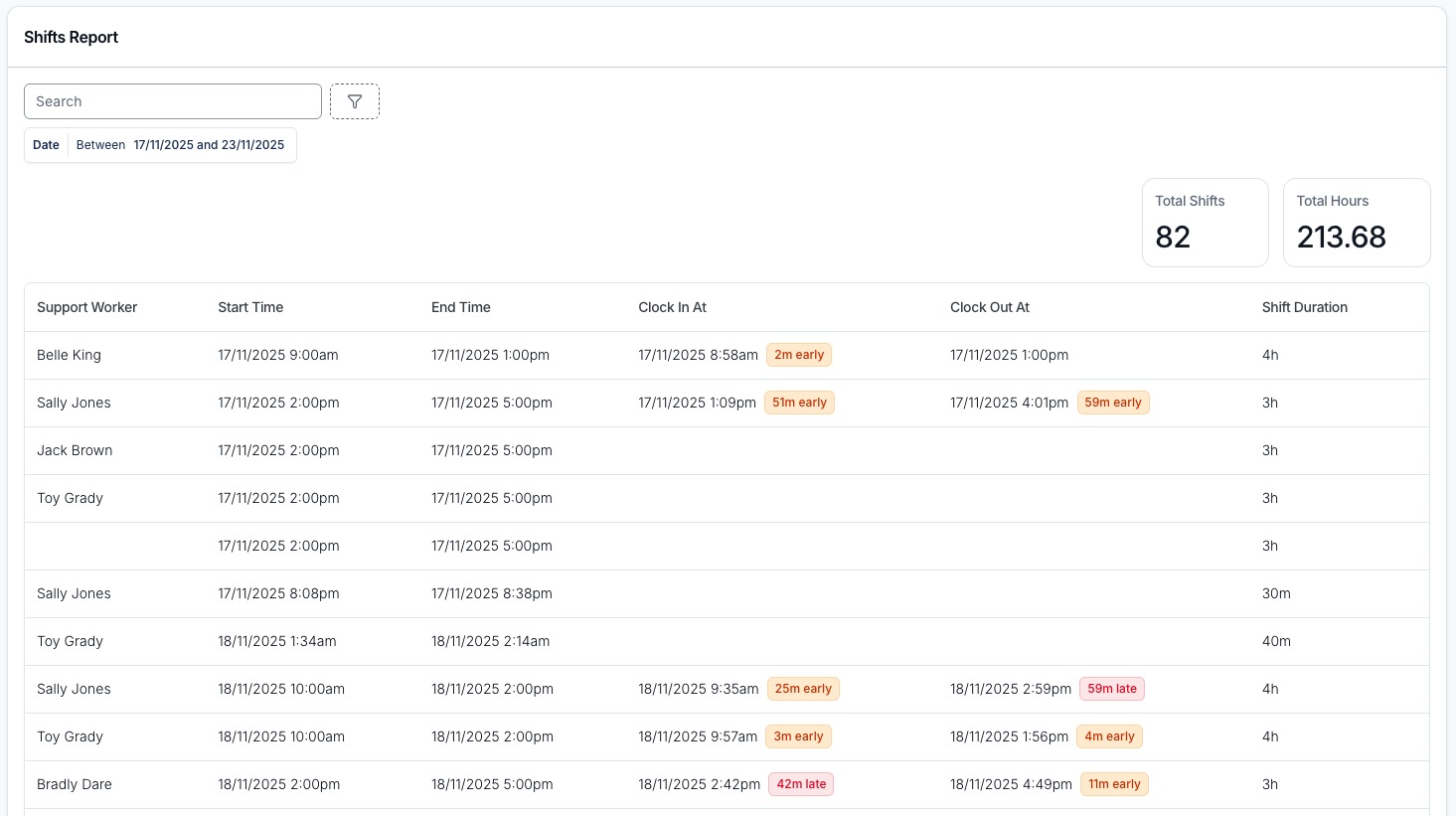
Three totals sit above the table, covering every shift that matches the filters:
- Total Shifts - the number of shifts.
- Total Hours - the scheduled hours of those shifts.
- Total Approved Hours - the approved hours, counting only shifts that have approved times.
The report displays key details for each shift, sorted by start time, earliest first:
- Support Worker - If a shift appears without a Support Worker in the report, it indicates that the shift has not yet been assigned.
- Start Time / End Time - the scheduled start and end.
- Clock In At - Shows a red late or amber early chip when the worker clocked in after or before the scheduled start.
- Clock Out At - Shows the same chips against the scheduled end.
- Shift Duration - the scheduled length. Duration format: h = hours, m = minutes.
- Approved Duration - the approved length, or a dash until the shift's hours are approved.
- Cost Code - shown when cost codes are turned on in your Scheduling Settings.
You can sort by any column except Support Worker and Cost Code. Select a row to open the shift.
You can refine the report with these filters:
- Date - matched against each shift's scheduled start. Defaults to the current week (Monday to Sunday) and includes the whole of the end date.
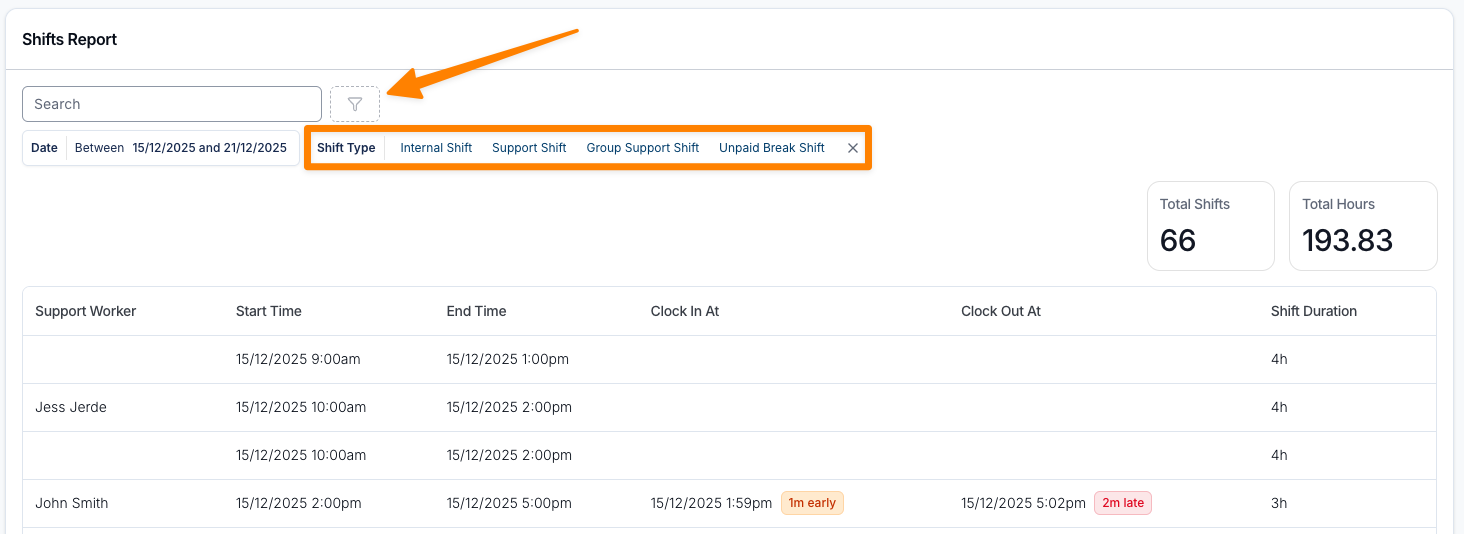
- Shift Type - Internal Shift, Support Shift, Group Support Shift or Unpaid Break Shift.
- Region - shown when Regions are turned on.
- Cost Code - shown when cost codes are turned on.
- Search - matches the Support Worker's name.