Pay Groups Report
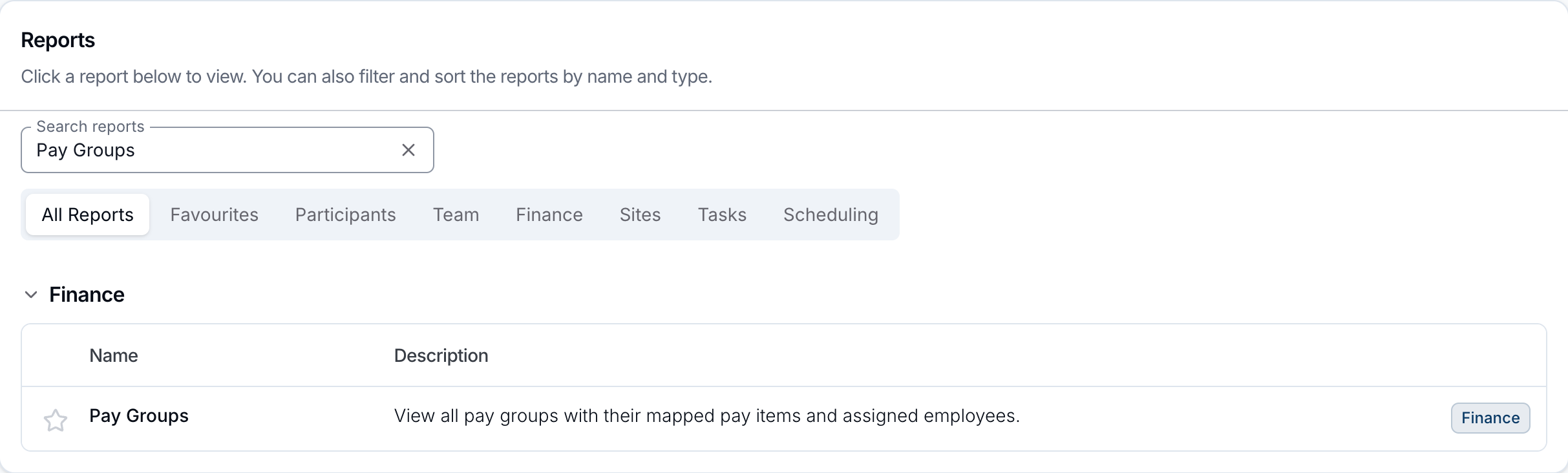
Open Reports > Finance > Pay Groups.
Report Overview
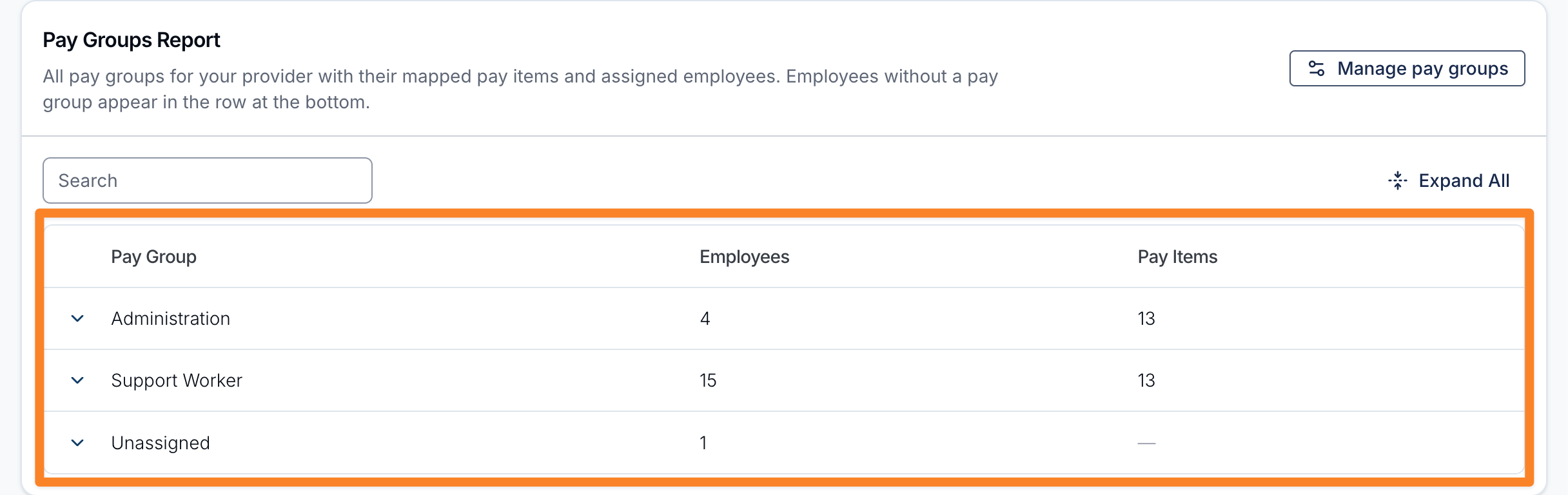
The Pay Groups report shows all pay groups for your provider, sorted by name, together with the pay items mapped to each group and the employees assigned to it. Any employees who aren't assigned to a pay group appear in an Unassigned row at the bottom, making it easy to spot who still needs to be set up.
Employees are users who are active or have been invited. Deactivated users aren't listed in any group or in the Unassigned row.
For how to create and configure pay groups, see Setup Pay Groups and Employees in Astalty.
Report columns
Each row is a pay group, with:
- Pay Group: the name of the pay group (or Unassigned for employees without one).
- Employees: how many employees are assigned to it.
- Pay Items: how many pay items are mapped to it (a dash where none apply, such as the Unassigned row).
Pay items come from the payroll platform chosen in your scheduling settings: Xero, MYOB, Employment Hero, PayCat or QuickBooks Payroll. With no payroll platform chosen, every group shows a dash under Pay Items.
Using the report
- Search: use the search box to find a pay group by its name, a mapped pay item, or an employee's name. Groups that match on a pay item or employee open automatically to show the matches.
- Expand a group: click the arrow on a row (or use Expand All / Collapse All) to see the pay group's mapped pay items and assigned employees.
- Manage pay groups: use the Manage pay groups button in the top-right to jump to the pay group settings and make changes.
Employee actions
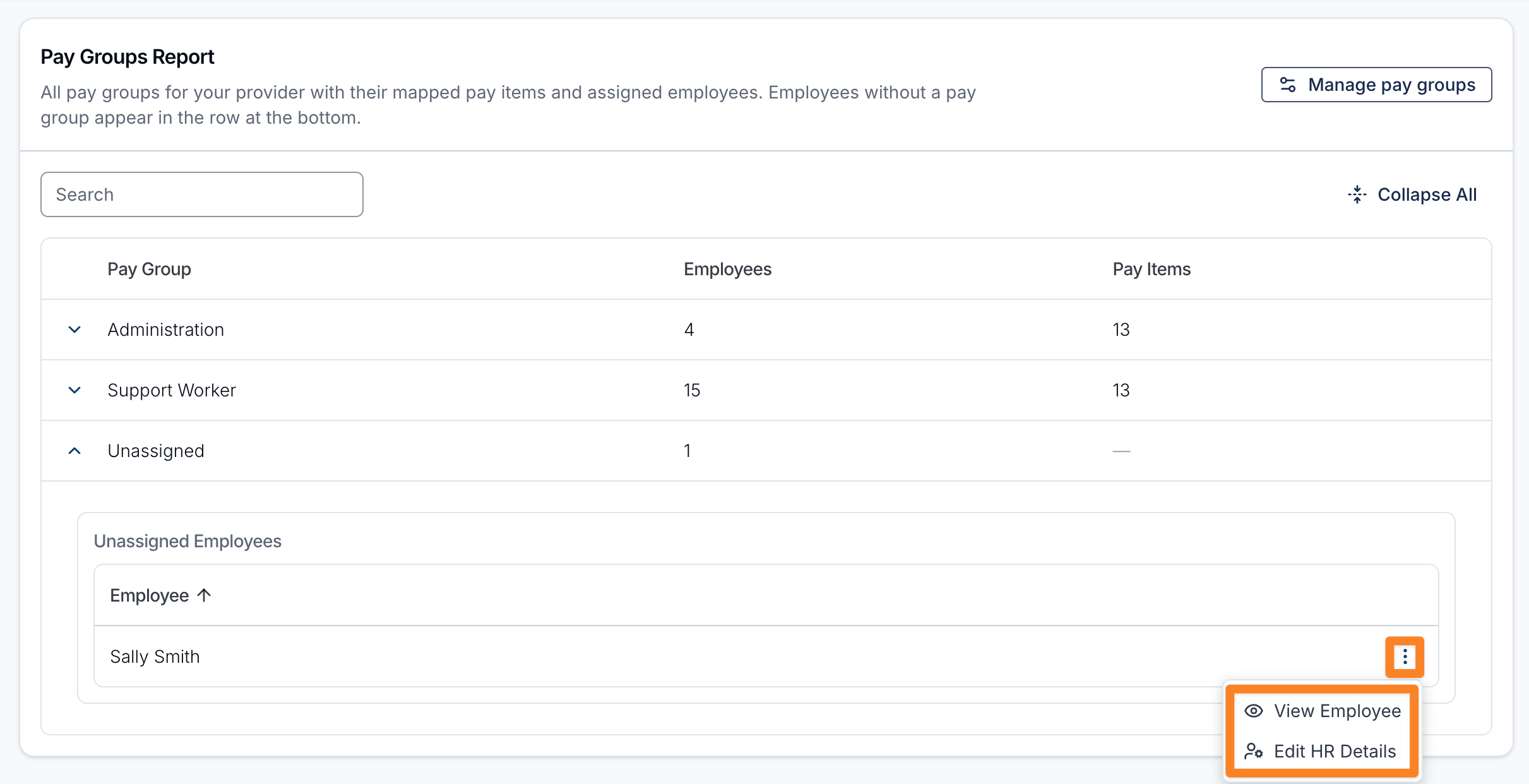
Expand a pay group to list its employees. Use the actions menu (three dots) next to an employee to:
- View Employee: open the employee's profile.
- Edit HR Details: update the employee's HR details without leaving the report.