- Insights
- Notifications
- Lapsed Qualification Notifications
Lapsed Qualification Notifications
Overview
A worker can be perfectly qualified when you build the roster, and no longer qualified by the time the shift comes around - their First Aid expires in the meantime.
Lapsed Qualification Notifications catch exactly that. A daily check looks ahead at upcoming shifts and alerts your team when a rostered worker no longer holds a required qualification, so the shift can be reassigned in time.
Finding the notification
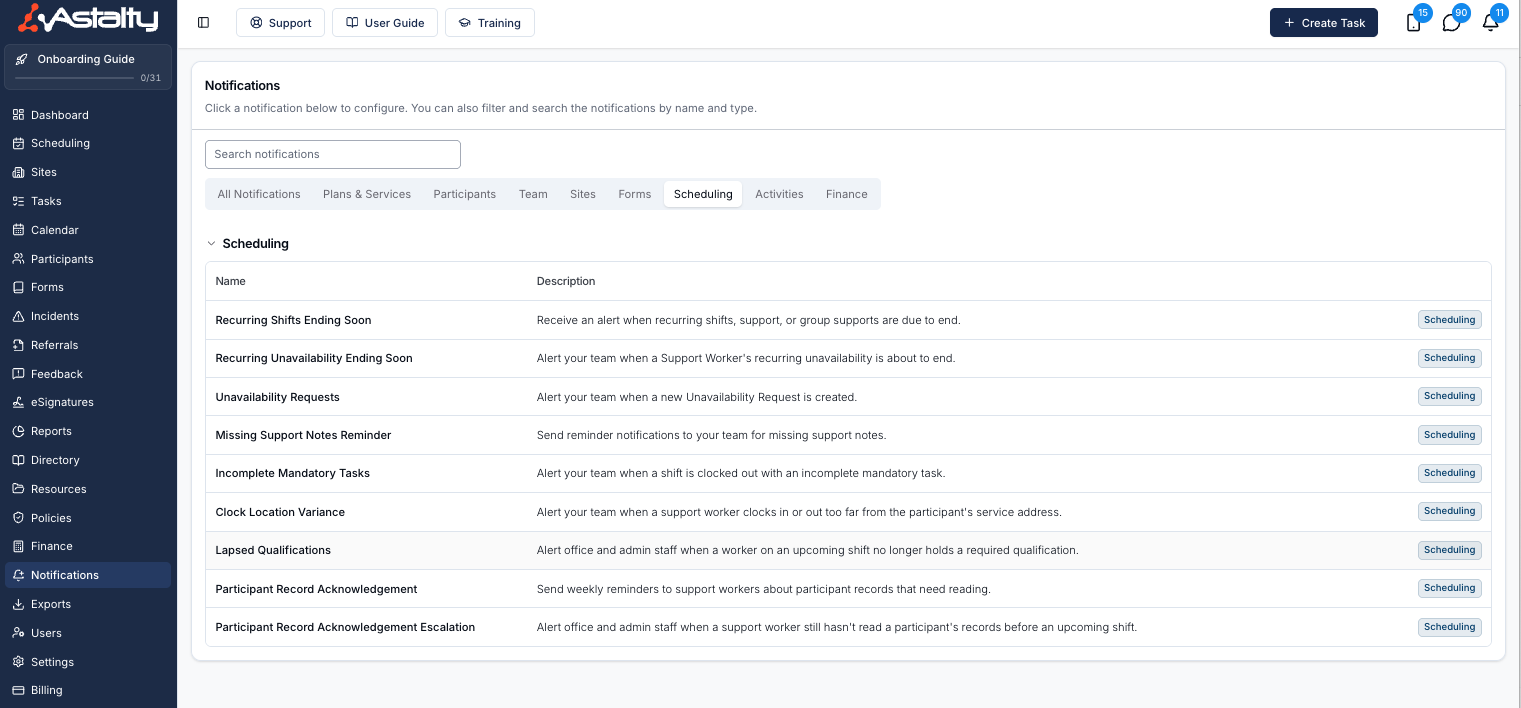
Head to the Notifications page in Astalty and click Lapsed Qualifications under the Scheduling group, or go straight to Lapsed Qualification Notifications. It appears when both Scheduling and Qualifications are turned on for your account. Only Admins can manage these notifications. This can't be changed per user.
Creating the notification
Click Create Notification and complete the drawer.
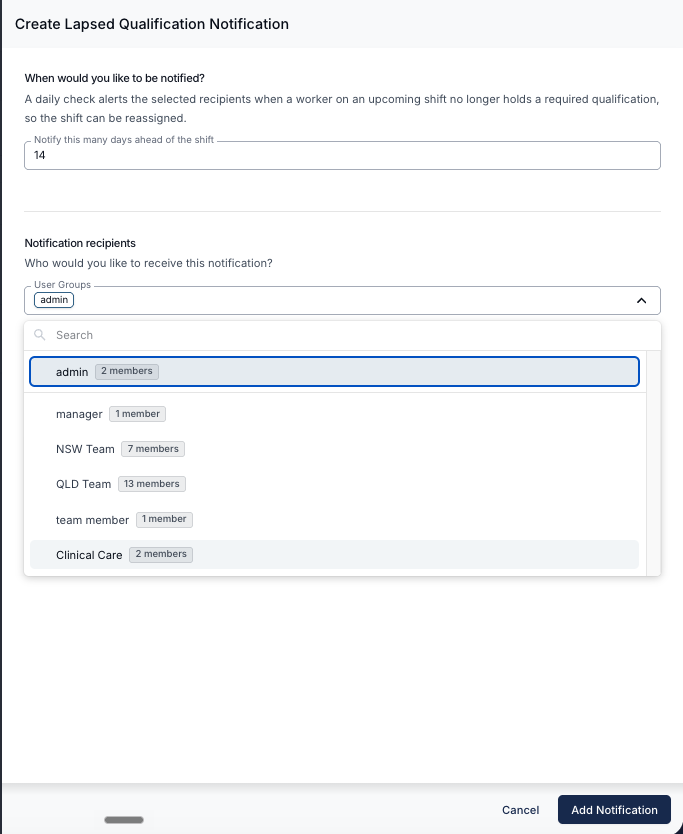
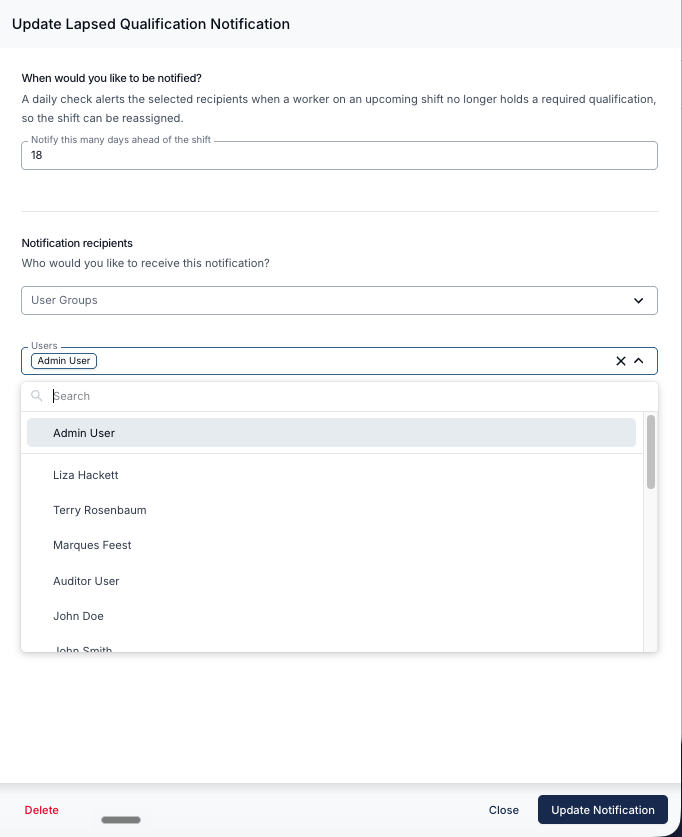
When would you like to be notified?
Set Notify this many days ahead of the shift - how far in advance you want the warning. It defaults to 7 days, and accepts anything from 1 to 90.
The section explains it as:
A daily check alerts the selected recipients when a worker on an upcoming shift no longer holds a required qualification, so the shift can be reassigned.
Notification recipients
Choose who gets told, using User Groups, Users, or both. You must select at least one recipient. The All Users and Support Worker groups aren't offered. Deactivated users are skipped.
Notification methods
Choose Within Astalty, Email, or both. Email is ticked by default and Within Astalty is not. You must select at least one method.
Click Add Notification to save.
What recipients see
Notifications are a digest - one message covering every affected worker, not one message per worker.
In Astalty, the notification is titled Lapsed Qualifications. By email, the subject is Lapsed qualifications on upcoming shifts. Both open with a summary:
3 support workers no longer hold a required qualification for upcoming shifts.
Then one line per worker:
Jane Citizen - First Aid and Manual Handling (3 shifts from 4 Aug 2026)
A View Schedule button takes recipients straight to the schedule to reassign the work.
Both Warn-level and Block-level requirements are included, and Participant-based requirements are included as well as role-based ones.
How the daily check works
The check runs once a day, at 9:15am AEST (Brisbane time).
Each time it runs, it looks at one single day - the day that falls exactly your chosen number of days ahead. With a 7-day lead time, a check running today looks only at shifts 7 days from now.
That's what stops you being alerted about the same shift over and over: each shift passes through the window on exactly one day, so in normal use you get one alert per shift, per notification.
There are two other gaps worth knowing about:
- A day the check doesn't run is never revisited. If the check misses a day, the shifts that fell in that day's window aren't picked up later.
- A record that lapses too late produces no alert. If a worker's record expires after their shift's window day has already passed, that shift won't generate an alert.
Neither replaces the Qualifications Compliance Report as a periodic check.
Who's included
The check covers assigned shifts, excluding unpaid breaks and cancelled supports. Any worker who isn't deactivated is in scope.
Managing notifications
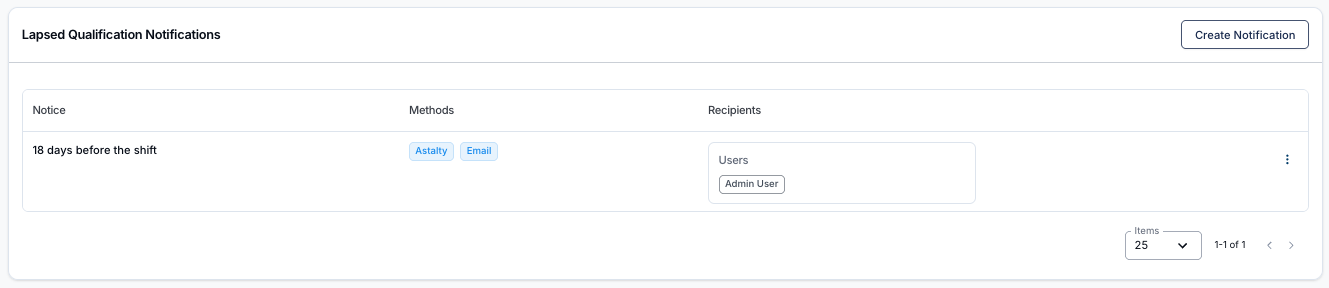
The list shows each notification's Notice (how many days ahead), Delivery and Recipients. Use the row menu to Edit, Clone or Delete a notification. Cloning is handy for creating a second warning at a different lead time.
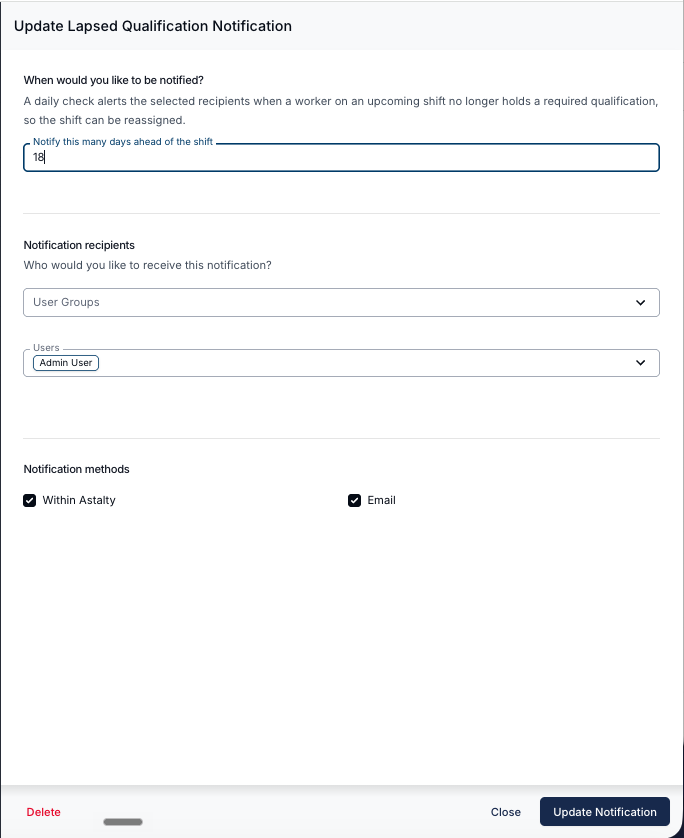
Edit reopens the same fields, so you can change the lead time, add or remove recipients, or switch the notification methods. Delete at the bottom left of the drawer removes the notification altogether.
You can create as many as you like. For example, one at 14 days for planning and another at 3 days as a final check.
Related guides
- Required Qualifications in Settings - set up which records are required for rostering.
- Qualification Checks When Rostering - what schedulers see at the time they roster.
- User Record Notification - alerts on record expiry generally, not just those required for rostering.