Funding Period Date Notifications
Overview
The Funding Period Date notification alerts your team before, on, or after the day a Participant's funding period starts - so coordinators get a nudge to review the budget and resume billing at the right time.
You create rules that fire relative to the funding period start date, scope them to the Support Categories that matter, choose exactly who is notified, and decide whether recipients hear about it inside Astalty, by email, or both.
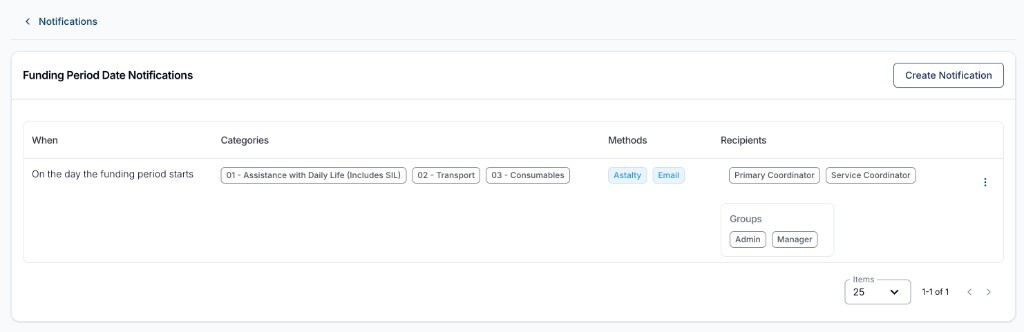
Before you start
- Only Admins can manage these notifications. This can't be changed per user.
- The rule is anchored to the funding period start date on a Participant's plan Services, so it only applies to Participants whose plans have funding periods set up.
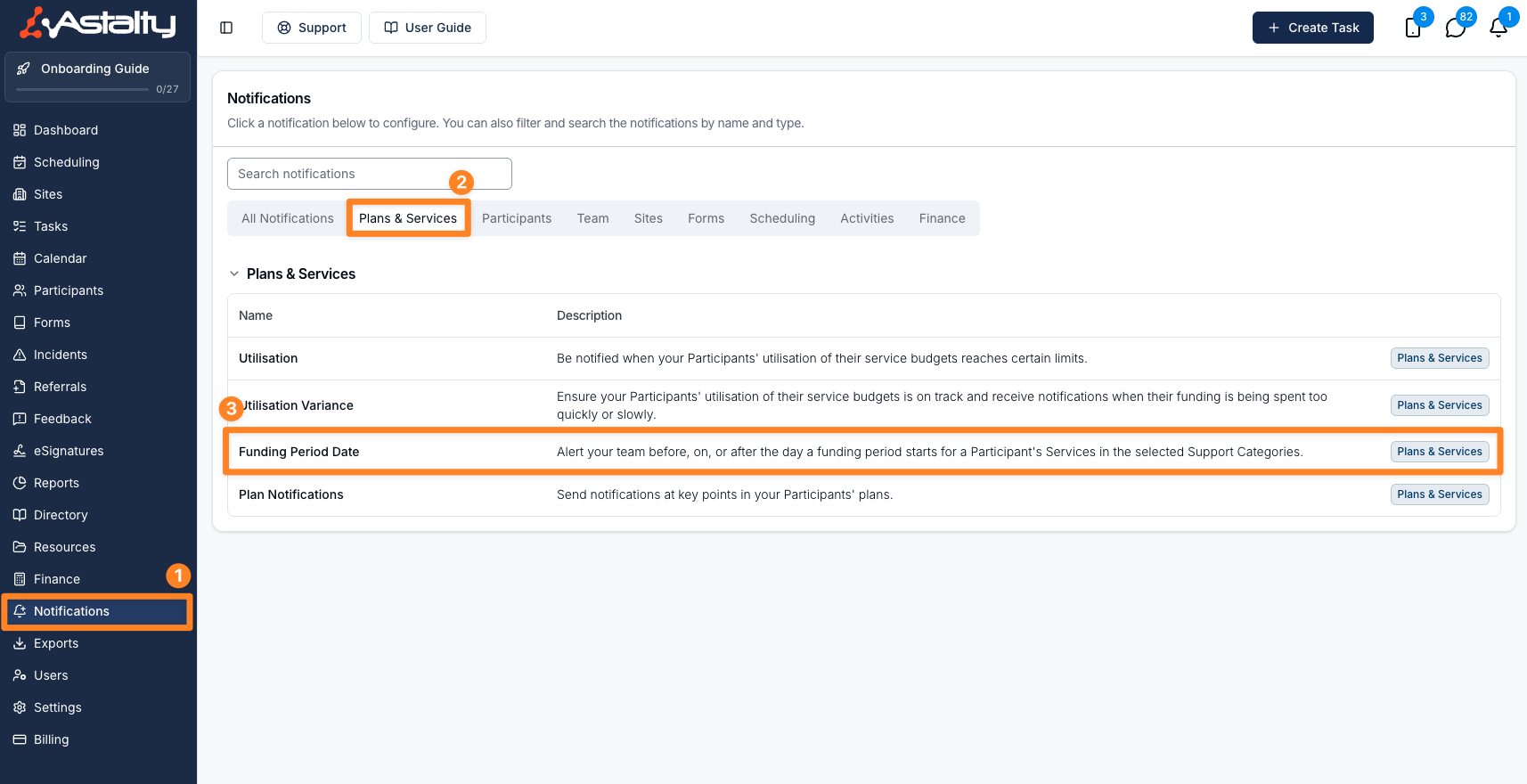
Where to find it
- From the left-hand menu, select Notifications.
- Under the Plans & Services group, select Funding Period Date.
Creating the notification
On the Funding Period Date Notifications page, click Create Notification and complete the form.
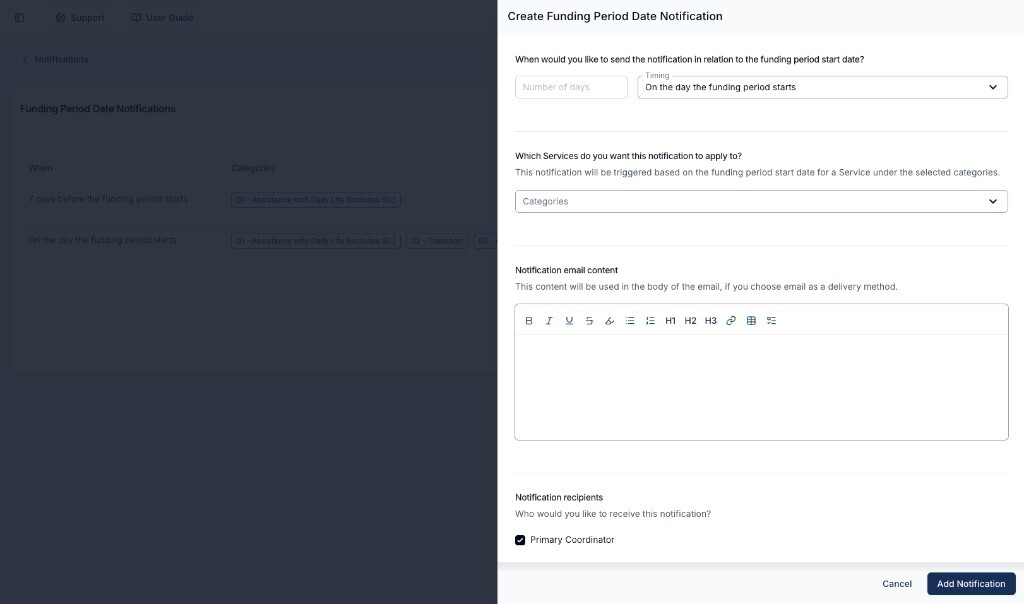
When would you like to send the notification?
Choose when the alert is sent in relation to the funding period start date:
- Before the funding period starts - enter a Number of days to send that many days ahead (for example,
7sends a week before the funding period begins). - On the day the funding period starts - sent on the start date itself. The number of days doesn't apply and is disabled. This is the default.
- After the funding period starts - enter a Number of days to send that many days after the start date.
The Number of days can be from 1 to 365.
Which Services do you want this notification to apply to?
Select at least one of the Categories this notification applies to. The rule is triggered based on the funding period start date for a Service under the selected Support Categories, so you can target only the categories where resuming billing matters (for example, 01 - Assistance with Daily Life or 03 - Consumables).
Notification email content
Optionally add content for the body of the email. This appears in the email - beneath the standard heading and message - when Email is selected as a delivery method. It's a good place to add a reminder such as "Review the budget and resume billing for this Participant."
Notification recipients
Choose who should receive the notification. You must select at least one recipient.
- Primary Coordinator - notify the Participant's Primary Coordinator. Ticked by default.
- Service Coordinator - notify the Service Coordinator of each Service whose funding period triggered the alert. Coordinators of the Participant's other Services aren't included. Ticked by default.
- User Groups - notify everyone in the selected User Groups. The All Users and Support Worker groups aren't offered.
- Users - notify specific users directly.
Notification methods
Choose how recipients are notified. You must select at least one method.
- Within Astalty - recipients are notified inside Astalty. Ticked by default.
- Email - recipients are notified by email. Ticked by default.
Once you're done, click Add Notification.
What recipients receive
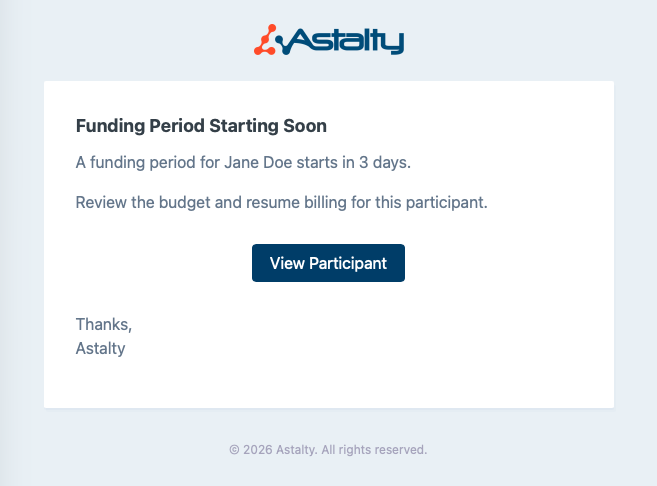
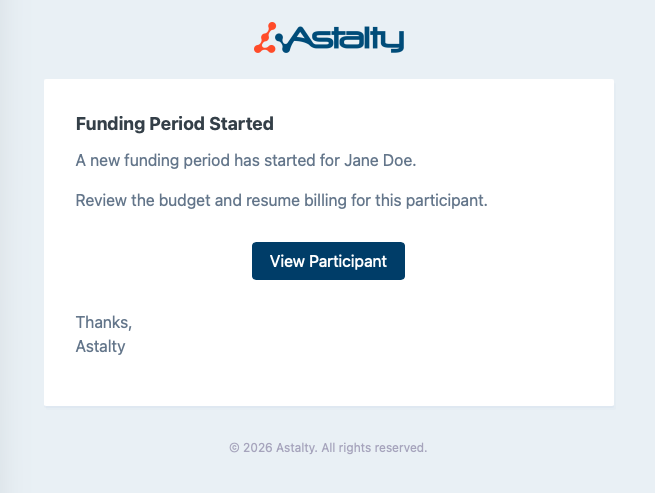
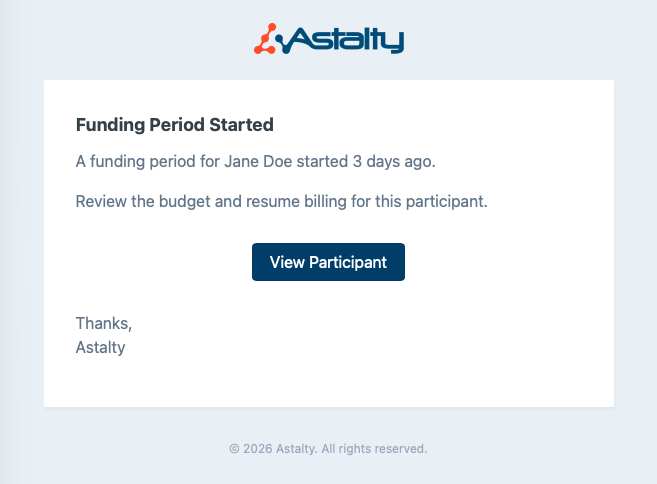
When a rule fires, recipients get a notification that names the Participant and links to their profile. The email has a View Participant button, and the email subject is the heading below. The heading and wording depend on the timing you chose:
- Before - Funding Period Starting Soon: A funding period for Jane Doe starts in 7 days.
- On - Funding Period Started: A new funding period has started for Jane Doe.
- After - Funding Period Started: A funding period for Jane Doe started 3 days ago.
The in-app notification uses the Participant's first name.
Any content you entered under Notification email content appears between the message and the View Participant button.
Managing the notification
Use the actions menu on a notification to:
- Edit - change its timing, categories, recipients, or delivery methods, then click Update Notification.
- Clone - use an existing notification as the starting point for a new one. This is handy when you want the same timing for a different set of categories or recipients.
- Delete - remove a notification you no longer need. Delete is also in the Edit view.
You can create multiple notifications with different timings - for example, a reminder 7 days before the funding period starts and another on the day it starts.
Things to keep in mind
- The alert is anchored to the funding period start date, so it only fires for Participants whose plan Services have funding periods in the selected Support Categories.
- Astalty checks once a day at 9am Brisbane time (AEST), so a rule fires on the day it becomes due rather than at a time you choose.
- Selected recipients get one notification per Participant per rule per day, even when several of that Participant's Services have a funding period starting that day.
- Archived Participants are excluded, and deactivated users are skipped.
- To monitor how funds are being spent within a period, pair this with Utilisation Notifications and Utilisation Variance Notifications.