Clock Location Variance Notifications
Overview
The Clock Location Variance notification alerts your team the moment a Support Worker clocks in or out too far from the Participant's expected service address.
Astalty checks each clock in and clock out as it happens. If the distance between where the event was recorded and the Participant's service address is greater than the threshold you set, the selected recipients are notified.
Only Admins can manage these notifications. This can't be changed per user.
This makes it a proactive companion to the Clock Location Variance Report - rather than reviewing variances after the fact, your team can be alerted as they happen. To block clocking in or out entirely rather than being alerted afterwards, see Clock In/Out Radius.
Before you start
For this notification to work, a few things need to be in place:
- The clock event needs a location captured from the Support Worker's device. A clock in or out with no location is skipped, and so is one recorded on a worker's behalf from the web app. Turn on Require Location Data so every clock event in the app captures one.
- The shift's support needs a valid service address with location coordinates. For a group support shift, Astalty uses the group support's address when the support itself has none.
Where to find it
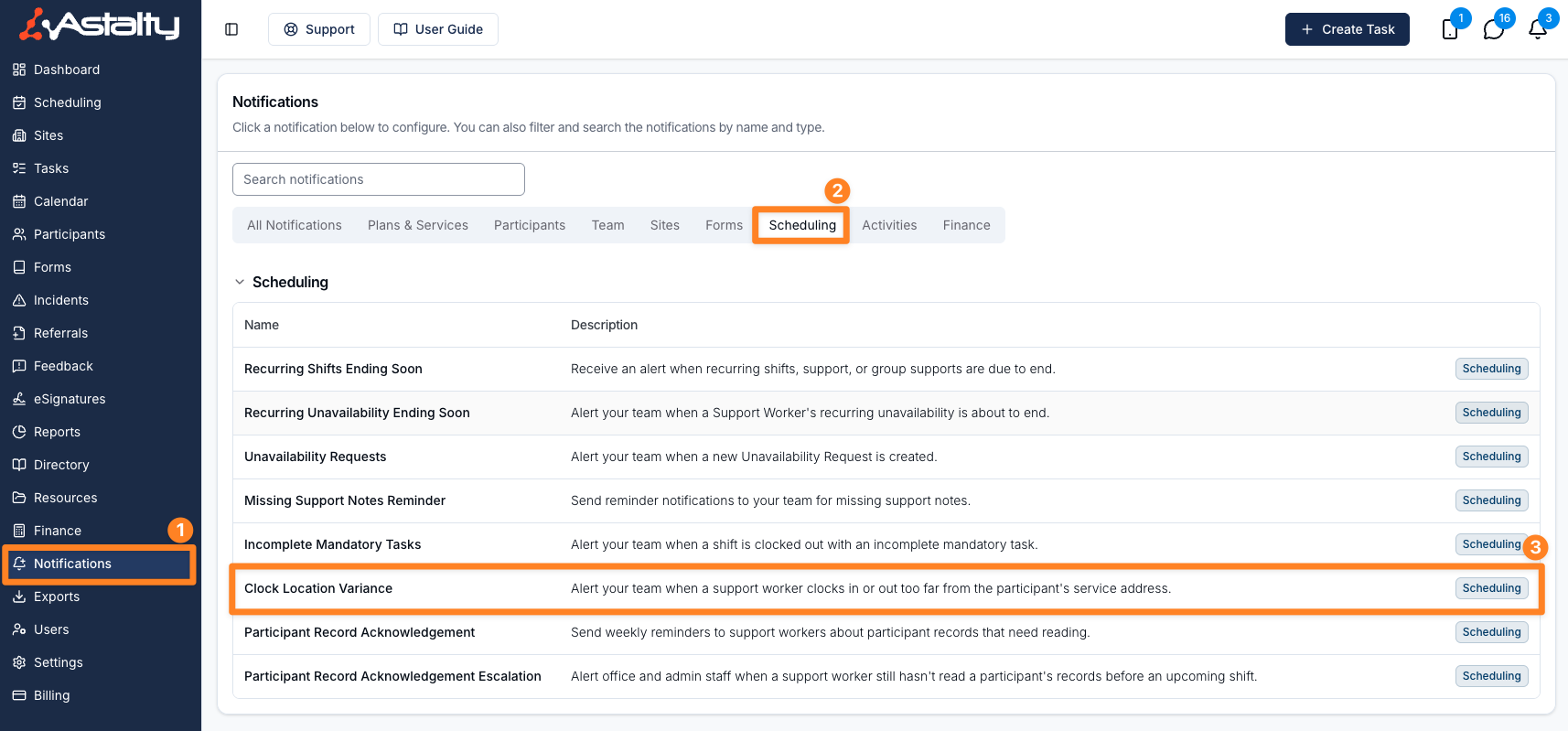
- From the left-hand menu, select Notifications.
- Under the Scheduling group, select Clock Location Variance. You can also type
clockinto Search notifications.
Creating the notification
On the Clock Location Variance page, click Create Notification and complete the form.
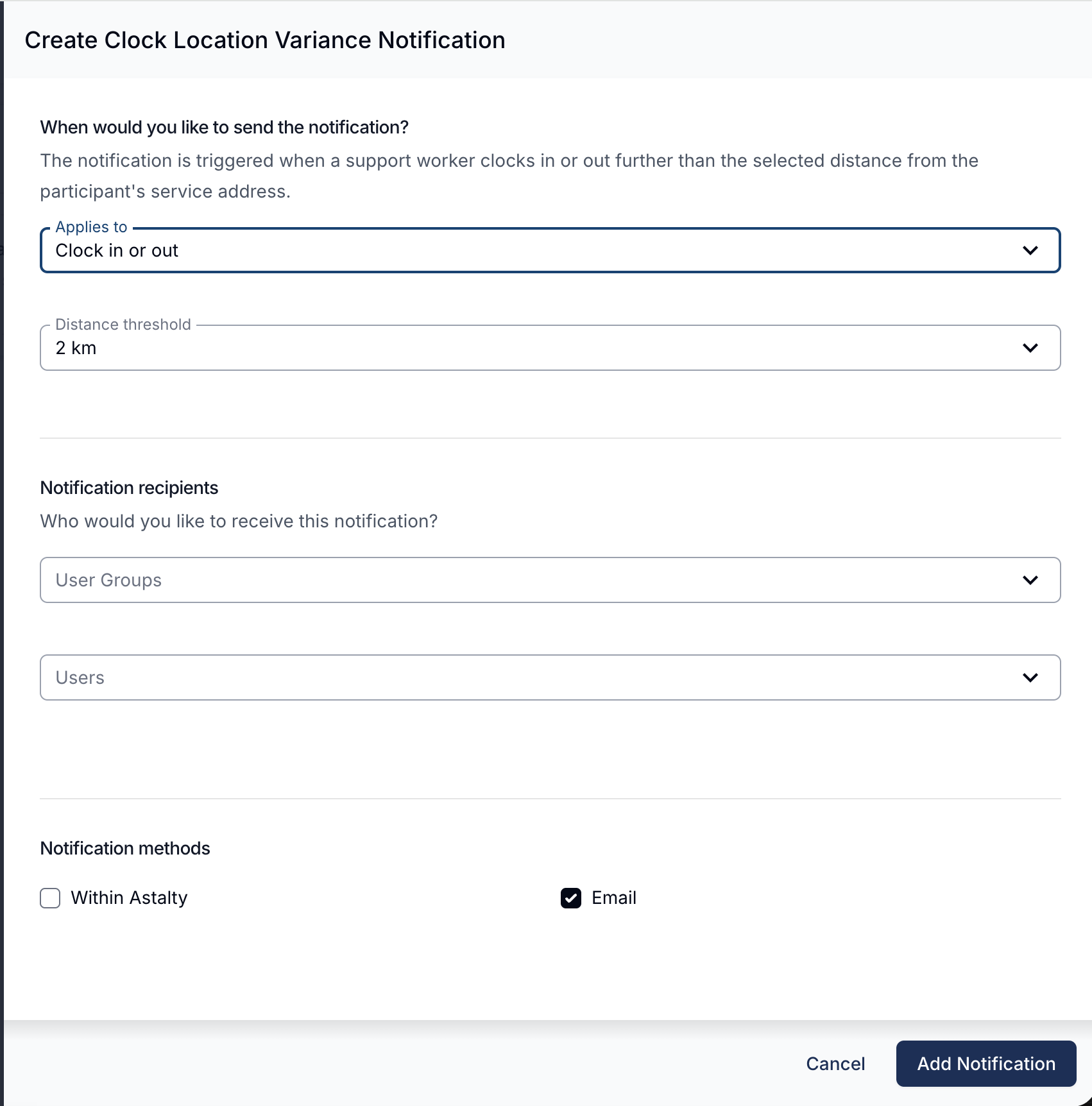
When would you like to send the notification?
- Applies to - choose which clock events are monitored:
- Clock in or out (default)
- Clock in only
- Clock out only
- Distance threshold - the minimum variance that triggers the notification. Choose from 1 km, 2 km, 3 km, 5 km, or 10 km (defaults to 2 km). Only events recorded further than this distance from the service address are notified.
Notification recipients
Choose who should receive the notification. You must select at least one recipient.
- User Groups - notify everyone in the selected User Groups. The All Users and Support Worker groups aren't offered.
- Users - notify specific users directly.
Notification methods
Choose how recipients are notified. You must select at least one method.
- Within Astalty - recipients are notified inside Astalty. Not ticked by default.
- Email - recipients are notified by email. Ticked by default.
Once you're done, click Add Notification.
Managing the notification
You can create multiple notifications with different thresholds, event types, and recipients - for example, one alert at 2 km for a compliance team and another at 10 km for senior managers.
Use the actions menu on a notification to Edit, Clone or Delete it. The list shows each notification's Applies to, Distance, Delivery and Recipients.
Things to keep in mind
- Clock In and Clock Out events are assessed separately, so the same shift may or may not trigger a notification for each event.
- If a clock event has no captured location, or the shift's support has no valid service address, no notification is sent.
- Automatic clock ins and outs, such as the start or end of an unpaid break, carry no location and are never checked.
- Deactivated users are skipped, even if they are in a selected group.
- For a full history of variances across your team, use the Clock Location Variance Report.