User Unavailability Report
Open Reports > Team > User Unavailability.
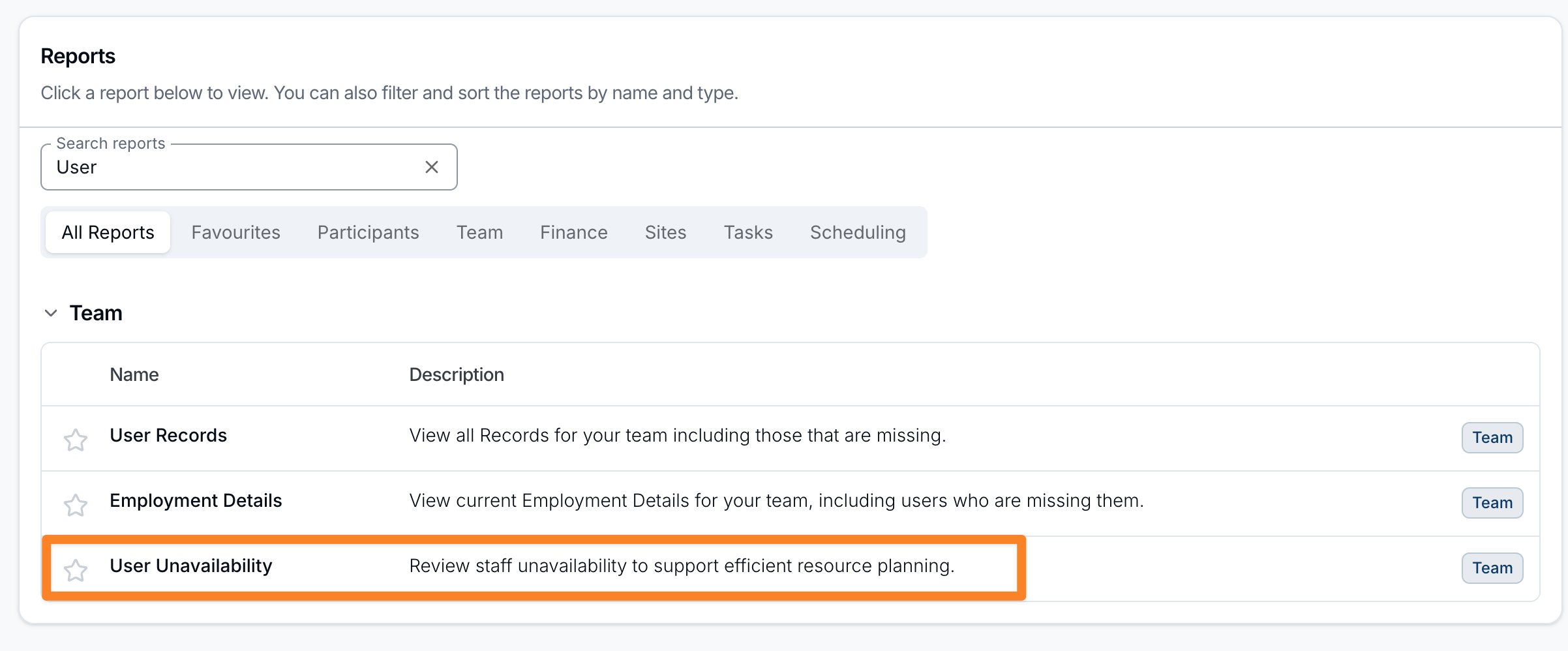
Report Overview
The User Unavailability report shows your team's recorded unavailability and leave on a calendar, with each staff member listed down the side. It gives schedulers a single view of who is away and when, so shifts can be planned around leave and other commitments.
The calendar lists staff with Can be Scheduled for Supports turned on, including invited users. Restricted and deactivated users are left out.
For how staff record and manage their availability in the first place, see Managing Availability.
Navigating the calendar
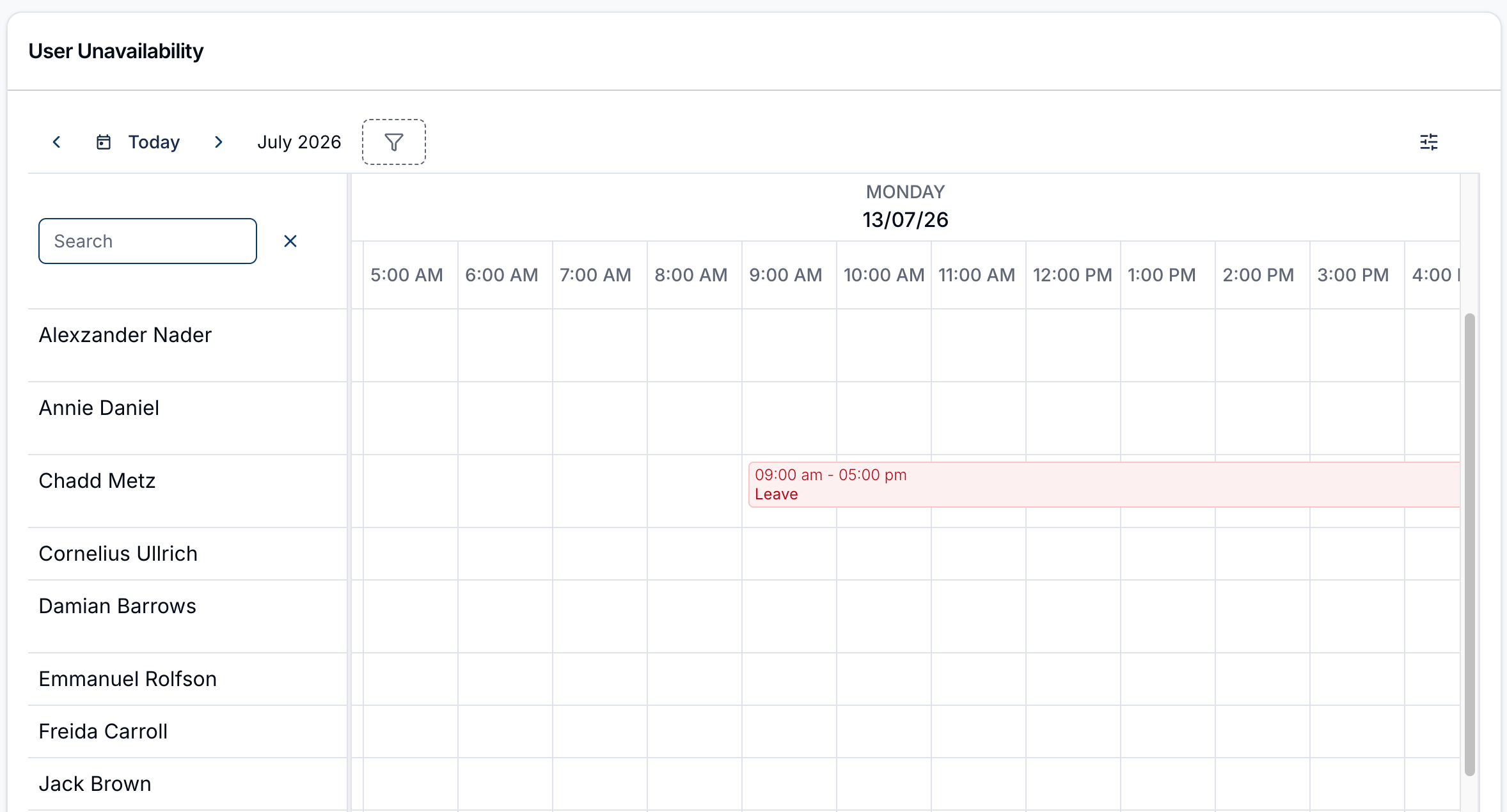
- Staff list & search - each staff member appears as a row on the left, sorted by name. Use the Search box above the list to find a particular person.
- Date navigation - use the ‹ and › arrows to move back or forward a period, and Today to jump back to the current date. In Week view, the month and year you're viewing show beside the arrows, and weeks start on Monday. In Day view, a date picker there lets you jump to any date.
- Events - blocks show when a staff member is away, covering both Leave and Unavailability, with the time range labelled on each block. Hover over a block for its type, times, leave type, how it repeats and its status.
Requests show whatever their status, so check the status before planning around one:
| Status | How it shows |
|---|---|
| Approved | A red block labelled with its type, such as Leave. |
| Pending | An orange block, labelled for example Leave (Pending). |
| Declined or Cancelled | A grey dashed block, labelled for example Leave (Declined) or Unavailability (Cancelled). |
View options
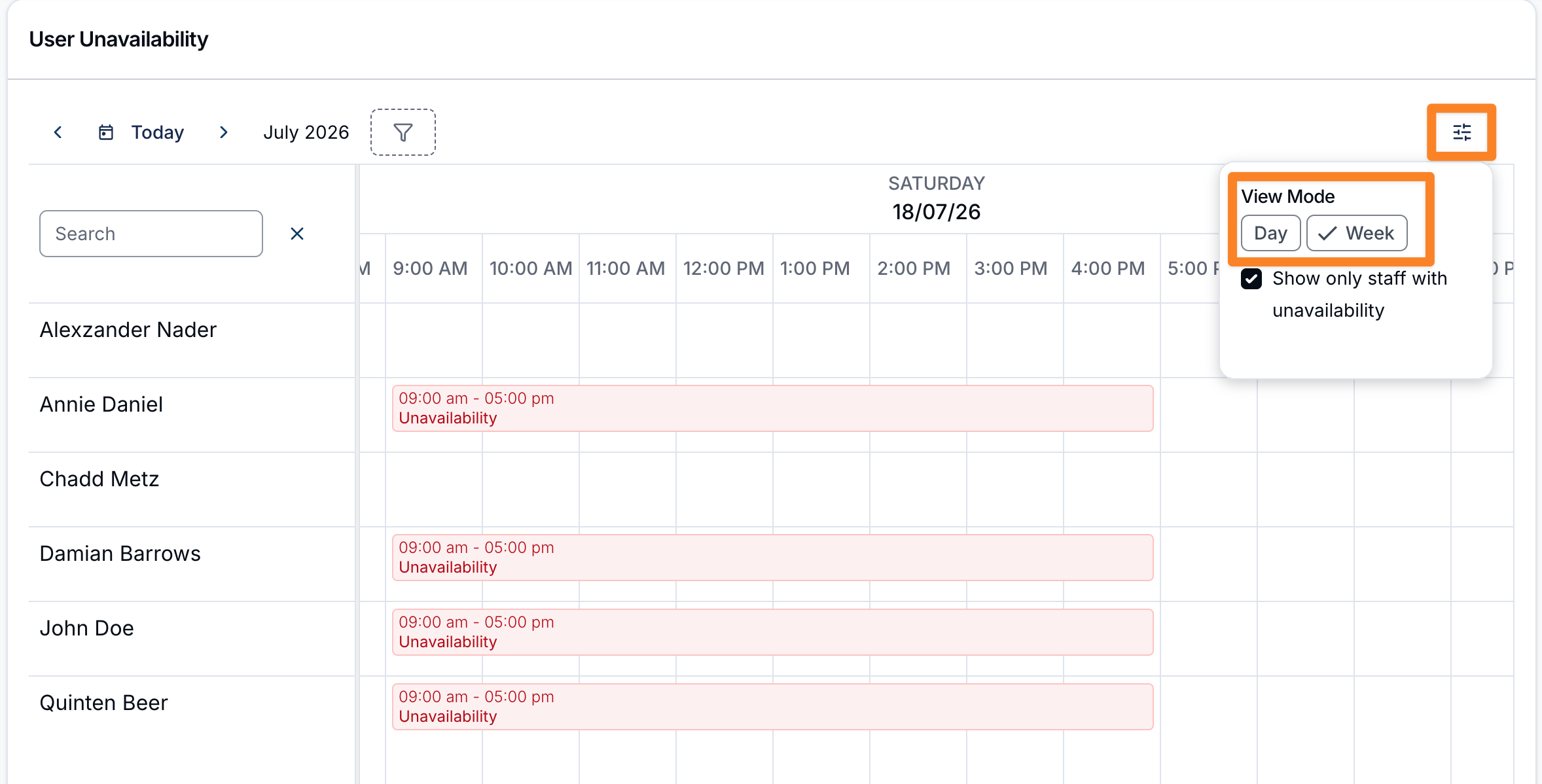
Use the settings (sliders) icon in the top-right to change how the calendar displays:
- View Mode - switch between Day and Week (the report opens in Week view by default).
- Show only staff with unavailability - hide everyone who has no entries in the current period, so the calendar only lists the staff you need to plan around. Entries of any status count, so a staff member whose only entry is a declined request stays listed.
Both options are remembered in your browser.
Filtering
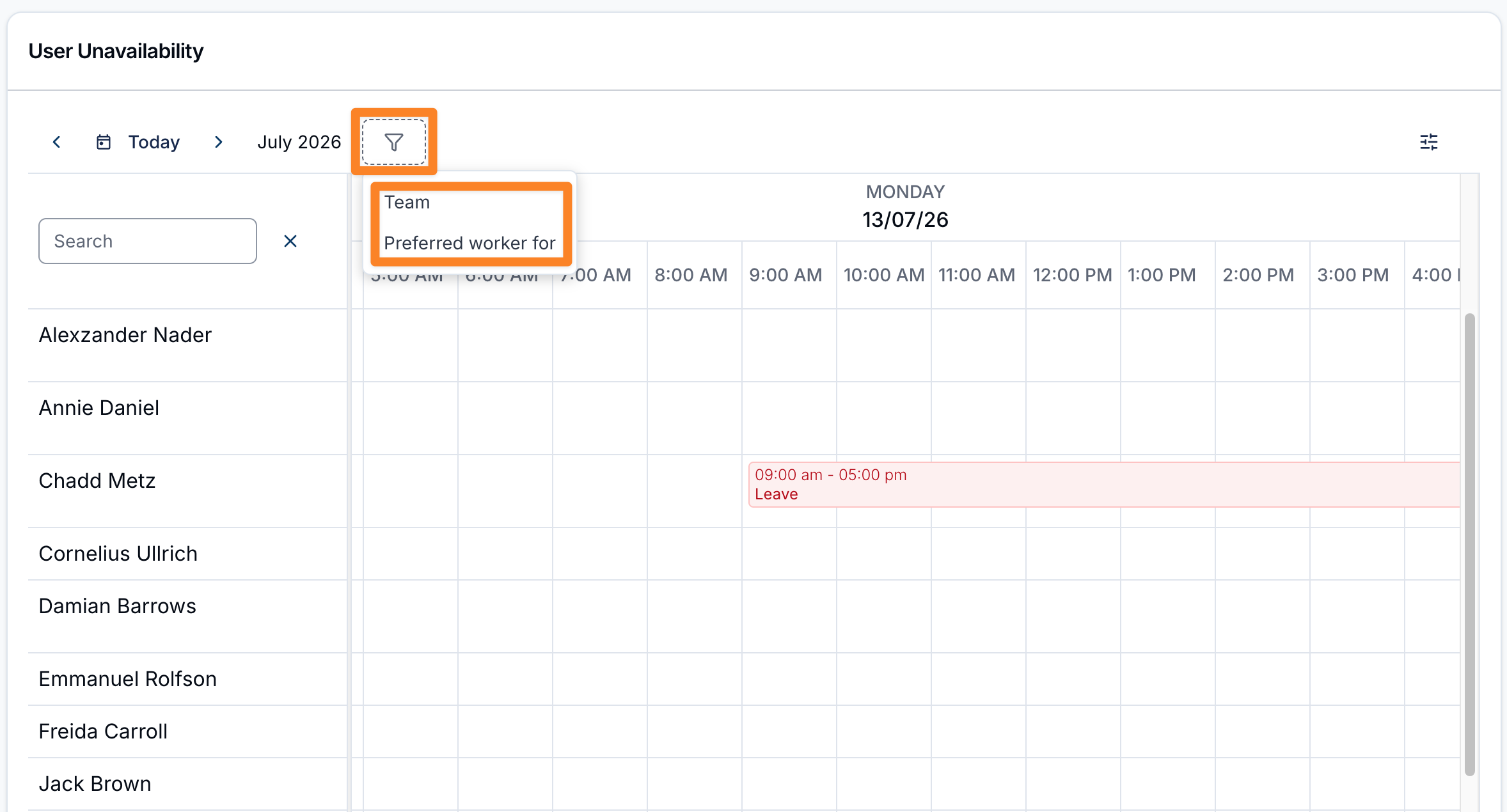
Use the filter (funnel) icon to narrow which staff appear:
- Team - show only staff in one or more selected teams. It appears when the Teams feature is enabled.
- Preferred worker for - show only staff who are a preferred worker for one or more selected Participants.
Your filter selections are remembered in your browser.