- Insights
- Aged Receivables Report
Aged Receivables Report
Open Reports > Finance > Aged Receivables. You need Finance access.
Report Overview
The Aged Receivables Report shows what was still owed to you as at a particular date - for example, what was outstanding at the end of last quarter - along with who owes it and how overdue it is. It's built around NDIS funding types (NDIA, Plan and Self managed), and is similar in concept to Xero's Aged Receivables Summary.
It helps answer questions like:
- How much was outstanding as at 31 March, and who from?
- Of what's owing, how much is recent versus badly overdue?
- How much is owed by the NDIA versus Plan Managers versus Participants directly?
Unlike the live invoice and charge views, this report reflects a point in time, so you can review the true historical position rather than what's owing right now.
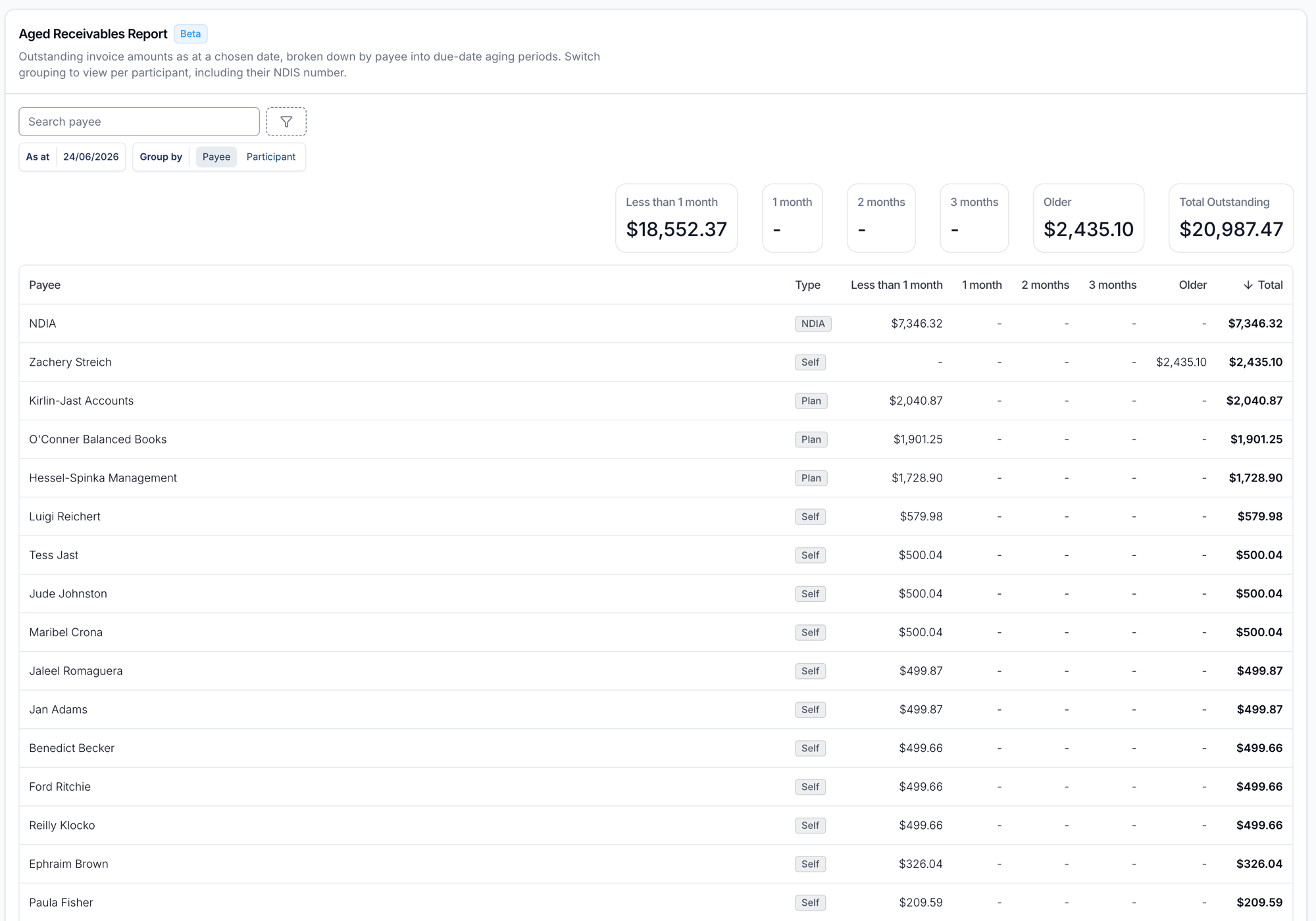
The "As at" date
The As at date controls the point in time the report is calculated for. It defaults to today, and can't be set to a future date (receivables can't exist in the future).
Outstanding amounts are shown as they stood on the chosen date, so any payments received after that date are ignored. This means you see what was genuinely outstanding on the as-at date, not what has since been paid down.
Which invoices are included
An invoice is included when, at the end of the As at date:
- its invoice date is on or before the As at date
- it hadn't been voided. An invoice voided after the As at date still appears, because it was owed on that date.
- it wasn't fully paid. Only payments dated on or before the As at date count, and NDIA payment lines that came back with an error don't count as paid.
The outstanding amount is the invoice total less those payments. Invoice totals include GST on any Charge Item that attracts GST.
Aging periods
Each outstanding amount is bucketed by how many days past its due date it was on the as-at date. The invoice date isn't used for ageing. An invoice that wasn't yet due counts in Less than 1 month. Totals for each period, and a Total Outstanding, show above the table:
- Less than 1 month - not yet due, or up to 30 days overdue
- 1 month - 31 to 60 days overdue
- 2 months - 61 to 90 days overdue
- 3 months - 91 to 120 days overdue
- Older - more than 120 days overdue
Grouping
Use the Group by toggle to switch between viewing the report by payee or by Participant.
Group by Payee
This is the default view. There's one row per who actually owes the money:
- The Plan Manager for plan-managed invoices
- The Participant for self-managed invoices
- A single NDIA row for all agency-managed invoices
Group by Participant
There's one row per Participant, showing their NDIS number. A Participant with more than one funding type appears once per type, because those amounts are owed by different payers and shouldn't be combined.
Use Payee grouping to see who you need to chase for payment, and Participant grouping when you need to see outstanding amounts against individual Participants.
Seeing the invoices behind a total
Every payee or Participant row can be expanded to reveal the individual outstanding invoices that make up its total. Click the arrow at the start of a row to show its Outstanding invoices, then click it again to collapse.
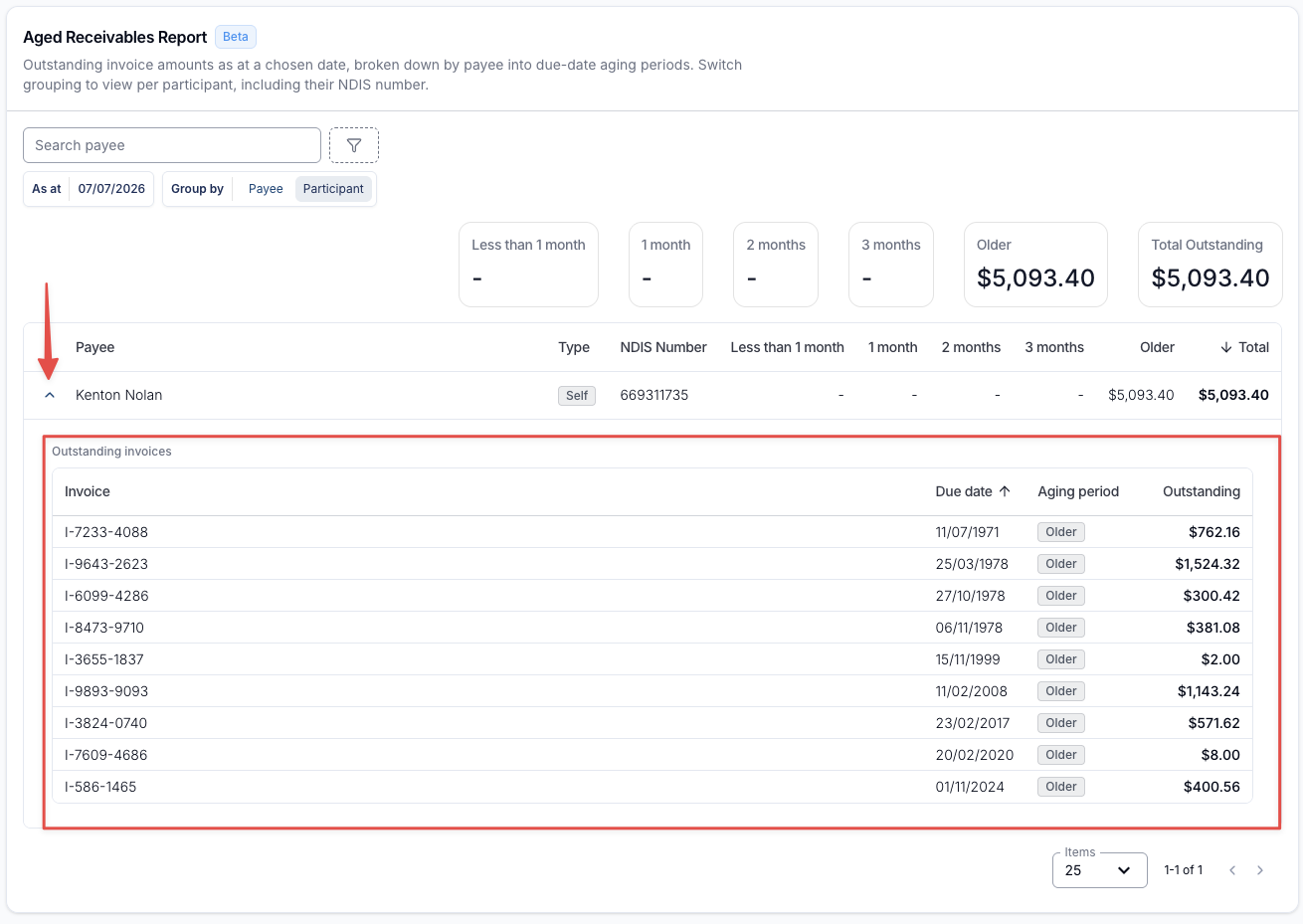
Each invoice line shows:
- Invoice - the invoice reference
- Due date - when the invoice was due
- Aging period - which aging bucket it falls into, matching the period columns across the top of the report
- Outstanding - how much is still owed on that invoice
Like the totals, these amounts reflect the as-at date, so any payments received after that date are ignored.
Click any invoice in the list to open it in the invoice viewer. From there you can review the invoice and resend it with Send to chase payment.
The Type column
Every row is tagged NDIA, Plan or Self, so you do not need to infer the funding type from the payee name.
Search & filters
As at (default today) and Group by (default Payee) are always shown. You can also:
- Search by Participant name, NDIS number or Plan Manager name.
- Filter by Management Type: NDIA, Plan or Self Managed.
- Filter by one or more specific Participants.
- Filter by Primary Coordinator or Service Coordinator. These narrow the report to invoices for Participants with that Primary Coordinator, or with that Service Coordinator on a service in their current Plan.
Rows are sorted by Total, highest first. Click the Payee, Primary Coordinator or Total heading to sort by that column instead.
Exporting to CSV
Export CSV downloads every row matching the report's current As at date, grouping and filters - not just what's on screen - as a CSV. Exporting needs the Exports module on your account, and by default only Admins can export.
- Set the As at date, Group by mode, and any filters the export should cover.
- Click Export CSV, then Create export.
- Download the file from the Exports page once it's ready.
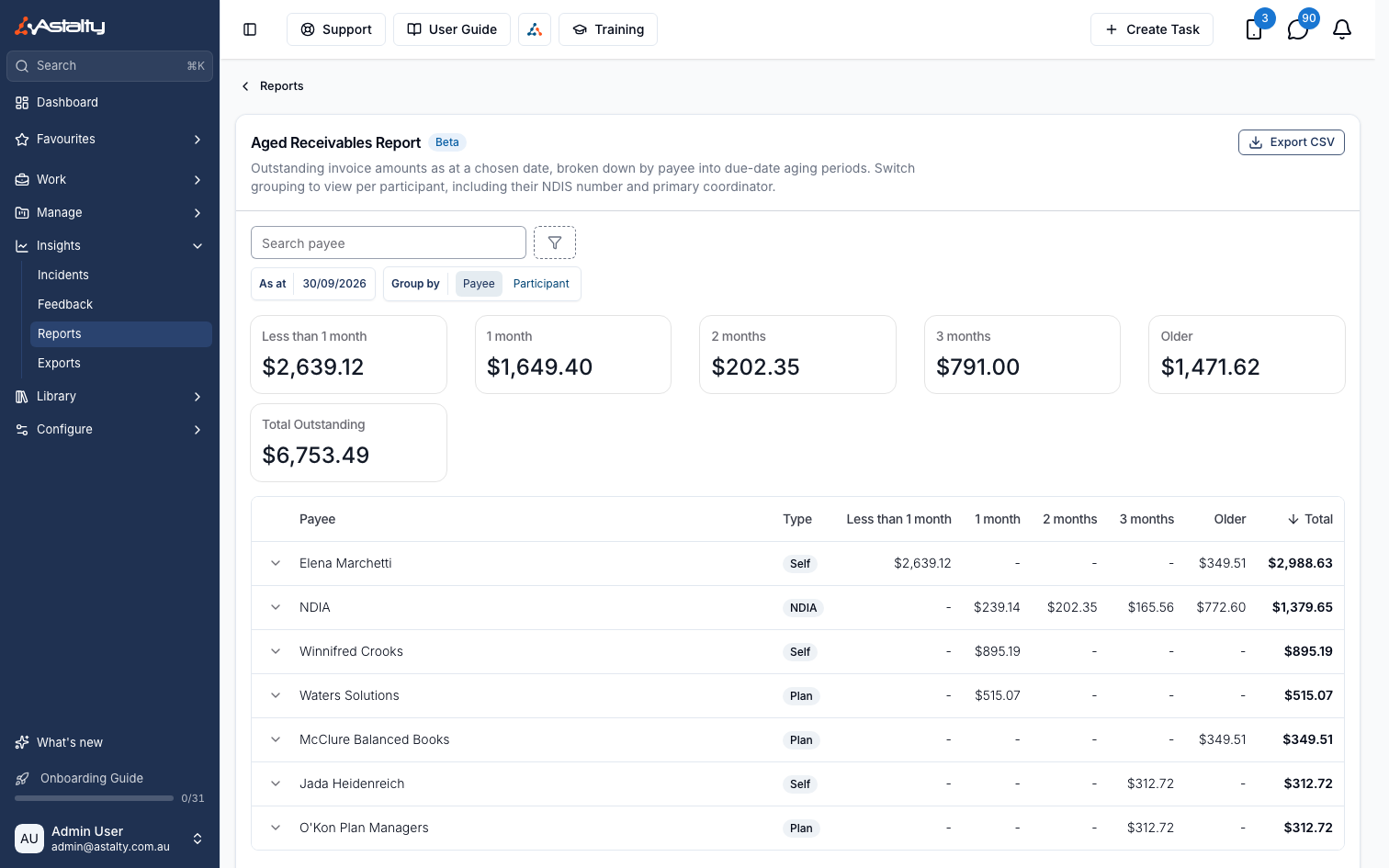
The CSV carries the same columns as the report - Payee, Type, NDIS Number and Primary Coordinator when grouped by Participant, then the five aging period amounts and Total - plus a Total row summing the whole report. Amounts are plain numbers, with no currency symbol. If your organisation requires a reason for exports, enter one of at least 10 characters before creating the export.