Participant Tags Export
Overview
The Participant Tags Export allows users to export a complete list of all Participant Tags created in Astalty. This export provides visibility over how Tags are being used across your organisation.
Participant Tags are commonly used to group Participants by funding type, service category, priority level, location, internal workflows, or other operational needs. Over time, tagging structures can expand and become harder to manage.
This export helps you:
- Maintain strong data governance — Quickly review all Tags in one place to ensure naming conventions are consistent and meaningful.
- Identify duplicates or unused Tags — See how many Participants are assigned to each Tag to identify low-usage or redundant Tags that may need cleaning up.
- Improve operational reporting — Understand which Tags are most actively used so you can confidently filter, segment, and report on Participant groups.
- Maintain visual consistency — Review hex code colours to ensure colour usage remains consistent across teams and workflows.
- Support system audits and process reviews — Creation dates help you track when Tags were introduced and assess whether older Tags are still relevant.
Creating an Export
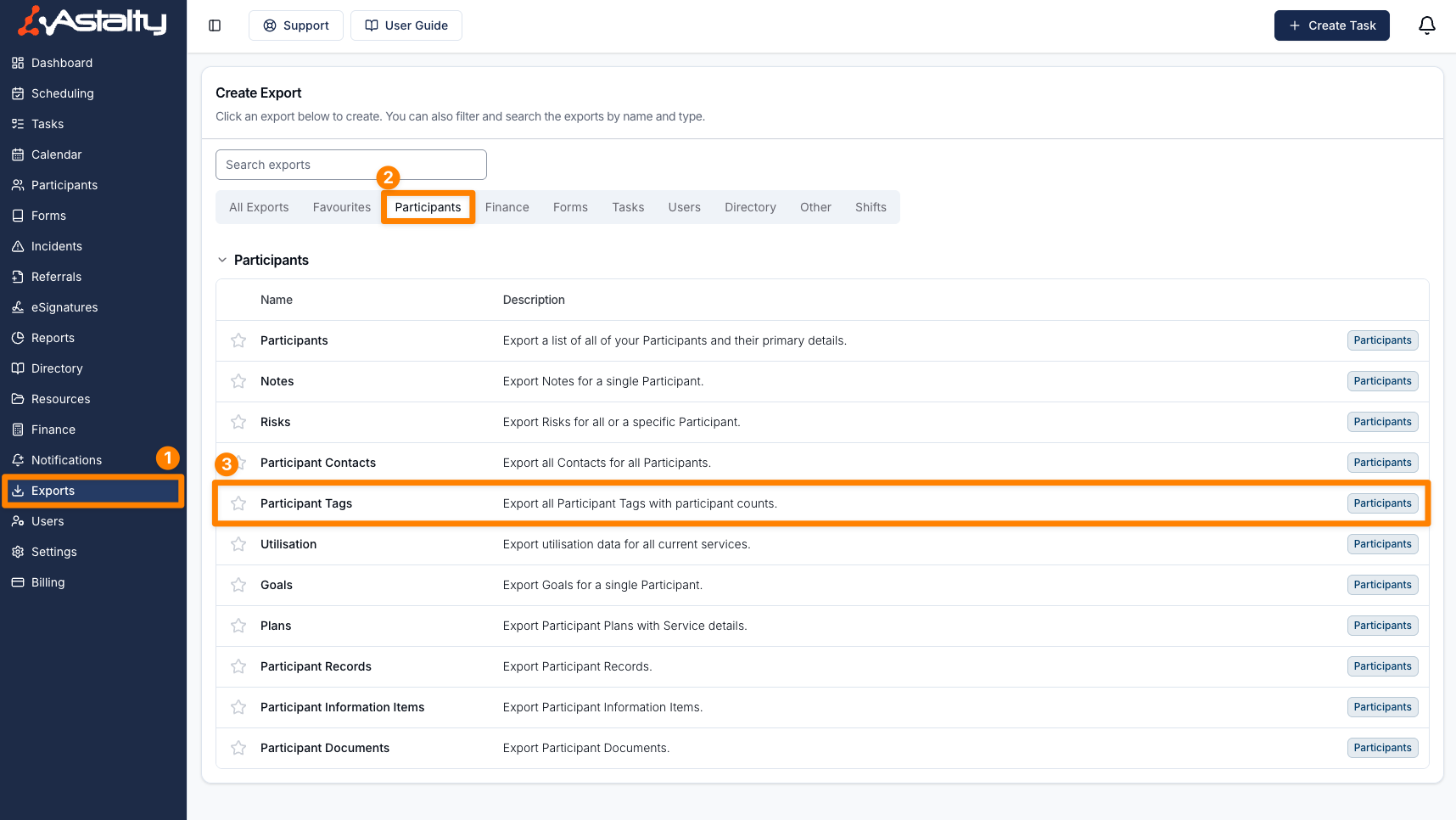
To generate an export of all of your Participants Tags, head to the Exports page in Astalty and select Create Export*. *Choose the Participants Tags export (found under the Participants heading), or click here.
You will be navigated to a new page where you can generate the export by clicking on Create Export*.*

Downloading the Export
When the export is ready it will appear on the Exports page where you can click on Download to save it to your device.
Exported Fields
The exported CSV file will include the following information:
- Name — The name of the Tag
- Colour — Hex code
- Participant Count — How many Participants are associated with the Tag
- Created Date — Date that the Tag was added to the system
By regularly reviewing this export, you can ensure your Participant Tag structure remains organised, relevant, and aligned with your operational needs.