- Scheduling
- Services & Charges
- Paying different rates for different shifts
Paying different rates for different shifts
In some cases, you may want to pay support workers different rates for different shifts. Astalty supports this when using the Xero integration or Employment Hero export for your payroll.
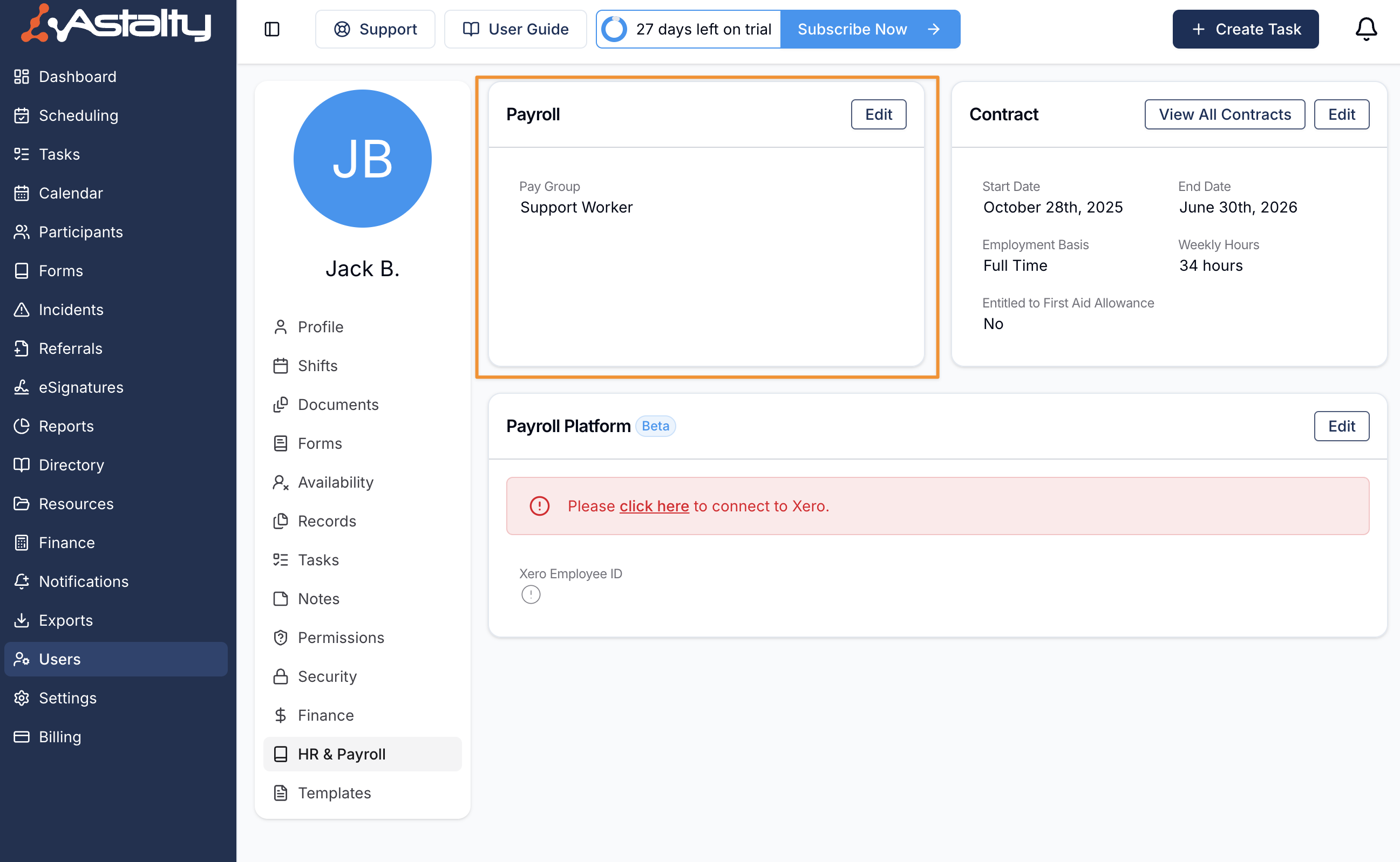
Default Pay Group
By default, an employee will be paid in line with the pay group configured on their profile in the HR & Payroll section.
Enabling Pay Group Overrides
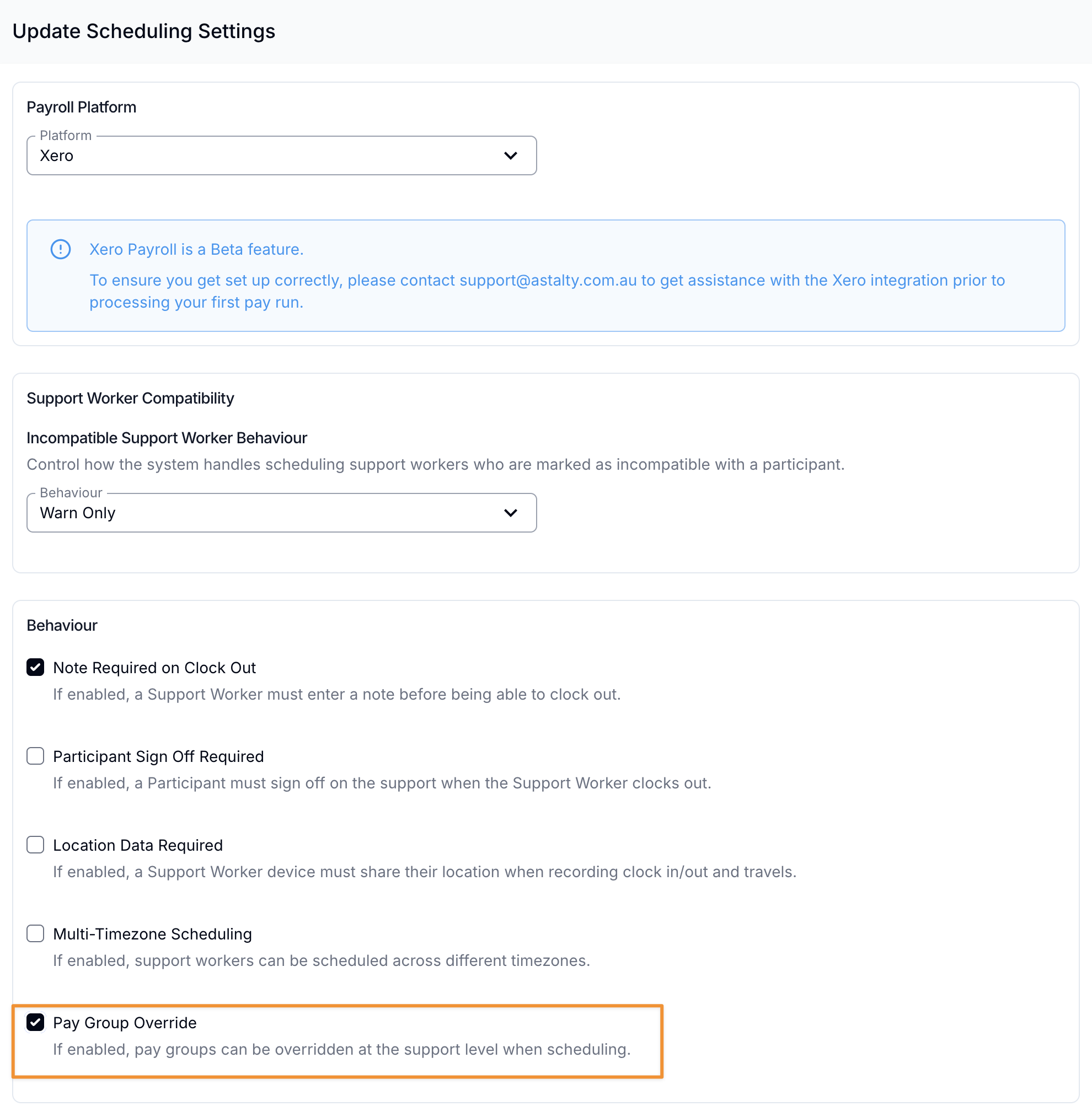
Before you can override pay groups for a shift, you need to ensure you have enabled the Pay Group Overrides setting in Scheduling Settings.
Adding a Pay Group Override
Once you have enabled the settings, when creating a shift you will be able to select the pay group that you'd like to use to pay a staff member for a specific shift.
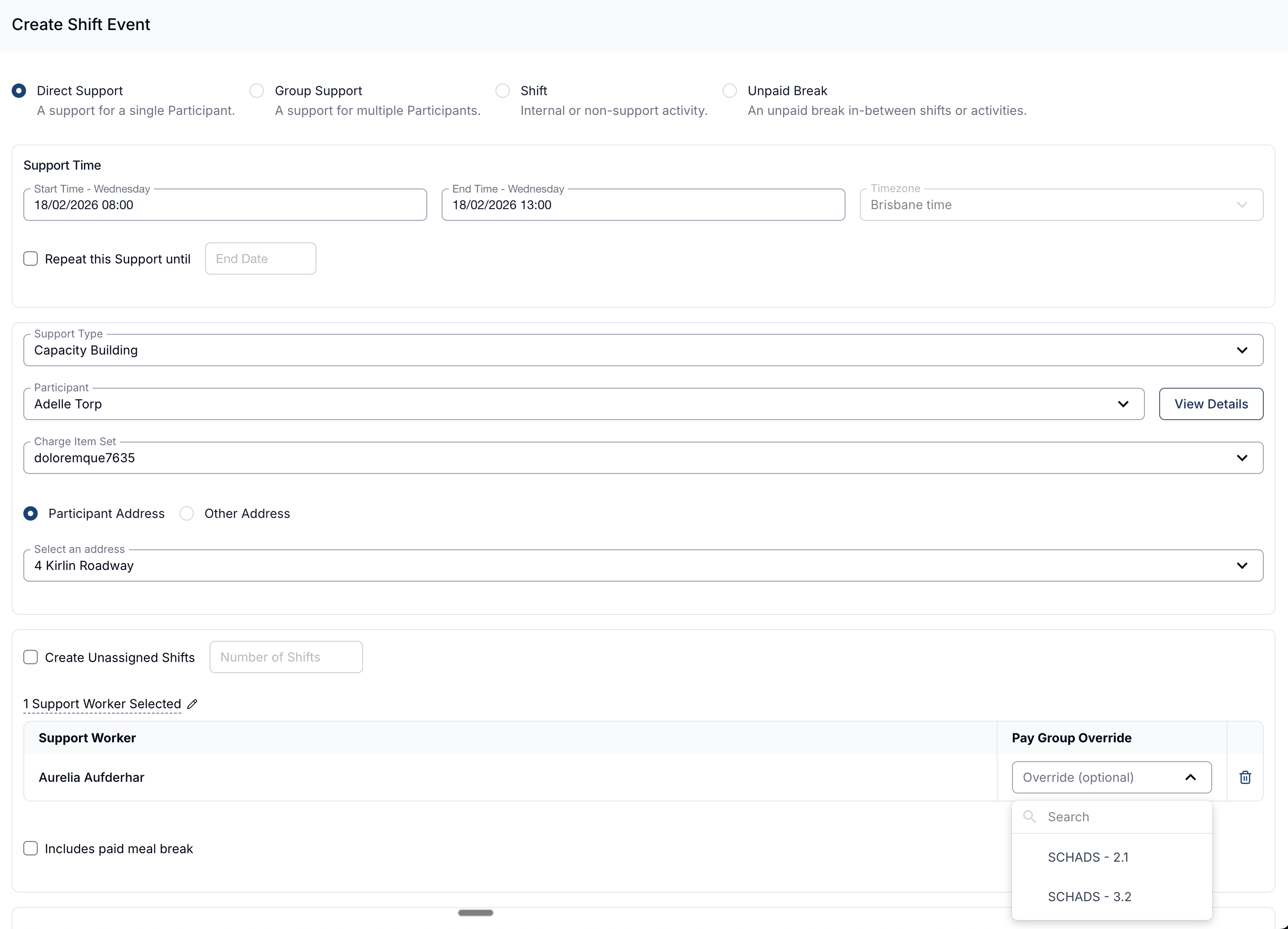
Now when the timesheets are exported to Xero, the pay group override will be used when adding timesheet lines. To learn more about how to configure your pay groups in Astalty to work with Xero and Employment Hero please click here.