- Scheduling
- Shift Board Workflow
Shift Board Workflow
Overview
The Shift Board is used to manage unassigned and broadcast shifts, review worker interest, and approve shift requests. You can offer Participant supports, group supports, and internal shifts.
Shifts can be:
- Created as Unassigned Shifts
- Broadcast to selected or compatible Support Workers
- Approved and published to a worker's roster
The Shift Board ensures that vacant shifts are filled efficiently while maintaining full visibility of approval requests.
Accessing the Shift Board
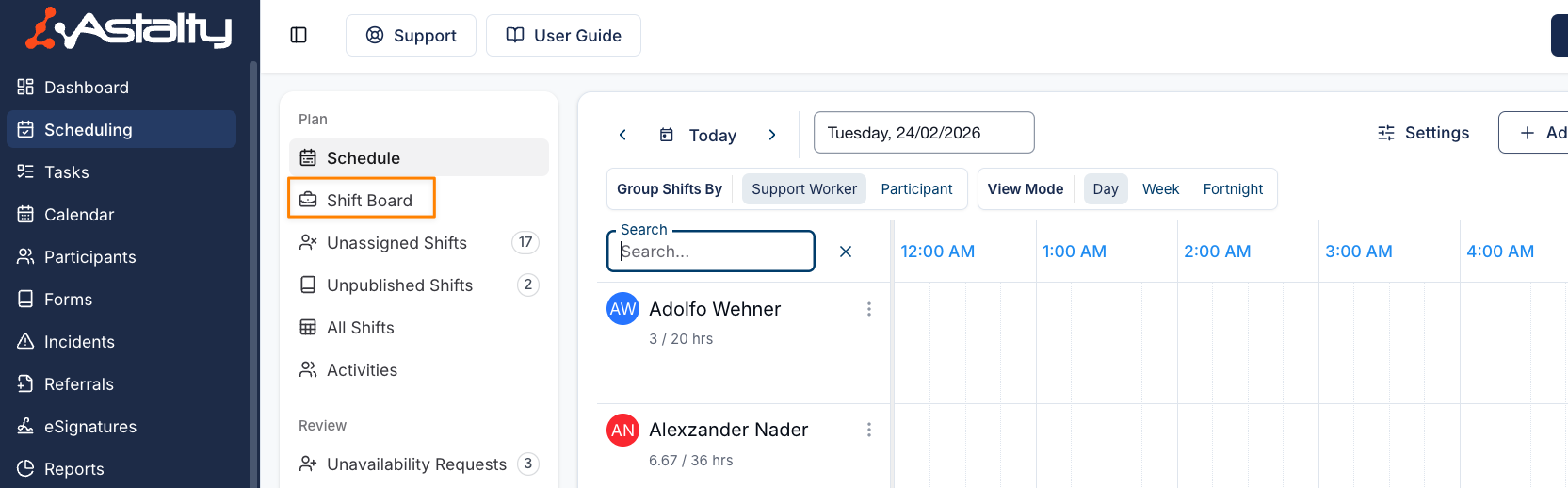
- Open Scheduling from the left-hand menu.
- Select Shift Board from the sub-menu.
The Shift Board displays:
- All broadcasted shifts
- Shifts awaiting approval
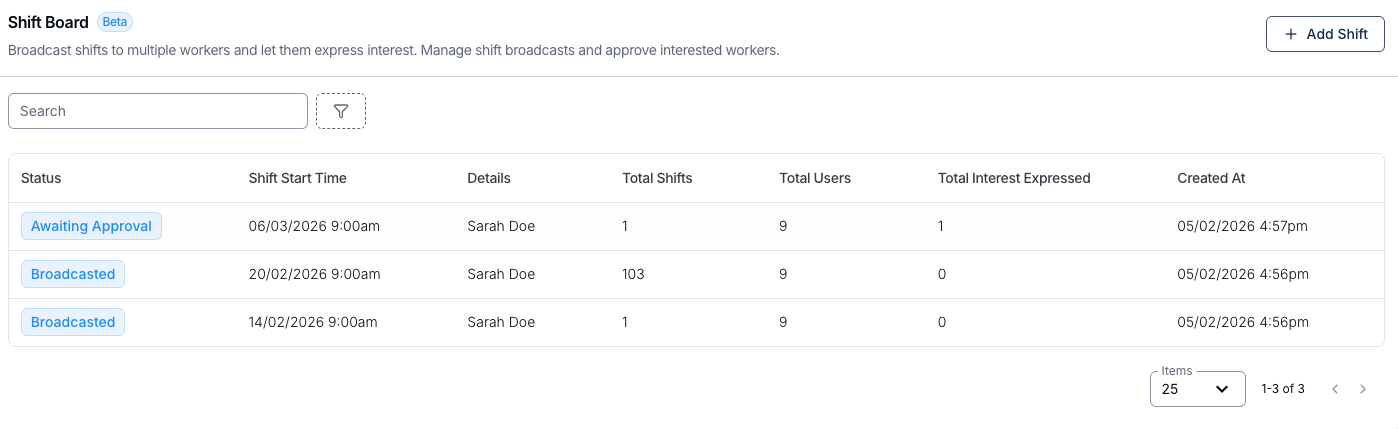
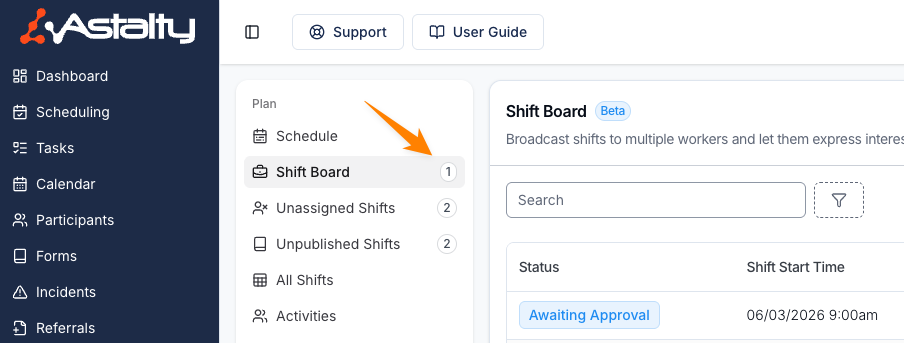
If a shift is awaiting approval:
- An icon will appear next to the shift.
- A number indicator will appear beside Shift Board, showing how many approval requests are pending.
Sorting the Shift Board
The Shift Board opens sorted by Shift Start Time, earliest first, so the shifts you need to fill soonest sit at the top of the list.
Click a column heading to change the sort, and click it again to reverse the direction. Three columns can be sorted:
- Status
- Shift Start Time
- Created At
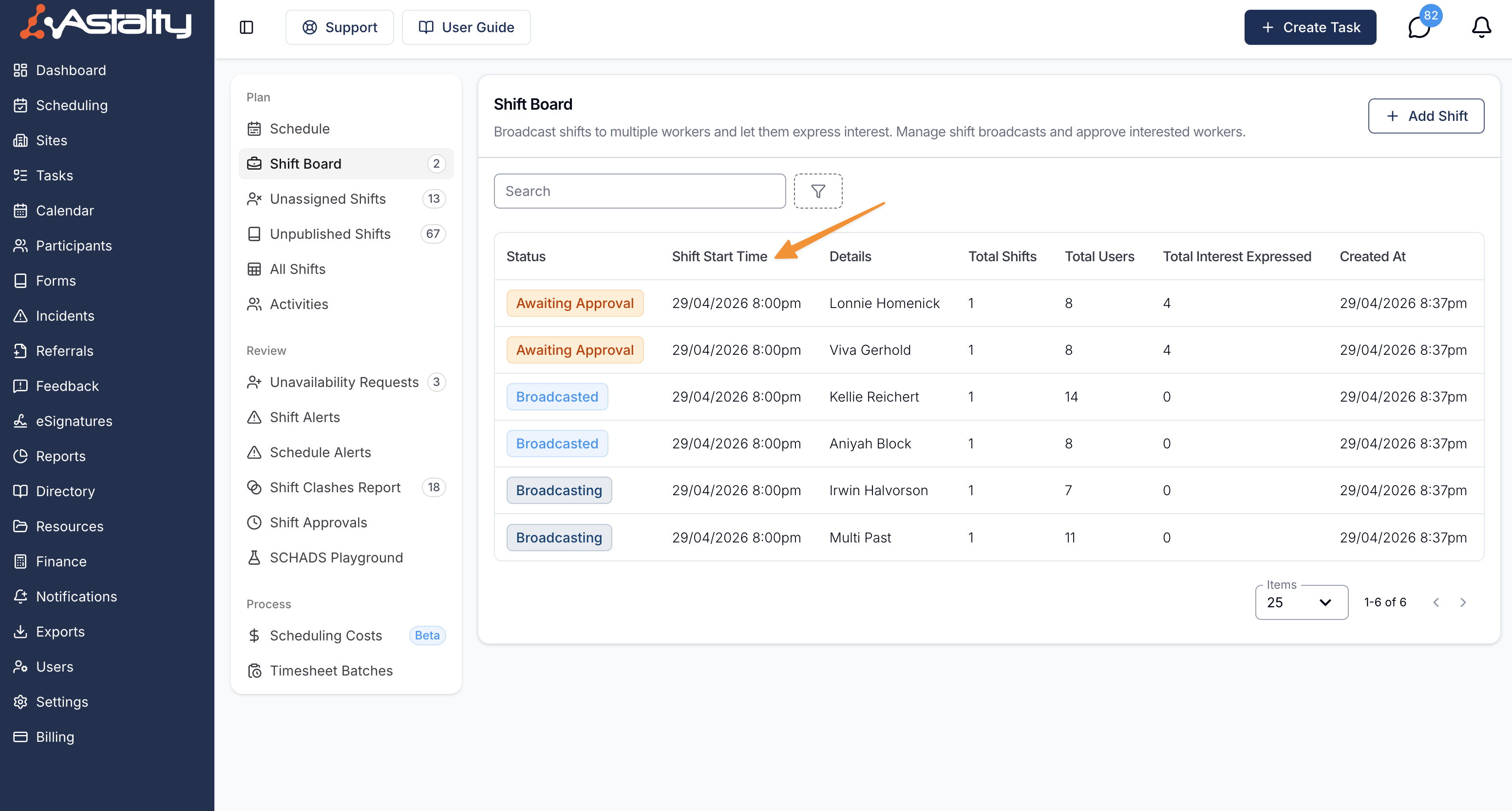
For a recurring broadcast, Shift Start Time is the start time of the first shift in the series - not every date in the series. The number of shifts covered by the broadcast is shown in the Total Shifts column.
Broadcasting an Unassigned Shift
Unassigned shifts must be broadcast before Support Workers can express interest.
Step 1: Open Unassigned Shifts
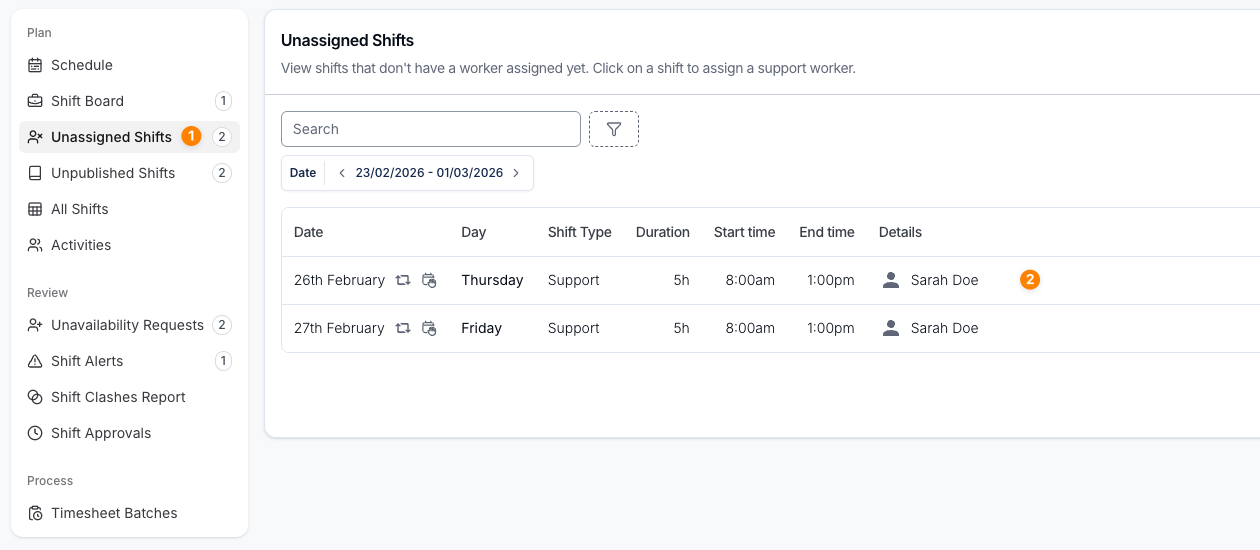
- From the Scheduling sub-menu, click Unassigned Shifts.
- Click the relevant support, group support, or internal shift.
Step 2: Broadcast the Shift
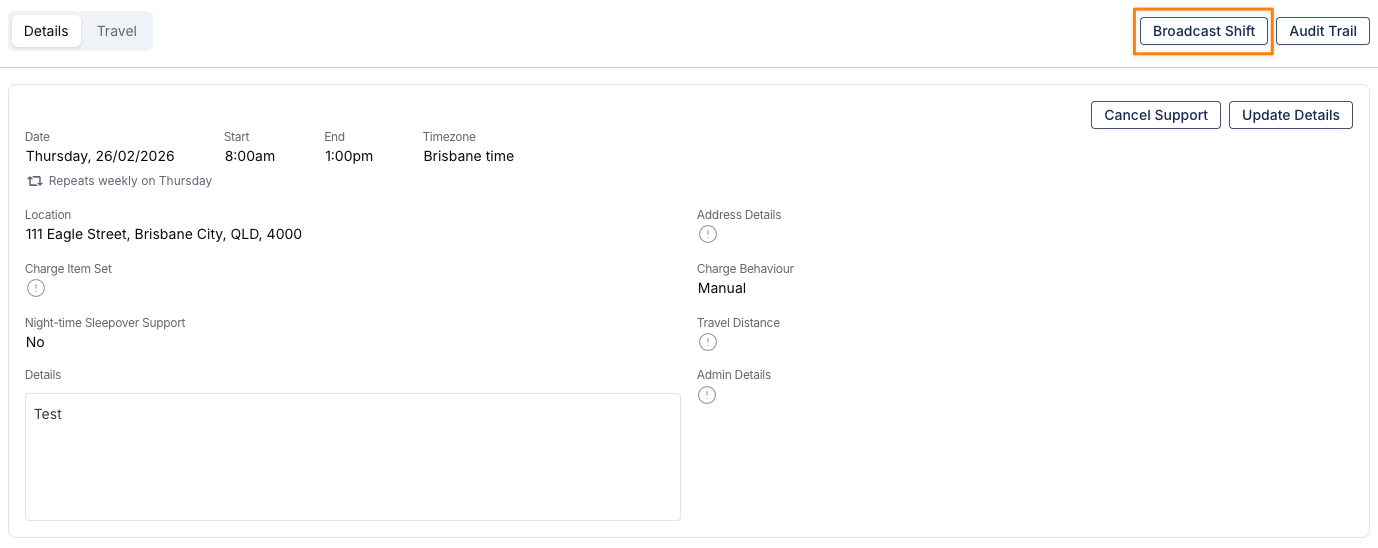
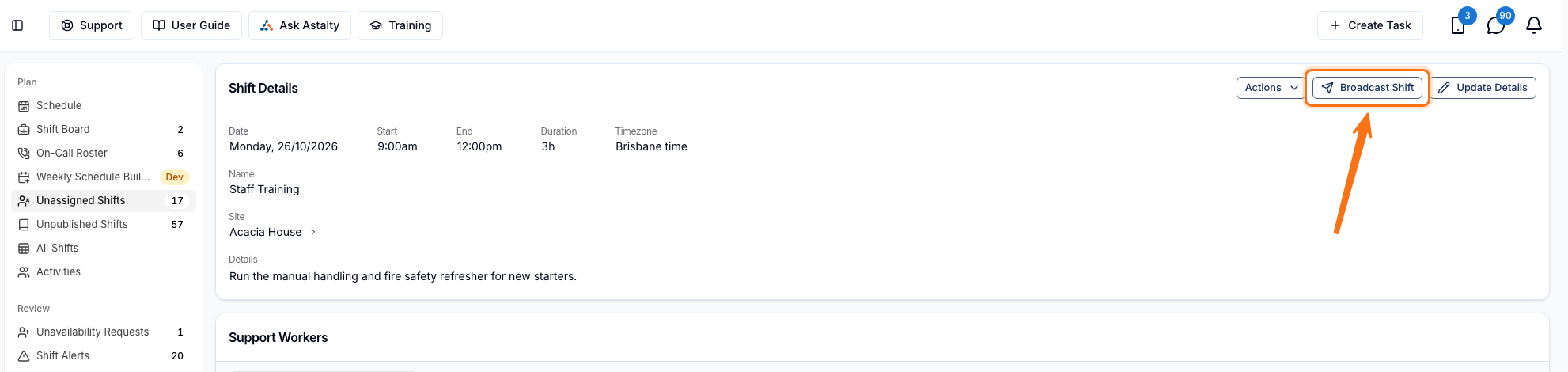
- In the top right-hand corner, select Broadcast Shift.
- The Shift Details drawer opens, showing the shift's date, time and timezone, its Shift Type and Details - plus a Repeats line if the shift is part of a recurring series.
- Under Notification, leave Notify me when a support worker expresses interest ticked if you want to hear about interest as it comes in. It is ticked by default.
- Under Support Workers, tick each worker you want to broadcast to. The heading keeps a running (x selected) count.
- Click Submit.
No workers are ticked when the drawer opens, and Submit stays disabled until you select at least one. Workers you don't select will not receive a notification about the available shift.
Selecting Workers in Bulk
Rather than working down a long list by hand, use the Select Workers dropdown above the worker list.
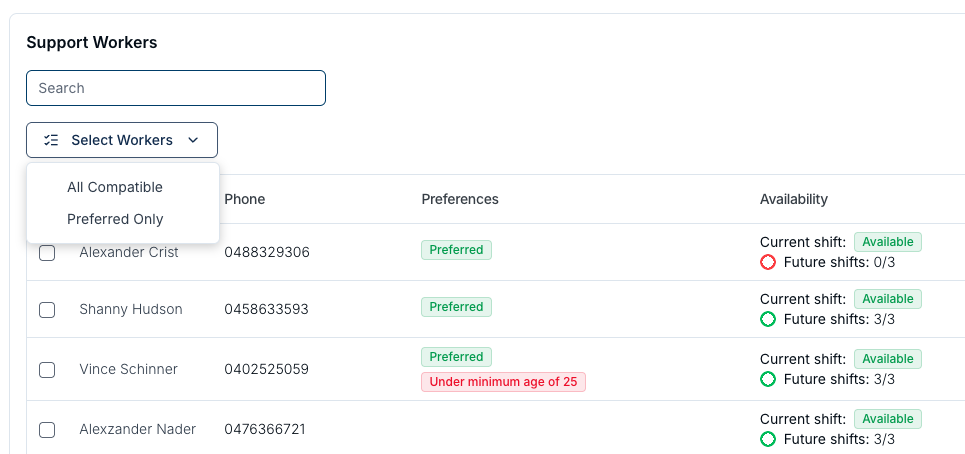
| Option | Who it picks | Effect on ticks you've already made |
|---|---|---|
| All Compatible | Available workers who aren't marked Incompatible with the Participant | Adds them to your current selection |
| Preferred Only | Available workers marked Preferred for the Participant | Replaces your current selection |
That difference is worth knowing: All Compatible builds on whatever you have already ticked, while Preferred Only clears the list first and leaves you with preferred workers alone - hence "Only".
Either option only picks up a worker who is Available for this shift, passes all of the Participant's Must Have preferences, and isn't blocked from selection. Preferred workers are the ones set up under Support Worker Compatibilities on the Participant's profile - see Participant Preferences.
An option is greyed out when no worker in the list qualifies for it - so a Participant with no preferred workers recorded will have Preferred Only unavailable. An internal shift has no Participant at all, so no worker is ever marked Preferred for it: Preferred Only stays greyed out, and All Compatible selects every available worker who isn't blocked.
The tickbox in the table header is broader than either option: it selects every worker who isn't blocked from selection, including those who are unavailable. Neither the dropdown nor the header tickbox changes which workers are listed - only the Search box does that.
Broadcasting from the Schedule
You don't have to go via Unassigned Shifts to broadcast a shift. You can broadcast an unassigned shift directly from the support, group support or internal event viewer on the schedule.
- On the Schedule, open the relevant support, group support or internal event.
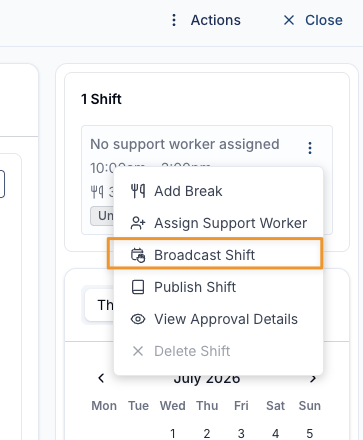
- On the shift you want to fill, click the three dots menu.
- Select Broadcast Shift - it appears directly below Assign Support Worker.
- Pick your workers in the Shift Details drawer and click Submit, just like the Unassigned Shifts flow above - including the Select Workers shortcuts described in Selecting Workers in Bulk.
Broadcasting from the Shift Board
You can also start a broadcast from the Shift Board itself, without opening the shift first.
- Open the Shift Board and click Add Shift.
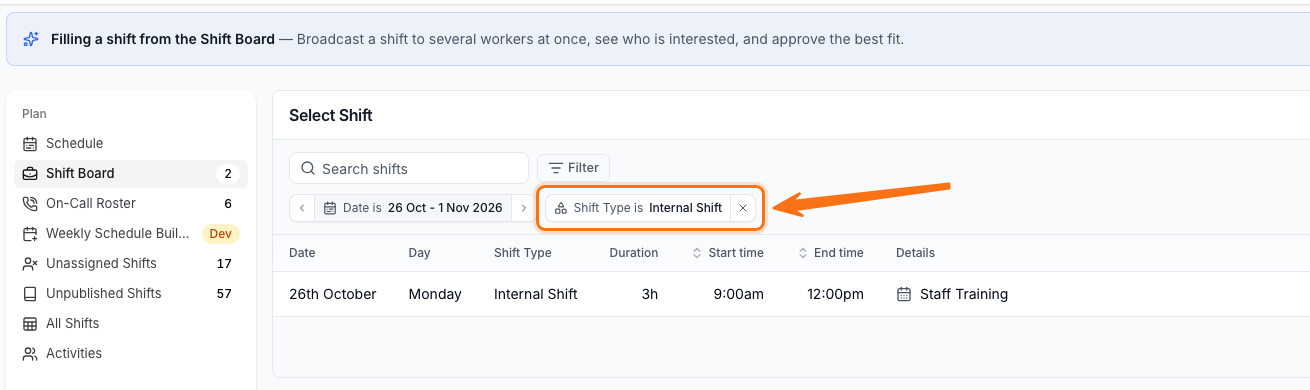
- On the Select Shift list, choose the shift you want to broadcast. By default this lists support and group support shifts - use the Shift Type filter and choose Internal Shift to find an unassigned internal shift instead.
- Pick your workers in the Shift Details drawer and click Submit, the same as the Unassigned Shifts flow above - including the Select Workers shortcuts described in Selecting Workers in Bulk.
Seeing Which Shifts Have Been Broadcast
Once a shift has been broadcast, Astalty shows this in two places so you don't have to open the Shift Board to check:
- In the viewer - the shift row displays a Broadcasted tag next to its published status.
- On the schedule - a small broadcast icon appears on the shift, with a Broadcasted tooltip when you hover over it.
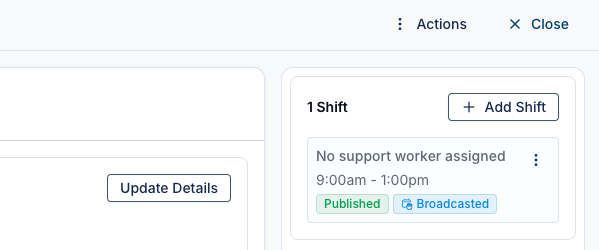

These indicators show while a broadcast is still active. Once the broadcast has been approved or archived, the tag and icon are removed.
What Happens After Broadcasting?
- Selected Support Workers receive a notification in the app.
- Workers can express interest in the shift.
- The shift will then appear in Shift Board, awaiting approval.
Identifying Approval Requests
When a Support Worker expresses interest:
- An approval icon appears next to the Shift Board.
- The Shift Board notification number updates to reflect pending approvals.
Reviewing and Approving a Shift Request
Step 1: Open the Shift Board
- Click into the shift marked as Awaiting Approval.
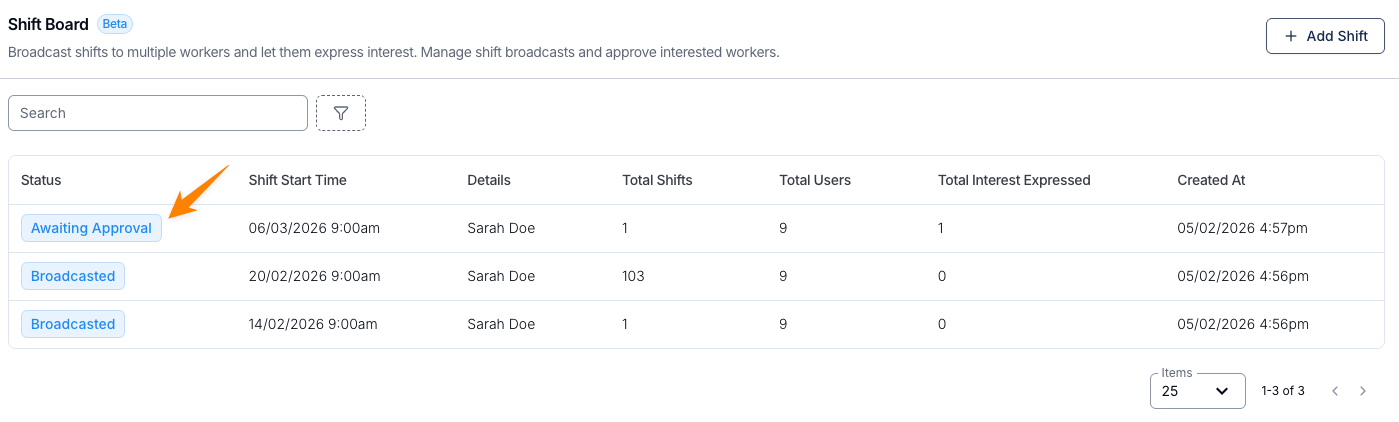
Step 2: Review the Request
You can view:
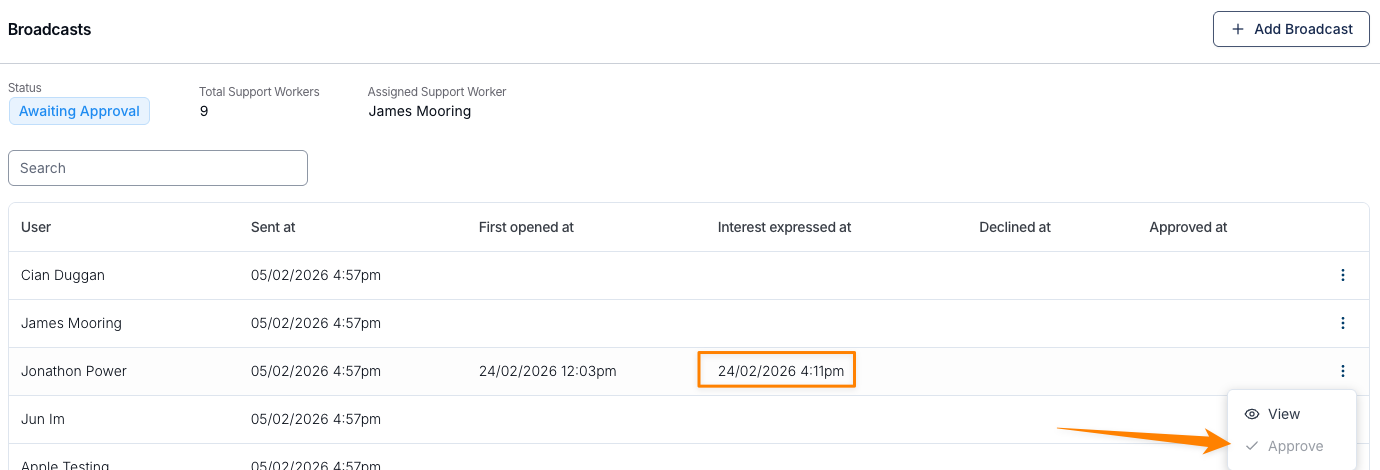
- The Support Worker who submitted the request
- The time they expressed interest
- Their Support Worker Hours
More than one Support Worker can express interest in the same shift.
Support Worker Hours
The Support Worker Hours panel shows the worker's Employment Basis, contract Start and End Date, and their hours against your organisation's Pay Period - Weekly or Fortnightly, set in Scheduling Settings - instead of a fixed calendar week.
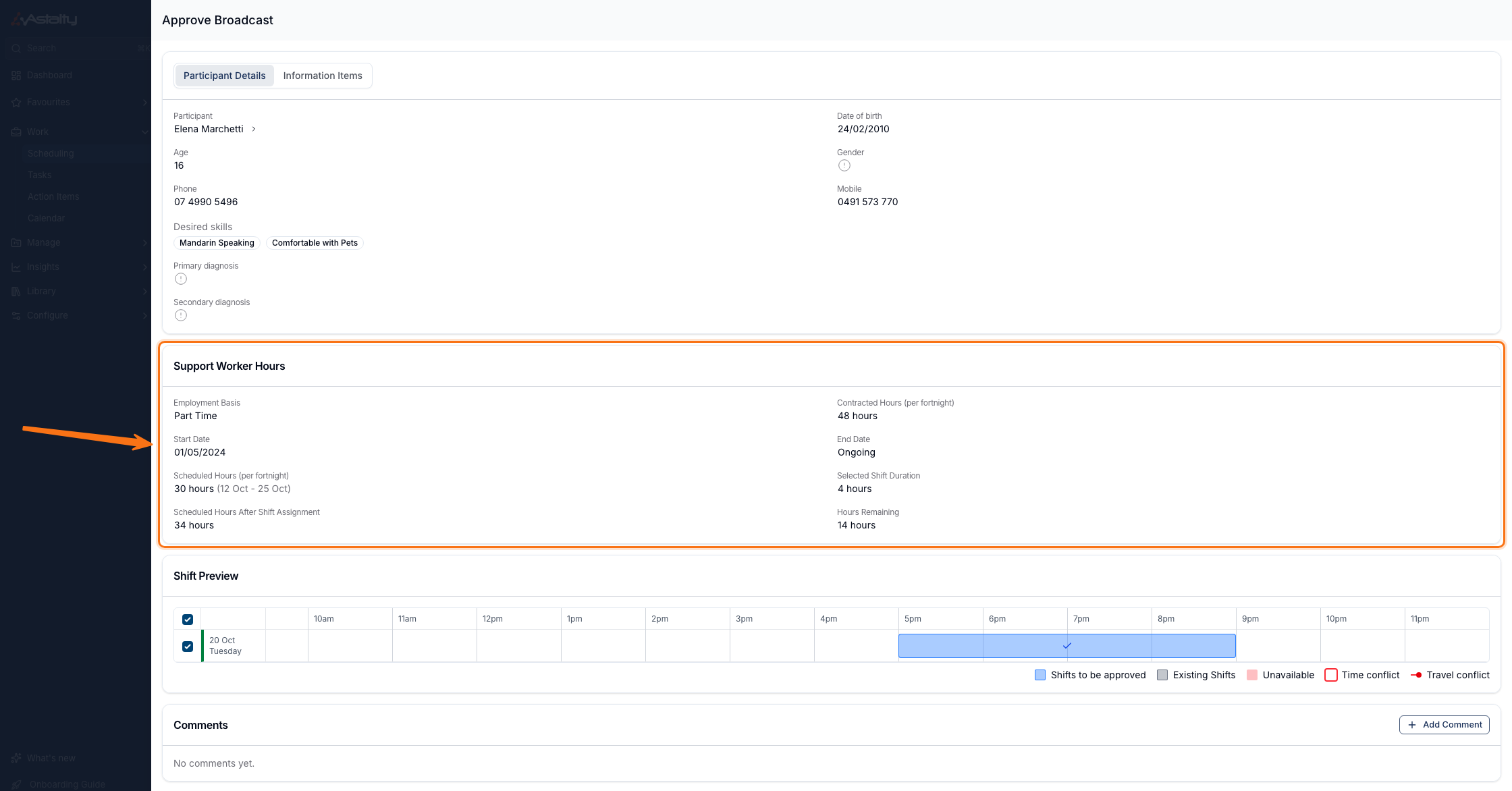
| Field | Shows |
|---|---|
| Contracted Hours (per week/fortnight) | The worker's agreed hours for the pay period |
| Scheduled Hours (per week/fortnight) | Hours already scheduled in the current pay period, with its date range |
| Selected Shift Duration | Length of the shift(s) being approved |
| Scheduled Hours After Shift Assignment | Scheduled Hours plus the shift(s) selected |
| Hours Remaining / Over Contracted Hours | The difference against Contracted Hours - shown in red once the worker goes over |
Only a shift's start time determines which pay period it counts toward Scheduled Hours for - an overnight shift that starts in the current period but ends in the next is counted entirely in the current period's total.
The panel only appears for users with the Manage HR Details permission - see Roles and Permissions.
Step 3: Approve the Request
- Select the worker's request.
- Click Approve.
Publishing the Shift
Approval alone does not finalise the shift.
After approving, you will be prompted to confirm if you want to Publish the shift:
- Click Publish Shift.
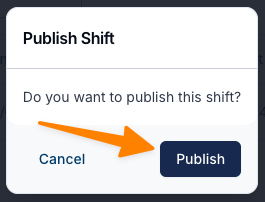
- Select the Support Worker and click Publish Shift. Astalty notifies the assigned worker and adds the shift to their Calendar. If the shift is already published, this window does not let you select a worker or publish it again; close the window instead.
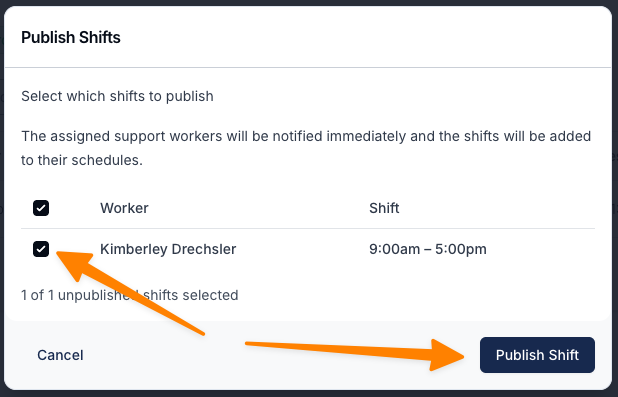
Once published:
- The shift is added to the Support Worker's roster.
- The Support Worker receives a notification confirming the shift has been assigned.
- The shift becomes visible in the Support Worker App.
End-to-End Workflow Summary
- Create or leave a shift Unassigned
- Broadcast shift to selected workers
- Workers express interest via the app
- Review request in Shift Board
- Approve worker
- Publish shift
- Worker receives confirmation and sees shift in their roster
Archive Shift Broadcast
There may be times when a shift is allocated to a user outside of the Shift Board. In these situations, the shift may still appear as an available broadcast on the Shift Board, even though it has already been filled. To prevent the shift from appearing as available, you can archive the broadcast.
To Archive a Shift Broadcast
- Open the Shift Board.
- Locate and open the relevant shift broadcast.
- Click Actions.
- Select Archive.
- A confirmation prompt will appear. Confirm that you would like to archive the broadcasted shift.
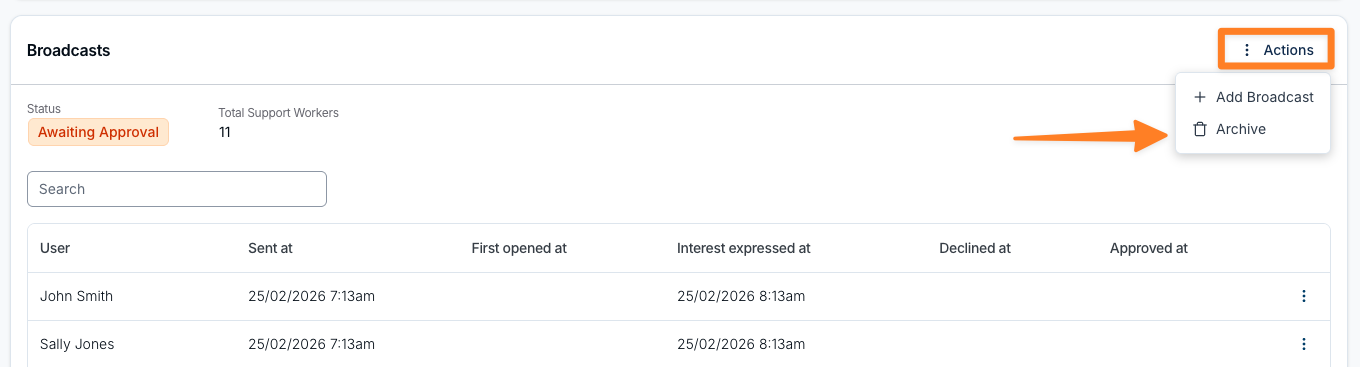
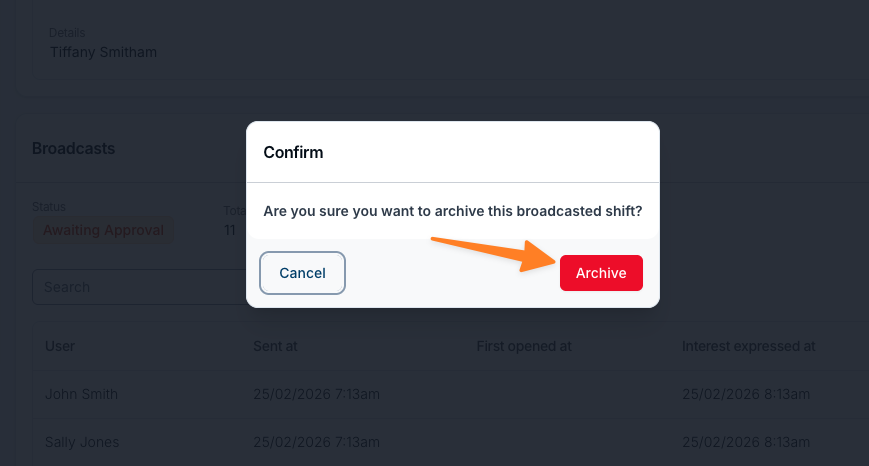
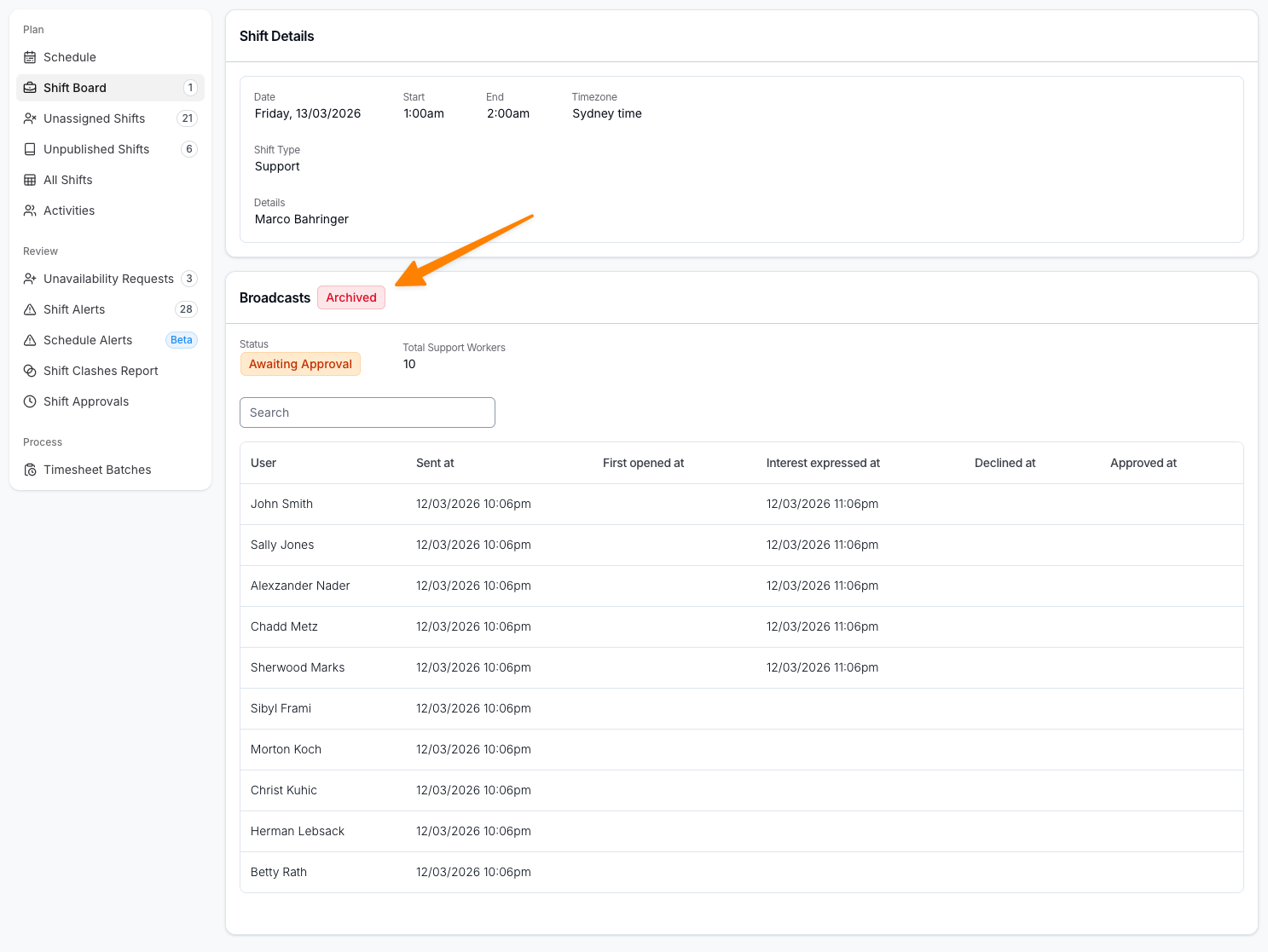
Once archived, the shift will no longer appear as an available shift on the Shift Board.
Viewing Archived Broadcasts
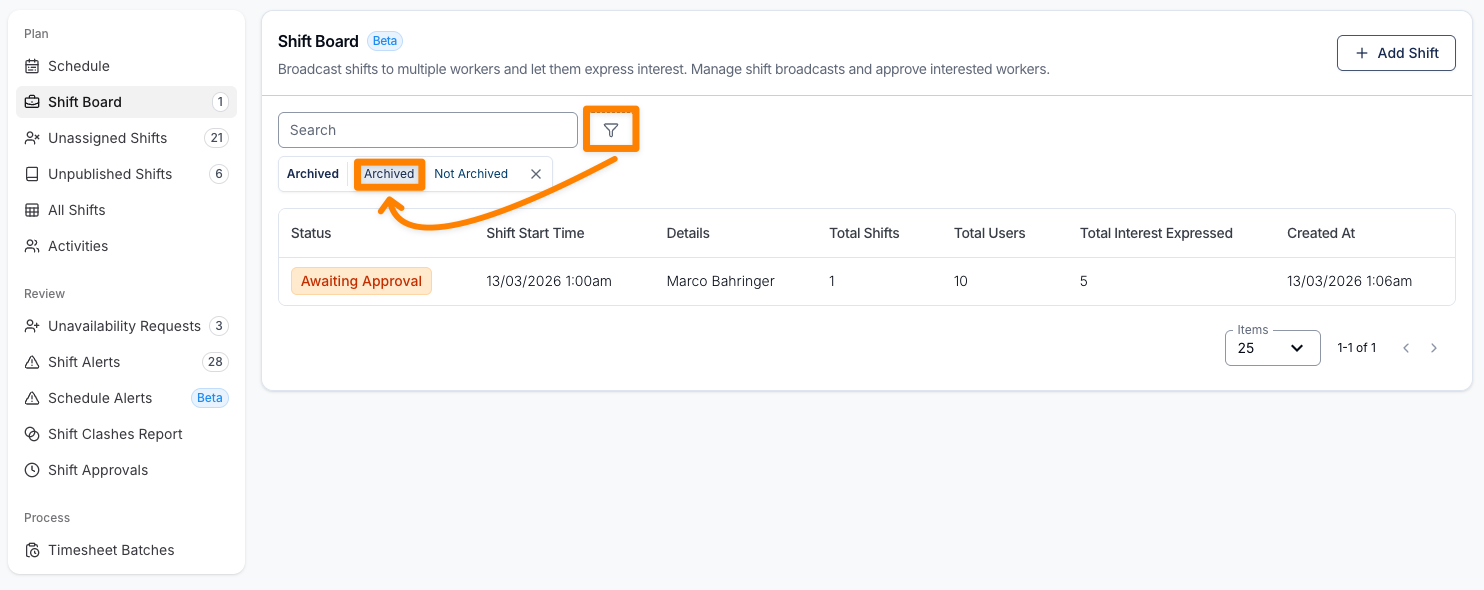
Apply the Archived filter on Shift Board to confirm that the broadcast was archived.