- Scheduling
- Leave
Leave
Leave allows Support Workers to submit leave requests — annual leave, personal/carer's leave, unpaid leave and more — directly in Astalty, against the leave types configured for your account. When a request is approved, Astalty can automatically create the corresponding leave application in your payroll system (Xero or Employment Hero), so leave approved in Astalty is reflected in payroll without manual data entry.
Leave is built on the existing availability system and uses the same request and approval workflow as unavailability requests, with the addition of payroll-aware leave options.
Overview
Unavailability requests support two request types. When creating a request, Support Workers choose between:
- Unavailability — blocks the roster so the Support Worker is not scheduled during that period.
- Leave — records actual leave being taken, with a leave type, leave balance visibility, and optional payroll sync.
| Unavailability | Leave | |
|---|---|---|
| Purpose | Block the roster so the person isn't scheduled | Record actual leave being taken |
| Leave type | Not applicable | Pick a leave type (e.g. Annual Leave) |
| Balances at review | Not shown | Shows the employee's live leave balance from payroll |
| Approved hours | Not captured | Captures the approved leave hours |
| Payroll sync | None | Can auto-create a leave application in Xero / Employment Hero |
Both request types follow the same submission, review, and approval workflow, and both remove the Support Worker from the roster for the dates involved.
How it Works
The flow from request to payroll looks like this:
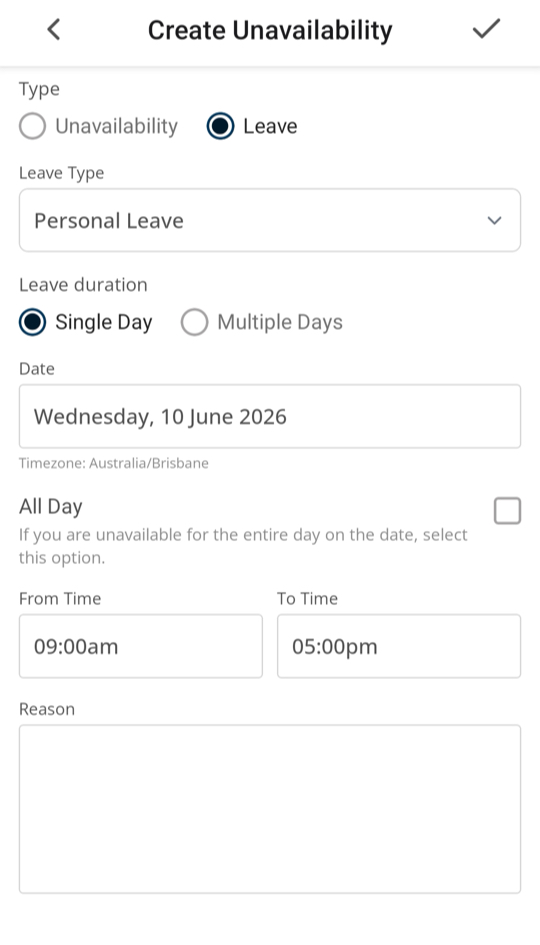
- A staff member requests leave. From the web app or the mobile app they create a request, choose Leave, pick the leave type, and set the dates and times.
- The request appears for review. Managers and admins see it under Scheduling > Unavailability Requests (mixed in with unavailability requests; you can filter by type). Pending requests also appear on the Schedule — with a dashed outline and a distinct colour — where they can be reviewed and approved or declined inline.
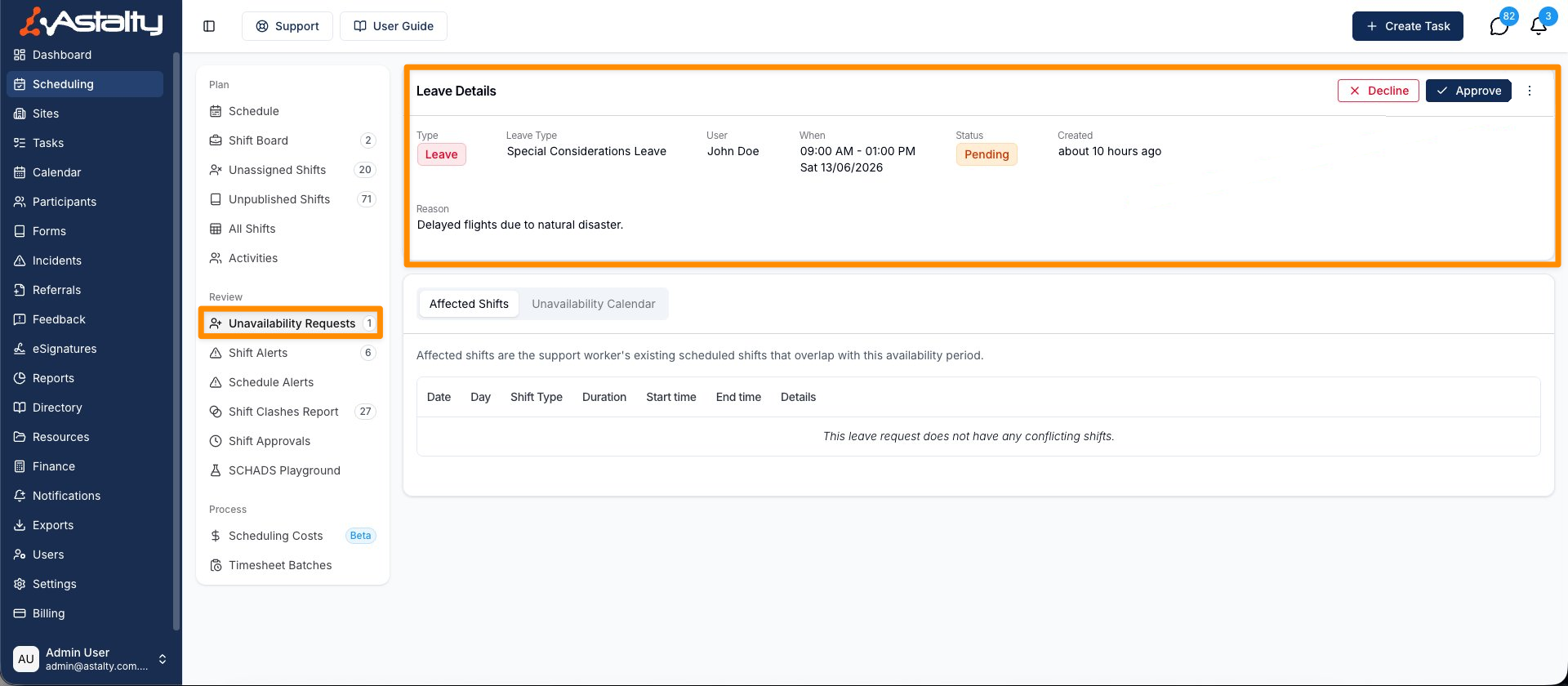
- The reviewer opens the request. On the detail screen, if the employee is connected to payroll, Astalty shows their live leave balances pulled straight from Xero or Employment Hero, with the requested leave type highlighted. Astalty also shows a suggested hours figure so the reviewer has a sensible default.
- The reviewer approves or declines. On approval they confirm the leave hours (and, for Employment Hero, can choose to have the leave automatically approved in payroll too). If the request has future shifts, they can also broadcast those shifts to the shift board in the same step - see Broadcasting Affected Shifts to the Shift Board. Declining records a reason. If the leave type is set to warn on or prevent negative balances, and the hours exceed the balance, you'll be stopped at this point - see Negative Leave Balances.
- Astalty syncs to payroll. If payroll sync is switched on, approving the leave automatically creates a matching leave application in Xero or Employment Hero in the background. A status card on the request shows whether the sync succeeded, and lets you retry if it failed.
Supporting Documents
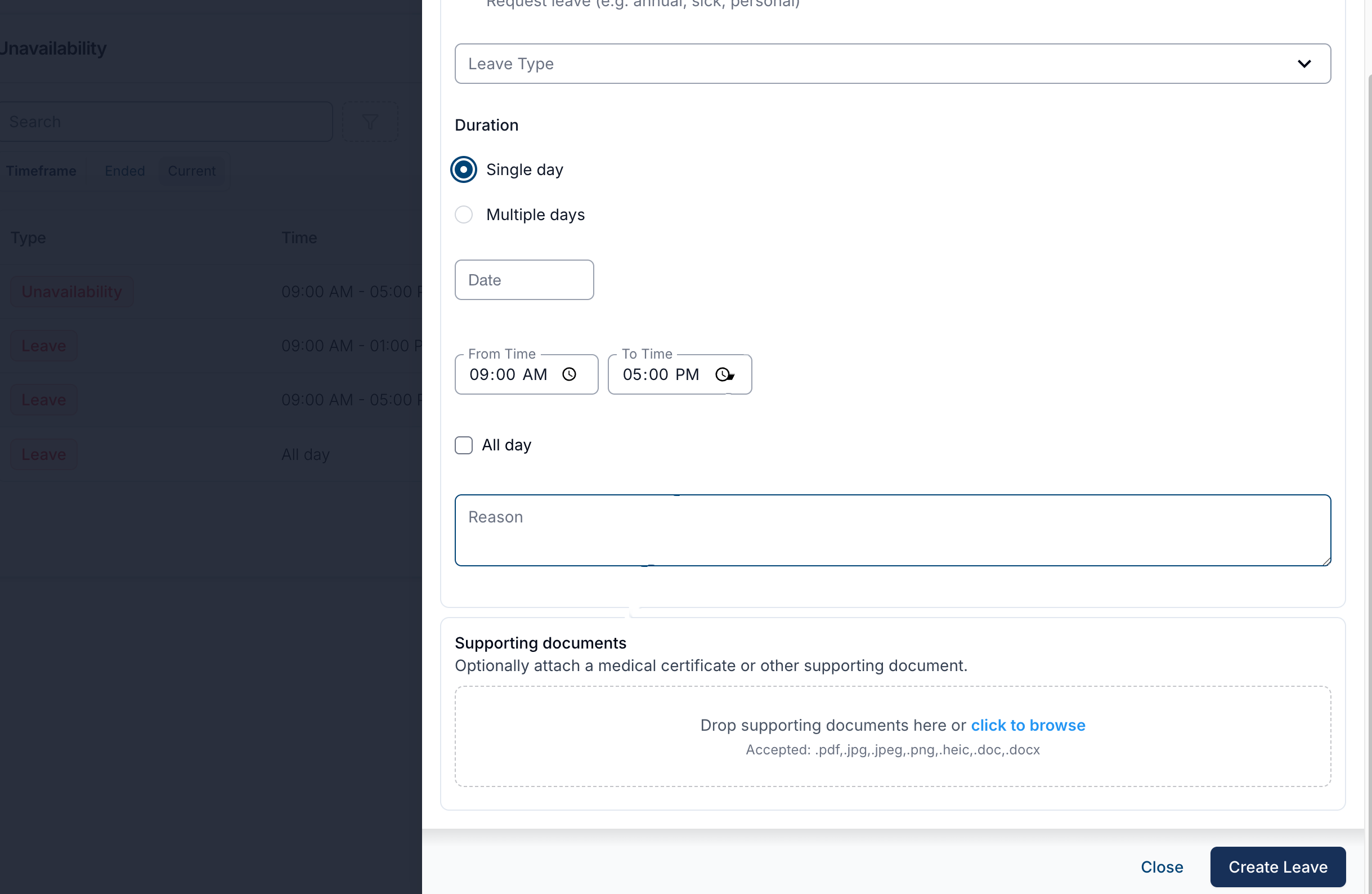
Support Workers can attach one or more supporting documents — such as a medical certificate — to a leave request. This works on both the web portal and the mobile app, and it's completely optional.
On the web portal, the leave form has a Supporting documents area. Drop files onto it or click to browse and pick them from your device. Accepted file types are .pdf, .jpg, .jpeg, .png, .heic, .doc, and .docx.
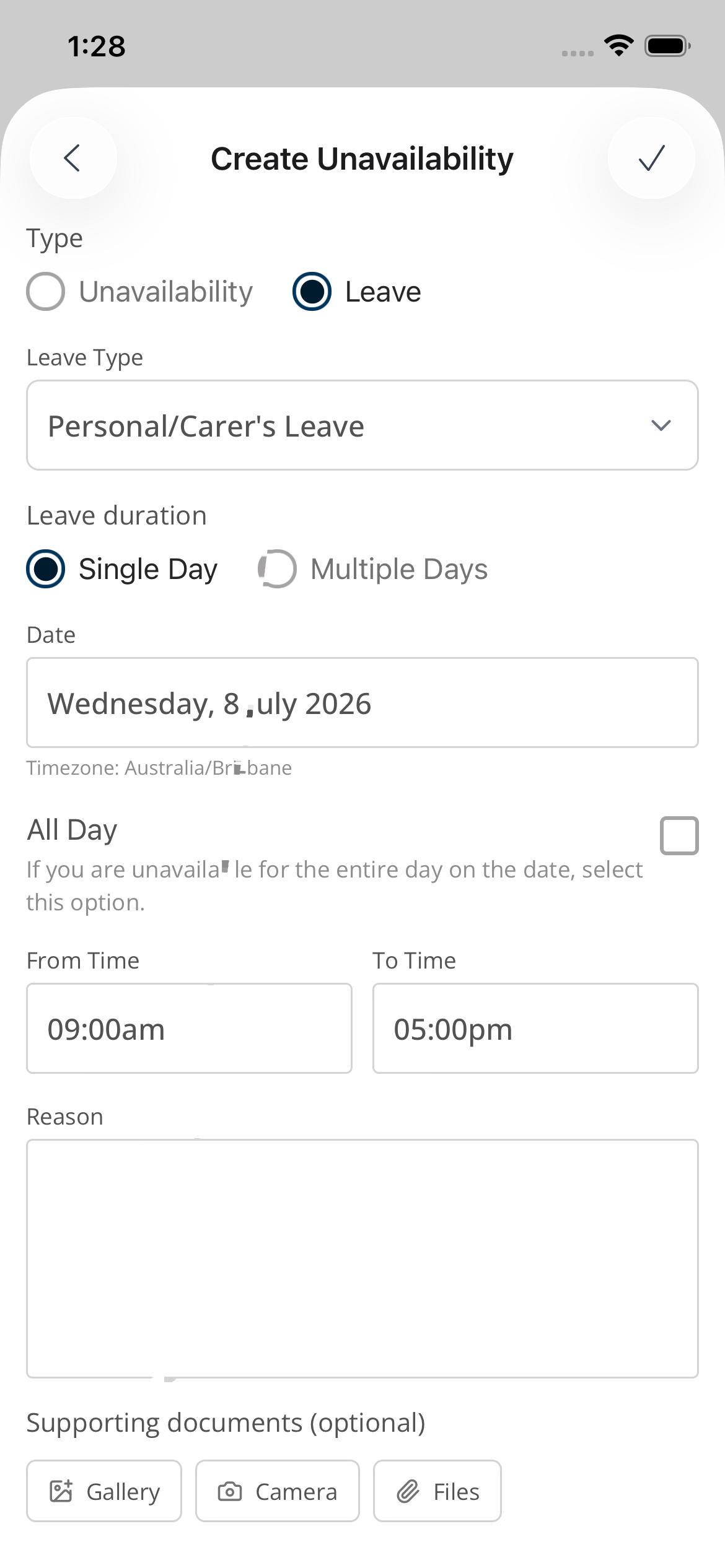
On the mobile app, the leave screen shows a Supporting documents (optional) section with three ways to add a file — Gallery (an existing photo), Camera (take a new photo), or Files. Attached documents can be opened again from the leave details screen.
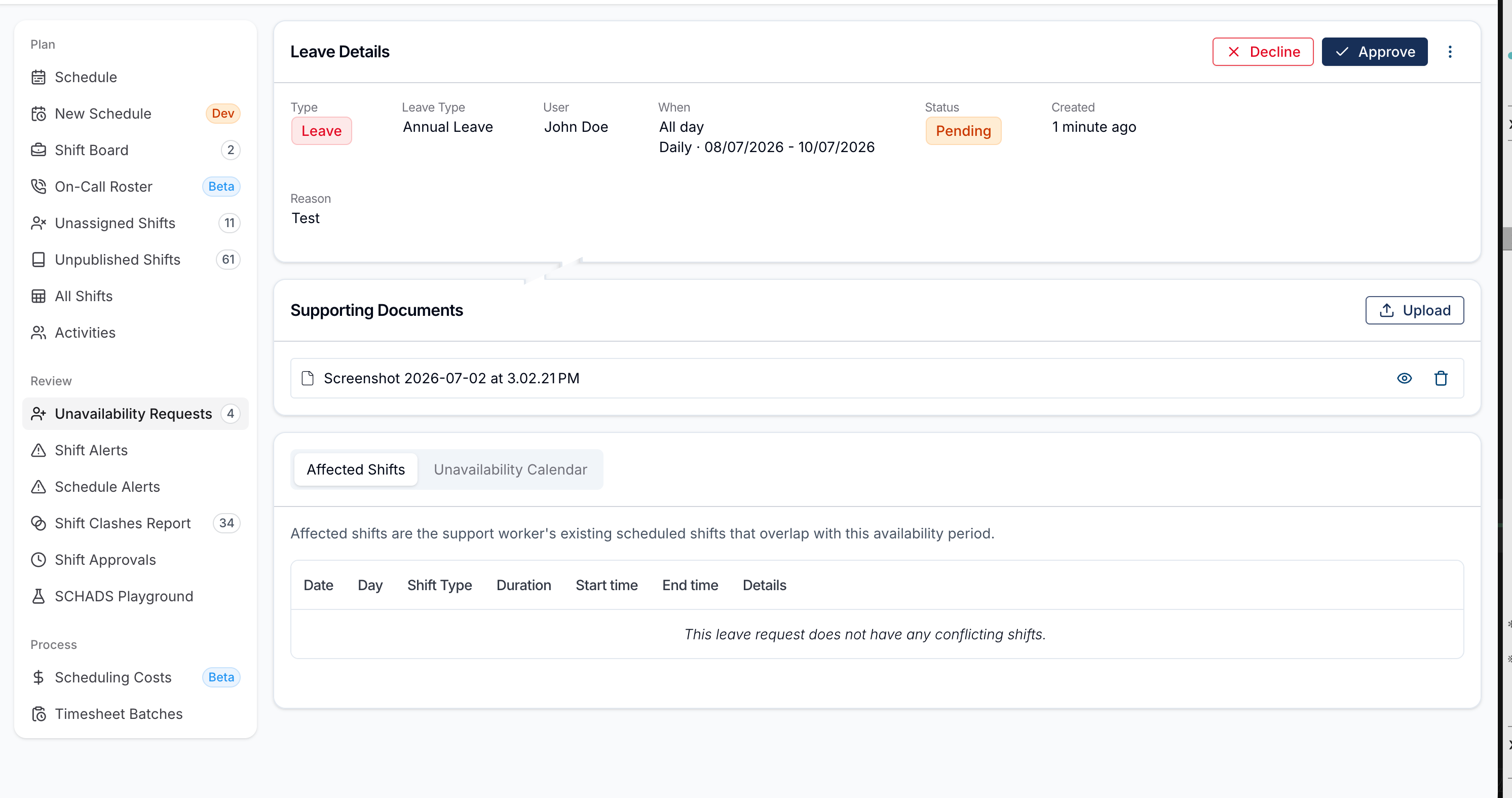
When reviewing a request, any attached documents appear in a Supporting Documents section on the leave details screen, where you can open each one to view it.
Documents aren't locked in at submission — they can be added or removed on an existing leave request afterwards. Use Upload to attach more, or the delete icon to remove one.
Leave Types
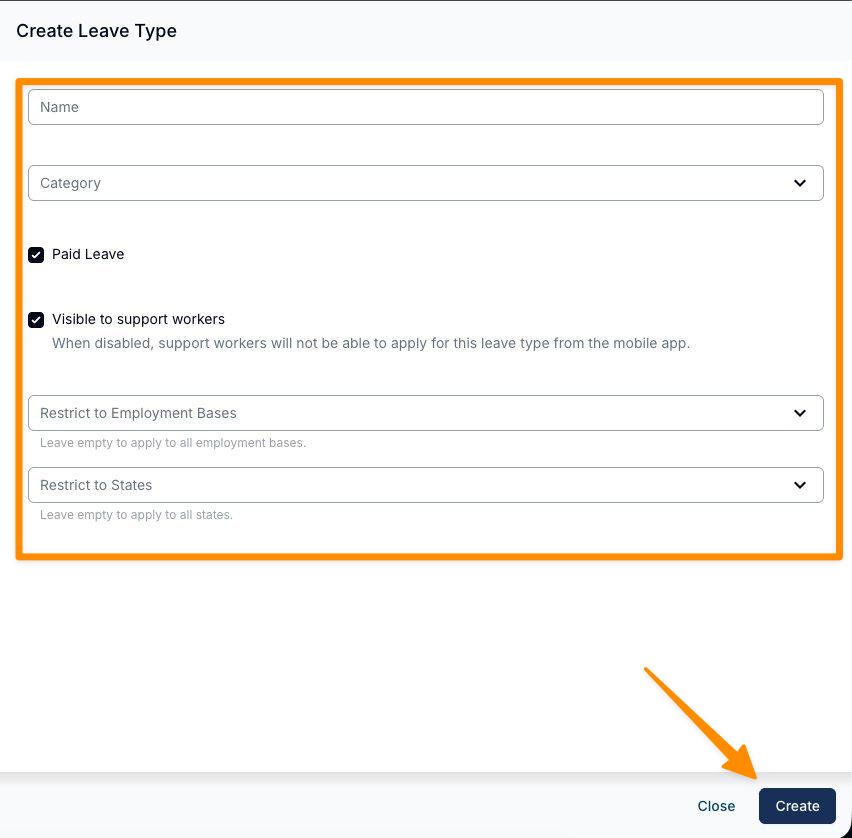
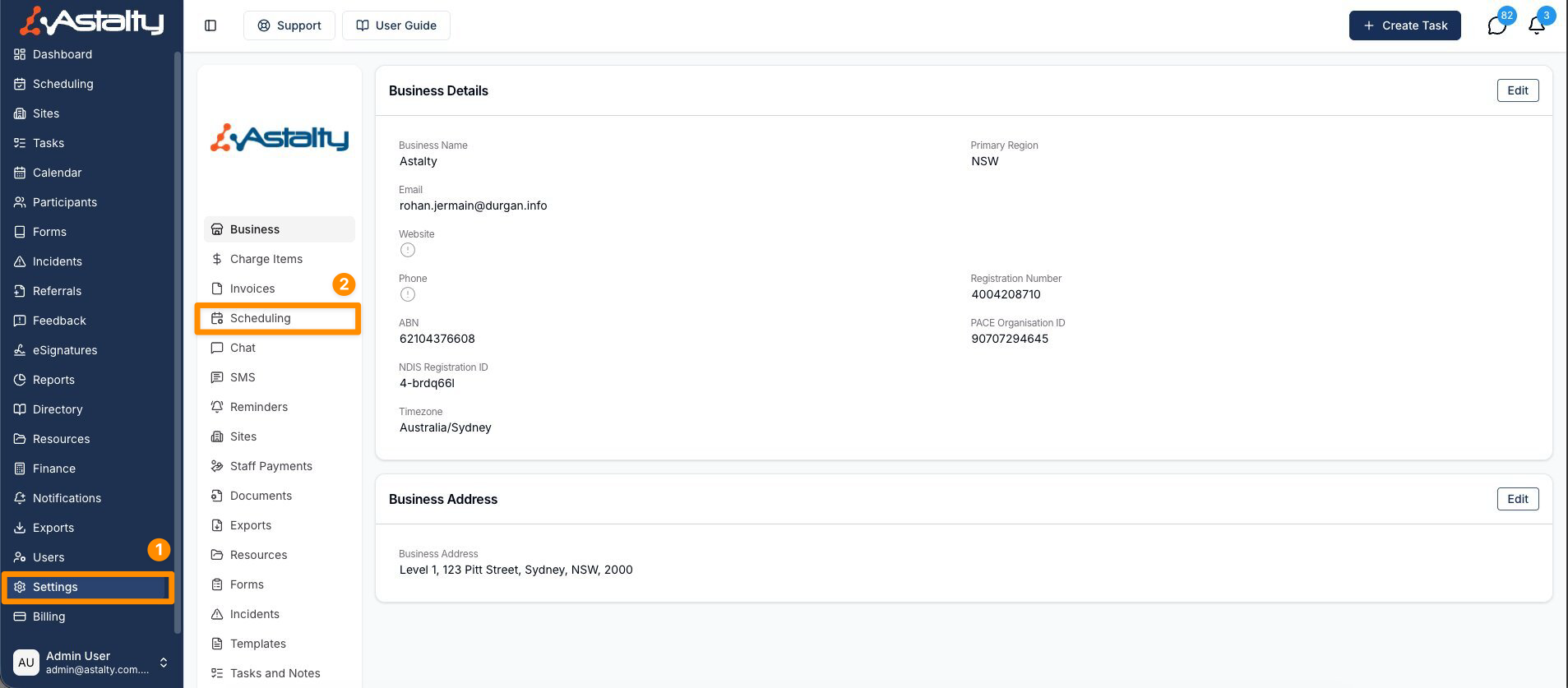
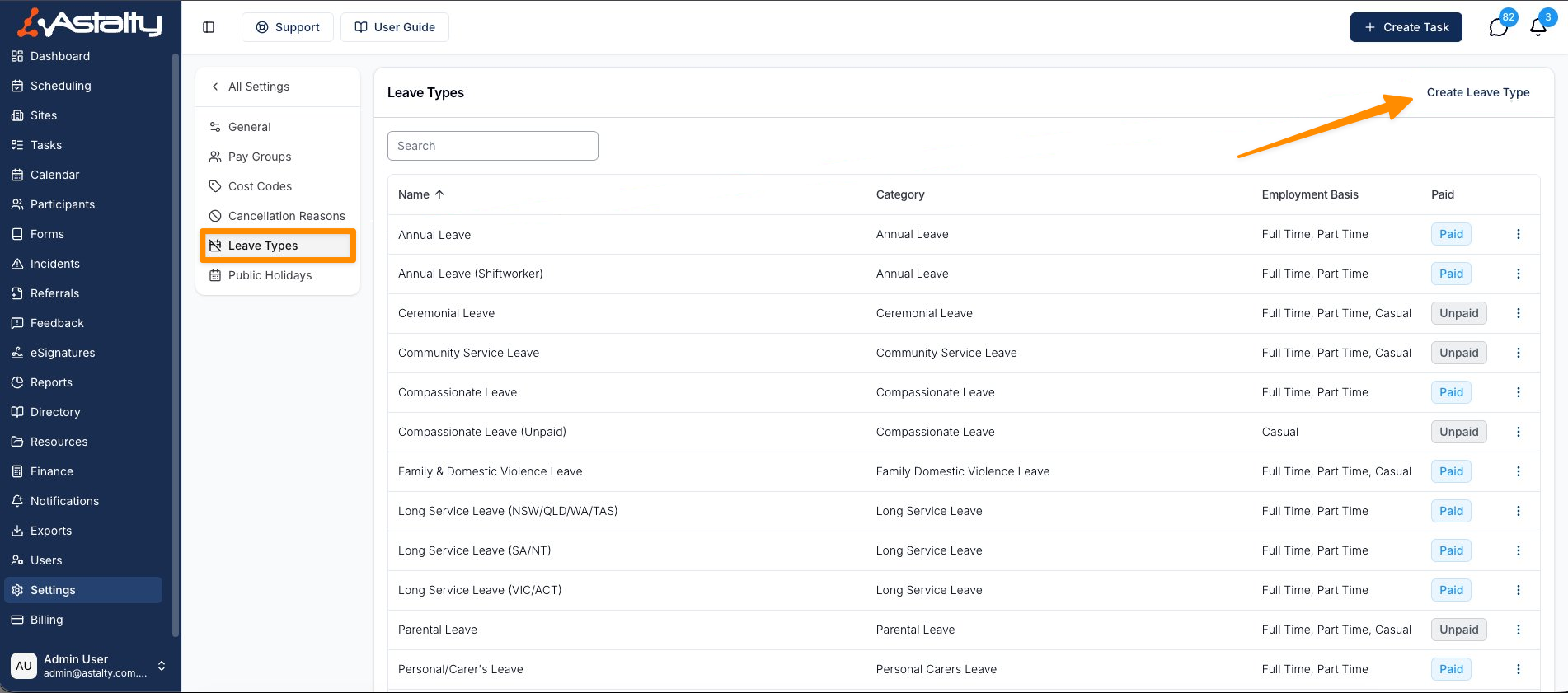
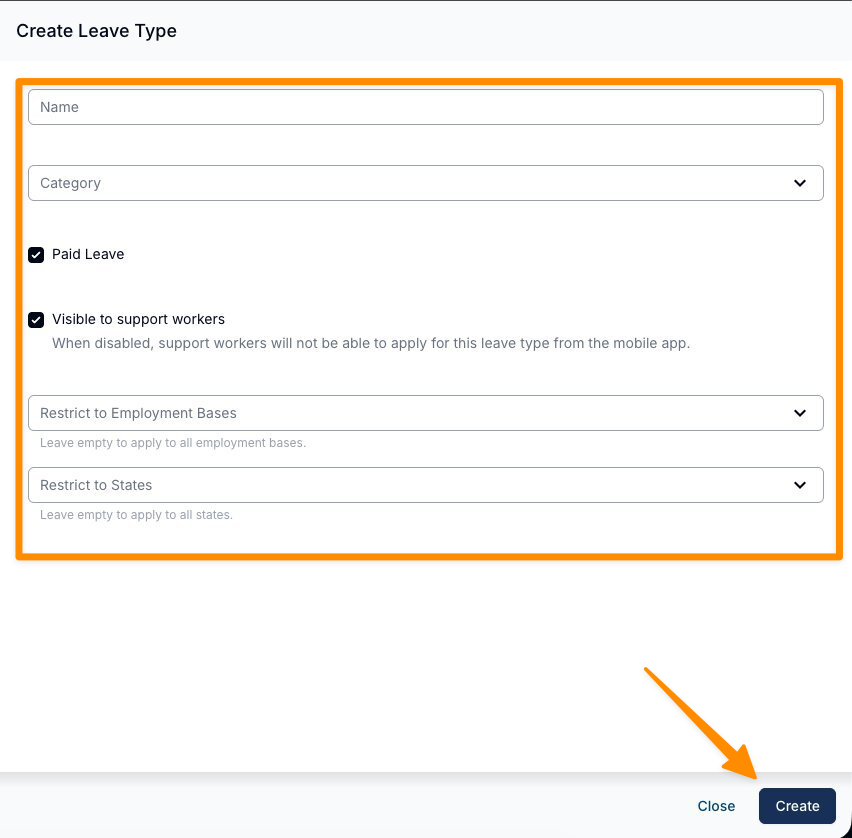
Leave Types define the options available to Support Workers when submitting a leave request. These are managed through Settings → Scheduling → Leave Types. Each leave type includes:
- Name - what staff see when requesting (e.g. "Annual Leave", "Personal / Carer's Leave").
- Category - the underlying kind of leave (annual leave, personal/carer's, long service, compassionate, parental, unpaid, rostered day off, time off in lieu, study leave, workers compensation, and more). The category is what Astalty uses to line your leave type up with the right leave type in your payroll system.
- Paid or unpaid.
- Visible to Support Workers - controls whether Support Workers can pick this leave type themselves when requesting.
- Who it applies to - you can limit a leave type to certain employment bases (e.g. full-time/part-time) and certain states.
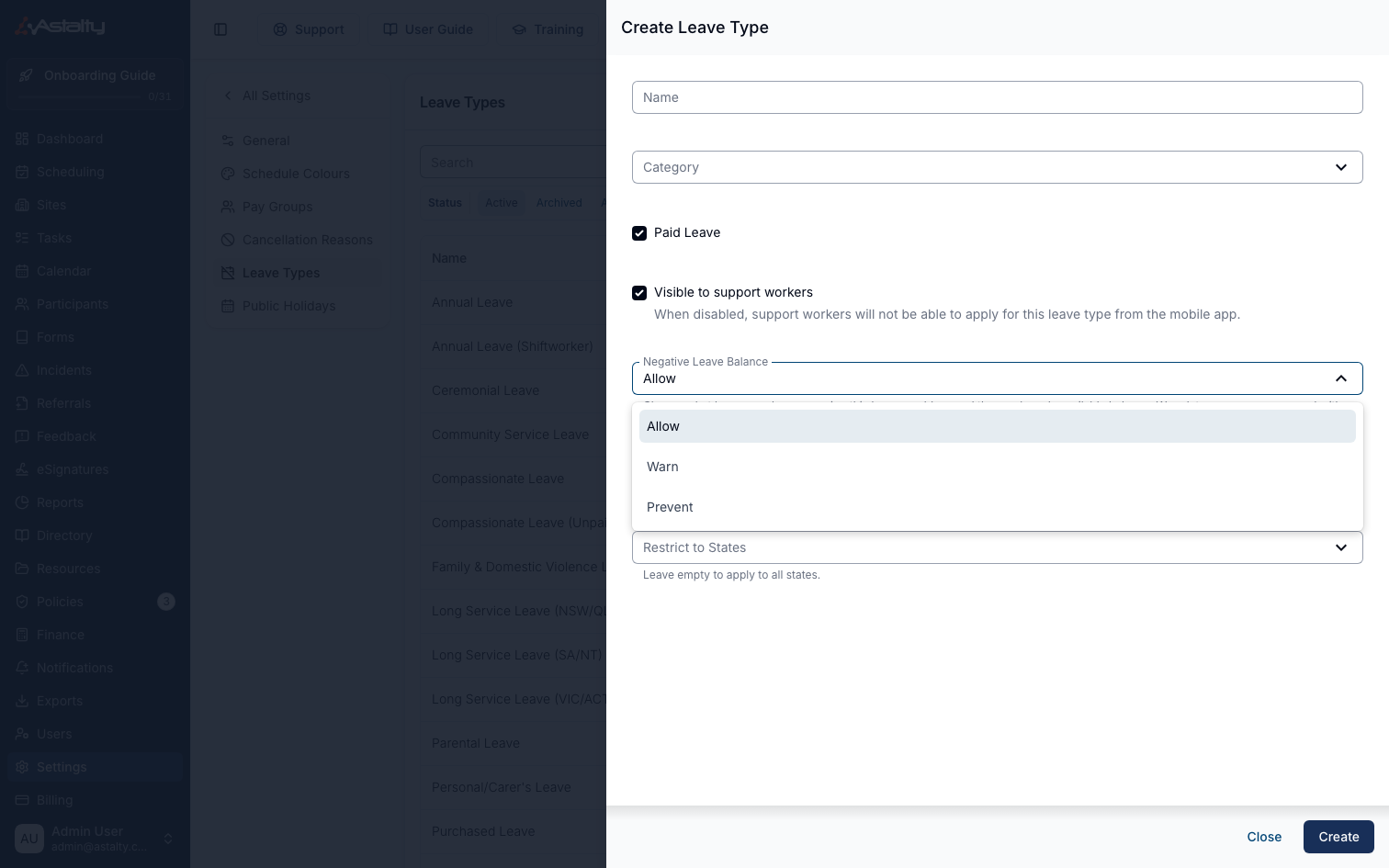
- Negative Leave Balance - what happens if approving would take the employee's balance below zero. See Negative Leave Balances below.
Leave Types you no longer use can be archived so they stop appearing on new requests, without affecting past records.
Importing Leave Types from Payroll
If the leave types you need already exist in Xero or Employment Hero, you don't have to recreate them by hand and map them one at a time — you can import them instead.
From Settings → Integrations → Xero → Leave Types (or Employment Hero → Leave Types), open Actions → Import Leave Types. Astalty lists every leave type it can find in your payroll platform that isn't linked to Astalty yet, each with a suggested Astalty category already picked — only change it if it looks wrong.
- Tick the leave types you use (or select Select All).
- Check the Astalty Category for each one - a category is required before you can import.
- Select Import. Astalty creates a matching leave type in Astalty for each one you selected and links it to the payroll leave type, in a single step - no need to separately create it under Settings → Scheduling → Leave Types or map it afterwards.
A few things worth knowing:
- Matching is by name. If a leave type with the same name already exists in Astalty - even if it's archived - importing links to that one and unarchives it, rather than creating a duplicate.
- Leave types already linked to Astalty are listed separately under "Already set up", with nothing to do for them.
- Re-importing can move a link. If an Astalty leave type is already linked to a different payroll leave type, importing a new match moves that payroll link across.
- Negative Leave Balance defaults to Allow on an imported leave type, same as one created by hand - see below. Change it under Settings → Scheduling → Leave Types if you need a different behaviour.
- This is a shortcut, not a requirement - you can still create and configure leave types manually instead, or alongside imported ones.
Negative Leave Balances
Leave is often requested well ahead of time, so a Support Worker can ask for leave they haven't accrued yet but will have by the time the leave starts. The Negative Leave Balance setting on each leave type decides what Astalty does when the hours you're approving are more than the balance payroll reports today.
| Option | What happens when you approve |
|---|---|
| Allow | No balance check at all - the approval goes straight through. |
| Warn | The approval is stopped the first time and you're shown the shortfall. You can then approve anyway, and the override is recorded. |
| Prevent | The approval is blocked. You can't proceed until the leave hours are reduced or the balance is corrected in payroll. |
New leave types are set to Allow by default.
Approving Anyway on a Warn Leave Type
On a leave type set to Warn, pressing Approve checks the balance first. If the leave would push the balance negative, the dialog stays open, shows how big the shortfall is and what the available balance currently is, and the button changes to Approve anyway:
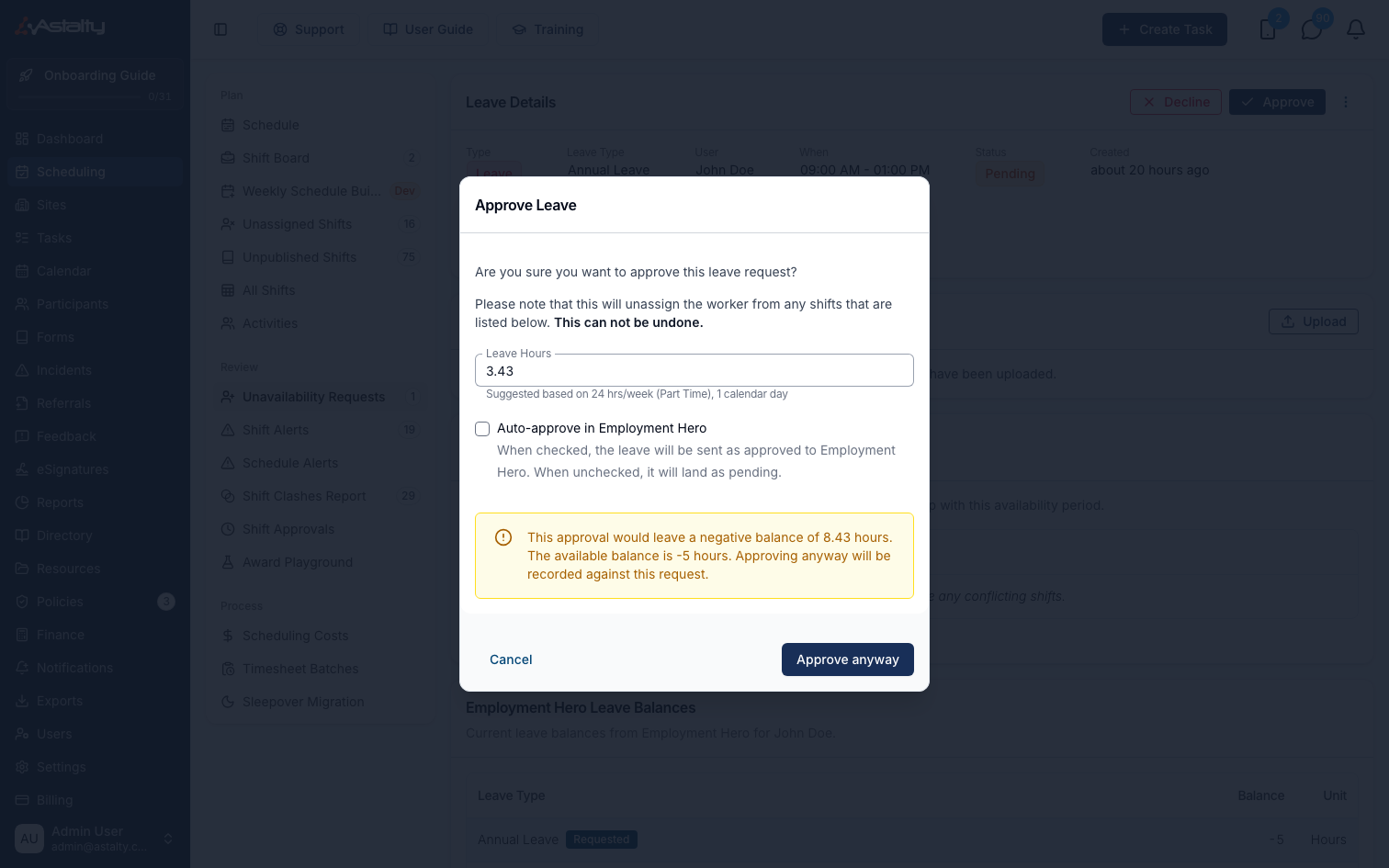
Pressing Approve anyway completes the approval and records the override - the time it was acknowledged and the size of the shortfall - against the request.
If you edit the Leave Hours the warning clears, and the new figure is checked against the balance again when you resubmit. That way a corrected amount is properly re-tested rather than being carried through on the earlier override.
When the Balance Can't be Checked
If Astalty can't reach your payroll integration to read the balance, the leave type's setting decides what happens:
- Warn - you'll see "Unable to verify the available leave balance with your payroll integration. You can approve anyway, or try again once the integration responds." You can go ahead and approve, or wait and retry. Approving still records an override, but without a shortfall figure, because the balance genuinely isn't known.
- Prevent - the approval is blocked with "Unable to verify the available leave balance with your payroll integration. Please try again."
Things to Note About the Balance Check
- Only balances reported in hours are checked. Astalty compares the leave hours you're approving against the matching balance from Employment Hero or Xero, and it only uses a balance that payroll reports in hours. If the matching balance comes back in days, the employee isn't linked to payroll, or payroll returns no balance for that leave type, there's nothing to compare - so the approval goes through as normal, whatever the setting is.
- The check uses today's balance, not the balance at the leave date. Astalty reads the current balance from payroll at the moment you approve. It doesn't forecast what the balance will have accrued to by the time the leave is taken - which is exactly the situation Warn exists for.
- The recorded override isn't displayed on the request. The leave details screen shows Reviewed By and Reviewed At, so you can see who approved the request and when. The shortfall figure itself is stored against the request but isn't currently shown on screen.
- The setting is per leave type, and applies from the moment you change it - it affects future approvals, not ones already made.
- The same Negative Leave Balance field appears wherever you edit a leave type, including under Settings → Integrations → Xero → Leave Types and Employment Hero → Leave Types.
Before you Start
To use Leave you'll need:
- The Astalty Premium plan. Leave is switched on automatically for every account on Premium - there is nothing to enable, and it can no longer be switched on for an individual account.
- Scheduling enabled on your account - leave is submitted and reviewed through the unavailability request workflow, which is part of Scheduling.
- For payroll sync (optional but recommended): your Xero or Employment Hero integration connected, and your employees linked to their payroll records.
Scheduling itself needs the Premium plan: Professional and Lite accounts can't enable it, so they have no availability or leave request screen at all — not just no Leave option.
Setting it up
Set Leave up in this order:
- Create your leave types. Go to Settings → Scheduling → Leave Types and add the kinds of leave your staff take. Set each one's category, whether it's paid, who it applies to, whether Support Workers can select it, and how it should handle a negative leave balance.
- Connect your payroll integration (skip if you don't want payroll sync). Connect Xero or Employment Hero and make sure your employees are linked to their payroll records.
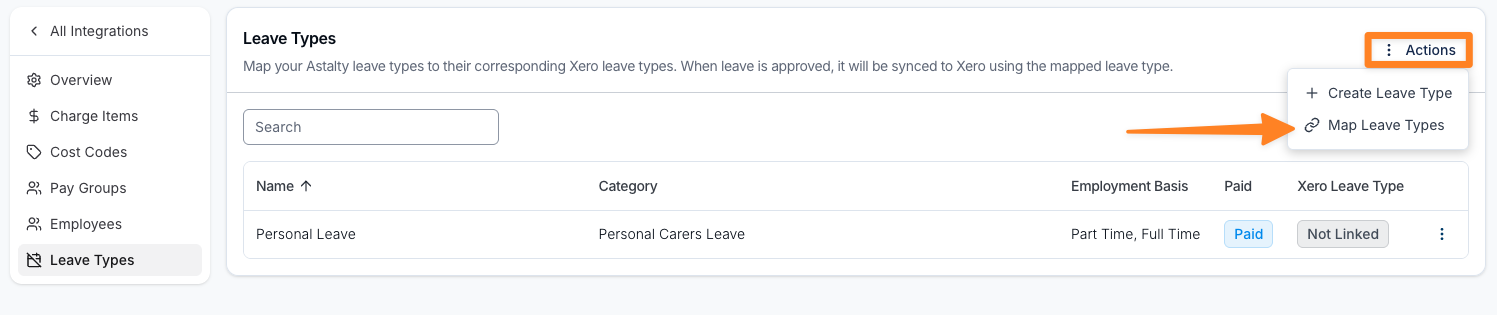
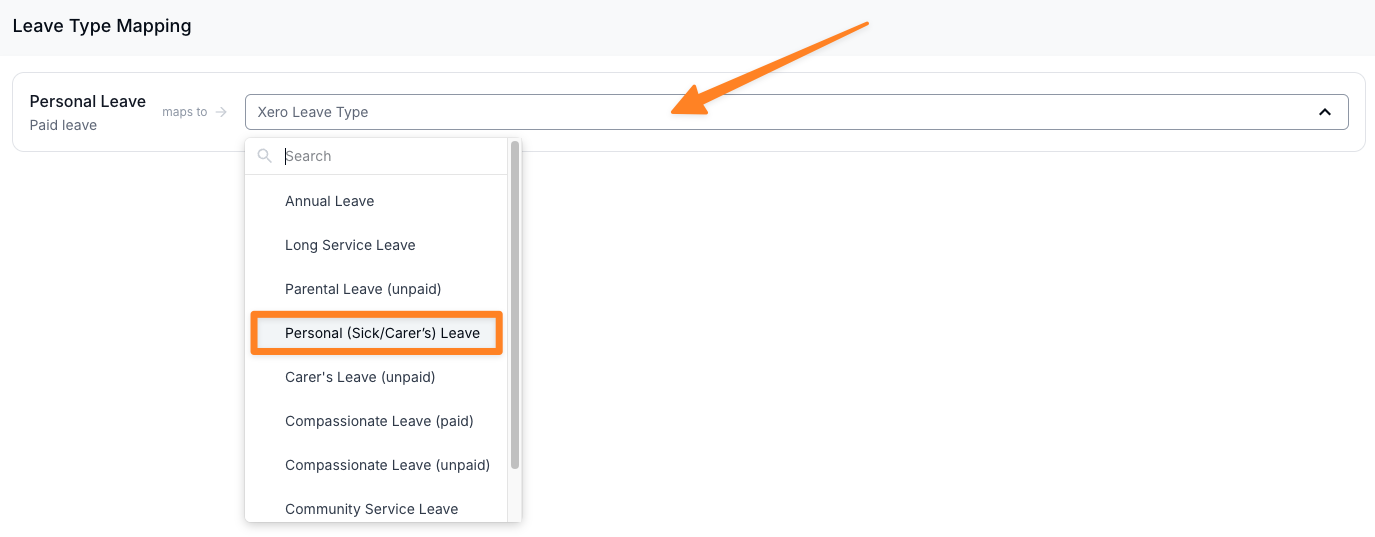
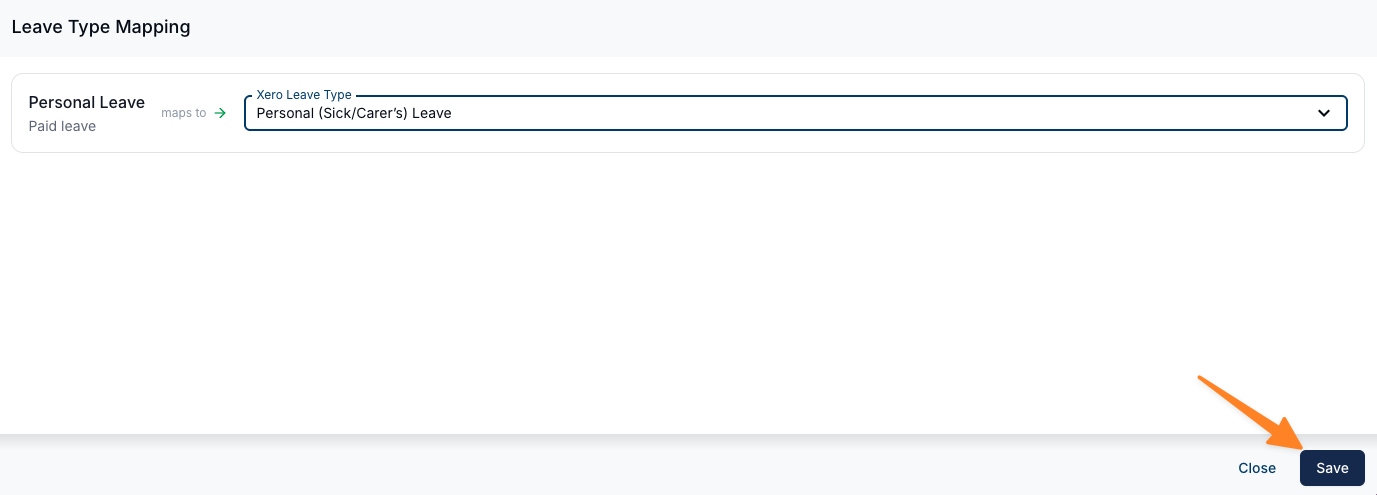
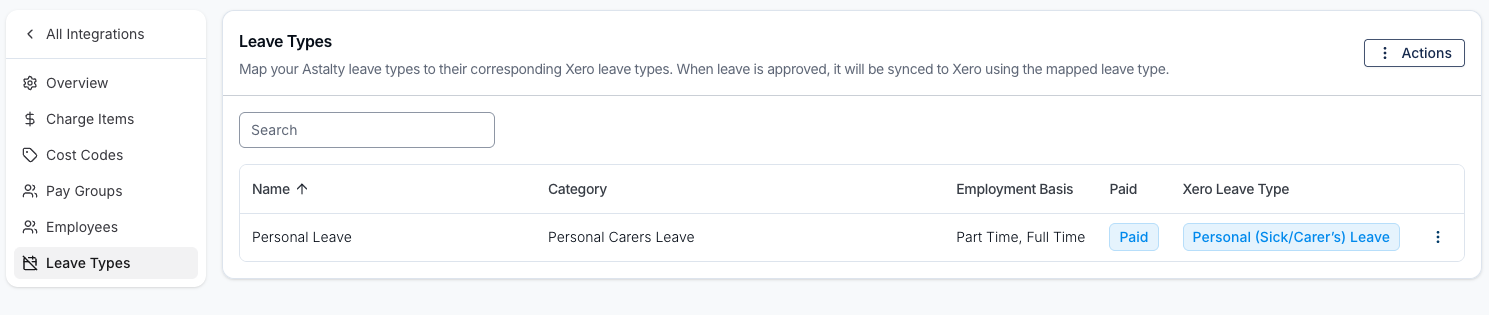
- Map your leave types to payroll. In Settings → Integrations → Xero → Leave Types (or Employment Hero → Leave Types), match each Astalty leave type to the matching Xero leave type / Employment Hero leave category. This mapping is what tells payroll which bucket the leave belongs to.
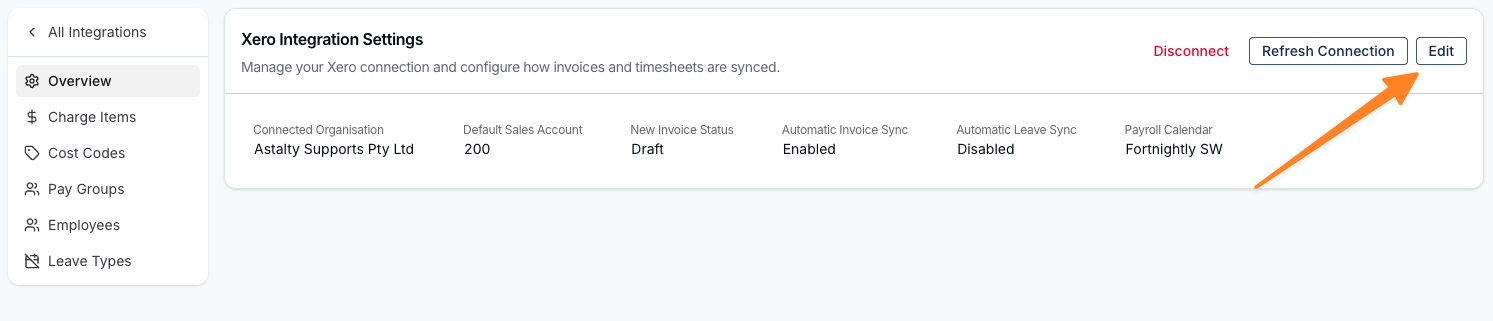
- Turn on automatic sync. In the same integration's settings, enable "Sync leave automatically". From then on, approving a leave request will create the leave application in payroll for you.
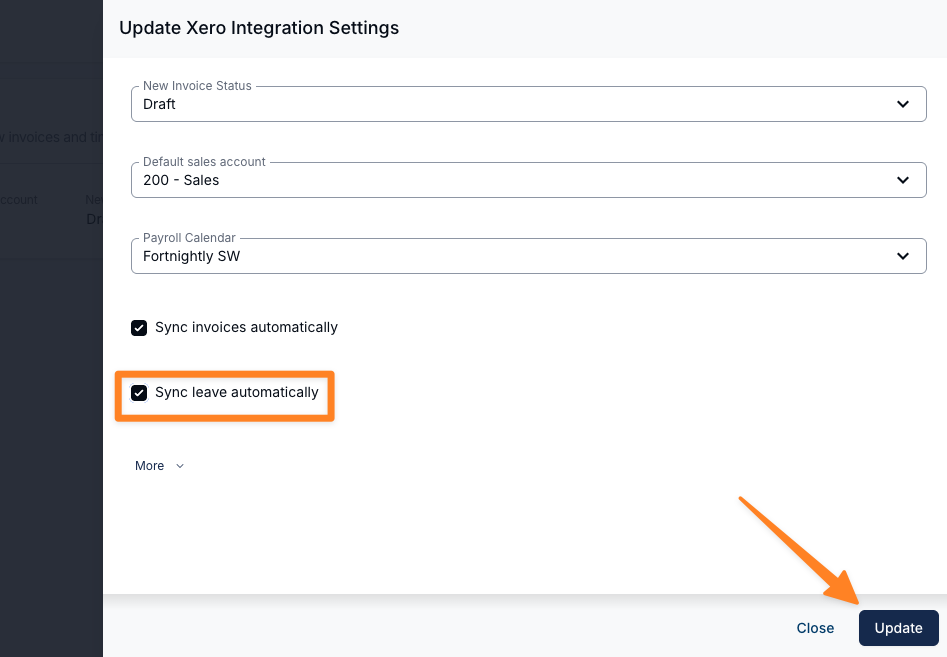
- Test with one request. Have someone submit a leave request (or create one yourself), approve it, and check the sync status card on the request to confirm it landed in payroll.
How Leave Hours are Calculated
When leave is approved, Astalty needs to know how many hours of leave to record. It suggests a figure based on the employee's contracted weekly hours, spread evenly across the calendar days of the leave:
- Leave hours = weekly hours x calendar days / 7
This treats every calendar day equally rather than trying to guess which days the person works - which is the right approach for Support Workers who can be rostered any day of the week, including weekends.
A couple of refinements:
- Part of a day: for a single day where the requested time range is shorter than a normal day (e.g. a 4-hour appointment), Astalty uses those actual hours instead.
- Longer leave across pay periods: when leave spans more than one payroll period, the total hours are split evenly across those periods.
The reviewer can always adjust the hours before approving - the calculated figure is just a sensible starting point.
Things to Note
- Casual employees are excluded from paid-leave sync. Under the Fair Work Act casuals aren't entitled to paid leave (they receive casual loading instead), so leave for casual employees won't be pushed to payroll.
- The employee must be linked to payroll (with a Xero employee ID / Employment Hero ID) and have active employment details for sync to work. If they're not linked, the leave is still recorded in Astalty but won't sync.
- Leave is a single, once-off request - it isn't set up as a recurring pattern the way some availability can be.
- Balances are read live at review time. Astalty doesn't store or manage leave balances itself - it reads them from your payroll system each time you open a request. Astalty is not the source of truth for accruals.
- Sync is one-way and create-only. Astalty creates the leave application in payroll on approval. If you later cancel or edit the leave, that change is not pushed back to payroll - you'll need to adjust it in Xero / Employment Hero directly.
- Failed syncs can be retried. If a sync fails (e.g. payroll was briefly unavailable), the request shows a failed status with a reason and a retry option.
- Support Workers only see leave types marked visible to them.
What's Covered and What Isn't
| Behaviour | Supported |
|---|---|
| Requesting typed leave alongside unavailability | ✅ |
| Attaching supporting documents (e.g. a medical certificate) on web and mobile | ✅ |
| Adding or removing supporting documents after a request is submitted | ✅ |
| Seeing live payroll leave balances when reviewing a request | ✅ |
| Automatically creating the leave application in Xero / Employment Hero on approval | ✅ |
| Importing leave types directly from Xero / Employment Hero | ✅ |
| Suggested leave hours, adjustable at approval | ✅ |
| Retrying a failed sync | ✅ |
| Warning on (and allowing) an approval that would go into a negative balance | ✅ |
| Blocking approvals that would go into a negative balance | ✅ |
| Managing leave balances or accruals inside Astalty | ❌ |
| Forecasting what a leave balance will be on a future date | ❌ |
| Showing the recorded negative-balance override on the leave request | ❌ |
| Paid-leave sync for casual employees | ❌ |
| Updating or deleting a leave application in payroll after it's synced | ❌ |
| Pushing later cancellations or edits back to payroll | ❌ |
| Acting as the system of record for leave entitlements | ❌ |