Schedule Colours
Overview
Schedule Colours lets you choose colours for events on the Schedule. For example, you could show unassigned shifts in red and broadcasted shifts in blue.
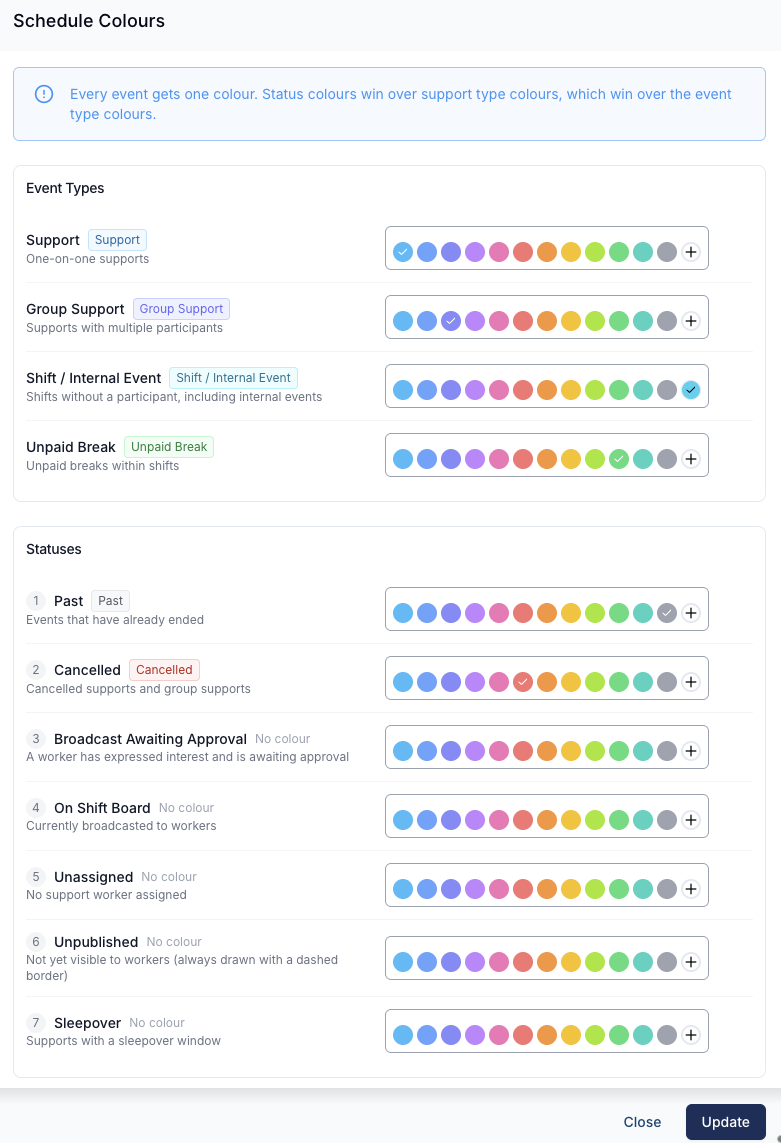
You can set a base colour for each type of event, plus status colours (Past, Cancelled, Unassigned, and more) that paint over the base colour when they apply.
Where to find it
You can open Schedule Colours from two places, and both open the same panel:
- Settings → Scheduling → Schedule Colours - go straight to Schedule Colours, or open Settings → Scheduling and select the Schedule Colours card.
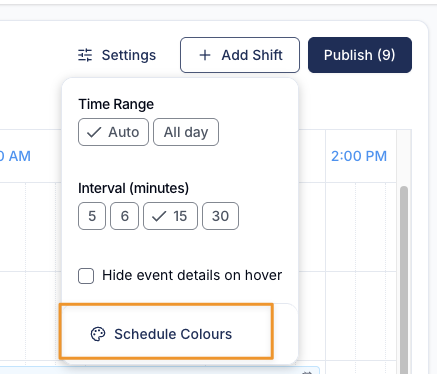
- From the Schedule - on the Schedule, open the settings menu (the sliders icon near the top right) and click Schedule Colours.
How colours are decided
Every event on the Schedule gets one colour. When more than one colour could apply, Astalty picks a winner using this order of priority:
- Status colours win over
- Support type colours, which win over
- Event type (base) colours.
In other words, a status colour always takes precedence. If no status colour applies, a support type colour is used; if neither applies, the event falls back to its base event-type colour.
Event Types (base colours)
The base colour for each kind of event. These are the starting point before any status is taken into account.
| Event type | What it covers |
|---|---|
| Support | One-on-one supports |
| Group Support | Supports with multiple Participants |
| Shift / Internal Event | Shifts without a Participant, including internal events |
| Unpaid Break | Unpaid breaks within shifts |
Statuses (override the base colour)
Status colours describe what is happening with an event, and they paint over the base colour when they apply. The statuses are numbered, and if an event matches more than one status, the one closest to the top of the list wins. This table shows the default order, with Keep status colours after an event ends off:
| # | Status | When it applies |
|---|---|---|
| 1 | Past | Events that have already ended |
| 2 | Cancelled | Cancelled supports and group supports |
| 3 | Broadcast Awaiting Approval | A worker has expressed interest and is awaiting approval (Shift Board only) |
| 4 | On Shift Board | Currently broadcasted to workers (Shift Board only) |
| 5 | Unassigned | No Support Worker assigned |
| 6 | Unpublished | Not yet visible to workers |
| 7 | Sleepover | Supports with a sleepover window - also used for the sleepover bed icon |
Keep status colours after an event ends
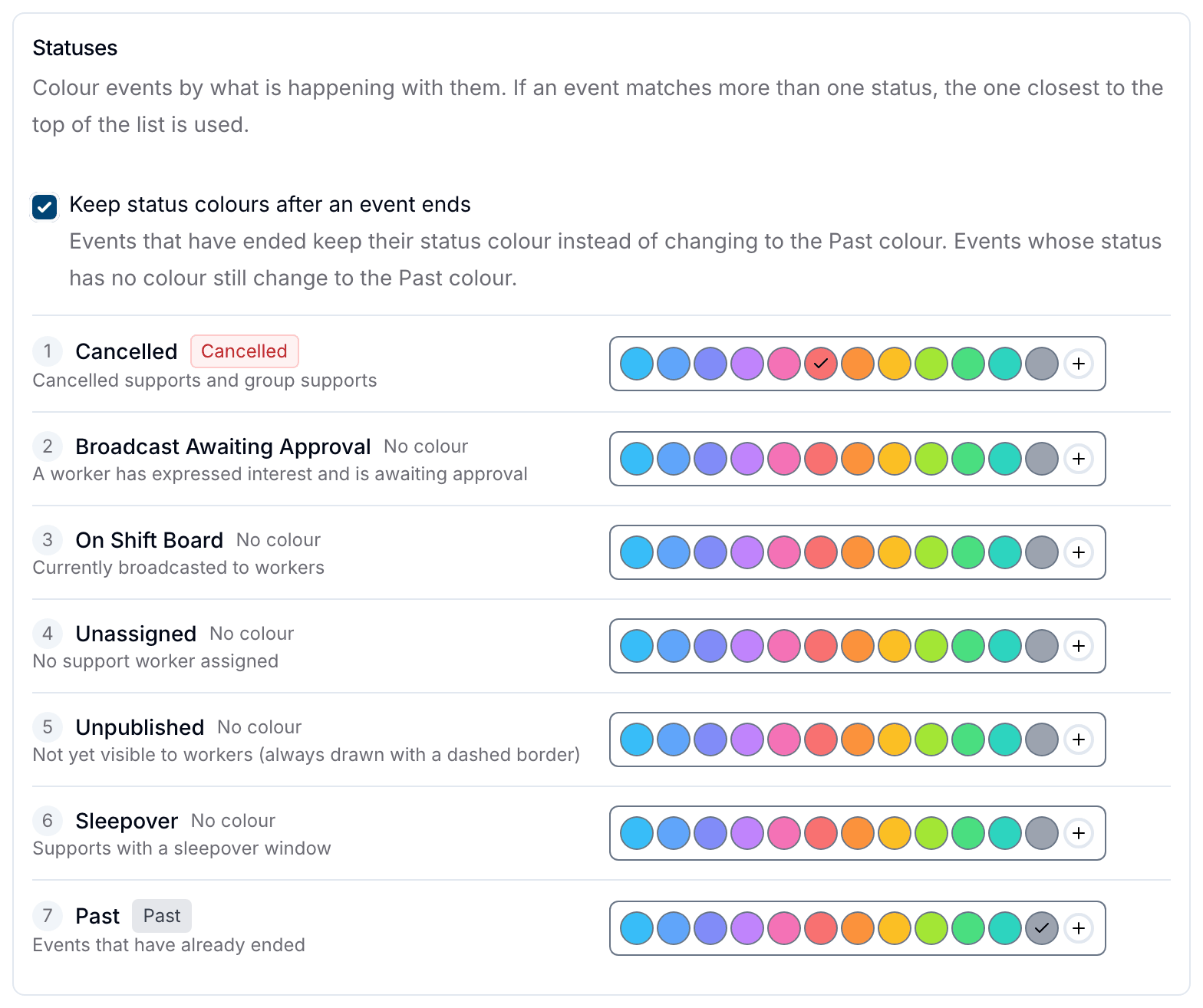
By default, Past ranks first, so every event that has ended shows the Past colour (grey unless you change it) - even a cancelled one. Tick Keep status colours after an event ends, at the top of the Statuses section, to change that:
- Past drops to the bottom of the list, and every other status moves up one place - position 7 for organisations with Shift Board access, position 5 without it.
- An event that has ended now keeps its status colour wherever that status has one. Cancelled always does, since it has a default colour - so a cancelled shift stays the same colour whether it's upcoming or already finished.
- The other statuses (Broadcast Awaiting Approval, On Shift Board, Unassigned, Unpublished, Sleepover) only keep theirs once you've set a colour for them. An ended event with no matching coloured status still falls back to the Past colour.
This is a single organisation-wide setting - it applies to the Schedule, site schedules, the Participant Calendar and worker shift calendars alike. The numbered list in the edit drawer reorders live to match whichever setting is on; the table above always shows the off/default order.
Support Types
You can also colour supports and group supports by their support type. Support type colours are only used when no status colour applies - so, for example, a cancelled support still shows the Cancelled colour rather than its support type colour.
Saving your colours
Set the colours you want, then click Update to apply them for your whole organisation. To close without keeping your changes, click Cancel.
Shift Board colours
The two Shift Board statuses - Broadcast Awaiting Approval and On Shift Board - only appear for organisations with Shift Board access. If your organisation doesn't use the Shift Board, these two rows won't show in the Schedule Colours panel and there's nothing else you need to do.
For how broadcasting and approvals work, see Shift Board Workflow.
Broadcast interest on the Schedule
Broadcasted shifts now show how many workers have expressed interest directly on the Schedule, so you can gauge interest without opening the Shift Board.
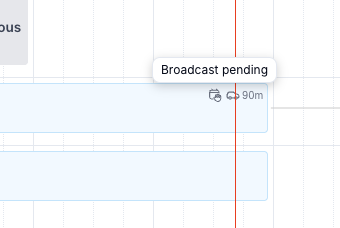
- A broadcast icon appears on any shift with a live broadcast.
- Once a shift is broadcasting, a number next to the icon shows how many workers have expressed interest so far. (A shift that's queued but hasn't started broadcasting yet shows the icon without a number.)
- Hovering the icon shows the broadcast state - for example Broadcast pending, Broadcasting, Broadcast sent, or Broadcast awaiting approval - along with the number interested where relevant.
Sleepover bed icon
Shifts with a sleepover window carry a bed icon in the Sleepover colour - on the Schedule's shift cards, a worker's Shifts list, and the Shifts PDF export. Clear the colour to fall back to blue.