- Scheduling
- Qualification Checks When Rostering
Qualification Checks When Rostering
Overview
Once required qualifications have been set up - either against a role or against a Participant - Astalty checks them every time you roster someone, and surfaces the result in a few places across scheduling.
There are two possible outcomes:
- Warn - the worker is flagged, but you can still roster them.
- Block - the save is rejected and the worker can't be selected.
Saving a Shift or Support
This is the check that always applies. If you try to save a shift or support with a worker who fails a Block-level requirement, the save is rejected with an error naming the worker and the qualifications they're missing:
Jane Citizen cannot be assigned without the required qualification(s): First Aid, NDIS Worker Screening.
The error appears against the Support Workers field. Warn-level issues never produce this error - those saves go through normally.
On the Schedule
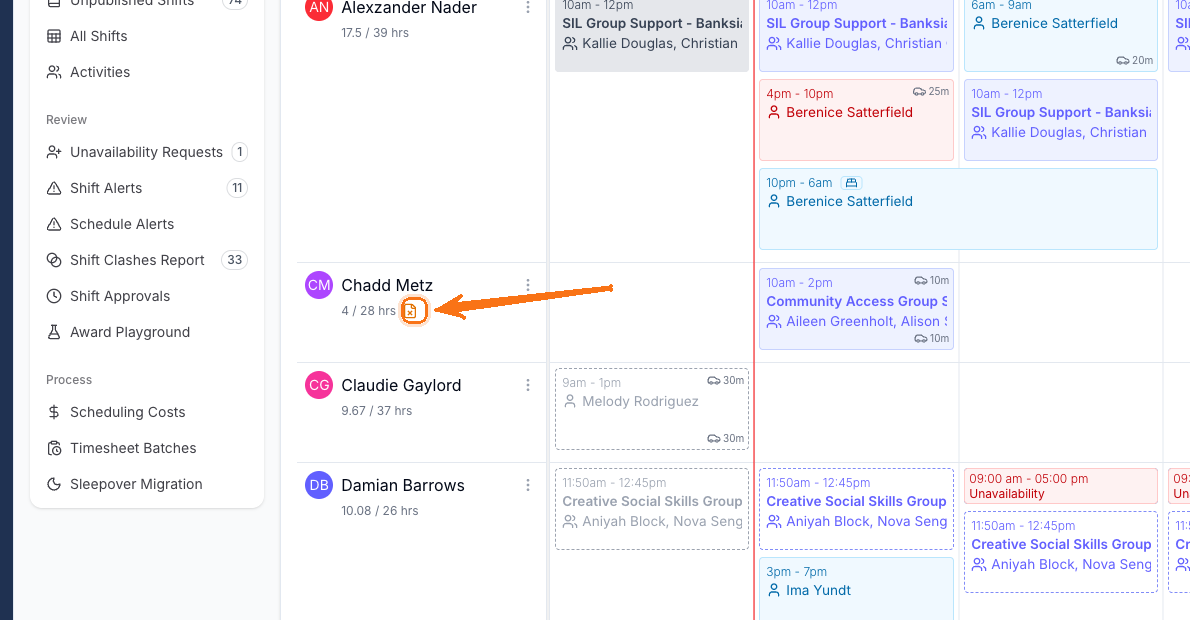
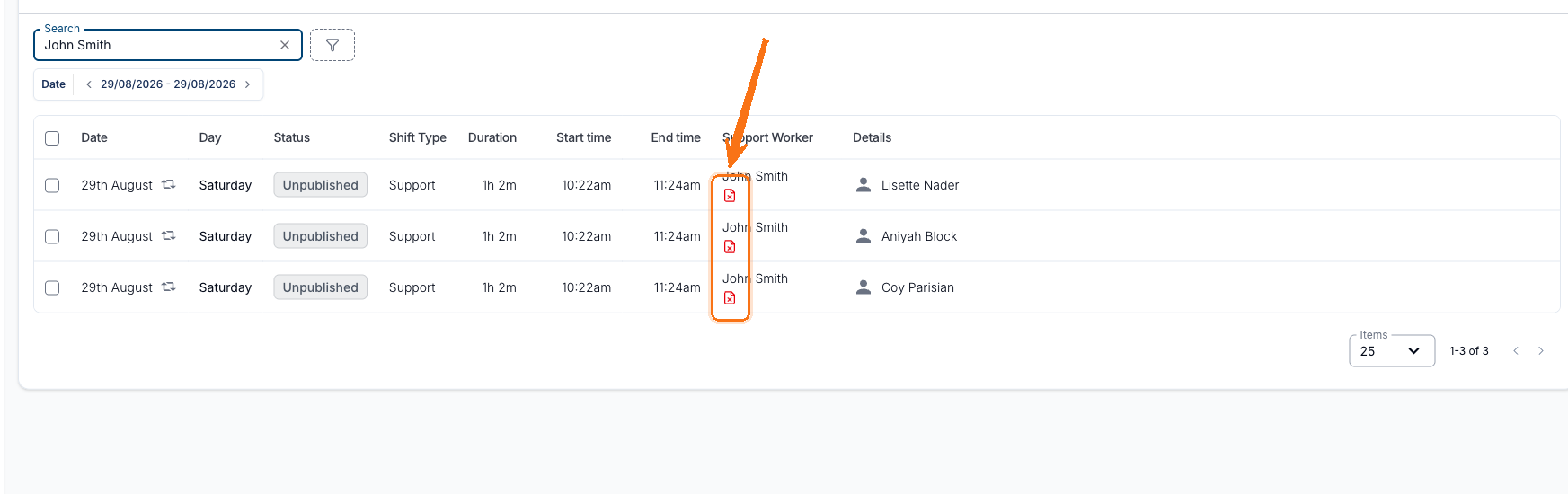
A small red or amber file-with-an-X icon appears next to a worker's name when they have a qualification issue:
- Red means at least one issue is Block-level.
- Amber means the issues are Warn-level only.
Hovering it shows Missing qualifications, then one line per issue:
First Aid is required but the worker does not hold a valid one.
Manual Handling is required by this participant but the worker does not hold a valid one.
You'll see this indicator in two places.
On the Schedule, it sits under the worker's name in the left-hand row labels - next to their rostered hours - when the calendar is grouped by Support Worker:
In All Shifts, it sits under the worker's name in the Support Worker column, against each affected shift:
Choosing a Worker
When you pick a worker from the suggestions list - including on the shift board and when creating a group support - failing workers are handled for you.
A worker who fails a Block-level requirement has their row greyed out and unselectable, with a red chip in the Preferences column reading Qualification - Selection Blocked. Hovering it explains:
This support worker cannot be assigned to this support because they do not meet the qualifications required.
They're also skipped by bulk selection - Select All, All Compatible and Preferred Only won't pick them up.
A separate Qualifications column shows a chip per issue, named for the qualification: red for Block, amber for Warn. A worker with only amber chips stays fully selectable.
A Worker Who Is Already Selected
Blocking governs adding a worker, not removing one. A worker can be ticked and then become blocked - you moved the shift to a date their First Aid no longer covers, or you cloned a Support they were already on. When that happens you can still untick them.
Their row keeps its selected highlight and a working tick, and the chip reads Qualification Not Met instead of Qualification - Selection Blocked, because selection isn't what's blocked any more. Untick them and the row reverts to the greyed-out blocked style, so they can't be added back.

This applies anywhere workers are picked with tickboxes - creating or cloning a group support, and on the Shift Board.
Checks Use the Shift Date, Not Today
Everywhere in scheduling, a worker's qualifications are checked as at the shift's start time - not as at today. That means a worker whose First Aid expires next month:
- can be rostered onto a shift next week, and
- cannot be rostered onto a shift after the expiry date, if the requirement is set to Block.
This is deliberate - it stops you building a roster that will be non-compliant by the time it's worked.
Finding Out Why a Worker Failed
The indicators and error messages on the schedule name the qualification, but not the reason - they only say the worker doesn't hold a valid one.
To find out why - whether the record is missing, expired, awaiting verification or declined - check the Qualifications Compliance Report, or open the worker's Records tab.
Related Guides
- Required Qualifications in Settings - set up role-based requirements.
- Required Qualifications for a Participant - set up Participant-based requirements.
- Lapsed Qualification Notifications - get told when a worker on an upcoming shift is no longer qualified.