- Administration
- Settings
- Users Settings
- Required Qualifications
Required Qualifications
Overview
Qualifications let you say that members of a User Group must hold a particular credential, such as First Aid, NDIS Worker Screening or Manual Handling, before they can be rostered onto a shift.
A qualification isn't a new kind of record. It's built directly on your existing User Records: you mark an existing User Record Type as required for rostering, and Astalty works out who holds it from the records already on each worker's profile. There's nothing extra for workers to upload, and no separate Qualifications screen to maintain.
Requirements can come from two directions:
- User Group-based: everyone in a selected User Group needs the qualification. This is set on the User Record Type and covered on this page.
- Participant-based: anyone supporting a particular Participant needs the qualification. This is set on the Participant's profile. See Required Qualifications for a Participant.
Setting Up a User Group Requirement
Only the Account Owner, and Admins who have Can manage User Records for all Users turned on, can set up or change qualification requirements. That toggle is off by default for other Admins. Managers can view requirements but not change them.
- Go to Settings > Users.
- Find the User Record Types card.
- Click Create User Record Type, or open the menu on an existing record type and click Edit.
- Scroll down to the Rostering section.
- Tick Required to work.
- Open Select a role and choose the User Group that needs this qualification. The list includes custom groups, Team groups and reserved role groups.
- Choose an Enforcement level, then select Add. Repeat for each User Group that needs this qualification.
- Select Update, or Create on a new record type, to save.
The Rostering section only appears once Qualifications is enabled on your account. Ticking Required to work reveals the description:
Warn or block rostering workers who don't hold a current record. Workers see this as a required qualification when you roster them.
Each User Group you add appears in a list, with its own Enforcement dropdown and a Remove action.
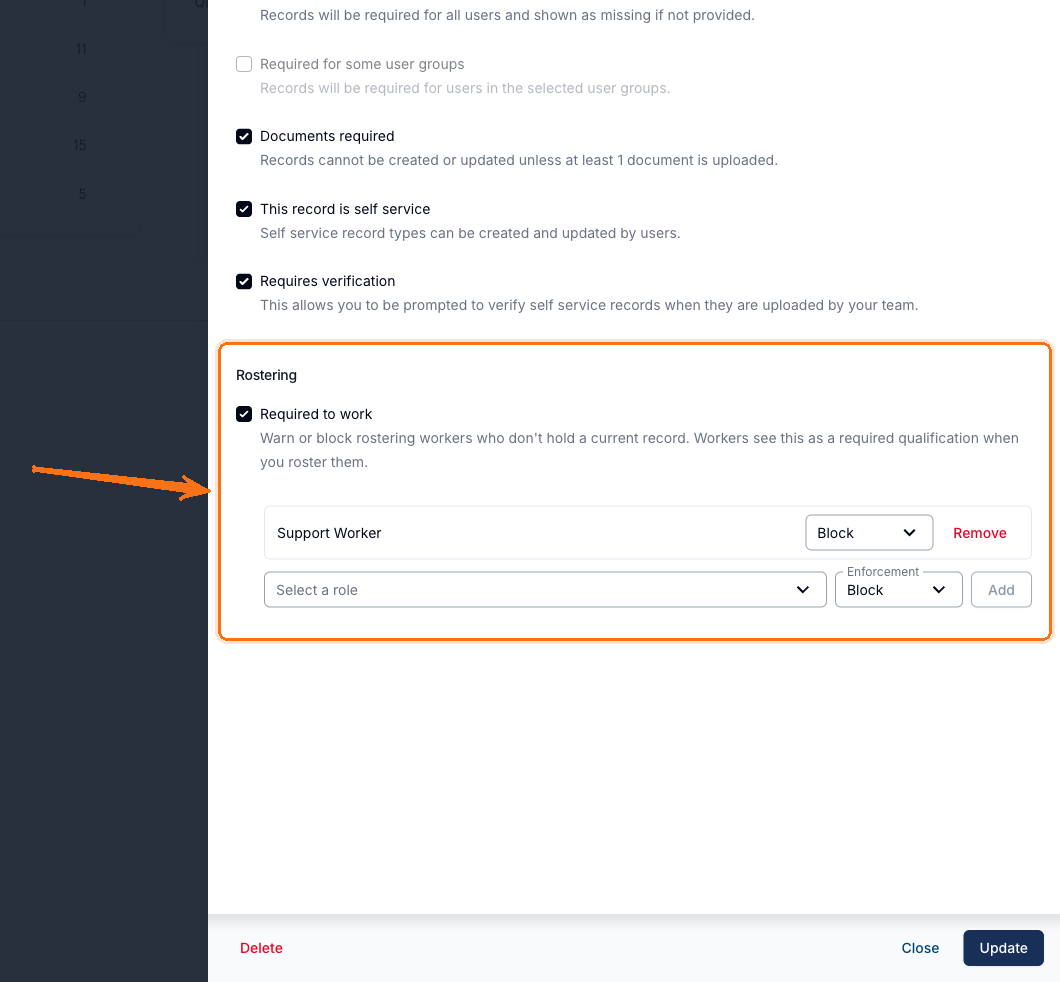
Once every User Group has been configured, the add row is replaced with Every role is configured.
Enforcement Levels
Enforcement decides what happens when a worker who doesn't hold the record is rostered.
| Level | What happens |
|---|---|
| Warn | The worker is flagged on the schedule, in worker suggestions and in the Qualifications Compliance report, but nothing is blocked. Schedulers can still roster them. |
| Block | The roster save is rejected, and the worker is greyed out and unselectable in the worker suggestion tables. |
Block is selected by default when you add a role.
Turning a Requirement Off
There's no "Off" option in the dropdown. To stop enforcing a qualification, either:
- Remove a single User Group: select Remove next to it, then save. Other groups remain configured.
- Remove the requirement entirely: untick Required to work and save. The qualification is deleted along with all of its User Group requirements.
Overlapping Requirements
A worker can be covered by more than one requirement for the same qualification. For example, a User Group requirement could be set to Warn while a Participant requirement is set to Block.
When that happens, the strictest one applies. If any requirement covering that qualification is set to Block, the worker is blocked.
Seeing Which Record Types Are Required
Once Qualifications is enabled, the User Record Types table gains a Required to Work column showing a tick against each record type that has at least one rostering requirement.
Required Record vs Required to Work
The User Record Type drawer has two settings that sound similar but do different jobs:
- Required record (and Required for some user groups) controls whether the record shows as missing on the User Records Report. It's about record-keeping.
- Required to work, in the Rostering section, controls whether a missing or expired record warns or blocks when rostering. It's about scheduling.
You can use either on its own, or both together.
When a Worker Counts as Holding a Qualification
A worker holds a qualification when they have a current record of that type. A record is current when it is:
- not archived,
- not declined,
- verified, if the record type requires verification,
- not expired.
Anything else counts as a failure and shows on the compliance report as one of four reasons: Missing, Expired, Awaiting Verification or Declined.
If you rename a record type, the qualification is renamed with it. If you delete a record type, the qualification and all of its requirements are deleted too. Deleting a user group removes that group's requirements.
Related Guides
- Required Qualifications for a Participant: requirements that apply to anyone supporting a particular Participant.
- Qualification Checks When Rostering: what schedulers see on the roster.
- Qualifications Compliance Report: who is currently missing a required qualification.
- Lapsed Qualification Notifications: get alerted when a worker on an upcoming shift is no longer qualified.