- Administration
- Setup Pay Items and Employee Templates in Xero
Setup Pay Items and Employee Templates in Xero
Overview
Before timesheets can be successfully sent from Astalty to Xero, you need to ensure that the correct Pay Items and Employee Pay Templates are configured in Xero.
Pay Items define the different types of earnings employees can receive, such as ordinary hours, overtime, or allowances. When timesheets are exported from Astalty, the hours worked are mapped to these Pay Items so they can be processed correctly in Xero payroll.
Astalty sends each mapped Xero earnings-rate ID with daily hours or allowance units. It does not send calculated dollar amounts. Xero applies the Pay Item and employee Pay Template configuration, so review the resulting rates and totals in Xero before posting payroll.
The Xero paths below follow current Xero Payroll AU documentation. Available fields and labels can depend on your Xero organisation and access. If they differ, use Xero's current custom pay item and employee Pay Template instructions.
Configure Pay Items in Xero
Pay Items define the different types of pay employees receive - such as Ordinary Hours, Overtime, Weekend Rates, Public Holiday Rates, and Allowances. These must be set up in Xero so Astalty can correctly map scheduled hours to the appropriate payroll categories.
The steps to create Pay Items are the same regardless of which method you use. What differs is the value you enter for each Pay Item - the Xero Payroll - Pay Item Configuration reference lists example figures for both methods:
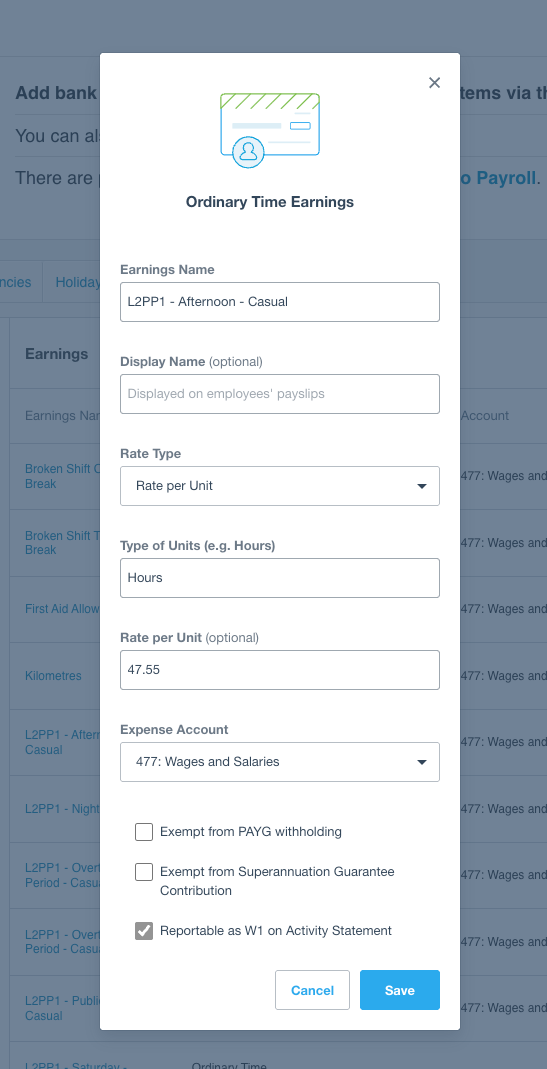
- Rate Per Unit: enter the correct dollar amount for each award classification, employment basis and earnings category. Separate rates need separate pay items and mappings.
- Multiplier: use the relevant award page's multiplier table and the employee's unloaded base rate. Separate pay items for every classification are not needed when the multipliers are identical.
Allowances can share an item only where their rate and unit are the same. First aid uses hours, kilometre allowances use kilometres, and sleepover allowances use nights. Check the current Award and the rate-maintenance guidance, including temporary changes.
Ensure that all pay rates used within Astalty Scheduling have a corresponding Pay Item in Xero.
To configure Pay Items in Xero:
- Log in to Xero.
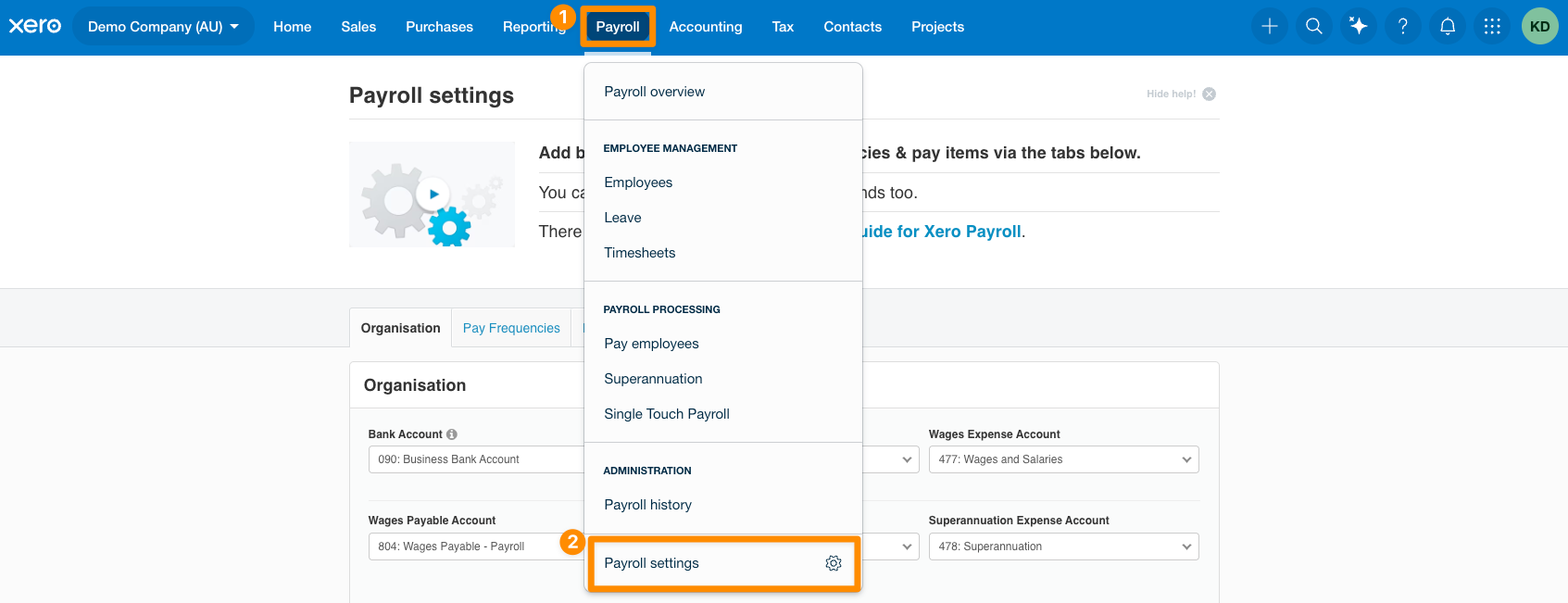
- Navigate to Payroll and select Payroll Settings.
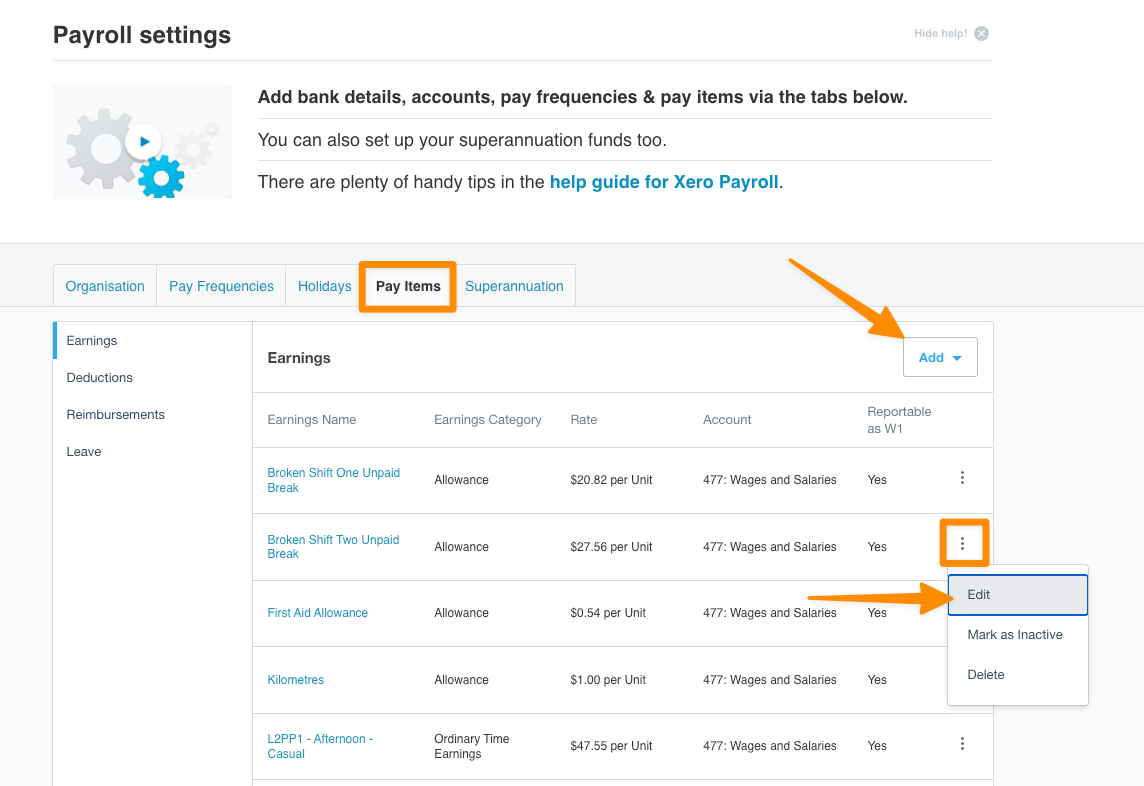
- Open the Pay Items tab.
- Click Add, choose the pay item category, complete the fields for that item, then click Add to save it. Edit an existing item where appropriate instead of creating a duplicate.
Setup Employee Pay Templates
Once your Pay Items are configured, you will need to review each employee's Pay Template in Xero.
The Pay Template defines the default payroll settings for an employee, including ordinary earnings, deductions, superannuation and reimbursements. When timesheets are exported from Astalty, the daily units are matched to the mapped Pay Items. Follow Xero Payroll AU's current requirements for the employee's ordinary earnings and superannuation lines.
Any Deductions, Superannuation, or Reimbursement lines should be configured according to the employee's employment contract. Steps 3 onwards are the same for both methods - the key difference is what you enter in the Ordinary Hours rate field.
Rate Per Unit Method
The mapped pay items carry the fixed rates. Review the employee template for competing rate overrides and default earnings that could duplicate imported hours. Confirm the applicable Xero configuration with your payroll administrator.
To review an Employee Pay Template (Rate Per Unit):
- In Xero, navigate to Payroll > Employees.
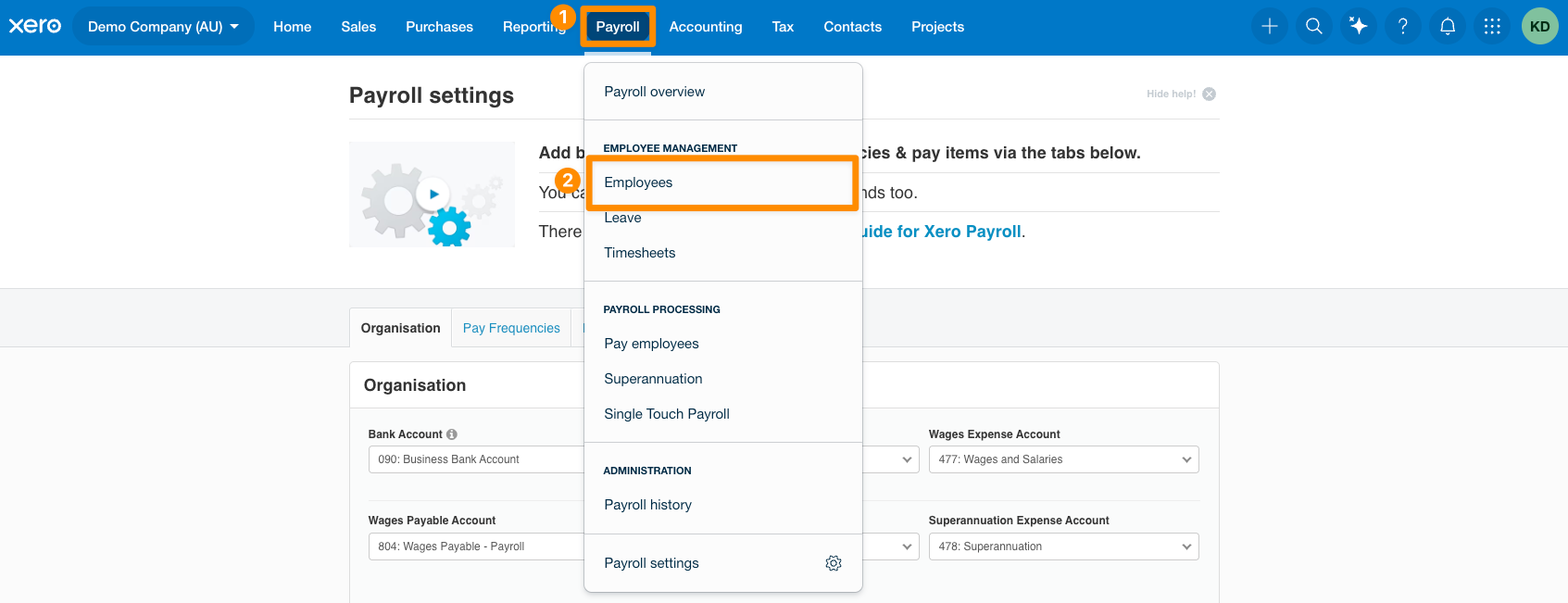
- Select an employee and open the Pay Template tab.
- Confirm that the mapped rates and template produce the intended ordinary earnings, without duplicate default hours.
- Review any Deductions, Superannuation, or Reimbursement lines to ensure they reflect the employee's contract.
- Click Save if any updates are made.
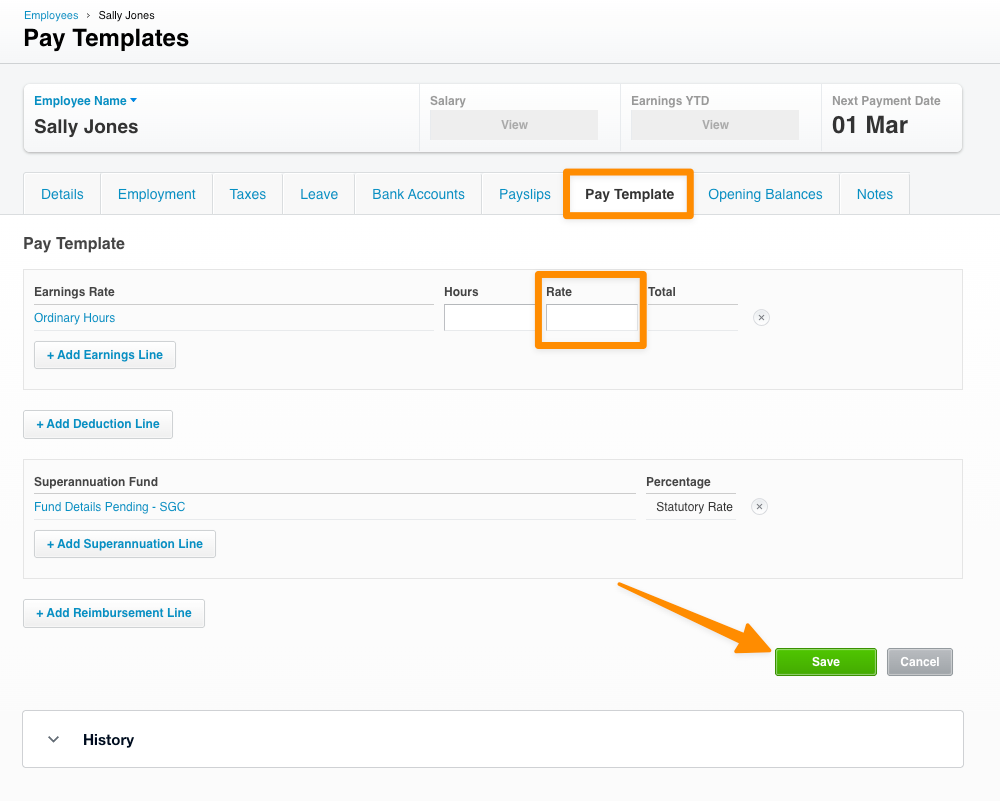
Repeat this process for all employees who will have timesheets exported from Astalty.
Multiplier Method
Under the Multiplier Method, you need to enter the employee's full-time equivalent base rate in the rate field - for both casual and permanent staff. The multipliers configured on each Pay Item will automatically add casual loading and other adjustments on top of this base rate.
To review an Employee Pay Template (Multiplier Method):
- In Xero, navigate to Payroll > Employees.
- Select an employee and open the Pay Template tab.
- Enter the employee's full-time equivalent base rate in the Ordinary Hours rate field.
- Check the calculated casual, penalty and overtime rates against the award. The guide's casual multipliers already include casual loading; adding it to the base rate too would count it twice.
- Review any Deductions, Superannuation, or Reimbursement lines to ensure they reflect the employee's contract.
- Click Save.
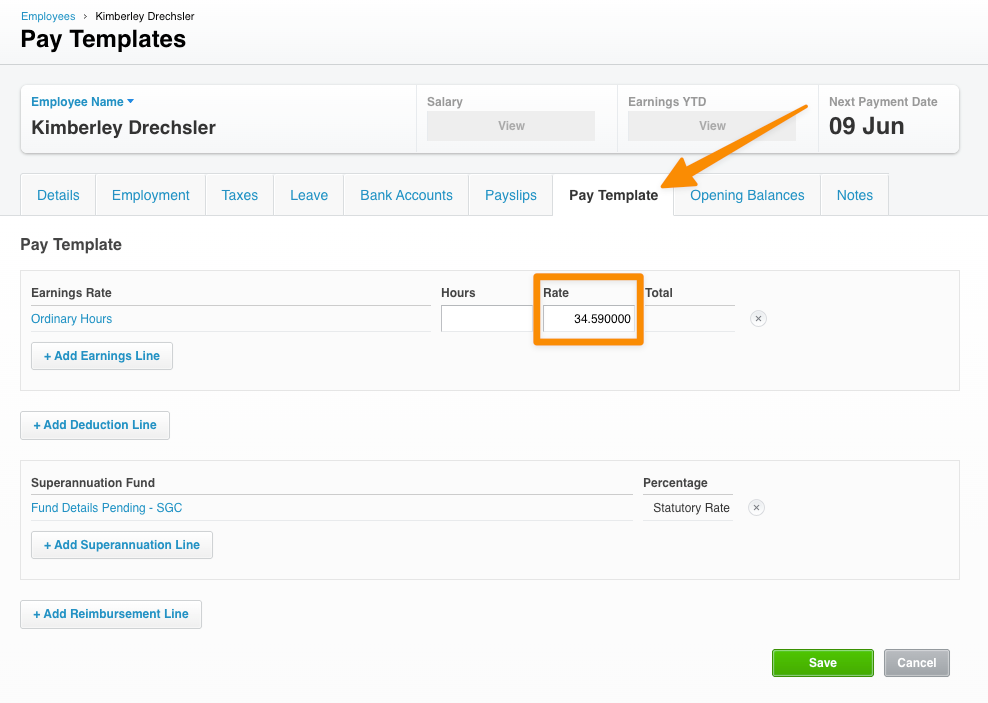
Repeat this process for all employees who will have timesheets exported from Astalty.
Changing a base rate in Astalty does not update Xero. Maintain both systems and check enabled allowance rates before each affected pay run.
Setting up Pay Items Video Walk-Throughs
Rate Per Unit Method
In this video, we demonstrate how to create Pay Items in Xero using the Rate Per Unit Method.
Multiplier Method
In this video, we demonstrate how to create Pay Items in Xero using the Multiplier Method.
Setting up Employee Pay Templates Video Walk-Throughs
Rate Per Unit Method
In this video, we walk through how to review and configure Employee Pay Templates in Xero using the Rate Per Unit Method.
Multiplier Method
In this video, we walk through how to configure Employee Pay Templates in Xero using the Multiplier Method.
Next Steps
You're now ready to map your Pay Groups and Employees in Astalty. Setup Pay Groups and Employees in Astalty for the guide.