- Administration
- Sync Payroll Calendars from Xero
Sync Payroll Calendars from Xero
Overview
Payroll Calendars are the pay cycles you've set up in Xero (for example weekly, fortnightly, or monthly). Astalty reads these calendars from Xero so that each Timesheet Batch covers the right staff and the correct pay-period dates.
Payroll calendar sync reads calendars and employee assignments from Xero. Manage those in Xero, then sync them into Astalty; you cannot assign or change an employee's payroll calendar from within Astalty. The separate timesheet export does write timesheets to Xero.
The available Xero calendar types do not expand Astalty's award averaging rules. Check the supported weekly or fortnightly pay-period settings before relying on an interpretation, particularly for a monthly calendar.
Syncing Payroll Calendars
On the Payroll Calendars page, select Sync payroll calendars, then Sync to confirm. A single sync does both jobs: it pulls your pay cycles from Xero and updates the payroll calendar assigned to each linked employee. There is no separate step for employee assignments.
Each calendar lists its Name, Calendar Type (for example Weekly or Fortnightly), and Start Date.
The sync runs in the background and can take a few minutes. Astalty notifies you with Payroll calendars synced once it's done.
Run it whenever you add or change a payroll calendar in Xero, or change which calendar an employee is assigned to in Xero.
Staff Without a Payroll Calendar
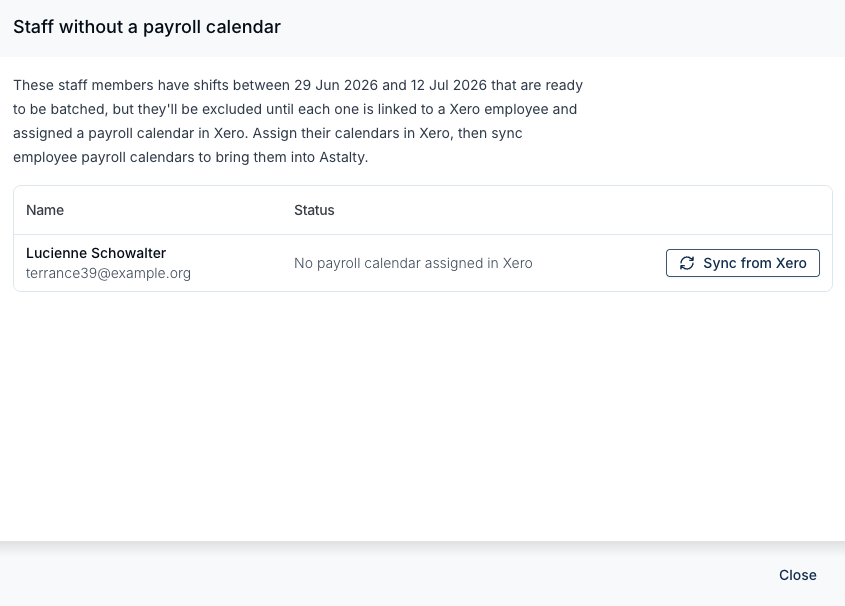
When you create a Timesheet Batch, any staff who have approved shifts ready to be batched but do not yet have a payroll calendar are listed in the Staff without a payroll calendar drawer. These staff are excluded from the batch until each one is both:
- Linked to a Xero employee, and
- Assigned a payroll calendar in Xero.
To resolve the listed staff:
- Not linked to Xero - use Link employee to link the Astalty user to their matching Xero employee. See Setup Pay Groups and Employees in Astalty for how linking works.
- No payroll calendar assigned in Xero - assign the employee to a payroll calendar in Xero, then select Sync from Xero next to their name to bring that assignment into Astalty. If two or more linked staff are listed, the drawer also offers Sync employee payroll calendars, which runs the same full sync as the Payroll Calendars page.
Once every listed staff member is linked and has a payroll calendar, they'll be included the next time you create the batch.
Next Steps
With your payroll calendars synced, you're ready to process your Timesheet Batches for Xero.