Troubleshooting 2FA
Overview
If a User can't get past the two-factor authentication (2FA) step when signing in, work through the checks on this page. Start by checking the date and time on the User's phone and that they are using the correct Astalty entry in their authenticator app.
For how 2FA works and where to set it up, see Two-Factor Authentication.
Start with the phone's date and time
Astalty uses time-based codes. Your authenticator app combines a secret (saved when you scanned the QR code) with the current time to produce the 6-digit code, and Astalty checks it against the same clock. If the phone's clock drifts out of sync, every code looks perfectly normal but is rejected.
If the time is incorrect, turn on automatic date and time:
- iPhone: Settings → General → Date & Time → turn on Set Automatically.
- Android: Settings → System → Date & time → turn on Set time automatically (and Set time zone automatically).
Then open the authenticator app again and enter the next code it shows.
A different email in your authenticator app is not the problem
When you scan the QR code, your authenticator app saves a label alongside the code, usually your Astalty email address as it was at the moment you scanned it.
That label is only a display name. It is stored on your phone, it is never re-checked when you sign in, and it does not update if your email address later changes in Astalty. So an authenticator entry showing an old or unexpected email address is cosmetic. It does not stop the codes from working and does not need to be fixed.
What is worth checking is that you are reading the code from the right entry, if you have more than one saved for Astalty or for other systems.
Timezone and VPN are not the cause
- Timezone: codes are worked out from universal time (UTC), so the timezone displayed on the phone does not change the code. Only the actual clock matters, and setting the date and time automatically takes care of both.
- VPN: Astalty does not require a VPN, and using one does not affect 2FA. There is no country-based restriction on signing in through a browser. See Security.
Sign in with a recovery code instead
If you still can't get a code to work, you can sign in with one of the recovery codes you saved when you set 2FA up.
On the web's two-factor authentication screen, type the recovery code into the same box you would normally enter the 6-digit code into, then select Confirm. You don't need a separate screen or a different link.
In the Astalty app, select Use a recovery code instead, enter the code under Recovery Code, then select Confirm. Use an authentication code instead switches back.
If the app doesn't show Use a recovery code instead, update the Astalty app from the App Store or Google Play.
Find, download or regenerate your recovery codes
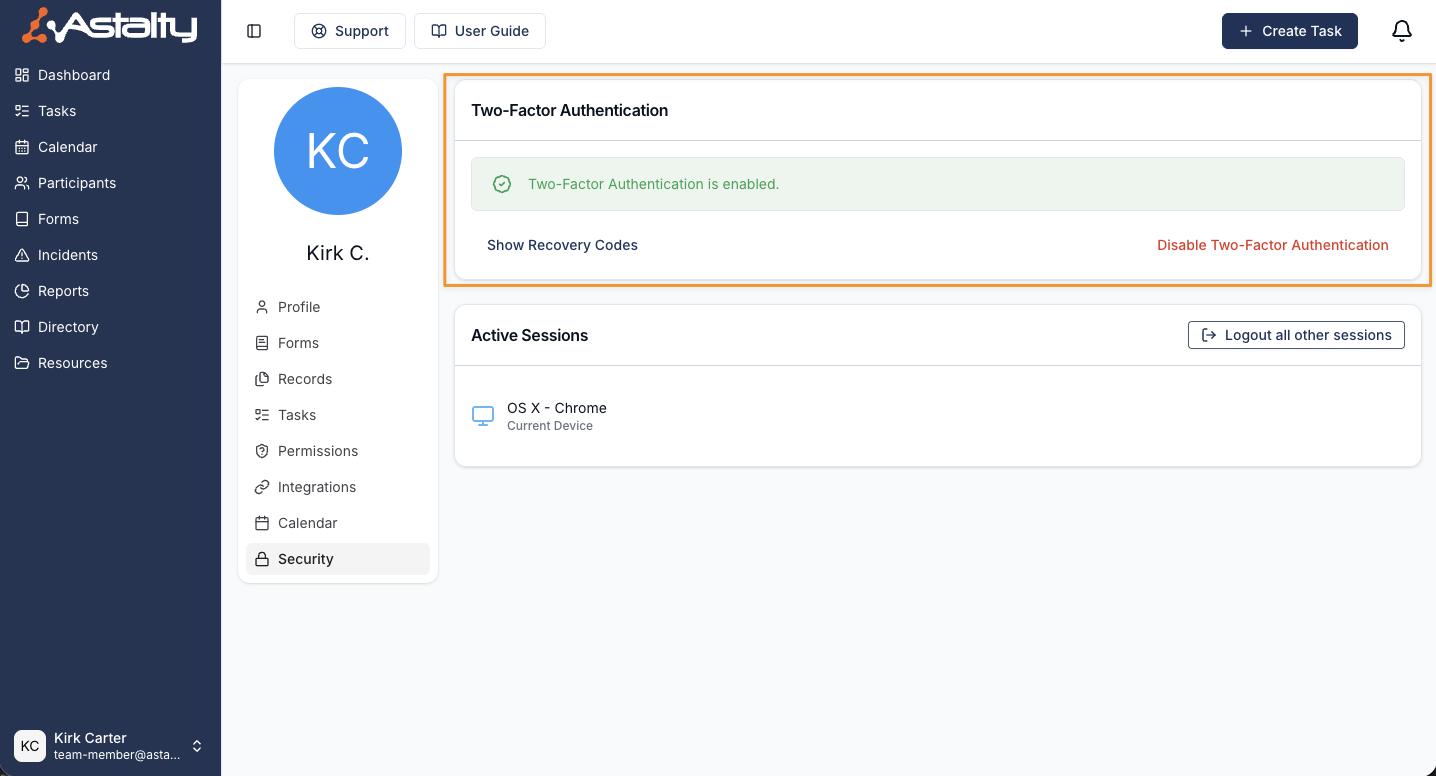
While you are signed in, go to My Profile → Security and select Show Recovery Codes. From there you can Download Codes to save them somewhere safe, or Regenerate Codes to issue a new set.
When the device and the recovery codes are both gone
If a User has lost their phone and no longer has their recovery codes, they cannot recover the account themselves. Ask the Account Owner to reset 2FA for them. If the Account Owner is locked out too, contact support.
The Account Owner disables 2FA on the User's profile, then selects Send 2FA Setup Instructions so the User can enrol again. The full steps are in Enforcing 2FA on your Astalty account.
Other things to check
- The code expired while it was being typed. Codes roll over roughly every 30 seconds. Wait for a fresh one and enter it promptly rather than using one that is about to change.
- The app went back to the email and password screen. A sign-in in the app ends after 5 minutes or 5 incorrect codes. Sign in again and enter a fresh code. See Signing In with 2FA.
- A new or replaced phone. Moving to a new phone does not automatically bring the Astalty entry with it unless the authenticator app's own backup or transfer feature was used. If the entry is gone, sign in with a recovery code or ask the Account Owner to reset 2FA.
- You can't turn 2FA off. The Account Owner can prevent Users from disabling 2FA on their own accounts. See Disabling the ability to disable 2FA.
- You're blocked from the rest of Astalty until you set 2FA up. That is 2FA enforcement, not a fault. Complete the setup prompt to continue. See Enforcing 2FA on your Astalty account.
Where to go next
- Two-Factor Authentication: how 2FA works in Astalty.
- Enable 2FA on your own account: set 2FA up and save your recovery codes.
- Set up 2FA on the mobile app: complete setup while signing in to the Astalty app.
- Passwords and Sessions: change your password or sign out other devices.