- Administration
- Settings
- Security Settings
- Setting up 2FA on the Mobile App
Setting up 2FA on the Mobile App
Setting Up Two-Factor Authentication (2FA) on Mobile
Two-Factor Authentication (2FA) adds an extra layer of security to your account by requiring a verification code when signing in.
If your organisation enforces 2FA for your role and you haven't set it up yet, the app asks you to set it up when you sign in, before you can use the app. See Enforcing 2FA on your Astalty account.
Setting Up 2FA
Follow the steps below when prompted during sign-in:
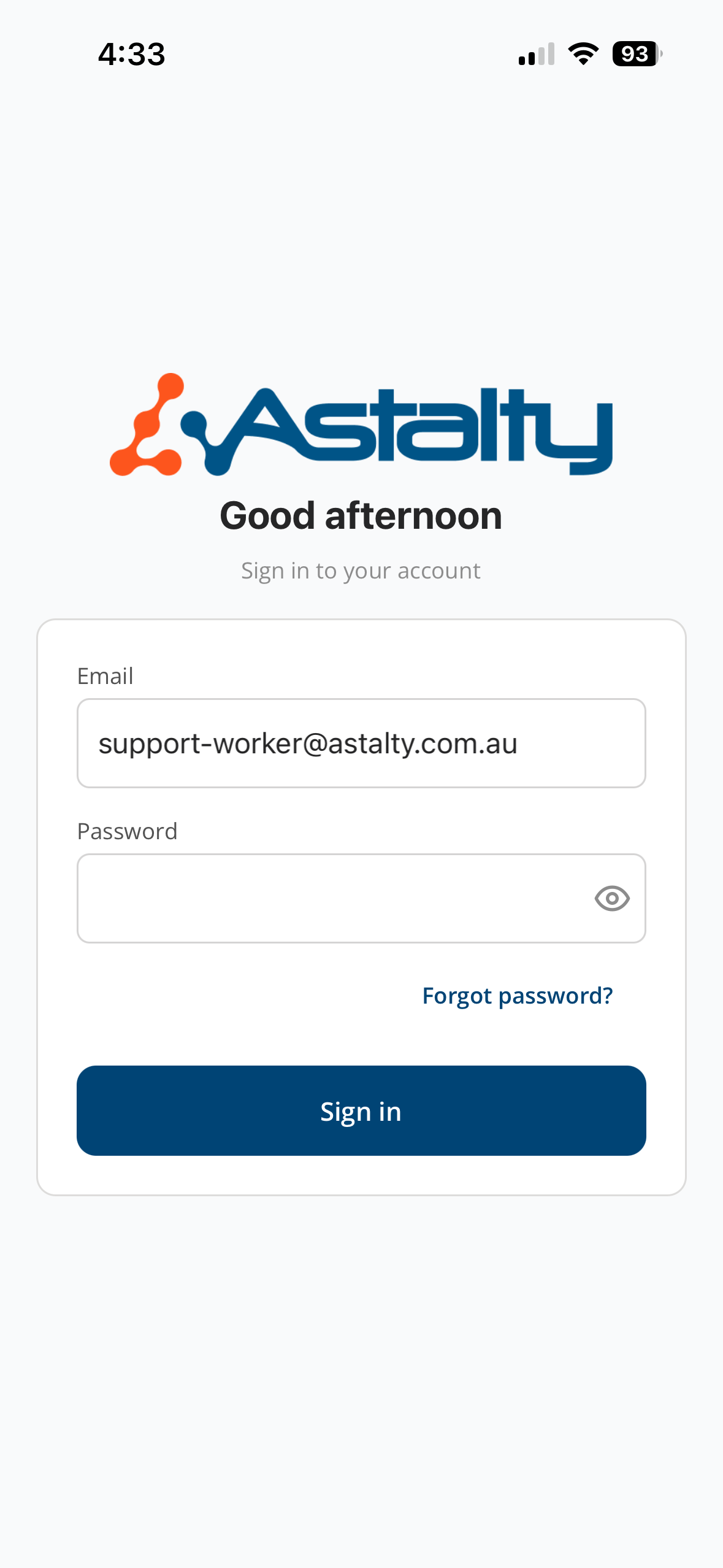
- Enter your email and password.
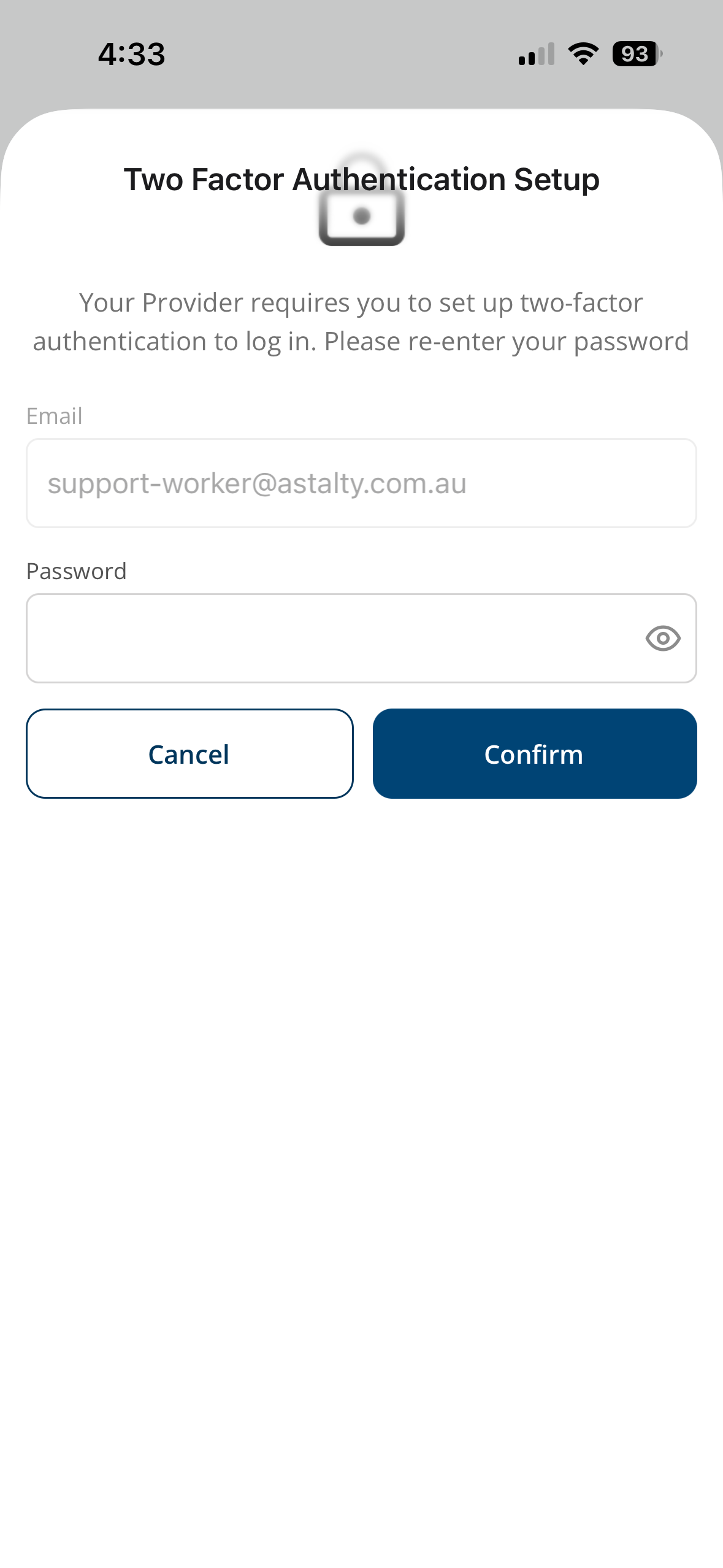
- When prompted, re-enter your password to begin 2FA setup.
You will then be guided through the setup process:
Step 1: Download an Authenticator App
Download an authenticator app on your mobile device (such as Google Authenticator or Microsoft Authenticator). In this example, we have used Google Authenticator.
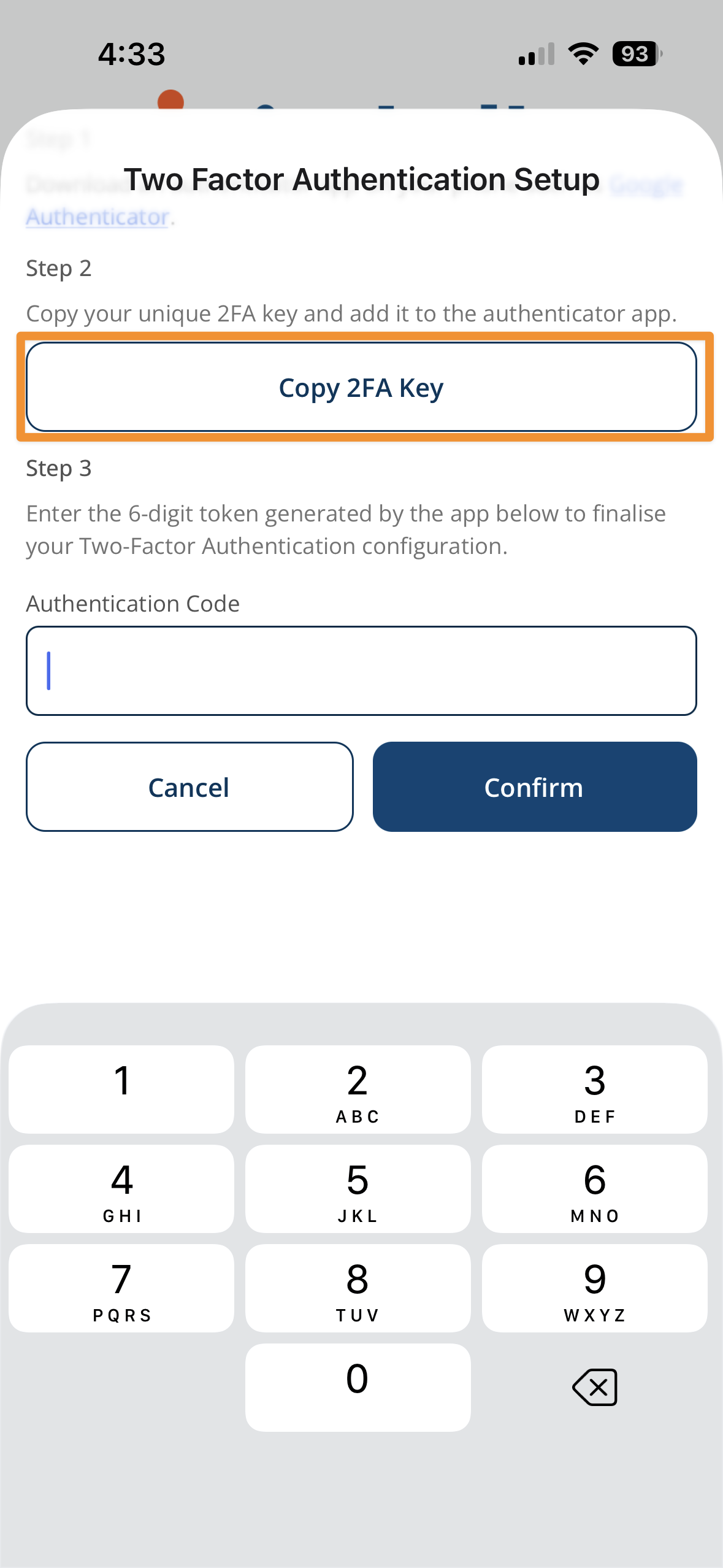
Step 2: Add Your Unique 2FA Key
- Copy the unique 2FA key displayed on screen.
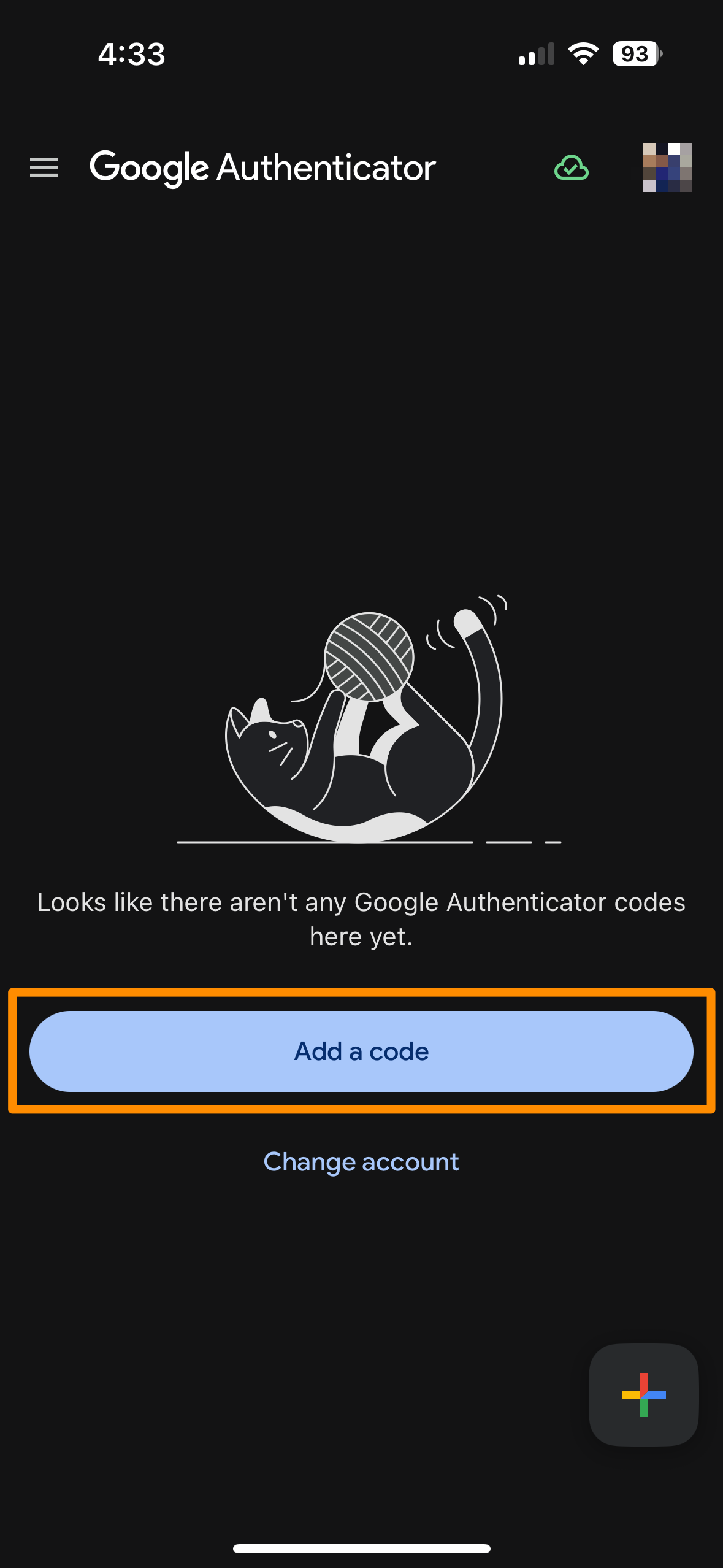
- Open your authenticator app.
- Add a new account and paste the 2FA key.
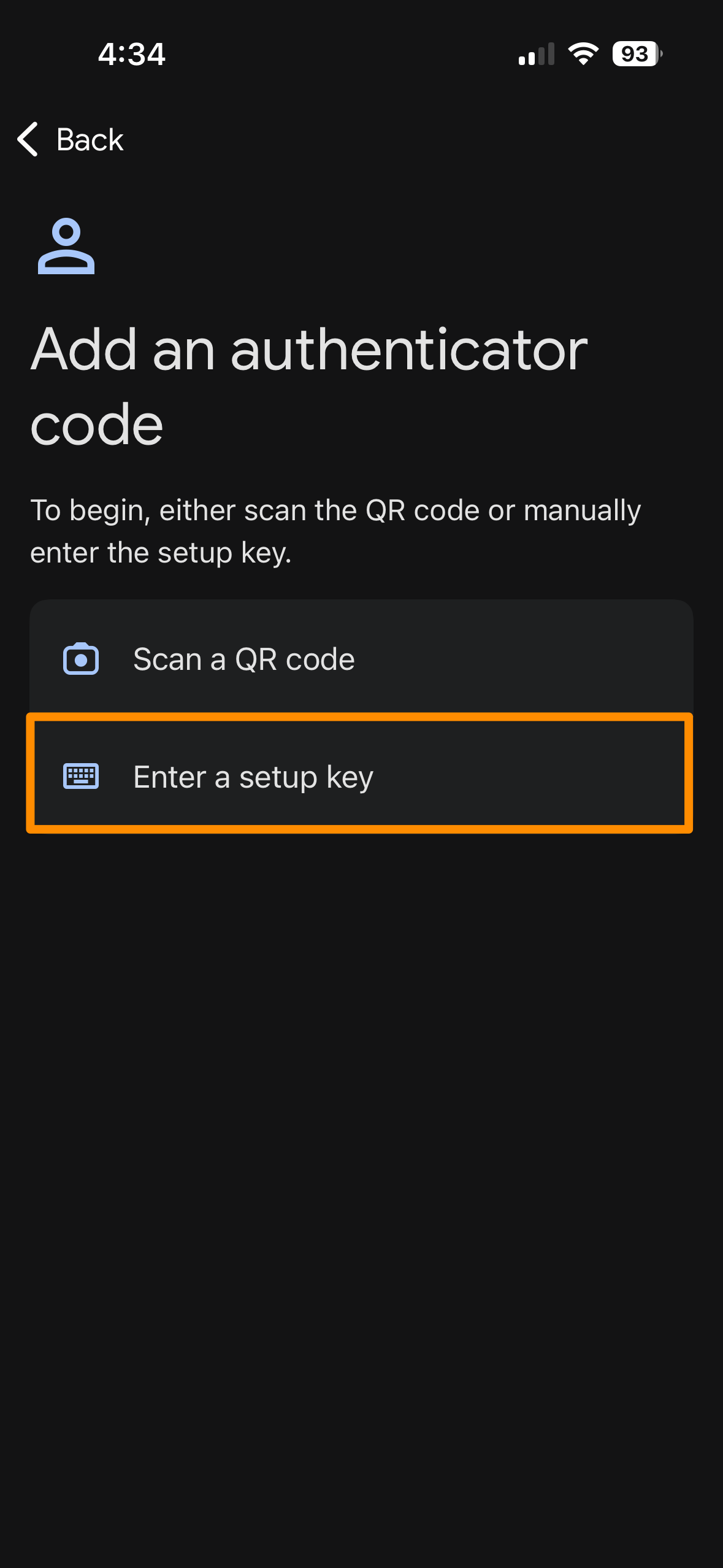
Step 3: Enter Verification Code
- Your authenticator app will generate a 6-digit code.
- Enter this code into the app.
Once completed, 2FA will be successfully set up on your account.
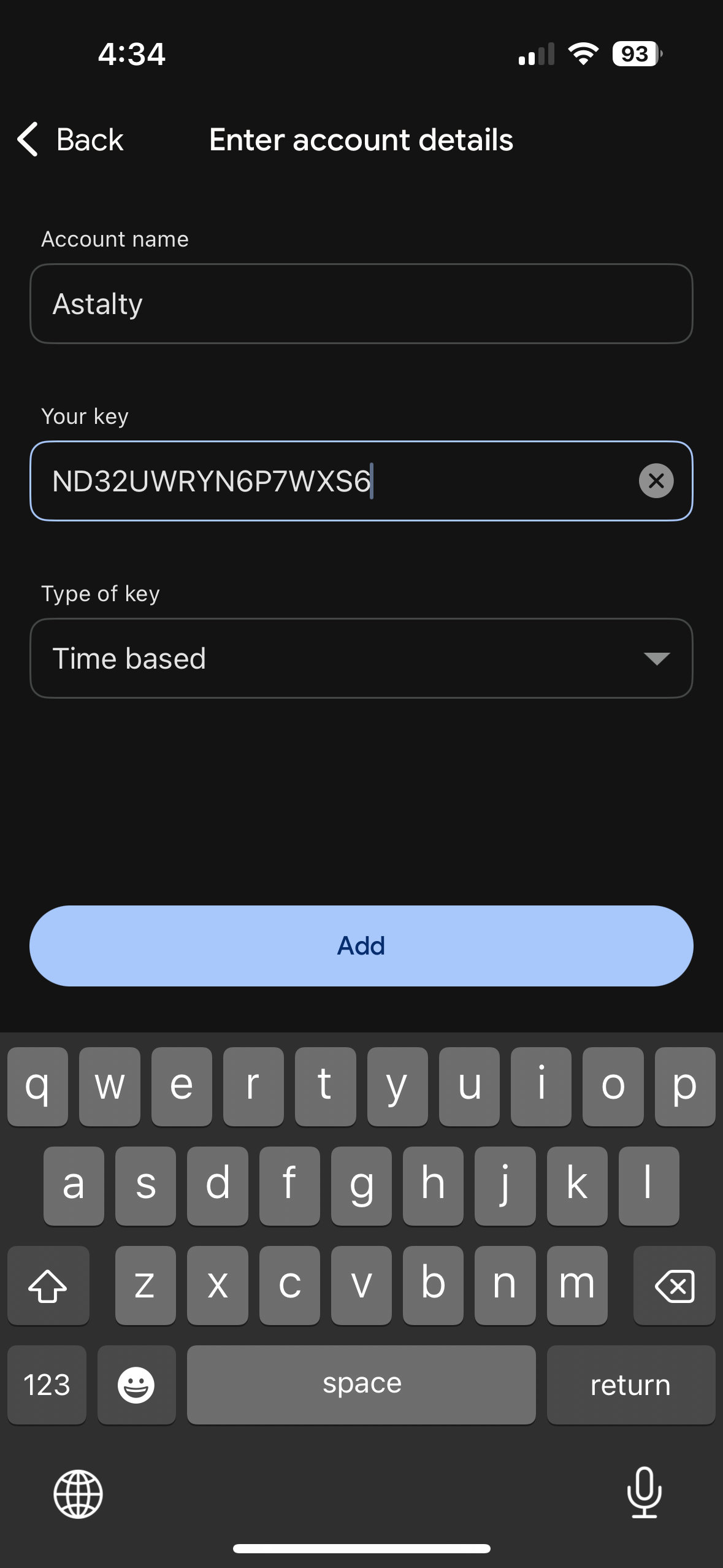
Selecting Cancel before this step is complete signs you out of the app. It asks you to set up 2FA again at your next sign-in.
Step 4: Save Your Recovery Codes
The app then lists your recovery codes. Each code signs you in once, in place of a 6-digit code, if you lose access to your authenticator app.
- Select Copy Recovery Codes.
- Paste them somewhere safe, such as a password manager.
- Select Continue to open the app.
The app shows the codes at this step only. On the web, My Profile > Security > Show Recovery Codes shows the current set and can regenerate it. See Find, download or regenerate your recovery codes.
A Support Worker who signs in on the web is shown a prompt to use the app instead. If you can't open My Profile on the web, ask the Account Owner to reset your 2FA. See When the device and the recovery codes are both gone.
The phone you set up 2FA on stays signed in. Setting up 2FA signs you out of the app on any other phone, and out of the Outlook add-in. See What Setting Up 2FA Signs Out.
Signing In with 2FA
After setup, you will be required to enter a verification code each time you sign in:
- Enter your email and password.
- Open your authenticator app.
- Enter the 6-digit code displayed.
You will then be granted access to the app.
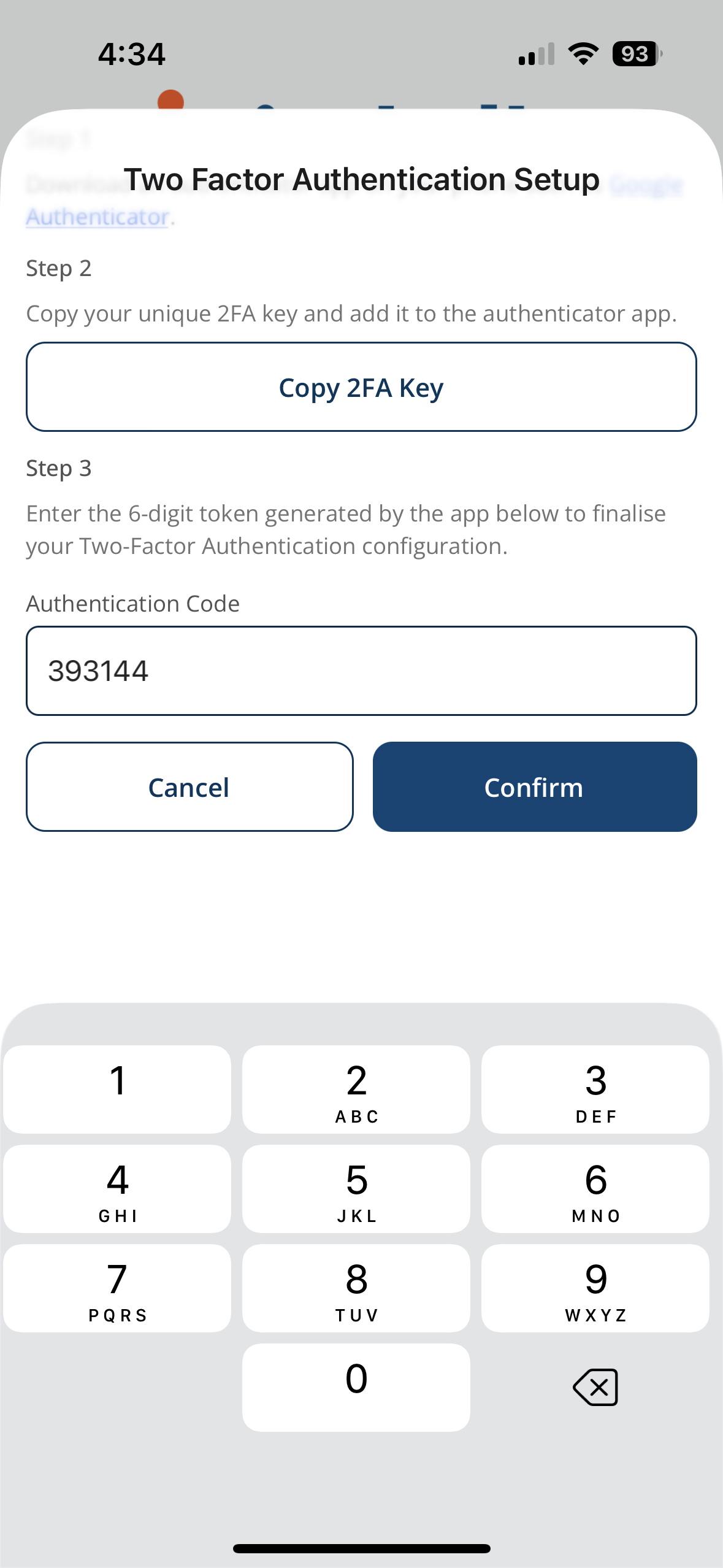
Enter the code within 5 minutes of entering your email and password. After 5 minutes, or 5 incorrect codes, the app returns you to the email and password screen to sign in again.
Signing In with a Recovery Code
If you can't get a code from your authenticator app:
- On the Two-factor authentication screen, select Use a recovery code instead.
- Enter one of your recovery codes under Recovery Code.
- Select Confirm.
Each recovery code works once. Use an authentication code instead switches back to the 6-digit code.
When the App Asks for a Code
The app asks for a code when you sign in, not each time you open it. Once you are signed in, the app stays signed in so shift and clock-in reminders keep arriving. See App Notifications. Signing out stops them.
The app asks for a code:
- the first time you sign in on a phone
- after you sign out of the app
- after Astalty signs the app out, for example when 2FA is set up on your account from another device, or an Admin restricts your account
Every sign-in on another phone asks for a code, so your password alone can't get someone into your account.
If the app has never asked you for a code since you set up 2FA, sign out of the app and sign in again. The new sign-in asks for a code.
The web works differently. A browser session ends when you sign out or after 2 hours of inactivity, so the web asks for a code more often.
Because the app stays signed in, anyone holding your unlocked phone can open it. See Protecting a Phone Signed In to the App.
Important Notes
- The verification code refreshes every few seconds.
- Ensure your device time is synced correctly for the code to work.
- Keep your 2FA key and authenticator app secure.