- Users
- Passwords and Sessions
Passwords and Sessions
How to change your own Astalty password, and how to sign yourself out of Astalty everywhere else you are still logged in.
Overview
Both actions live on your own profile, and both need your current password:
- Change Password sets a new password. It also signs you out of Astalty everywhere else: every other browser, the Astalty app on every phone, and the Outlook add-in.
- Logout all other sessions signs you out of the same places without changing your password.
Either way, the device you are using stays signed in. You will not be kicked out of the screen you are working on.
Neither action affects anyone else's account. You can only change your own password - Admins cannot set a password for another User. To get a colleague back into their account, see Password Issues & Account Access.
Changing Your Password
- Select your initials at the bottom of the main menu, then select My Profile.
- Select Change Password, at the top right of your profile.
- Enter your existing password under Current Password.
- Enter your new password twice, under New Password.
- Select Update Password.
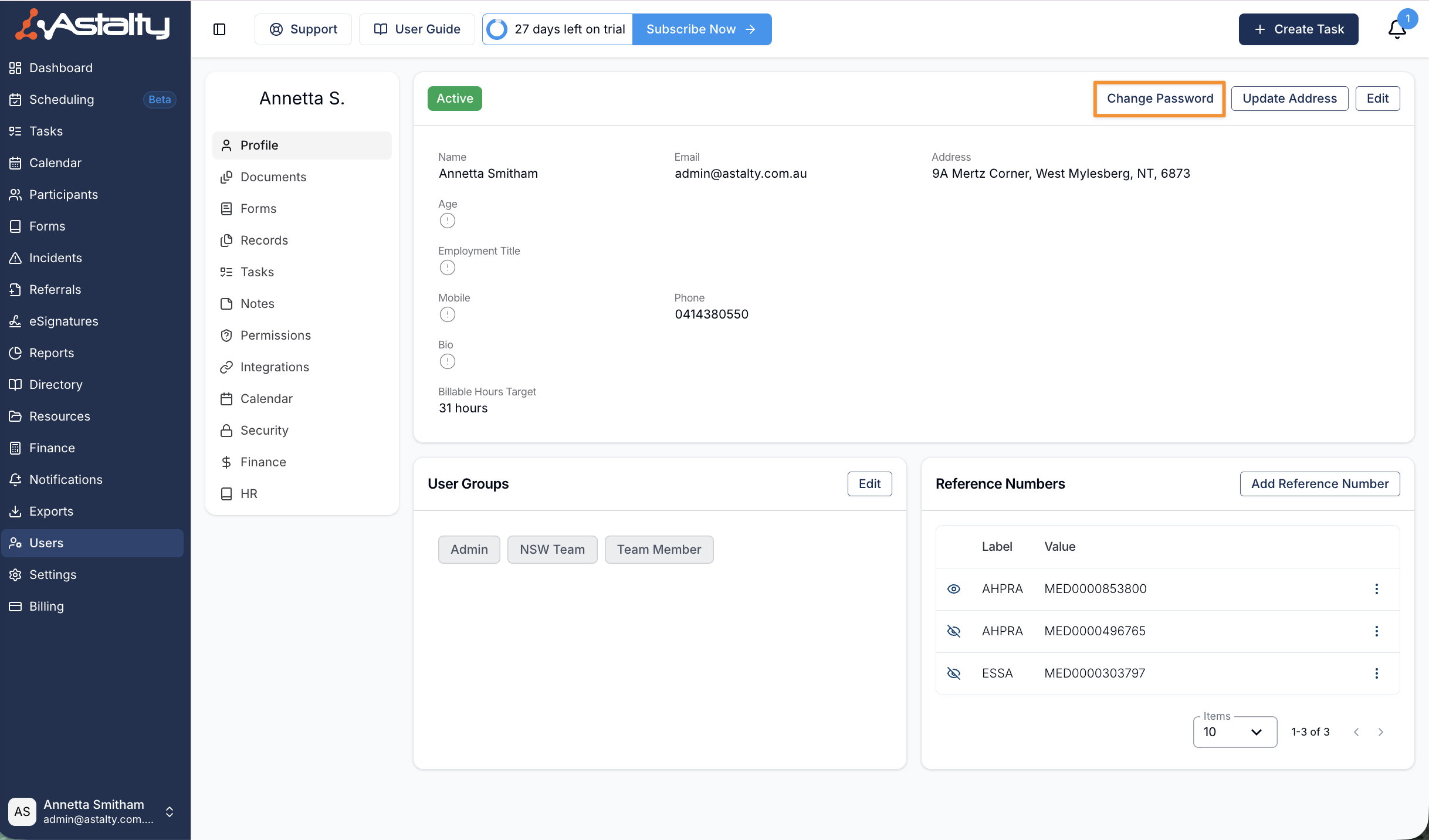
As you type, Astalty shows whether your new password meets each requirement:
- At least 8 characters
- Contains uppercase and lowercase letters
- Contains at least one number or special character
Before you submit, the drawer tells you what is about to happen:
Changing your password will sign out your other active sessions. You'll stay signed in here.
Once saved, you will see a Password updated message, and Astalty emails you to confirm the change.
What Happens to Your Other Sessions
Changing your password signs you out of Astalty everywhere except the device you changed it on:
- every other browser, such as another computer or a browser window you left open somewhere else
- the Astalty app on every phone
- the Outlook add-in
The next time someone uses one of them, Astalty asks them to sign in again with the new password.
This is automatic. There is no setting to turn it off, and no option to keep another session alive.
The same applies when you reset a forgotten password using Forgot password? on the login screen. The new password takes effect and the old sessions stop working.
Signing Out Your Other Sessions
Use this when you do not need a new password - you just want to be sure you are not still logged in somewhere. A shared office computer, a borrowed laptop, or a phone browser you used once are all good reasons.
- Select your initials at the bottom of the main menu, then select My Profile.
- Select Security in the profile menu.
- On the Sessions card, select Logout.
- Enter your current password, then select Confirm.
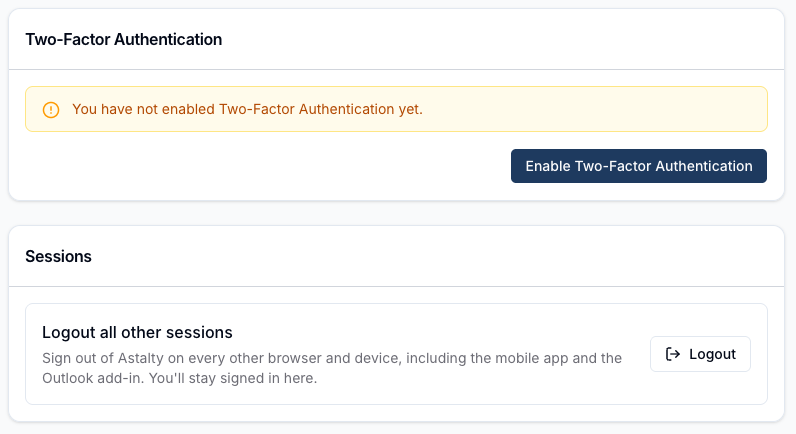
You will see an Other sessions signed out message. This signs out the same places as changing your password: every other browser, the Astalty app on every phone, and the Outlook add-in. Your current session is untouched.
What Isn't Signed Out
Both actions leave your API keys working. An API key is an integration credential, not a login, so revoking it would break whatever is using it.
What Setting Up 2FA Signs Out
When you confirm two-factor authentication setup, Astalty signs you out of:
- the Astalty app on every other phone
- the Outlook add-in
That matches changing your password, except that your browser sessions stay signed in. API keys are not affected either.
If you set up 2FA in the app, that phone stays signed in. If you set it up on the web, every phone is signed out. Each phone asks for a code when you sign in again. See When the App Asks for a Code.
Protecting a Phone Signed In to the App
The Astalty app stays signed in until you sign out, so anyone holding your unlocked phone can open it. If you use Astalty on your own phone:
- Lock the phone. Use a passcode, fingerprint or face unlock, and set the screen to lock automatically.
- Don't share the phone. Family members and friends shouldn't use a phone that is signed in to the Astalty app.
- Sign out a lost or stolen phone straight away. See Lost or Stolen Phone.
Your organisation can also block screenshots and screen recording in the app with Forbid Screenshots. See App Privacy.
Lost or Stolen Phone
You can sign the app out on a phone you no longer have, from any computer:
- Change your password, or, on the Sessions card, select Logout. Both are on My Profile. See Changing Your Password and Signing Out Your Other Sessions.
- Reset your password with Forgot password? on the login screen. You don't need to be signed in, so this also works if you can't open My Profile on the web. A Support Worker who signs in on the web is shown a prompt to use the app instead.
Each of these signs you out of the app on every phone, so the lost phone stops getting Astalty notifications. Sign in again on your replacement phone.
Tell your manager or an Admin straight away as well. If you can't do any of the above, an Admin can sign the phone out for you:
- An Admin restricts your account. This signs you out of the app on every phone and stops anyone signing in as you. See Restricting Users.
- When you have your phone back or a replacement, the Admin selects Unrestrict, and you sign in to the app again.
The Account Owner can't be restricted. If you are the Account Owner, contact support@astalty.com.au.
If your authenticator app was on the lost phone, sign in with a recovery code, or ask the Account Owner to reset 2FA. See Troubleshooting 2FA.
Things to Keep in Mind
- You only ever change your own password. There is no way for an Admin to type in a new password for another User. They can reset 2FA and resend an invite, but the User sets their own password.
- Astalty signs you out of the web after 2 hours of inactivity. The app stays signed in.
- Being asked to log in again elsewhere is expected. If a colleague changes their password and then finds they have to sign in again on another computer or in the app, that is the feature working, not a fault.
Where to Go Next
- Updating User Profiles and Changing Passwords - update the rest of your details, and what to do when you cannot log in at all.
- Two Factor Authentication - add a second step to signing in.
- Security Overview - how Astalty protects your account and data.