- Users
- User Notes
User Notes
Overview
User Notes enable organisations to record important information about staff members directly within their user profiles. This ensures relevant details are stored in a central location, making them easy to access when needed.
To maintain confidentiality, only Admin users with HR permissions can view or manage User Notes. This ensures sensitive information is restricted to authorised personnel.
For more information, see the Updating Roles and Permissions guide.
How to Add a User Note
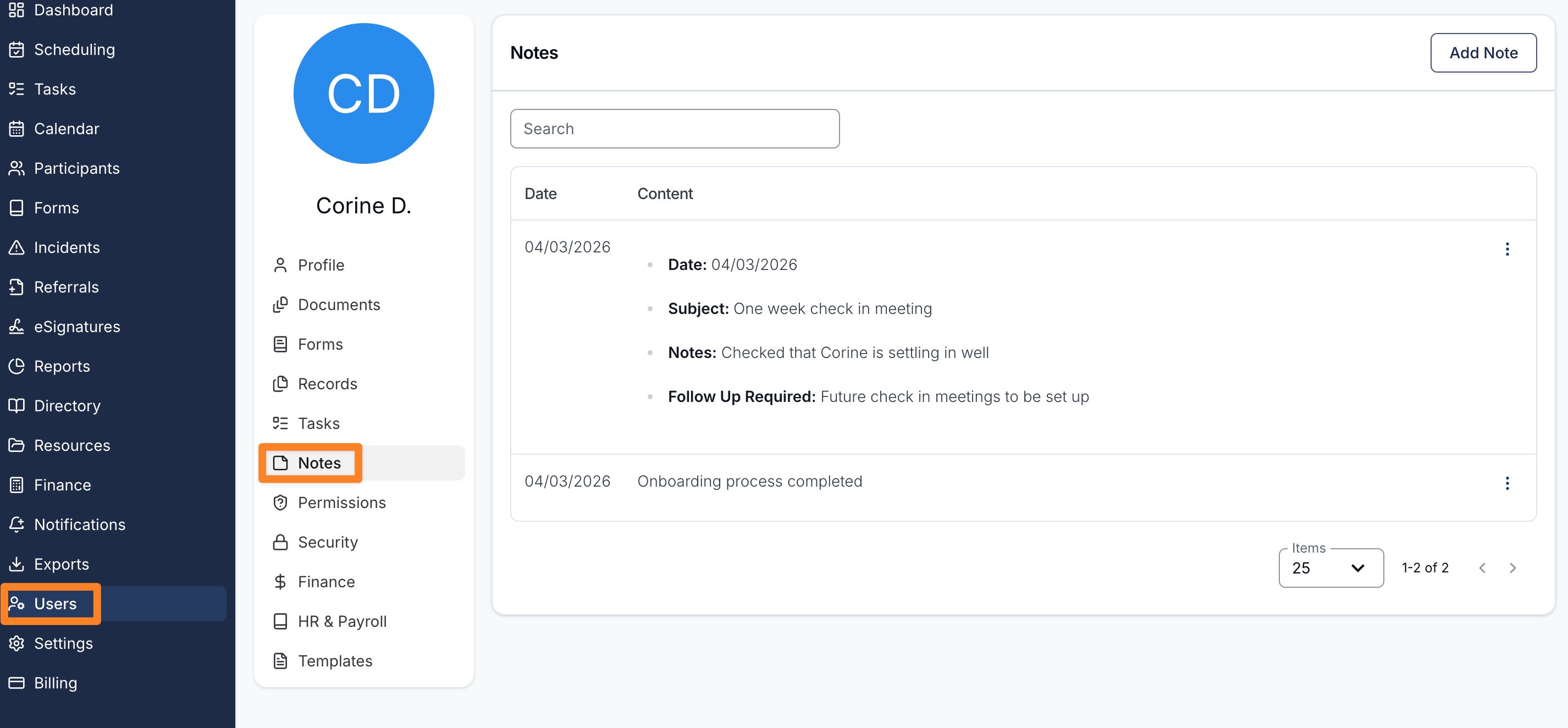
- Navigate to the Users menu.
- Select the staff member you want to add a note for.
- Open the Notes section within the user profile.
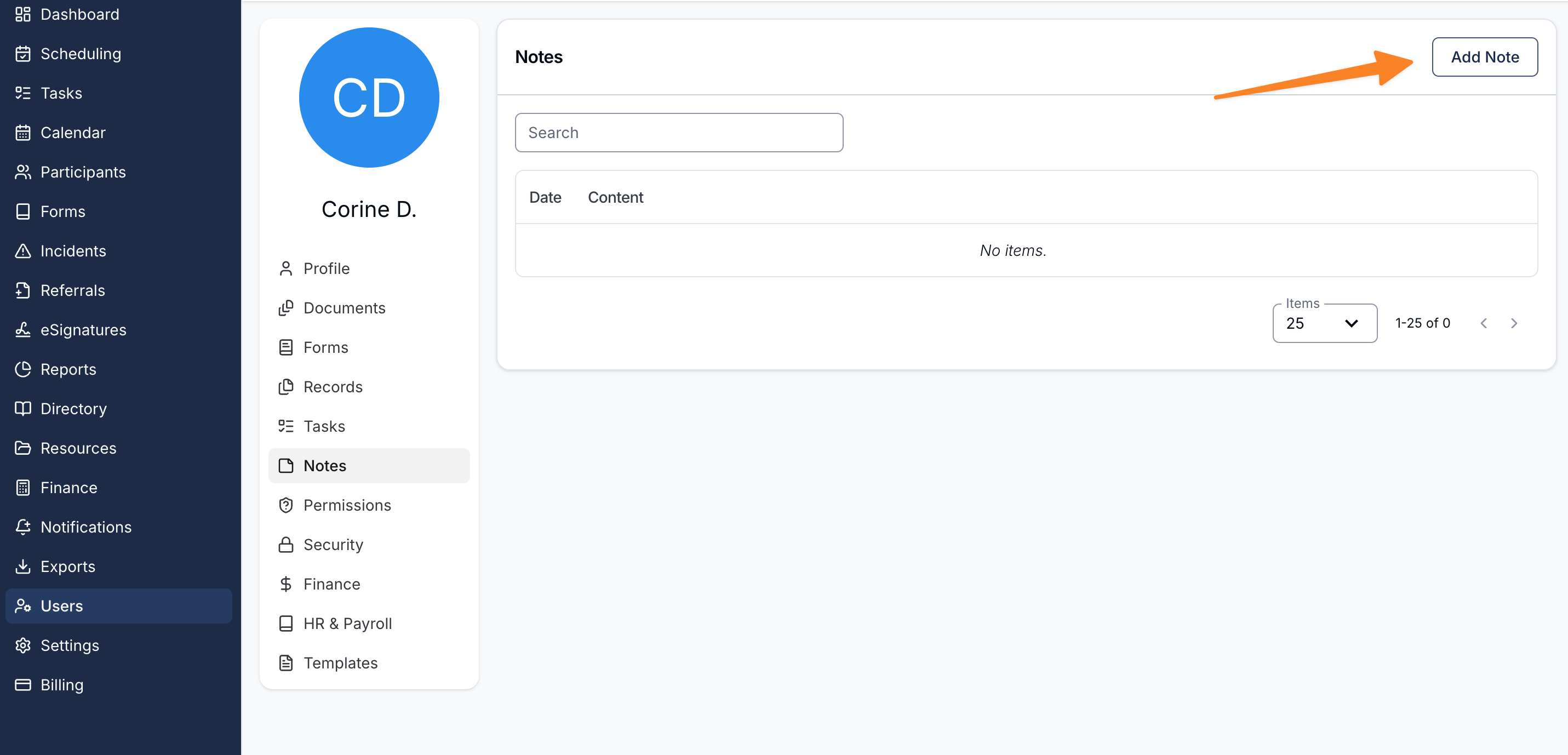
- Click Add Note.
- Enter the relevant information. The note saves as you type — click Close when you are done.
The note will then be stored within the staff member’s profile.
Using Note Templates
To ensure consistent and structured information is recorded, you can create and use Note Templates. Templates help standardise the type of details captured in notes.
Alternatively, you can create a blank note if the information does not require a predefined format.
For more information, see the Note Templates Guide.
Accessing User Notes
User Notes are stored within each staff member’s profile and can be accessed through the Users menu.
- Navigate to the Users menu.
- Select the relevant staff member.
- Open the Notes section within the user profile.
All notes associated with that staff member will be displayed here.